
Transferring a domain name to OVHcloud
Find out how to transfer a generic domain name to OVHcloud
Objective
Your domain name is currently managed by another registrar and you want to move it to OVHcloud? You can do this by following a transfer procedure.
By transferring your domain name, you will change its registrar. You can transfer your domain name to OVHcloud by creating an order. The transfer process usually takes between one and ten days.
This guide explains how to transfer a generic domain name to OVHcloud.
The domain name registrar is a service provider authorised to offer domain names for registration by an individual, association or organisation. You renew your domain name subscription with the same registrar (usually once a year).
If OVHcloud is already the registrar of your domain name, the incoming domain transfer procedure does not apply. The incoming domain transfer procedure described in this guide is only appropriate for domain names registered with a registrar other than OVHcloud.
To transfer the domain name management to another OVHcloud customer account, a change of contacts must be made instead. The procedure is described in our contact management guide.
If you also need to change the domain name holder, you should do so before you change the domain name contacts. To do this, use our instructions for changing the holder of a domain name.
If, in addition to transferring your domain name, you would like to migrate the services associated with it (website, email, etc.), please read our guide on Migrating your website and associated services to OVHcloud, before continuing. This guide explains in detail how to migrate all your services without any service interruptions.
If you only transfer your domain name without moving your other services, please ensure that you retrieve the active DNS servers for your domain name from your current registrar, to enter them directly in step 3 of this guide. This will prevent the separation of your domain name from your associated external services.
Requirements
- A domain name registered with another registrar.
- The domain name is more than 60 days old.
- The domain name has not been transferred or changed holders within the last 60 days.
- The domain name status is "OK" or "Transferable".
- The domain name is not expired and has an expiry date that allows the transfer process to be completed in time - recommended are more than 60 days.
- The domain name is unlocked, with a transfer code received or the ability to receive one.
- You have the authority to request a transfer for the domain name.
- The domain name holder and/or its administrators must be informed of the transfer request.
OVHcloud Control Panel Access
- Direct link:
- Navigation path:
Web Cloud>Domain names> Select your domain name
Instructions
To find out the pricing conditions for transferring a domain name depending on its extension, enter the domain you wish to transfer on our page www.ovhcloud.com/en-gb/domains/tld/ and follow the steps in this guide.
The transfer procedure has several steps. These steps will involve various entities being contacted, including your current domain name registrar, OVHcloud, and other parties. The table below provides a breakdown of who is contacted, and how long each step will take to complete.
The exact procedure for domain transfer may vary, especially in case of some country-code TLDs (ccTLD, such as .pl, .lu, .hk, .ro, .be, .lt, .dk, .at, .fi, etc.) and a few special purpose TLDs (.am, .fm, etc.). Depending on your domain name extension, you may have additional requirements. We recommend to first check against the information displayed in the section of the extension concerned, on our website: https://www.ovhcloud.com/en-gb/domains/tld/.
Step 1: Check the information associated with the domain
To start with, it is important to ensure that the information associated with the domain name is up-to-date. Since the implementation of GDPR, the data visible in "Whois" has become very limited. We recommend checking the information associated with your domain name via your current domain name registrar.
-
If the information is correct: Go to the next step of this guide.
-
If the information is incorrect or not visible: Contact your domain name registrar to check and/or modify it.
If you do not know which registrar is responsible for your domain name, the "Registrar" lines retrieved as part of the WHOIS search result can help you identify it.
Step 2: Unlock your domain and retrieve the transfer code
Once you have checked this information, you will need to unlock your domain name. You can only do this via your current domain name registrar. Please contact them to find out more about their procedure.
Once you have unlocked your domain name, your domain name registrar must provide the AUTH/INFO code for it. This code is sometimes referred to using different names, such as: transfer key, domain password, AUTH-CODE or EPP-Code.
Please note that OVHcloud is not your current domain name registrar. We are therefore unable to unlock your domain or provide the AUTH/INFO code.
Once you have unlocked your domain name, you will have 7 days to begin transferring it to OVHcloud. After this 7-day period, your domain will be locked automatically if you do not submit a request to change your domain name registrar.
Step 3: Request a domain name transfer to OVHcloud
Now that your domain name is unlocked and you have your AUTH/INFO, you can request for your domain name to be transferred to OVHcloud. This step takes place on the OVHcloud website, not in the Control Panel: order a domain name transfer on our website, then click Transfer a domain name to open the order form. Enter your domain name, and follow the order process.
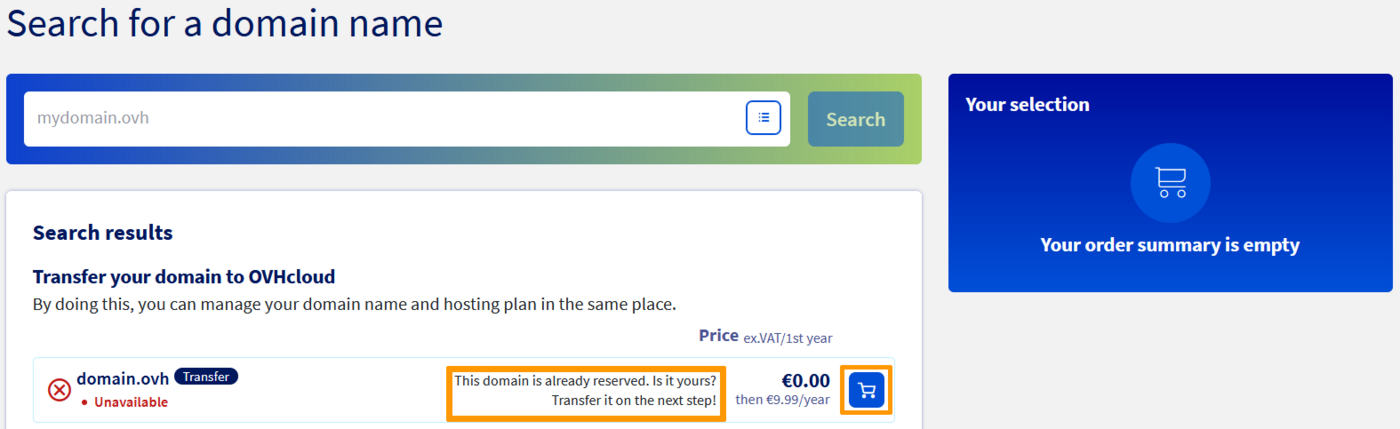
When you are asked to provide your transfer code, enter it into the field. The code is required to authorise the transfer, so make sure you have it before you start the order. For some domains, the order indicates that no authorisation code is required. Keep in mind that transfer will not start until a valid code is provided.

Domains can also be ordered in addition to a Web Hosting plan. Our guide on Migrating your website and emails to OVHcloud provides useful information for an optimised approach.
Throughout the order process, we advise taking special care with regard to the following points:
-
Data on the domain name holder. Especially since GDPR legislation is in effect, please ensure that all information on the domain name holder matches the information stored by your current domain name registrar. Doing this will ensure that you will not be suspected of domain name theft.
-
Configuring the DNS servers for your domain name. If you are currently using your domain name to keep a website or an email service online, choose to keep the existing DNS servers or to specify your own in order to avoid any service interruption.
Managing holder and DNS servers details
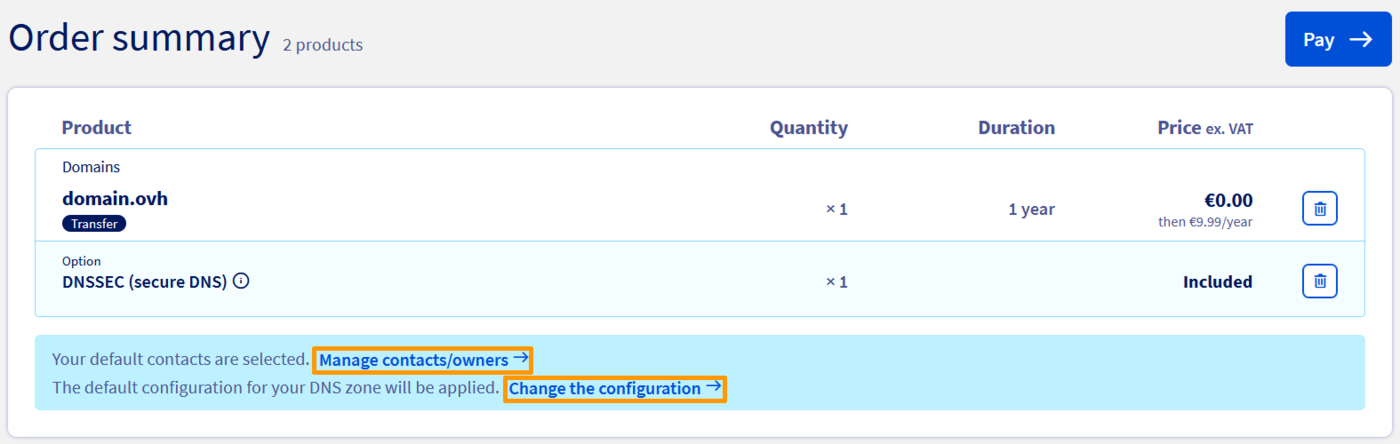
In this step, click Change the configuration to choose the DNS configuration applied to your domain name after the transfer. Three options are available:
If you are currently using your domain name for a website or an email service, choose Keep the current DNS servers or Customise DNS servers to avoid any service interruption. The DNS default servers option should be reserved for domain names whose services are (or will be) hosted at OVHcloud.
If you choose Keep the current DNS servers, your previous registrar may deactivate its DNS servers after the transfer, which would make your domain name unreachable. Make sure your DNS servers are hosted independently of your previous registrar.
The transfer process may sometimes require additional information about the domain name holder. To add it, click Manage contacts/holders.
Tracking a transfer after the order
When your order is confirmed, you receive a purchase order. The transfer process does not start until payment has been received. As soon as this step is done, you can track the transfer progress on the page.
If the transfer code was not entered during the order, you can enter it from this same page to validate the transfer.
Step 4: Transfer validation by the current registrar
Once the order and transfer code have been confirmed, the domain name registrar (which is still not OVHcloud) will receive a validation request. There are several possible outcomes at this stage, depending on the actions taken.
If a refusal is issued by the current registrar, contact them to find out why they refused it.
The transfer process can be restarted from the page.
The transfer of a domain with the extension ".fr" differs slightly from the process described above. You will need to unlock your domain name and retrieve its transfer code from your current domain name registrar. Initiate the transfer order and enter the transfer code as described above.
Once the transfer process has been initiated, the total time it takes to transfer a ".fr" domain name will take an irreducible minimum of 8 days.
In case of opposition to the transfer by the current registrar, the transfer will still be carried out but it will take an irreducible minimum of 22 days to be finalised.
Step 5: Holder check after the transfer
The transfer is now effective and your domain name is registered at OVHcloud. At this point, OVHcloud automatically compares two pieces of information:
- the holder registered with the registry of the extension, as it stands after the transfer;
- the holder you entered when placing your order at OVHcloud.
The purpose of this comparison is to ensure that the holder declared with the registry of the extension is indeed the one you ordered. It is fully automatic and never blocks the transfer: your domain name remains transferred, whatever the outcome.
Three outcomes are possible.
Both holders match
No action is required: the holder registered with the registry of the extension is already the one you ordered.
The holders differ on editable information
This covers the information the registry of the extension allows to be corrected by a simple update: postal address, city, postcode, country, email address, phone number, etc.
OVHcloud then automatically starts the holder update with the registry of the extension, with no action on your part. This operation is separate from the transfer: it takes place right after it, and you can track it from the page.
The holders differ on the holder's identity
This covers the information that designates who the holder is: surname, first name, organisation, legal form. Most registries do not allow this information to be changed by a simple update. Only a change of holder (also called a "trade") can correct it.
What OVHcloud does then depends on your domain name extension:
A chargeable change of holder is never triggered automatically: this operation is billed and, depending on the extension, adds a year of subscription. It therefore requires your consent. To carry it out yourself, follow our guide "Changing the holder of a domain name".
Validating the change of holder
A change of holder is never applied on OVHcloud's initiative alone, even when it is free and initiated automatically. For most extensions, a validation request (Form of Authorization, or "FOA") is sent by email:
- to the previous holder, that is, the one registered with the registry of the extension at the time of the transfer;
- to the new holder, that is, the one you ordered at OVHcloud.
Both recipients must accept for the change of holder to go through. Three outcomes are possible:
Whatever the outcome of this validation request, the transfer of your domain name stands: a refusal, an expiry or a block on the change of holder does not cancel the transfer. Only the realignment of the holder does not take place, and your domain name remains registered at OVHcloud.
Make sure the email address of the previous holder is reachable. If nobody can validate the request sent to that address, the change of holder will expire and your domain name will remain registered under the previous holder's name.
You can track the progress of the request and its reminders from the page.
Not all extensions require this email validation: some registries apply the change of holder without a confirmation request. The full change of holder procedure is described in our guide "Changing the holder of a domain name".
If the comparison is inconclusive
If the registry of the extension does not disclose the holder's information, the comparison remains inconclusive and no automatic operation is triggered. A contact check is carried out later by OVHcloud. Your domain name remains transferred and usable.
If mandatory information is missing from your holder contact
Some registries require information that your holder contact does not necessarily include. For example, the registry of the .pl extension refuses a holder without a phone number.
In this case, the operation reports the missing information on the page. Complete the contact concerned by following our guide "Managing the contacts of a service", then restart the operation from that same page.
Specifics per extension
The holder check applies to all extensions. The table below states, extension by extension, what departs from the behaviour described above.
Whether a change of holder is allowed during a transfer, and whether it is free or chargeable, are defined per extension. To find out the conditions that apply to yours, enter your domain name on the www.ovhcloud.com/en-gb/domains/tld/ page.
Step 6: Manage your domain at OVHcloud
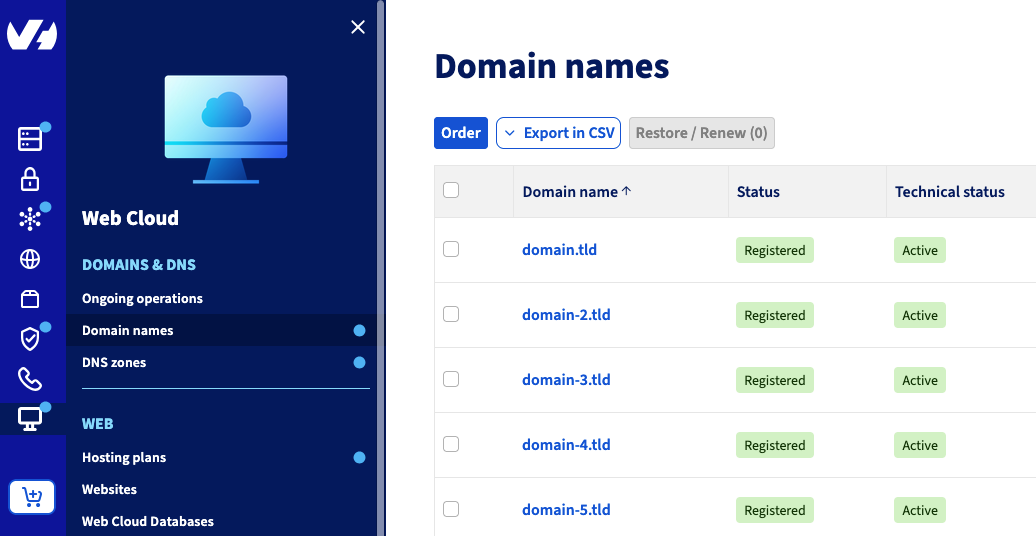
Once the transfer procedure is complete, you can manage your domain name from the page.
For domain names with a generic extension (gTLDs such as .com, .net, .info, .org, etc.), the initial expiration date of the domain name is retained. After a successful transfer, OVHcloud extends the subscription for another year at no extra charge. For example, your domain name with a generic extension expires on 29/09/2023 and is transferred on 04/06/2023. Once you have transferred your domain name to OVHcloud, the new expiration date is 29/09/2024.
For domain names with a country or regional extension (ccTLDs such as .fr, .be, .de, .es, etc.), the transfer rules depend on the specifications put in place by the registry of the extension in question. Once the transfer is complete, check the expiry date of your domain name in your OVHcloud Control Panel.
Depending on the situation and the new expiry date, a renewal of the domain name may be necessary right after the transfer.
To check this, click on the tabs below to view each of the 2 steps.
Go to the page, then select the domain name concerned.
Go further
Migrating your website and emails to OVHcloud
For specialised services (SEO, development, etc.), contact OVHcloud partners.
If you would like assistance using and configuring your OVHcloud solutions, please refer to our support offers.
Join our community of users.