
Backup Licenses - Troubleshooting guide
Find out how to solve potential issues with Backup Licenses and with connecting your Veeam Backup & Replication server
Objective
This page lists the issues you may encounter with the Backup Licenses product, and how to solve them.
Requirements
- A Backup Licenses licence that you have ordered and for which you have received the delivery email. See our "Ordering and configuring your first licence" guide for more information.
- A Veeam Backup & Replication server, installed and operational.
Accessing the OVHcloud Control Panel
Backup Licenses is available in two universes of your Control Panel, with the same interface:
Bare Metal Cloud:
- Direct link:
- Navigation path:
Bare Metal Cloud>Storage and backups>Backup Licenses
Hosted Private Cloud:
- Direct link:
- Navigation path:
Hosted Private Cloud>Storage and backups>Backup Licenses
List of possible issues
My VBR server does not appear in the VSPC right after the wizard.
On a VBR server running Windows, enrolling the server takes at least 15 minutes after the Add Service Provider wizard completes. Until this delay has elapsed, it is normal for your server not to appear in the VSPC, and for the licence not to be applied yet.
Wait for this delay to elapse before working through the points below.
I cannot connect my VBR server to your console (VSPC).
This covers the case where the Add Service Provider wizard fails in your Veeam Backup & Replication console: the connection to our infrastructure does not go through.
Check that your firewall allows the outbound connection from your VBR server to our server, that is, to the cloud gateway DNS address provided in your delivery email (in the form vspc-adv-cgw…), on port 6180.
Also check that:
- the DNS address and port entered in the wizard exactly match those in the delivery email;
- the Company Tenant credentials you entered are those from the delivery email;
- your VBR server runs version 12 or higher (see the known restrictions).
My VBR server is still not connected after our console (VSPC) connected to it.
This covers the case where the wizard completed without an error, but the server does not appear — or appears as unreachable — in the VSPC. The outbound connection works; it is the return path to your server that is blocked, or the management agent that was not deployed.
Check the following two points:
- Your firewall allows connections to your server from our IP address, on the required ports. In Europe, our infrastructure reaches your VBR server from the address
79.137.44.43. The ports to open depend on the server's operating system:- to a Windows server (Veeam Backup & Replication, Veeam Backup Enterprise Manager, Veeam ONE, Veeam Backup for Microsoft 365, Veeam Cloud Connect): TCP 135, 443, 445 and 49152-65535.
- to a Linux server (Veeam Backup & Replication or Veeam Backup Enterprise Manager): TCP 443.
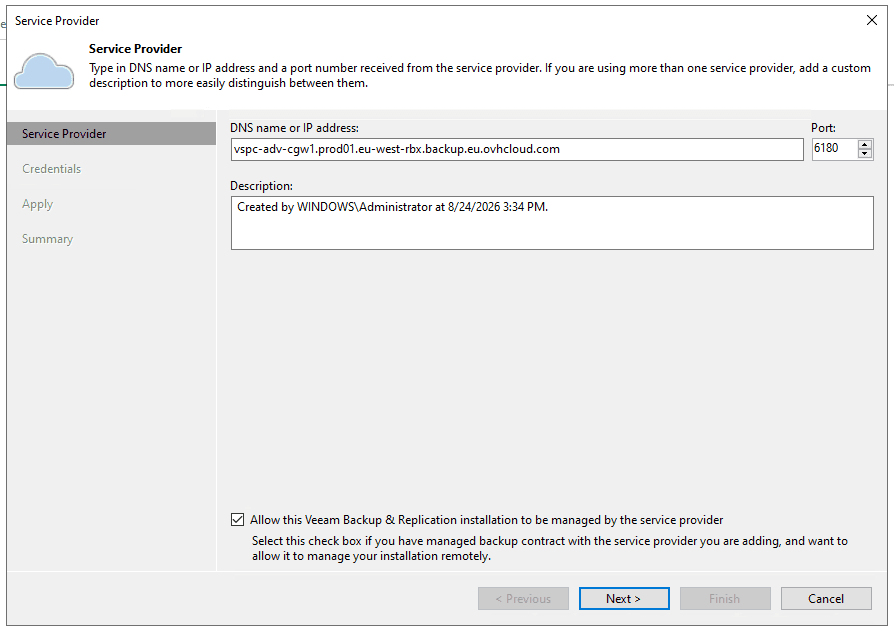
- You ticked the
Allow this Veeam Backup & Replication installation to be managed by the service provideroption when adding the service provider. Without this option, the management agent is not installed and your server cannot be managed from the VSPC.
If the option was not ticked, edit the service provider from your VBR console (Backup Infrastructure > Service Providers > right-click > Edit provider), tick the option, then run the wizard through to completion.
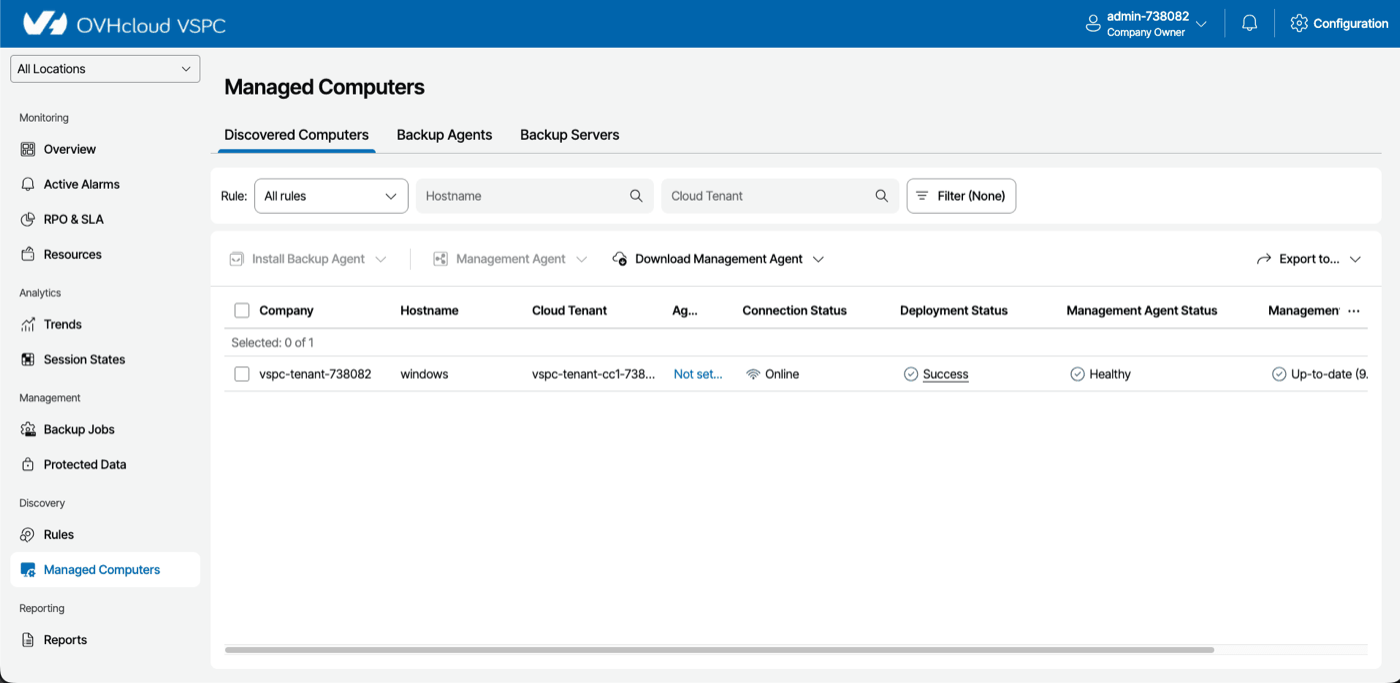
To pinpoint where the connection is stuck, log in to the VSPC portal and open the Managed Computers section, Discovered Computers tab. The Connection Status, Deployment Status and Management Agent Status columns show how far the management agent deployment has got on your server.
My VBR server appears as "Inaccessible" in the VSPC.
If MFA (multi-factor authentication) is enabled on the connected VBR server, it may appear with the Inaccessible status in the VSPC.
See Veeam KB 4431 for the resolution procedure.
The licence does not appear, or is invalid, on my VBR server.
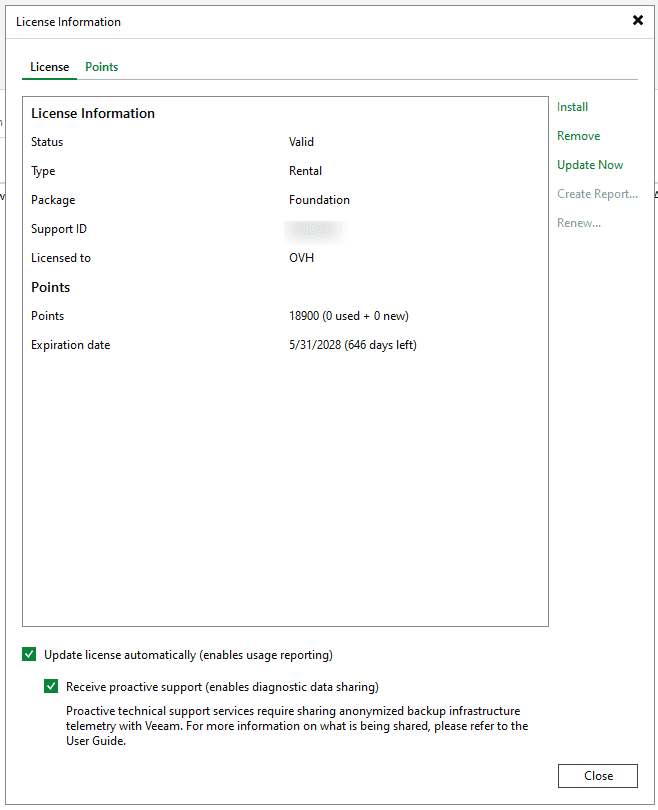
In the Veeam Backup & Replication console, open the main menu and click License to display the License Information window.
- If the status is not
Valid, first check that your VBR server is correctly connected to the VSPC (see the first two points on this page). - Check that the edition displayed matches the one you ordered, and that your operating system is compatible with that edition (see the known restrictions).
If the issue persists while the connection is established, contact OVHcloud support, providing screenshots of the License Information window.
The public IP address of my VBR server has changed.
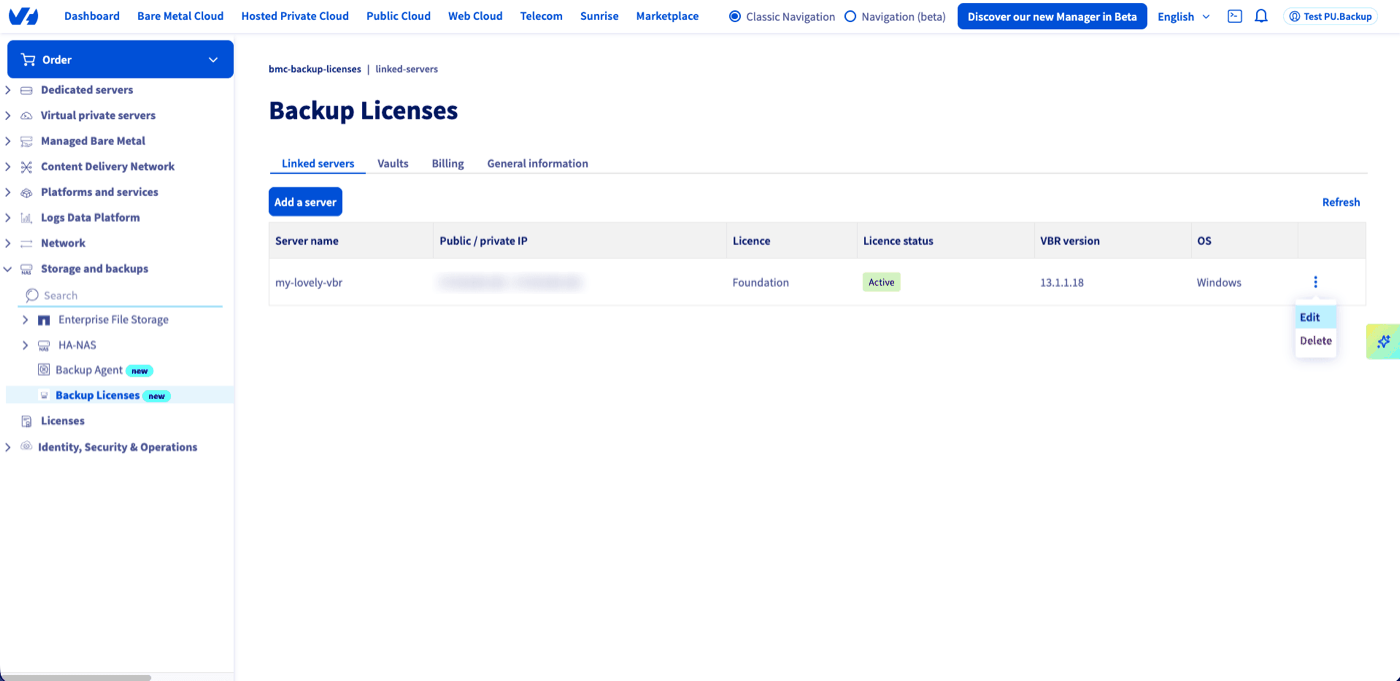
The IP address entered at order time is what allows traffic between our infrastructure and your server. If it changes, update it from your Control Panel: Linked servers tab, ... menu to the right of the server, then Edit.
I connected the same VBR server twice and the data displayed is inconsistent.
Do not connect a VBR server that is already connected to the VSPC using different credentials: this skews the data displayed in the VSPC.
Remove the duplicate service provider from your VBR console (Backup Infrastructure > Service Providers > right-click > Remove provider), then keep only the connection matching your currently valid credentials.
My VBR is part of a high availability cluster and only one node appears.
If your VBR is the primary node of a high availability cluster, the VSPC registers it as a cluster node. The secondary node must be connected separately, following the same service provider procedure.
Go further
If you cannot solve your issue, contact OVHcloud support. Make sure you provide logs and screenshots.
Join our community of users.