
Zimbra Pro - Configuring your email account via ActiveSync on Outlook for Android
Find out how to configure your Zimbra Pro email address on the Outlook for Android mobile application via the ActiveSync protocol
Objective
This guide is aimed at customers with the email solution Zimbra Pro. This service will be available in beta version from July 2025.
Zimbra Pro accounts can be configured on an Android mobile using the ActiveSync protocol. This allows you to configure all the collaborative features of your email address at once. The Outlook app from Microsoft on Android is available for free from the Google Play Store.
Find out how to configure your Zimbra Pro email address on the Outlook for Android mobile app via the ActiveSync protocol.
Information regarding OVHcloud service administration and how to find appropriate assistance
When using OVHcloud guides, please be aware of the following conditions:
- User instructions aim to provide as many details as possible but cannot cover individual use cases. You might need to adapt the pertinent actions to your requirements.
- The OVHcloud ecosystem is built for flexibility and freedom of choice. Customers are therefore responsible for the secure and proper configuration of their services. To prevent data loss, we strongly recommend to apply backup strategies to all your important data.
- Our guides and tutorials may reference third-party software or services in combination with OVHcloud solutions. The technical support provided by OVHcloud does not include the configuration of systems or products outside of our responsibility. This includes but is not limited to:
- Operating systems and user interfaces (Windows, Debian, Plesk, etc.).
- Any other third-party software (FTP clients, email software, etc.).
- Services offered by other providers (DNS, APIs, user interfaces, etc.).
To receive the appropriate assistance for any issues you might experience, follow these guidelines:
- You seek personalized advice or you would like to discuss a topic that is not covered in detail by our documentation?
Join the OVHcloud Community to search for your topic and reach out to other users. - You need to report an incident regarding your OVHcloud service or you are experiencing difficulties in the OVHcloud Control Panel?
Create a support request in our Help Centre. - You require professional assistance for your project or you need help with tasks outside our support scope?
Visit our partner portal to search for experts who are familiar with OVHcloud solutions. - You are looking for more detailed information regarding our support levels and Professional Services?
Please visit our web pages for OVHcloud support levels and OVHcloud Professional Services.
You can participate in improving our documentation:
- You would like to share feedback to improve a guide page or you want to report insufficient information on a specific page?
Use the "Was this page helpful?" buttons at the bottom of the page to let us know. - You would like to propose a specific documentation update?
Use the "Edit this page" function, available at the bottom of the page and in the sidebar.
Requirements
- A Zimbra Pro account
- Outlook for Android installed on your device
- The login details for the email account you would like to configure
This guide has been written using a device that uses Android version 14.
Instructions
Add the account
-
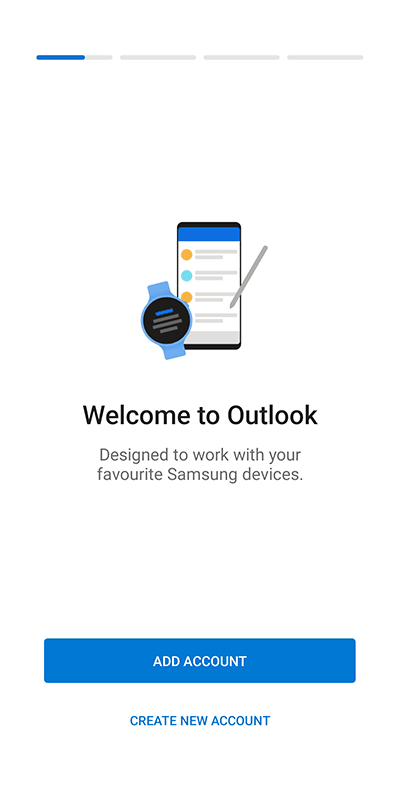
When you start the Outlook application for the first time, a configuration wizard will appear:
- Press
Add Account.
- Press
-
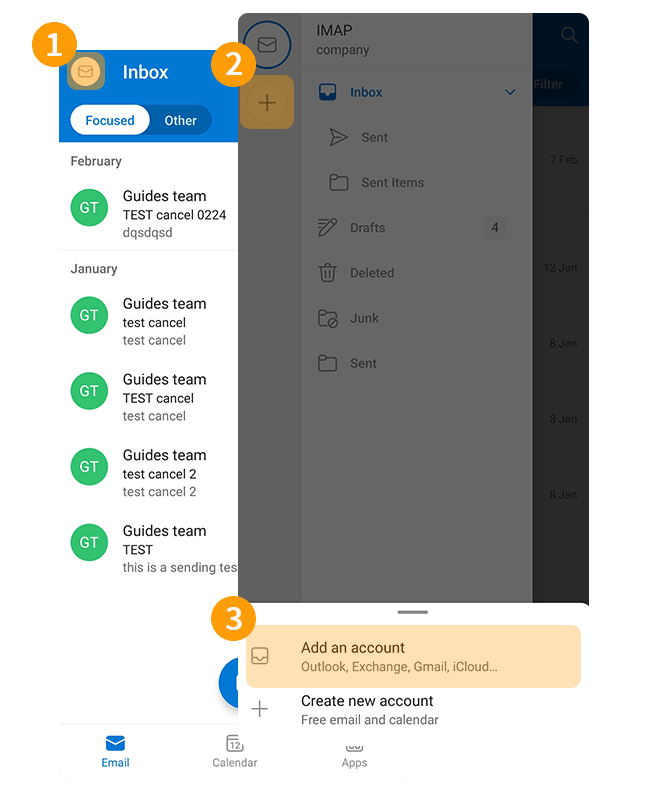
If an account is already set up on the Outlook application:
- Press the envelope (
✉) in the upper left of your screen. - Then press the
+button in the left-hand vertical bar. - Press
Add Account.
- Press the envelope (
Follow the installation steps by clicking on the 3 tabs below:
Enter your email address and press Continue.
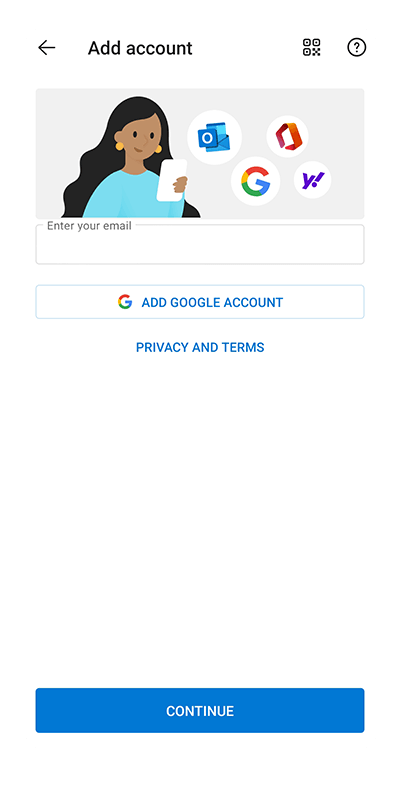
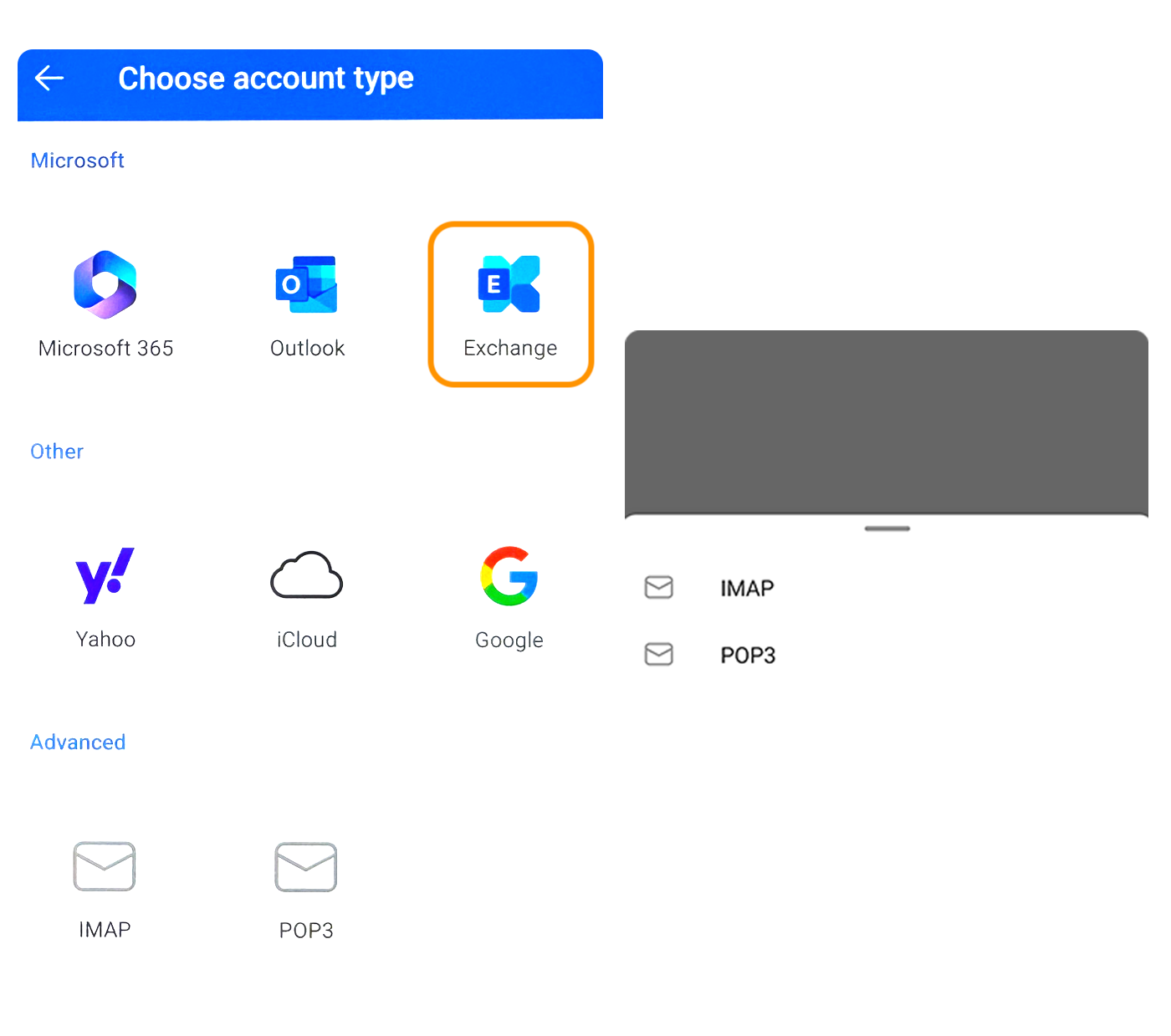
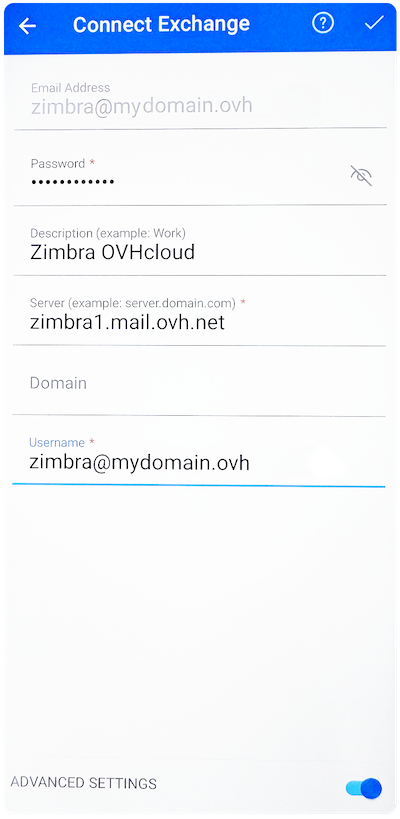
Use the email address
Once you have configured your email address, you can start using it! You can now send and receive messages, and manage your calendars and tasks.
OVHcloud also offers a web application that allows you to access your email address from an internet browser. You can log in to the OVHcloud webmail using your email credentials. If you have any questions on how to use it, please read our guide on Using Zimbra webmail.
How do I modify existing settings?
The Outlook application does not allow you to modify the server settings of your email account.
If your email account is already configured and you want to change its settings, you will need to delete and recreate it:
- Press the envelope (
✉) in the upper left of your screen. - Tap the adjustment icon (
⛭) at the bottom of the left column. - In the "General" section, press
Accountsto view all of the email addresses configured on the application.
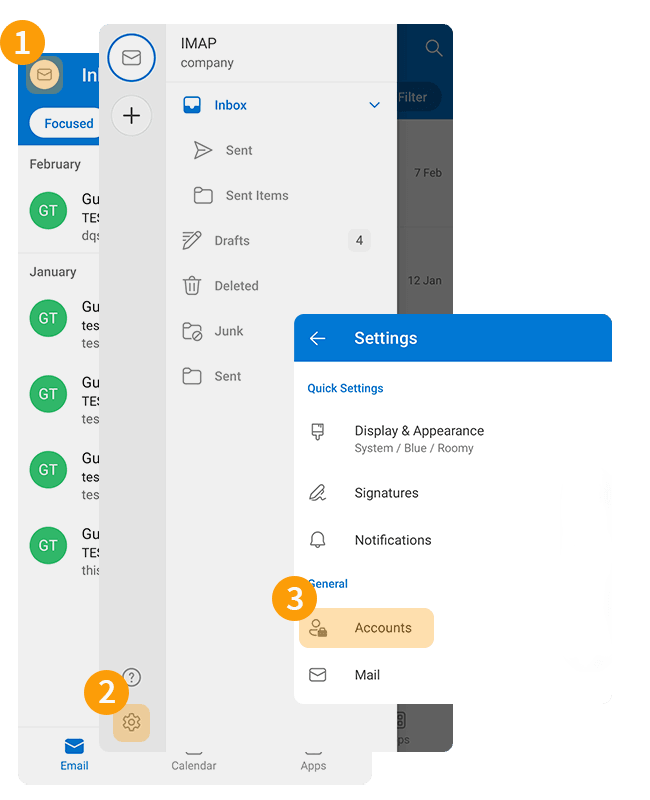
- Select the email account concerned.
- Press
Delete Account. - Press
Deletewhen the question "Do you want to delete the account?" appears.
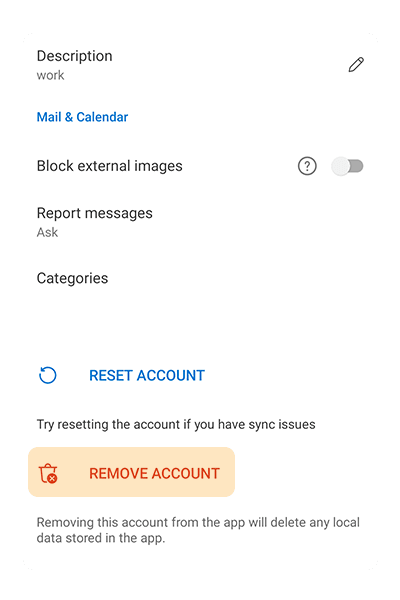
Once you have deleted your email account, follow the installation steps listed in the "Add account" section of this guide.
Go further
For more information about configuring an email address from the Outlook app on Android, see the Microsoft Help Center.
For specialised services (SEO, development, etc.), contact OVHcloud partners.
If you would like assistance using and configuring your OVHcloud solutions, please refer to our support offers.
Join our community of users.