
Install mods and plugins on your Minecraft server
Install mods and plugins on your Minecraft server on the OVHcloud Game Panel from the built-in Modrinth catalog, or by uploading your own files
Objective
The OVHcloud Game Panel includes a mods and plugins catalog powered by Modrinth. Search for content, check its dependencies, and install it in one click — without leaving the panel or handling a single file.
This guide explains how to install mods and plugins on your Minecraft server hosted on the OVHcloud Game Panel.
Requirements
- A VPS or a dedicated server in your OVHcloud account with the Game Panel feature enabled.
- A PaperMC, Fabric, NeoForge, or Forge Minecraft server deployed on the Game Panel. Refer to Deploy a Minecraft server on the Game Panel.
- Access to the Game Panel. Refer to Log in to the Game Panel.
Instructions
Mod or plugin?
Both enrich your server, but they target different server software.
- A plugin is installed on a PaperMC server. It runs on the server side only: players do not have to install anything to join you. This is the way to go for economy systems, permissions, area protection, or mini-games.
- A mod is installed on a Fabric, NeoForge, or Forge server. It changes the game itself — new blocks, creatures, dimensions, mechanics — and depending on the mod, players sometimes need to install the same mod in their client.
You do not have to remember this distinction: the Game Panel applies it for you, and only offers content that is compatible with your server.
Since the steps are identical either way, this guide uses the word mod throughout. If your server runs PaperMC, read plugin instead, and Plugins wherever the interface is quoted as Mods.
Step 1 — Open the catalog
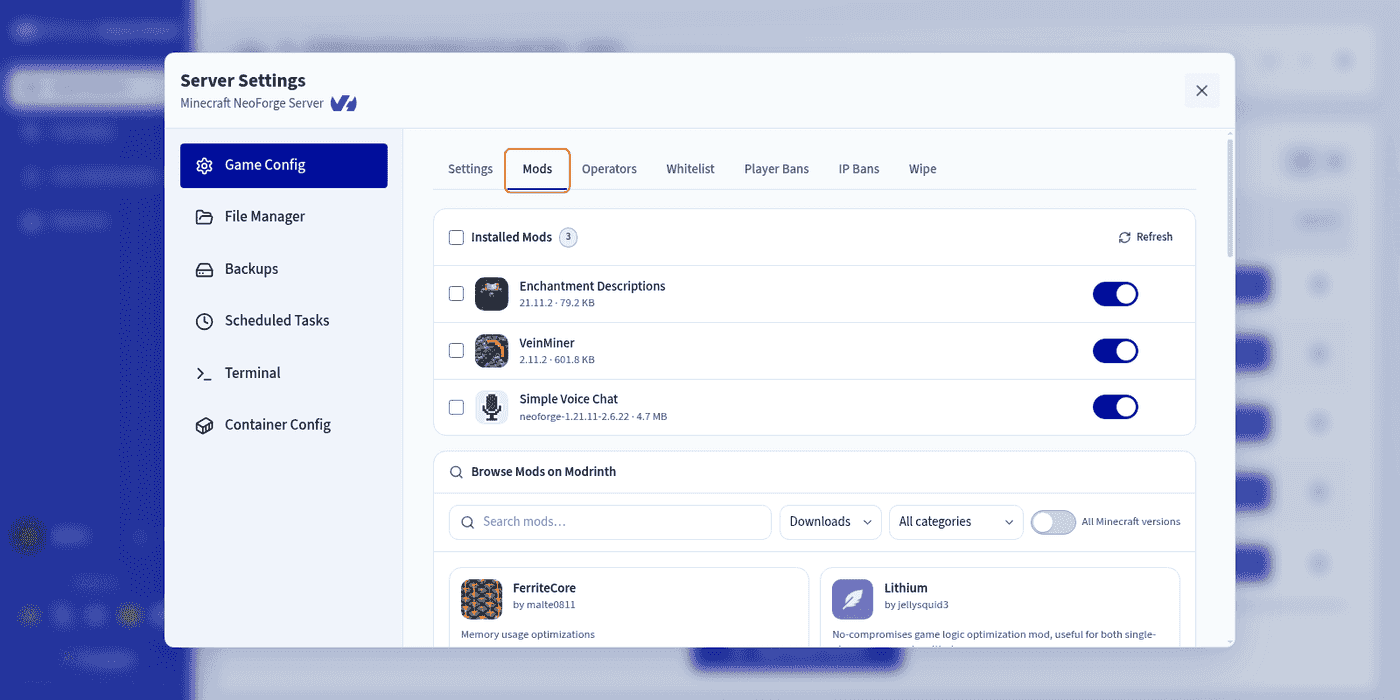
Find your Minecraft server, then go to Settings > Game Config > Mods.
The page brings together three sections:
- Installed Mods: everything already present on your server.
- Browse Mods on Modrinth: the catalog.
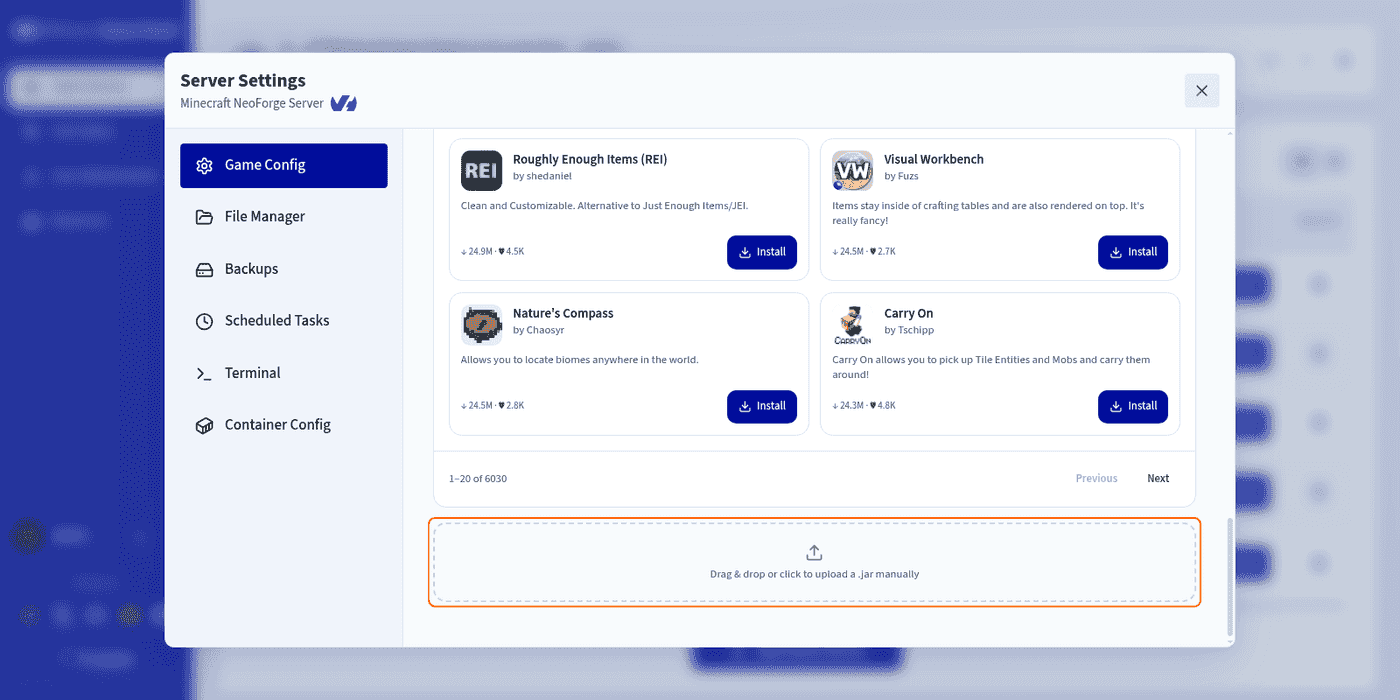
- A drag-and-drop area, at the bottom of the page, to upload your own files.
Step 2 — Find a mod
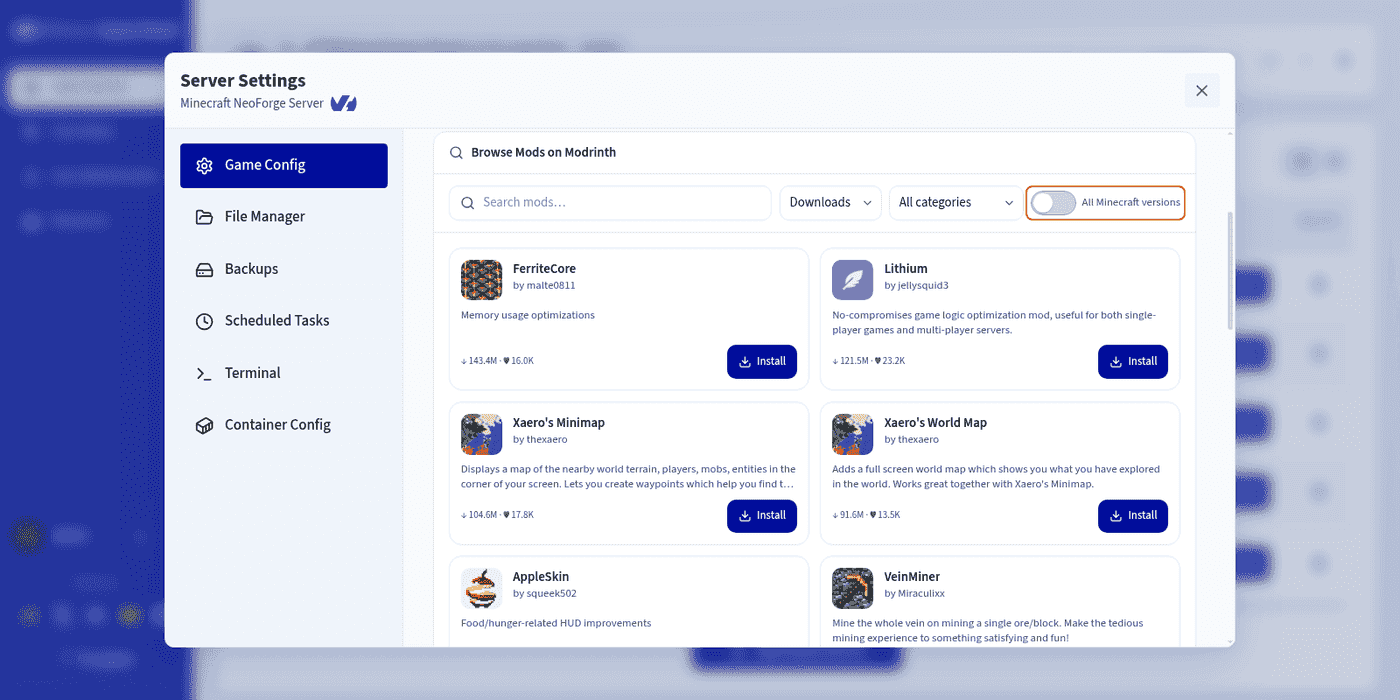
By default, the catalog only displays mods that are compatible with both your server's loader and its Minecraft version. You can therefore browse the results without any risk of picking the wrong file: on a NeoForge server, no Fabric mod and no Paper plugin will ever be offered to you.
The catalog header gives you:
- a search bar;
- a sort menu:
Relevance,Downloads,Follows,Newest, orUpdated; - a category filter:
Adventure,Optimization,Equipment,Magic,Technology, and many more; - an All Minecraft versions toggle.
Turn on All Minecraft versions to widen the search to every Minecraft version, while staying on your server's loader. Results that do not match your server's version then carry the Incompatible badge.
Step 3 — Review the details page before installing
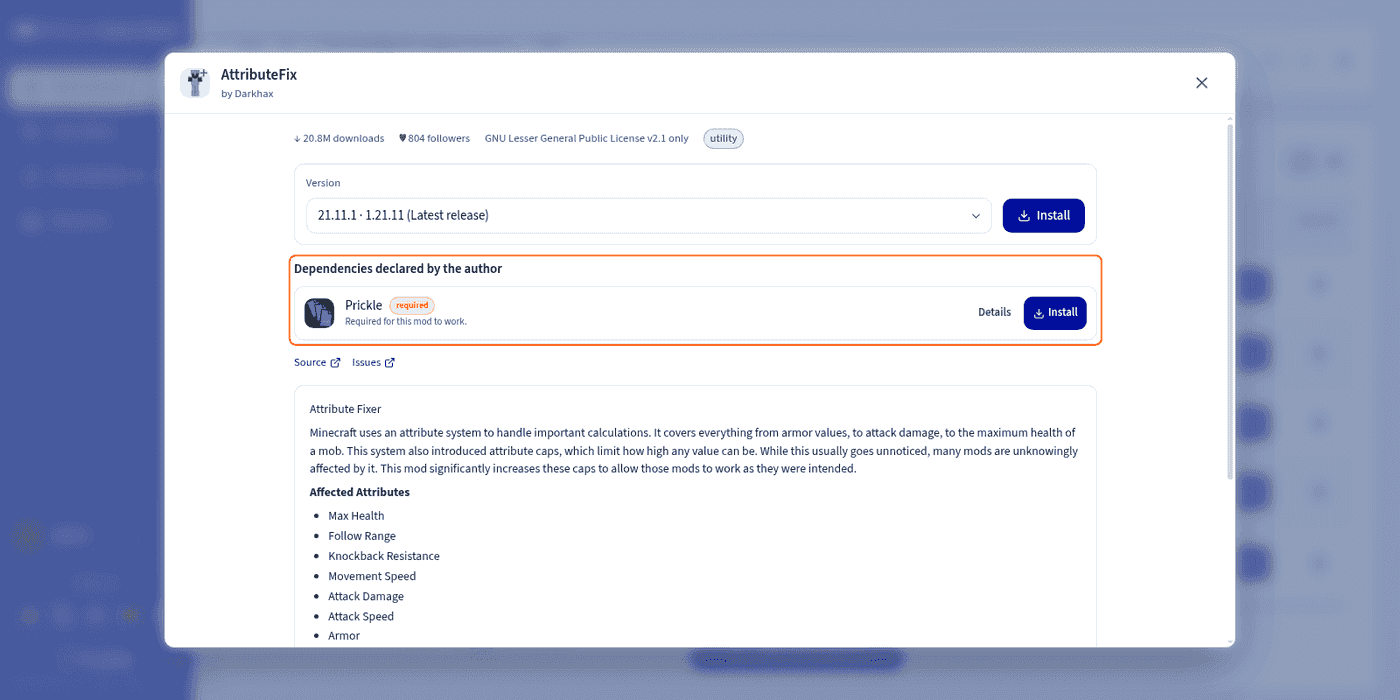
Click the title of a mod to open its details page. Always check it: this is where you find what prevents a startup failure.
You will find:
- its download and follower counts, its licence, and its categories;
- an image gallery and the full description written by the author;
- a Version menu to pick the exact version to install, the most recent one being flagged as Latest release;
- links to the project's source code, issue tracker, wiki, or Discord;
- and, most importantly, the Dependencies declared by the author section.
Some mods need other mods to work: these are dependencies. Each one is flagged as required or optional, and comes with its own Details and Install buttons.
Always install the dependencies marked required. Without them, your server may not start at all. The easiest way is to install them straight from the details page, before going back to the catalog.
Step 4 — Install
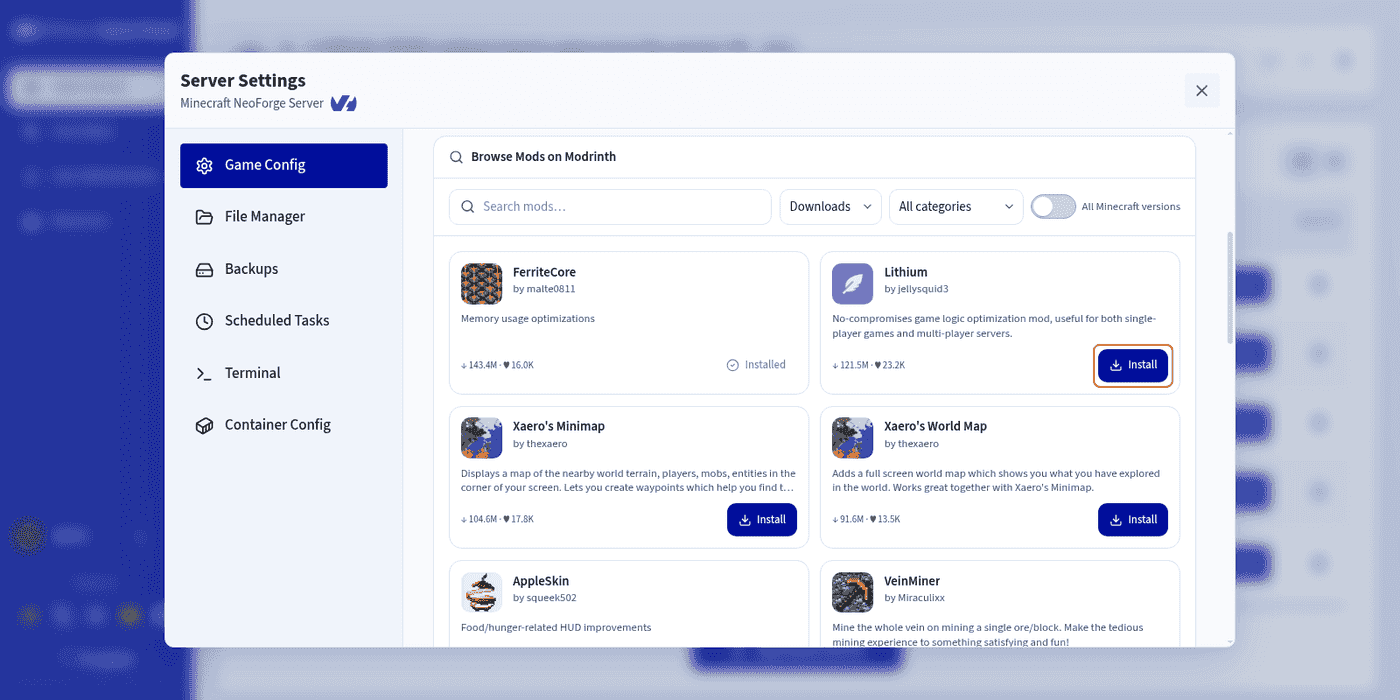
Click Install, either directly on the catalog card or from the details page if you want to pick a specific version. The button switches to Installed and the mod immediately joins the list at the top of the page.
You do not need to stop your server to install a mod. Changes take effect on the next start: if your server is running, the panel displays the Restart the server to apply your changes. reminder.
Step 5 — Restart and check
Restart your server, then open Log/Console to follow the startup.
Keep an eye on the logs: they confirm that the server starts correctly and that your mods are properly loaded. A startup error most often points to a missing dependency or an incompatible version.
Manage your installed mods
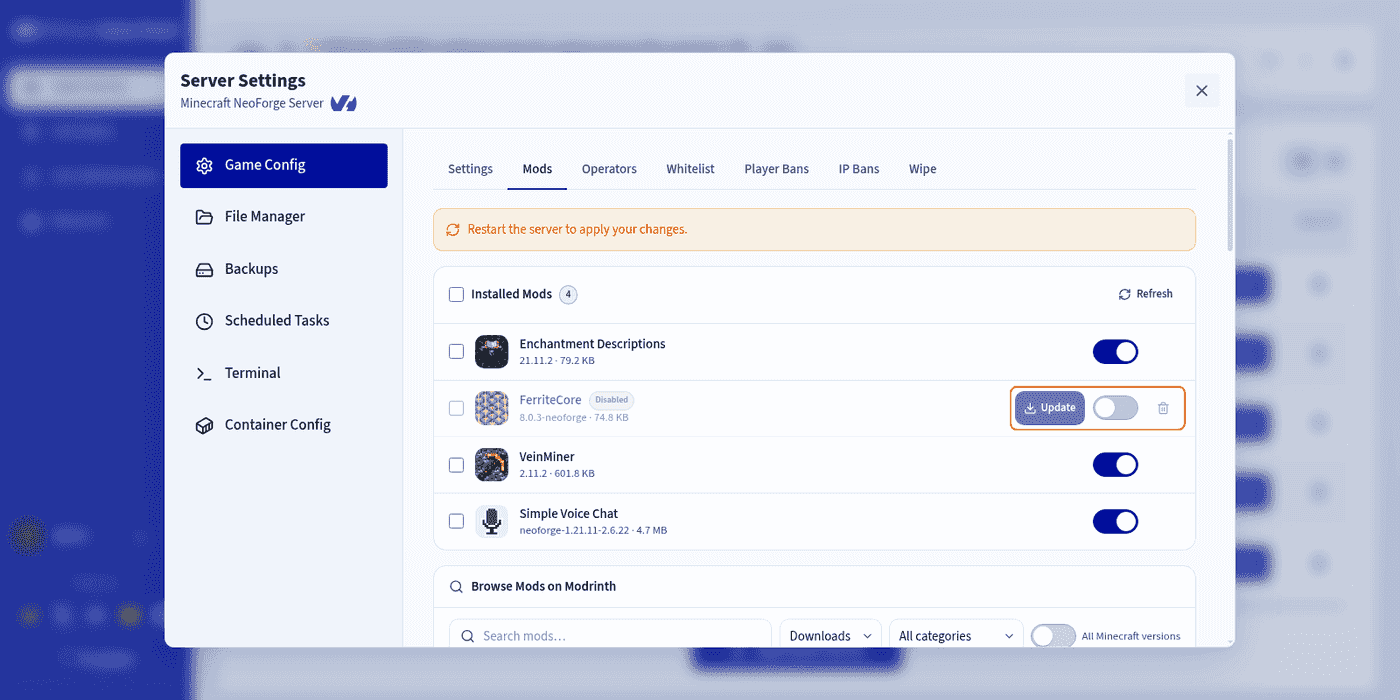
The Installed Mods list gathers everything present on your server, whether you installed it from the catalog or uploaded it by hand. On each row, you can:
- click its name to reopen its details page;
- click
Updatewhen a new version is available; - use the toggle to enable or disable it without deleting it — useful for identifying the cause of a crash;
- use the bin icon to delete it, or tick several rows for a bulk deletion.
The Disabled and Incompatible badges flag the rows to keep an eye on at a glance.
Upload your own mod
You can also install a mod you already have to hand: a file from CurseForge or SpigotMC, a build you compiled yourself, or a private mod.
- Download the
.jarfile, making sure to select the right loader (Paper, Fabric, NeoForge, or Forge) and the right Minecraft version. - In the
Modstab, scroll down to the drag-and-drop area at the bottom of the page. - Drop your file there, or click the area to select it on your computer.
- Restart your server to apply the changes.
The uploaded file joins the list of your installed mods. If Modrinth recognises it, the panel enriches it automatically — name, icon, version — and will offer its updates just like a catalog install.
Only .jar files are accepted. Remember to check the dependencies yourself too: unlike the catalog, a manual upload does not list them.
Go further
- Edit Minecraft server configuration on the Game Panel
- Deploy a Minecraft server on the Game Panel
- Create and restore backups on the Game Panel
- Getting started with the Game Panel
Join our community of users.