
Sharing files with the Plik tool
Find out how to use the Plik tool to send files to other people
Objective
The online Plik tool allows you to share files between different people, offering secure access options to these files.
Learn how to use the Plik online tool to share files.
Requirements
Instructions
API connection
First, go to https://plik.ovhcloud.com.
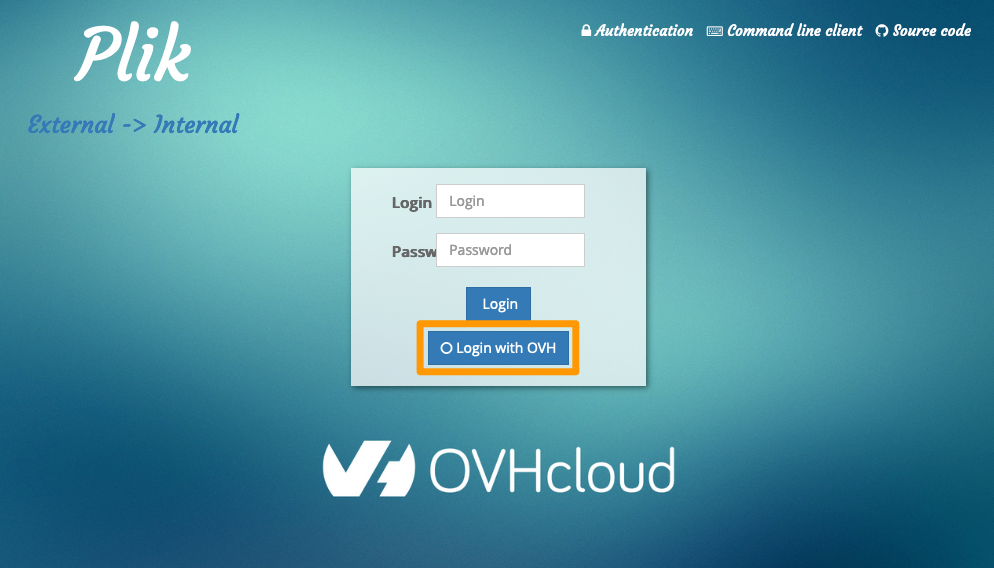
To upload files, you must be authenticated. Click Login with OVH.
Log in to your OVHcloud account, which will give the OVHcloud API access to the Plik tool.
Enter your credentials and click the Log in button to continue.
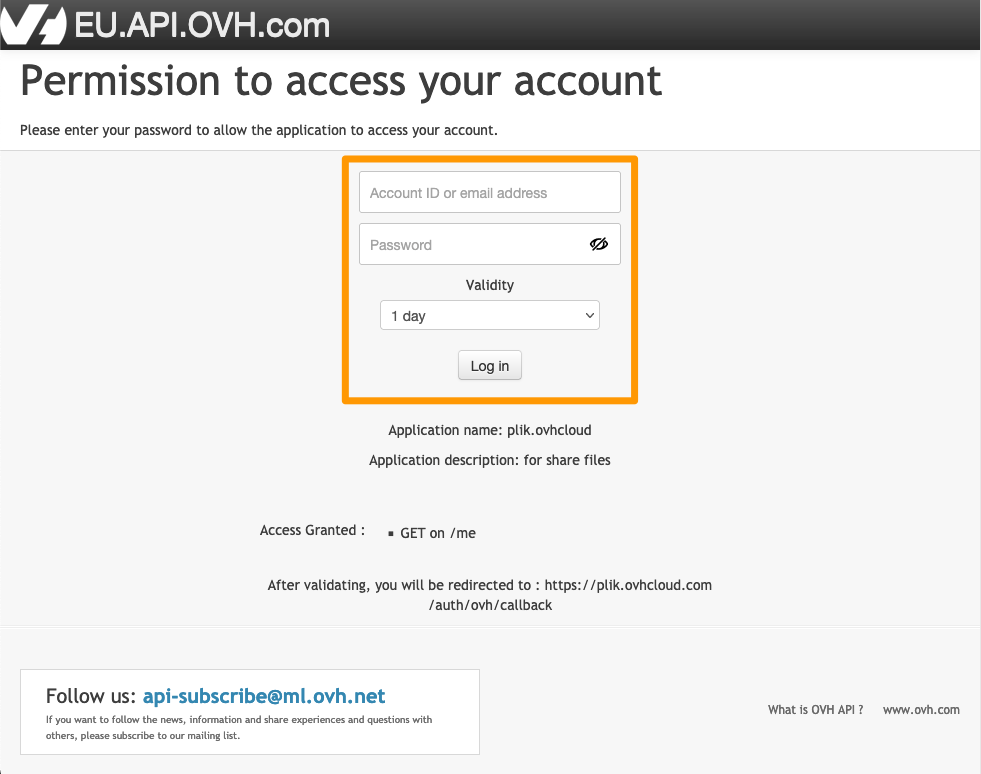
If you have enabled two-factor authentication on your OVHcloud account, you will then need to enter the code provided by the authentication method you have defined on your account.
Upload files
Once you have logged in, click on the word Plik in the top left-hand corner to access the menu for adding files.
Click Add files and select the file you want to add, or drag and drop your files.
Files are limited to 10 GB in size.
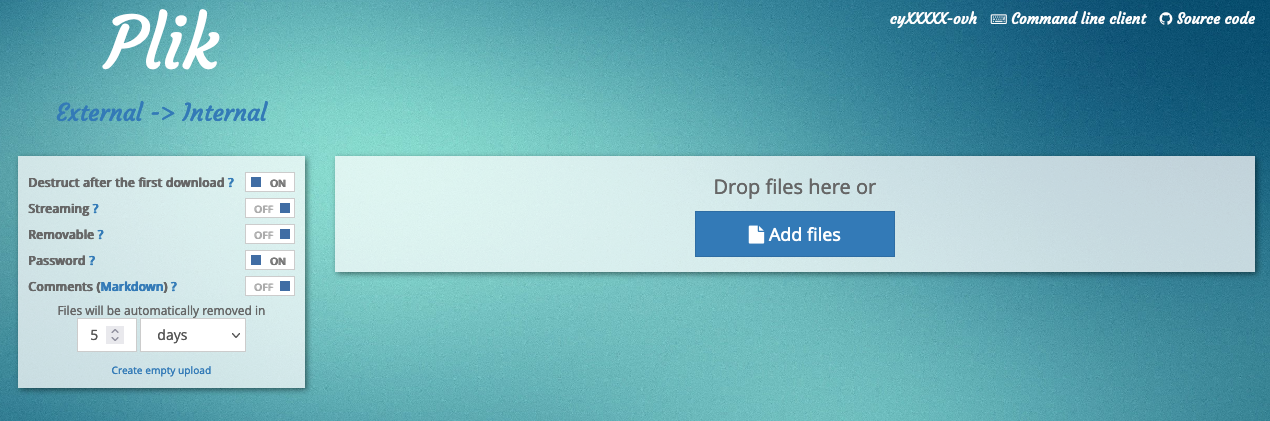
There are several options for configuring your uploads:
Destruct after the first download- This option will delete your uploaded file after the first download.Streaming- The file will not be stored on the server. Instead, the file upload begins when the remote user begins the download.Removable- Allows end users to delete the uploaded file.Password- Protect your upload by imposing a username and password that the remote user must enter.Comments- Add comments to your download. The Markdown language is supported.Files will be automatically removed in- Choose the number of days (30 maximum), hours or minutes after which you want your uploaded files to be automatically deleted.
When you protect your upload with a password, the default username is "plik".
Once you have added your files and selected the options you want, click the green Upload button on the left-hand side. This will open a new page with your attached files.
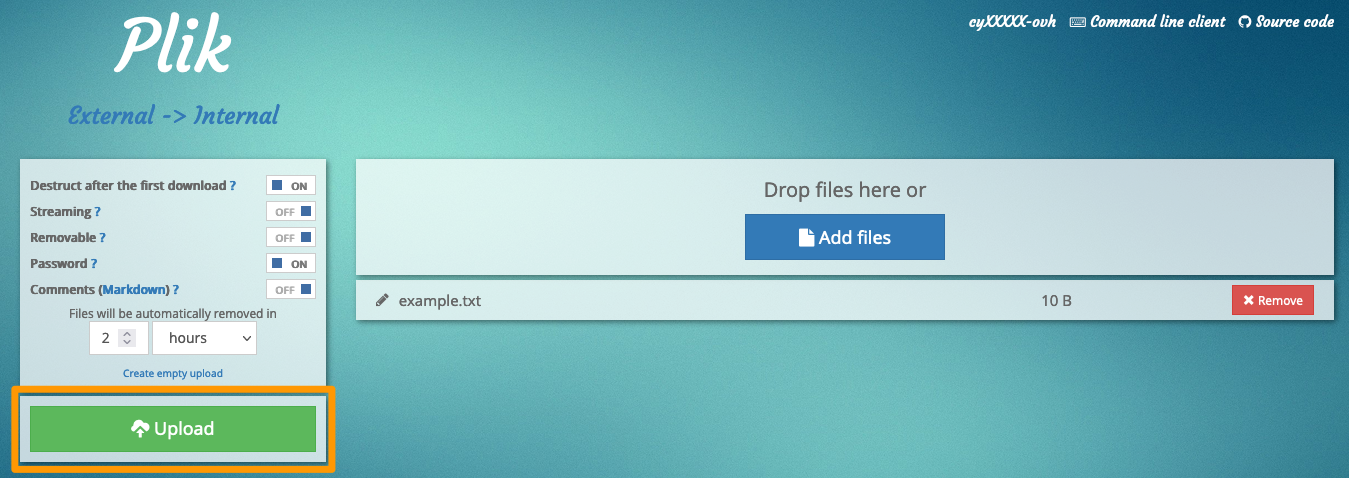
The download options are then available.
Download files
On the download page, new options are available:
Zip archive- Places all files you uploaded into a compressed folder.Add files- Allows you to add other files.Delete- Deletes all previously uploaded files.
You can also delete files one by one by clicking the X button to the right of each file.
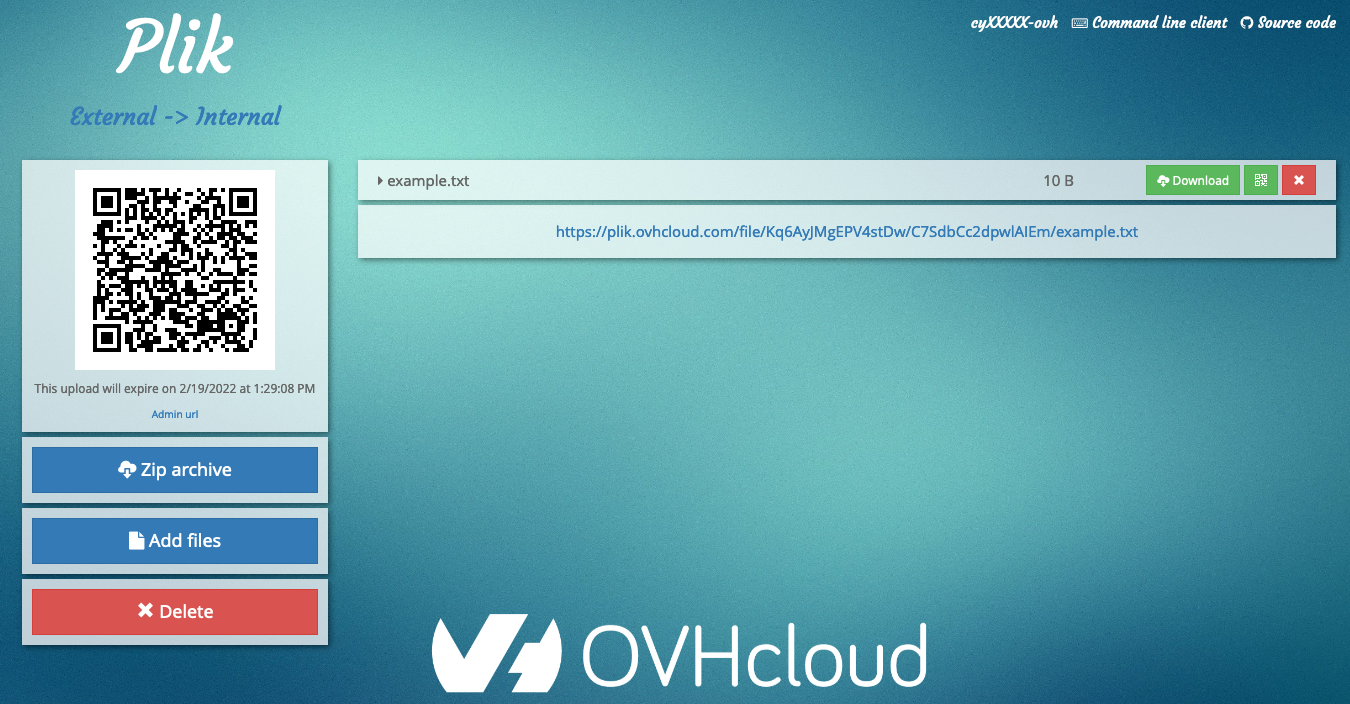
To allow others to download your files, give them the link to the individual file under the file name.
You can also link them to all files in the session by sharing the URL in your browser's address bar.
You can also share the QR code on the left. If you have uploaded several files, the QR code will display each file.
Account options
Click on your username in the top right-hand corner to access your account options.
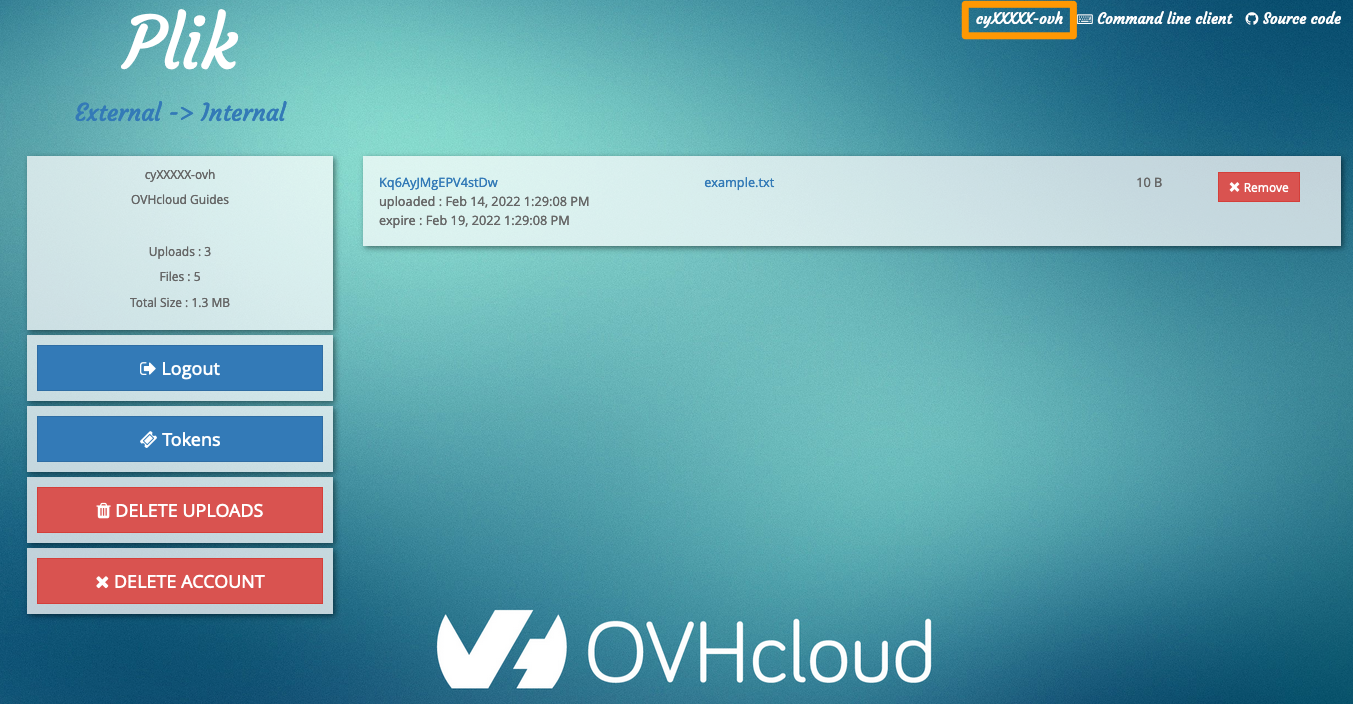
Using this menu, you can log out, generate tokens to use the Plik tool in the command line, delete each upload (via the Remove button to the right of each upload) or delete all uploads (via the DELETE UPLOADS button).
Go further
Join our community of users.