Enterprise File Storage - Getting started with Trident CSI
Deploy NetApp Trident CSI on OVHcloud Enterprise File Storage to manage volumes and snapshots in Kubernetes
Objective
The guide will provide a clear, step-by-step reference for deploying and configuring NetApp Trident CSI on OVHcloud Managed Kubernetes (MKS), enabling seamless access to Enterprise File Storage through the vRack. This guide consolidates best practices, prerequisites, IAM setup, backend configuration, and advanced features such as snapshots and volume management.
Requirements
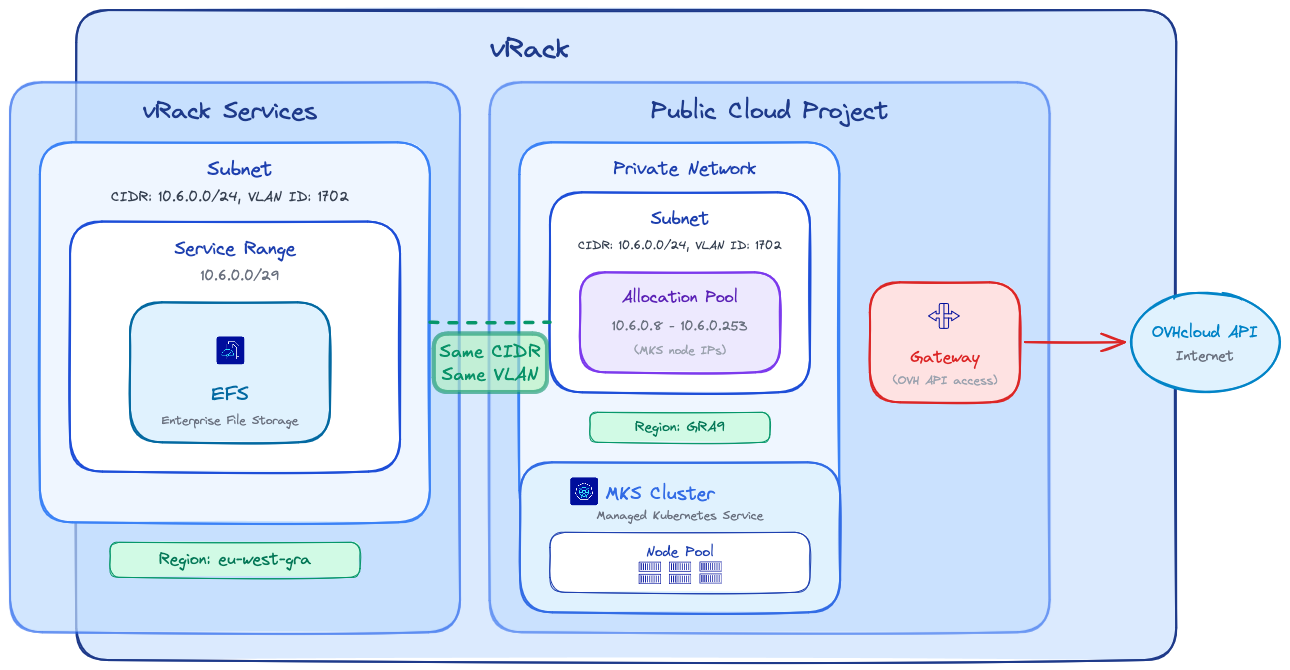
Before beginning, ensure your environment meets the following criteria:
vRack
- Public Cloud Project and vRack Services belong to the same vRack
Region
- vRack Services and EFS are inside the same region
Network
- Same VLAN ID is used for the vRack Services subnet and the MKS Private Network
- Same CIDR is used for vRack Services subnet and MKS Private network subnet
- MKS Private network Allocation Pool IPs do not overlap with the vRack Services Service Range
Connectivity
- A Gateway is required for MKS nodes to reach the OVHcloud API
Info
Note: EFS and MKS regions may differ; be aware that latency between different regions may impact your storage workloads performance.
It's highly recommended to keep your storage and compute as close as possible.Instructions
IAM Configuration (Identity and Access Management)
Trident requires a dedicated service account to interact with the OVHcloud API and manage Enterprise File Storage volumes. Follow these steps to configure IAM properly.
1. Service Account Creation (OAuth2)
Create an OAuth2 client with the OVHcloud API or CLI using the CLIENT_CREDENTIALS flow.
Use the following API call:
With the following request body:
{
  "description": "Service Account for Trident CSI",
  "flow": "CLIENT_CREDENTIALS",
  "name": "TRIDENT-CSI"
}
The API will respond with:
{
  "clientId": "EU.xxxxxxxxxxxxxxxx",
  "clientSecret": "aaaaaaaaaaaaaaaaaaaaaaaaaaaaaaaa"
}
The Service account can be created with the OVHcloud CLI and the following command (complete it with your values):
ovhcloud account api oauth2 client create --name "TRIDENT-CSI" --description "Service Account for Trident CSI" --flow "CLIENT_CREDENTIALS"
The CLI will respond with the client ID and client secret values:
✅ OAuth2 client created successfully (client ID: EU.xxxxxxxxxxxxxxxx, client secret: aaaaaaaaaaaaaaaaaaaaaaaaaaaaaaaa)
Info
Note: Save the clientId and clientSecret securely, they are required for backend configuration.
2. IAM Policy Creation
Configure an IAM policy that must contain the following elements: the service account to authorize, the Enterprise File Storage service(s) to include, and the actions to grant, which are summarized in the table below:
Use the following API call to create the IAM policy:
With the following request body:
Info
In the identities field, replace xx11111-ovh with your OVHcloud account ID (NIC handle) and EU.xxxxxxxxxxxxxxxx with the clientId obtained in step 1.
Info
In the resources field, replace the urn value with your Enterprise File Storage (EFS) URN.
You can get your service URN using the following API call:
Use resourceName={serviceName} query parameter with your Enterprise File Storage service ID.
In the API response, copy the urn value. For example: urn:v1:eu:resource:storageNetApp:xxxxxxxx-xxxx-xxxx-xxxx-xxxxxxxxxxxx.
{
  "description": "Trident CSI",
  "identities": [
    "urn:v1:eu:identity:credential:xx11111-ovh/oauth2-EU.xxxxxxxxxxxxxxxx"
  ],
  "name": "trident-policy",
  "permissions": {
    "allow": [
      {
        "action": "storageNetApp:apiovh:get"
      },
      {
        "action": "storageNetApp:apiovh:serviceInfos/get"
      },
      {
        "action": "storageNetApp:apiovh:share/accessPath/get"
      },
      {
        "action": "storageNetApp:apiovh:share/acl/create"
      },
      {
        "action": "storageNetApp:apiovh:share/acl/delete"
      },
      {
        "action": "storageNetApp:apiovh:share/acl/get"
      },
      {
        "action": "storageNetApp:apiovh:share/create"
      },
      {
        "action": "storageNetApp:apiovh:share/delete"
      },
      {
        "action": "storageNetApp:apiovh:share/edit"
      },
      {
        "action": "storageNetApp:apiovh:share/extend"
      },
      {
        "action": "storageNetApp:apiovh:share/get"
      },
      {
        "action": "storageNetApp:apiovh:share/revertToSnapshot"
      },
      {
        "action": "storageNetApp:apiovh:share/snapshot/create"
      },
      {
        "action": "storageNetApp:apiovh:share/snapshot/delete"
      },
      {
        "action": "storageNetApp:apiovh:share/snapshot/edit"
      },
      {
        "action": "storageNetApp:apiovh:share/snapshot/get"
      }
    ]
  },
  "resources": [
    {
      "urn": "urn:v1:eu:resource:storageNetApp:xxxxxxxx-xxxx-xxxx-xxxx-xxxxxxxxxxxx"
    }
  ]
}
The API will respond with the created policy details:
{
  "id": "xxxxxxxx-xxxx-xxxx-xxxx-xxxxxxxxxxxx",
  "name": "trident-policy",
  "description": "Trident CSI",
  ...
}
The IAM policy can be created with the OVHcloud CLI and the following command (complete it with your values):
Info
In the identities field, replace xx11111-ovh with your OVHcloud account ID (NIC handle) and EU.xxxxxxxxxxxxxxxx with the clientId obtained in step 1.
Info
In the resources field, replace the urn value with your Enterprise File Storage (EFS) URN.
Run the following command to retrieve your service URN:
ovhcloud iam resource list --filter 'name=="{serviceName}"' -o json
Replace {serviceName} with your Enterprise File Storage service ID.
In the command output, copy the urn value. For example: urn:v1:eu:resource:storageNetApp:xxxxxxxx-xxxx-xxxx-xxxx-xxxxxxxxxxxx.
cat <<EOF | ovhcloud iam policy create --from-file -
{
  "description": "Trident CSI",
  "identities": [
    "urn:v1:eu:identity:credential:xx11111-ovh/oauth2-EU.xxxxxxxxxxxxxxxx"
  ],
  "name": "trident-policy",
  "permissions": {
    "allow": [
      {
        "action": "storageNetApp:apiovh:get"
      },
      {
        "action": "storageNetApp:apiovh:serviceInfos/get"
      },
      {
        "action": "storageNetApp:apiovh:share/accessPath/get"
      },
      {
        "action": "storageNetApp:apiovh:share/acl/create"
      },
      {
        "action": "storageNetApp:apiovh:share/acl/delete"
      },
      {
        "action": "storageNetApp:apiovh:share/acl/get"
      },
      {
        "action": "storageNetApp:apiovh:share/create"
      },
      {
        "action": "storageNetApp:apiovh:share/delete"
      },
      {
        "action": "storageNetApp:apiovh:share/edit"
      },
      {
        "action": "storageNetApp:apiovh:share/extend"
      },
      {
        "action": "storageNetApp:apiovh:share/get"
      },
      {
        "action": "storageNetApp:apiovh:share/revertToSnapshot"
      },
      {
        "action": "storageNetApp:apiovh:share/snapshot/create"
      },
      {
        "action": "storageNetApp:apiovh:share/snapshot/delete"
      },
      {
        "action": "storageNetApp:apiovh:share/snapshot/edit"
      },
      {
        "action": "storageNetApp:apiovh:share/snapshot/get"
      }
    ]
  },
  "resources": [
    {
      "urn": "urn:v1:eu:resource:storageNetApp:xxxxxxxx-xxxx-xxxx-xxxx-xxxxxxxxxxxx"
    }
  ]
}
EOF
The CLI will respond with the following output:
✅ IAM policy xxxxxxxx-xxxx-xxxx-xxxx-xxxxxxxxxxxx created successfully
Trident CSI Installation
The installation uses Helm with custom images hosted on Docker Hub.
These images include an additional storage driver that enables consumption of persistent storage from OVHcloud Enterprise File Storage.
Create a trident-values.yaml file to reference the OVHcloud-hosted images:
cat <<EOF > trident-values.yaml
tridentSilenceAutosupport: true
operatorImage: "ovhcom/trident-operator:25.02.1-linux-amd64"
tridentImage: "ovhcom/trident:25.02.1-linux-amd64"
EOF
Run the installation:
helm repo add netapp-trident https://netapp.github.io/trident-helm-chart
helm install trident-operator netapp-trident/trident-operator \
  --version 100.2502.1 \
  --create-namespace \
  --namespace trident \
  -f trident-values.yaml
The output should show that the Helm chart was deployed:
NAME: trident-operator
LAST DEPLOYED: Tue Feb 17 13:51:15 2026
NAMESPACE: trident
STATUS: deployed
REVISION: 1
TEST SUITE: None
NOTES:
Thank you for installing trident-operator, which will deploy and manage NetApp's Trident CSI
storage provisioner for Kubernetes.

Your release is named 'trident-operator' and is installed into the 'trident' namespace.
Please note that there must be only one instance of Trident (and trident-operator) in a Kubernetes cluster.

To configure Trident to manage storage resources, you will need a copy of tridentctl, which is
available in pre-packaged Trident releases.  You may find all Trident releases and source code
online at https://github.com/NetApp/trident.

To learn more about the release, try:

  $ helm status trident-operator
  $ helm get all trident-operator
Once the installation is complete, verify that all Trident pods are in Running state in the trident namespace before proceeding:
kubectl get pods -n trident
The output should show all pods in Running state:
NAME                                  READY   STATUS    RESTARTS        AGE
trident-controller-75869d7499-ffmkt   6/6     Running   0               4m25s
trident-node-linux-4gv6w              2/2     Running   1 (4m24s ago)   4m25s
trident-node-linux-g942s              2/2     Running   1 (4m24s ago)   4m24s
trident-node-linux-tfjc2              2/2     Running   0               4m25s
trident-operator-787b98cb7c-sgtdh     1/1     Running   0               4m26s
Trident Backend Creation
The Trident backend connects NetApp Trident to the OVHcloud Enterprise File Storage service using the IAM credentials previously created.
1. Secret Creation
Create a secret containing the connection information that allows Trident to access the OVHcloud API.
Warning
Replace clientID and clientSecret values with the credentials obtained in step 1.
cat <<EOF | kubectl create -n trident -f -
apiVersion: v1
kind: Secret
metadata:
  name: tbc-ovh-efs-secret
type: Opaque
stringData:
  clientID: "EU.xxxxxxxxxxxxxxxx"         # Replace with your clientId
  clientSecret: "aaaaaaaaaaaaaaaaaaaaaa"  # Replace with your clientSecret
EOF
The output will confirm the secret creation:
secret/tbc-ovh-efs-secret created
2. Trident Backend Creation
Create your backend with the command below:
Info
The ovh-efs storage driver must be used. Replace exportRule, location, and other parameters with values matching your environment.
cat <<EOF | kubectl create -n trident -f -
apiVersion: trident.netapp.io/v1
kind: TridentBackendConfig
metadata:
  name: tbc-ovh-efs-gra
spec:
  version: 1
  backendName: backend-ovh-efs
  defaults:
    exportRule: 10.0.32.0/24    # CIDR of your network for NFS ACLs
  storageDriverName: ovh-efs
  clientLocation: ovh-eu
  location: eu-west-gra         # Location of your EFS service
  serviceLevel: premium
  nfsMountOptions: rw,hard,rsize=65536,wsize=65536,nfsvers=3,tcp
  credentials:
    name: tbc-ovh-efs-secret
EOF
The output will confirm the backend creation:
tridentbackendconfig.trident.netapp.io/tbc-ovh-efs-gra created
Verify that the backend has been created correctly with the command below:
kubectl get tridentbackendconfig -n trident
The output should show the backend in Bound state:
NAME                  BACKEND NAME      BACKEND UUID                           PHASE   STATUS
tbc-ovh-efs-gra       backend-ovh-efs   xxxxxxxx-xxxx-xxxx-xxxx-xxxxxxxxxxxx   Bound   Success
StorageClass and Usage
This section describes how to expose Enterprise File Storage to Kubernetes workloads using Trident.
1. StorageClass
Define a StorageClass to enable dynamic provisioning via the Trident CSI driver:
cat <<EOF | kubectl create -f -
apiVersion: storage.k8s.io/v1
kind: StorageClass
metadata:
  name: ovh-efs-gra-premium
provisioner: csi.trident.netapp.io
parameters:
  backendType: "ovh-efs"
  fsType: "nfs"
allowVolumeExpansion: true
EOF
The output will confirm the StorageClass creation:
storageclass.storage.k8s.io/ovh-efs-gra-premium created
This StorageClass allows volumes to be provisioned on demand and expanded dynamically.
2. Volume Creation (PVC)
Create a PersistentVolumeClaim with ReadWriteMany (RWX) access mode:
cat <<EOF | kubectl create -f -
apiVersion: v1
kind: PersistentVolumeClaim
metadata:
  name: premium-pvc
spec:
  accessModes:
    - ReadWriteMany
  resources:
    requests:
      storage: 100Gi
  storageClassName: ovh-efs-gra-premium
EOF
The output will confirm the PVC creation:
persistentvolumeclaim/premium-pvc created
Verify that the PVC has been created with the command below:
The output should show the PVC in Bound state:
NAME         STATUS   VOLUME                                     CAPACITY   ACCESS MODES   STORAGECLASS          VOLUMEATTRIBUTESCLASS   AGE
premium-pvc  Bound    pvc-xxxxxxxx-xxxx-xxxx-xxxx-xxxxxxxxxxxx   100Gi      RWX            ovh-efs-gra-premium   `<unset>`                 5m34s
Once a Pod uses this PVC, the volume will be automatically mounted via the NFS protocol.
Advanced Features
Snapshot Management
NetApp Trident supports on-demand volume snapshots for Enterprise File Storage.
- Define a
VolumeSnapshotClass to manage snapshot lifecycle:
cat <<EOF | kubectl create -f -
apiVersion: snapshot.storage.k8s.io/v1
kind: VolumeSnapshotClass
metadata:
  name: csi-snapclass
driver: csi.trident.netapp.io
deletionPolicy: Delete
EOF
The output will confirm the VolumeSnapshotClass creation:
volumesnapshotclass.snapshot.storage.k8s.io/csi-snapclass created
- Create a
VolumeSnapshot in the same namespace as the source PersistentVolumeClaim:
cat <<EOF | kubectl create -f -
apiVersion: snapshot.storage.k8s.io/v1
kind: VolumeSnapshot
metadata:
  name: my-snapshot
spec:
  volumeSnapshotClassName: csi-snapclass
  source:
    persistentVolumeClaimName: premium-pvc
EOF
The output will confirm the VolumeSnapshot creation:
volumesnapshot.snapshot.storage.k8s.io/my-snapshot created
Verify that the VolumeSnapshot has been created with the command below:
kubectl get volumesnapshot
The output should show the VolumeSnapshot in READYTOUSE=true state:
NAME          READYTOUSE   SOURCEPVC     SOURCESNAPSHOTCONTENT   RESTORESIZE   SNAPSHOTCLASS   SNAPSHOTCONTENT                                    CREATIONTIME   AGE
my-snapshot   true         premium-pvc                           100Gi         csi-snapclass   snapcontent-0274f0ec-e8ab-48f4-8d89-4422c3875d92   27s            30s
The snapshot is created on the Enterprise File Storage service and can be used for backup or restore workflows.
Troubleshooting
- Backend not bound: Verify that the IAM credentials (clientId/clientSecret) are correct and the IAM policy grants all required permissions.
- PVC stuck in Pending: Check that all Trident pods are in
Running state, the backend is in Bound state and the StorageClass references the correct backend type. Review errors inside Trident pods logs with kubectl logs -n trident <pod-name>.
- Network connectivity issues: Verify that the MKS cluster can reach the Enterprise File Storage service through the vRack.
Go further
Enterprise File Storage - Private network configuration
Enterprise File Storage - Connect a Public Cloud instance to an EFS Volume via vRack Private Network
Managing OVHcloud service accounts
Enterprise File Storage - FAQ
For training or technical assistance implementing our solutions, contact your sales representative or visit our Professional Services page to request a quote and have your project analysed by our experts.
Join our community of users.
