
Tutorial - Installing PrestaShop manually
Find out how to manually install PrestaShop
Objective
This tutorial will help you install PrestaShop CMS (Content Management System) manually in just a few steps.
Information regarding OVHcloud service administration and how to find appropriate assistance
When using OVHcloud guides, please be aware of the following conditions:
- User instructions aim to provide as many details as possible but cannot cover individual use cases. You might need to adapt the pertinent actions to your requirements.
- The OVHcloud ecosystem is built for flexibility and freedom of choice. Customers are therefore responsible for the secure and proper configuration of their services. To prevent data loss, we strongly recommend to apply backup strategies to all your important data.
- Our guides and tutorials may reference third-party software or services in combination with OVHcloud solutions. The technical support provided by OVHcloud does not include the configuration of systems or products outside of our responsibility. This includes but is not limited to:
- Operating systems and user interfaces (Windows, Debian, Plesk, etc.).
- Any other third-party software (FTP clients, email software, etc.).
- Services offered by other providers (DNS, APIs, user interfaces, etc.).
To receive the appropriate assistance for any issues you might experience, follow these guidelines:
- You seek personalized advice or you would like to discuss a topic that is not covered in detail by our documentation?
Join the OVHcloud Community to search for your topic and reach out to other users. - You need to report an incident regarding your OVHcloud service or you are experiencing difficulties in the OVHcloud Control Panel?
Create a support request in our Help Centre. - You require professional assistance for your project or you need help with tasks outside our support scope?
Visit our partner portal to search for experts who are familiar with OVHcloud solutions. - You are looking for more detailed information regarding our support levels and Professional Services?
Please visit our web pages for OVHcloud support levels and OVHcloud Professional Services.
You can participate in improving our documentation:
- You would like to share feedback to improve a guide page or you want to report insufficient information on a specific page?
Use the "Was this page helpful?" buttons at the bottom of the page to let us know. - You would like to propose a specific documentation update?
Use the "Edit this page" function, available at the bottom of the page and in the sidebar.
If you experience any difficulties, contact PrestaShop support.
To install PrestaShop automatically from your , please refer to our documentation on installing a 1-click module.
To manually install another CMS (WordPress, Joomla!, Drupal), please refer to our documentation on installing a CMS manually.
This tutorial explains how to install your PrestaShop CMS manually.
Requirements
- An OVHcloud web hosting plan that contains at least one database
- A domain name
Instructions
Step 1: Prepare for the installation
To install the PrestaShop CMS on your web hosting plan, you will need to make some preparations.
Follow all steps described in our tutorial on installing a CMS manually before continuing with step 2 below.
Step 2: Finalise the installation
Before you continue with the installation, clear your web browser cache to avoid any errors.
If you have not downloaded the latest available version of PrestaShop, the following page will appear:
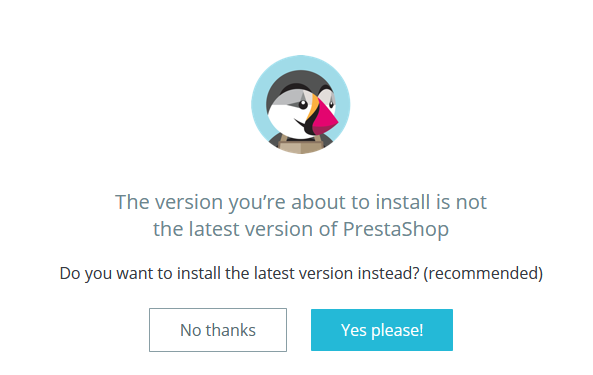
Click No thanks if you want to keep the version of PrestaShop you just downloaded or Yes please! if you want to use the latest version of the CMS.
2.1 Access your PrestaShop website via your browser
Enter your domain name into the address bar of your web browser.
If the PrestaShop source files have been correctly placed in your root folder, the PrestaShop page for selecting the language appears:
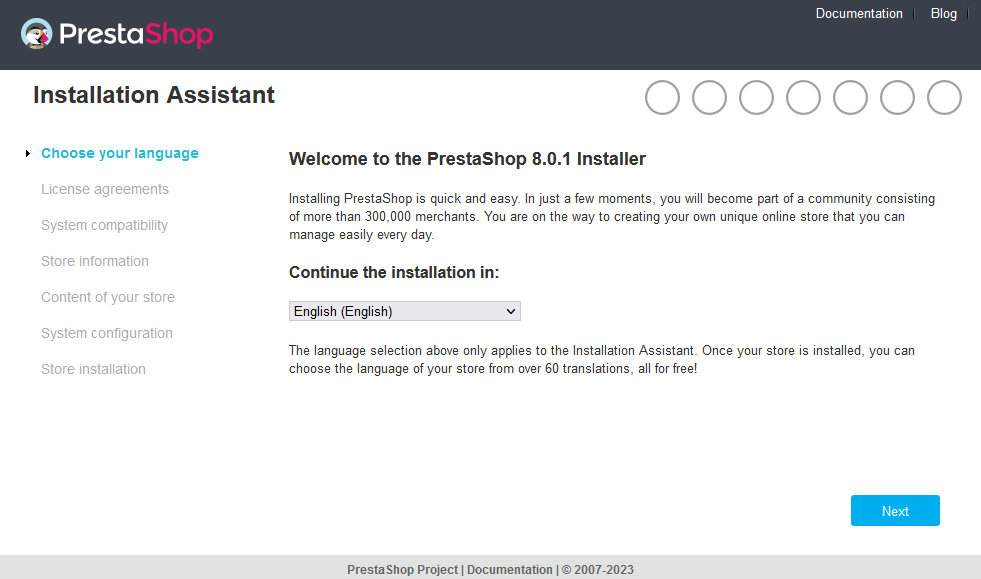
Select the site language and click Next.
2.2 Confirm the terms and conditions
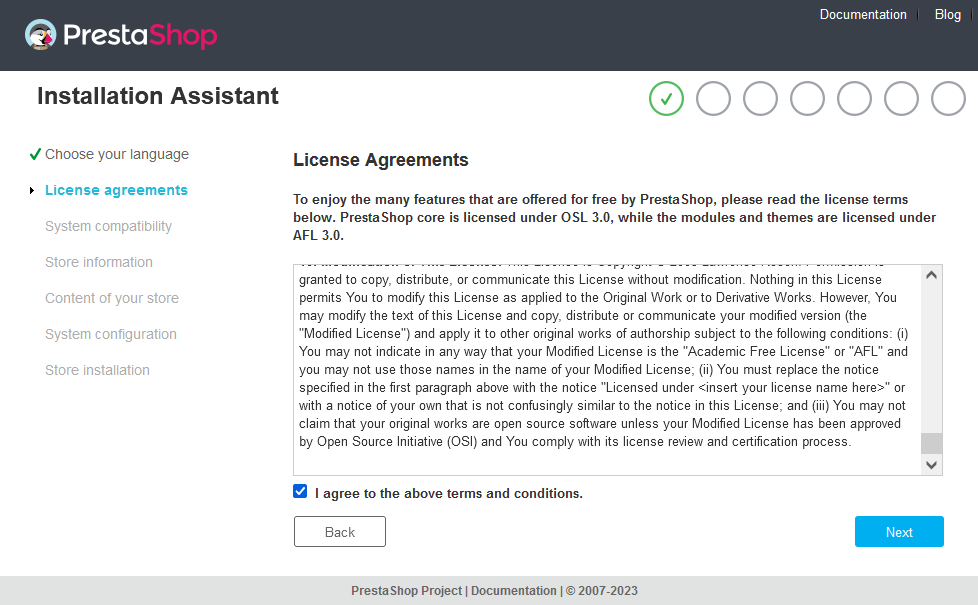
Review the license agreements, check the I agree to the above terms and conditions box, then click Next.
2.3 Enter your online store details
PrestaShop will request a series of information about your future online store:
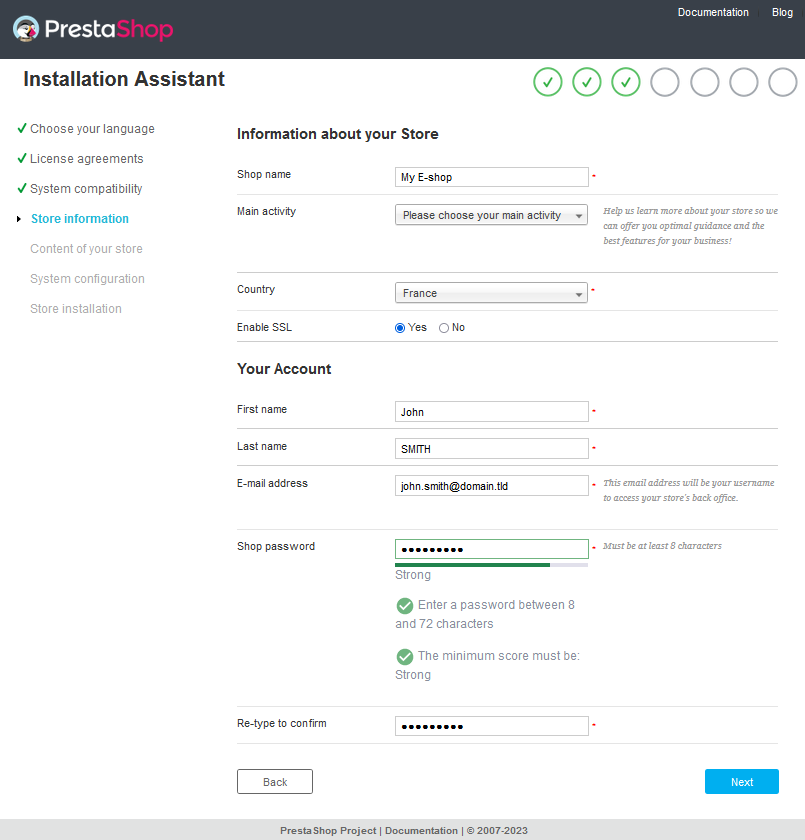
Store information
- Shop name: Enter your online store name.
- Main activity: Select your business sector from the drop-down menu.
- Country: Select your country.
- Enable SSL: Tick Yes to force your URL to be rewritten to https://. You will need to have an active SSL certificate on your Web Hosting plan or domain name. For more information on this, please refer to our guide on Managing an SSL certificate on an OVHcloud Web Hosting plan.
Your account
- First name: Enter your first name.
- Last name: Enter your name.
- E-mail address: Enter your email address.
- Shop password: Choose a password to access your online store's administration panel (back office).
- Re-type to confirm: Type the password again.
Review the information entered, then click Next.
2.4 Install the default content for your store
PrestaShop allows you to install content and modules for your future e-commerce site:
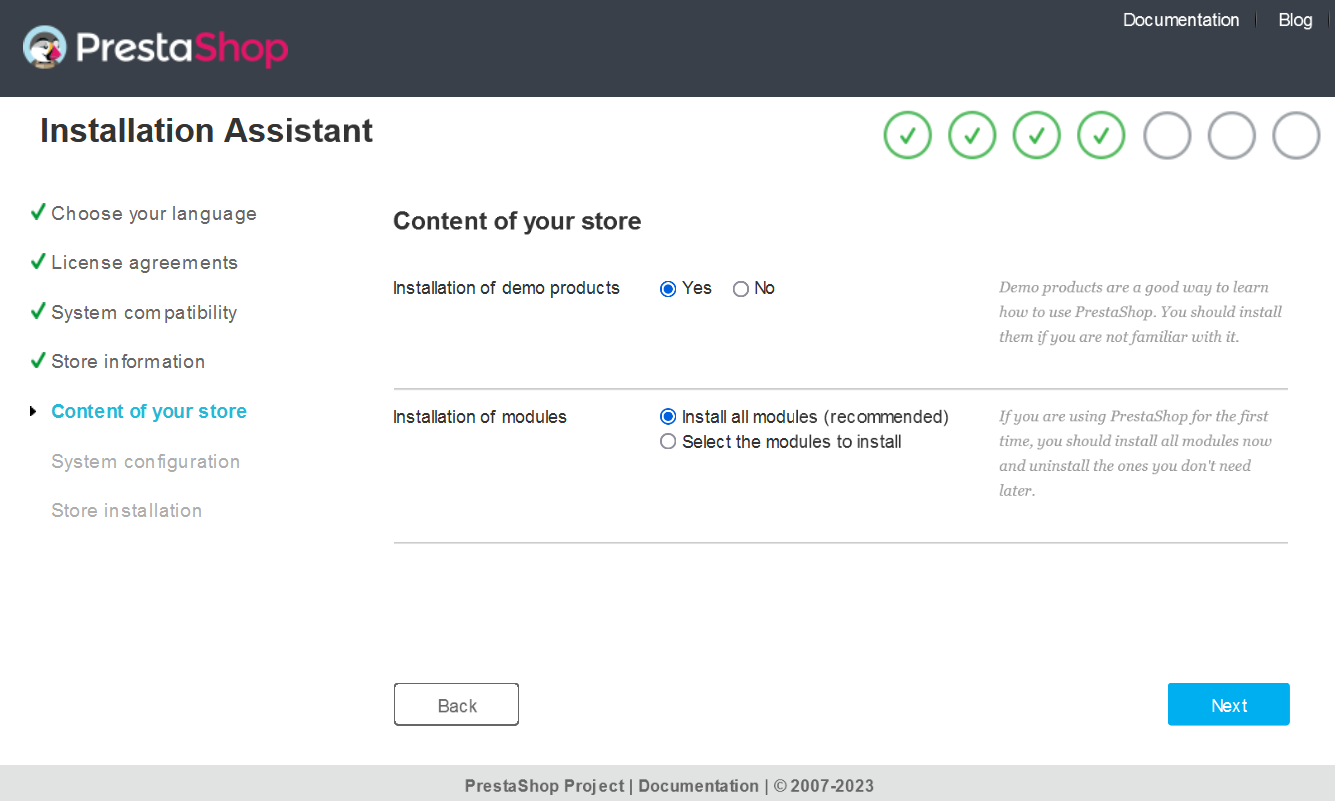
Make your choices and click Next.
2.5 Link your PrestaShop to your OVHcloud database
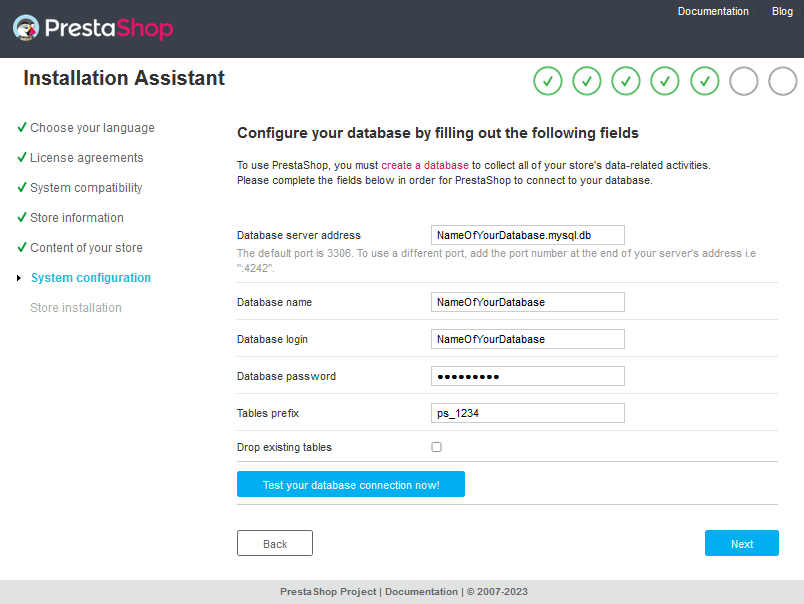
Have your database login details ready (if necessary, see Step 1.4 in the manual installation of a CMS tutorial).
Enter the information requested for the database:
- Database server address: Enter the name of your database server, specified in the installation email and displayed in your OVHcloud Control Panel.
-
The server name of a database included with your web hosting plan usually has this format:
NameOfYourDatabase.mysql.db. -
The server name of a Web Cloud Databases database starts with your OVHcloud NIC handle and is in the following format:
OVHID(without-ovh)-XXX.eu.clouddb.ovh.netwhere "XXX" is to be replaced by the reference of your Web Cloud Databases service.
-
Database name: This name was defined when the database was created in the .
-
Database login: It is identical to the database name if you are using a database included with your web hosting plan. For databases created on Web Cloud Databases, please refer to the information in Step 1.4 in the manual installation of a CMS tutorial.
-
Database password: You defined it yourself when you created your database. You may have modified it in the meantime.
-
Tables prefix: If you are installing with a brand new database, enter your preferred prefix. If you are using a database that has already been used by another website, please refer to Step 1.4 in the tutorial on manually installing a CMS to avoid entering a table prefix that has already been used in your database.
-
Drop existing tables: Uncheck this box if you are already using your database with another website.
If you leave the Drop existing tables check box ticked, it will delete all the tables already in your database.
Click Test your database connection now! to verify the entered settings:
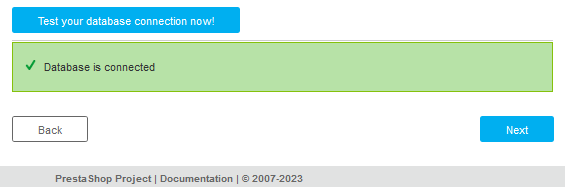
If the message "Your database is connected" appears, click Next. Otherwise, check the settings you entered until the connection is working. If required, please refer to Step 1.4 in the tutorial on manually installing a CMS.
2.6 Complete the PrestaShop installation
The final step is a summary of the installation you have just carried out:
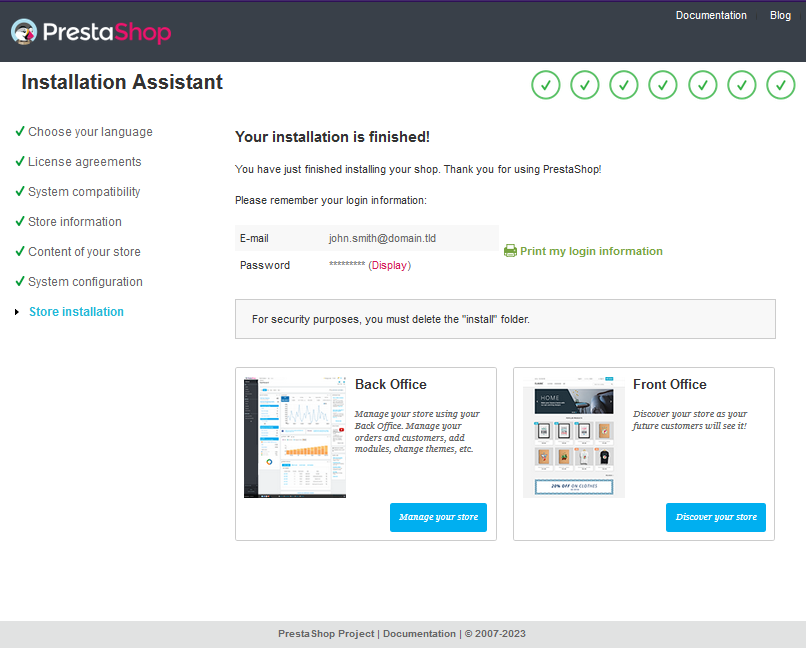
Retrieve your PrestaShop login details before you leave the page.
For security reasons, we recommend deleting the installation folder located on your FTP space.
To do this, please refer to our guide "How to log in to your OVHcloud web hosting plan's FTP storage space" and visit PrestaShop forum to ensure that you delete the correct files.
You can now start creating content for your PrestaShop website!
Go further
For specialised services (SEO, development, etc.), contact OVHcloud partners.
If you would like assistance using and configuring your OVHcloud solutions, please refer to our support offers.
Join our community of users.