
How to configure LACP link aggregation on SLES 15
Configure LACP link aggregation on your SLES 15 server
Objective
Link aggregation increases your server's availability and boosts the efficiency of your network connections. By bonding your network interfaces, you make your network links redundant: if one link goes down, traffic is automatically redirected to another available link. The available bandwidth is also increased thanks to aggregation. Aggregation uses the Link Aggregation Control Protocol (LACP), defined by the IEEE 802.3ad standard.
This guide explains how to configure LACP link aggregation on SLES 15.
Requirements
- A dedicated server with multiple network interfaces. On Scale and High Grade ranges, the public and private aggregations are enabled by default. On other ranges, you must first enable OLA to aggregate your interfaces.
OVHcloud Control Panel Access
- Direct link:
- Navigation path:
Bare Metal Cloud>Dedicated servers> Select your server
Instructions
If you are configuring a fully-private aggregation (OLA), the server will no longer have public connectivity and you will be unable to SSH into it. In any case, your connection may drop while the bond is being configured, so we recommend using the IPMI/KVM console to access the server.
Click the IPMI tab (1).
Next, click the From a Java applet (KVM) button (2).
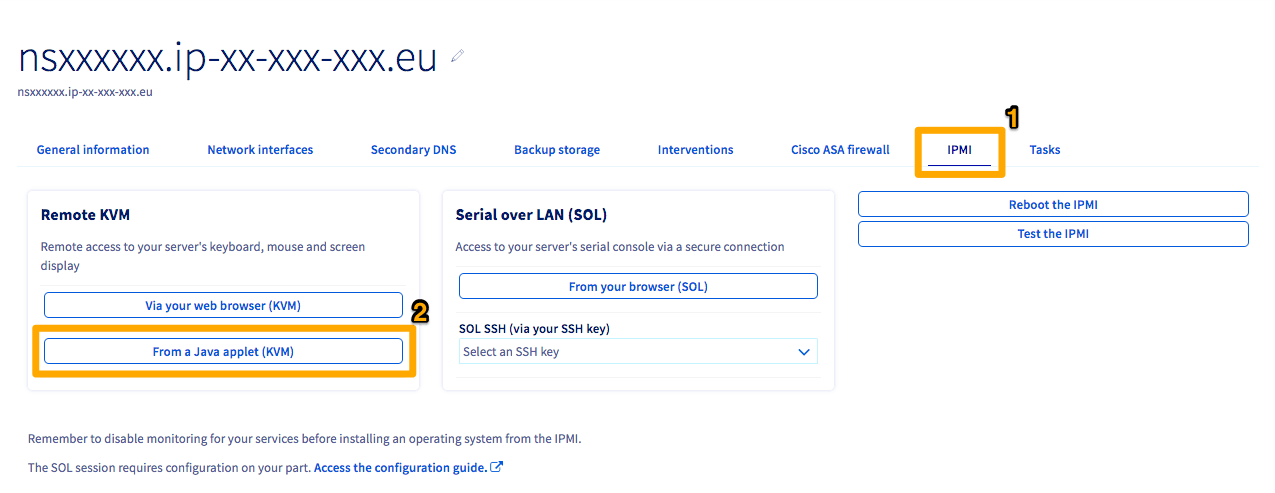
A JNLP program will be downloaded. Open the program to enter the IPMI. Log in using valid credentials for the server.
By default, using an OVHcloud template, the NICs will be named eth0 and eth1. If you are not using an OVHcloud template, you can find the names of your interfaces using the following command:
This command will yield numerous "interfaces." If you are having trouble determining which ones are your physical NICs, the first interface will still have the server's public IP address attached to it by default.
Retrieving MAC addresses
Switch to the tab Network Interfaces and take note of the MAC addresses for each interface (public/private) which are displayed at the bottom of the menu.
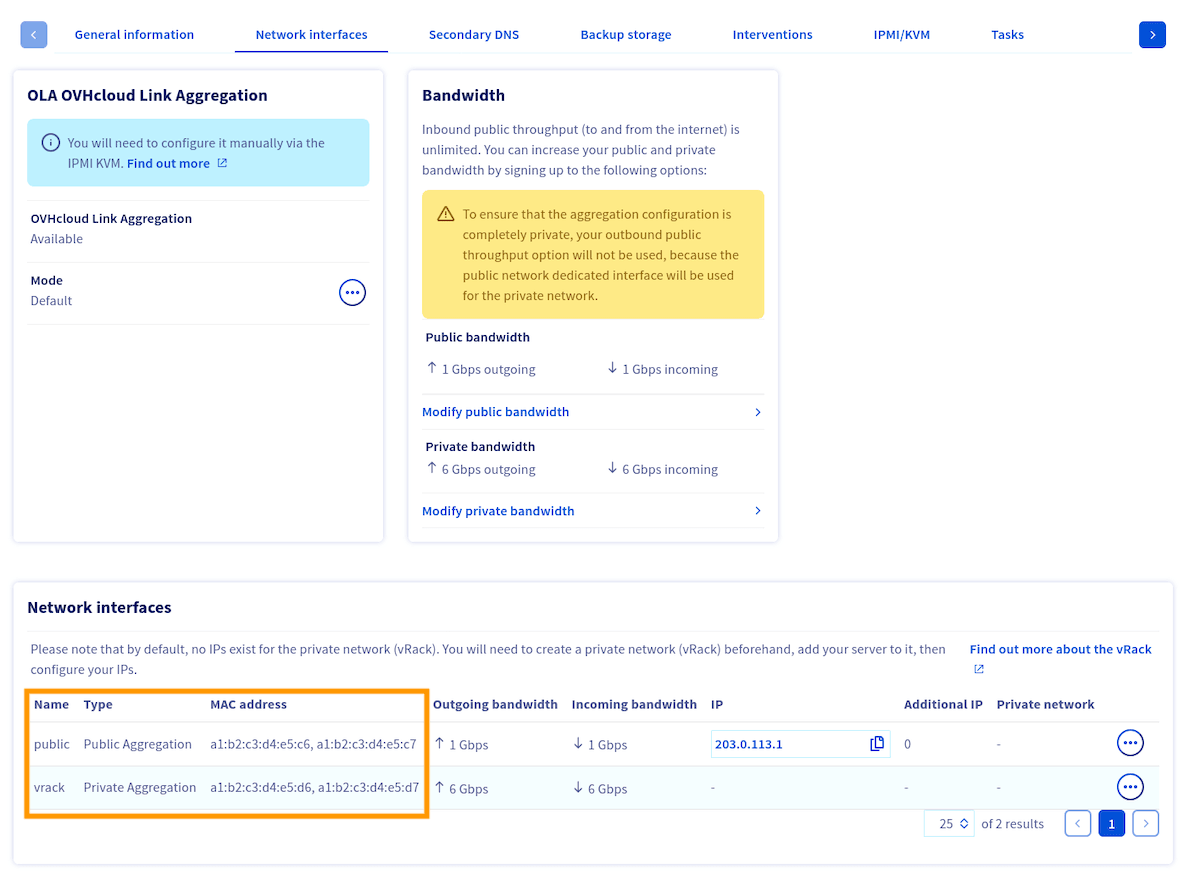
The MAC address of the main public interface is the aggregationFallback value of the public interface, which you can retrieve with the following API route:
You can use any private IP address and subnet you wish.
If your server has more than 2 network interfaces, you can add them in the configuration, by incrementing the number of the BONDING_SLAVE_ parameter, for example, BONDING_SLAVE_2='eth2'.
Now that you know which MAC addresses are associated to each type (public/private) of interface, you need to retrieve the interface names.
Retrieving interface names
The IP addresses will be different for each server.
To retrieve the names of the interfaces, execute the following command:
The hardware address (MAC address) of the NIC can be found using the ip a command that you used earlier. It will be the number next to link/ether in the output.
Here's an output example:
Once you have determined the names of your interfaces, you can configure interface bonding in the OS.
Configuring interface bonding
Select the tab below that matches your server configuration:
- Two interfaces: Advance servers with two physical NICs.
- Four interfaces (default): Scale and High Grade servers ship with separate public and private bonds already configured. No action in the OVHcloud Control Panel is required.
- Four interfaces (fully private / OLA): all interfaces combined into a single private (vRack) bond. This requires enabling OLA in the OVHcloud Control Panel.
Create the bond configuration file /etc/sysconfig/network/ifcfg-bond0:
Static IP
Then configure each physical interface. Edit /etc/sysconfig/network/ifcfg-ens22f0np0:
Create /etc/sysconfig/network/ifcfg-ens22f1np1:
DHCP
The physical interface configuration files remain the same as above.
Applying the configuration
Apply the configuration by reloading all interfaces with wicked:
This may take several seconds since it is building the bond interface. To test that the bond is working, ping another server on the same vRack. If it works, you are all set. If it does not, double-check your configurations or try rebooting the server.
You can also verify the bonding parameters using the following command:
Go further
Configuring OVHcloud Link Aggregation (OLA) in the OVHcloud Control Panel
How to configure LACP link aggregation on Debian 12 or newer / Ubuntu 24.04 or newer (Netplan)
How to configure LACP link aggregation on Debian 9 to 11 (ifupdown)
How to configure NIC teaming for OVHcloud Link Aggregation (OLA) on Windows Server 2019
Join our community of users.