
Install the Game Panel on a VPS
Install the OVHcloud Game Panel on your VPS from the OVHcloud Control Panel, including operating system, domain name, and administrator account setup
Objective
The OVHcloud Game Panel lets you deploy and manage game servers directly on your VPS. Before using it, you must install it on your server from the OVHcloud Control Panel.
This guide explains how to install the Game Panel on your VPS.
Requirements
- A VPS in your OVHcloud account.
- Access to the .
Instructions
Step 1 — Log in to the OVHcloud Control Panel
Log in to your . If you need help logging in, refer to Logging in to the OVHcloud Control Panel.
Step 2 — Switch to the Beta version of the OVHcloud Control Panel
The Game Panel installation feature is currently available in the Beta version of the OVHcloud Control Panel.
In the upper-right corner of the page, click Discover the console (marked with the BETA badge) to switch to the Beta interface.

Step 3 — Open your VPS page
From the OVHcloud Control Panel:
- In the menu at the top of the page, click
Bare Metal Cloud. - In the left-hand menu, select
VPS. - In the Virtual private servers (VPS) list, click the name of your VPS.
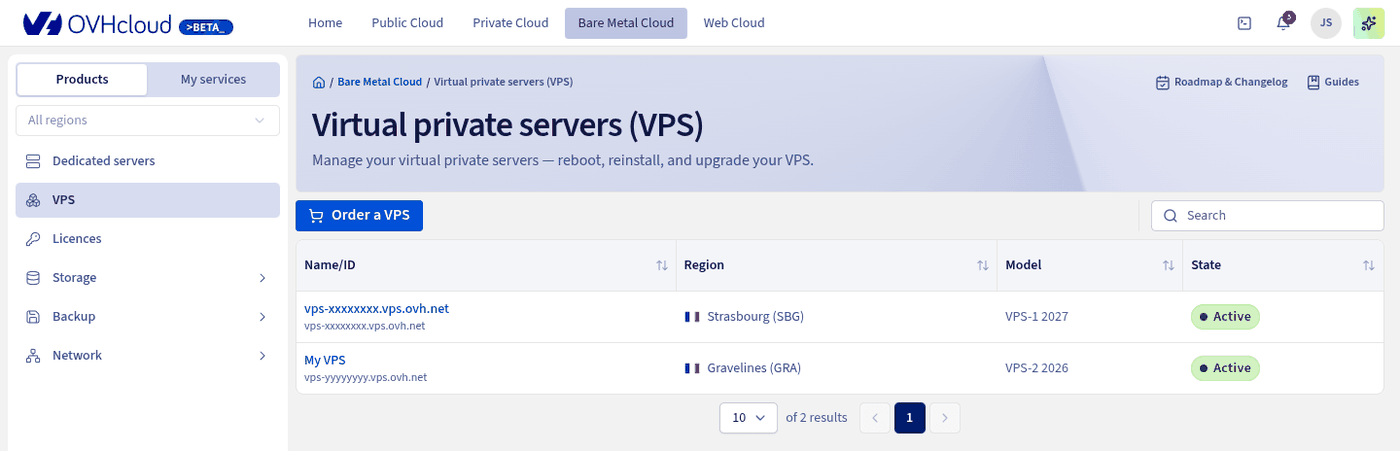
Step 4 — Install the Game Panel
In the Overview tab, locate the General information section. Under the Distribution line, click Reinstall my VPS with Game Panel.
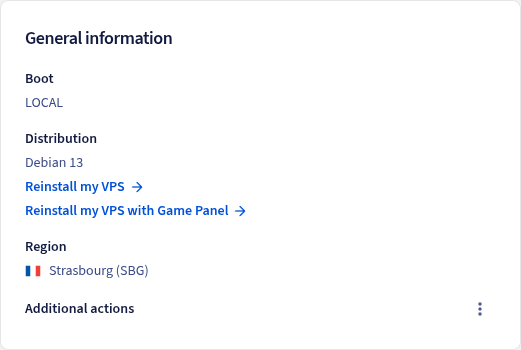
Installing the Game Panel reinstalls your VPS and formats all its disks. Any data on the server is deleted. To be able to go back, take a snapshot of your VPS before you continue.
Fill in the following fields, then start the installation.
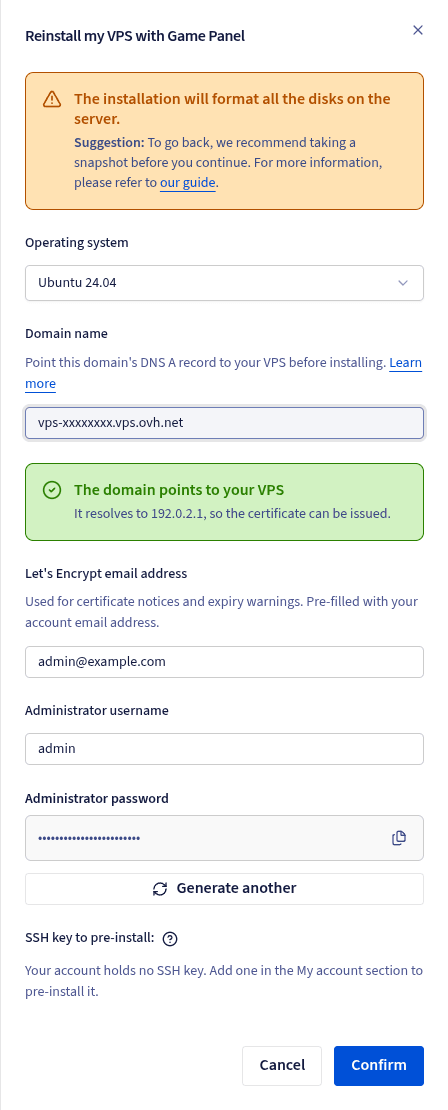
Choose an operating system
In the Operating system list, select the operating system on which you want to install the Game Panel. All operating systems displayed in the list are fully compatible with the Game Panel.
Configure the domain name
By default, the Domain name field contains your server's default hostname, allowing you to access the Game Panel through an address similar to https://vps-xxxx.vps.ovh.net.
If you prefer, you can use your own domain name instead. Before continuing, make sure your domain's DNS A record points to your VPS public IP address. The form checks where the domain resolves: the message The domain points to your VPS confirms the SSL certificate can be issued.
If you do not already own a domain name or need to configure its DNS records, refer to the following resources:
Enter an email address
The Let's Encrypt email address field is pre-filled with the email address associated with your OVHcloud account. You can replace it with another address. This address is used to set up the SSL certificate and receives certificate-related notifications, including expiry warnings.
Choose the administrator account name
In the Administrator username field, enter the username for the administrator account that will be created (admin by default). This account becomes the super administrator of the Game Panel and has the highest level of privileges.
Save your generated admin password
A password for the Game Panel is generated and displayed in the Administrator password field. Copy it with the copy icon, or click Generate another to get a new password. Store this password in a safe place, as it cannot be viewed again later.
(Optional) Add an SSH key
The SSH key to pre-install section lets you pre-install on the server one of the SSH public keys stored in your OVHcloud account. This is an optional advanced configuration. If your account holds no SSH key, add one from the My account section of the Control Panel. For more information, refer to How to store public authentication keys in the OVHcloud Control Panel.
Once a key is selected, the form also displays the I do not wish to receive my VPS authentication codes by email checkbox. If you tick it, you do not receive the email containing your server's SSH password (see Step 5).
Start the installation
Click Confirm to begin the installation. This button is only enabled once an operating system is selected and all fields are valid.
Step 5 — Connect to the Game Panel
The selected operating system is installed first. Once it has been deployed, you receive an automatic email containing the SSH password for your server, unless you ticked the I do not wish to receive my VPS authentication codes by email checkbox. Keep this password in a safe place, as you may need it later if you connect to the server directly via SSH.
A few minutes later, the Game Panel installation completes automatically.
You can then open your server's hostname in a web browser, for example https://vps-xxxx.vps.ovh.net. Sign in using the password that was generated during the installation to start using the Game Panel.
The generated admin password is shown only once during the installation. If you lose it, refer to the password recovery section of Log in to the Game Panel.
Go further
Join our community of users.