
Web Hosting - How to enable and manage logs
Find out how to enable and manage the logs of the websites or applications hosted on your web hosting plan
Objective
A log is an event that occurred on a computer system (server, computer, application, website, database, computer network, etc.). For example, a log can record and contain one or more of the following elements:
- The timestamp (date, hour, minute, second, etc.) of the event.
- The nature of the event (connection, disconnection, error, download, upload, alert, etc.).
- Additional information about the event (page or file viewed, application launched, remote server called, name of a file uploaded or downloaded, etc.).
- The origin of the event (user ID, source IP address, source program, etc.).
- The state of the system where the event takes place (available resources, remaining memory, CPU usage, etc.).
Most of the time, logs are generated directly by the computer systems where the events occur. They are stored and archived in text files, also called log files.
As a result, log files allow you to:
- Analyse the behaviour of the computer system generating the logs.
- Identify errors that have occurred on the computer system.
- Resolve errors encountered on the computer system.
- Optimise the performance of the computer system.
Your web hosting plan therefore generates its own logs.
In some situations, you may need to view or retrieve the logs:
- of your web hosting plan;
- for one of the websites or applications hosted on your web hosting plan.
Find out how to enable, view and manage the logs of the websites or applications hosted on your web hosting plan.
We provide you with this guide to help you carry out common tasks as effectively as possible. However, we recommend that you contact a specialised provider if you encounter any difficulties. Indeed, we will not be able to provide you with assistance interpreting the logs available with your web hosting plan. You can find more information in the "Go further" section of this guide.
Requirements
- A web hosting plan.
OVHcloud Control Panel Access
- Direct link:
- Navigation path:
Web Cloud>Hosting plans> Select your web hosting plan
Instructions
Viewing the real-time logs of your web hosting plan
Click the tabs below to display each of the 2 steps in turn.
Go to the page, then select the relevant web hosting plan.


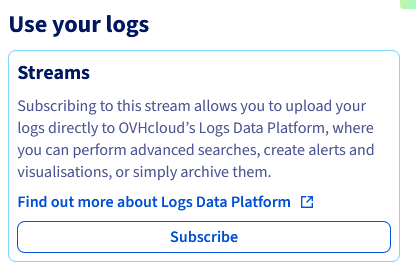
Subscribing the logs of your web hosting plan to Logs Data Platform
Logs Data Platform is a platform for managing your logs. It can be useful if you have a very large infrastructure or if your services generate a great deal of logs. Indeed, this platform is designed to make aggregating and managing logs easier.
It works by retrieving the logs generated by your infrastructure, websites or applications, in order to, for example:
- store them;
- display them in real-time dashboards;
- let users run complex queries;
- filter them by date, application, type or content;
For more details on Logs Data Platform, see our introduction to Logs Data Platform guide.
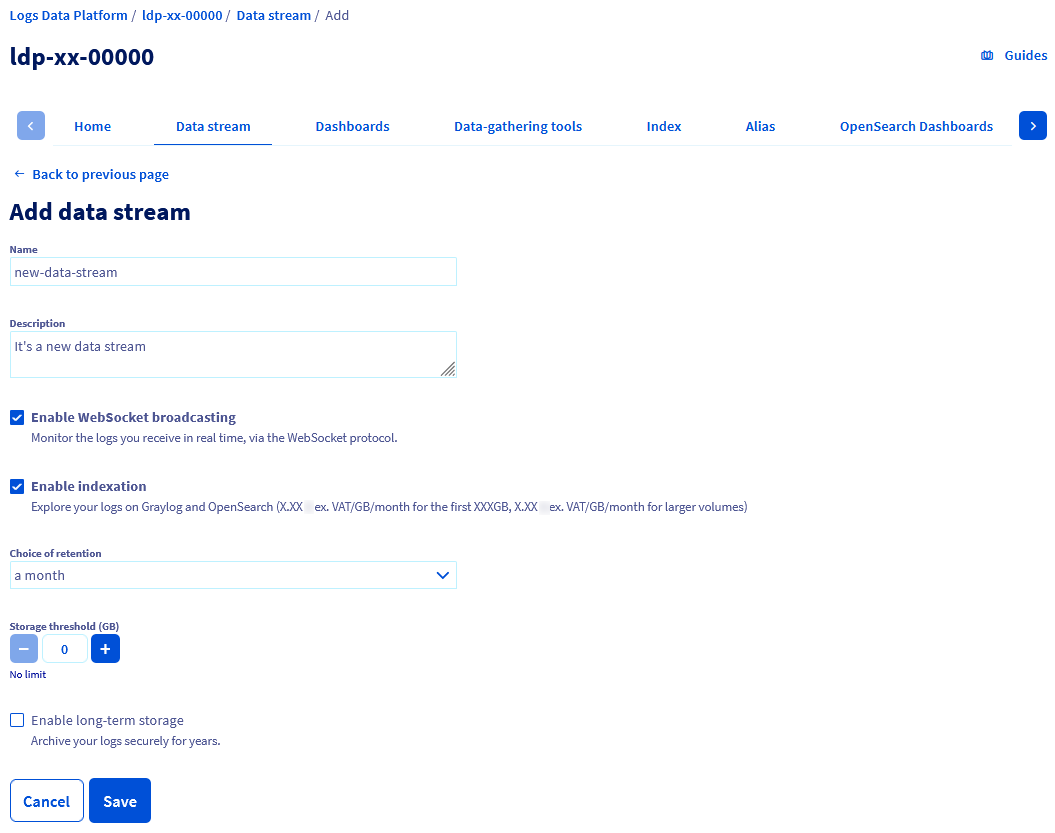
Since web hosting plans can be used with many services (databases, etc.), you can subscribe them to Logs Data Platform via a data stream, in addition to the real-time logs already available.
With a Logs Data Platform account, you get 1 GB of log retention free of charge. To benefit from it, you must activate your Logs Data Platform account free of charge and subscribe your web hosting plan to a data stream.
Depending on:
- The logs generated by your web hosting plan
- The number of web hosting plans subscribed to your Logs Data Platform account
the 1 GB of data may be consumed more or less quickly.
Indeed, depending on your usage, this data consumption can represent a volume of logs ranging from a few days to a few months or even years.
If you want a volume greater than 1 GB for your log retention, you can subscribe to an additional paid offer.
To subscribe your web hosting plan to a data stream on Logs Data Platform, 2 cases are possible:
Click each case to display the content.
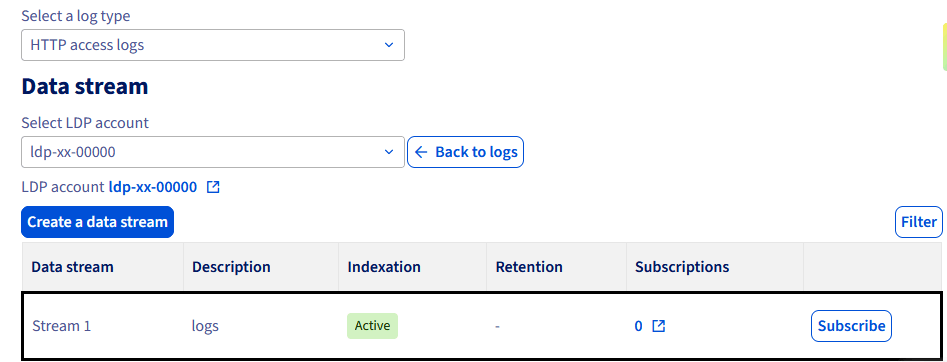
Case no. 1 - Subscribing to a stream that already exists on your Logs Data Platform solution
Click the tabs below to display each of the 5 steps in turn.
Go to the page, then select the relevant web hosting plan.
Case no. 2 - Subscribing to a new data stream on your Logs Data Platform solution
Click the tabs below to display each of the 6 steps in turn.
Go to the page, then select the relevant web hosting plan.
Go further
Introduction to Logs Data Platform
Getting started with Logs Data Platform
For specialised services (referencing, development, etc.), contact OVHcloud partners.
Join our community of users.