
Object Storage - Getting started
This guide is designed to familiarise you with the management of your buckets/objects.
Objective
This guide helps you manage your buckets and objects.
Learn how to create an Object Storage bucket and manage it.
If you are using legacy Swift Object Storage, then:
- for Standard object storage - SWIFT API storage class, follow this guide.
- for Cloud Archive - SWIFT API storage class, follow this guide.
For new projects, we highly recommend using our S31-compatible Object Storage which benefits from our latest innovations and new features.
Requirements
- A Public Cloud project in your OVHcloud account
- An Object Storage user already created
OVHcloud Control Panel Access
- Direct link:
- Navigation path:
Public Cloud> Select your project >Object Storage
Instructions
If you wish to use the OVHcloud Terraform provider, you can follow this guide.
Preparation
To use the AWS CLI
To find out how to install the AWS CLI in your environment, we recommend reading the official AWS documentation.
Check installation
If you need more information about AWS CLI installation, read the AWS documentation.
Collect Credentials
- You will need your user's Access key and Secret key. You can access this information in the
Object Storage userstab in your OVHcloud Control Panel. - You will also need your endpoint_url. If you have already created your bucket, you can access this information from the
My containerstab, then in the details of your bucket. Otherwise, follow this guide.
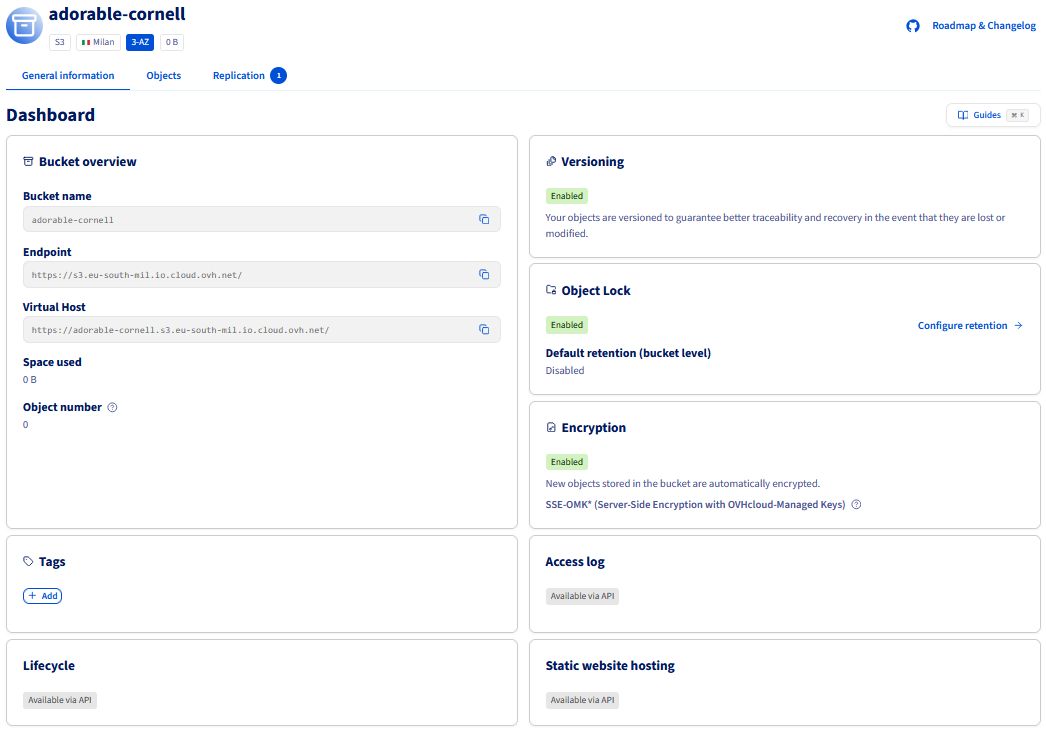
Where to find the Endpoint URL of a bucket?
Click on the name of your bucket and view its details in the General information tab:
Configuration
You can either use the interactive configuration to generate the configuration files or manually create them.
To use the interactive configuration, run the following command:
aws configure
or:
aws configure --profile <profile_name>
The configuration file format in the AWS client is as follows:
Here are the configuration values that you can specifically set:
For a list of endpoints by region and storage class, refer to this page.
Usage
If you have more than one profile, add --profile <profile_name> to the command line.
Using the OVHcloud Control Panel
To manage an Object Storage bucket, navigate to Object Storage in the left-hand menu.
Listing your buckets
Via AWS s3
Via AWS S3api
Create a bucket
Via AWS s3
Via AWS S3api
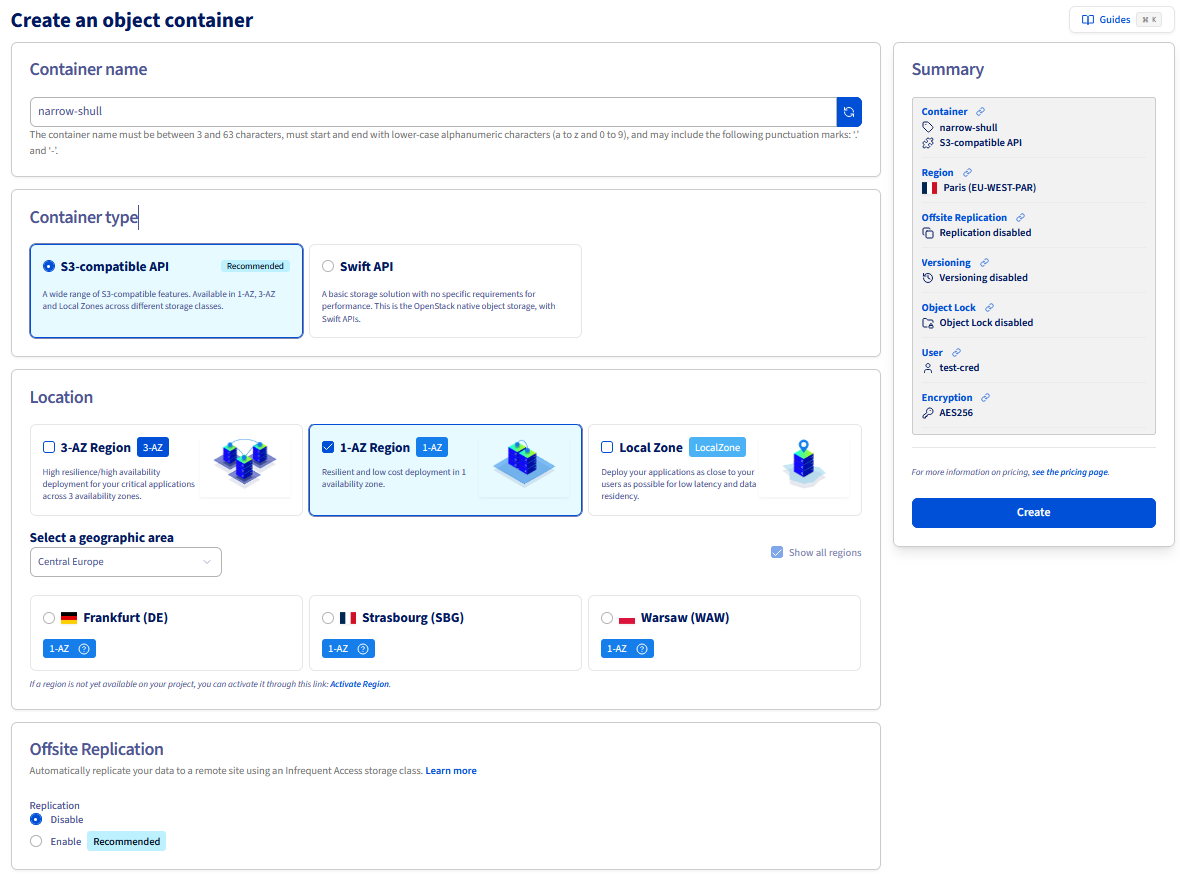
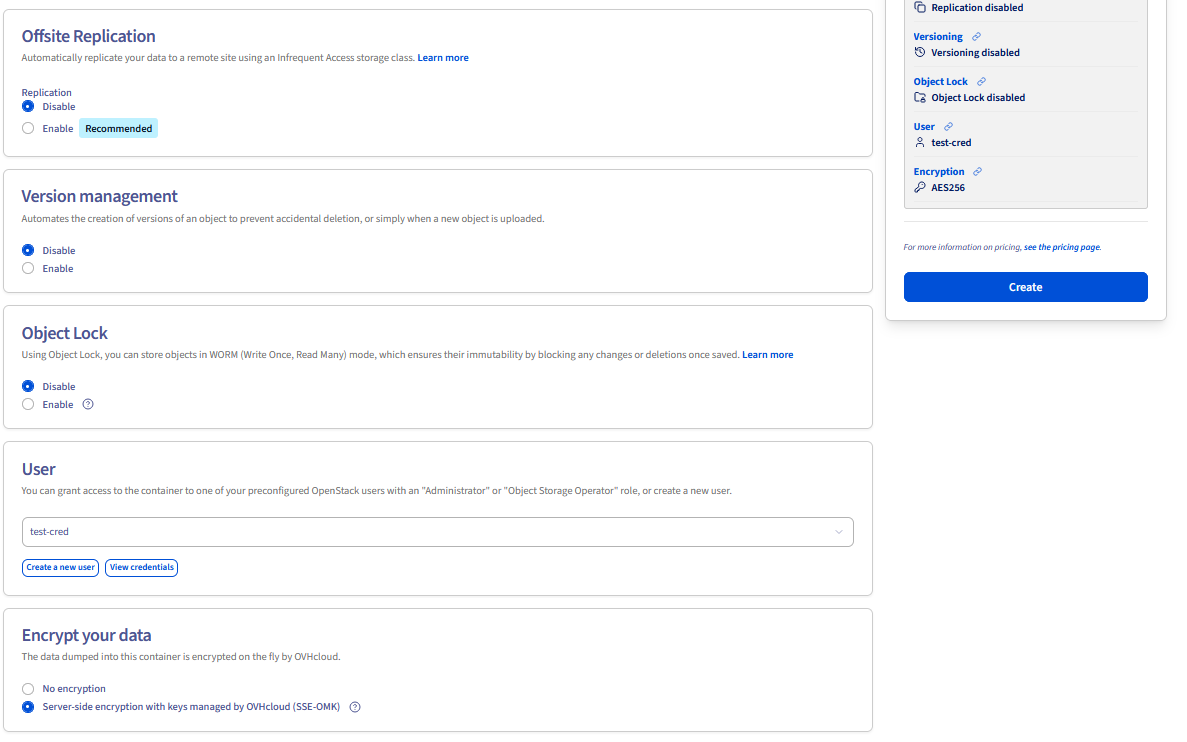
Uploading your files as objects in your bucket
When uploading objects, you can select a storage class to control availability, redundancy, and cost. To help you in choosing the best class for your requirements, check the documentation here.
To upload an object:
Via AWS s3
By default, objects are named after files, but they can be renamed.
The aws s3 cp command will use STANDARD as default storage class for uploading objects.
To store objects in the High Performance tier, use the aws s3api put-object command instead, as aws s3 cp does not support the EXPRESS_ONEZONE storage class which is used to map the High Performance storage tier.
To learn more about the storage class mapping between OVHcloud storage tiers and AWS storage classes, you can check our documentation here.
Via AWS s3api
By default, objects are named after files, but can be renamed.
Downloading an object from a bucket
Via AWS s3
Downloading an object from a bucket:
Uploading an object from one bucket to another bucket:
Downloading or uploading an entire bucket to the host/bucket:
Via AWS s3api
Downloading an object from a bucket:
Uploading an object from one bucket to another bucket:
Synchronising buckets
Deleting objects and buckets
A bucket can only be deleted if it is empty.
Via AWS s3
Deleting objects and buckets:
Deleting objects and buckets with versioning enabled:
If versioning is enabled, a simple delete operation on your objects will not permanently remove them.
In order to permanently delete an object, you must specify a version id:
To list all objects and all version IDs, you can use the following command:
With the previous delete-object command, you will have to iterate over all your object versions. Alternatively, you can use the following one-liner to empty your bucket:
Via AWS s3api
Deleting objects and buckets
Deleting objects and buckets with versioning enabled
If versioning is enabled, a simple delete operation on your objects will not delete them permanently.
To permanently delete an object, you need to specify a version identifier:
If your bucket has Object Lock enabled, you will not be able to permanently delete your objects. See our documentation to learn more about Object Lock.
If you use Object Lock in GOVERNANCE mode and have the permission to bypass GOVERNANCE mode, you will have to add the --bypass-governance-retention option to your delete commands.
Manage tags
Setting tags on a bucket:
Deleting tags on a bucket:
Setting tags on an object:
Deleting tags on an object:
Go further
For training or technical assistance implementing our solutions, contact your sales representative or visit our Professional Services page to request a quote and have your project analysed by our experts.
Join our community of users.
1: S3 is a trademark of Amazon Technologies, Inc. OVHcloud’s service is not sponsored by, endorsed by, or otherwise affiliated with Amazon Technologies, Inc.