Configuring Disaster Recovery with Metro

Objective

This guide introduces Metro Availability, which provides an automated disaster recovery plan.

Warning

OVHcloud provides services for which you are responsible, with regard to their configuration and management. It is therefore your responsibility to ensure that they work properly.

This guide is designed to assist you as much as possible with common tasks. Nevertheless, we recommend contacting a specialist provider if you experience any difficulties or doubts when it comes to managing, using or setting up a service on a server.

Requirements

  • Access to the OVHcloud Control Panel
  • Access to your clusters via Prism Central
  • You need to have 3 Nutanix clusters within the OVHcloud infrastructure with Pro or Ultimate packs if you have a Nutanix on OVHcloud packaged service on both clusters in the P.R.A. These 3 clusters will need to be at remote sites for maximum security.
  • You must have less than 5 ms of latency between the two replicated clusters. Please note that latency is not covered by SLAs.

Introduction s

We will set up a two-way disaster recovery plan between two clusters with this hardware:

  • A Nutanix cluster in Roubaix, France, with virtual machines replicated in Gravelines.
  • A Nutanix cluster in Gravelines, France, with virtual machines replicated in Roubaix.
  • A Nutanix cluster in Erith, England with Prism Central to serve as a witness in the disaster recovery plan.

We will only use one vRack, which will contain:

  • The three Nutanix clusters.
  • Load balancers.
  • Additional IP addresses on the rtvRack.

Below is the diagram showing the three sites:
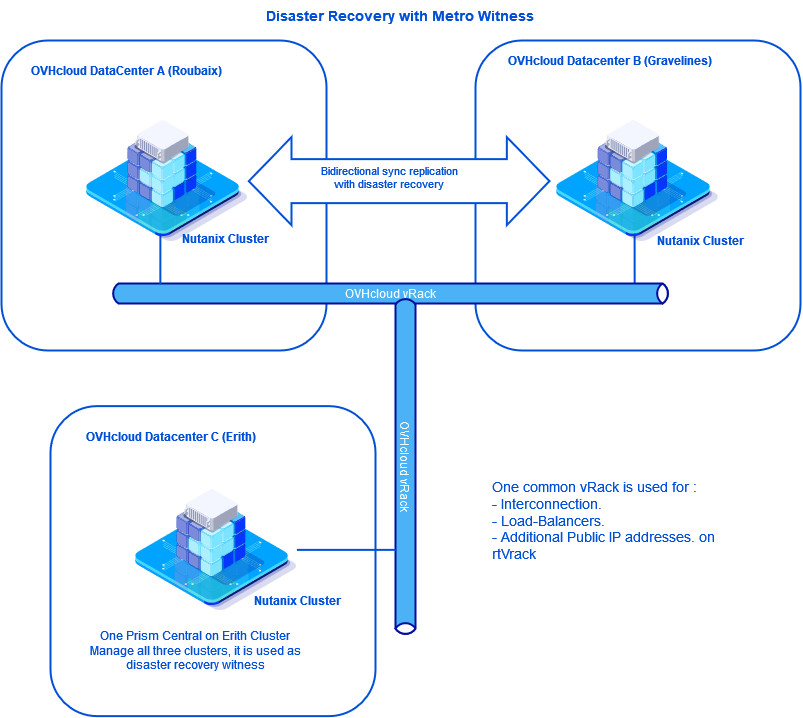
00 - Metro Availability Diagram 01

Instructions

We will implement this disaster recovery plan step by step.

The cluster configuration information used in our guide is as follows:

  • Roubaix cluster:

    • Server 1: VM address CVM 192.168.0.21, hypervisor IP address AHV 192.168.0.1.
    • Server 2: VM address CVM 192.168.0.22, hypervisor IP address AHV 192.168.0.2.
    • Server 3: VM address CVM 192.168.0.23, hypervisor IP address AHV 192.168.0.3.
    • Prism Element virtual address: 192.168.0.100.
    • Prism Element iSCSI address: 192.168.0.102.
    • Prism Central IP address: 192.168.0.101.
    • Gateway: 192.168.3.254.
    • Mask: 255.255.252.0
    • Cluster version: 6.5
  • Gravelines cluster:

    • Server 1: VM address CVM 192.168.1.21, hypervisor IP address AHV 192.168.1.1.
    • Server 2: VM address CVM 192.168.1.22, hypervisor IP address AHV 192.168.1.2.
    • Server 3: VM address CVM 192.168.1.23, hypervisor IP address AHV 192.168.1.3.
    • Prism Element virtual address: 192.168.1.100.
    • Prism Element iSCSI address: 192.168.1.102.
    • Prism Central IP address: 192.168.1.101.
    • Gateway: 192.168.3.254.
    • Mask: 255.255.252.0
    • Cluster version: 6.5.
  • Erith Cluster:

    • Server 1: VM address CVM 192.168.2.21, hypervisor IP address AHV 192.168.2.1.
    • Server 2: VM address CVM 192.168.2.22, hypervisor IP address AHV 192.168.2.2.
    • Server 3: VM address CVM 192.168.2.23, hypervisor IP address AHV 192.168.2.3.
    • Prism Element virtual address: 192.168.2.101.
    • Prism Element iSCSI address: 192.168.2.102.
    • Prism Central IP address: 192.168.2.100.
    • Gateway: 192.168.3.254.
    • Mask: 255.255.252.0
    • Cluster version: 6.5.

In addition to this guide, you can use these documents:

Step 1 - Configuration

Step 1.1 - Interconnection of the three clusters

The first step is to interconnect the three clusters on the same OVHcloud vRack.

Use this guide to connect your clusters: Interconnect clusters through the vRack. To connect the three clusters, use the instructions provided in the guide:

  • Roubaix clusters in the vRack dedicated to Gravelines.
  • Erith clusters in the vRack dedicated to Gravelines.

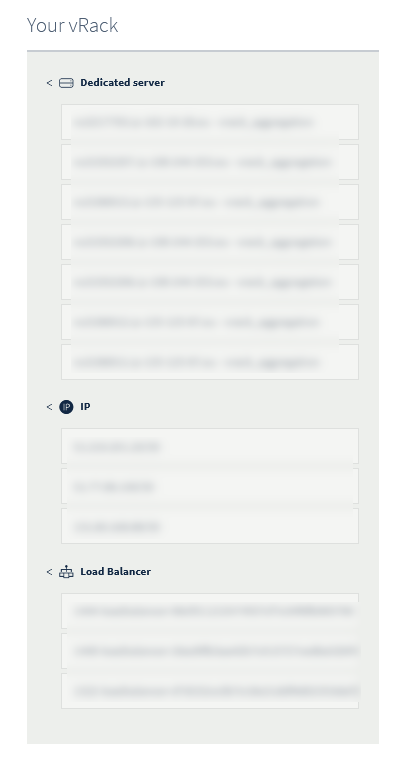
When you have finished configuring your vRack, you will have these elements in your vRack:

  • 9 dedicated servers (3 per cluster)
  • 3 public IP addresses
  • 3 Load Balancers
01 - vRack Configuration 01

The three clusters are currently accessible from the Prism Central URL of each cluster.

Step 1.2 - Delete the Prism Central records for the Roubaix and Gravelines clusters

To implement a disaster recovery plan solution with Metro Availability, a cluster witness is required to automate tasks in the event of one of the clusters becoming unavailable. The cluster witness is located on a Prism Central virtual machine.

The Erith cluster will host the Prism Central virtual machine for the three clusters, and serve as a cluster witness for the disaster recovery plan between Roubaix and Gravelines.

Disabling Prism Central on the Roubaix cluster

Connect via SSH to the Prism Element cluster in Roubaix:

ssh nutanix@private_ip_address_prism_element_Roubaix
Enter Prism Element password

Run this command to remove Prism Element from the Prism Central configuration:

ncli multicluster remove-from-multicluster external-ip-address-or-svm-ips=private_ip_address_central_roubaix\
username=admin password=pwd_pe_Roubaix force=true

This message appears when disconnecting from Prism Central.

Cluster unregistration is currently in progress. This operation may take a while.

Enter this command:

ncli cluster info

Note the value of the Cluster UUID that must have this form xxxxxxxx-xxxx-xxxx-xxxx-xxxxxxxxxxxx.

Disconnect from Prism Element and connect via SSH on the Prism Central virtual machine in Roubaix.

ssh nutanix@private_ip_address_prism_central_roubaix
Enter Prism Central password

Enter this command:

python /home/nutanix/bin/unregistration_cleanup.py cluster_uuid_prism_element_Roubaix
Disabling Prism Central on the Gravelines cluster

Log in to the Prism Element cluster in Gravelines via SSH.

ssh nutanix@private_ip_address_prism_element_Gravelines
Enter Prism Element password

Enter this command:

ncli multicluster remove-from-multicluster external-ip-address-or-svm-ips=private_ip_address_prism_central_Gravelines\
username=admin password=pwd_pe_Gravelines force=true

This message appears when disconnecting from Prism Central.

Cluster unregistration is currently in progress. This operation may take a while.

Enter this command:

ncli cluster info

Note the value of Cluster UID that should be in this form xxxxxxxx-xxxx-xxxx-xxxx-xxxxxxxxxxxx

Disconnect from Prism Element and connect via SSH on the Prism Central virtual machine in Gravelines.

ssh nutanix@private_ip_address_prism_central_Gravelines
enter Prism Central password
python /home/nutanix/bin/unregistration_cleanup.py cluster_uuid_prism_element_Gravelines

Step 1.3 - Registration of the two clusters on the Prism Central in Erith

Log in to the Prism Element in Roubaix via SSH:

ssh nutanix@private_ip_address_prism_element_Roubaix
enter Prism Element password

Run this command:

ncli multicluster register-to-prism-central username=admin password=passwod_admin\ external-ip-address-or-svm-ips=private_ip_address_prism_central_Erith

This message appears:

Cluster registration is currently in progress. This operation may take a while.

Wait and enter this command:

ncli multicluster get-cluster-state

If the cluster is connected to Prism Central in Erith, you will see this information:

Registered Cluster Count: 1

    Cluster Id                : xxxxxxxx-xxxx-xxxx-xxxx-xxxxxxxxxxxx
    Cluster Name              : Prism-Central-Erith-FQDN
    Is Multicluster           : true
    Controller VM IP Addre... : [private_ip_address_prism_central_Erith]
    External or Masqueradi... :
    Cluster FQDN              :
    Controller VM NAT IP A... :
    Marked for Removal        : false
    Remote Connection Exists  : true

Log in to Prism Element in Gravelines via SSH:

ssh nutanix@adresse_ip_prism_element_Gravelines
Enter Prism Element password from Gravelines

Run this command:

ncli multicluster register-to-prism-central username=admin password=passwod_admin_Erith external-ip-address-or-svm-ips=private_ip_address_central_Erith

This message appears:

Cluster registration is currently in progress. This operation may take a while.

Wait and enter this command:

ncli multicluster get-cluster-state

If the cluster is connected to the Prism Central in Erith, you will see this information:

Registered Cluster Count: 1

    Cluster Id                : xxxxxxxx-xxxx-xxxx-xxxx-xxxxxxxxxxxx
    Cluster Name              : Prism-Central-Erith-FQDN
    Is Multicluster           : true
    Controller VM IP Addre... : [private_ip_address_prism_central_Erith]
    External or Masqueradi... :
    Cluster FQDN              :
    Controller VM NAT IP A... :
    Marked for Removal        : false
    Remote Connection Exists  : true

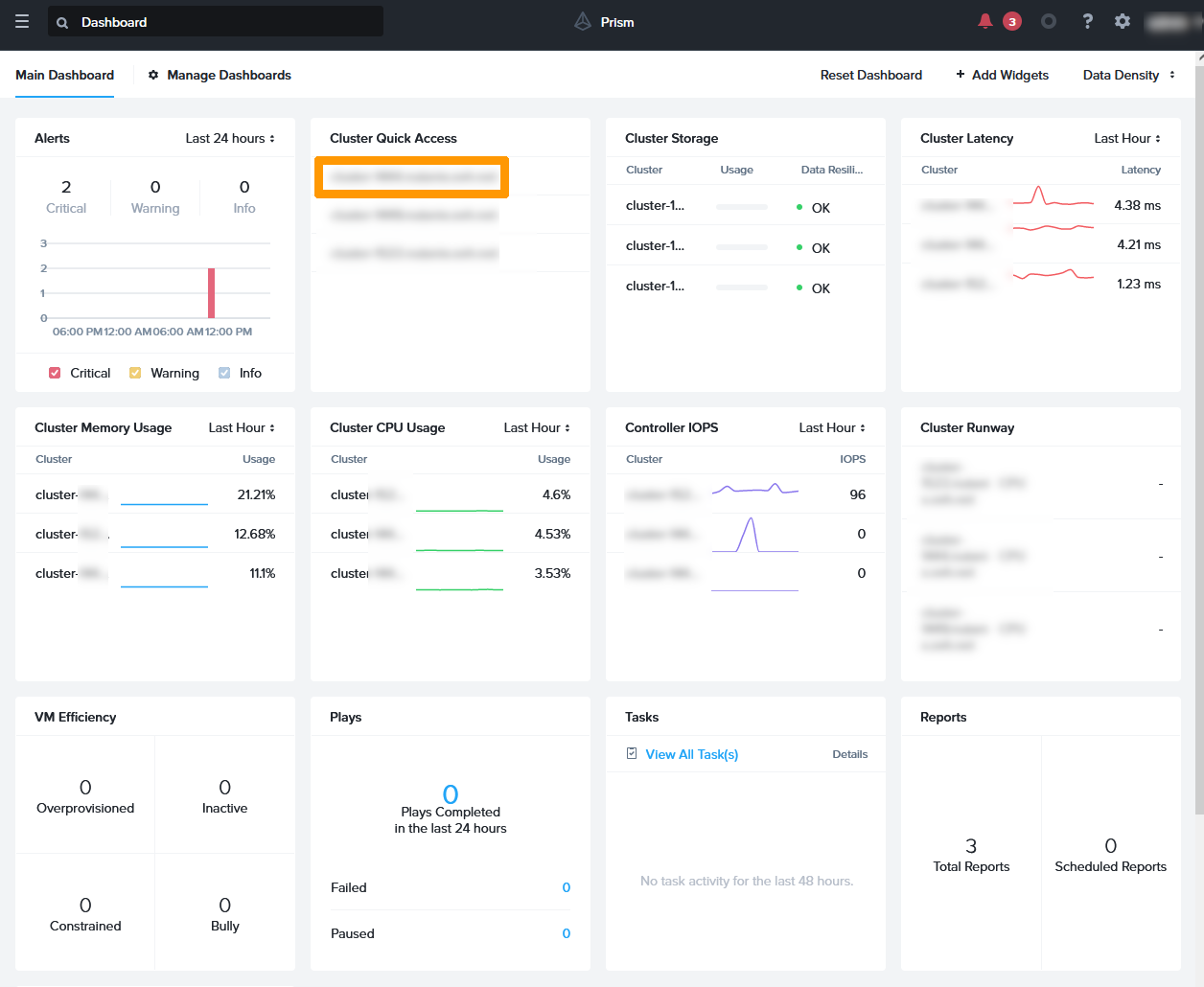
From a web browser, log in to the URL from Prism-Central to Erith, you will see the three clusters.
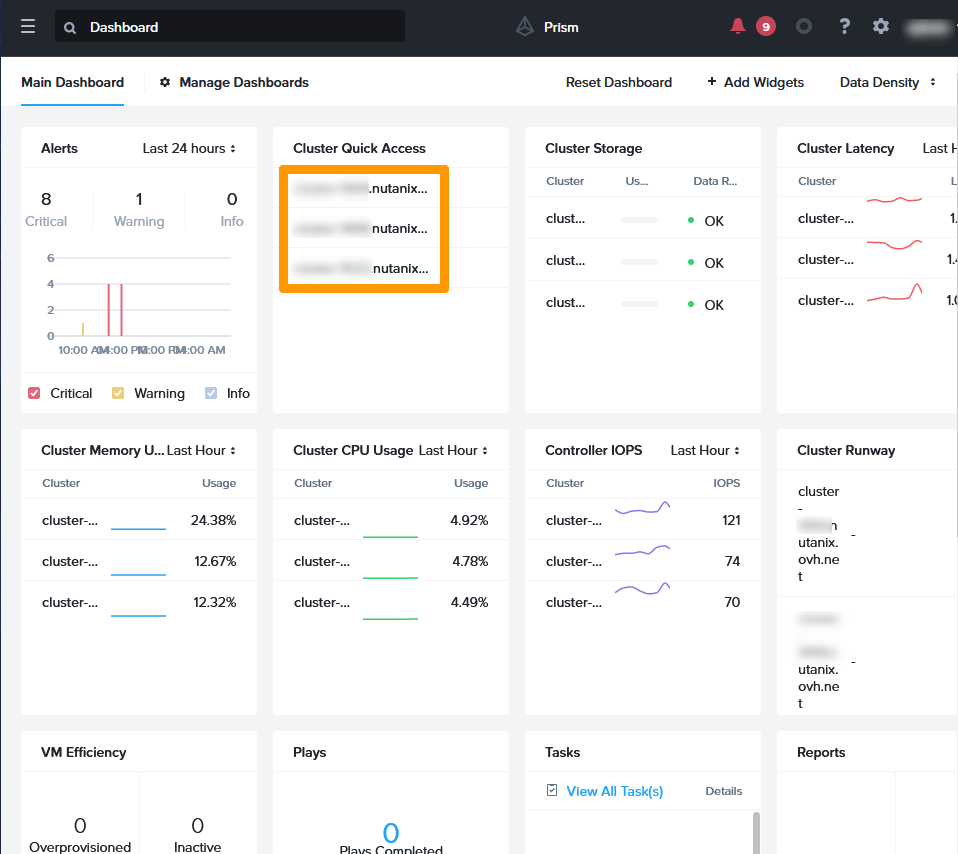
02 - Prism Central Dashboard 01

The Prism Central virtual machines in Gravelines and Roubaix are no longer being used. You can stop them.

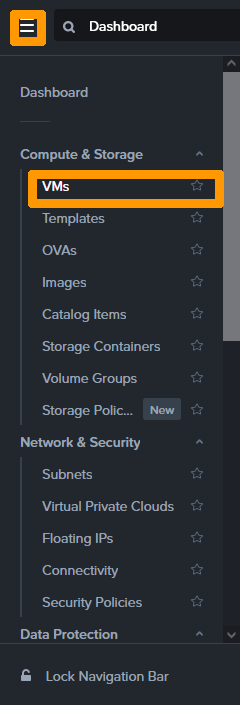
In the main menu, click Vms in the Compute & Storage submenu.
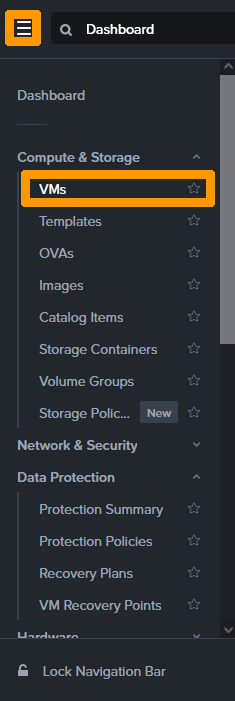
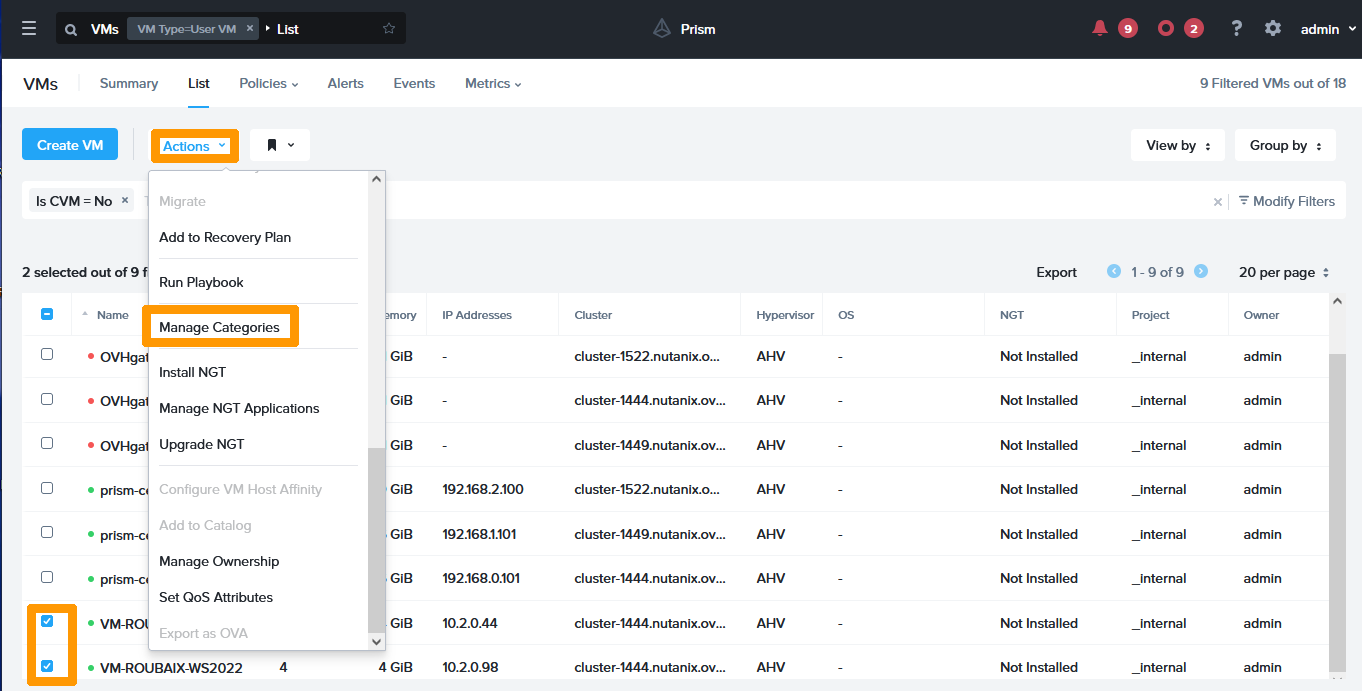
02b - Shutdow Prism Central Gravelines Roubaix 01

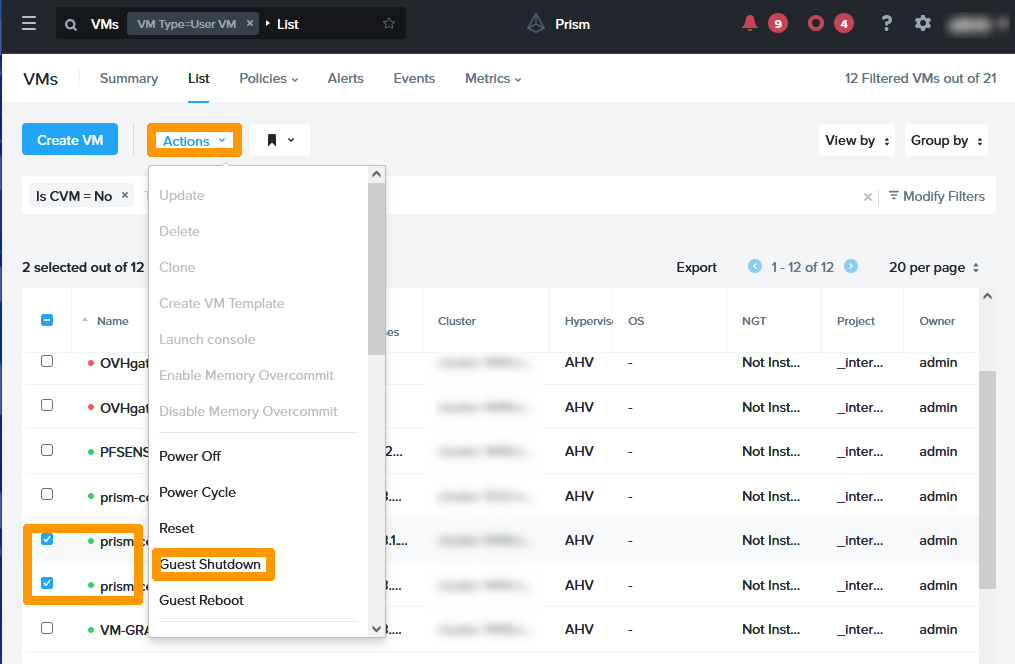
Select the Prism Central virtual machines in Gravelines and Roubaix and click Guest Shutdown from the Actions menu.
02b - Shutdow Prism Central Gravelines Roubaix 02

Step 1.4 - Adding IP Addresses for iSCSI Connections on All Three Clusters

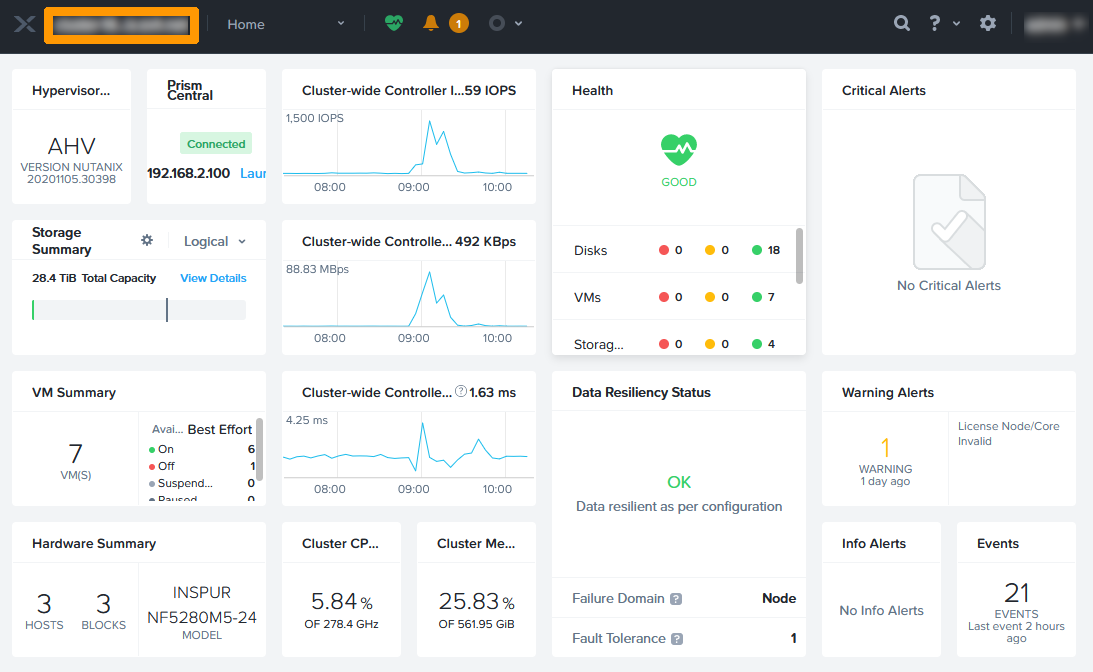
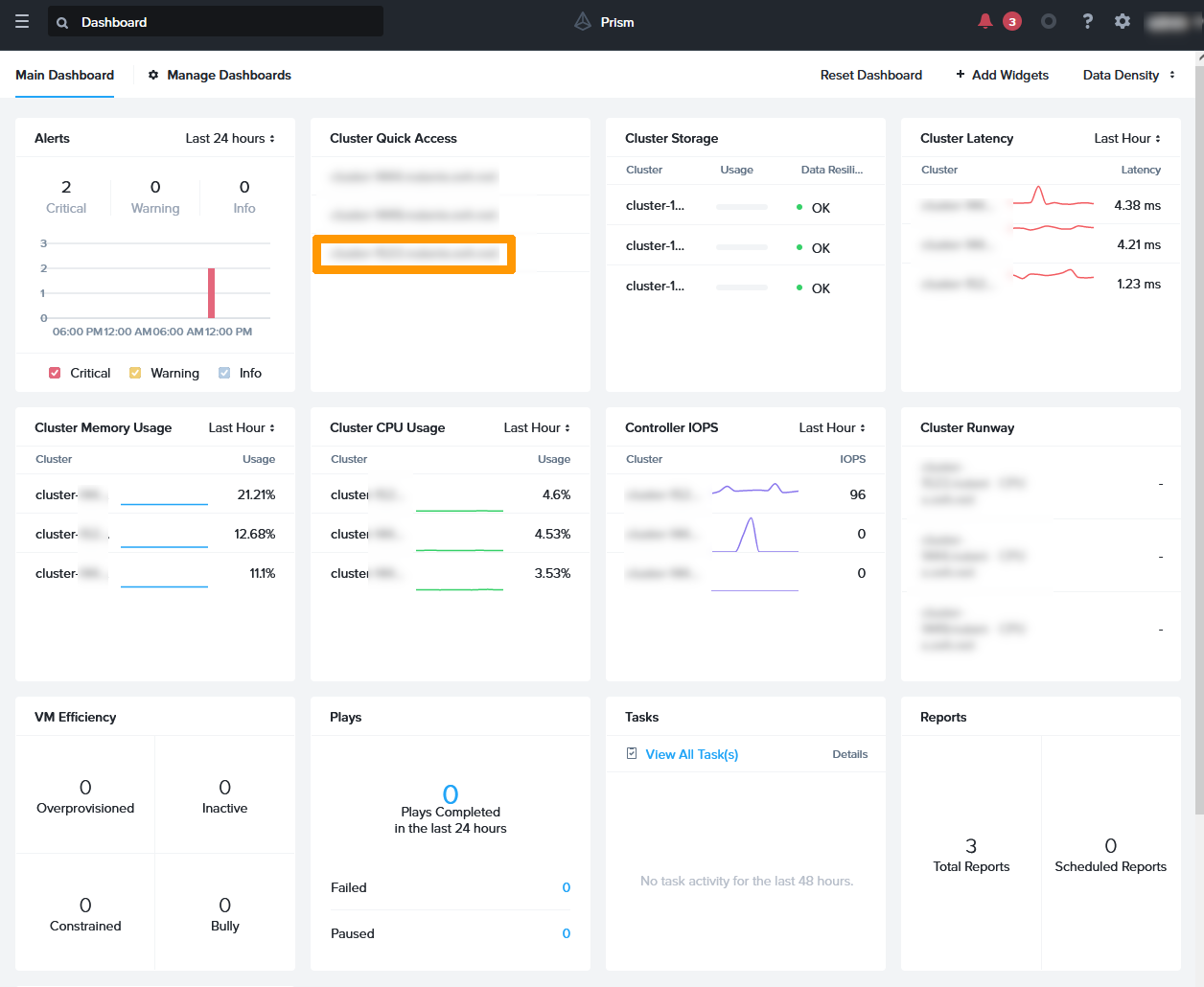
From the Prism Central dashboard, click the link to the Erith cluster .
03 - Add iscsi address Erith 01

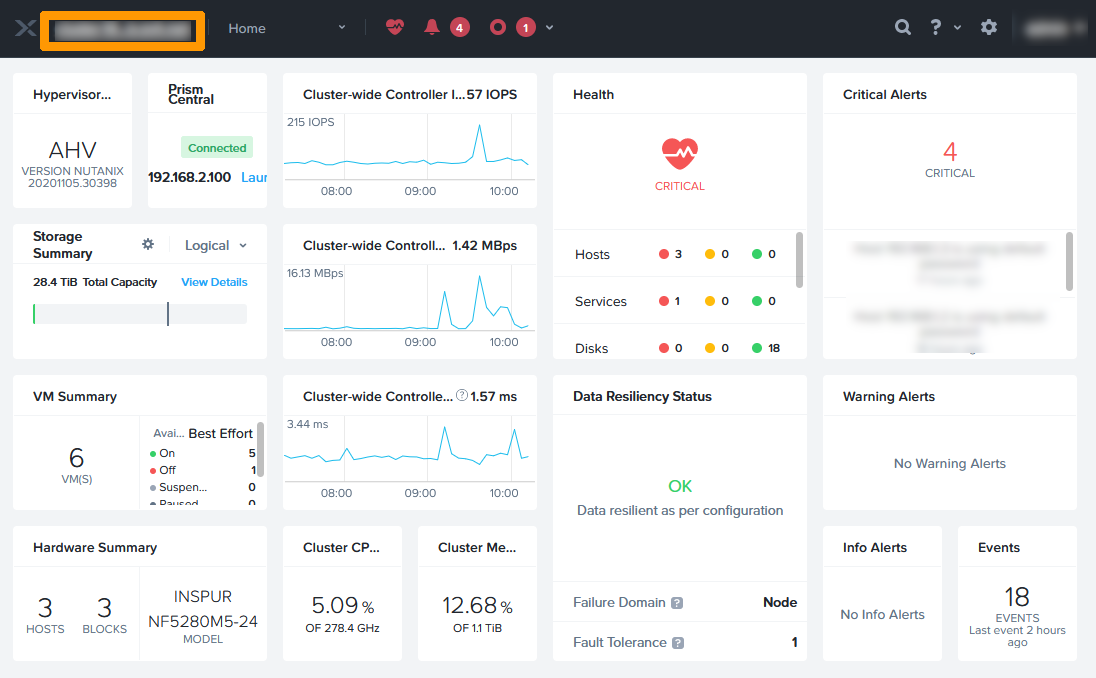
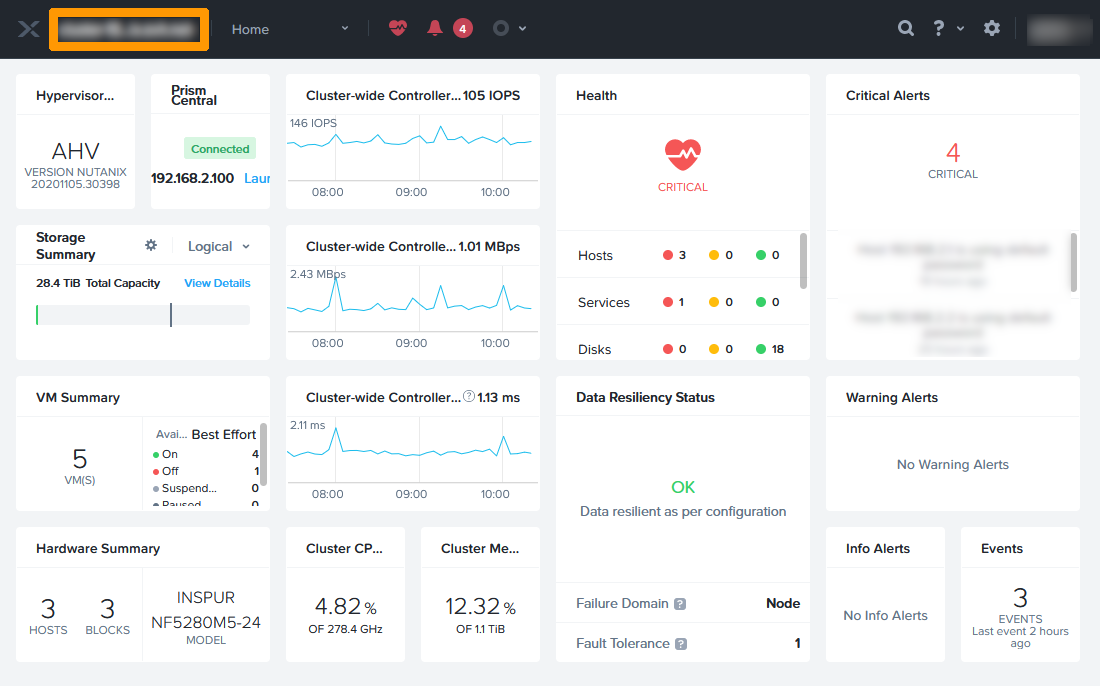
On the Prism Element dashboard, click the cluster name in the top left-hand corner.
03 - Add iscsi address Erith 02

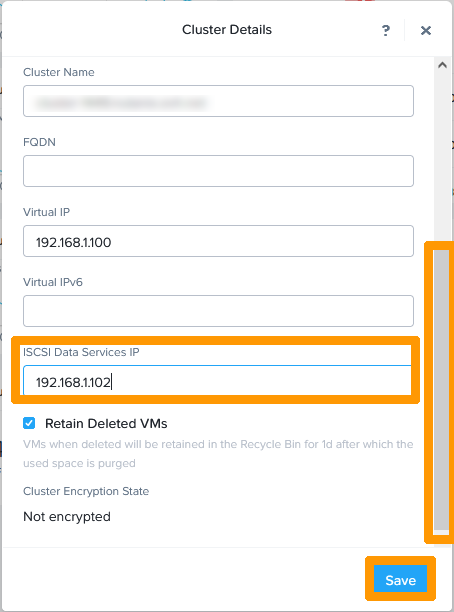
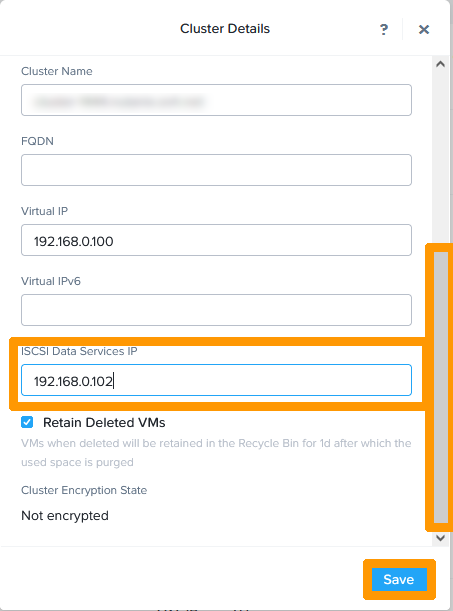
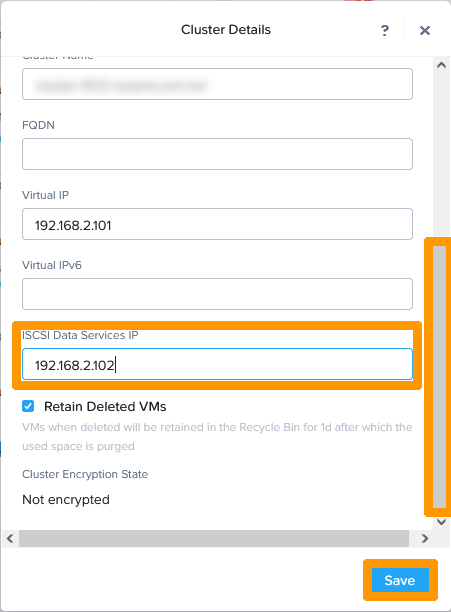
Scroll down the window and check the IP address in ISCSI Data Services IP.
03 - Add iscsi address Erith 03

From the Prism Central dashboard, click the link to the "Gravelines cluster".
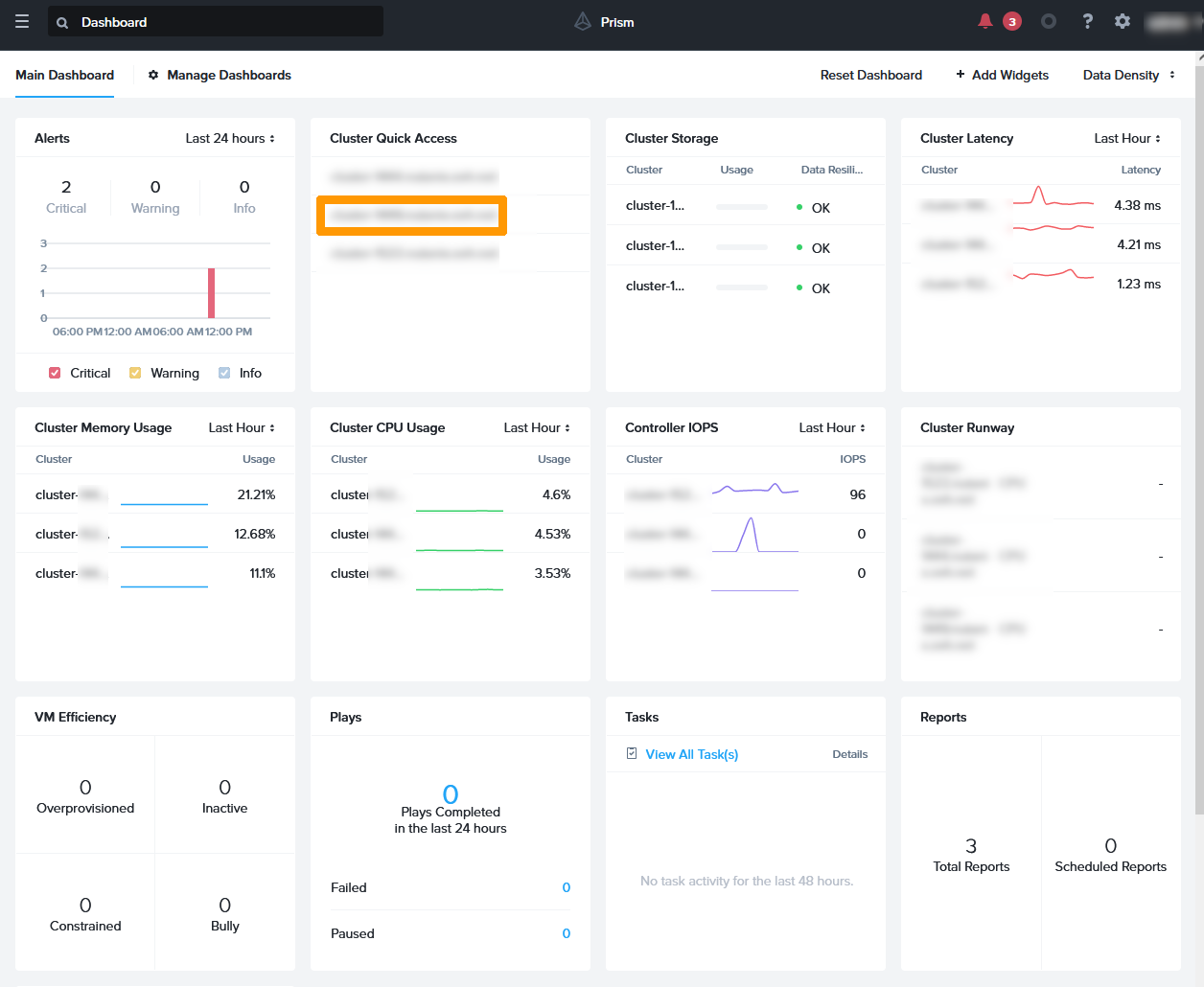
03 - Add iscsi address Gravelines 01

On the Prism Element dashboard, click "the cluster name" in the top left-hand corner.

03 - Add iscsi address Gravelines 02

Scroll down the window and check the IP address in ISCSI Data Services IP.

03 - Add iscsi address graveline 03

From the Prism Central dashboard, click on the link to the "Roubaix cluster".

03 - Add iscsi address Roubaix 01

On the Prism Element dashboard, click the "cluster name" in the top left-hand corner.

03 - Add iscsi address Roubaix 02

Scroll down the window and check the IP address in ISCSI Data Services IP.

03 - Add iscsi address Roubaix 03

Step 1.5 - Creating Two Storage Containers

We will create two Storage Containers with the same name, one in Roubaix and the other in Gravelines.

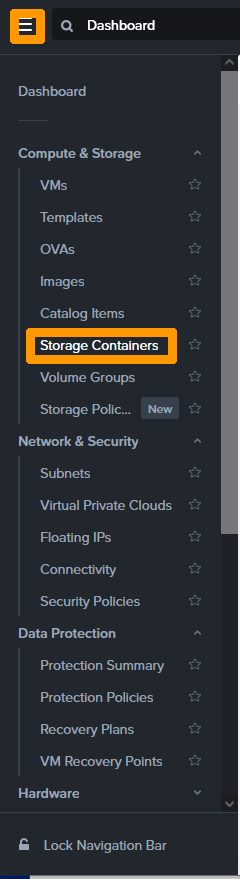
From the Prism Element main menu, click Storage Containers in the Compute & Storage submenu.

05 - Add-storage-container 01

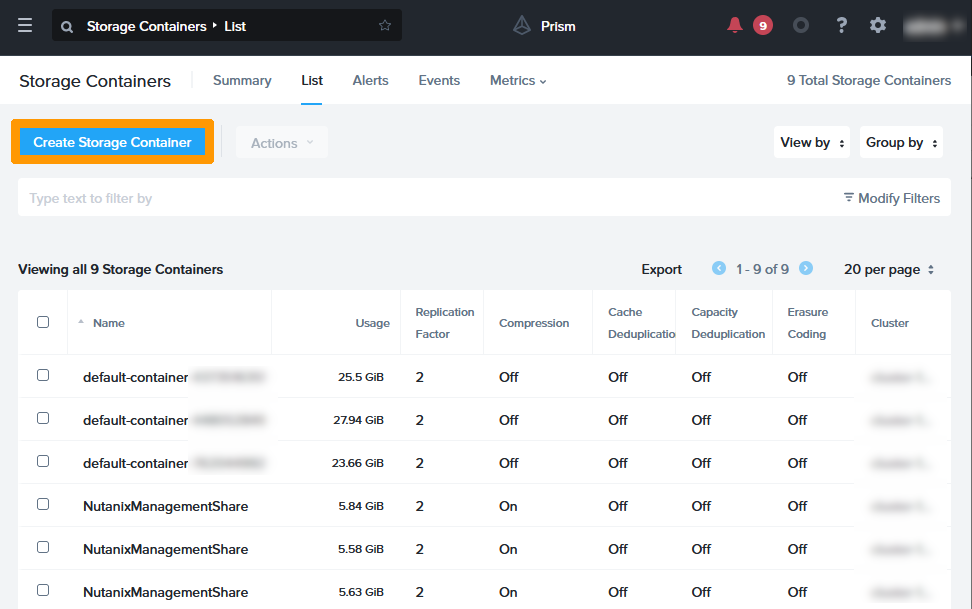
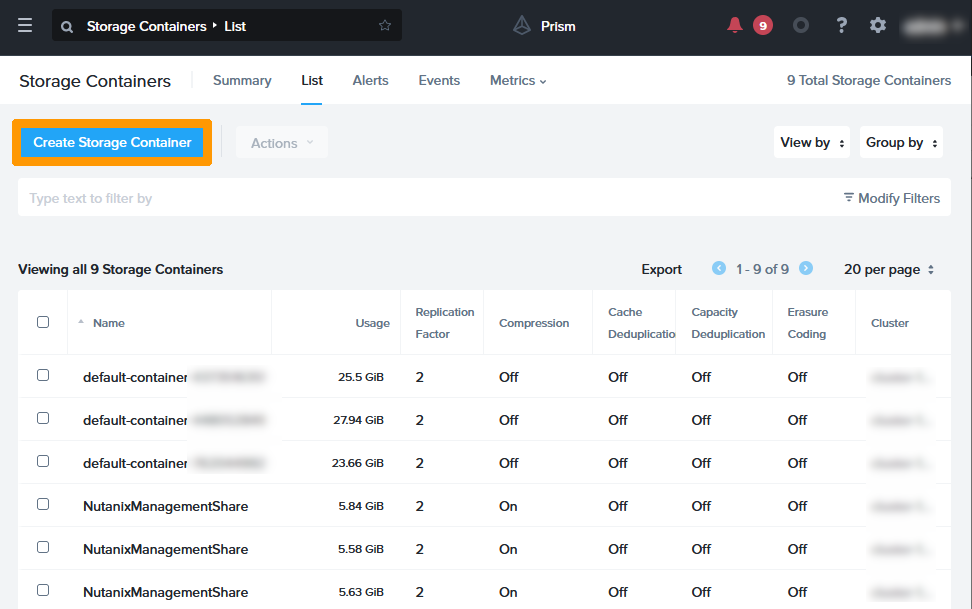
Click Create Storage Container.

05 - Add-storage-container 02

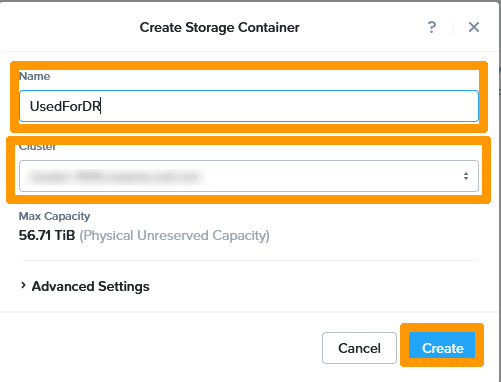
Type UsedForDR in Name, choose the Roubaix cluster in Cluster, and click Create.

05 - Add-storage-container 03

Click Create Storage Container.

05 - Add-storage-container 04

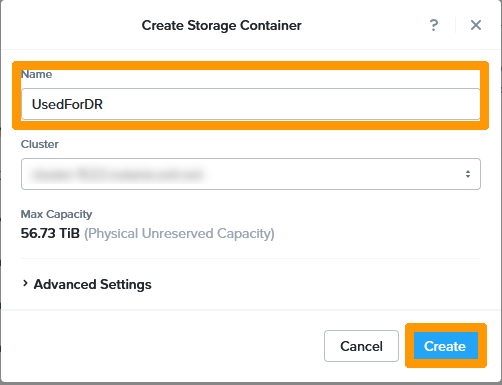
Type UsedForDR in Name, choose the Gravelines cluster in Cluster, and click Create.

05 - Add-storage-container 05

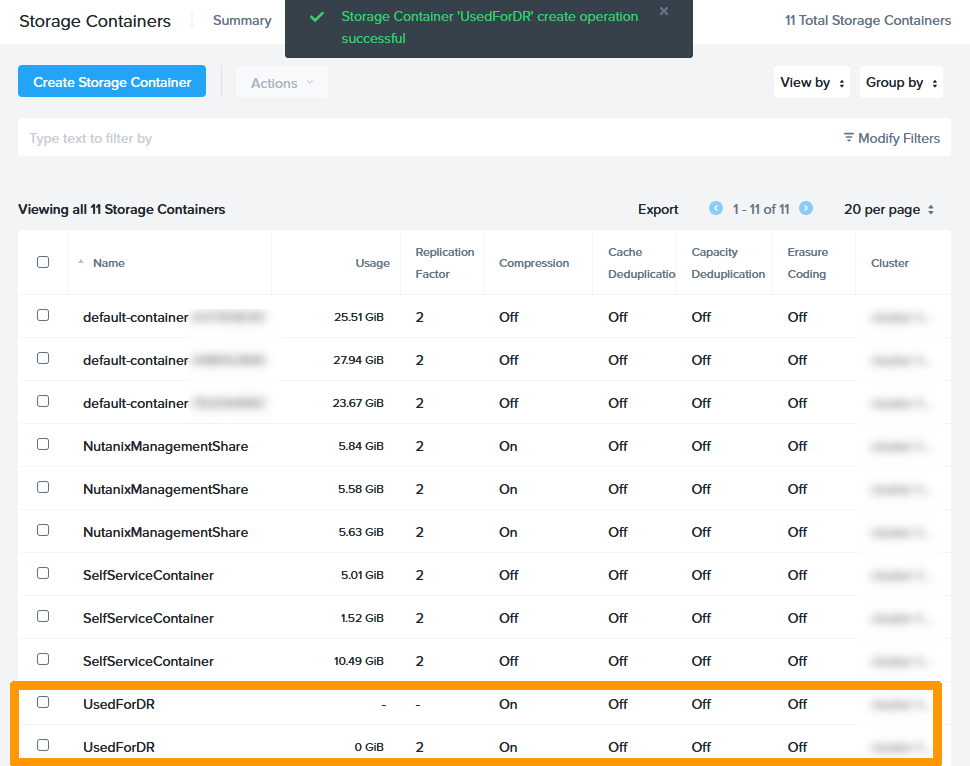
In the list of Storage Containers, you will see two Storage Containers with the same name. One on the Roubaix cluster and the other on the Gravelines cluster.

05 - Add-storage-container 06

Step 1.6 - Moving virtual machines to the Storage Container

We will move the virtual machine storage to the Storage Container we have created.

Connect via SSH on the Prism Element of the Roubaix cluster:

ssh nutanix@private_ip_address_Prism_element_Roubaix
Enter the Nutanix account password of Prism Element

Run this command for each VM we will move to the Storage Container, replacing vmname with the name of the virtual machine (in our disaster recovery plan, we have two virtual machines in Roubaix, one on Windows and one on Linux).

acli vm.update_container vmname container=UsedForDR
Enter the Nutanix account password of Prism Element

Log in to the Prism Element of the Gravelines cluster via SSH:

ssh nutanix@private_ip_address_Prism_element_Gravelines
Enter the Nutanix account password of Prism Element

Execute this command for each VM that we will move to the Storage Container, replacing vmname with the name of the virtual machine (in our disaster recovery plan, we have three virtual machines in Gravelines, one on Windows, another on Linux and the gateway that gives access to the Internet).

acli vm.update_container vmname container=UsedForDR
Enter the Nutanix account password of Prism Element

Step 1.7 - Creation of a category to be used when implementing the P.R.A

We will create a category with two values in Prism Central to assign the virtual machines involved in replication.

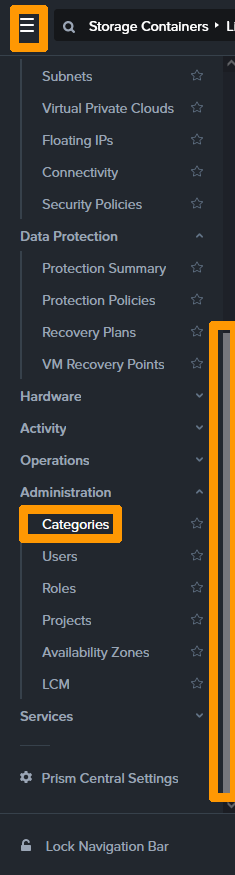
Scroll through the main menu, click Categories on the Administration submenu.

06 - Add Categorie 01

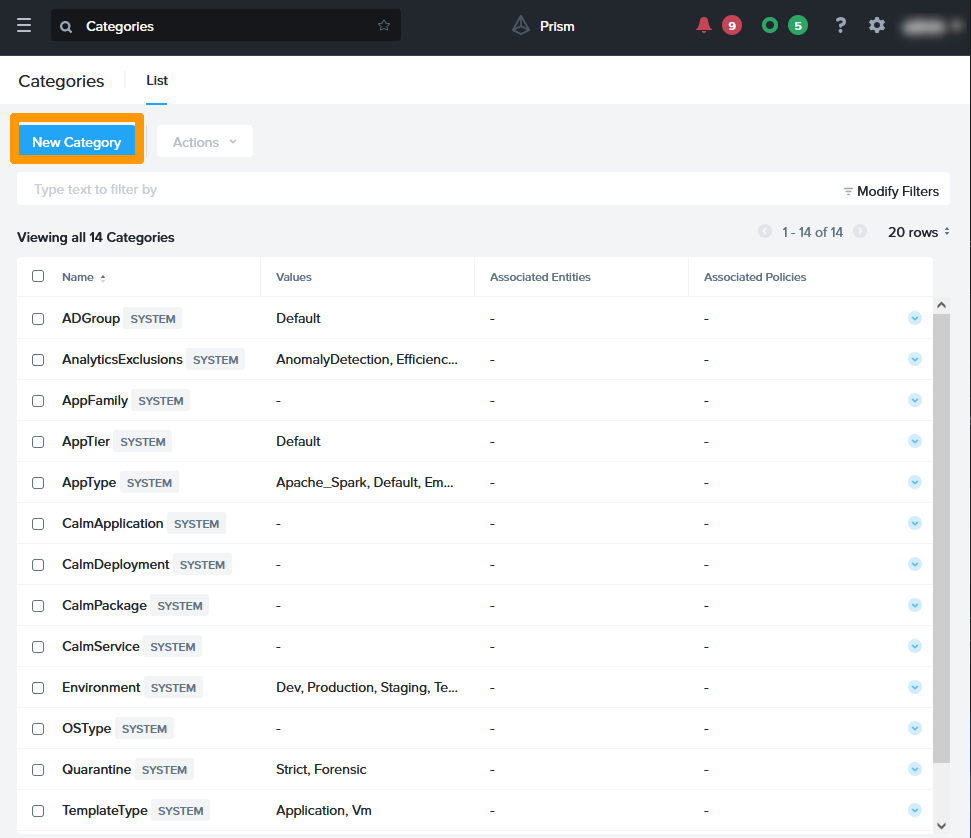
Click New Category.

06- Add Categorie 02

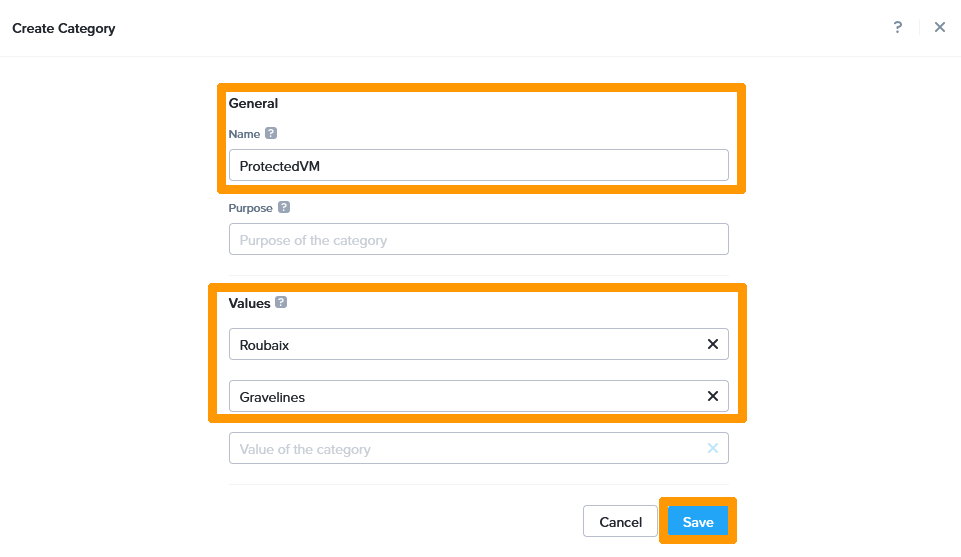
Type Protected VM in Name, add the Roubaix and Gravelines values in Values and click on the next button Save.

06 - Add Categorie 03

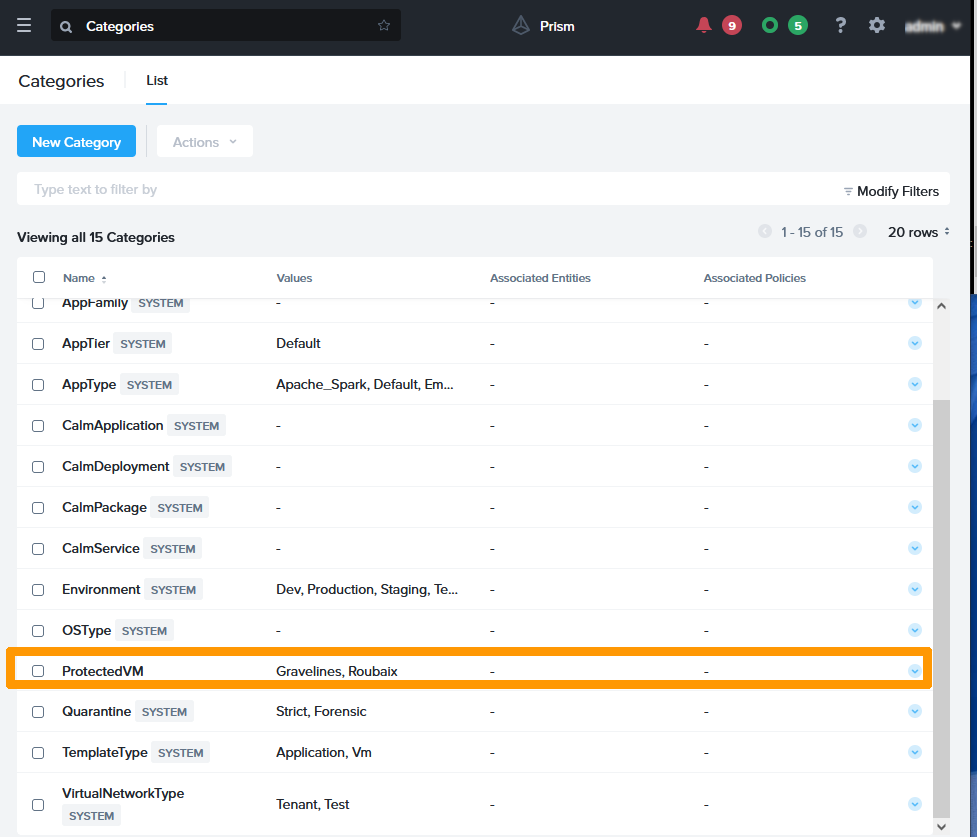
The category appears in the list and is ready to use.

06 - Add Categorie 04

Step 1.8 - Adding virtual machines in categories

We will assign two virtual machines on the Roubaix cluster in one category and three virtual machines on the Gravelines cluster in another category.

From the Prism Central main menu, click Vms in the Compute & Storage submenu.

07 - Add Categorie to VM Roubaix 01

Select the two virtual machines in Roubaix on the left, then on the Actions menu, click Manage Categories.

07 - Add Categorie to VM Roubaix 02

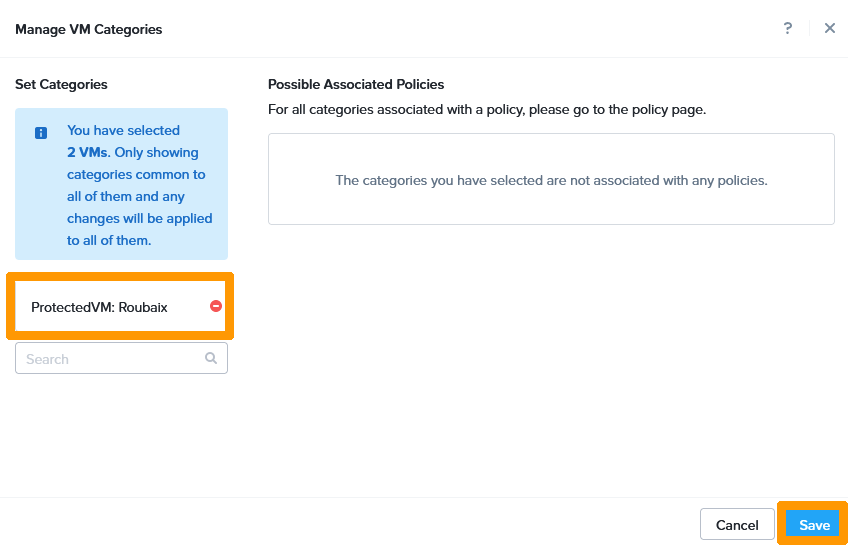
Add the category ProtectedVM: Roubaix, then click Save.

07 - Add Categorie to VM Roubaix 03

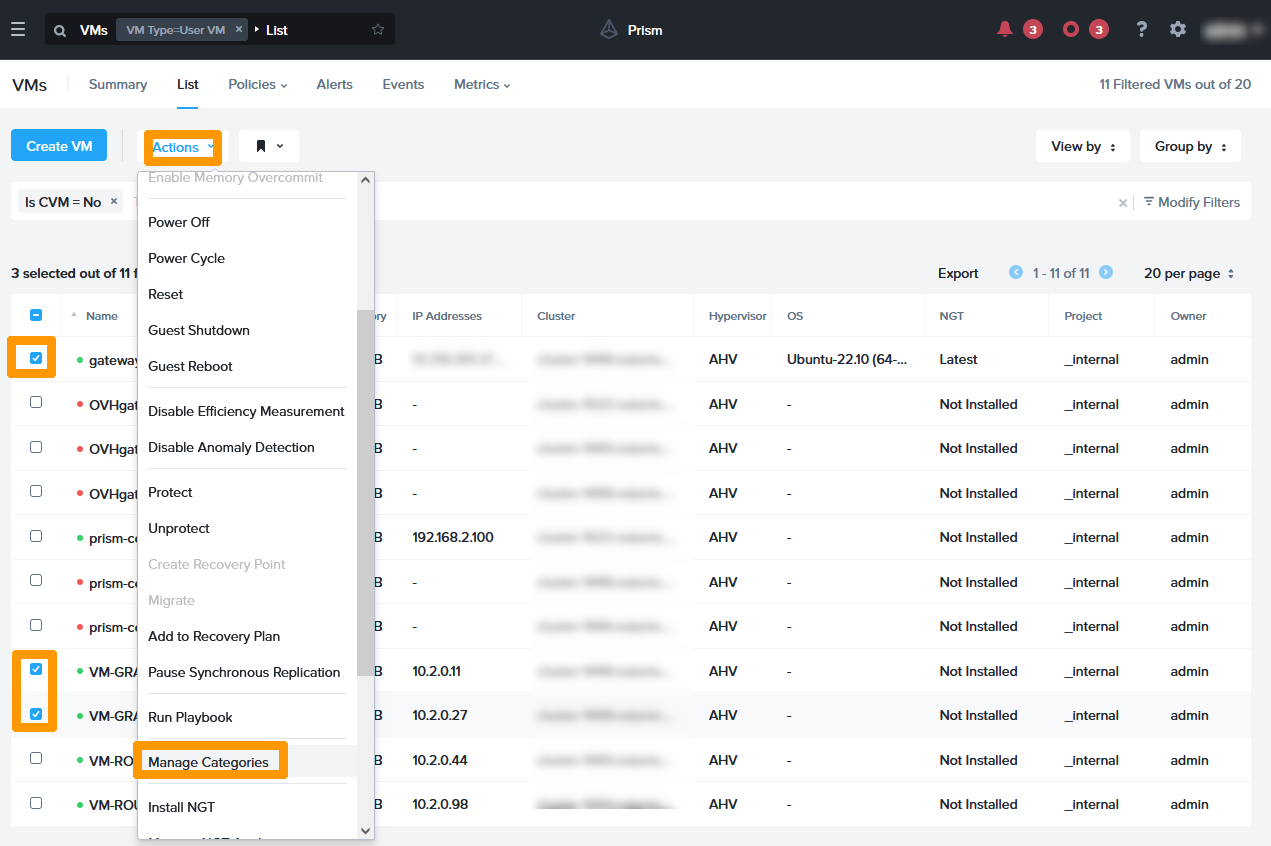
Select the three virtual machines in Gravelines on the left, and on the Actions menu, click Manage Categories.

08 - Add Categorie to VM Gravelines 01

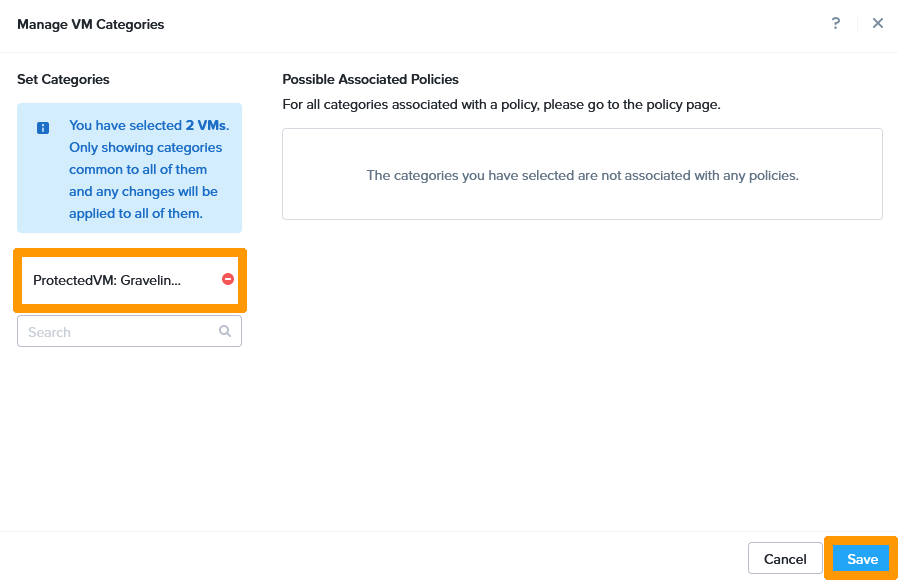
Add the category ProtectedVM: Gravelines, then click Save.

08 - Add Categorie to VM Gravelines 02

Step 1.9 - Setting up synchronous replications between Roubaix and Gravelines

Synchronous replication allows permanent replication with 0 seconds of data loss.

Replication setup between Roubaix and Gravelines

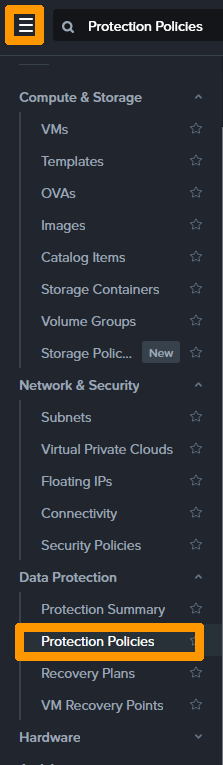
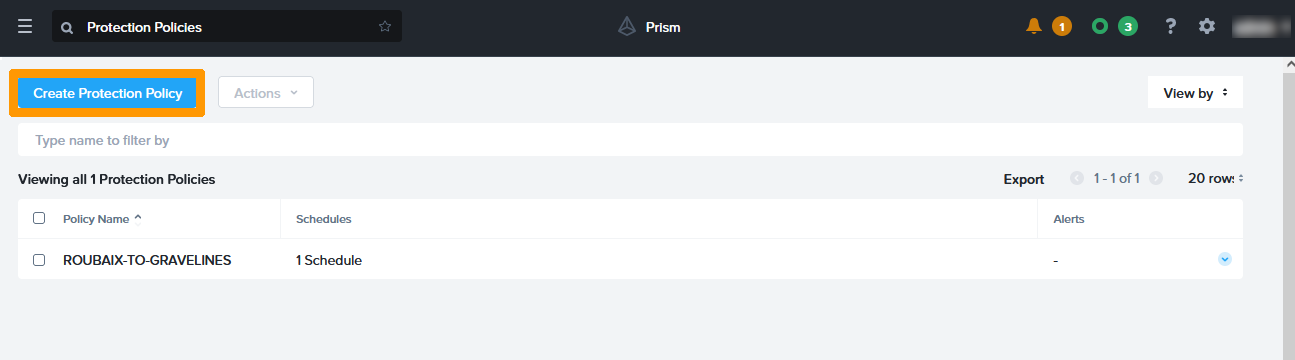
On the Prism Central main menu, click Protection Policies in the Data Protection submenu.

09 - Create Protection Policy Roubaix 01

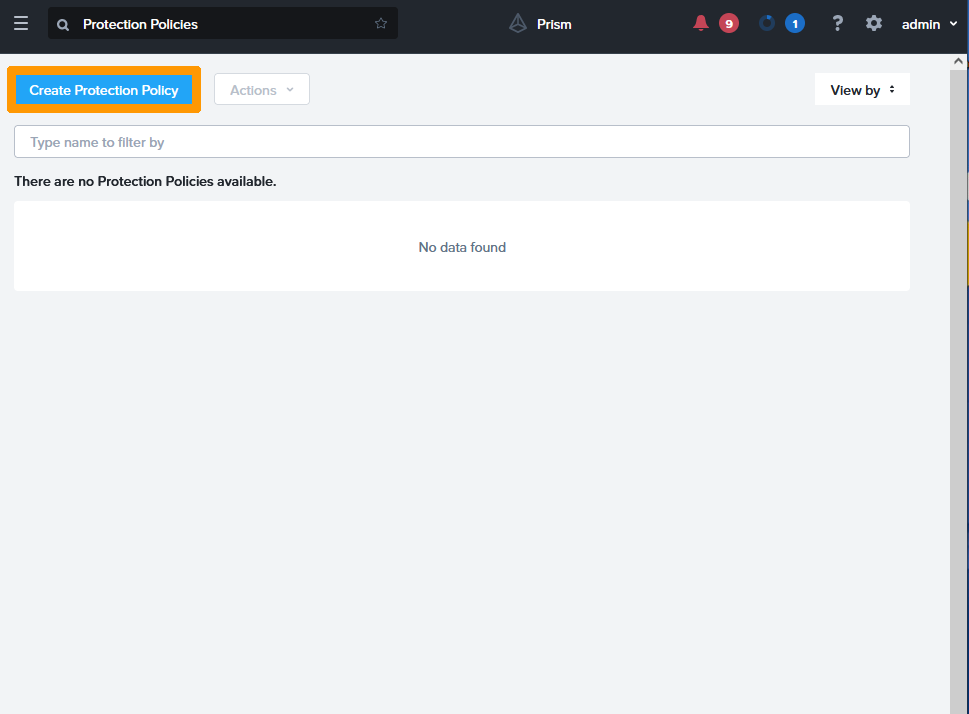
Click Create Protection Policy.

09 - Create Protection Policy Roubaix 02

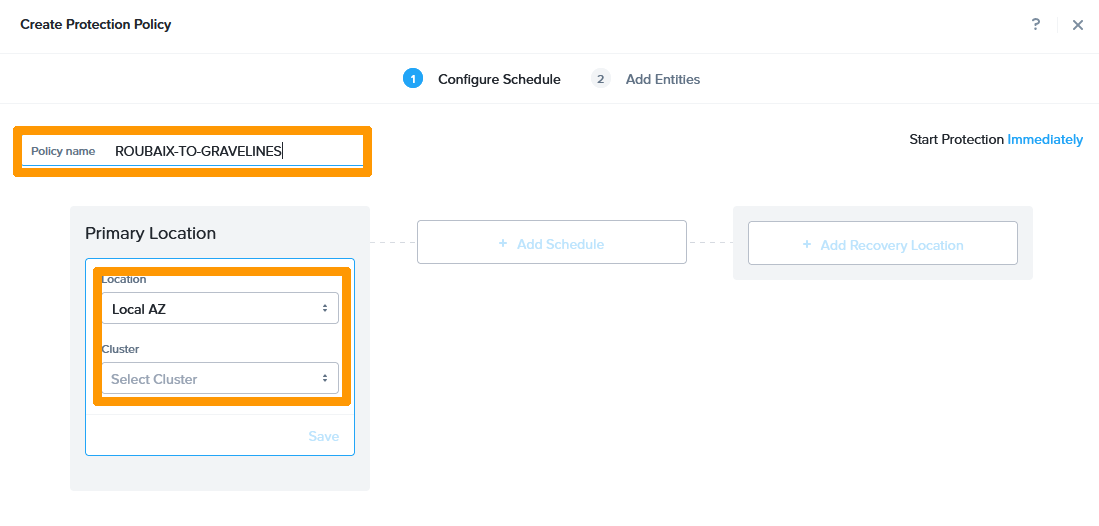
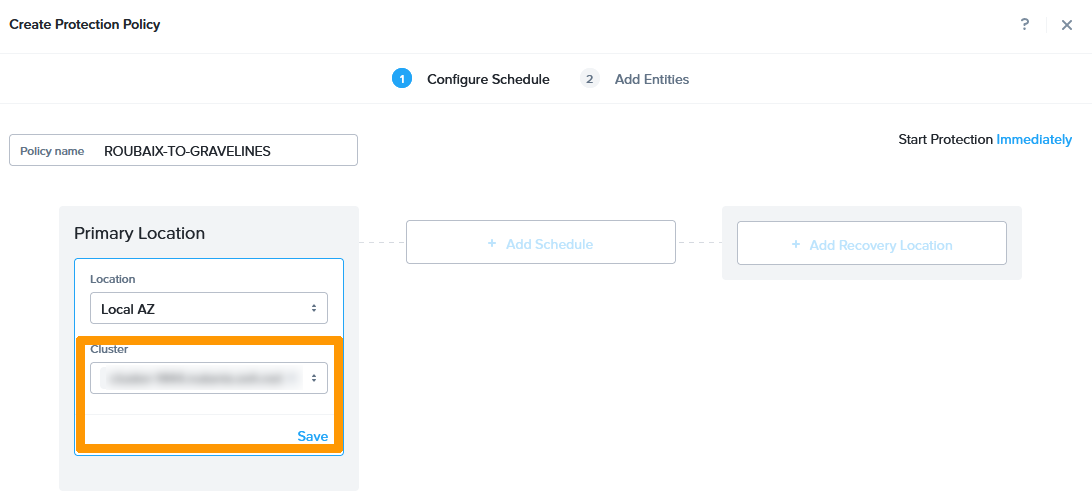
Type ROUBAIX-TO-GRAVELINES in Policy name, keep Local AZ, and click Select Cluster in Primary Location.

09 - Create Protection Policy Roubaix 03

Choose the Roubaix cluster and click Save.

09 - Create Protection Policy Roubaix 04

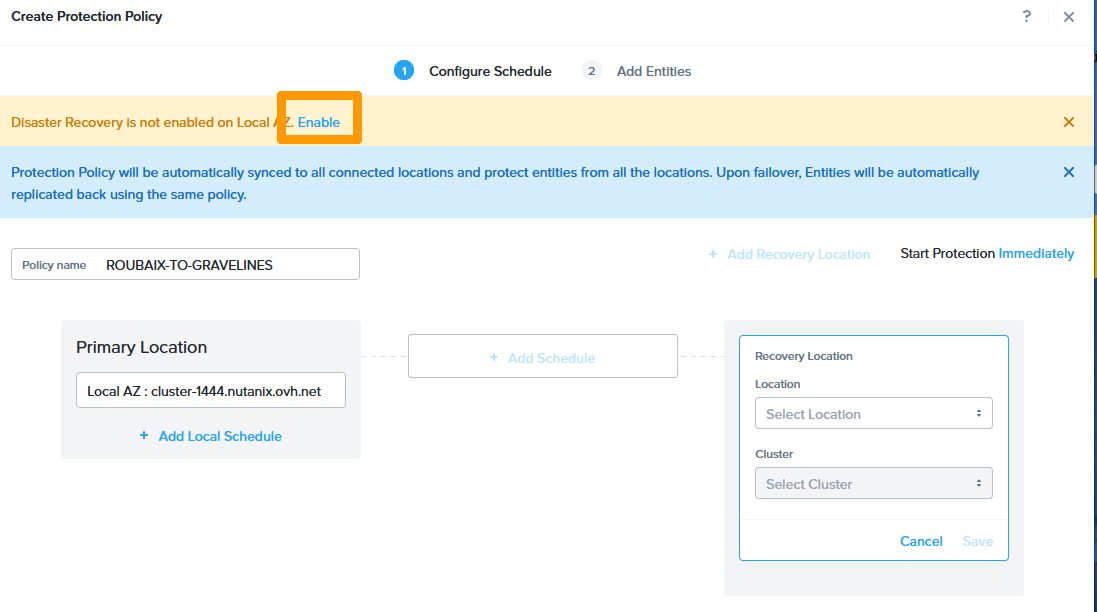
In the top left-hand corner next to Disaster Recovery, click Enable.

09 - Create Protection Policy Roubaix 05

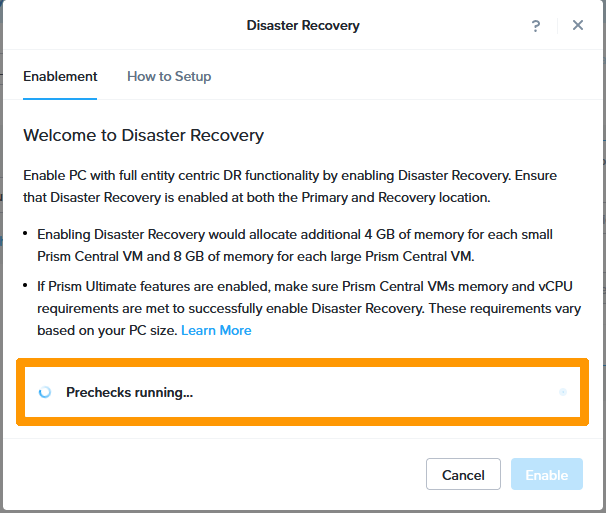
The system checks that everything is correct before enabling Disaster Recovery.

09 - Create Protection Policy Roubaix 06

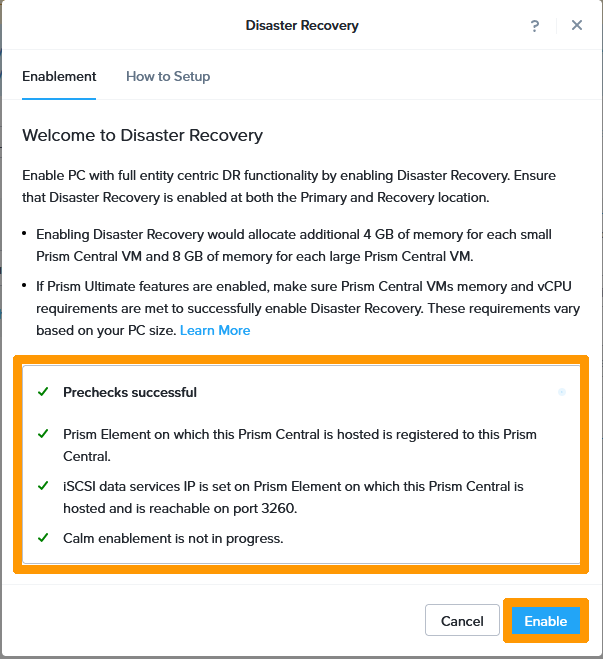
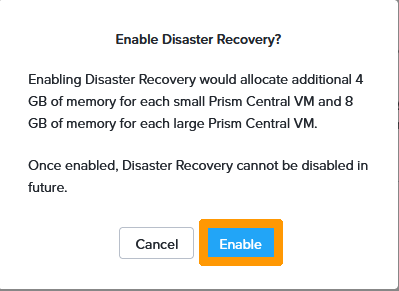
Click Enable to enable the Disaster Recovery option.

09 - Create Protection Policy Roubaix 07

Click Enable again.

09 - Create Protection Policy Roubaix 07

Your Disaster Recovery option is being activated.

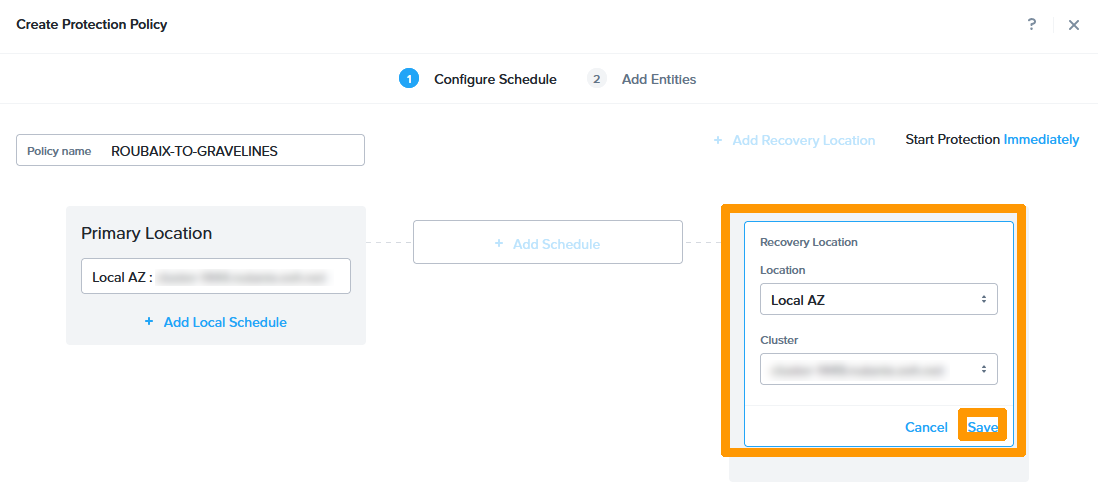
Keep Local AZ, select the cluster in Recovery Location and click Save.

09 - Create Protection Policy Roubaix 08

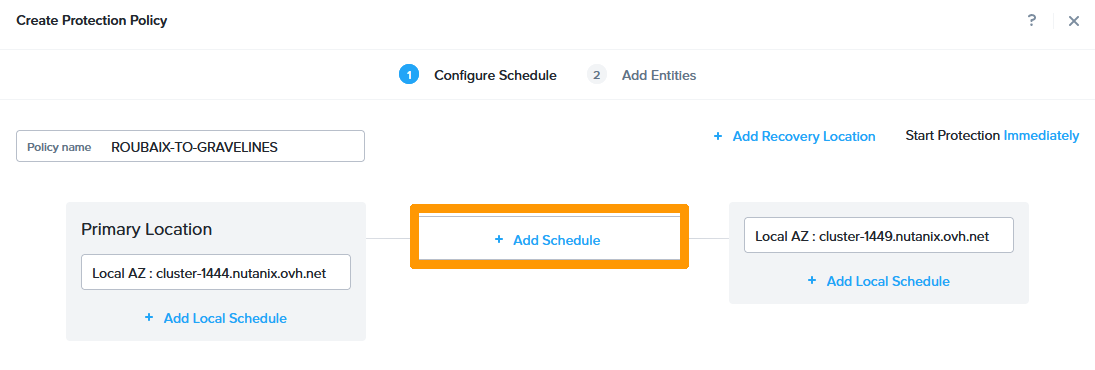
Click + Add Schedule.

09 - Create Protection Policy Roubaix 10

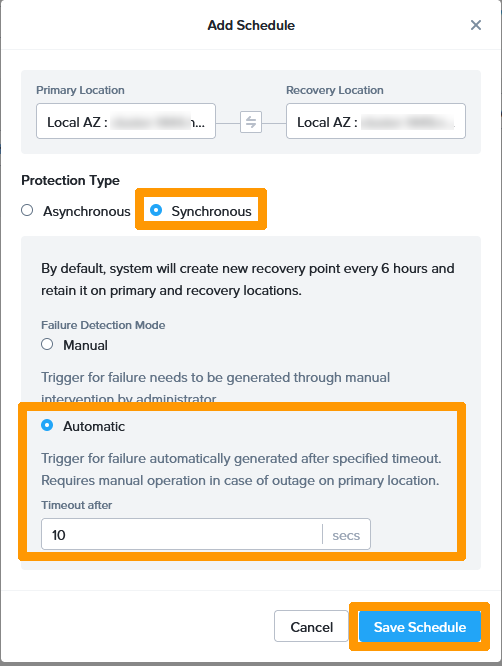
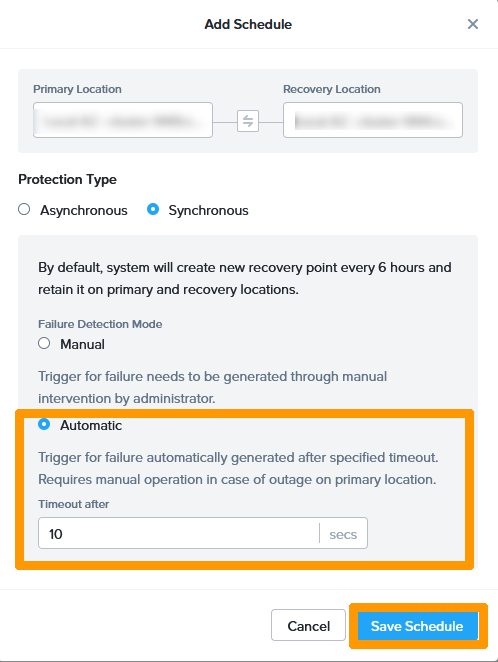
Choose Synchronous for Protection Type and Automatic for Failure Detection Mode. Then click Save Schedule.

09 - Create Protection Policy Roubaix 11

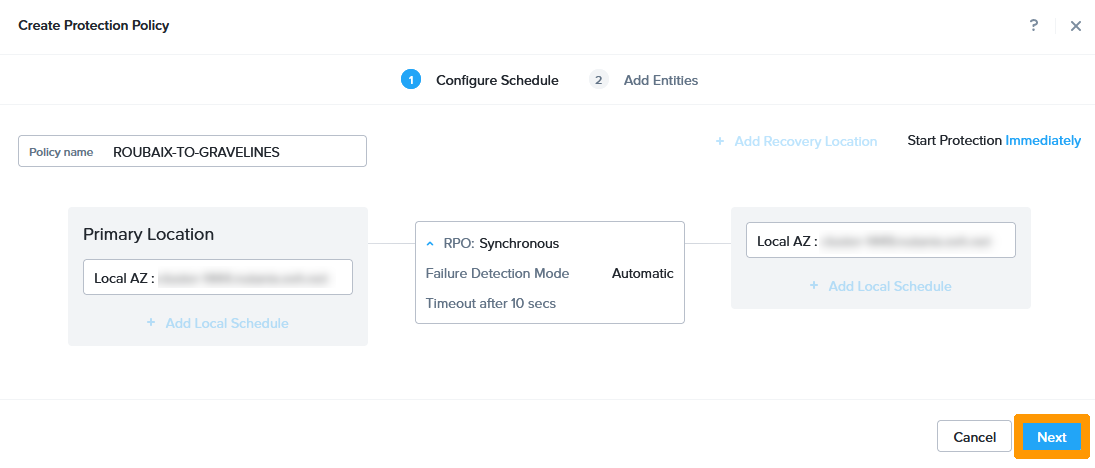
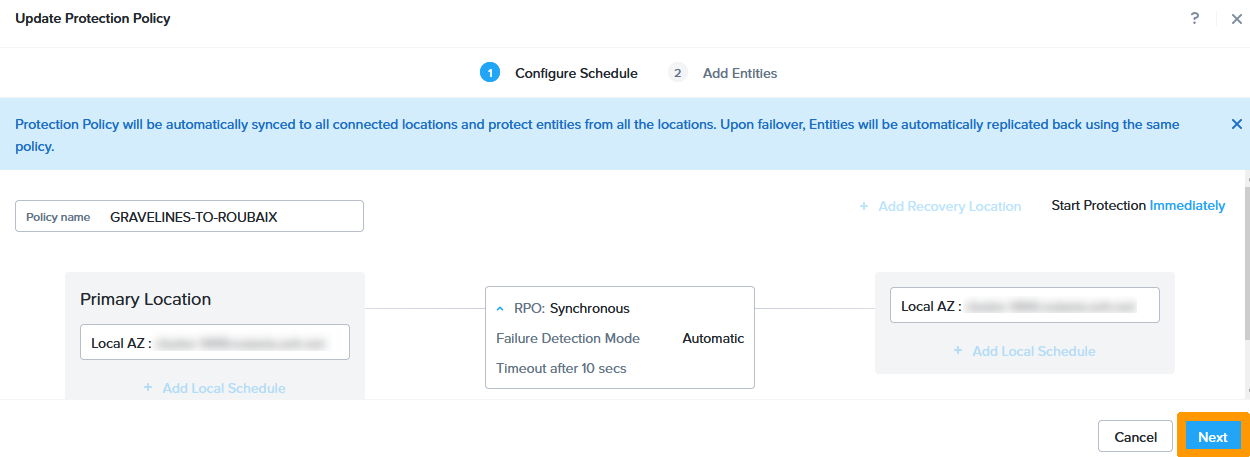
Click Next.

09 - Create Protection Policy Roubaix 12

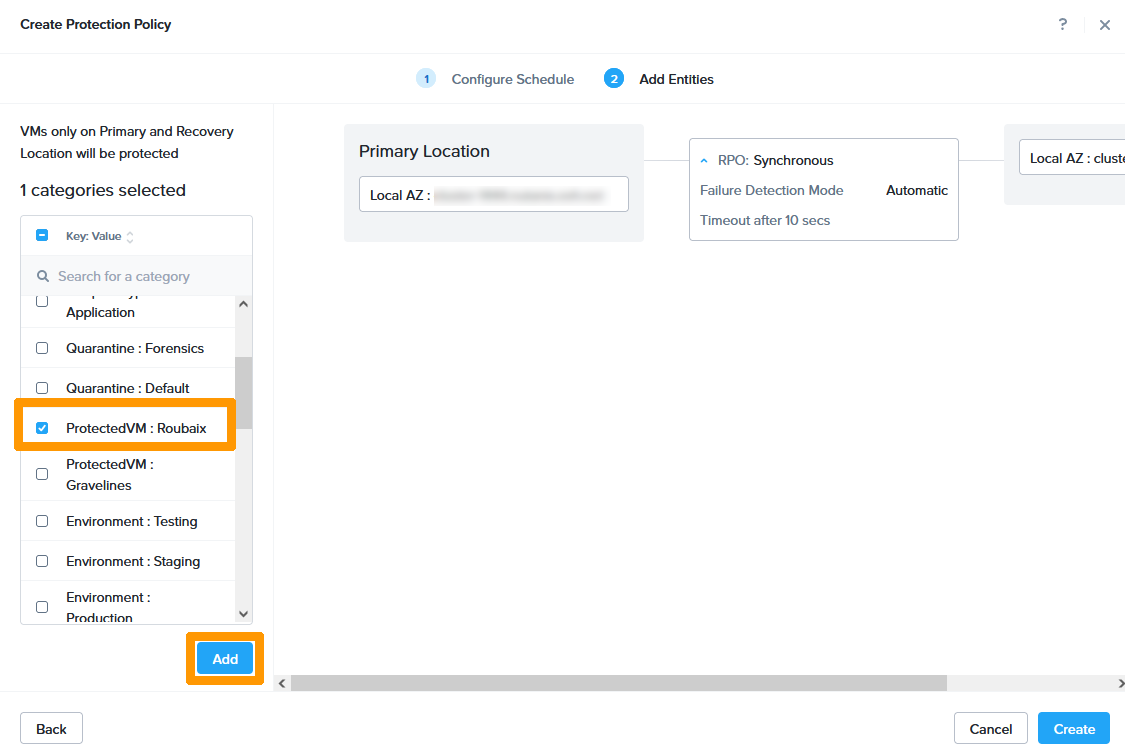
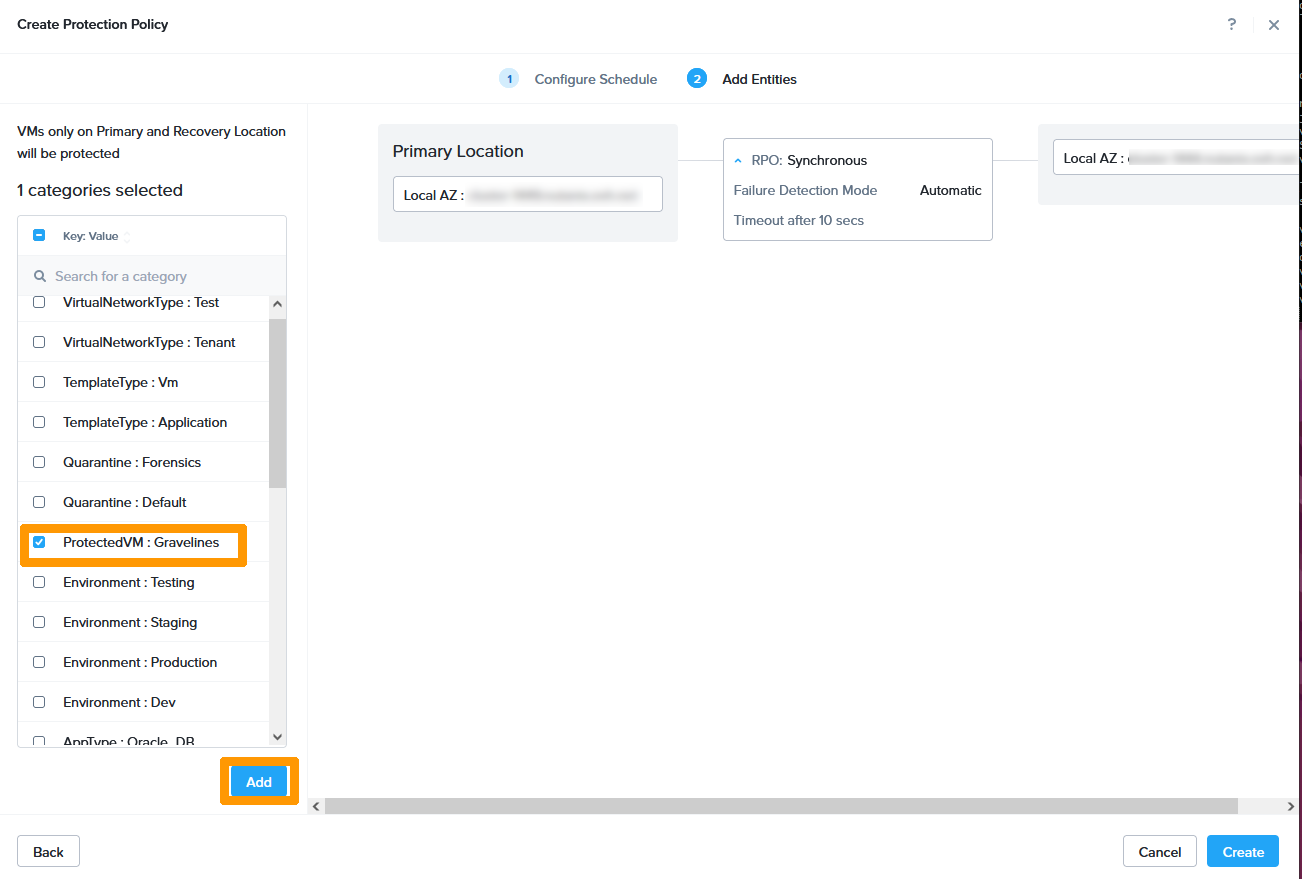
Select the category ProtectedVM : Roubaix and click Add.

09 - Create Protection Policy Roubaix 13

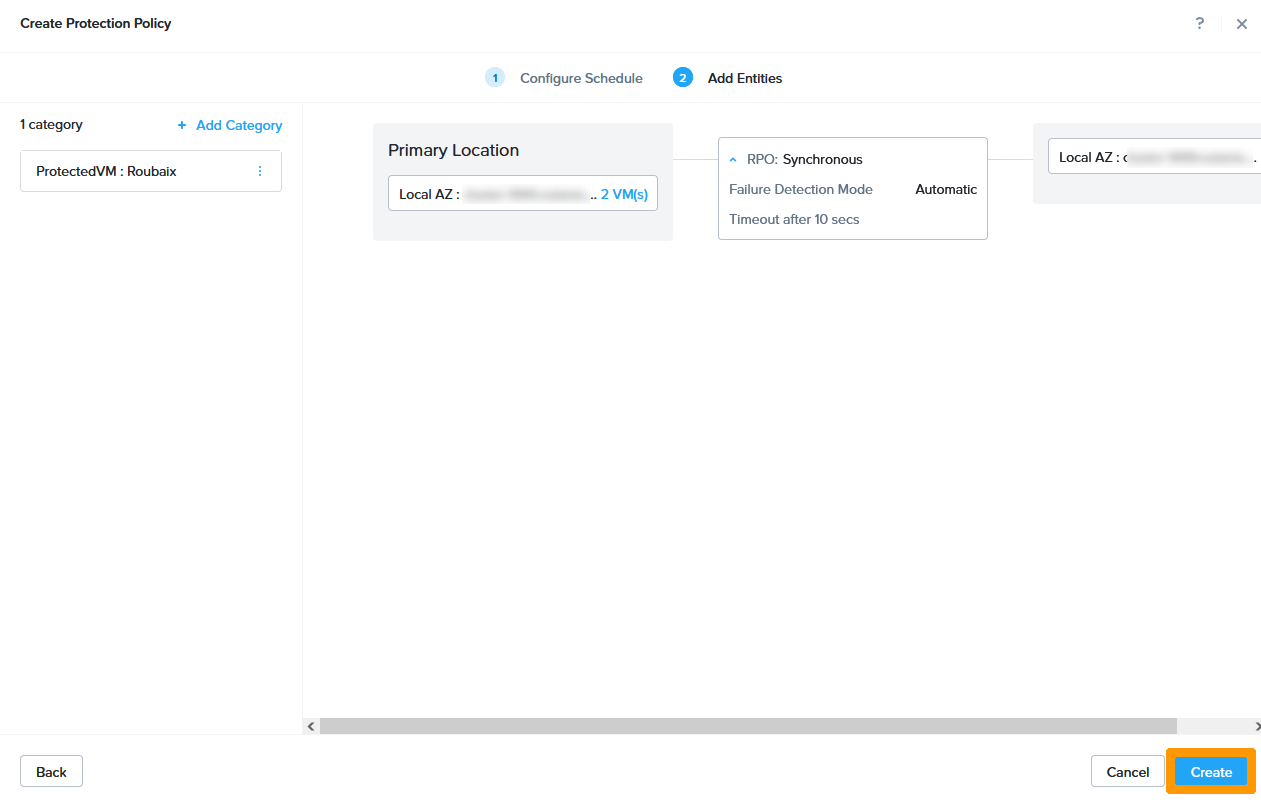
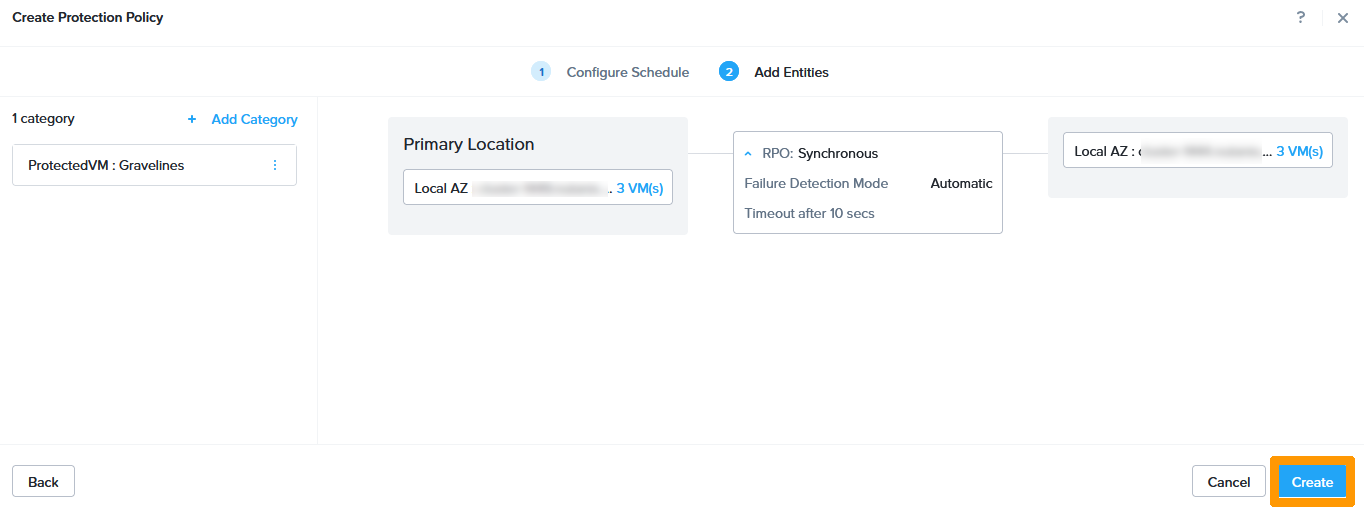
Click Create.

09 - Create Protection Policy Roubaix 14

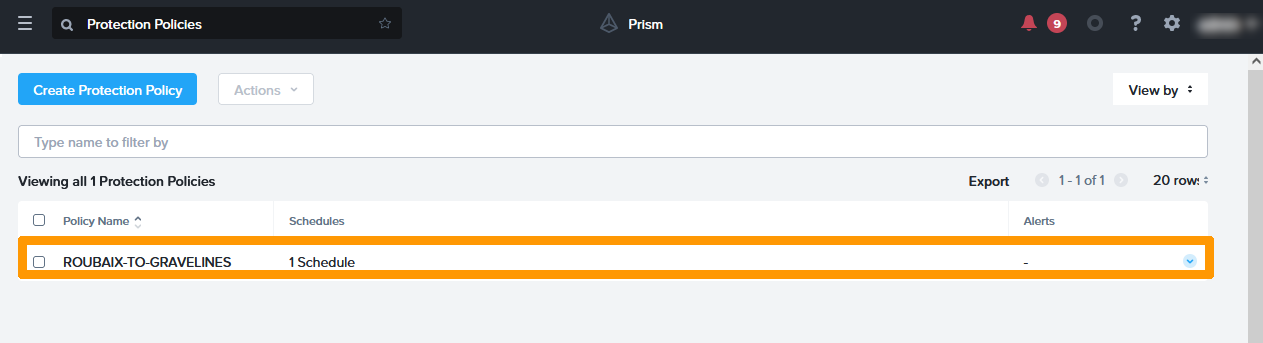
Virtual machines in Roubaix are now replicated to Gravelines. You must wait for a first full replication to have permanent replication.

09 - Create Protection Policy Roubaix 15
Replication setup between Gravelines and Roubaix

Replication can be two-way. We will now create replication from Gravelines to Roubaix.

Click Create Protection Policy.

10 - Create Protection Policy Gravelines 01

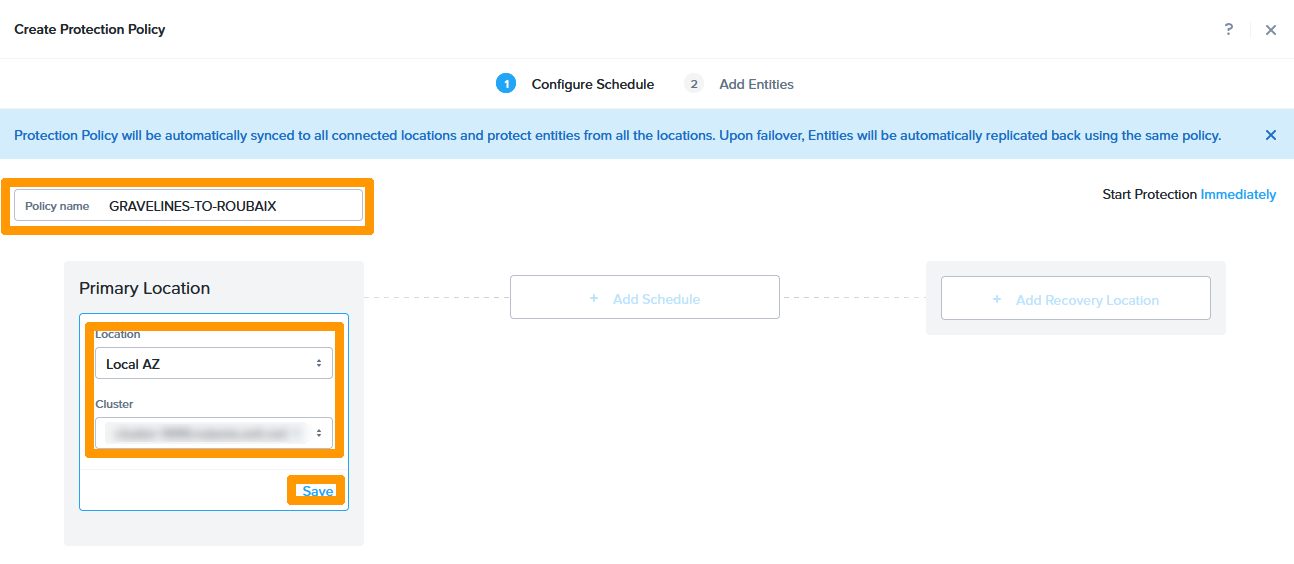
Choose as name GRAVELINES-TO-ROUBAIX in Policy Name, keep Local AZ and choose Gravelines cluster in Primary Location. Then click Save.

10 - Create Protection Policy Gravelines 02

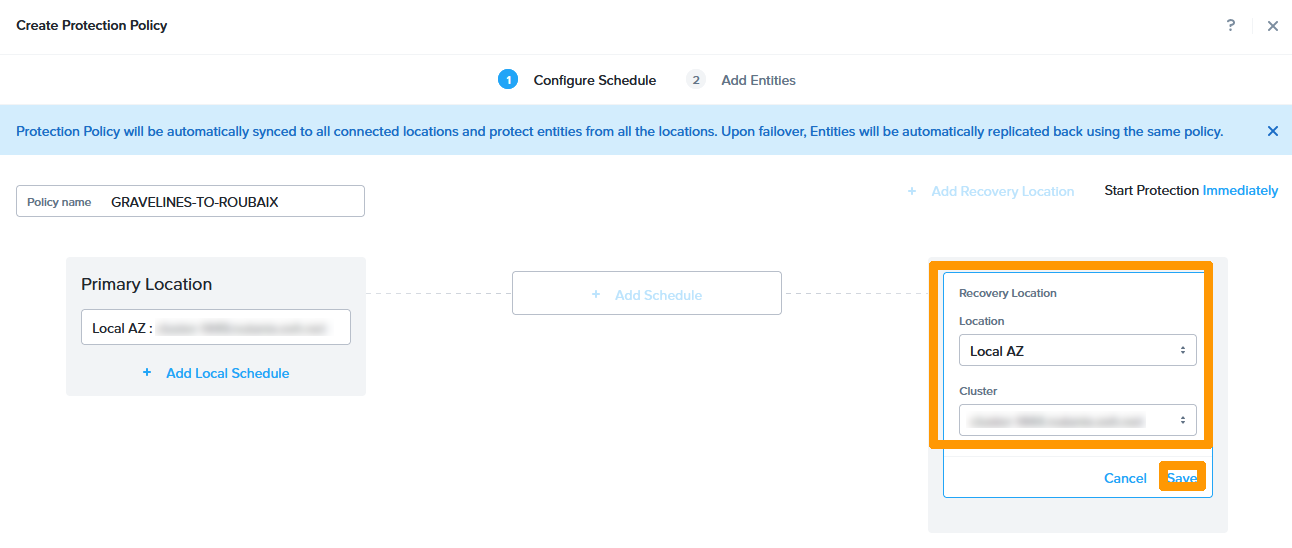
Keep Local AZ, select the Roubaix cluster and click Save.

10 - Create Protection Policy Gravelines 03

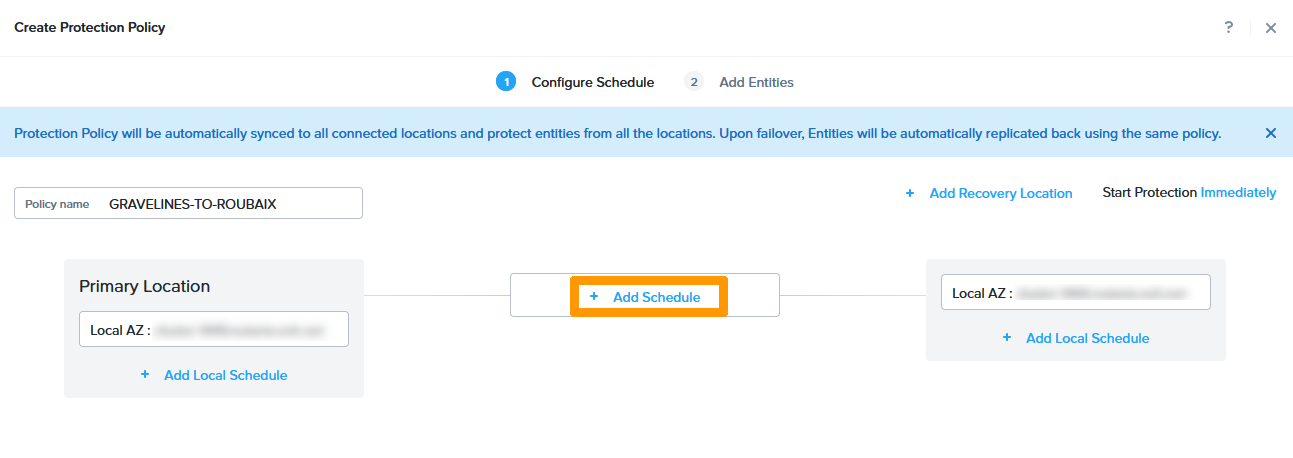
Click + Add Schedule.

10 - Create Protection Policy Gravelines 04

Choose Synchronous for Protection Type and Automatic for Failure Detection Mode. Then click Save Schedule.

10 - Create Protection Policy Gravelines 05

Click Next.

10 - Create Protection Policy Gravelines 06

Select the category ProtectedVM: Gravelines and click Add.

10 - Create Protection Policy Gravelines 07

Click Create.

10 - Create Protection Policy Gravelines 08

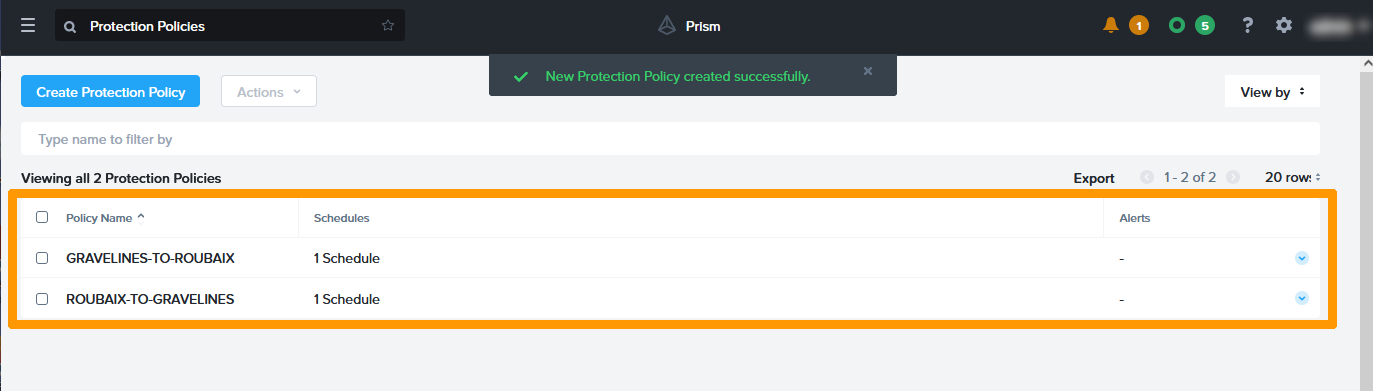
A second protection strategy is in place.

10 - Create Protection Policy Gravelines 09

Step 1.10 - Create Subnets for Disaster Recovery Plan

We will create subnets that will be used to test disaster recovery plans.

For each existing subnet, a test network is required. On the two clusters of the Disaster Recovery Plan, we have three production subnets.

  • based on VLAN 0.
  • infrastructure on VLAN 1.
  • production on VLAN 2.

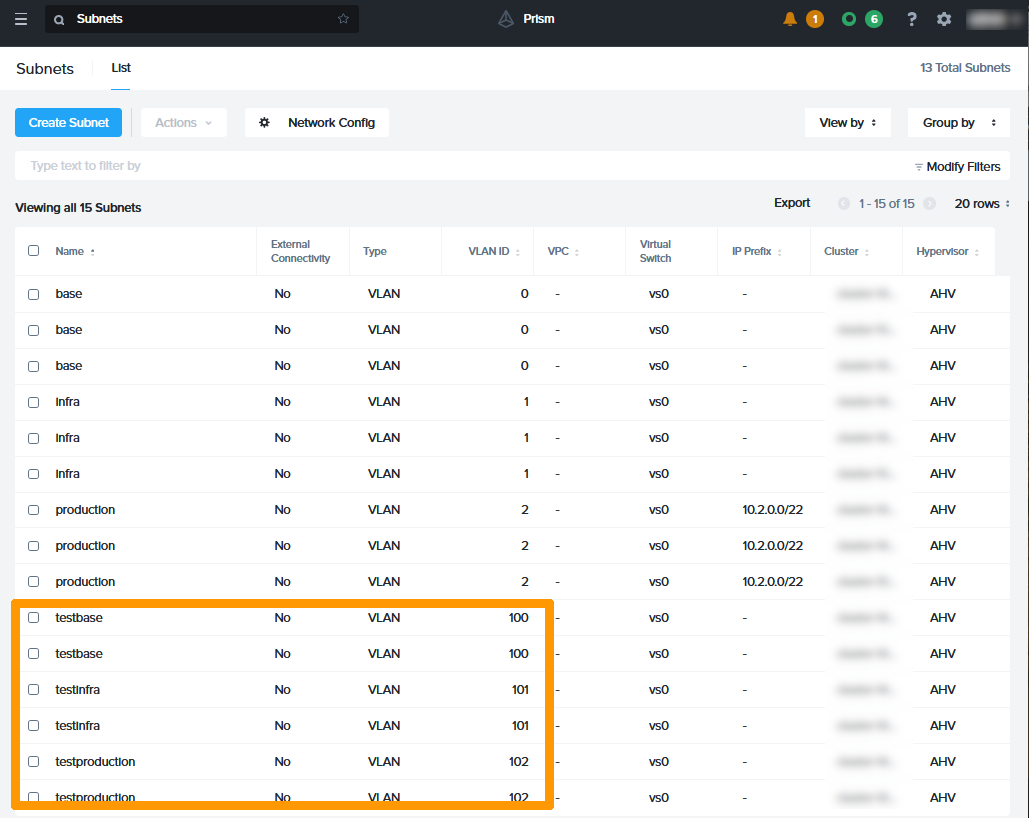
We will therefore create 3 additional subnets on the Gravelines and Roubaix clusters with these names:

  • testing on VLAN 100.
  • testinfra on VLAN 101.
  • production on VLAN 102.

Use this guide to create VLANs on your Nutanix clusters: isolate production management machines.

In the Prism Central Subnets dashboard, you will see six new subnets.

11 - Create Test Subnet 01

Step 1.11 - Implementation of disaster recovery plans

Now that the replications and subnets are in place, we will implement automated or manual disaster recovery plans on demand to:

  • migrate virtual machines on the fly between the two clusters
  • Test that replication is working properly
  • Automatically restart the VMs that are members of the P.R.A in the event of a failure of one of two clusters.
Creation of a disaster recovery plan for the Roubaix cluster

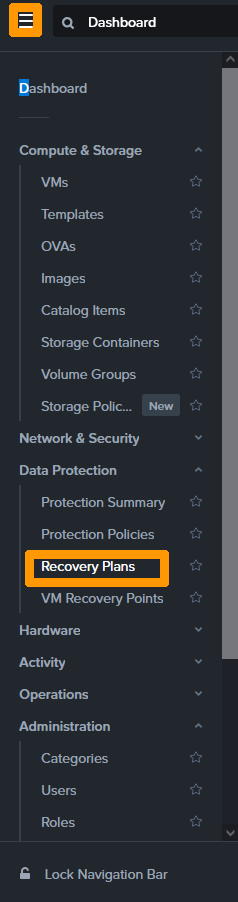
In the main menu of Prism Central, click Recovery Plans in the Data Protection submenu.

12 - Create Recovery Plan Roubaix 01

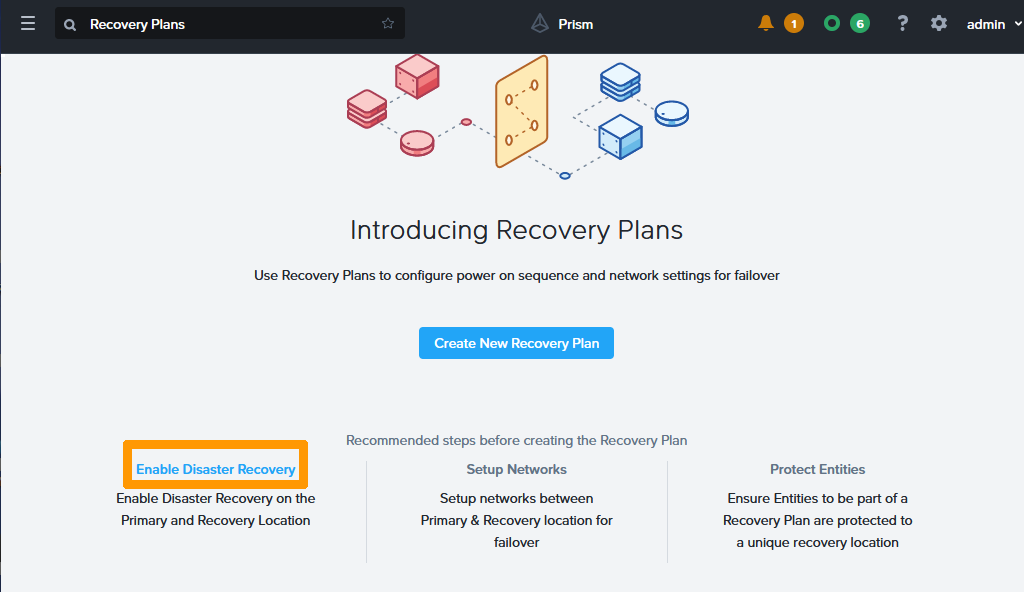
Click on Enable Disaster Recovery on the left.

12 - Create Recovery Plan Roubaix 02

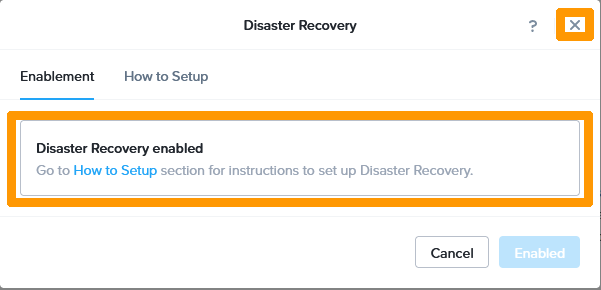
Normally, the recovery plan must be activated as indicated with the message Disaster Recovery enabled. Click on the right to close this window.

12 - Create Recovery Plan Roubaix 03

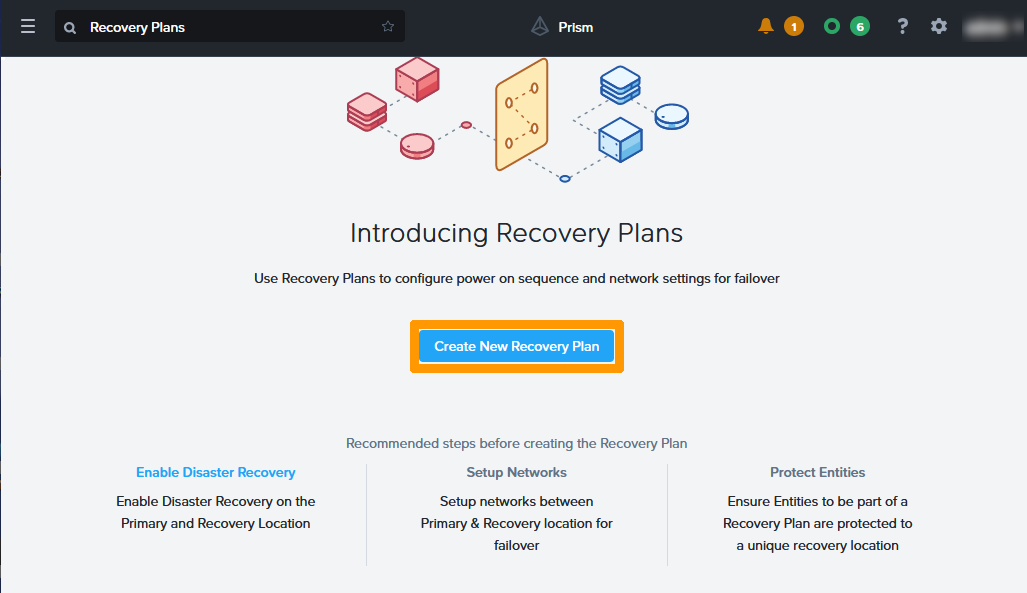
Click Create New Recovery Plan.

12 - Create Recovery Plan Roubaix 04

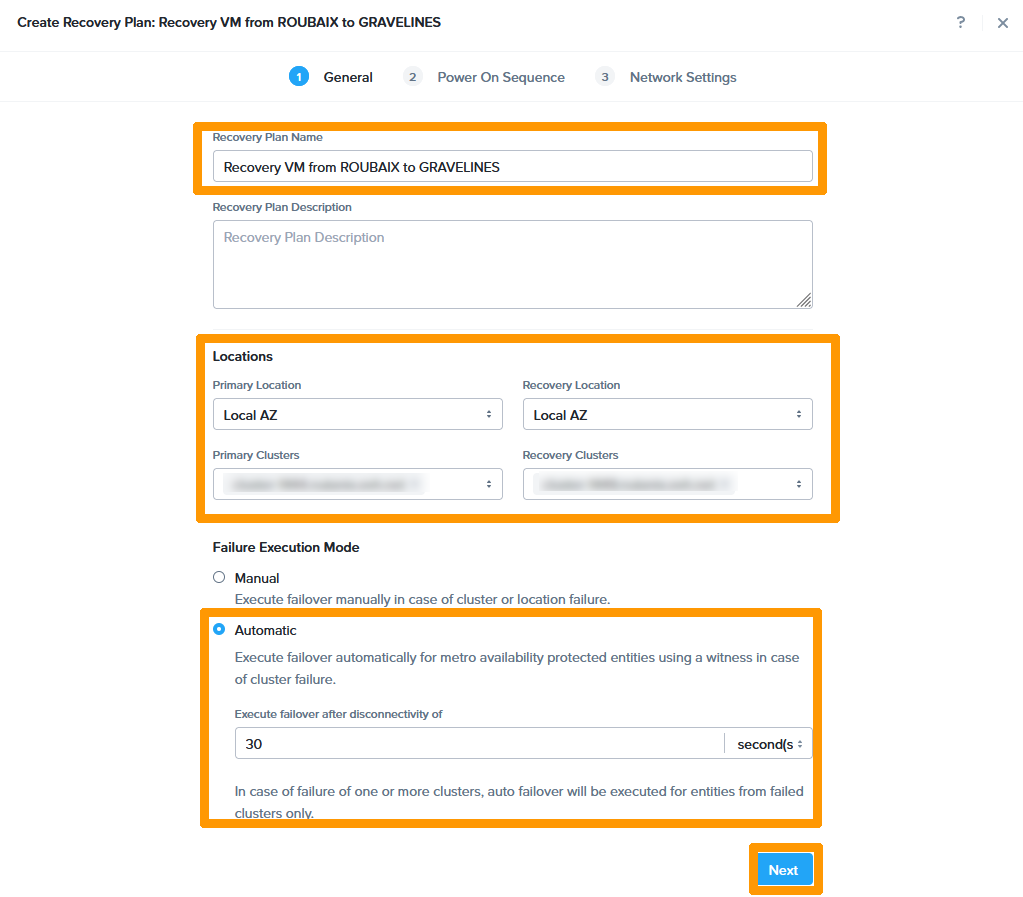
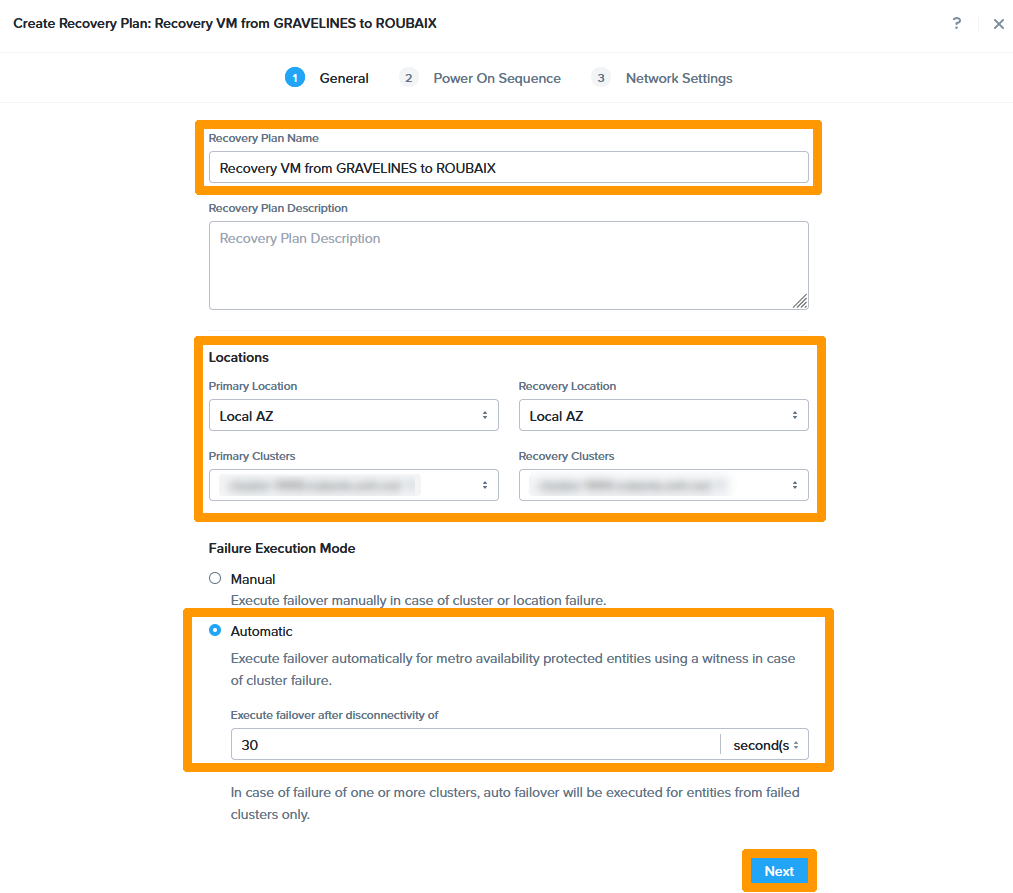
Choose this information:

  • Recovery Plan Name: Recovery VM from ROUBAIX to GRAVELINES.

  • Primary Location: Local AZ.

  • Primary Cluster: cluster in Roubaix.

  • Recovery Location: Local AZ.

  • Recovery Cluster: cluster in Gravelines.

  • Failure Execution Mode: Automatic.

  • Execute failover after disconnectivity of: 30 seconds.

Then click Next.

12 - Create Recovery Plan Roubaix 05

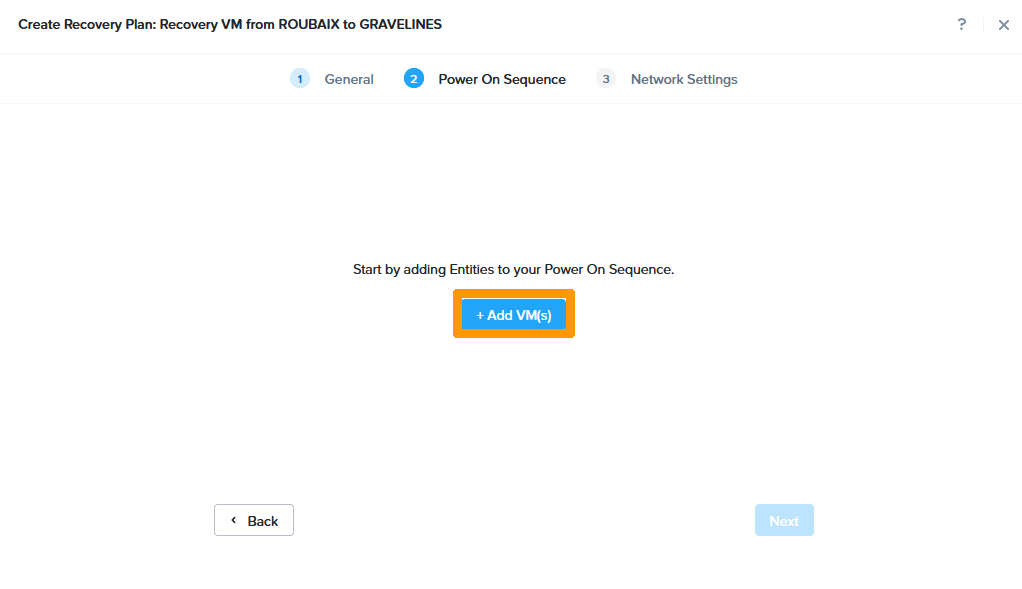
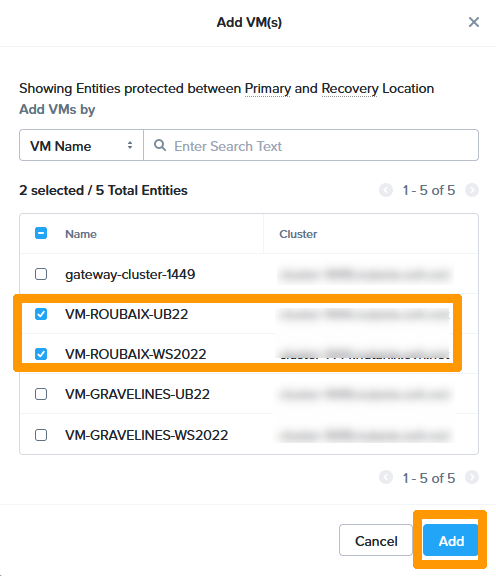
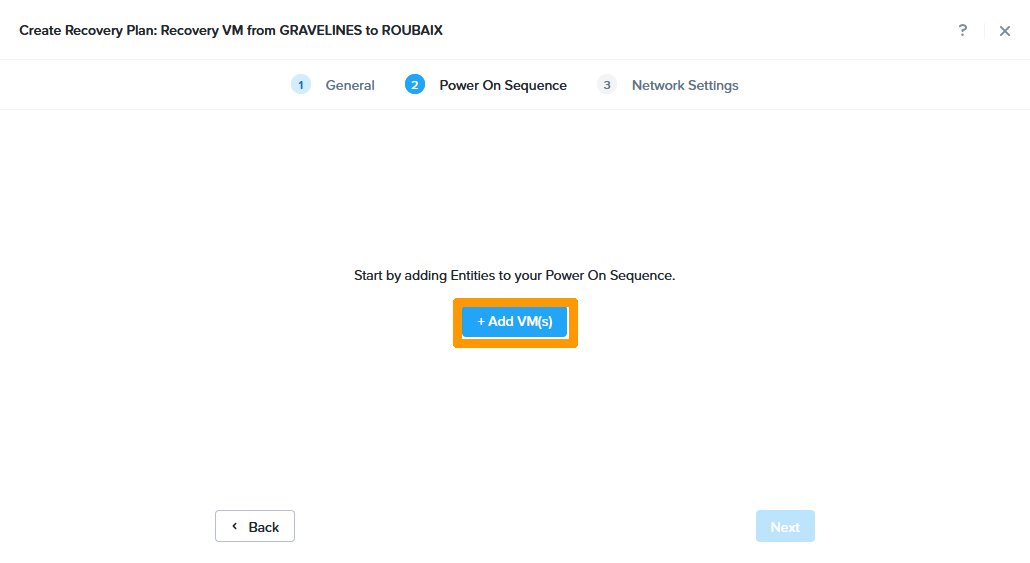
Click + Add VM(s).

12 - Create Recovery Plan Roubaix 06

Select both virtual machines and click Add.

12 - Create Recovery Plan Roubaix 07

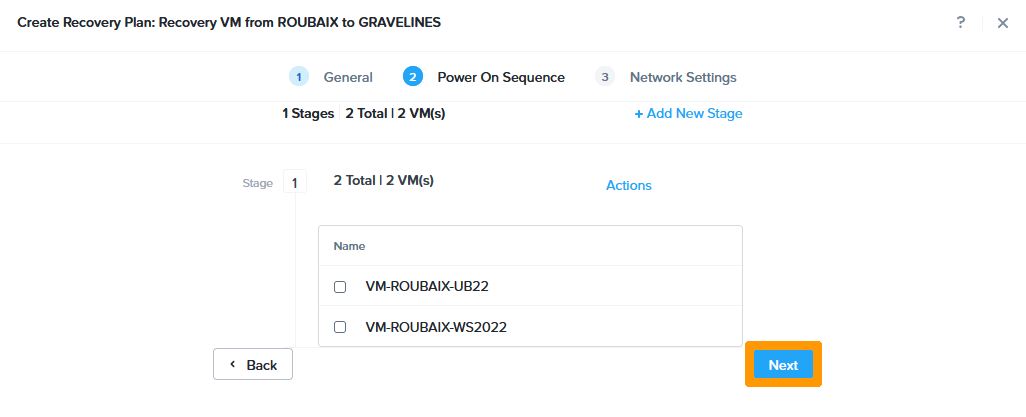
Click Next.

12 - Create Recovery Plan Roubaix 08

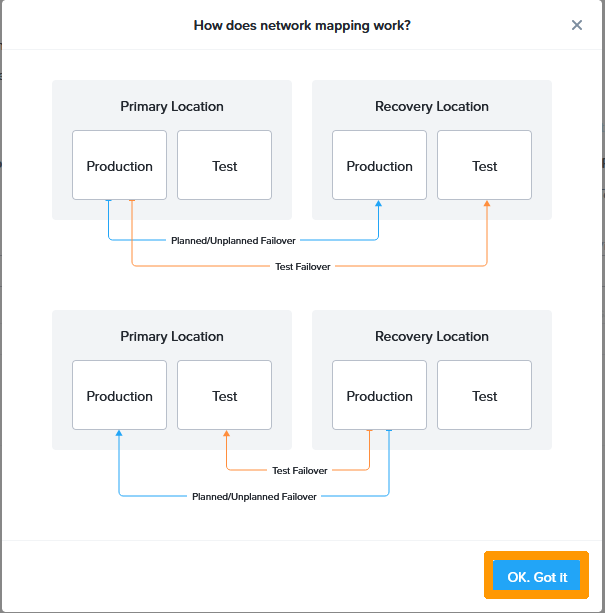
Click OK. Got it.

12 - Create Recovery Plan Roubaix 09

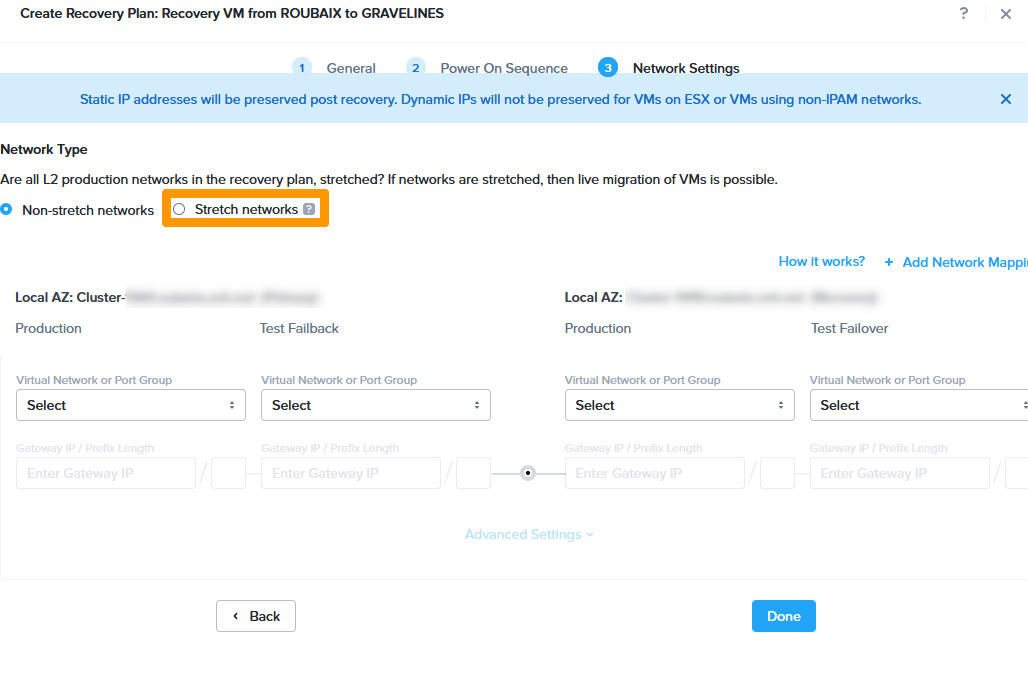
Click Stretch networks.

12 - Create Recovery Plan Roubaix 10

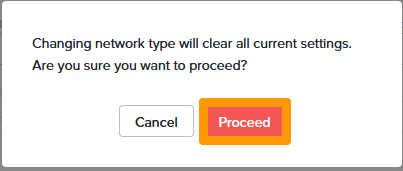
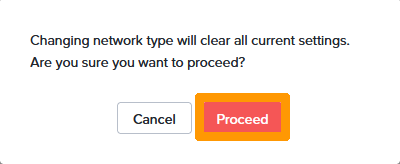
Click Proceed.

12 - Create Recovery Plan Roubaix 11

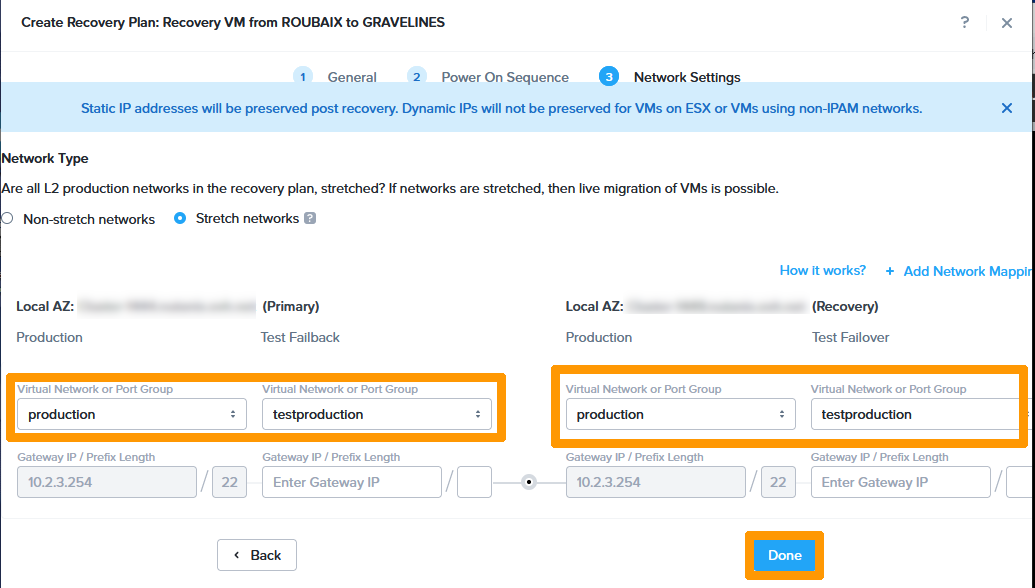
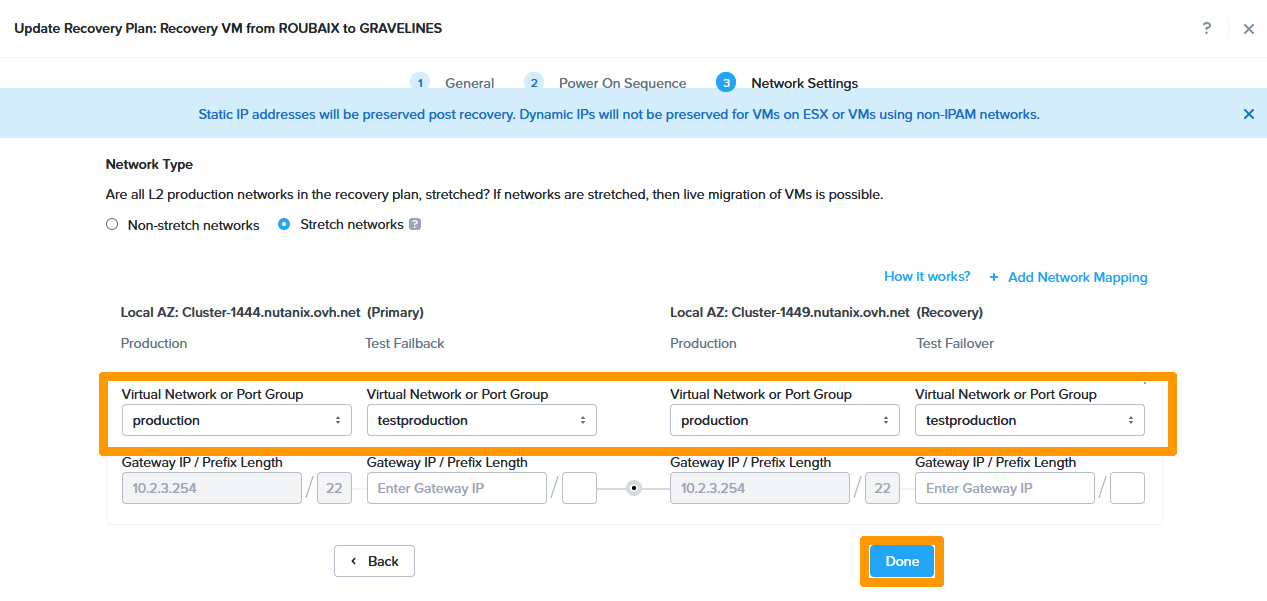
Choose the VLANs that will be used during the IP like this:

  • Primary
    • Production : production
    • Test Failback : testproduction
  • Recovery
    • Production : production
    • Test Failback : testproduction

Then click Done.

12 - Create Recovery Plan Roubaix 12
Creation of a disaster recovery plan for the Roubaix cluster

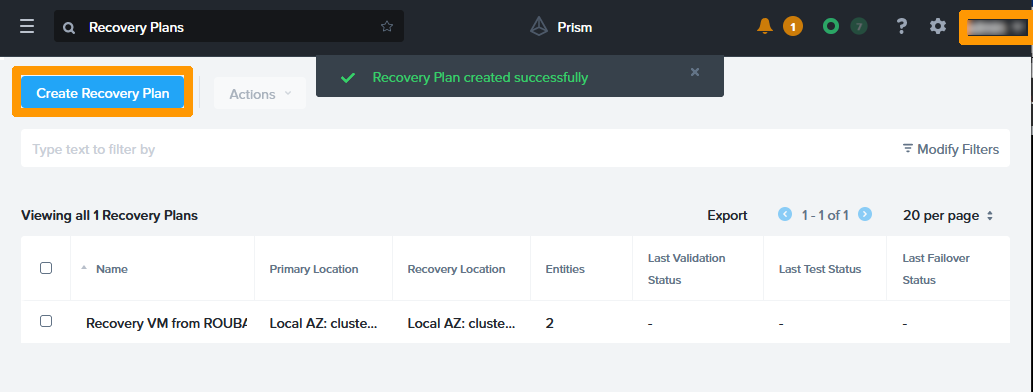
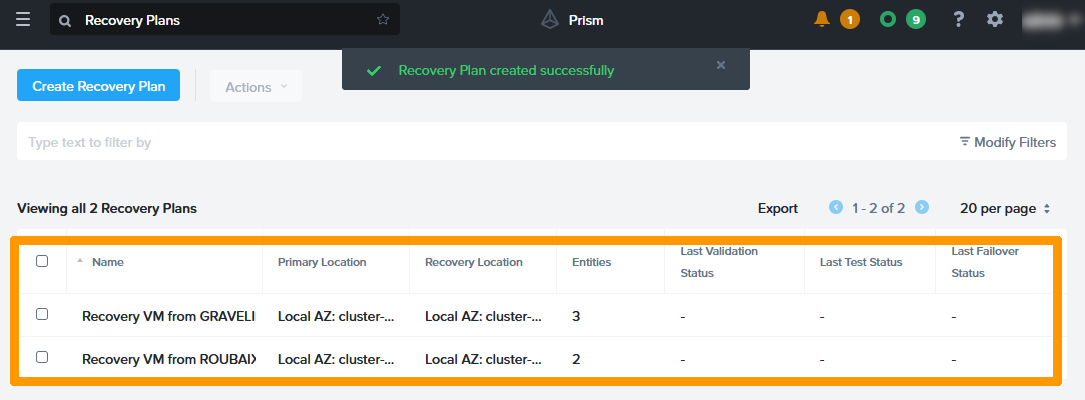
The Disaster Recovery Plan has been created for the Roubaix site. Click Create Recovery Plan to create the Gravelines Disaster Recovery Plan.

12 - Create Recovery Plan Roubaix 13

Choose this information:

  • Recovery Plan Name: Recovery VM from Gravelines to Roubaix.

  • Primary Location: Local AZ.

  • Primary Cluster: cluster in Gravelines.

  • Recovery Location: Local AZ.

  • Recovery Cluster: cluster in Roubaix.

  • Failure Execution Mode: Automatic.

  • Execute failover after disconnectivity of: 30 seconds.

Then click Next.

13 - Create Recovery Plan Gravelines 01

Click + Add VM(s).

13 - Create Recovery Plan Gravelines 02

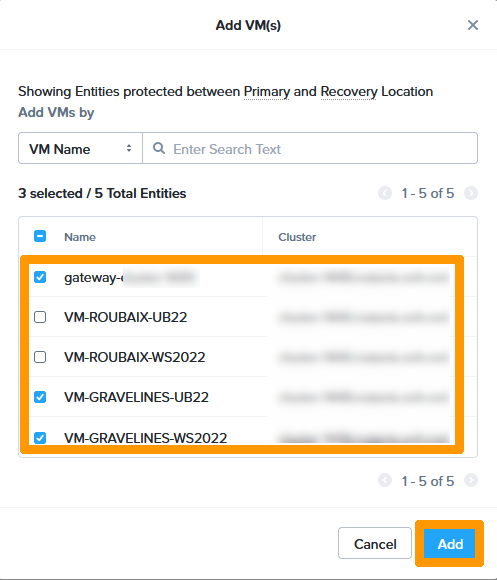
Select the three virtual machines and click Add.

13 - Create Recovery Plan Gravelines 03

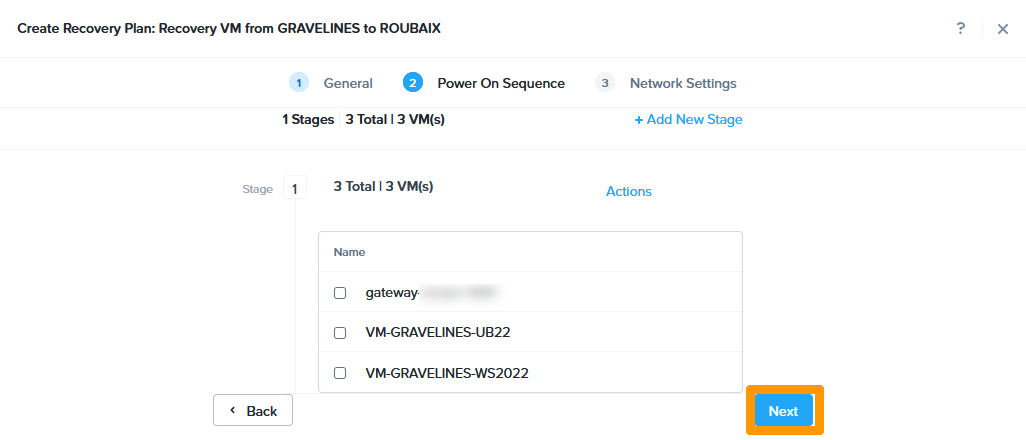
Click Next.

13 - Create Recovery Plan Gravelines 04

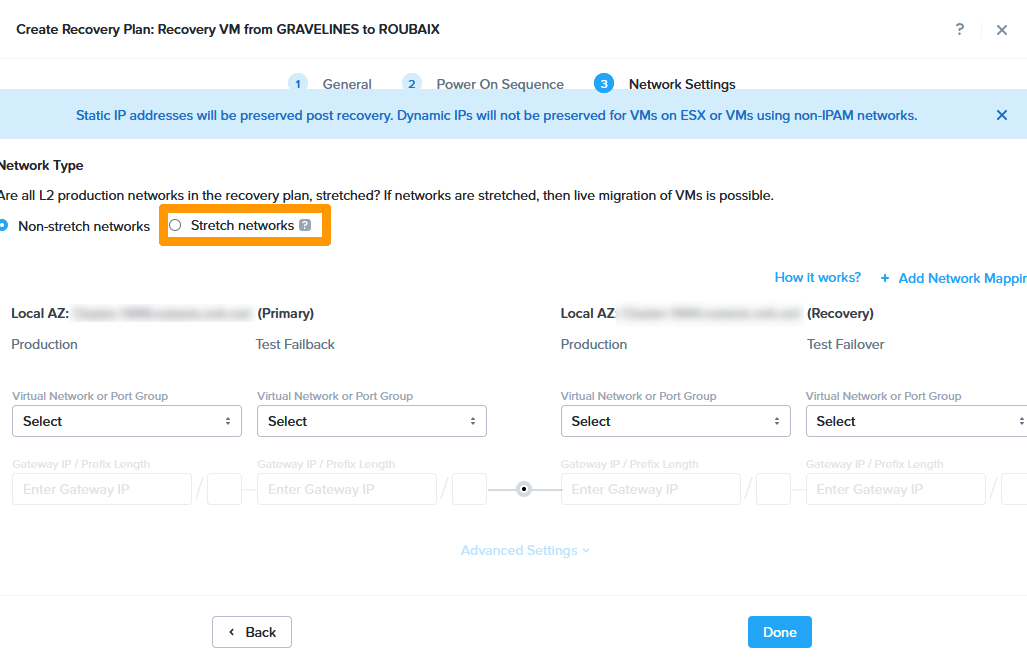
Click Stretch networks.

13 - Create Recovery Plan Gravelines 05

Click Proceed.

13 - Create Recovery Plan Gravelines 06

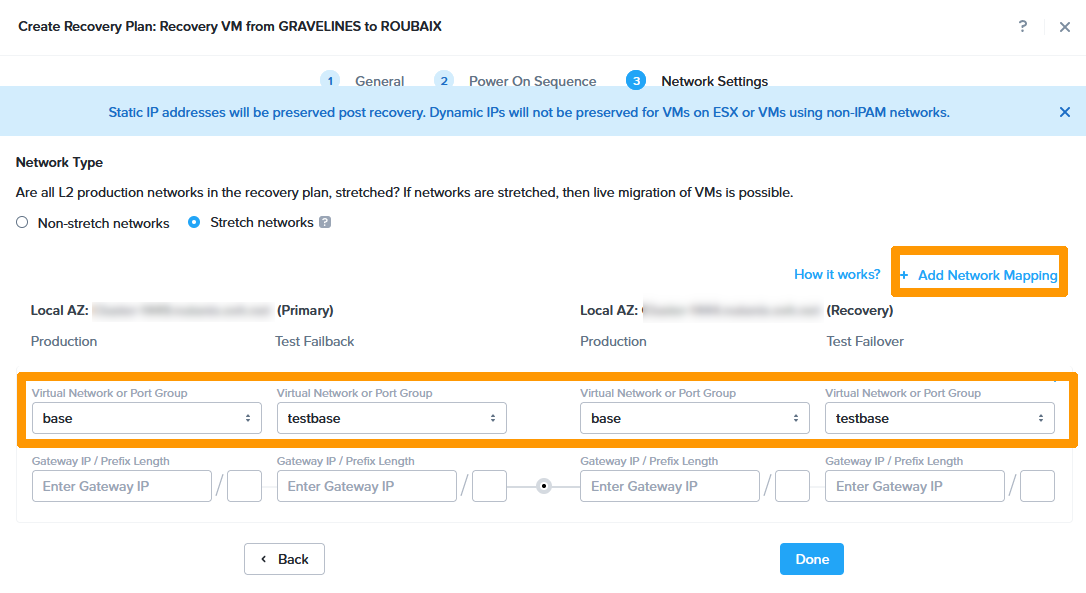
Choose this information:

  • Primary
    • Production: basis
    • Failback test: test
  • Recovery
    • Production: basis
    • Failback test: test

Then click + Add Network Mapping.

13 - Create Recovery Plan Gravelines 07

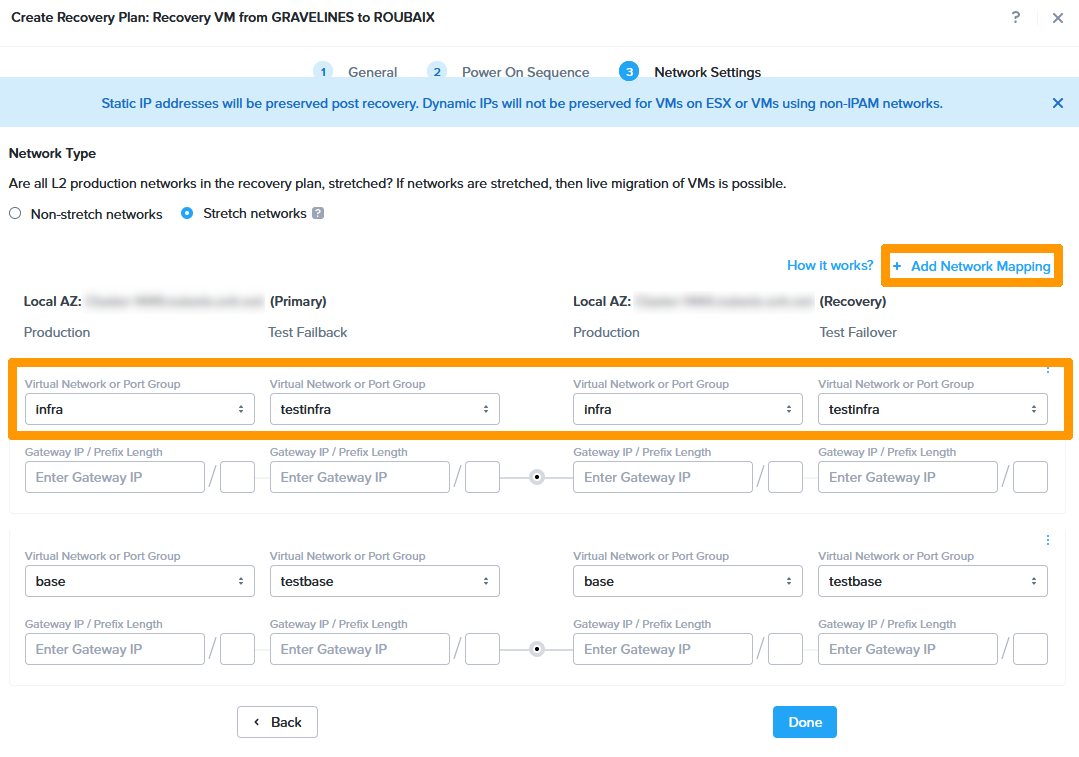
Choose this information:

  • Primary
    • Production : infra
    • Test Failback : testinfra
  • Recovery
    • Production : infra
    • Test Failback : testinfra

Then click + Add Network Mapping.

13 - Create Recovery Plan Gravelines 08

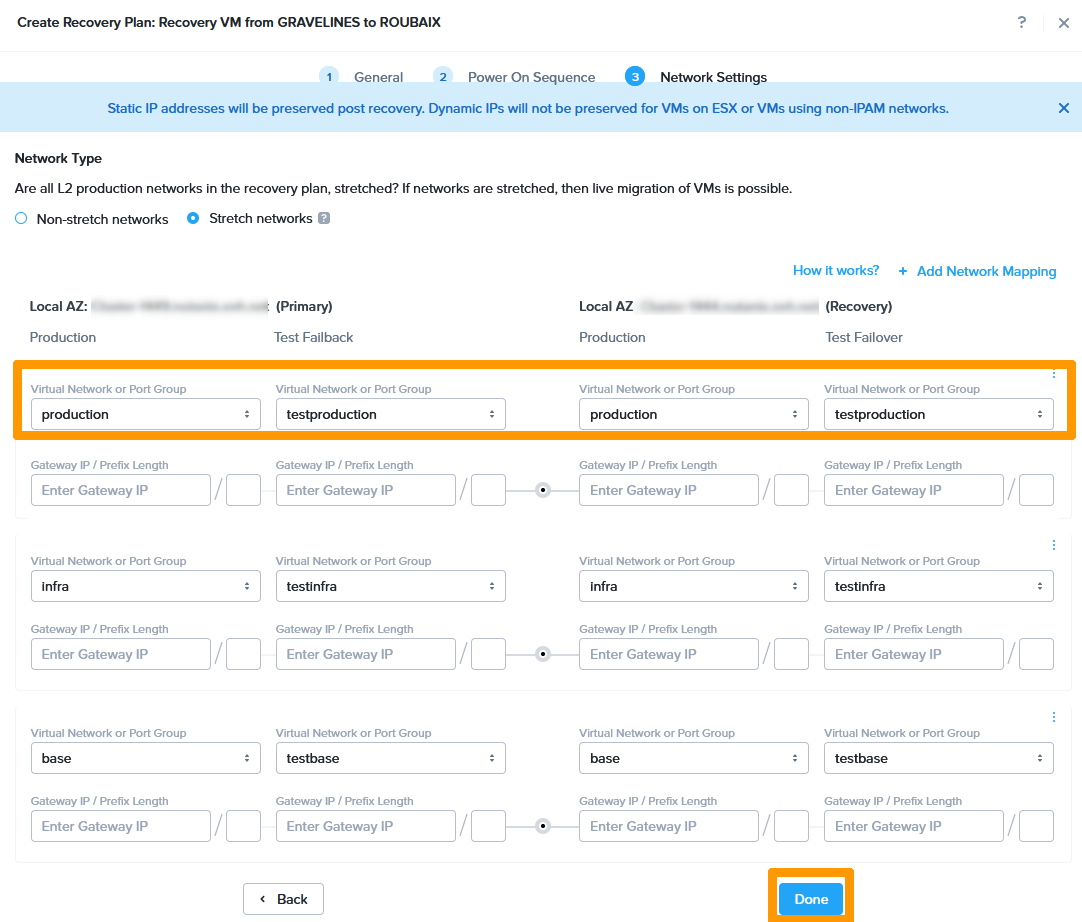
Choose this information:

  • Primary
    • Production : production
    • Test Failback : testproduction
  • Recovery
    • Production : production
    • Test Failback : testproduction

Then click Done.

13 - Create Recovery Plan Gravelines 09
Info

3 networks have been added to this disaster recovery plan because the Gateway virtual machine uses these three networks.

Both disaster recovery plans are in production.

13 - Create Recovery Plan Gravelines 10

Step 2 - Validate Disaster Recovery Plan

Step 2.1 - Monitoring the Disaster Recovery Plan

Using the Commit to Disaster Recovery Plan Option

You can validate the disaster recovery plan via Prism Central.

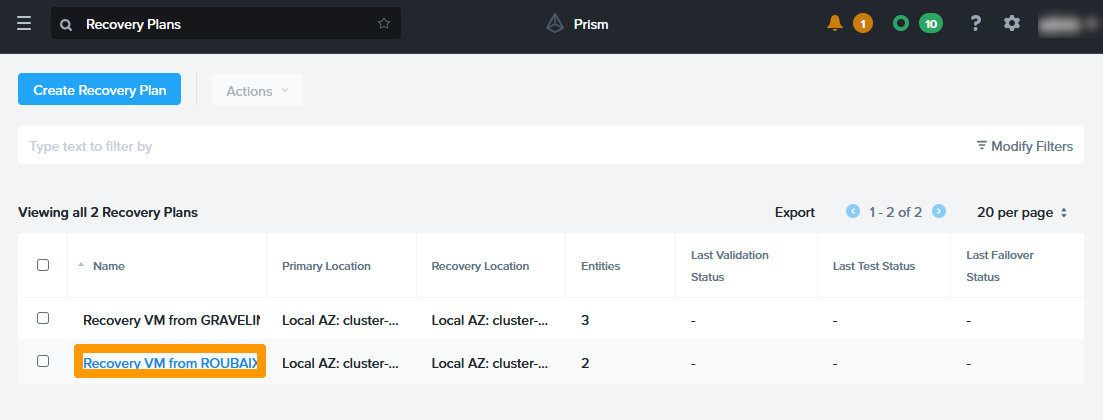
Click on the Recovery VM from Roubaix to validate and test.

14 - Validate test recovery plan 01

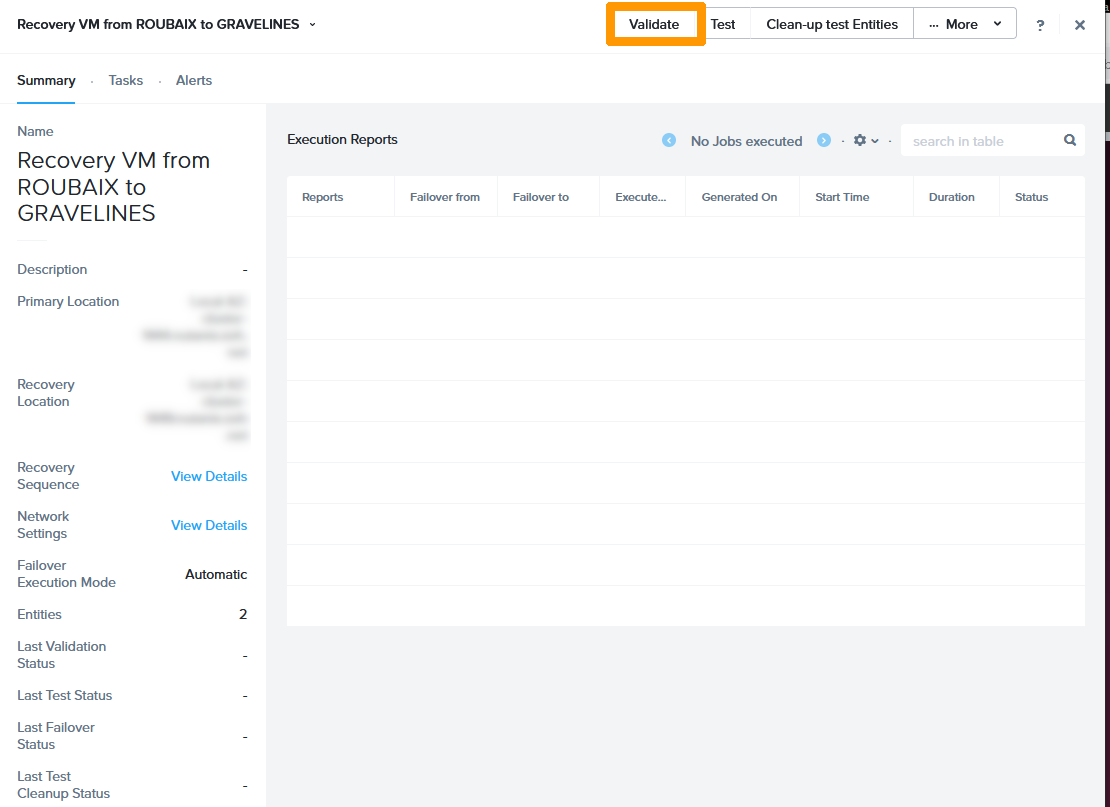
Click Validate

14 - Validate test recovery plan 02

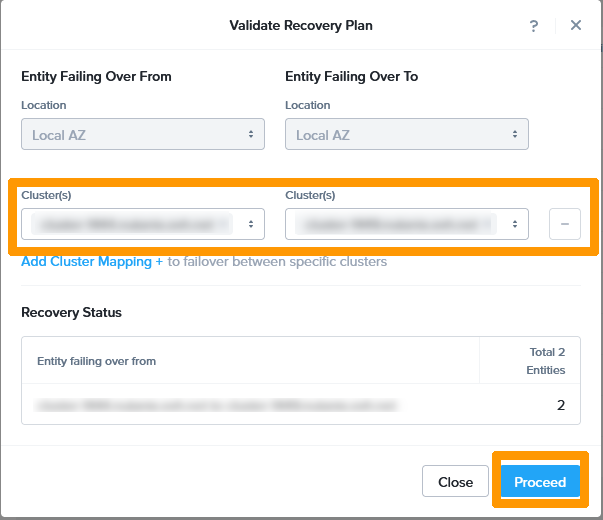
Select the Roubaix cluster for Entity Failing Over From and the Gravelines cluster for Entity Failing Over To. Then click Proceed

14 - Validate test recovery plan 03

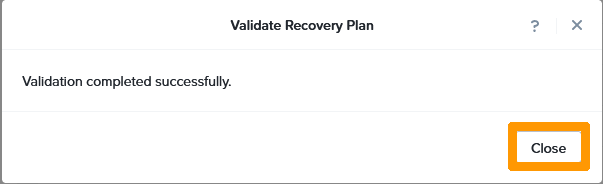
The recovery plan has been validated. Click Close

14 - Validate test recovery plan 04
Test Disaster Recovery Plan

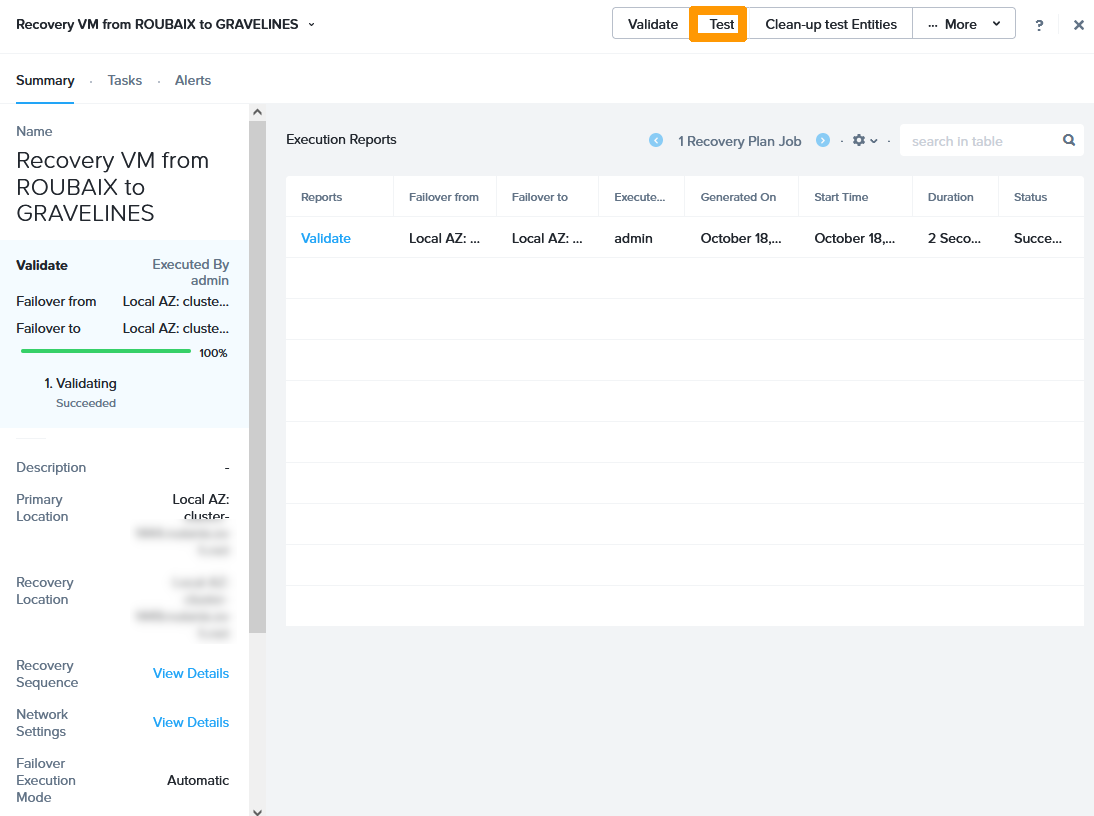
We can test the disaster recovery plan without impacting production. The test creates virtual machines with different names on the destination cluster in the VLANs created earlier.

Click Test.

14 - Validate test recovery plan 05

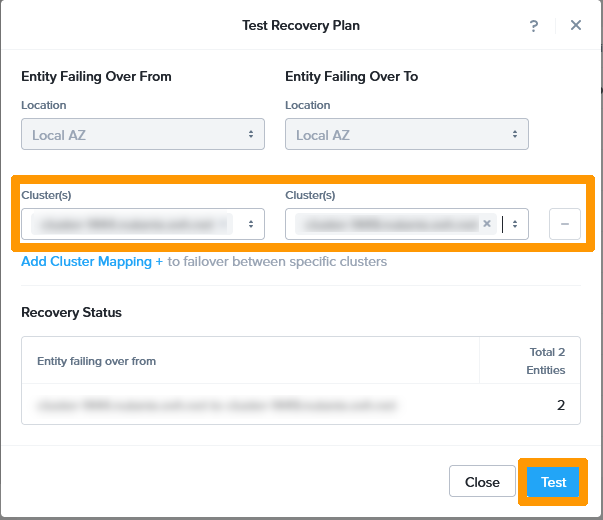
Select the Roubaix cluster for Entity Failing Over From and the Gravelines cluster for Entity Failing Over To. Then click Test.

14 - Validate test recovery plan 06
Info

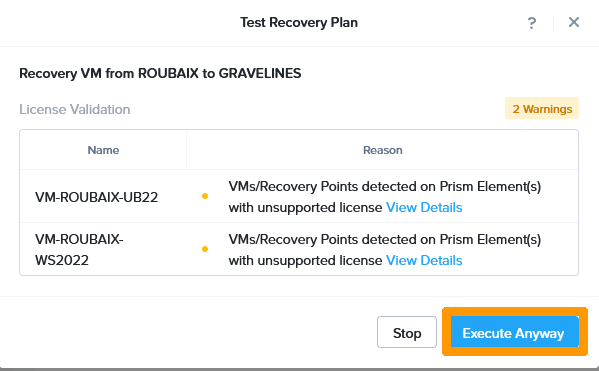
Make sure you have the right licences if you have chosen the Nutanix on OVHcloud packaged service. You need to have signed up to the Pro or Ultimate packs for the Roubaix and Gravelines clusters.

Click Execute Anyway.

14 - Validate test recovery plan 07

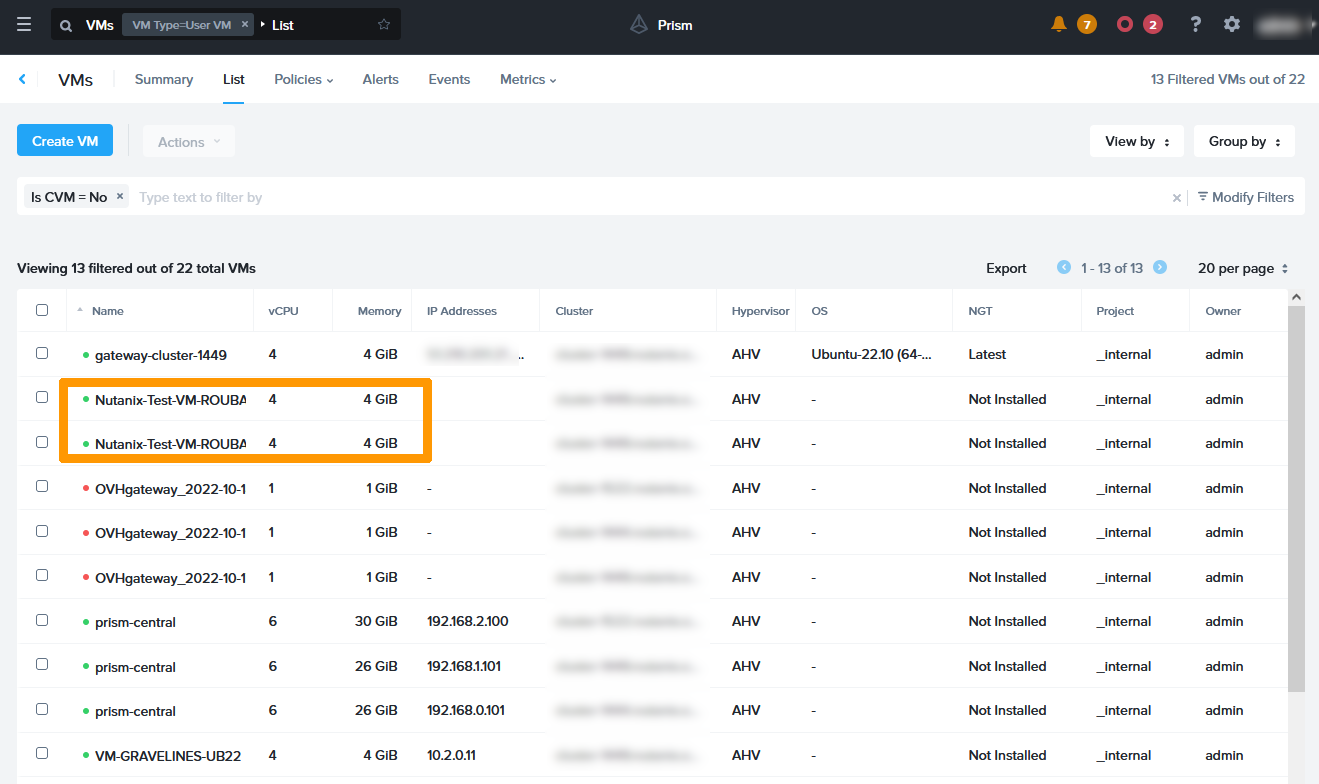
Go to the VM dashboard in Prism Central and you will see the test virtual machines that are created with the replicated data.

14 - Validate test recovery plan 08

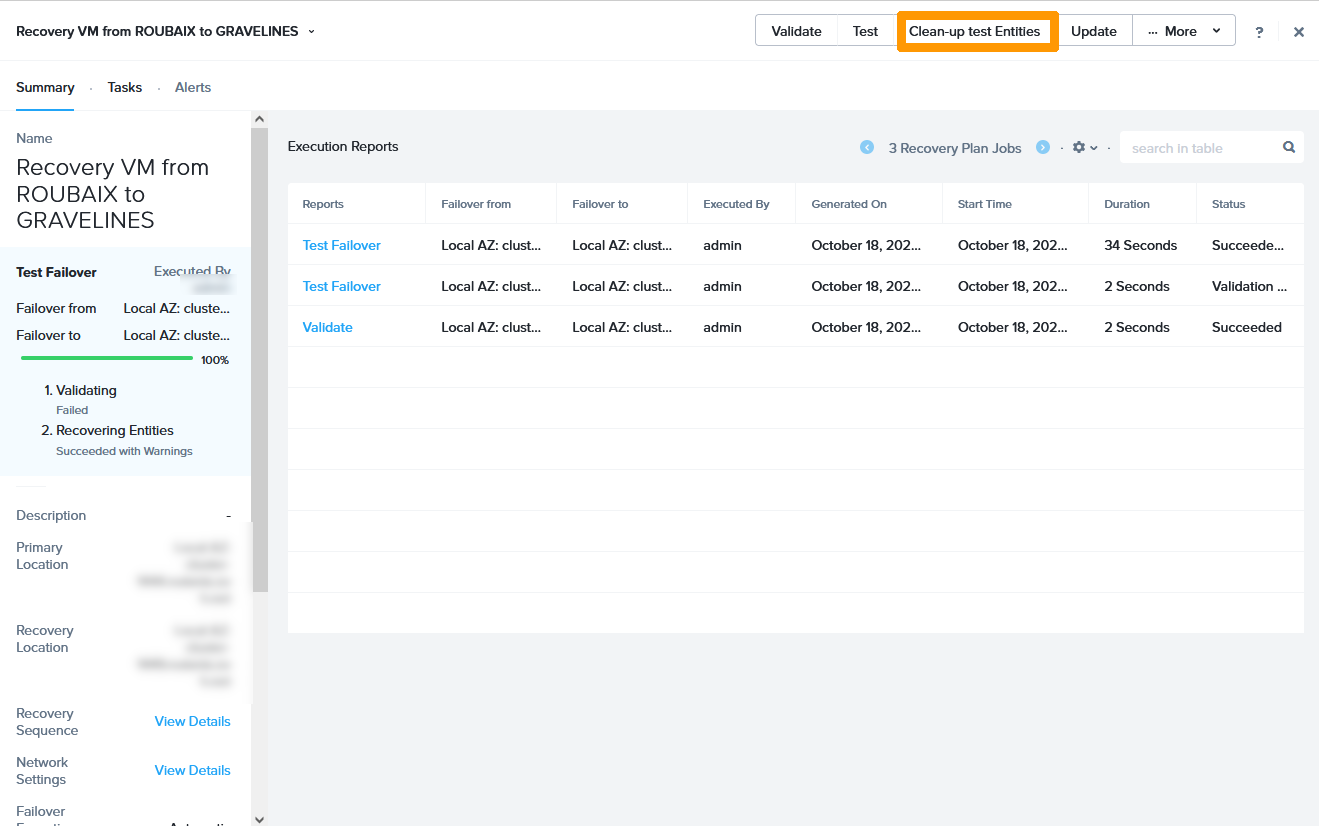
Return to your recovery plan and click Clean-up test entities to remove the test virtual machines.

14 - Validate test recovery plan 09

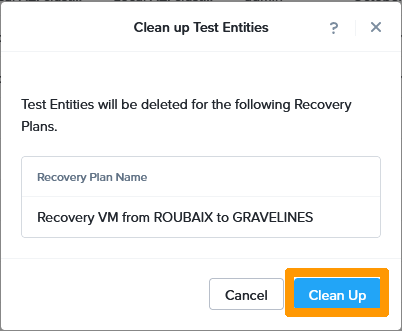
Click Clean Up

14 - Validate test recovery plan 10

Step 2.2 - Live migration of Roubaix virtual machines in Gravelines

On a fully operational infrastructure, it is possible to move virtual machines from one cluster to another without any service downtime.

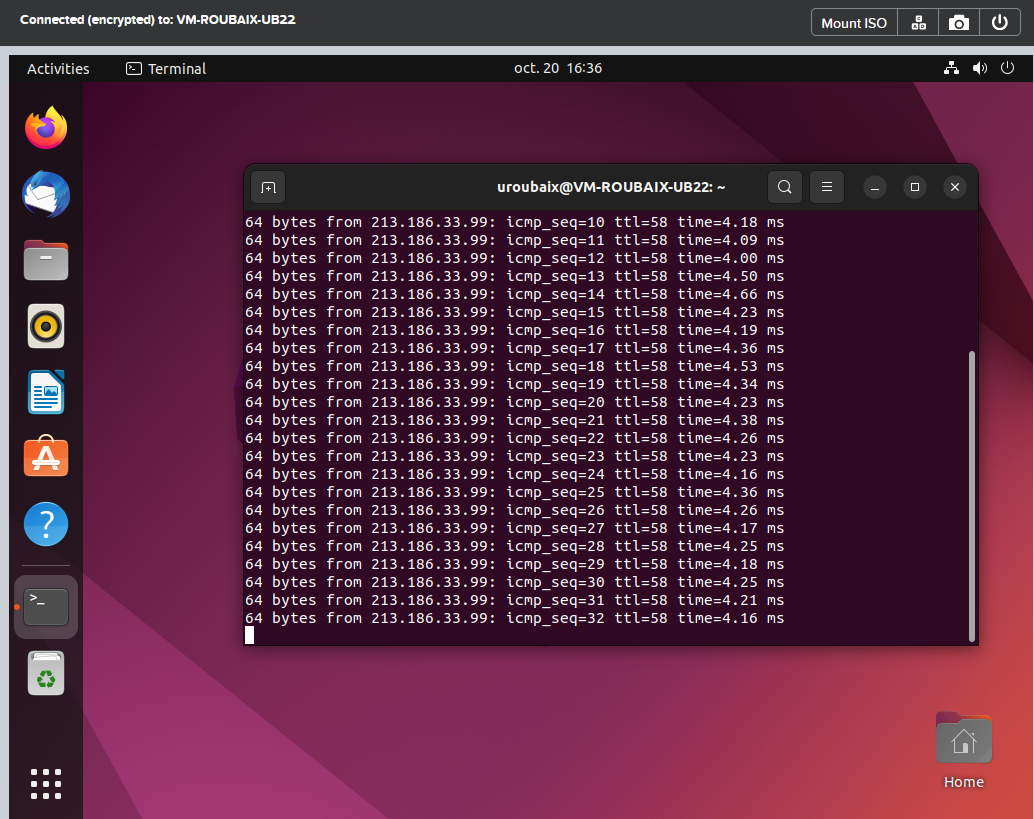
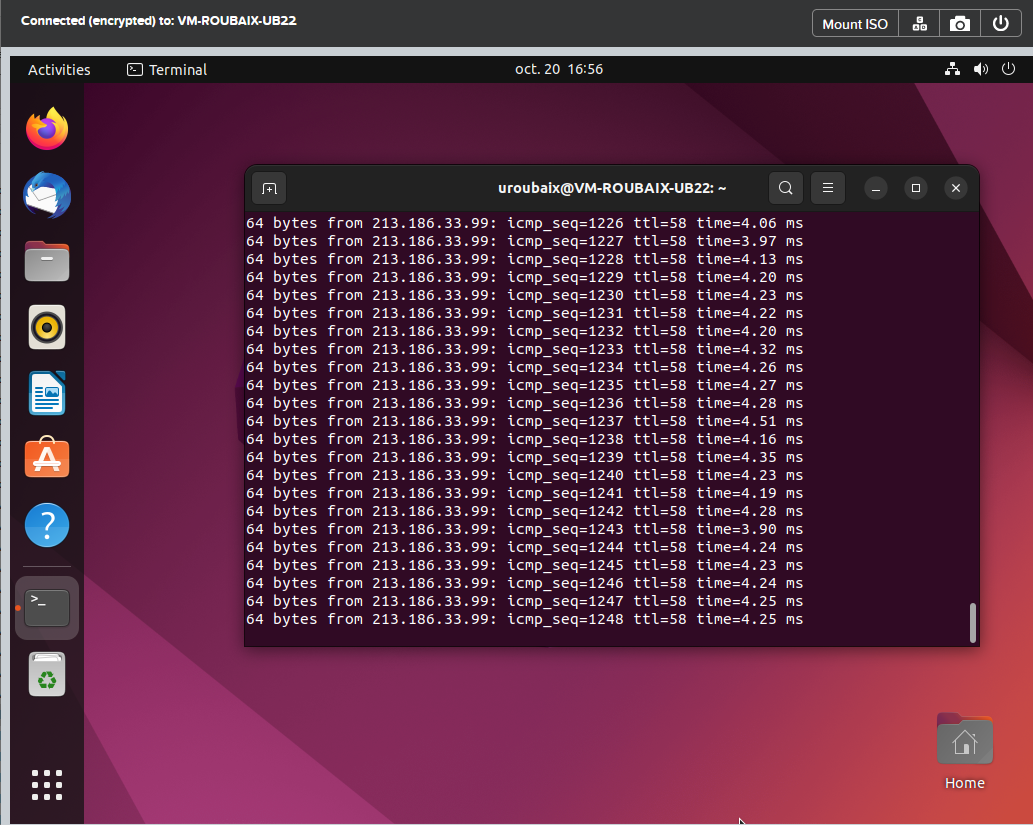
Go to a virtual machine in Roubaix that is part of the recovery plan. We will ping the OVHcloud DNS server 213.186.33.99.

15 - Roubaix to Gravelines 00 delivery

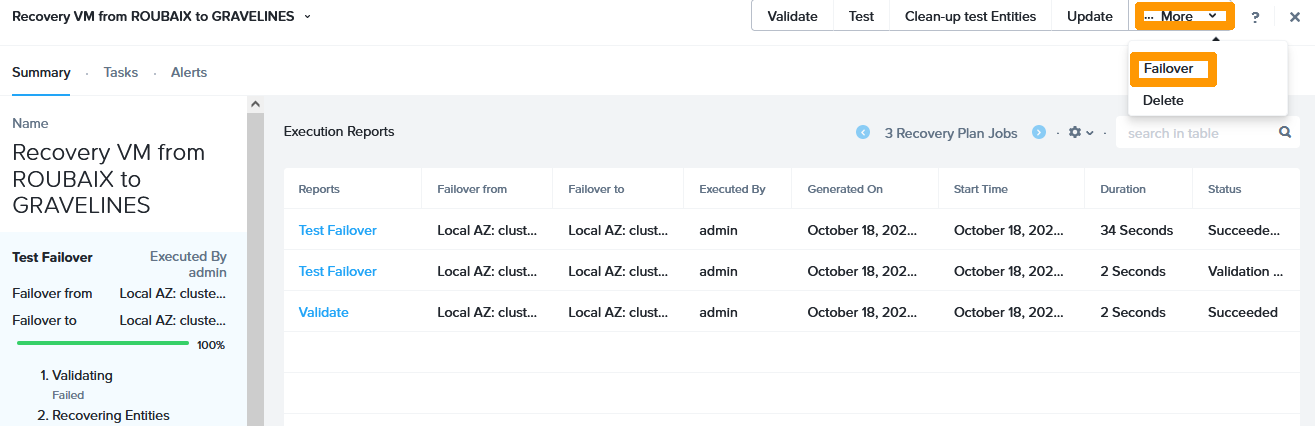
Return to your recovery plan and click Failover on the More menu.

15 - Roubaix to Gravelines 01 delivery

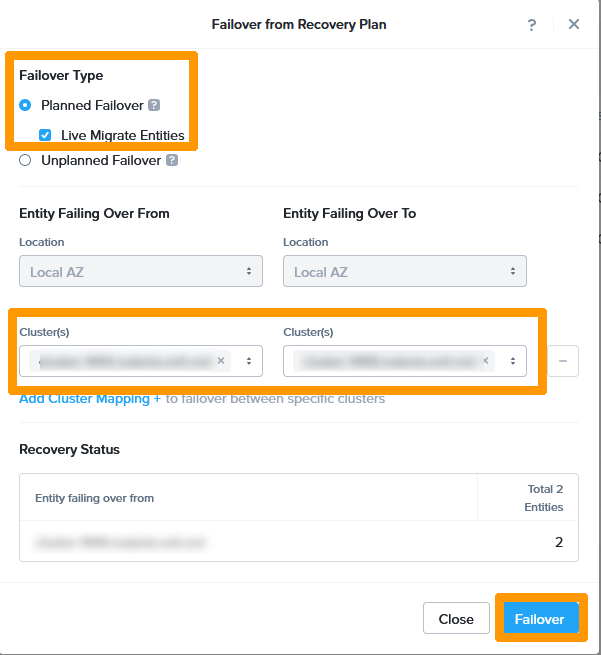
Choisissez Planned Failover, cochez Live Migrate Entities.

Take the Roubaix cluster for Entity Failing Over From and the Gravelines cluster for Entity Failing Over To.

Then click Failover.

15 - Roubaix to Gravelines 02 delivery

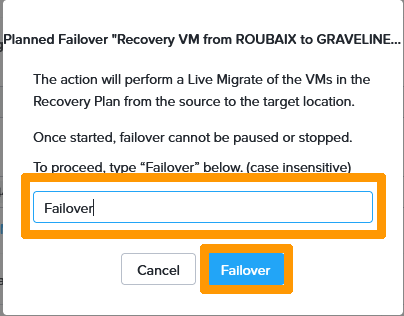
Type Failover and click Failover.

15 - delivery Roubaix to Gravelines 03

Hot migration is in progress.

15 - Roubaix to Gravelines 04 delivery

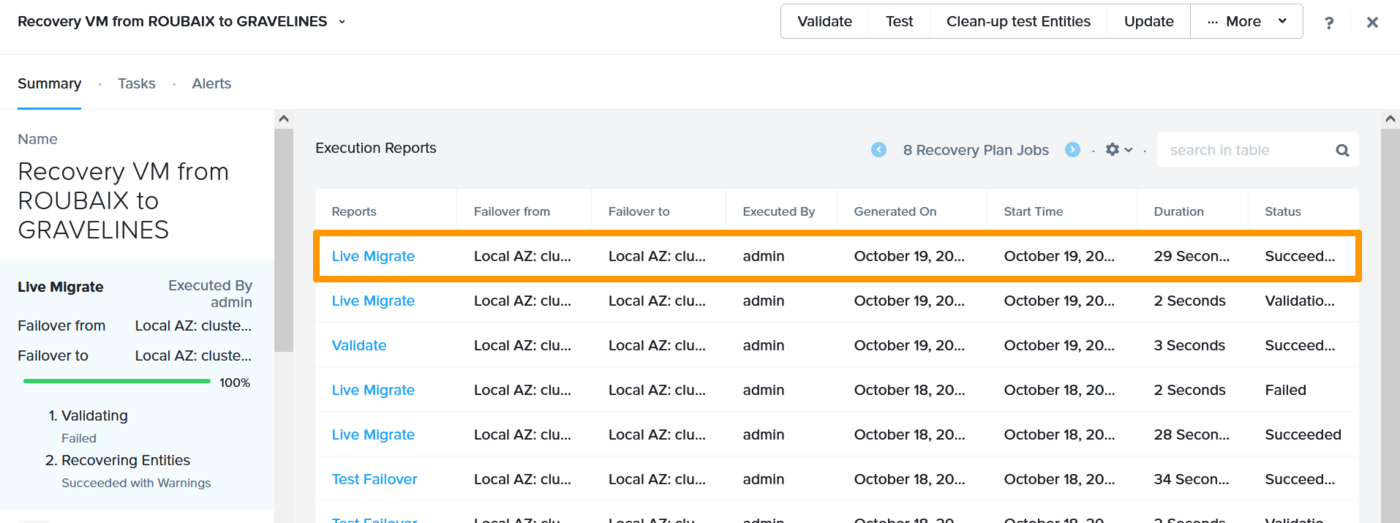
The migration was completed successfully without any service downtime.

15 - Roubaix to Gravelines 05 delivery

You can go back to the virtual machine and see that the ping continues to work even if the virtual machine has been moved from one cluster to another.

15 - delivery Roubaix to Gravelines 06

Step 2.3 - Operations after a hot migration

After a migration, it is necessary to reverse the replication and operation of the disaster recovery plan.

Reverse Replication

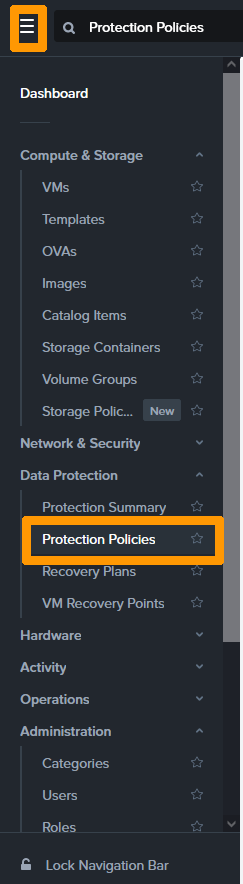
On the Prism Central main menu, click Protections Policies in the Data Protection submenu.

16 - invert replication after failover 01

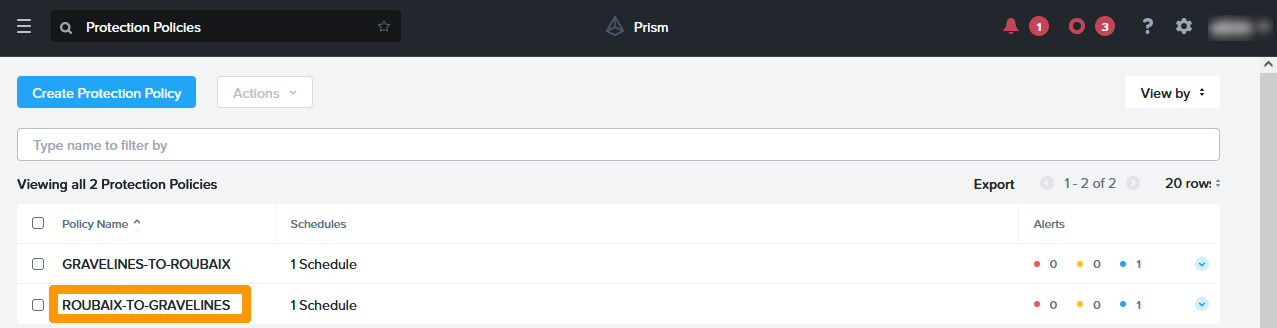
Click on the protection plan named ROUBAIX TO GRAVELINES.

16 - invert replication aftr failover 02

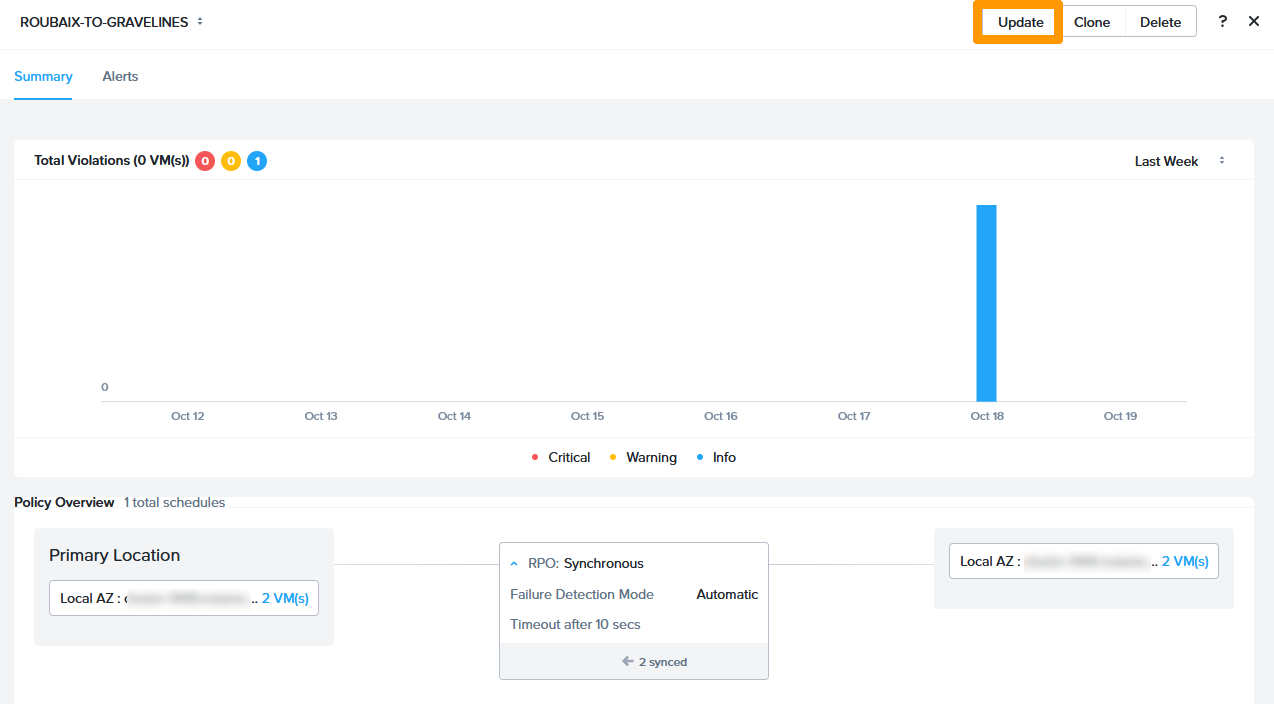
Click Update.

16 - invert replication after failover 03

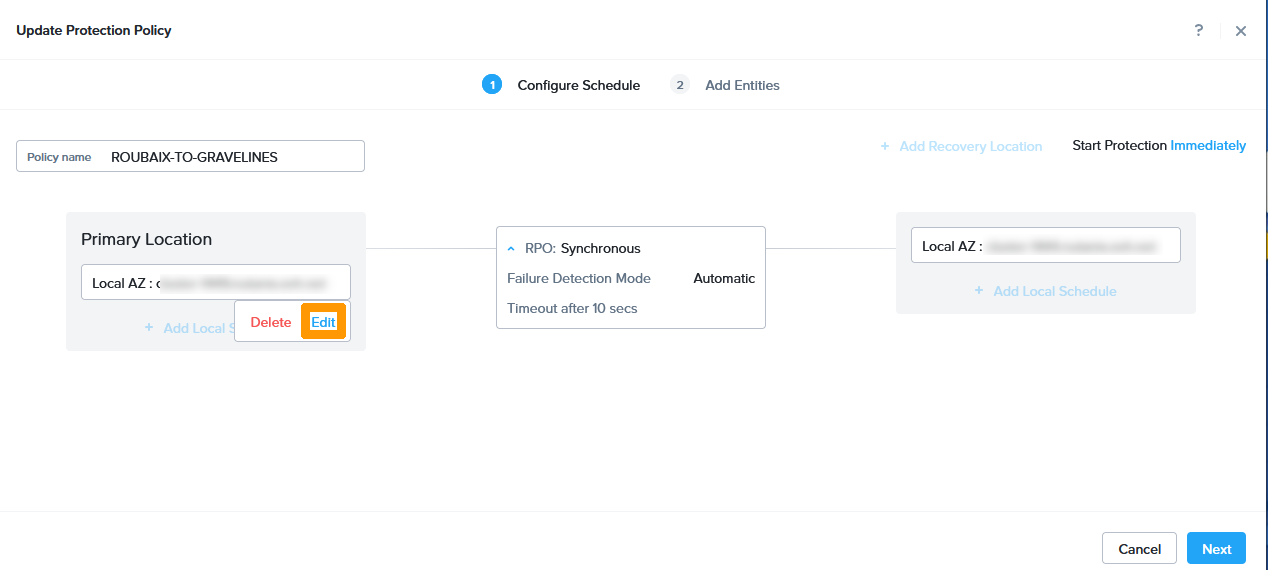
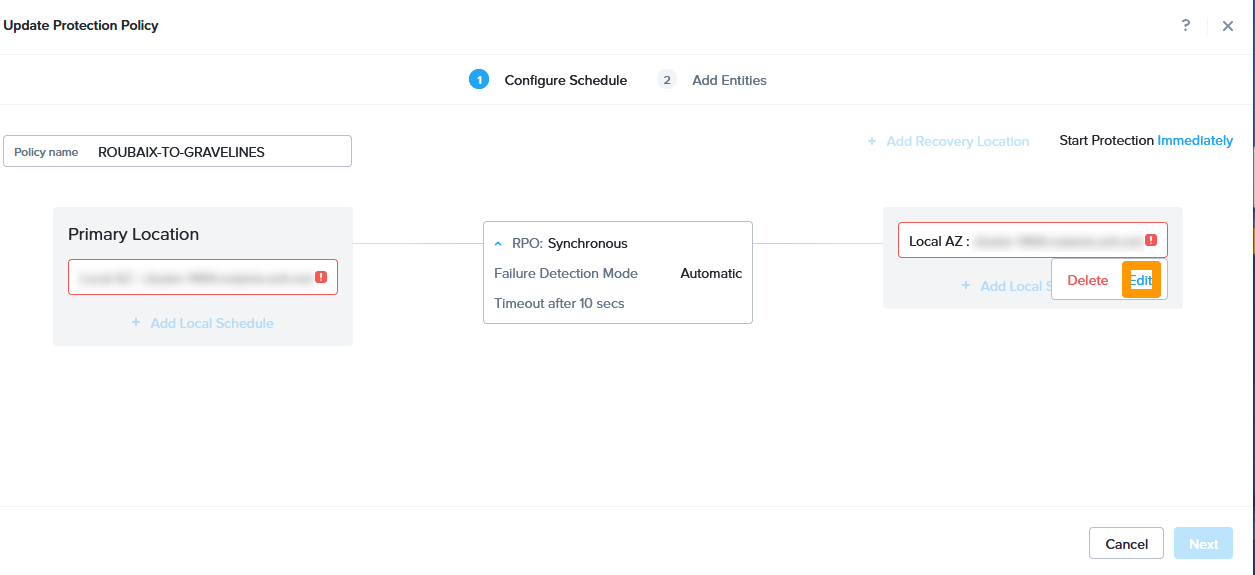
Position the mouse below the Roubaix cluster name in Primary Location and click Edit.

16 - invert replication after failover 04

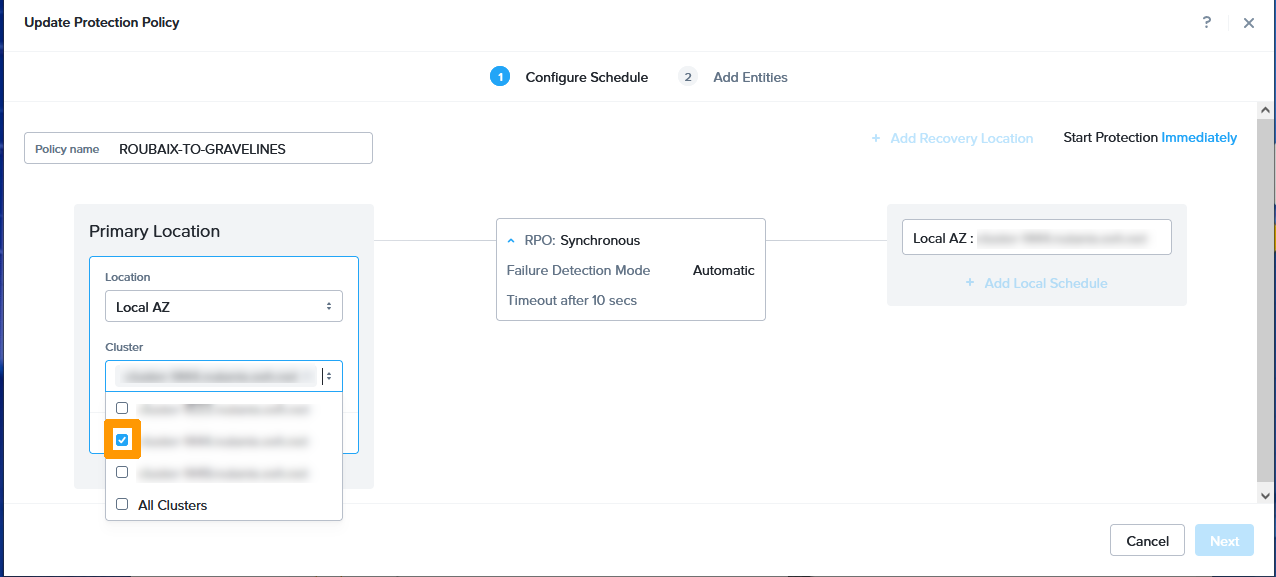
Check the Gravelines cluster instead of the Roubaix cluster.

16 - invert replication after failover 05

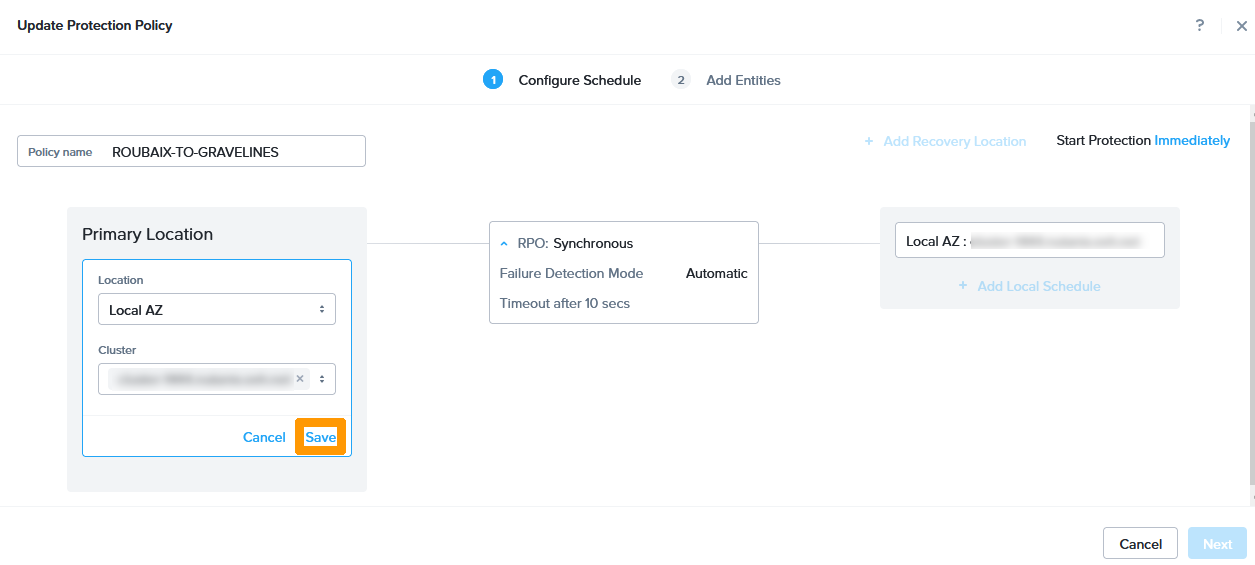
Click Save.

16 - invert replication after failover 06

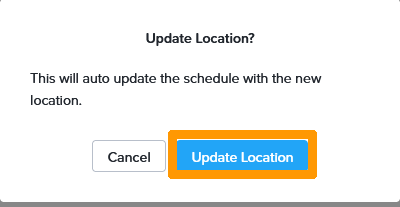
Click Update Location.

16 - invert replication after failover 07

Position the mouse below the Gravelines cluster name in Recovery Location and click Edit.

16 - invert replication after failover 08

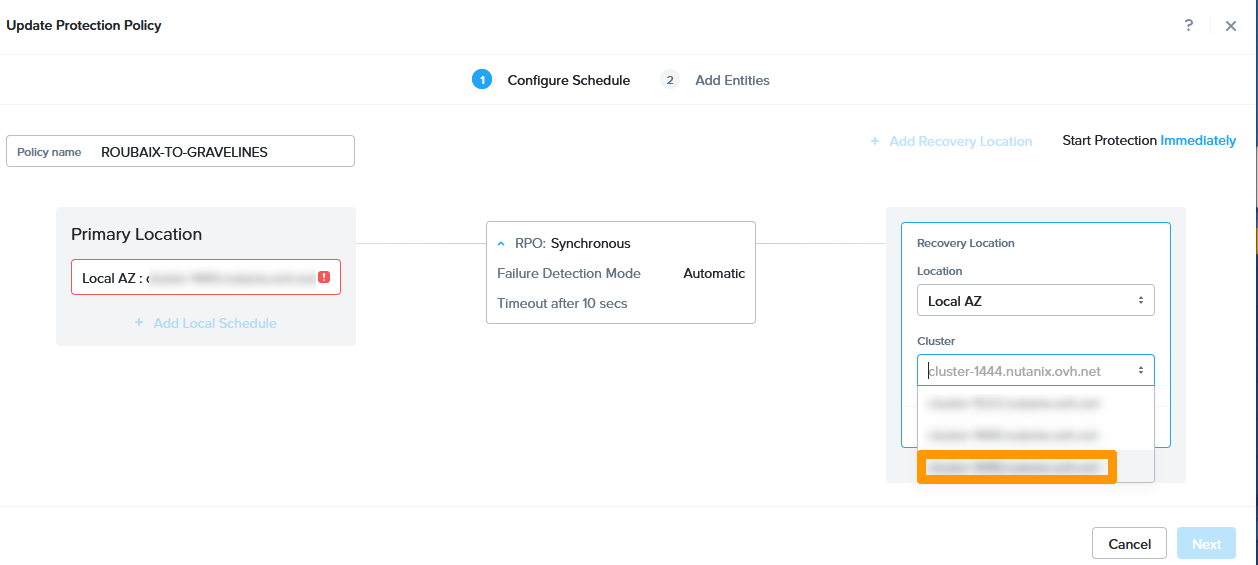
Select the Roubaix cluster instead of the Gravelines cluster.

16 - invert replication after failover 09

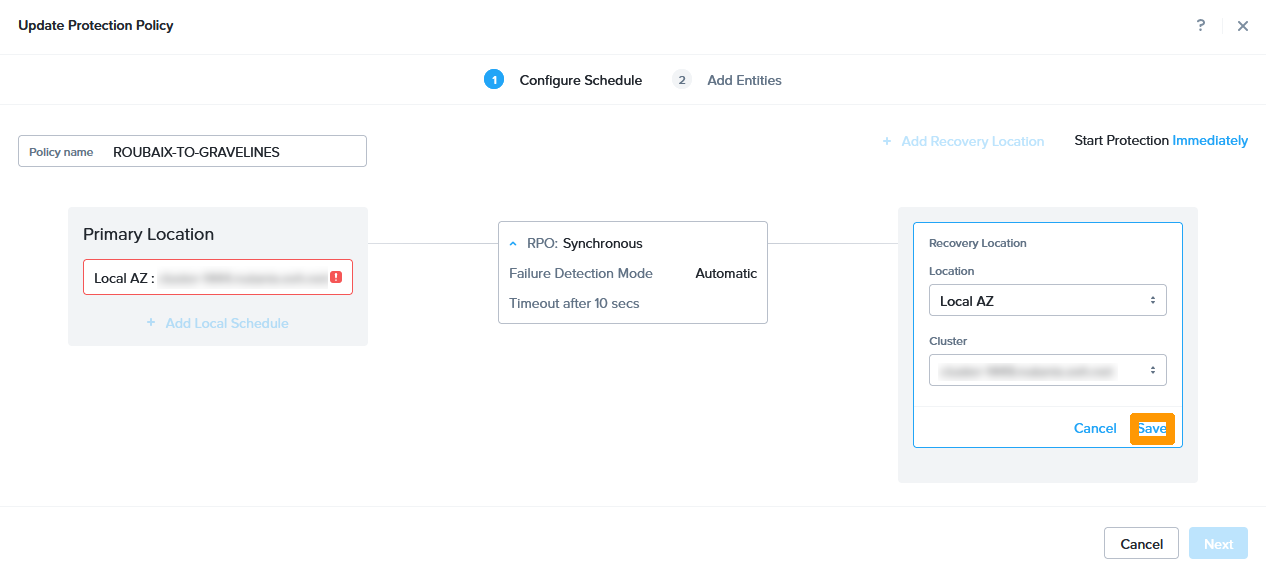
Click Save.

16 - invert replication after failover 10

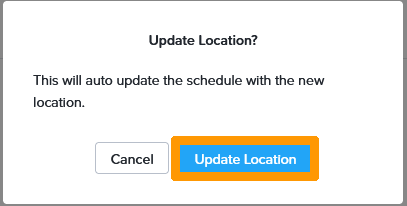
Click Update Location.

16 - invert replication after failover 11

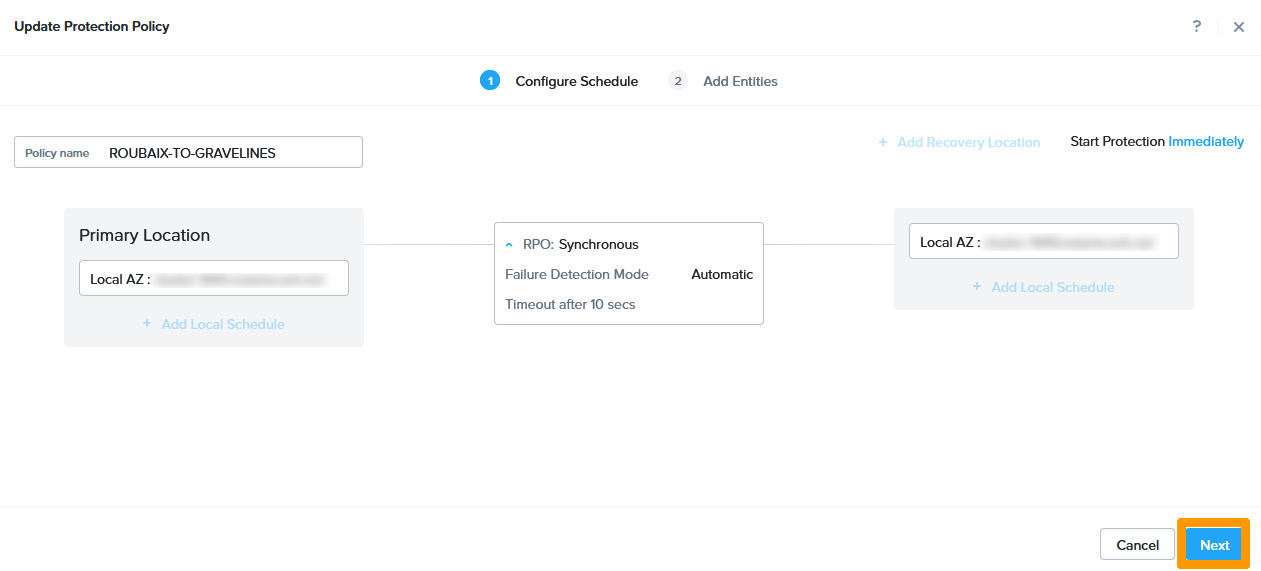
Click Next.

16 - invert replication after failover 12

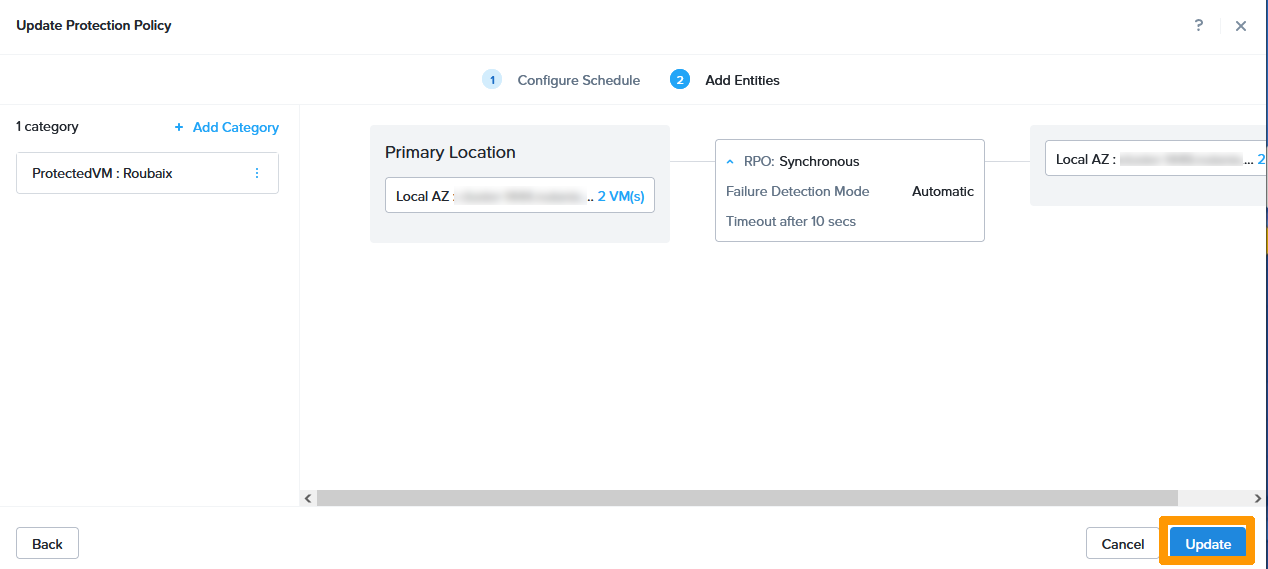
Click Update.

16 - invert replication after failover 12

Replication is reversed, click the button to close the protection plan.

Disaster Recovery Plan Reverse

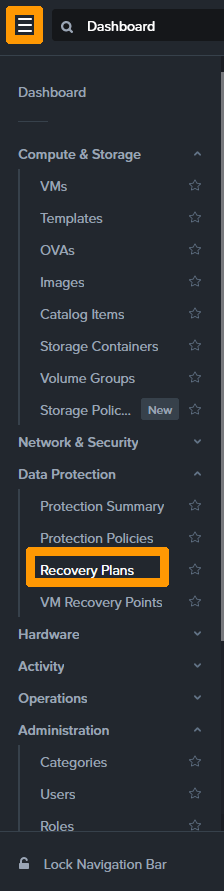
In the main menu of Prism Central, click Recovery Plans in the Data Protection submenu.

17 - invert recovery plan after failover 01

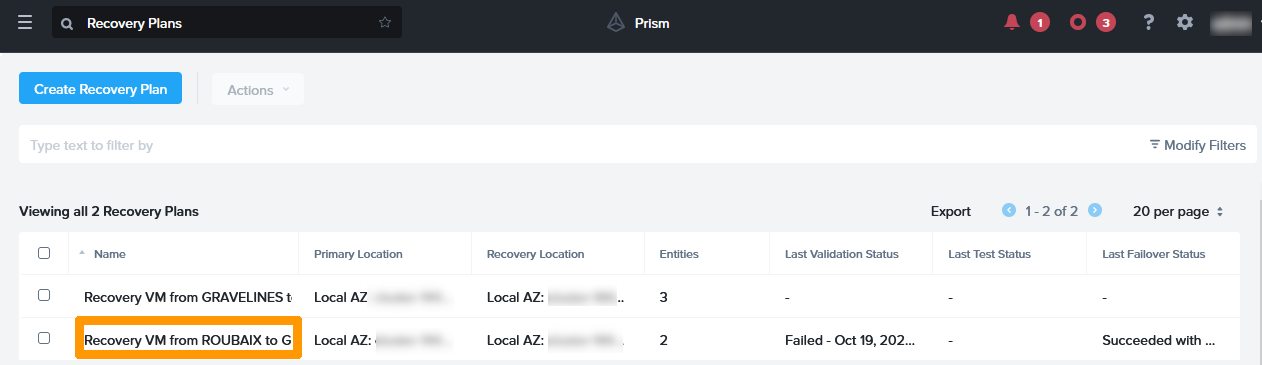
Click Recovery VM from Roubaix to Gravelines.

17 - invert recovery plan after failover 02

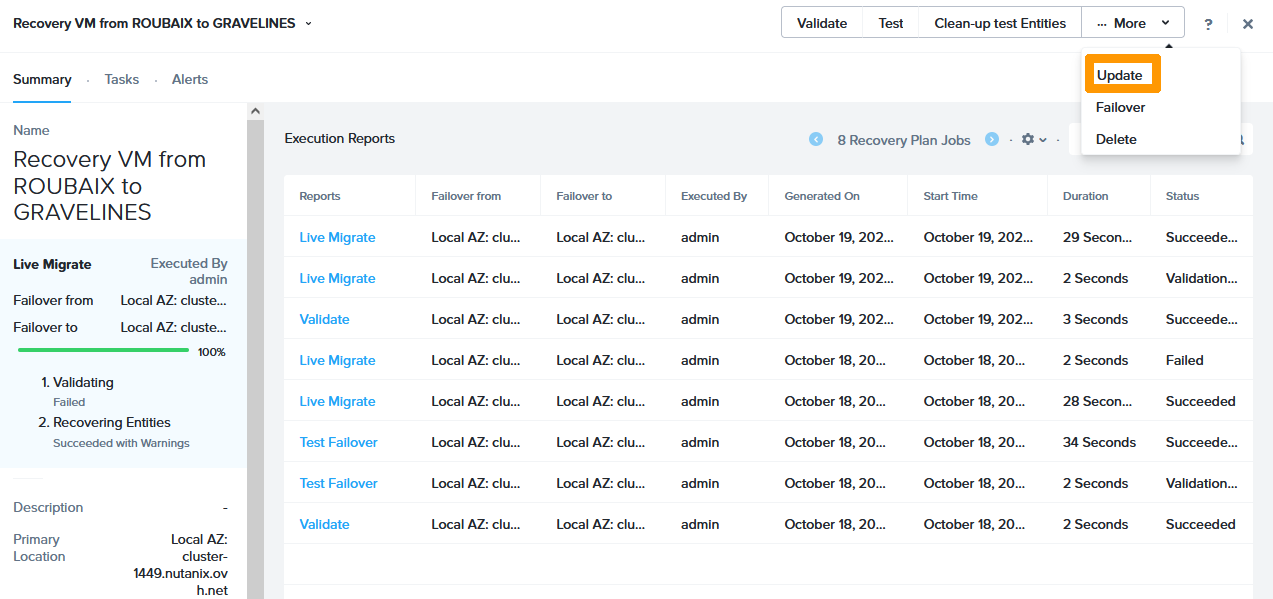
On the More menu, click Update.

17 - invert recovery plan after failover 03

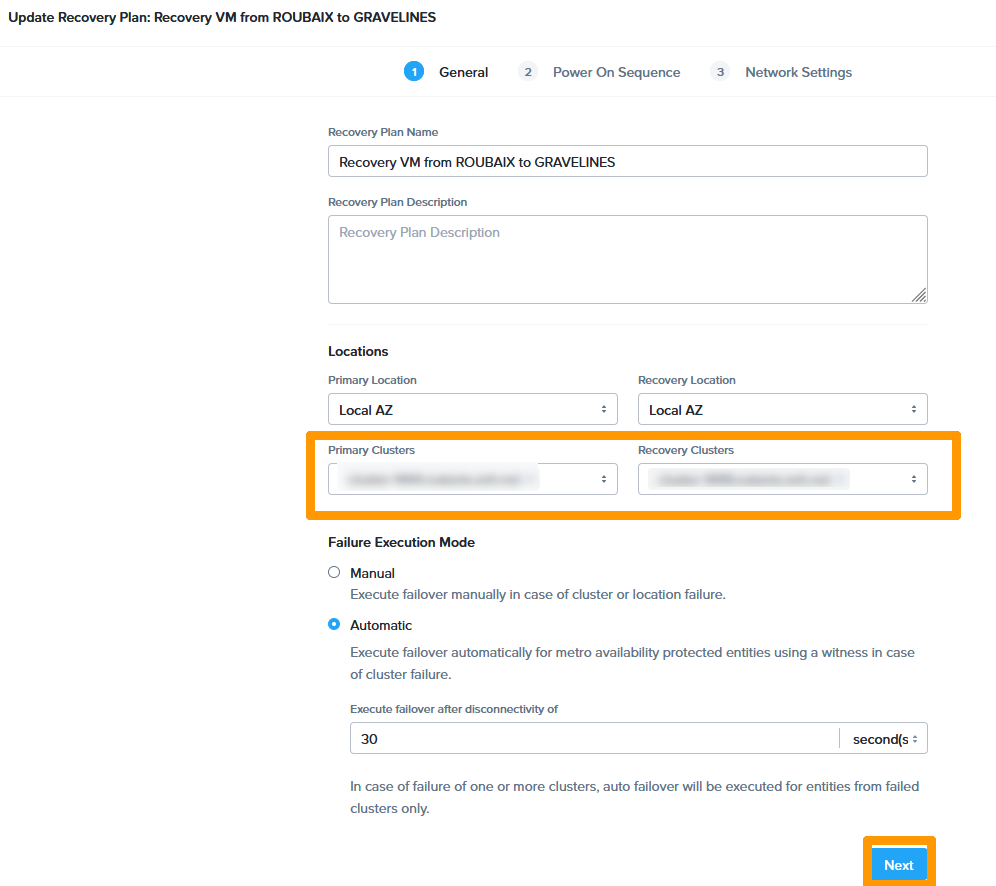
In locations, put the Gravelines cluster in Primary CLusters and the Roubaix cluster in Recovery Clusters and then click Next.

17 - invert recovery plan after failover 04

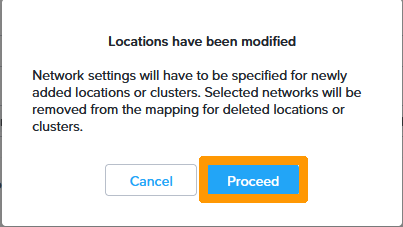
Click Proceed.

17 - invert recovery plan after failover 05

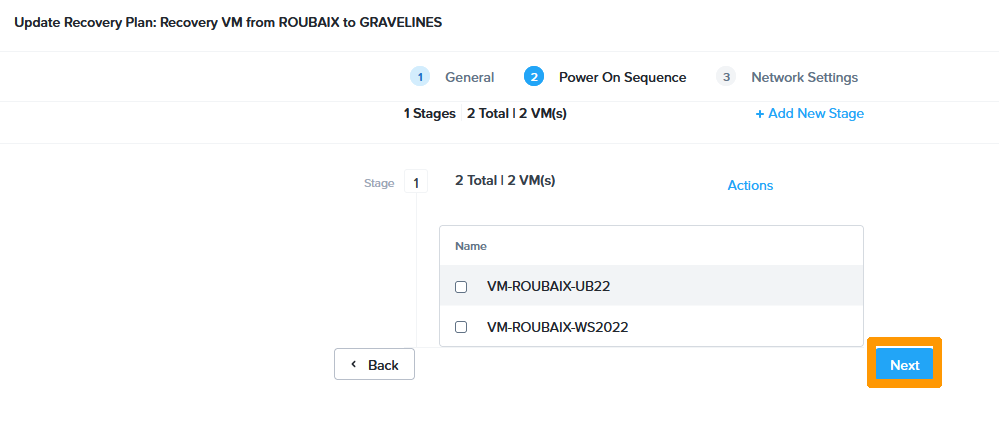
Click Next.

17 - invert recovery plan after failover 06

Choose this information:

  • Primary
    • Production : production
    • Test Failback : testproduction
  • Recovery
    • Production : production
    • Test Failback : testproduction

Click Done.

17 - invert recovery plan after failover 07
Info

Replication and recovery plans were reversed following a migration of virtual machines from Roubaix to Gravelines.

To return to the original state, you need to perform a hot migration again and reverse replication and the disaster recovery plan. You can use this part of the guide if your disaster recovery plan is triggered because a cluster is unavailable.

Step 2.4 - Execute the Disaster Recovery Plan in Real Condition

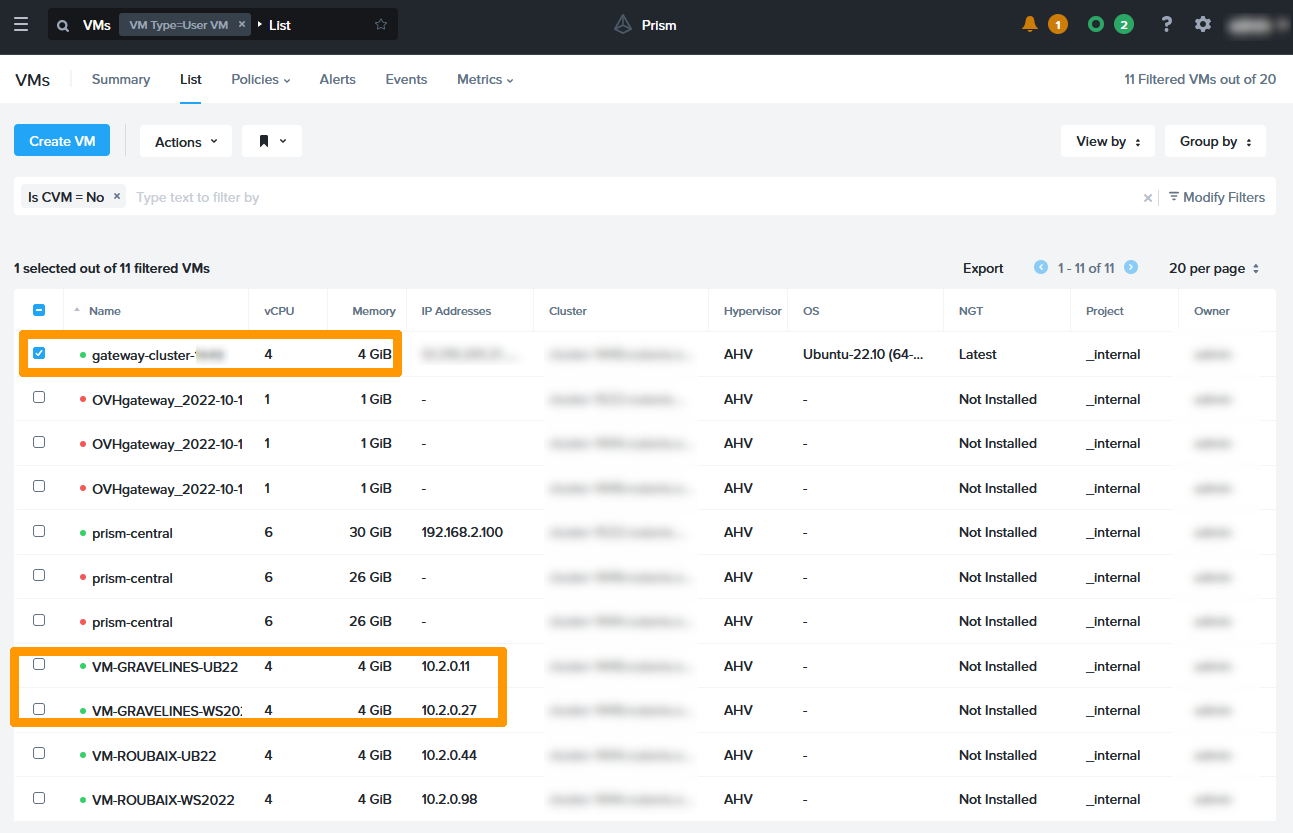
We will simulate a total loss of connection to Gravelines where three virtual machines are located in the disaster recovery plan (the Internet gateway and two other virtual machines).

Log in to the command line and ping the public address of the gateway.

## Ping from a remote linux console
ping xx.xx.xx.xx
Reply from xx.xx.xx.xx: bytes=32 time=21ms TTL=58
Reply from xx.xx.xx.xx: bytes=32 time=23ms TTL=58
Reply from xx.xx.xx.xx: bytes=32 time=20ms TTL=58

Leave the ping command to run continuously and return to Prism Central.

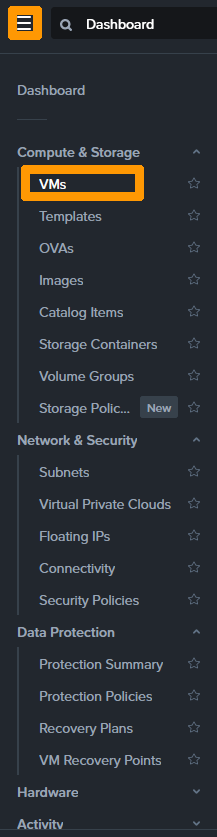
In the main menu, click VMs in the Compute & Storage submenu.

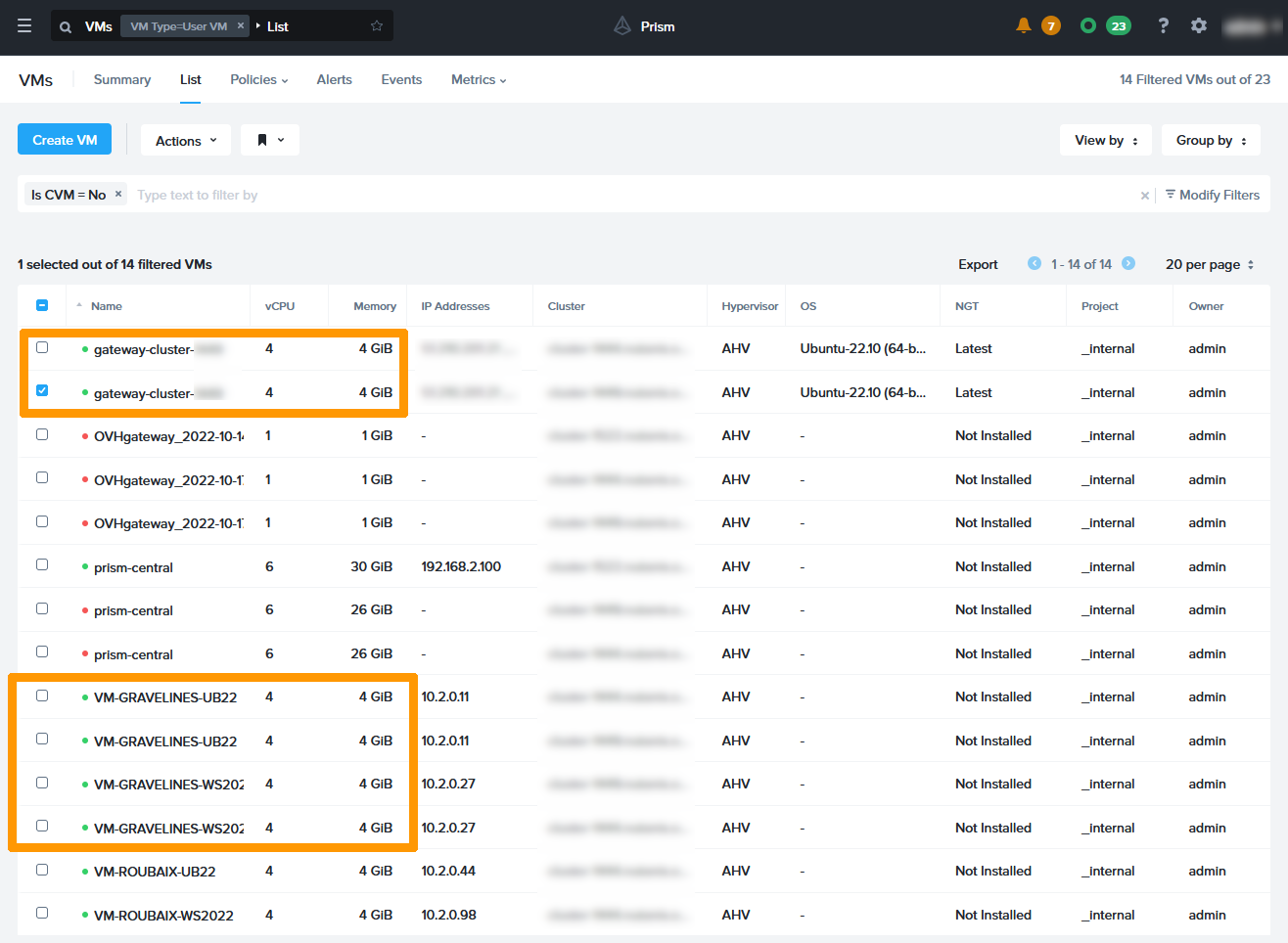
18 - fail on Gravelines 01

The three virtual machines in the disaster recovery plan are functional.

18 - fail on Gravelines 02

All three nodes in the Gravelines cluster will be disconnected.

Info

The disconnection is done by deleting the 3 nodes of the Gravelines cluster from the vRack.

Return to the console that is pinging to the gateway, and you will see a connection loss.

Reply from xx.xx.xx.xx: bytes=32 time=20ms TTL=58
Reply from xx.xx.xx.xx: bytes=32 time=21ms TTL=58
Reply from xx.xx.xx.xx: bytes=32 time=20ms TTL=58
Request timed out.
Request timed out.
Request timed out.
Request timed out.

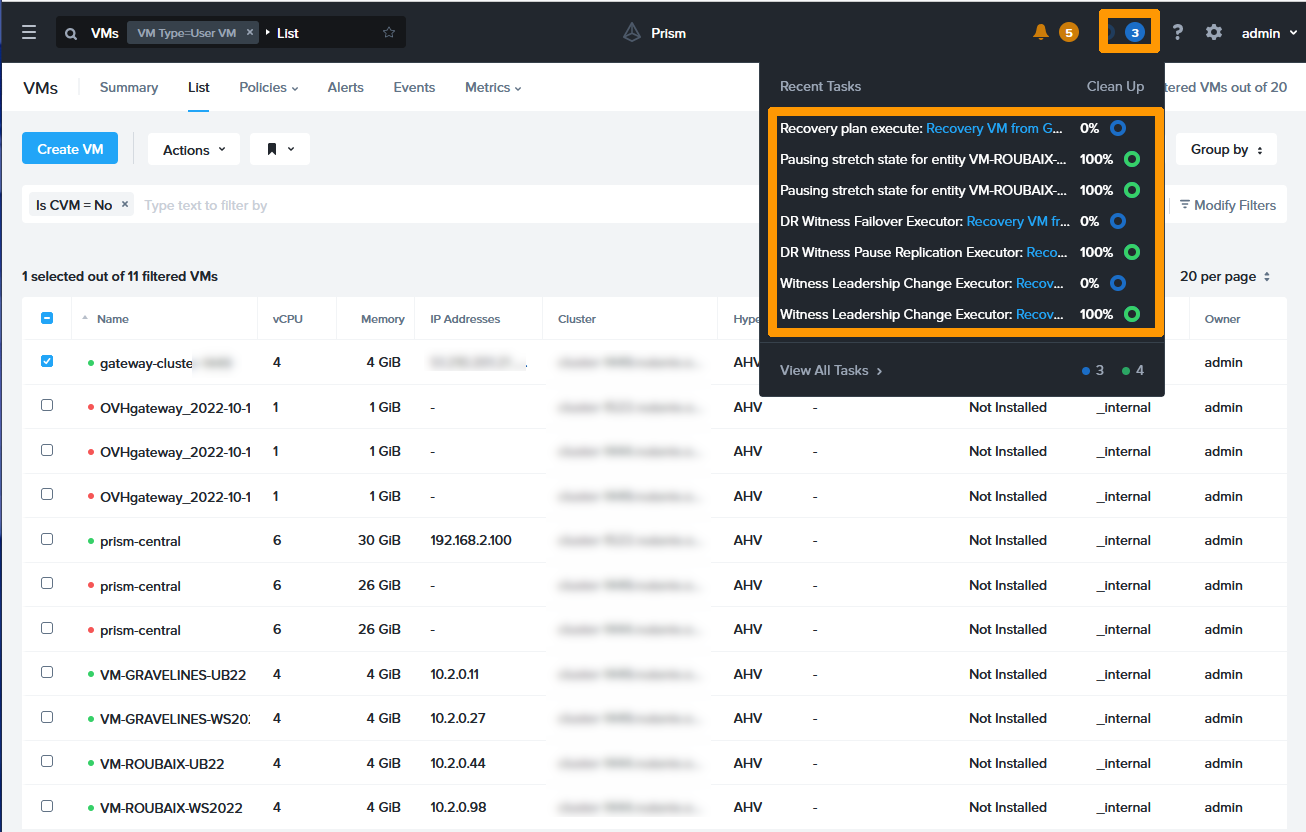
In Prism Central, click the top right on the tasks to display the task launch, including Recovery plan execute.

18 - fail on Gravelines 03
Warning

In the event of an incident on an entire cluster (there are not enough nodes to function, or a network outage), the virtual machines that are part of the IP and that are on this cluster will be started on the other cluster. The RPO (Recovery Point Objective) is 0 seconds, which means that no data loss will be reported.

However, it will take a while for the virtual machines to reboot on the other cluster. In this guide, 3 virtual machines are restarted on the remote cluster. It will take you 4 minutes to start the virtual machines. This time can be measured by regularly running tests on disaster recovery plans.

Go back to the text console and you will see that the ping works again.

Request timed out.
Reply from xx.xx.xx.xx: bytes=32 time=20ms TTL=58
Reply from xx.xx.xx.xx: bytes=32 time=19ms TTL=58
Reply from xx.xx.xx.xx: bytes=32 time=18ms TTL=58
Reply from xx.xx.xx.xx: bytes=32 time=19ms TTL=58

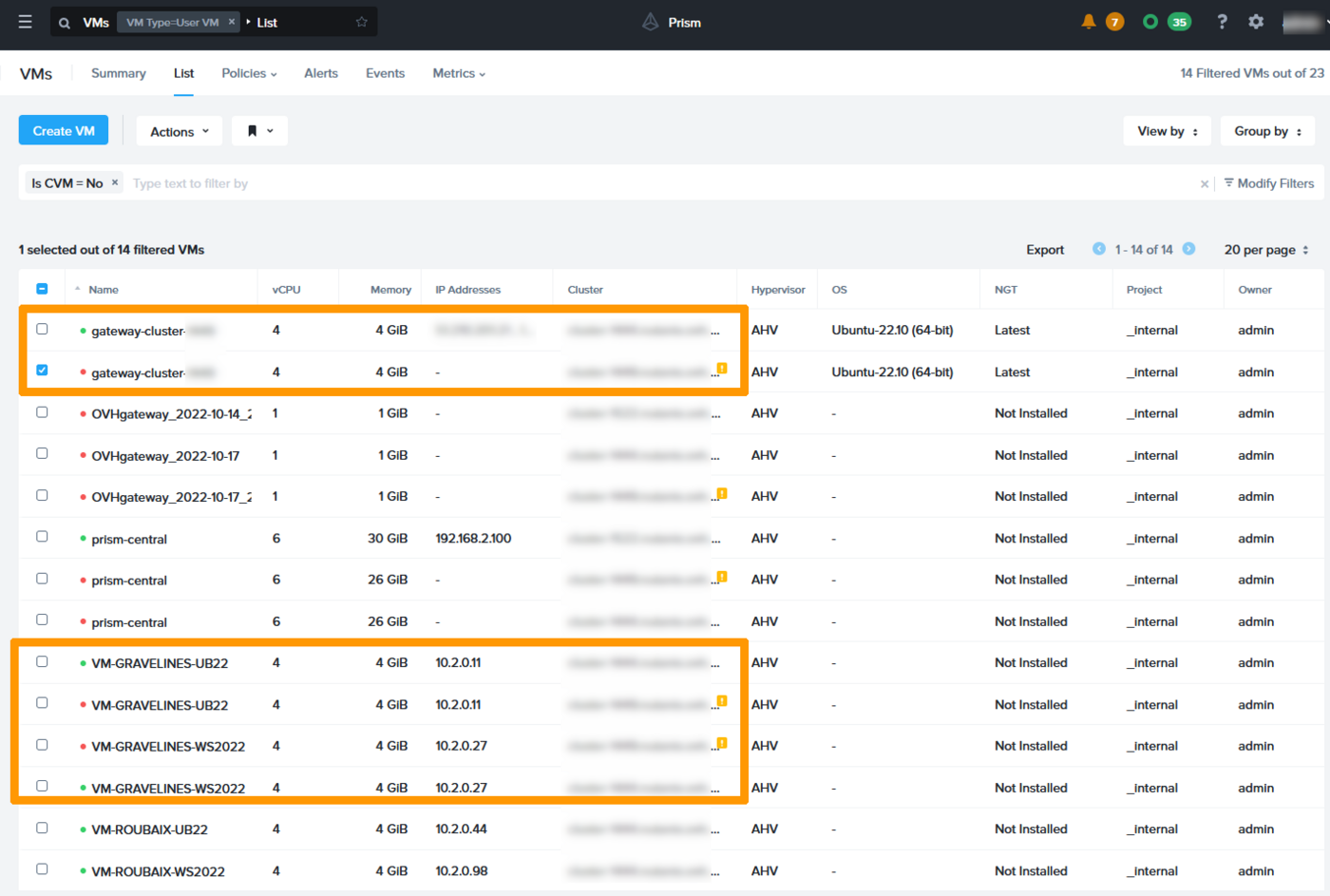
Go to Prism Central in the virtual machine management, you will see the three virtual machines of the recovery plan in duplicate. They are marked as started, but in reality, only the ones restarted in Roubaix are working.

18 - fail on Gravelines 04

We will reconnect the three nodes in the vRack to return to normal mode.

After the recovery, the virtual machines on the original cluster are still visible but are turned off. You can delete or keep them if problems occur on the VMs that are being rebooted.

18 - fail on Gravelines 05

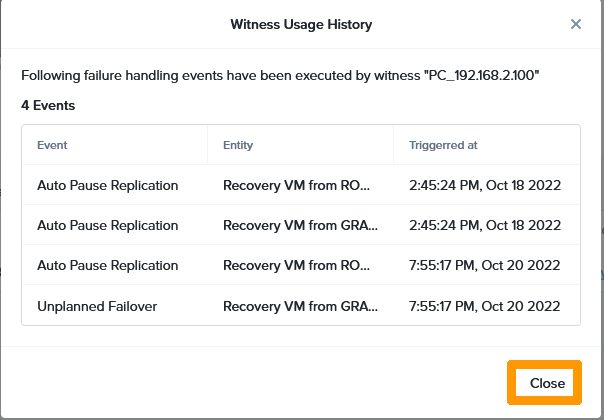
You can view the history of Disaster Recovery actions in Prism Central.

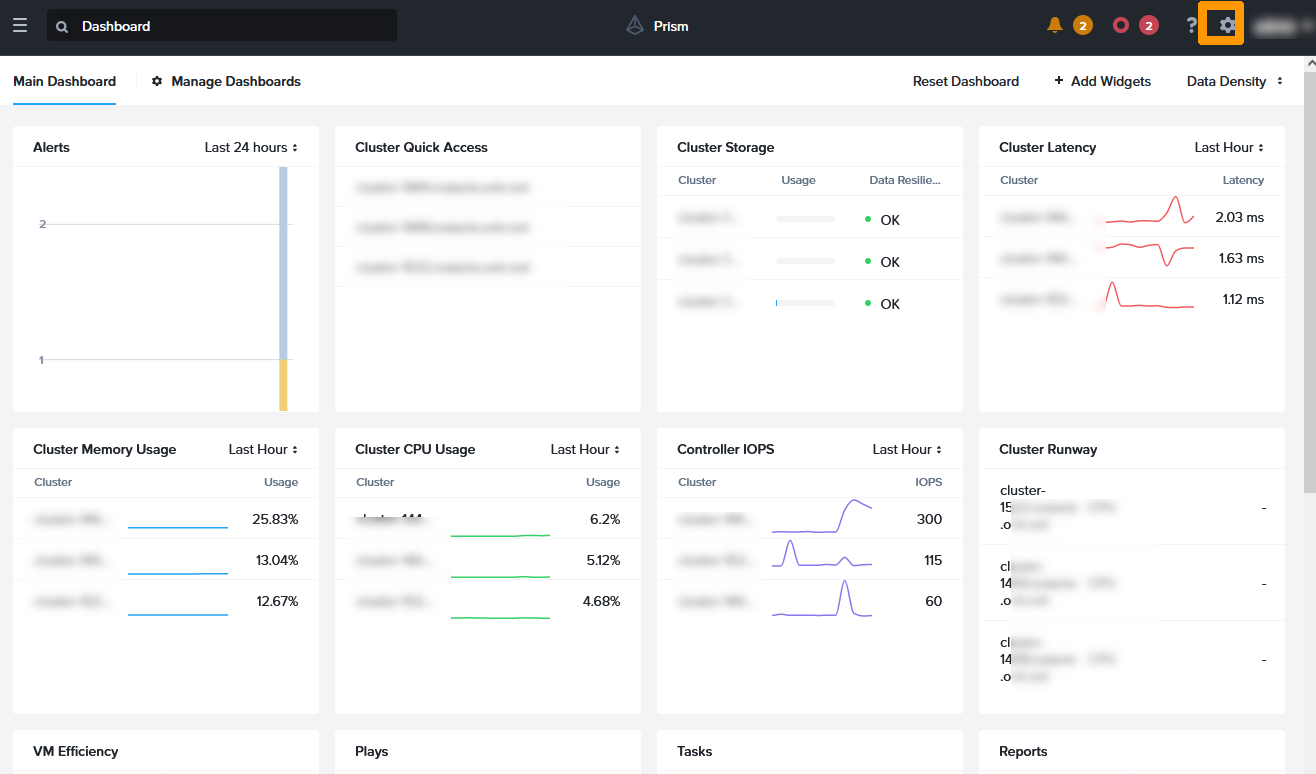
Click the button in the top right-hand corner to go to the Prism Central configuration.

19 - show Witness information 01

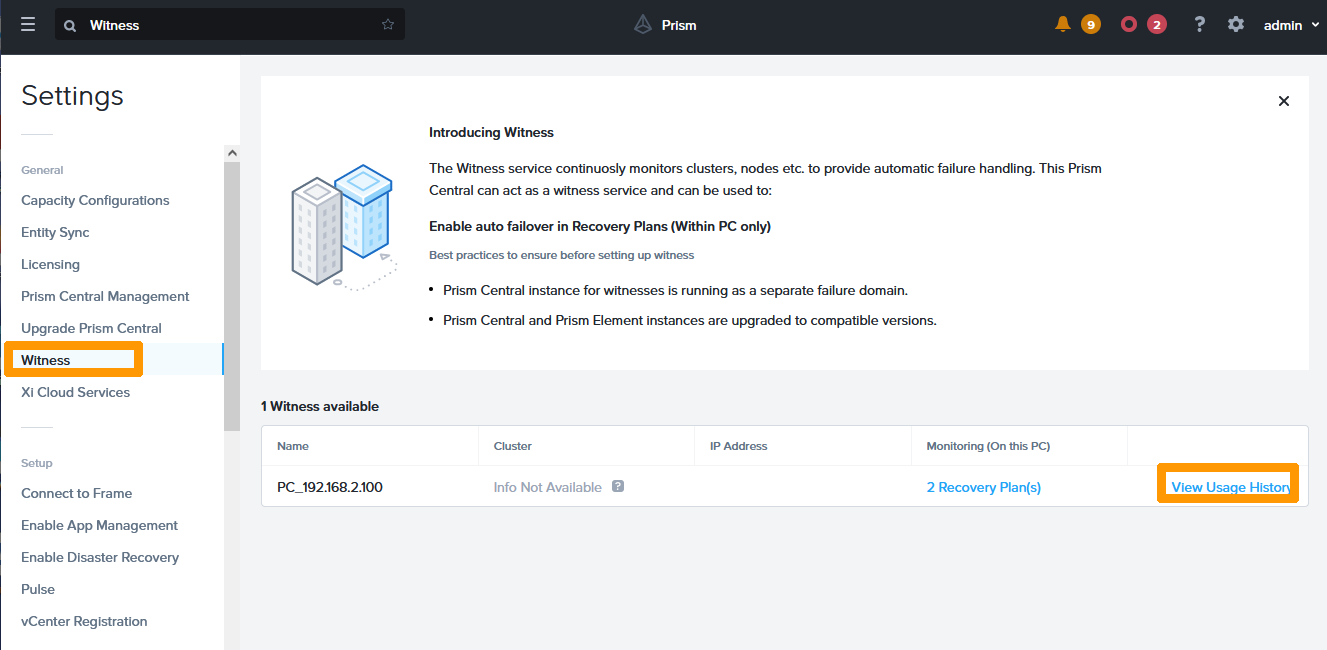
Left-click Witness and click View Usage History.

19 - show Witness information 02

The list of events appears, click Close to close.

19 - show Witness information 03

Go further

Interconnect clusters through the vRack

Disaster Recovery Plan for Nutanix

Asynchronous or NearSync replication through Prism Element

Advanced replication with Leap

Introduction to vRacks

Documentation Nutanix AHV Metro - Witness Option

If you need training or technical assistance to implement our solutions, contact your sales representative or click on this link to get a quote and ask our Professional Services experts for assisting you on your specific use case of your project.

Join our community of users on https://community.ovh.com/en/.

Was this page helpful?
🚀

Share your feedback on the new documentation

Your feedback helps our teams improve your experience.

2 minutes · Anonymous

Configuring Disaster Recovery with Metro

Webmail My account Support 🇬🇧 English Theme Languages 🇬🇧 English 🇫🇷 Francais 🇬🇧 English 🇩🇪 Deutsch 🇪🇸 Espanol 🇮🇹 Italiano 🇵🇱 Polski 🇵🇹 Portugues Menu On this page Search ⌘K Documentation Beta API Reference Product changelog E-Learning & certifications Migration Bare Metal Cloud Dedicated Servers Overview Key Concepts Bare Metal 3-AZ Region - Service presentation Kimsufi and So you Start customers - Get to know the OVHcloud Control Panel Shared responsibility for Dedicated Servers Understanding the dedicated server boot process Getting Started How to get started with a dedicated server How to get started with a Kimsufi, So You Start or Rise dedicated server How to get started with SSH connections How to create and use authentication keys for SSH connections to OVHcloud servers How to store public authentication keys in the OVHcloud Control Panel How to use the IPMI console with a dedicated server How to obtain the carbon footprint of your OVHcloud services Configuration System How to configure user accounts and root access on a server How to change a Windows Server product key Changing the admin password on a Windows dedicated server How to reset the Windows Administrator password with the Windows customer rescue system How to manage Intel SGX on a dedicated server Hardware upgrade on a High Grade or Scale dedicated server How to assign a tag to a Bare Metal server How to install VMware ESXi 8 on a dedicated server Storage Managing and rebuilding software RAID on servers using legacy boot (BIOS) mode Managing and rebuilding software RAID on servers using UEFI boot mode Managing hardware RAID Hot Swap - Hardware RAID Hot Swap - Software RAID Configuring MegaRAID for RAID Level 0 Configuring a software mirror (RAID) on Windows OVHcloud API and Storage Configuring the storage on a HGR-STOR-2 server Creating a Windows partition on a server with hardware RAID Advance Dedicated Servers - Upgrading your Samsung NVMe PM9A1 firmware High Grade Dedicated Servers - Upgrading your SSD SAS Western Digital SS300 firmware High Grade Dedicated Servers - Upgrading your SSD SAS Western Digital SS530 firmware Dedicated Servers - Upgrading your SSD Solidigm D7-P5520 firmware Dedicated Servers - Upgrading your Micron 7500 PRO firmware How to verify the BMC firmware version on a dedicated server Network Configuring OVHcloud Secondary DNS on a dedicated server Installing an OVHcloud SSH key Configuring OVHcloud Link Aggregation in the OVHcloud Control Panel How to configure your NIC for OVHcloud Link Aggregation in Debian 9 to 11 How to configure Link Aggregation with LACP in Debian 12 or Ubuntu 24.04 How to Configure Your NIC for OVHcloud Link Aggregation in Windows Server 2019 How to Configure Your NIC for OVHcloud Link Aggregation in SLES 15 How to set up a web server (LAMP) on Debian or Ubuntu Manage your server reboot with the OVHcloud Link Aggregation feature Configuring IPv6 on dedicated servers Configuring an IPv6 address on a virtual machine Moving an Additional IP Configuring Additional IPs in bridge mode on your virtual machines What are the IP addresses of the OVHcloud monitoring? Configurer son adresse IP en alias How to configure reverse DNS for your server (PTR record) How to determine if your dedicated server supports virtual MAC addresses Assigning a Virtual MAC to an Additional IP Configuring the network on Windows Server with Hyper-V Configuring the network on Proxmox VE on the High Grade, Scale & Advance ranges Upgrade and downgrade Bandwidth via the OVHcloud API Improving Network Resilience on Bare Metal servers vRack Configuring the vRack on your dedicated servers Configuring Jumbo Frames in vRack Configuring an Additional IP block in a vRack Configuring an Additional IPv6 block in a vRack Change the announcement of an IP block in vRack Creating multiple vLANs in a vRack Setting up a Virtual Machine using Additional IPs and Hyper-V over a vRack Configuring the vRack between the Public Cloud and a Dedicated Server Upgrade and downgrade private bandwidth (vRack) via the OVHcloud API Deployments OVHcloud API and OS Installation Bring Your Own Image (BYOI) / Bring Your Own Linux (BYOLinux), a comparison sheet Bring Your Own Image (BYOI) Bring Your Own Linux (BYOLinux) Configure a custom iPXE script to boot your server from the OVHcloud API Migration Migrate data from one dedicated server to another Copying data from one dedicated server to another using rsync Tutorials How to use PuTTY for SSH connections and authentication Tutorial - Configuring pfSense network bridge How to set up a web server (LAMP) on Debian or Ubuntu Activating Windows Machines using Hyper-V on an OVHcloud licensed Windows Server Installing CUDA on a dedicated GPU server Backing up data and databases on a Storage Server How to use SFTP to transfer files How to create a Palworld compatible server How to install a web development environment on a VPS or a dedicated server How to deploy and verify an OpenNebula Hosted Cloud on Bare Metal servers How to install CloudPanel on a VPS or a Dedicated Server How to install WordPress with Docker on a VPS or a dedicated server How to install WordPress with WP-CLI on a VPS or a dedicated server How to install ISPmanager on a VPS or Dedicated Server How to prevent your emails from being marked as spam Security Hardening How to secure a dedicated server Securing a server with a Memcached service How to mitigate the Zenbleed vulnerability How to mitigate the Downfall vulnerability How to mitigate the Inception vulnerability Find your patch for Meltdown and Spectre Information about Meltdown and Spectre vulnerability fixes AMD SME/SEV on Ubuntu 20 Dedicated Server Security Specifications Manage and secure your ESXi dedicated server from the outset ESXi Dedicated Servers - FAQ Backup Preparing a Bare Metal Server backup with Veeam Enterprise Backing up a Bare Metal Linux Server with Veeam Enterprise Backing Up a Bare Metal Windows Server Using Veeam Agent for Windows Restoring a Bare Metal Server with Veeam Enterprise How to use the backup storage on a dedicated server Network OVHcloud AntiSpam - Best Practices and Unblocking an IP Configuring the firewall on Linux with iptables Configuring the firewall on Windows Enabling and configuring the Edge Network Firewall How to protect a Game server with the application firewall Monitoring DDoS attacks with the Network Security Dashboard How to configure the Anti-DDos Infrastructure for Solana Troubleshooting How to recover server access if your user password is lost How to activate and use rescue mode How to activate and use Windows rescue mode How to replace an SSH key pair Replacing a defective disk How to perform server hardware diagnostics in rescue mode Finding the serial number of a hard disk Finalise a maintenance intervention on your dedicated server Uninstalling the RTM v2 monitoring system How to retrieve databases in rescue mode Network - Fixing slow downloads problems inside containers and VMs running on Proxmox VE servers with Broadcom BCM57502 NICs Virtual Private Servers Overview Getting started Getting started with a VPS VPS - Management from the OVHcloud Control Panel OVHcloud VPS FAQ How to configure user accounts and root access on a server How to get started with SSH connections How to create and use authentication keys for SSH connections to OVHcloud servers How to store public authentication keys in the OVHcloud Control Panel How to upgrade the resources of a VPS Repartitioning a VPS after a storage upgrade First steps with pre-installed applications How to use the KVM console to access a VPS Managing a legacy VPS Configuration Backup options How to use snapshots on a VPS Comment utiliser les sauvegardes automatisees sur un VPS How to configure an additional disk How to increase the size of an additional disk Network and IP management How to configure IPv6 on a VPS How to configure reverse DNS for your server (PTR record) How to configure IP aliasing Configuring OVHcloud Secondary DNS on a VPS Advanced usage How to deploy cPanel on a VPS Automated Backup - Kernel panic (cPanel) Migration How to migrate a website from a VPS to a Dedicated Server or a Public Cloud instance How to migrate an n8n configuration between two VPS Tutorials How to use PuTTY for SSH connections and authentication How to use SFTP to transfer files How to retrieve databases in rescue mode How to create a Minecraft server on a VPS How to create a Palworld compatible server How to set up a web server (LAMP) on Debian or Ubuntu How to install a web development environment on a VPS or a dedicated server How to install CloudPanel on a VPS or a Dedicated Server How to install WordPress with Docker on a VPS or a dedicated server How to install WordPress with WP-CLI on a VPS or a dedicated server Automating the deployment of your website on your VPS via GitHub Actions Automating the deployment of your website on your VPS via GitLab CI/CD How to install n8n on an OVHcloud VPS How to migrate an n8n configuration between two VPS Automate SMS sending with n8n via the OVHcloud API How to create and import a Lovable website on an OVHcloud VPS How to install an AI agent on an OVHcloud VPS How to install ISPmanager on a VPS or Dedicated Server How to install Docker and Docker Compose on a VPS How to install Nextcloud on an OVHcloud VPS with Docker How to install Nextcloud on an OVHcloud VPS with Docker and Traefik How to install OpenClaw on a VPS How to Automate Server Backups with Plakar Security Securiser un VPS How to install an SSL certificate on a VPS Configuring the firewall on Linux with iptables Configuring the firewall on Windows Troubleshooting Checking the file system on a VPS VPS - Enable Windows boot logs Displaying boot logs in the KVM How to use rescue mode on a VPS How to recover server access if your user password is lost Changing the admin password on a Windows server How to replace an SSH key pair How to prevent your emails from being marked as spam Additional resources Public Cloud & VPS - Image and OS life cycle and end of life/support announcements End of Plesk and cPanel support for VPS - Ensuring continuity of your services Managed Bare Metal Overview OVHcloud services and options Setting up a VPN for OVHcloud Zerto DRP Restoring backups via the OVHcloud API Activating and using Veeam Managed Backup Modifying the vCenter access policy Authorising IP addresses for vCenter access FAQ Technical capabilities OVHcloud features Adding an IP block OVHcloud hourly snapshots Changing the User Password VLAN creation Using Managed Bare Metal within a vRack Spare host delivery and return Removing a host server Removing a datastore Changing user rights Adding hourly resources Associating an email with a vSphere user Using the OVHcloud Network plugin How to cancel your Managed Bare Metal offer Getting started Introduction to the Managed Bare Metal Control Panel Configure an IP address on a virtual machine Keeping your vSphere web client secure Logging in to the vSphere interface Migrating an infrastructure to a new vDC Migrating an infrastructure to a Managed Bare Metal solution Managing virtual machines Modifying virtual machine resources Creating a snapshot Creating an alert Cloning a VM Choosing a disk type Installing VMware tools Deploy an OVF Linux, Windows Server and Windows SQL Server template Deploying a virtual machine Avoiding the read-only switch of your VM disk on Linux VMware vSphere features VMware vMotion VMware Storage vMotion VMware HA (High Availability) VMware Fault Tolerance VMware DRS (Distributed Resource Scheduler) Enabling Virtual Machine Encryption (VM Encrypt) Using the vSphere SDK Hosted Private Cloud Public VCF as-a-Service Overview Key Concepts Technical capabilities Hosted Private Cloud VMware Lifecycle Policy Hosted Private Cloud VMware Lifecycle Policy - Determine actions to be taken Responsibility sharing for the VMware on OVHcloud service Datamotive - Introduction Public VCF as-a-Service - The fundamentals of Public VCF as-a-Service Technical capabilities and limitations of Public VCF as-a-Service Getting started Introduction to the Hosted Private Cloud Control Panel Log in to the vSphere web interface Connexion a l'API OVH Public VCF as-a-Service - Logging in to your organization Public VCF as-a-Service - How to use the Public VCF as-a-Service user interface Configuration How to connect an ISO image to a VM How to disconnect an ISO image from a VM Configure an IP address on a virtual machine Public VCF as-a-Service - Network concepts and best practices Public VCF as-a-Service - Creating network components from the Public VCF as-a-Service control panel Public VCF as-a-Service - Linking a public IP block with vRack Public VCF as-a-Service - Declaring the public IP gateway in VCD Migration Migrating a PCC to Hosted Private Cloud Migrating an infrastructure to a new vDC End-Of-Life management for LV1 and LV2 storage Public VCF as-a-Service - Migrate from VMware vSphere on OVHcloud Public VCF as-a-Service - Setting up your network after vSphere to Public VCF as-a-Service migration Reversibility Policy for the Managed Mutualized Virtualization product Tutorials Public VCF as-a-Service - Creating a new virtual machine Public VCF as-a-Service - Backups with Veeam Data Platform Security Troubleshooting Additional resources Hosted Private Cloud FAQ How to obtain the carbon footprint of your OVHcloud services Public VCF as-a-Service - FAQ Managed VMware Key Concepts SPN Concept Concepts overview Getting started Getting started with NSX Activer NSX-T dans un Hosted Private Cloud VMware on OVHcloud Introduction to vRealize Operations - vROPS Getting started with your SecNumCloud vSphere Configuration Virtual Machines Deploying a virtual machine Installing VMware tools Choosing a disk type Modifying virtual machine resources Avoiding the read-only switch of your VM disk on Linux Enabling promiscuous mode on a Virtual Machine Changing the MTU size for machines reaching the OVHcloud Gateway SSL Deploy an OVF template through content libraries Deploy an OVF Linux, Windows Server and Windows SQL Server template OVF Tool Storage and Resources How to add storage? How to add a host? Removing a datastore Removing a host server Uploading an ISO in a datastore Network and Connectivity How to create a VLAN vRack compatibility with Hosted Private Cloud Enable the Private Gateway Adding an IP block Spare host delivery and return Segment management in NSX DHCP Configuration in NSX Configuring DNS Forwarder in NSX Adding a new Tier-1 Gateway in NSX vSphere Features Using the vSphere SDK Managing granular rights on vSphere objects Cluster creation and EVC activation Backup and Replication Activating and using Veeam Managed Backup Setting up Zerto Virtual Replication between two OVHcloud data centres Setting up Zerto multi-site replication on OVHcloud Managed vSphere Using Zerto between OVHcloud and a third-party platform Encrypting backup jobs with Veeam and OKMS Avoiding VM freeze with the Veeam Managed Backup option Migration Migrating OmniOS datastores Move2Cloud - Migrating VMware Workloads to OVHcloud Hosted Private Cloud with Veeam Replication Move2Cloud - Migrate VMware workloads to OVHcloud Hosted Private Cloud with Zerto Move2Cloud - Migrating VMware Workloads to OVHcloud SecNumCloud with Veeam Replication Move2Cloud - Migrate VMware workloads to OVHcloud SecNumCloud Hosted Private Cloud with Zerto Tutorials Virtual Machines Taking a snapshot Cloning a VM Reregister VMs in a new PCC Checking a slow machine Creating an alert VMware vCenter Converter Storage and Replication OVHcloud hourly snapshots Zmotion Restoring backups via the OVHcloud API Delete VM replica from Zerto recovery site Veeam Cloud Connect - How to migrate data from Veeam Cloud Connect to Object Storage Network and NSX Using the OVHcloud Network plugin Using Private Cloud within a vRack Using the OVHcloud plugin in vSphere Configuring NAT for port redirections with NSX Load Balancing configuration in NSX vSphere Features Understanding vScope VMware DRS (Distributed Resource Scheduler) VMware Storage vMotion Using VMware Hyperconvergence with vSAN Adding an ESXi server to a vSAN cluster Updating the vSAN disk format Managing vSAN fault domains VMware vMotion High Availability and Resilience VMware HA (High Availability) VMware Fault Tolerance Security Identity and Access Management IAM for VMware on OVHcloud - Presentation and FAQ IAM for VMware on OVHcloud - How to activate IAM IAM for VMware on OVHcloud - How to create an IAM vSphere role IAM for VMware on OVHcloud - How to associate a vSphere role with an IAM policy IAM for VMware on OVHcloud - How to associate a user with a global IAM policy How to use IAM policies with vSphere Changing the User Password Associating an email with a vSphere user Encryption and Key Management vNKP - Enabling virtual machine encryption Enabling VM encryption with an external KMS KMS for VMware on OVHcloud - VM encryption use case scenarios KMS for VMware on OVHcloud - Configuring VM encryption Mise en route du KMS CipherTrust Manager Network Security (NSX) Distributed Firewall Management in NSX Gateway Firewall Management in NSX Setting up an IPsec Tunnel with NSX Configure BGP between two PCCs via NSX-T System Hardening and Vulnerabilities Keeping your vSphere web client secure Using the secure interface Using two-factor authentication (2FA) on your Private Cloud infrastructure Authorising IP addresses for vCenter access Checking and blocking the L1TF vulnerability Checking and applying patches for Spectre/Meltdown vulnerabilities on your hosts Utiliser le protocole SSLv3 sur Private Cloud Compliance and SecNumCloud Partage de responsabilite sur le service Hosted Private Cloud by VMware sous la qualification SecNumCloud VPN-SPN Concept SPN Connector Concept Troubleshooting Maintenance and Updates VMware on OVHcloud maintenance operations Rescheduling a maintenance on your Hosted Private Cloud Updating hosts using vSphere Lifecycle Management (vLCM) VMware Update Manager Extend Volume in vSphere and in OS Testing a temporary host loss by enabling resilience mode Monitoring and Logs Configuring a vROps alert via the SMTP protocol Logs Data Platform - Collect VMware on OVHcloud logs NSX-T: retrieving logs How to read and filter NSX-T logs Compliance Monitoring Healthcare (HDS) or payment services (PCI DSS) compliance activation How to manage Windows licences for virtual machines on your Hosted Private Cloud infrastructure How to change a Windows Server product key Additional resources NSX - FAQ Pricing and Management of OVHcloud NSX Edges FAQ SecNumCloud Connectivity SNC Cloud Platform Getting started Mise en route de votre projet SNC Cloud Platform Comment sauvegarder une instance SNC Cloud Platform Comment sauvegarder un bucket Object Storage SNC Cloud Platform Bare Metal Pod Getting started Getting started with your Bare Metal Pod SecNumCloud On-Prem Cloud Platform Getting started Getting started with your OPCP Lifecycle of an OPCP Node OPCP - How to use the APIs and obtain the credentials OPCP - How to install an instance from the Horizon interface OPCP - How to Deploy an Instance via OpenStack APIs OPCP - How to setup LACP on a Node OPCP - How to set up Trunk ports on a Node OPCP - How to configure a software RAID on a node OPCP - How to see the node inventory Additional resources OPCP - Object Storage features and specifications Building a custom OpenStack Image on OPCP OPCP - Ceph RBD Block Storage - Performance, Resilience and Scalability with OpenStack Nutanix on OVHcloud Key Concepts Nutanix on OVHcloud - High-level documentation Nutanix hardware compatibility - OVHcloud configurations Nutanix AOS versions supported by OVHcloud List of included licences Disaster Recovery Plan in Nutanix Responsibility sharing - Nutanix on OVHcloud Nutanix on OVHcloud - Lifecycle Policy Getting started Getting started with your Nutanix cluster Nutanix Hyperconvergence Customised redeployment of your Cluster Storage overview on Nutanix Importing ISO images Managing virtual machines Events and alerts management Managing licences for a Nutanix on OVHcloud BYOL offer Networking and security OVHgateway documentation Adding a public IP address to a new VM Upgrading your Nutanix cluster Updating your Nutanix cluster firmware Configuration Changing the vRack of a Nutanix cluster Isolating management machines from production Configure Nutanix Flow Replacing the OVHgateway with a dedicated server Replacing OVHgateway KMS configuration with Nutanix on OVHcloud Configuring HYCU Backup Configure Veeam Backup for Nutanix Migration Migrating to Nutanix via the Nutanix Move tool Tutorials Advanced tools Activate Windows VMs installed on Nutanix by OVHcloud Add or Remove Nodes in a Nutanix Cluster (Scale In/Out) Replacing Prism Central from Small Mode to X-Large Mode Setting up NCM Self Service (CALM) Setting up Nutanix Objects Security Securing Prism Central Web access IPsec interconnection between two sites Interconnect clusters through the vRack Troubleshooting Retrieving your Nutanix installation status information Additional resources Asynchronous or NearSync replication through Prism Element Advanced replication with Leap Configuring Disaster Recovery with Metro Setting up Multicloud Snapshot Technology (MST) on a Nutanix on OVHcloud infrastructure Configuring Prism Central Point-in-Time Backup to OVHcloud S3-compatible Object Storage SAP on OVHcloud Concepts SAP HANA on Bare Metal and SAP Application Servers on VMware on OVHcloud SAP infrastructure with VMware on OVHcloud solution SAP infrastructure with SecNumCloud-qualified SAP HANA on Private Cloud Getting started Install SAP HANA on Bare Metal with SLES 15 for SAP Deploy a virtual machine with SAP HANA and OVHcloud Backint Agent pre-installed Deployer un SAProuter avec NSX Shared responsibility for SAP on OVHcloud solutions Automated deployments Deploy virtual machines of SAP Application Server on VMware on OVHcloud solution with Terraform Deploy virtual machines of SAP HANA database on VMware on OVHcloud solution with Terraform Deploy an SAP system infrastructure on VMware on OVHcloud solution with Terraform SAP pre-installation wizard Resilience SAP HANA cluster with SLES on VMware on OVHcloud Backups Install and use OVHcloud Backint Agent for SAP HANA Use OVHcloud Backint Agent with several Object Storage buckets OVHcloud Backint Agent versions Sauvegarder SAP HANA avec Veeam Backup and Replication Observability SAP logs on OVHcloud Logs Data Platform - Configuration SAP logs on OVHcloud Logs Data Platform - Analysez et exploitez vos logs SAP logs on OVHcloud Logs Data Platform - Index des logs SAP Public Cloud Public Cloud - General Information Overview Key concepts Public Cloud Glossary Public Cloud API Rate Limits Comparison and resilience of Deployment Modes - Understanding 3-AZ / 1-AZ / Local Zones 3-AZ resilience: Mechanisms and reference architectures How do Savings Plans work? Getting Started All you need to know to get started with Public Cloud How to use the Public Cloud interface Creating your first OVHcloud Public Cloud project Getting started with OVHcloud Shell Getting Started with OVHcloud CLI Configuration Billing management How to increase Public Cloud quotas Comment gerer un Savings Plan Public Cloud project management Best Practices for securing & structuring OVHcloud Public Cloud Projects Deleting a Public Cloud project Delegating projects Migration Public Cloud IaaS Migration - Steps and Best Practices Architecture Reference - Building a Landing Zone with OVHcloud Public Cloud Tutorials Managing from Horizon Introducing Horizon Access and security settings in Horizon Managing from OpenStack Preparing an environment for using the OpenStack API Setting OpenStack environment variables How to use OpenStack tokens Managing tokens How to use service accounts to connect to OpenStack Managing OpenStack users Managing firewall rules and port security on networks using OpenStack CLI Managing from Terraform How to use Terraform Security Healthcare (HDS) compliance activation Troubleshooting FAQ Public Cloud OVHcloud Additional resources Information regarding Public Cloud billing options Proper Usage and Limitations of Classic Multi-Attach Block Storage in 3AZ Regions Understanding Landing Zones Understanding metrics in OVHcloud Public Cloud Compute Overview Key Concepts Public Cloud Instances - Key concepts Getting started Adding cloud credit How to create a Public Cloud instance and connect to it Managing your Public Cloud instances How to start a Public Cloud instance on a bootable volume Shelve or pause an instance Activating a Windows licence for an instance in private mode First steps with pre-installed applications Configuration Project management Changing project contacts Public Cloud Instances - Switching from hourly to monthly billing Instance management Backing up an instance Using instance backups to create or restore an instance Changing the hostname of a Public Cloud instance Comment activer le mode rescue sur une instance Public Cloud Putting a Metal instance in rescue mode How to replace an SSH key pair on a Public Cloud instance Deploying a GPU instance How to configure reverse DNS for a Public Cloud instance Resize an instance via the OVHcloud Control Panel Creating and using a Server Group in Horizon and CLI Instance management using Horizon Creating an Instance via the Horizon interface Managing your Public Cloud Instances in Horizon Creating and configuring a security group in Horizon Managing snapshots of an instance in Horizon Creating, launching and deleting images in Horizon Resize an instance via Horizon How to revert a flex instance Instance management using OpenStack Getting started with the OpenStack API Getting started with managing volumes in the OpenStack API Uploading your own image Resize a Public Cloud instance using the OpenStack CLI Downloading and transferring an instance backup from one OpenStack region to another Launching a script when an instance is created Sharing an object via a temporary URL Sharing images between Public Cloud projects Migration Migration of instances between different regions Tutorials How to use PuTTY for SSH connections and authentication Using OVHcloud Object Storage as Terraform Backend to store your Terraform state Using OVHcloud Object Storage as Pulumi Backend to store your Pulumi state Create a custom OpenStack image with Packer How To Install ownCloud on a Public Cloud Instance Installing Plesk on an instance Installing WordPress on an instance Installing Prometheus Agent on a Public Cloud instance How to deploy the 3CX IPBX automatically on OVHcloud Public Cloud How to set up a web server (LAMP) on Debian or Ubuntu Local Zone VPN-as-a-Service (VPNaaS) with Tailscale integration Enterprise File Storage - Connect a Public Cloud instance to an EFS Volume via vRack Private Network Security How to create and use authentication keys for SSH connections to Public Cloud instances How to configure additional SSH keys on an instance Changing the admin password on a Windows server Upgrading your operating system Troubleshooting Forensics: How to deal with Public Cloud instances Repairing the GRUB bootloader Resizing the file system in FreeBSD 12 How to retrieve databases in rescue mode FAQ - Change of monthly billing method Additional resources Public Cloud Instances - Shared responsibilities Public Cloud & VPS - Image and OS life cycle and end of life/support announcements Local Zone Compute - Features, Capabilities and Limitations How to obtain the carbon footprint of your OVHcloud services How to prevent your emails from being marked as spam Storage and Backup Object Storage S3 compatible Key Concepts Object Storage - Choosing the right storage class for your needs Object Storage - Endpoints and Object Storage geoavailability Comparison of Object Storage Deployment Modes - Understanding 3-AZ / 1-AZ / Local Zones Cold Archive - Overview Getting Started Object Storage - Getting started Cold Archive - Getting started with Cold Archive Object Storage - Identity and access management Configuration Object Storage - Getting Started with Versioning Object Storage - Smart Storage Management with Lifecycle Rules Object Storage - Master asynchronous replication across your buckets Object Storage - Server Access Logging Object Storage - Setting up CORS on Object Storage Object Storage - Bucket ACL Object Storage - Hosting a static website in an Object Storage bucket Object Storage - Restoring an archived object from Cold Archive storage class Object Storage - Enabling HTTPS on a static website using a custom domain Object Storage - How to connect Object Storage buckets with other resources in a vRack Migration Object Storage - How to migrate from an S3-compatible object storage provider to OVHcloud Object Storage Object Storage - How to migrate from OVHcloud Swift Object Storage to OVHcloud S3-compatible Object Storage Tutorials Object Storage - Use Object Storage with Rclone Object Storage - Use Object Storage with S3cmd Object Storage - Use Object Storage with WinSCP Object Storage - Use Object Storage with Veeam Object Storage - Use Object Storage with Nextcloud Object Storage - Use Object Storage with Owncloud Object Storage – Use Object Storage with Cohesity NetBackup Object Storage – Use Object Storage with Pure Storage Flashblade Object Storage - Manage an Object Storage bucket with Terraform Object Storage – How to share an object or file externally Security Object Storage - Encrypt your server-side objects with SSE-C or SSE-OMK Object Storage - Managing object immutability with Object Lock (WORM) Object Storage - Identity and access management Troubleshooting Object Storage - FAQ Cold Archive - FAQ Object Storage - Local Zones specifications Object Storage - Compliance Object Storage - Technical Limitations Object Storage - Optimising Performance Object Storage - Optimise the sending of your files to Object Storage Additional Resources Object Storage - Shared Responsibility Cold Storage - Shared Responsibility for archive and restoration services Object Storage - Third-party applications compatibility Swift Getting Started Object Storage Swift - Creating an Object Storage container Object Storage Swift - Getting started with the Swift API Object Storage Swift - Getting started with the Swift S3 API Configuration Object Storage Swift - Configure a domain name on your Object Storage container Object Storage Swift - Syncing object containers Object Storage Swift - Configure automatic object deletion Object Storage Swift - Setting up CORS on Object Storage Cloud Archive Swift - Manage your archives with an SFTP/SCP client Cloud Archive Swift - Creating a Public Cloud Archive container Cloud Archive Swift - Unfreezing your data stored in the Public Cloud Archive Cloud Archive Swift - Set up an Access Control List on Public Cloud Archive Migration Object Storage - How to migrate from OVHcloud Swift Object Storage to OVHcloud S3-compatible Object Storage Tutorials Object Storage Swift - Synchronise Synology NAS with Object Storage Object Storage Swift - Use S3QL to mount object storage containers Object Storage Swift - Managing Object Storage with CyberDuck Object Storage Swift - Using Object Storage with Rclone Object Storage Swift - Configure ownCloud with Object Storage Cloud Archive Swift - Managing your archives with a Swift client (Cyberduck) Cloud Archive Swift - Managing your archives with Rsync Security Object Storage Swift - Set up an Access Control List on Object Storage Troubleshooting Object Storage Swift - S3/Swift REST API compatibility Object Storage Swift - Capabilities and limitations Cloud Archive Swift - Capabilities and limitations Object Storage Swift - Optimised method for uploading files to Object Storage Additional Resources Object Storage Swift - Curl Command Memo Object Storage Swift - Swift commands Memo Cloud Archive Swift - Curl Command Memo Cloud Archive Swift - Swift Command Memo Block storage Key concepts Choosing the Right Block Storage Class Proper Usage and Limitations of Classic Multi-Attach Block Storage in 3AZ Regions Getting Started How to create and configure an additional disk on an instance Creating a volume backup Creating a volume snapshot Configuration Creating a volume from a backup Increasing the size of an additional disk Test disk speed Migration Migrer un volume Block Storage vers un volume chiffre LUKS Change your block storage volume type Additional resources Public Cloud Block Storage - Shared responsibilities File Storage Key concepts Getting Started File Storage Service - Getting started (Beta) Public Cloud Network Services Key concepts Concepts - Public Cloud Networking Concepts - Additional IP or Floating IP Concepts - Load Balancer Public Cloud Network Services - Known limits Getting started Private Network Creating a private network with Gateway Configuring vRack for Public Cloud Configuring vRack for Public Cloud using OVHcloud APIv6 Configuring vRack for Public Cloud using OpenStack CLI Changing the DNS servers of Public Cloud instances Load Balancer Getting started with Load Balancer on Public Cloud Public IPs Attaching a Floating IP to a Public Cloud instance Configuration Private Network How to share a private network between 2 Public Cloud projects How to extend a private OVHcloud network across Public Cloud regions Update a subnet properties Changing the MTU size for existing networks using OpenStack CLI/API Load Balancer Deploying a Public Cloud Load Balancer Updating a Load Balancer size via the Horizon interface Using the weight feature on a Load Balancer member Public Cloud Load Balancer TCP / HTTP / HTTPS Logs Forwarding Public IPs Configuring an Additional IP Buying an Additional IP Importing an Additional IP Migrating an Additional IP Gateway L3 services SNAT configuration Configuring IPv6 on a Public Cloud instance Configuring a public IP block in a vRack on a Public Cloud instance Tutorials General Securing your OVHcloud infrastructure with Stormshield Network Security Securing your OVHcloud infrastructure with Ubika WAAP Gateway Private Network Local Zone VPN-as-a-Service (VPNaaS) with Tailscale integration Load Balancer Configuring a secure Load Balancer with Let's Encrypt Security Configuring a secure Load Balancer with Let's Encrypt Configuring a TERMINATED_HTTPS listener via CLI / Horizon Securing your OVHcloud infrastructure with Stormshield Network Security Securing your OVHcloud infrastructure with Ubika WAAP Gateway Troubleshooting Public Cloud Network Services - FAQ Additional resources How to create and manage a Health Monitor for OVHcloud Public Cloud Load Balancer How to create and manage Level 7 (L7) Policies and Rules for OVHcloud Public Cloud Load Balancers Public Cloud Load Balancer monitoring with Prometheus Containers & Orchestration Managed Kubernetes Service (MKS) Overview Key concepts Understanding OVHcloud Managed Kubernetes architecture Known limits Choosing the right OVHcloud Managed Kubernetes Plan: Free or Standard Available datacenters, worker nodes and persistent storage flavors Exposed APIs, Kubernetes configuration and Feature gates Getting started Creating a cluster Deploying an application Deploying a Hello World application Expose your app deployed on an OVHcloud Managed Kubernetes Service Installing the Kubernetes Dashboard on OVHcloud Managed Kubernetes Installing and using Helm on OVHcloud Managed Kubernetes Installing WordPress on OVHcloud Managed Kubernetes Deploying a GPU application on OVHcloud Managed Kubernetes Service Managed Kubernetes objects (services, deployments, pods...) Configuration Cluster Configuring kubectl on an OVHcloud Managed Kubernetes cluster Configuring the API server flags on an OVHcloud Managed Kubernetes cluster Resetting an OVHcloud Managed Kubernetes cluster Upgrading Kubernetes version on an OVHcloud Managed Kubernetes cluster Add IP restrictions on an OVHcloud Managed Kubernetes cluster Changing the security update policy on an OVHcloud Managed Kubernetes cluster Configuring the OIDC provider on an OVHcloud Managed Kubernetes cluster Customising IP allocation on an OVHcloud Managed Kubernetes cluster Nodepools & Nodes How to manage nodes and node pools on an OVHcloud Managed Kubernetes cluster Dynamically resizing a cluster with the cluster autoscaler Configuring the cluster autoscaler Adding Labels & Taint on Node Pool (Node Pool template) Cluster autoscaler example Deploy applications to specific Nodes and Nodes Pools Taint, cordon and drain specific Nodes and Nodes Pools Adapt your Inotify parameters for your Managed Kubernetes Service deployments Storage Persistent Volumes on OVHcloud Managed Kubernetes Service Resizing Persistent Volumes Configuring multi-attach persistent volumes with OVHcloud NAS-HA Configuring multi-attach persistent volumes with Enterprise File Storage Configuring multi-attach persistent volumes with OVHcloud Cloud Disk Array Formating NVMe disks on IOPS nodes Network Using vRack Private Network Using vRack - Communicating between different private networks Using a custom gateway on an OVHcloud Managed Kubernetes cluster Working with vRack example - Managed Kubernetes and Public Cloud instances Working with vRack example - Communicating between different private networks Using Floating IPs on Managed Kubernetes Service Customizing Kube-proxy on an OVHcloud Managed Kubernetes cluster Customizing CoreDNS on an OVHcloud Managed Kubernetes cluster Customizing Cilium on an OVHcloud Managed Kubernetes cluster Traffic Management Installing Nginx Ingress on OVHcloud Managed Kubernetes Expose your applications using OVHcloud Public Cloud Load Balancer Sticky sessions/Session Affinity based on Nginx Ingress on OVHcloud Managed Kubernetes Secure a Nginx Ingress with cert-manager on OVHcloud Managed Kubernetes Getting the source IP behind the LoadBalancer How to migrate from Load Balancer for MKS (IOLB) to Public Cloud Load Balancer (Octavia) Backup and Restore Backup and Restore OVHcloud Managed Kubernetes Cluster, Namespace and Applications using TrilioVault for Kubernetes Backing-up an OVHcloud Managed Kubernetes cluster using CloudCasa Backing up and restoring your Persistent Volume with Volume Snapshots on OVHcloud Managed Kubernetes Backing-up an OVHcloud Managed Kubernetes cluster using Velero Backing-up Persistent Volumes using Stash Monitoring & Observability Monitoring apps with Prometheus and Grafana on an OVHcloud Managed Kubernetes Service Collect metrics from Public Cloud instances with Prometheus on an OVHcloud Managed Kubernetes Service Distributed tracing with Jaeger on an OVHcloud Managed Kubernetes Service Pushing logs from a Kubernetes cluster to Logs Data Platform using Fluent Bit Managed Kubernetes Service Audit Logs Forwarding Monitoring GPU usage on OVHcloud Managed Kubernetes Service Managed Kubernetes Service Audit Logs Forwarding Operators Set up the Kubernetes operator for Public Cloud Databases Deploying a Kubernetes Operator based on Helm on OVHcloud Managed Kubernetes Deploying a Kubernetes Operator written in Golang on OVHcloud Managed Kubernetes Migration Migration Guide – Moving Your Kubernetes cluster to OVHcloud How to migrate from Load Balancer for MKS (IOLB) to Public Cloud Load Balancer (Octavia) Tutorials Installing Agones on OVHcloud Managed Kubernetes Installing Jenkins on OVHcloud Managed Kubernetes Using Codefresh with OVHcloud Managed Kubernetes cluster Deploying Apache Pulsar on an OVHcloud Managed Kubernetes cluster How to install OpenFaaS CE on OVHcloud Managed Kubernetes using OpenFaaS Run Serverless containers on OVHcloud Managed Kubernetes with Knative Deploying Artifactory on an OVHcloud Managed Kubernetes cluster Enforcing policy management on OVHcloud Managed Kubernetes with Kyverno Scan for vulnerabilities and misconfigurations of your OVHcloud Managed Kubernetes with Trivy Near real-time threats detection with Falco on OVHcloud Managed Kubernetes Sanitize your OVHcloud Managed Kubernetes with Popeye Installing cert-manager on OVHcloud Managed Kubernetes Installing Keycloak, an OIDC Provider, on OVHcloud Managed Kubernetes Installing Istio on OVHcloud Managed Kubernetes Traffic management with Istio on OVHcloud Managed Kubernetes Security Add IP restrictions on an OVHcloud Managed Kubernetes cluster Changing the security update policy on an OVHcloud Managed Kubernetes cluster Configuring the OIDC provider on an OVHcloud Managed Kubernetes cluster Encrypt your Secret for OVHcloud Managed Kubernetes with Sealed Secrets (Kubeseal) Using RBAC to handle limited access to an OVHcloud Managed Kubernetes cluster Troubleshooting ETCD Quotas, usage, troubleshooting and error Troubleshooting permission errors when enabling persistence Additional resources Managed Kubernetes End-of-Sale, End-of-Service and End-of-Life policies Managed Kubernetes - Responsibility model Orchestration product reversibility policy Recommended external resources for Kubernetes OVHcloud Managed Kubernetes - Features and roadmap Kubernetes Plugins (CNI, CRI, CSI...) & softwares versions and reserved resources Managed Private Registry (MPR) Overview Getting started Creating a private registry Creating a private registry (Harbor) through Terraform Creating a private registry with Pulumi Creating and using a Docker image stored in an OVHcloud Managed Private Registry Connecting to the UI Managing users and projects Configuration Using Private Registry with OVHcloud Managed Kubernetes Managing Helm charts in the OVHcloud Managed Private Registry Deploying a Helm chart from your private registry in Kubernetes Configuring Proxy Cache on an OVHcloud Managed Private Registry Migrate Helm Charts from Chartmuseum to OCI Security Configure the authentication via an OIDC provider on an OVHcloud Managed Private Registry Adding IP restrictions on an OVHcloud Managed Private Registry Sign OCI artifacts with Cosign on OVHcloud Managed Private Registry Scanning Docker images for vulnerabilities with OVHcloud Managed Private Registry Troubleshooting FAQ Managed Private Registry (MPR) Additional resources Managed Private Registry - Responsibility model Managed OCI artifact Registry Product Reversibility Policy Managed Rancher Service (MRS) Overview Getting started Getting Started with Managed Rancher Service Creating, updating and accessing a Managed Rancher Service Managing users and projects in Managed Rancher Service Importing an existing Kubernetes cluster in MRS Creating a Managed Kubernetes Service (MKS) cluster in MRS Creating a Kubernetes cluster based on OVHcloud Public Cloud Compute Instances in MRS Creating a Kubernetes cluster with existing nodes (Generic) in MRS Configuration Editing the configuration of a Kubernetes cluster in Managed Rancher Service Backing up and restoring a Kubernetes cluster in Managed Rancher Service Deploying a monitoring stack (Prometheus & Grafana) in a Kubernetes cluster in MRS Tutorials How to use Rancher CLI Additional resources Managed Rancher Service supported versions and lifecycle policy Orchestration product reversibility policy Public Cloud Databases Overview PostgreSQL Overview Key concepts Lifecycle policy for Public Cloud Databases FAQ for Public Cloud Databases Capabilities and Limitations of Public Cloud Databases Capabilities and Limitations of Public Cloud Databases for PostgreSQL Automated Backups for Public Cloud Databases High availability and failure scenarios for Public Cloud Databases for PostgreSQL Getting started Getting started with Public Cloud Databases Getting started with Public Cloud Databases APIs Getting started with Terraform for Public Cloud Databases Configure incoming connections of a Public Cloud Databases for PostgreSQL service Connect using the CLI for Public Cloud Databases for PostgreSQL Connect using PHP for Public Cloud Databases for PostgreSQL Connect using Python for Public Cloud Databases for PostgreSQL Connect using PgAdmin for Public Cloud Databases for PostgreSQL Configuration Create and use connection pools in Public Cloud Databases for PostgreSQL Maintenance operations for Public Cloud Databases Configurer le reseau prive des bases de donnees Public Cloud (EN) Configure the advanced parameters for Public Cloud Databases Advanced parameters for Public Cloud Databases for PostgreSQL Restore a backup of Public Cloud Databases Detect and terminate long-running queries of Public Cloud Databases for PostgreSQL Resize the storage of Public Cloud Databases Update the flavor of Public Cloud Databases Update the plan of Public Cloud Databases Mettre en place le transfert de logs des bases de donnees Public Cloud (EN) Set up the Kubernetes operator for Public Cloud Databases Set up service integration for Public Cloud Databases Fetch service metrics with Prometheus for Public Cloud Databases Enable deletion protection for Public Cloud Databases Migration Migrate to OVHcloud Public Cloud Databases Reversibility Policy for Managed Relational Database Product Tutorials Build a Strapi app connected to Public Cloud Databases for PostgreSQL Install and connect Wagtail to Public Cloud Databases for PostgreSQL Migrate an on-premises database to Public Cloud Databases for PostgreSQL Security Security Overview for Public Cloud Databases Responsibility model for Public Cloud Databases Troubleshooting Troubleshoot your Public Cloud Databases Handle 'Disk Full' situations for Public Cloud Databases Additional resources Available extensions for Public Cloud Databases for PostgreSQL MySQL Overview Key concepts Lifecycle policy for Public Cloud Databases FAQ for Public Cloud Databases Capabilities and Limitations of Public Cloud Databases Capabilities and Limitations of Public Cloud Databases for MySQL Automated Backups for Public Cloud Databases Getting started Getting started with Public Cloud Databases Getting started with Public Cloud Databases APIs Getting started with Terraform for Public Cloud Databases Configure incoming connections of a Public Cloud Databases for MySQL service Connect using the CLI for Public Cloud Databases for MySQL Connect using PHP for Public Cloud Databases for MySQL Connect using Python for Public Cloud Databases for MySQL Connect using Workbench for Public Cloud Databases for MySQL Configuration Maintenance operations for Public Cloud Databases Configurer le reseau prive des bases de donnees Public Cloud (EN) Configure the advanced parameters for Public Cloud Databases Advanced parameters for Public Cloud Databases for MySQL Restore a backup of Public Cloud Databases Resize the storage of Public Cloud Databases Update the flavor of Public Cloud Databases Update the plan of Public Cloud Databases Mettre en place le transfert de logs des bases de donnees Public Cloud (EN) Set up the Kubernetes operator for Public Cloud Databases Set up service integration for Public Cloud Databases Fetch service metrics with Prometheus for Public Cloud Databases Enable deletion protection for Public Cloud Databases Migration Migrate to OVHcloud Public Cloud Databases Reversibility Policy for Managed Relational Database Product Tutorials Connect Managed Kubernetes to Public Cloud Databases for MySQL Security Security Overview for Public Cloud Databases Responsibility model for Public Cloud Databases Troubleshooting Troubleshoot your Public Cloud Databases Handle 'Disk Full' situations for Public Cloud Databases MongoDB Overview Key concepts Why choose MongoDB? Cluster sizing for Public Cloud Databases for MongoDB Developer Best Practices with Public Cloud Databases for MongoDB Operational Best Practices with Public Cloud Databases for MongoDB Lifecycle policy for Public Cloud Databases FAQ for Public Cloud Databases Capabilities and Limitations of Public Cloud Databases Capabilities and Limitations of Public Cloud Databases for MongoDB Automated Backups for Public Cloud Databases Understand the connection strings URI format of Public Cloud Databases for MongoDB Getting started Getting started with Public Cloud Databases for MongoDB Getting started with Public Cloud Databases Getting started with Public Cloud Databases APIs Getting started with Terraform for Public Cloud Databases Deploy with Terraform for Public Cloud for MongoDB Configure incoming connections of a Public Cloud Databases for MongoDB service Connect using the CLI for Public Cloud Databases for MongoDB Connect using PHP for Public Cloud Databases for MongoDB Connect using Python for Public Cloud Databases for MongoDB Connect using Compass for Public Cloud Databases for MongoDB Developer Tools for Public Cloud Databases for MongoDB Cluster monitoring for Public Cloud Databases for MongoDB Configuration Maintenance operations for Public Cloud Databases Configurer le reseau prive des bases de donnees Public Cloud (EN) Configure the advanced parameters for Public Cloud Databases Restore a backup of Public Cloud Databases Backup and restore a service with the CLI for Public Cloud Databases for MongoDB Resize the storage of Public Cloud Databases Update the flavor of Public Cloud Databases Update the plan of Public Cloud Databases Mettre en place le transfert de logs des bases de donnees Public Cloud (EN) Set up the Kubernetes operator for Public Cloud Databases Set up service integration for Public Cloud Databases Fetch service metrics with Prometheus for Public Cloud Databases Enable deletion protection for Public Cloud Databases Migration Migrate to OVHcloud Public Cloud Databases Migrate to OVHcloud Public Cloud Databases for MongoDB Relational Migrator for Public Cloud Databases for MongoDB Reversibility Policy for Managed Document Database Product Tutorials Build and connect a Node.js application to Public Cloud Databases for MongoDB Security Security Overview for Public Cloud Databases Responsibility model for Public Cloud Databases Troubleshooting Troubleshoot your Public Cloud Databases Handle 'Disk Full' situations for Public Cloud Databases Additional resources Set up BI Connector for Public Cloud Databases for MongoDB Configure an Analytics node for Public Databases for MongoDB Set up a Kafka integration for Public Cloud Databases for MongoDB Understand readPreference and writeConcern of Public Cloud Databases for MongoDB Benchmark Public Cloud Databases for MongoDB Valkey Overview Key concepts Lifecycle policy for Public Cloud Databases FAQ for Public Cloud Databases Capabilities and Limitations of Public Cloud Databases Capabilities and Limitations of Public Cloud Databases for Valkey Automated Backups for Public Cloud Databases Getting started Getting started with Public Cloud Databases Getting started with Public Cloud Databases APIs Getting started with Terraform for Public Cloud Databases Configure incoming connections of a Public Cloud Databases for Valkey service Connect using the CLI for Public Cloud Databases for Valkey Connect using PHP for Public Cloud Databases for Valkey Connect using Python for Public Cloud Databases for Valkey Connect using RedisInsight for Public Cloud Databases for Valkey Configuration Maintenance operations for Public Cloud Databases Configurer le reseau prive des bases de donnees Public Cloud (EN) Configure the advanced parameters for Public Cloud Databases Advanced parameters for Public Cloud Databases for Valkey Restore a backup of Public Cloud Databases Update the flavor of Public Cloud Databases Update the plan of Public Cloud Databases Manage ACLs via API for Public Cloud Databases for Valkey Mettre en place le transfert de logs des bases de donnees Public Cloud (EN) Set up the Kubernetes operator for Public Cloud Databases Set up service integration for Public Cloud Databases Fetch service metrics with Prometheus for Public Cloud Databases Enable deletion protection for Public Cloud Databases Migration Migrate to OVHcloud Public Cloud Databases Reversibility Policy for the Managed In-Memory Database product Tutorials Boost your WordPress CMS with caching with Public Cloud Databases for Valkey Security Security Overview for Public Cloud Databases Responsibility model for Public Cloud Databases Troubleshooting Troubleshoot your Public Cloud Databases Common Key concepts Lifecycle policy for Public Cloud Databases FAQ for Public Cloud Databases Capabilities and Limitations of Public Cloud Databases Automated Backups for Public Cloud Databases Getting started Getting started with Public Cloud Databases Getting started with Public Cloud Databases APIs Getting started with Terraform for Public Cloud Databases Configuration Maintenance operations for Public Cloud Databases Configurer le reseau prive des bases de donnees Public Cloud (EN) Configure the advanced parameters for Public Cloud Databases Restore a backup of Public Cloud Databases Resize the storage of Public Cloud Databases Update the flavor of Public Cloud Databases Update the plan of Public Cloud Databases Mettre en place le transfert de logs des bases de donnees Public Cloud (EN) Set up the Kubernetes operator for Public Cloud Databases Set up service integration for Public Cloud Databases Fetch service metrics with Prometheus for Public Cloud Databases Enable deletion protection for Public Cloud Databases Migration Migrate to OVHcloud Public Cloud Databases Reversibility Policy for Managed Relational Database Product Reversibility Policy for Managed Document Database Product Reversibility Policy for the Managed In-Memory Database product Security Security Overview for Public Cloud Databases Responsibility model for Public Cloud Databases Troubleshooting Troubleshoot your Public Cloud Databases Handle 'Disk Full' situations for Public Cloud Databases Analytics ClickHouse Overview Key concepts Getting started Configuration Tutorials Kafka Overview Key concepts Lifecycle policy for Analytics Capabilities and Limitations of Analytics Capabilities and Limitations of Analytics with Kafka Capabilities and Limitations of Analytics with Kafka Connect Capabilities and Limitations of Analytics with Kafka MirrorMaker Automated Backups for Analytics Getting started Getting started with Analytics with Kafka Getting started with Analytics Getting started with Analytics APIs Getting started with Terraform for Analytics Configuration Maintenance operations for Analytics Configure the advanced parameters for Analytics Advanced parameters for Analytics with Kafka Advanced parameters for Analytics with Kafka Connect Restore a backup of Analytics Resize the storage of Analytics Update the flavor of Analytics Update the plan of Analytics Set up logs forwarding for Analytics Set up the Kubernetes operator for Analytics Fetch service metrics with Prometheus for Analytics Migration Reversibility Policy for the Managed Message Broker product Tutorials Create publisher and consumer applications with Analytics with Kafka Security Security overview for Analytics Responsibility model for Analytics Troubleshooting Troubleshoot your Analytics Handle 'Disk Full' situations for Analytics OpenSearch Guides OpenSearch - Capabilities and Limitations OpenSearch - Getting started OpenSearch - Monitor your infra (with Logstash or Fluent Bit) OpenSearch - Advanced parameters references Dashboards Overview Guides Dashboards - Capabilities and Limitations Dashboards - Configure your Dashboards instance to accept incoming connections Dashboards - Advanced parameters references Tutorials Dashboards - Tutorial - Expose your Dashboards instance in your private network via a reverse proxy NGINX Dashboards - Tutorial - How to use the Grafana® API Common Key concepts Lifecycle policy for Analytics Capabilities and Limitations of Analytics Automated Backups for Analytics Getting started Getting started with Analytics Getting started with Analytics APIs Getting started with Terraform for Analytics Configuration Maintenance operations for Analytics Configure the advanced parameters for Analytics Restore a backup of Analytics Resize the storage of Analytics Update the flavor of Analytics Update the plan of Analytics Set up logs forwarding for Analytics Set up the Kubernetes operator for Analytics Fetch service metrics with Prometheus for Analytics Migration Reversibility Policy for the Managed Message Broker product Reversibility Policy for the Managed Search Engine Software Platform product Reversibility Policy for the Managed Data Visualization product Security Security overview for Analytics Responsibility model for Analytics Troubleshooting Troubleshoot your Analytics Handle 'Disk Full' situations for Analytics AI & Machine Learning Overview General information Comparative tables - AI Notebooks, AI Training, AI Deploy AI Tools - Lifecycle policy Data - Concept and best practices Data - Compliance between AI Tools and S3 compatible Object Storage AI Dashboard - Getting started Users - Manage AI users and roles Registries - Use & manage your registries AI Tools - Remote SSH Connection AI Tools - Monitor your cloud resources AI Tools - ovhai SDK Reversibility Policy for the AI Managed Container product FAQ - AI Tools Command Line Interface CLI - Installation CLI - Cheat Sheet CLI - Launch an AI notebook CLI - Launch an AI Training job CLI - Manage access tokens CLI - Launch and share an AI Notebook with tokens CLI - Commands reference CLI - Commands reference for data CLI - Use your data in a notebook CLI - Launch an AI Deploy app AI Notebooks Overview Key concepts AI Notebooks - Notebook concept AI Notebooks - Features, Capabilities and Limitations Getting started AI Notebooks - Premiers pas (EN) AI Notebooks - Workspace Configuration AI Notebooks - Manage and use data in a notebook via UI AI Notebooks - Politique de reversibilite du produit Notebook Interface Tutorials Audio/Speech AI Notebooks - Tutorial - Audio analysis and classification with AI AI Notebooks - Tutorial - Use Speech-to-Text powers on audio and video Computer vision AI Notebooks - Tutorial - Train YOLOv5 on a custom dataset AI Notebooks - Tutorial - Train YOLOv7 for sign language recognition AI Notebooks - Tutorial - Train YOLOv8 to play rock paper scissors AI Notebooks - Tutorial - Use ResNet for image classification AI Notebooks - Tutorial - Brain tumor segmentation using U-Net AI Notebooks - Tutorial - Create and train an image generation model NLP AI Notebooks - Tutorial - Sentiment analysis on Tweets using Hugging Face AI Notebooks - Tutorial - Build your spam classifier Code assistant AI Notebooks - Using a code assistant (EN) Fine Tuning AI Notebooks - Tutorial - Fine-Tune and export an AI model to ONNX AI Notebooks - Tutorial - Create and train a Rasa chatbot AI Notebooks - Tutorial - Fine-tuning LLaMA 2 MLOps/Monitoring AI Notebooks - Tutorial - Use tensorboard inside notebooks AI Notebooks - Tutorial - Weights & Biases integration AI Notebooks - Tutorial - Track your ML models with MLflow inside notebooks Troubleshooting AI Notebooks - Troubleshooting Additional resources AI Notebooks - Billing and lifecycle AI Training Overview Key concepts AI Training - Job concept AI Training - Features, Capabilities and Limitations Getting started AI Training - Getting started AI Training - Start a job with a notebook Docker image AI Training - Tutorial - Build & use custom Docker image AI Training - Tutorial - Train your first ML model Configuration AI Training - Tutorial - Build & use custom Docker image Tutorials MLOps/Monitoring AI Training - Tutorial - Use tensorboard inside a job AI Training - Tutorial - Compare models with W&B for audio classification task NLP AI Training - Tutorial - Train a Rasa chatbot inside a Docker container Audio/Signal processing AI Training - Tutorial - Train a model to recognize marine mammal sounds Computer vision AI Training - Tutorial - Train YOLOv8 to play rock paper scissors AI Training - Tutorial - Turn a video into a 3D model using NVIDIA Neuralangelo Model export/Inference AI Training - Tutorial - Train a PyTorch model and export it to ONNX AI Training - Tutorial - Get started with NVIDIA Triton Inference Server and AI Training Troubleshooting AI Training - Troubleshooting Additional resources AI Training - Billing and lifecycle AI Deploy Overview Key concepts AI Deploy - App concept AI Deploy - Features, Capabilities and Limitations AI Deploy - Apps portfolio AI Deploy - Scaling strategies Getting started AI Deploy - Getting started Configuration AI Deploy - Accessing your app with tokens AI Deploy - Scaling strategies AI Deploy - Update custom Docker images Security AI Deploy - Accessing your app with tokens Tutorials AI Deploy - Tutorial - Build & use a custom Docker image AI Deploy - Tutorial - Build & use a Streamlit image AI Deploy - Tutorial - Deploy a simple app with Flask AI Deploy - Tutorial - Deploy an app for audio classification task using Streamlit AI Deploy - Tutorial - Deploy a web service for YOLOv5 using Flask AI Deploy - Tutorial - Deploy a Gradio app for sketch recognition AI Deploy - Tutorial - Deploy an app for sentiment analysis with Hugging Face and Flask AI Deploy - Tutorial - Deploy an interactive app for EDA and prediction using Streamlit AI Deploy - Tutorial - Deploy and call a spam classifier with FastAPI AI Deploy - Tutorial - Create and deploy a Speech to Text application using Streamlit AI Deploy - Tutorial - How to load test your application with Locust AI Deploy - Tutorial - Deploy a Rasa chatbot with a simple Flask app AI Deploy - Tutorial - Create a web service to recognize sign language with YOLOv7 AI Deploy - Tutorial - Deploy a brain tumor segmentation app using Streamlit AI Deploy - Tutorial - Deploy LLaMA 2 in a Streamlit application AI Deploy - Tutorial - Deploy an ONNX model using FastAPI AI Deploy - Tutorial - Create an application to play rock paper scissors with YoloV8 AI Deploy - Tutorial - Deploy Whisper Speech Recognition Model AI Deploy - Tutorial - Deploy Stable Diffusion WebUI AI Deploy - Tutorial - Deploy FLUX Text-to-Image Models Troubleshooting AI Deploy - Troubleshooting Additional resources AI Deploy - Billing and lifecycle AI Endpoints Overview Key concepts AI Endpoints - Features, Capabilities and Limitations AI Endpoints - Structured Output AI Endpoints - Function Calling AI Endpoints - Responses API Getting started AI Endpoints - Getting started Tutorials AI Endpoints - Create your own audio summarizer AI Endpoints - Create your own voice assistant AI Endpoints - Using Virtual Models AI Endpoints - Speech to Text Integrations AI Endpoints - Create a code assistant with Continue AI Endpoints - Build a Python Chatbot with LangChain AI Endpoints - Build a JavaScript Chatbot with LangChain AI Endpoints - Create your own AI chatbot using LangChain4j and Quarkus AI Endpoints - Create a Streaming Chatbot with LangChain4j and Quarkus AI Endpoints - Enable conversational memory in your chatbot using LangChain AI Endpoints - Create a Memory Chatbot with LangChain4j AI Endpoints - Build a RAG Chatbot with LangChain AI Endpoints - Build a RAG Chatbot with LangChain4j AI Endpoints - Using Structured Output with LangChain4j AI Endpoints - Using Function Calling with LangChain4J AI Endpoints - Model Context Protocol (MCP) with LangChain4j AI Endpoints - Integration in Python with LiteLLM AI Endpoints - Integration with Apache Airflow AI Endpoints - Integration with Hugging Face Inference Providers AI Endpoints - Integration with Pydantic AI Troubleshooting AI Endpoints - Troubleshooting Additional resources AI Endpoints - Billing and lifecycle AI Partners Ecosystem Overview Key concepts AI Partners Ecosystem - Voxist - Models concept AI Partners Ecosystem - Lettria - Models concept Getting started AI Partners Ecosystem - Lettria - Models features, capabilities and billing AI Partners Ecosystem - Voxist - Models features, capabilities and billing Quantum computing General information Quantum computing - Features, Capabilities and Limitations Quantum computing - Billing and lifecycle Quantum computing - Troubleshooting Emulators Guides Quantum computing - Getting started with Emulators Notebooks QPUs Guides Quantum computing - Getting started with QPUs Notebooks Integrations Prefect Prefect - Getting Started Prefect - Tutorial - Emails notification with blocks and automations Prefect - Tutorial - AI pipeline with training job Data Platform Data Platform documentation Sign-up to OVHcloud Data Platform Web Cloud Domains Overview API Overview Key concepts Introduction Getting started Order a Domain Name Configuration Tasks Management Manage Contacts of a Domain Name Managing Eligibility Rules Configure the Display of Contact Data in the Whois Configure the DNS of your Domain Name Migration Transfer a Domain Name Domain names Overview Getting started Domain name & DNS FAQ How to create a subdomain Redirecting a domain name managed by OVHcloud How to renew OVHcloud domain names How to get information about a domain name with WHOIS How do I configure the WHOIS display for a domain name? How to export the list of your domain names in CSV Configuration Domain names contacts management Domain name - How do I change the holder? Domain name holder contact management Changer le proprietaire d'un domaine avec une Demande d'Operation AFNIC (DOA) Troubleshooting Troubleshooting a domain name error Migration Incoming transfer to OVHcloud Transferring a domain name to OVHcloud Transferring a .uk domain name to OVHcloud Transferring a .pl domain name to OVHcloud Transferring a Hostinger domain name to OVHcloud Transferring a GoDaddy domain name to OVHcloud Transferring a home.pl domain name to OVHcloud Transferring a Ionos domain name to OVHcloud Transferring a O2Switch domain name to OVHcloud Transferring a Gandi domain name to OVHcloud Transferring a Wix domain name to OVHcloud Outgoing transfer from OVHcloud Transferring a domain name to another registrar Transferring a .uk domain name to another registrar Tutorials How to connect an OVHcloud domain name to a Google Site How to connect an OVHcloud domain name to a Shopify hosting plan How to connect an OVHcloud domain name to a SquareSpace hosting plan How to connect an OVHcloud domain name to a Wix hosting plan How to connect an OVHcloud domain name to GoDaddy How to connect an OVHcloud domain name to a Webflow hosting plan How to use an OVHcloud domain name with iCloud Mail DNS (Domain Name System) Overview Key concepts Everything you need to know about DNS servers Everything you need to know about DNS zone Everything you need to know about DNS records Configuration DNS servers Modifying an OVHcloud domain name's DNS servers List of IP addresses of OVHcloud DNS servers DNS zone Creating an OVHcloud DNS zone for a domain name Create an OVHcloud DNS zone for a subdomain Editing an OVHcloud DNS zone Managing a DNS zone's history How to delete an OVHcloud DNS zone? DNS records How to add a DNS A record for a domain name How to add a DNS AAAA record for a domain name How to add a CNAME record for a subdomain How to add a DNS TXT record for a domain name Configure an MX record for email management DNS options How to enable Anycast DNS for your domain name Customising a domain name's DNS servers (Hosts) Configure dynamic DNS (DynHost/DynDNS) for your domain name Security How to improve email security with an SPF record Ameliorer la securite des e-mails via un enregistrement DKIM How to improve email security with a DMARC record Securing your domain name with DNSSEC Tutorials Tutorial - Using Zonemaster Web Hosting Getting started Web Hosting - Activating the 100M free hosting plan How to get started with your web hosting plan Premiers pas avec un hebergement Cloud Web Premiers pas avec la solution Visibilite Pro View and manage all your websites from the OVHcloud Control Panel How to create a website - Carrying out your project in 5 steps Web Hosting FAQ Publishing a website on your Web Hosting plan Web Hosting - Activating email addresses included Web hosting - How to know your cluster and filer How to find the name of your web hosting offer Configuration Hosting multiple websites on your Web Hosting plan Configuring and using Git with an OVHcloud web hosting plan Web Hosting - How to modify a domain name already associated to a hosting plan Web Hosting - Environment, PHP version, .ovhconfig Configuring IPv6 for your website Managing Cloud Web runtime software applications Retrieving the backup of the FTP space on your Cloud Web hosting plan Web Hosting - How to change your solution Speeding up your website with CDN Web hosting - View website statistics and logs Web Hosting - View CDN statistics and logs How do I geolocate a website in a specific country? Optimising your website’s performance Using automated tasks on a Web Hosting plan How to create and manage a web application using the OVHcloud public API Databases Creating a database on your web hosting plan Changing the password for a Web Hosting plan’s database Duplicating the contents of one database to another Retrieving the backup of a Web Hosting plan’s database How to recover a deleted database backup How to identify your database server FTP and SSH Web Hosting - How to use FileZilla Web hosting - How to manage FTP users Logging in to your web hosting plan’s FTP storage space Web hosting - How to enable SFTP access Changing an FTP user password Managing your web hosting plan with Visual Studio Code via SFTP Tutorial - Using Cyberduck with a web hosting plan Restoring your Web Hosting plan’s storage space Web Hosting - How to use SSH access How to use PuTTY for SSH connections and authentication Using SVN Web Hosting - Copy files using SCP command CMS Setting up your website with a 1-click module (CMS) How to change the admin password of a CMS How to manage your 1-click module Migration How to migrate a website from a web hosting plan to a VPS Importing a backup into a Web Hosting plan database Exporting a website Migrating your website and associated services to OVHcloud Migrating your Xara website to OVHcloud Migrating your WordPress website to OVHcloud Tutorials Tutorial - Creating your personal webpage at OVHcloud Use cases - How to change the domain of an existing website Tutorial - Installation and configuration of Cecil, a static site generator (SSG) in PHP Tutorial - Add dynamic content to a static web page generated with Cecil Installing Composer on a Web Hosting plan Tutorials - WordPress Tutorial - Getting started with WordPress Tutorial - Backing up your WordPress website Tutorial - Using the htaccess file with WordPress Tutorial - Using WooCommerce with WordPress Managing multiple WordPress websites with the MainWP plugin Backing up your WordPress websites with MainWP Improving your website's security with the MainWP plugin for WordPress Managing customer information on your WordPress websites with MainWP Cloud Web hosting plan Tutorials Installing Ghost on a Cloud Web hosting plan Installer Etherpad sur son hebergement Cloud Web Comment installer Django CMS sur son hebergement Cloud Web Installer Camaleon CMS sur son hebergement Cloud Web Redirection and authentication Tutorial - Protect a directory or administration interface of your website with .htaccess and .htpasswd files Tutorial - Rewrite the URL for accessing your website using mod_rewrite via the .htaccess file Tutorial - How do I block access to my website for certain IP addresses via a .htaccess file? Tutorial - Operations achievable with a .htaccess file CMS Tutorial - Installing a CMS manually on your Web Hosting plan Tutorial - Installing WordPress manually Tutorial - Installing Joomla! manually Tutorial - Installing Pico manually Tutorial - Installing PrestaShop manually Tutorial - Installing Drupal manually Tutorial - Installing Grav manually Tutorial - Installing Typo3 manually Tutorial - Installing SPIP manually Security How to secure your website? Activating the application firewall Web Hosting - How to configure an SSL certificate Web Hosting - Switching your website to HTTPS Web Hosting - How to activate a free Let's Encrypt SSL certificate Web Hosting - Activate a Sectigo DV SSL certificate Web Hosting - How to activate a Sectigo EV SSL certificate Web Hosting - How to install a custom SSL certificate Common errors related to securing your website with SSL Troubleshooting Use cases - What to do if your Website is hacked How to mitigate the HTTP/2 Rapid Reset vulnerability What do I do if my website is down? My website is slow. What to do? Troubleshooting common 1-click module errors What to do if you get a "Your connection is not private" error? Troubleshooting common database errors Resolving a “Site not installed” error Fixing the 500 Internal Server Error Troubleshooting an "Index of" page What do I do if I have a 403 forbidden page? What should I do if the page “Your IP has been banned” appears? What should I do if the page “Your request has been blocked” appears? Monitoring and managing automated emails in your web hosting plan How to react to abnormal activity detected on your web hosting Web hosting - My database is full, what should I do? Troubleshooting recurring errors when using FTP software Additional resources Web Hosting - List of IP addresses by cluster Technical specifications of Web Hostings Hebergement web - Versions disponibles des langages Reversibility Policy for the Managed Web Hosting product SQL Database EOS and EOL announcements Migrating MySQL to Percona Server for MySQL Managed Hosting for WordPress Getting started Discover Managed Hosting for WordPress (Beta version) Video Center Getting started Video Center - Manage your videos online SSL Gateway Getting started How to order an SSL Gateway Using the SSL Gateway Web Cloud Databases Getting started Getting started with the Web Cloud Databases service Getting started with MySQL and MariaDB Getting started with PostgreSQL Configuration Web Cloud Databases - How to authorize an IP address? Creating databases and users on your database server Web Cloud Databases - Modifying a user's rights Web Cloud Databases - Connecting to a database Configuring your database server Web Cloud Databases - How to manage logs How to detach the Web Cloud Databases solution from a web hosting plan Migration Backing up and exporting a database on your database server Restoring and importing a database to your database server Additional resources Web Cloud Databases EOS and EOL announcements Managed databases EOL policy Reversibility Policy for the Managed Database System for Web Hosting product Email and Collaborative Solutions Common email features Managing the security policy of an email service Using email aliases and redirections Deleting an email account Using the Outlook Web App (OWA) webmail Using the Outlook Web App with an email account Creating inbox rules in OWA (MX Plan) Creating automatic replies in OWA Sharing folders in OWA Sharing calendars in OWA Migrating Migrating an MX Plan email account to an Email Pro, Exchange or Zimbra account Manually migrate your email address Migrate email accounts via OVHcloud Mail Migrator Migrating your email addresses from one OVHcloud email platform to another Troubleshooting Unable to send or receive emails What to do if your account is blocked for spam Retrieve an email header and .eml file Managing the storage space for an email account Restoring deleted items from your email account MX Plan Overview Getting started Getting started with the MX Plan solution Creating an email address with an MX Plan solution Changing the password of an email account Using your email account via the Roundcube webmail interface FAQ OVHcloud emails How to use Zimbra webmail OVHcloud Zimbra FAQ Email account features MX Plan - How to create an automatic reply on an email address Managing and using mailing lists Creating filters for your email addresses MX Plan - Delegating the management of your email accounts to another person Setting up an email application on your computer MX Plan / Zimbra Starter - Setting up your e-mail address on Classic Outlook for Windows MX Plan - Configuring your email address in Outlook for macOS MX Plan - Configure your email account on Mail for macOS MX Plan - Setting up your email account on Thunderbird for Windows MX Plan - Configure your email account on Thunderbird for macOS MX Plan / Zimbra Starter - How to add an email account to the New Outlook for Windows Setting up an email application on your mobile device MX Plan - Configure your email account on Mail for iPhone and iPad MX Plan - Configure your email account on Gmail for Android MX Plan / Zimbra STARTER - Configuring Outlook for Android MX Plan - Configuring your email account in Outlook for iOS Adding your email account to an existing email service MX Plan - Configuring an email address on the Gmail online interface Email Pro Overview Getting started Configuring your Email Pro solution Managing the billing for your Email Pro accounts Delegating permissions on an email account Creating automatic signatures Setting up an email application on your computer Email Pro - Configuring an email account in Outlook Classic for Windows Email Pro - Configure your email account on Outlook for macOS Email Pro - Configure your email account on Mail for macOS Email Pro - Configure your Email Pro account on the New Outlook for Windows Email Pro - Configure your email account in Thunderbird for Windows Email Pro - Configure your email account on Thunderbird for macOS Setting up an email application on your mobile device Email Pro - Configure your email account on Mail for iPhone and iPad Email Pro - Configure your email account on Gmail for Android Email Pro - Configuring your email address in Outlook for Android Email Pro - Configuring your email account in Outlook for iOS Adding your email account to an existing email service Email Pro - Configure your email account on the Gmail online interface Microsoft Exchange Overview Getting started Getting started with the Hosted Exchange service Getting started with the Private Exchange service Private Exchange - Backing up your email accounts with Veeam Backup for Microsoft 365 Managing the billing for Exchange accounts How to add a domain name to your Exchange service Creating a CNAME record to validate your domain name on your email solution Responsibility model for the product Managed Email Server on Mutualized Infrastructure Responsibility model for the product Managed Dedicated E-mail Infrastructure Exchange account features Exchange - How to create contact groups Delegating permissions on an email account Configuring two-factor authentication on an Exchange account Using resource accounts Creating and using a shared account Creating automatic signatures How to obtain an Outlook licence for Exchange Configurer un connecteur d'envoi sur votre plateforme Private ou Trusted Exchange Setting up an email application on your computer Exchange - Configure your email account on Outlook for Windows Exchange - Configuring your email address in Outlook for macOS Exchange - Configuring your email account on macOS Mail Exchange - Configure your email account on Courrier for Windows Exchange - Configure your email account on Thunderbird for Windows Exchange - Configure your email account on Thunderbird for macOS Setting up an email application on your mobile device Exchange - Configure your email account on Mail for iPhone and iPad Exchange - Configure an email address in Gmail for Android Troubleshooting Using Exchange error diagnostics Exchange - How to manage logs Microsoft Office How to manage Microsoft 365 licence groups at OVHcloud Managing a group of OVHcloud Office 365 Reseller licences (CSP2) Using Remote Desktop with Microsoft 365 apps Zimbra Overview Getting started Getting started with the Zimbra solution How to use Zimbra webmail OVHcloud Zimbra FAQ How to configure a Zimbra email address on an email client How to migrate an MX Plan email address to an OVHcloud Zimbra account Zimbra - How to configure your email account on the Zimbra mobile app Zimbra - Synchronise a CalDAV calendar in an application Zimbra - Set up a WebDAV folder on your computer Setting up an email application on your computer Zimbra Pro - Configuring your email account via ActiveSync in Outlook for Windows Zimbra Pro - Configuring your email account via EWS in Outlook for Mac Zimbra Pro - Configuring your email account via EWS in Mail on Mac Setting up an email application on your mobile device Zimbra Pro - Configuring your email account via ActiveSync in Outlook for iOS Zimbra Pro - Configuring your email account via ActiveSync on Mail for iPhone or iPad Zimbra Pro - Configuring your email account via ActiveSync on Outlook for Android Zimbra Pro - Configuring your email account via ActiveSync on Gmail for Android Internet Internet access Overview Key concepts La desserte interne Comprendre le cycle de vie des commandes FTTE et FTTO Getting started FAQ solutions Internet OVHcloud Obtenir les identifiants PPPoE Configuration Setting up your access Configurer sa box a partir de l'espace client OVHcloud Modification du profil de synchronisation Comment configurer le reverse DNS de ma connexion Internet OVHcloud Activer l'adresse IPv6 d'une connexion Internet OVHcloud Managing your offer Comment changer mon offre xDSL/Fibre Fin du cuivre - Comment migrer mon offre xDSL vers la Fibre ? Comment demenager mon acces xDSL/Fibre Comment resilier un acces xDSL/Fibre VoIP / Acces Internet - Deroulement d'un RMA Managing your options Comment activer mes lignes telephoniques ? (Offres ADSL/VDSL/FTTH) Activer les adresses e-mail incluses dans votre offre FTTH/xDSL Advanced setup Comment activer le mode bridge sur un modem Zyxel Comment reutiliser le WiFi d'un modem Zyxel avec OverTheBox Activer ou desactiver l'envoi d'e-mails depuis le SMTP OVHcloud Gerer et configurer un bloc IP /29 Comment changer le backend ACS du modem Getting started with the OVHcloud Connectivity API Configurer un routeur manuellement Troubleshooting Redemarrer ou reinitialiser une box OVHcloud Depanner son acces Internet fibre Resoudre une interruption ou des lenteurs de navigation Retablir la synchronisation d'une connexion suite a une coupure Retablir un acces a Internet suite a une coupure complete ou partielle Verifier si son lien xDSL est sature Verifier la stabilite de son acces OVHcloud via les logs radius Activer une alerte de monitoring OverTheBox Overview Getting started Premiers pas avec OverTheBox Comment installer OverTheBox ? FAQ OverTheBox Configuration Managing your offer Comment changer mon offre OverTheBox Initial setup Comment mettre a jour un appareil OverTheBox ? Comment acceder a distance a une OverTheBox Comment configurer IPv6 sur OverTheBox ? Comment reinitialiser ou restaurer la configuration d'une OverTheBox Comment configurer le pare-feu (firewall) sur OverTheBox ? Comment configurer le reseau local d'une OverTheBox ? Comment configurer une route statique sur OverTheBox ? Comment configurer la qualite de service (QoS) sur OverTheBox ? Comment configurer un lien 4G sur OverTheBox? Advanced setup Comment configurer une interface reseau ? Installer l'image OverTheBox sur votre appareil Configurer un ancien appareil OverTheBox v1 (Intel & IT v1) Phone and Fax VoIP - Presentation de la documentation Getting started FAQ VoIP OVHcloud Gerer vos services VoIP Gerer vos groupes de telephonie Renseigner les coordonnees d'une ligne ou d'un numero et les faire paraitre en ligne Administration Valider votre identite pour l'utilisation des services VoIP Valider votre identite pour l'exploitation d'un numero special SVA Gerer les reversements ou les couts de vos numeros speciaux Gestion du depot de garantie et de la limite hors-forfait Effectuer un changement de contacts pour vos groupes de telephonie Comment resilier un service VoIP ou une ligne Fax VoIP / Acces Internet - Deroulement d'un RMA Configuration Telephone lines Ligne SIP - commander, modifier, rattacher ou detacher un telephone OVHcloud Configurer et consulter le repondeur de sa ligne Configurer la presentation de son numero Filtrer et renvoyer ses appels Configurer des plages horaires et des fermetures exceptionnelles sur une ligne Installer et configurer Softcall Gerer un carnet de contacts sur une ligne SIP Creer des numeros abreges Modifier les musiques et sonneries de votre ligne Activer ou desactiver des services depuis le telephone Gerer et utiliser les appels simultanes Configurer les touches programmables de votre telephone OVHcloud Gerer le mode intercom de votre ligne Configurer et utiliser le Click2Call sur une ligne SIP Statistiques sur la QoS des appels Numbers and aliases Demander et suivre une portabilite de numero Demander et suivre une portabilite de numero belge Choisir et appliquer une configuration pour un numero Configurer une redirection d'appels Configurer une file d'appels Configurer un serveur vocal interactif (SVI) Configurer un Contact Center Solution Creer et gerer des conferences telephoniques POPC Installer le logiciel POPC Prise en main du logiciel POPC IPBX How to deploy the 3CX IPBX automatically on OVHcloud Public Cloud Asterisk - configuration et utilisation Comment modifier le temps d’enregistrement d’une ligne sur Asterisk 3CX - Configuration et utilisation Freeswitch - configuration et utilisation Computer Telephony Integration (CTI) Integration CTI de la telephonie OVHcloud aux CRM et ERP - exemple avec SugarCRM Documentation technique CTI Projet communautaire CTI Tutorials Ligne SIP - Configuration sur un softphone / telephone personnel Enregistrer une ligne SIP OVHcloud sur Zoiper Tutoriel - Utiliser une ligne SIP OVHcloud sur Linphone Security Securiser sa ligne SIP OVHcloud Modifier le mot de passe d'une ligne SIP Restreindre sa ligne SIP OVHcloud par IP Troubleshooting Tutoriel - Diagnostic du reseau local Depanner son telephone OVHcloud Additional resources Guides d'utilisation de nos precedentes gammes de telephones Utiliser le Cisco 8851 Utiliser le Cisco 7841 Utiliser le Yealink T4X Utiliser le Yealink W56P Utiliser le Yealink CP860 Branchements du C530 IP Utiliser le Gigaset C530IP Depannage C530 IP Branchements SPA112 Adaptateur SPA112 Depannage SPA112 Branchements SPA504G Fonctionalites SPA504G Depannage SPA504G Branchements IP5000 Depannage IP5000 Fax Overview Getting started FAQ sur la solution Fax OVHcloud Configuration de votre ligne Fax Utiliser son fax physique avec l'offre Plug & Fax Activation du repondeur Fax EcoFax Pro / Plug & Fax Configuration Sending and receiving faxes Envoyer des fax par e-mail Envoyer une campagne de fax depuis l'espace client OVHcloud Envoyer des Fax via l'imprimante virtuelle EcoFax - macOS X Envoyer des Fax via l'imprimante virtuelle EcoFax - Windows Comment resilier un service VoIP ou une ligne Fax Messaging SMS Overview Getting started OVHcloud SMS FAQ Launching your first SMS campaign Time2Chat, la messagerie conversationnelle par SMS pour les entreprises Configuration Sending SMS messages Sending SMS messages via the OVHcloud Control Panel Sending SMS messages via an email address Sending SMS messages with the OVHcloud API in PHP Sending SMS messages with the OVHcloud API in Node.js Sending SMS messages with the OVHcloud API in Java Envoyer des SMS avec l’API OVHcloud en c# Sending SMS messages to the USA Sending SMS messages via a URL - http2sms Managing your solution Managing SMS credits and enabling automatic re-crediting Manage your SMS history Everything you need to know about SMS senders Everything you need to know about SMS users How to create an SMS recipient list Managing SMS address books Envoyer des SMS permettant la reponse Advanced usage Tout ce qu'il faut savoir sur le HLR - SMS API SMS Cookbook Automate SMS sending with n8n via the OVHcloud API SMPP Managing an SMS SMPP account SMPP Technical Specifications Storage and Backup Object Storage Overview S3 compatible Key Concepts Object Storage - Choosing the right storage class for your needs Object Storage - Endpoints and Object Storage geoavailability Comparison of Object Storage Deployment Modes - Understanding 3-AZ / 1-AZ / Local Zones Cold Archive - Overview Getting Started Object Storage - Getting started Cold Archive - Getting started with Cold Archive Object Storage - Identity and access management Configuration Object Storage - Getting Started with Versioning Object Storage - Smart Storage Management with Lifecycle Rules Object Storage - Master asynchronous replication across your buckets Object Storage - Server Access Logging Object Storage - Setting up CORS on Object Storage Object Storage - Bucket ACL Object Storage - Hosting a static website in an Object Storage bucket Object Storage - Enabling HTTPS on a static website using a custom domain Object Storage - How to connect Object Storage buckets with other resources in a vRack Migration Object Storage - How to migrate from an S3-compatible object storage provider to OVHcloud Object Storage Object Storage - How to migrate from OVHcloud Swift Object Storage to OVHcloud S3-compatible Object Storage Tutorials Object Storage - Use Object Storage with Rclone Object Storage - Use Object Storage with S3cmd Object Storage - Use Object Storage with WinSCP Object Storage - Use Object Storage with Veeam Object Storage - Use Object Storage with Nextcloud Object Storage - Use Object Storage with Owncloud Object Storage – Use Object Storage with Cohesity NetBackup Object Storage – Use Object Storage with Pure Storage Flashblade Object Storage - Manage an Object Storage bucket with Terraform Object Storage – How to share an object or file externally Security Object Storage - Encrypt your server-side objects with SSE-C or SSE-OMK Object Storage - Managing object immutability with Object Lock (WORM) Object Storage - Identity and access management Troubleshooting Object Storage - FAQ Cold Archive - FAQ Object Storage - Local Zones specifications Object Storage - Compliance Object Storage - Technical Limitations Object Storage - Optimising Performance Object Storage - Optimise the sending of your files to Object Storage Additional Resources Object Storage - Shared Responsibility Cold Storage - Shared Responsibility for archive and restoration services Object Storage - Third-party applications compatibility Swift Getting Started Object Storage Swift - Creating an Object Storage container Object Storage Swift - Getting started with the Swift API Object Storage Swift - Getting started with the Swift S3 API Configuration Object Storage Swift - Configure a domain name on your Object Storage container Object Storage Swift - Syncing object containers Object Storage Swift - Configure automatic object deletion Object Storage Swift - Setting up CORS on Object Storage Cloud Archive Swift - Manage your archives with an SFTP/SCP client Cloud Archive Swift - Creating a Public Cloud Archive container Cloud Archive Swift - Unfreezing your data stored in the Public Cloud Archive Cloud Archive Swift - Set up an Access Control List on Public Cloud Archive Migration Object Storage - How to migrate from OVHcloud Swift Object Storage to OVHcloud S3-compatible Object Storage Tutorials Object Storage Swift - Synchronise Synology NAS with Object Storage Object Storage Swift - Use S3QL to mount object storage containers Object Storage Swift - Managing Object Storage with CyberDuck Object Storage Swift - Using Object Storage with Rclone Object Storage Swift - Configure ownCloud with Object Storage Cloud Archive Swift - Managing your archives with a Swift client (Cyberduck) Cloud Archive Swift - Managing your archives with Rsync Security Object Storage Swift - Set up an Access Control List on Object Storage Troubleshooting Object Storage Swift - S3/Swift REST API compatibility Object Storage Swift - Capabilities and limitations Cloud Archive Swift - Capabilities and limitations Object Storage Swift - Optimised method for uploading files to Object Storage Additional Resources Object Storage Swift - Curl Command Memo Object Storage Swift - Swift commands Memo Cloud Archive Swift - Curl Command Memo Cloud Archive Swift - Swift Command Memo File Storage Overview Enterprise File Storage Overview Key concepts Enterprise File Storage - Concepts Enterprise File Storage - Performance Concepts Enterprise File Storage - FAQ Getting Started Managing Enterprise File Storage from the OVHcloud Control Panel Managing Enterprise File Storage with OVHcloud Terraform provider Enterprise File Storage - API Quickstart Enterprise File Storage - Getting started with Trident CSI Configuration Enterprise File Storage - Manage your snapshot policies Enterprise File Storage - Hold an automatic snapshot Enterprise File Storage - Restore a volume using the snapshot revert API Enterprise File Storage - Managing volumes Enterprise File Storage - Managing volume ACLs Enterprise File Storage - Managing volume snapshots Enterprise File Storage - NFS Client considerations Enterprise File Storage - Connect a Public Cloud instance to an EFS Volume via vRack Private Network Enterprise File Storage - Private network configuration Migration Enterprise File Storage - Clone a volume Additional resources File Storage services - Responsibility model File Storage reversibility policy HA-NAS Overview Key concepts HA-NAS - Frequently Asked Questions Getting Started Getting started with a HA-NAS solution HA-NAS - API Quickstart Configuration Mounting HA-NAS via NFS share Mount your HA-NAS via a CIFS share HA-NAS - Managing ACLs via API HA-NAS - Managing partitions via API HA-NAS - Managing snapshots via API Migration Migrating data from one HA-NAS to another via NFS Additional resources File Storage reversibility policy File Storage services - Responsibility model Public Cloud File Storage Key concepts Getting Started File Storage Service - Getting started (Beta) Block storage Overview Block volume Key concepts Proper Usage and Limitations of Classic Multi-Attach Block Storage in 3AZ Regions Getting Started How to create and configure an additional disk on an instance Creating a volume backup Creating a volume snapshot Configuration Creating a volume from a backup Increasing the size of an additional disk Test disk speed Migration Migrer un volume Block Storage vers un volume chiffre LUKS Change your block storage volume type Additional resources Public Cloud Block Storage - Shared responsibilities Cloud Disk Array Key concepts FAQ Getting Started Cloud Disk Array - User creation Cloud Disk Array - Pool creation Cloud Disk Array - IP ACL creation Configuration Change user rights CephFS distributed filesystem How to upgrade a Cloud Disk Array (CDA) using the OVHcloud API Access the cluster using rbd client Tutorials Using Ceph with Proxmox Additional resources Cluster status Storage Benchmarking Backup and disaster recovery solutions Backup Agent Key concepts Backup Agent - Product Overview Backup Agent - How Vaults work Getting started Backup Agent - How to configure your first backup Backup Agent - Managing your backups and restores Backup Agent - Connect to VSPC Troubleshooting Backup Agent - Troubleshooting Backup Agent - Restore a Bare Metal server with Veeam Backup Agent Additional resources Backup Agent - Known Restrictions Backup Agent - Billing Backup Agent - Service updates Backup Agent - Deletion Procedure Veeam Enterprise Plus Getting started Setting up Veeam Backup & Replication Configuration Preparing a Bare Metal Server backup with Veeam Enterprise Backing up a Bare Metal Linux Server with Veeam Enterprise Backing Up a Bare Metal Windows Server Using Veeam Agent for Windows Restoring a Bare Metal Server with Veeam Enterprise Security Encrypting backup jobs with Veeam and OKMS Managed Veeam for Public VCF aaS Getting started Public VCF as-a-Service - Backups with Veeam Data Platform HYCU for OVHcloud Getting started Configuring HYCU Backup Managed Kubernetes - Data Protection Tutorials Backup and Restore OVHcloud Managed Kubernetes Cluster, Namespace and Applications using TrilioVault for Kubernetes Backing-up an OVHcloud Managed Kubernetes cluster using CloudCasa Backing up and restoring your Persistent Volume with Volume Snapshots on OVHcloud Managed Kubernetes Backing-up an OVHcloud Managed Kubernetes cluster using Velero Backing-up Persistent Volumes using Stash Network Additional IP Key concepts Concepts - Primary IP and Additional IP Configuration Moving an Additional IP Configuring an Additional IP block in a vRack Configuring an Additional IPv6 block in a vRack Product-specific guides Dedicated Servers Configuring the network on Proxmox VE on the High Grade, Scale & Advance ranges Configuring Additional IPs in bridge mode on your virtual machines Tutorial - Configuring pfSense network bridge Configurer son adresse IP en alias Configuring the network on Windows Server with Hyper-V Assigning a Virtual MAC to an Additional IP Setting up a Virtual Machine using Additional IPs and Hyper-V over a vRack Hosted Private Cloud Adding a public IP address to a new VM Adding an IP block Load Balancer How to route an Additional IP Managed Bare Metal Adding an IP block Public Cloud Concepts - Additional IP or Floating IP Configuring an Additional IP Buying an Additional IP Migrating an Additional IP Importing an Additional IP Virtual Private Servers How to configure IP aliasing Troubleshooting How to delist blocklisted IP addresses Cancelling an Additional IP service Bring Your Own IP How to use the Bring Your Own IP feature BGP Service Configuration du service BGP Content Delivery Network (CDN) Infrastructure Configuring a domain name for the first time Understanding quota on the CDN Adding an SSL certificate on the CDN List of IP addresses to authorize for your CDN Infrastructure Load Balancer Overview Key concepts Introduction to the OVHcloud Load Balancer OVHcloud Load Balancer FAQ Getting Started Gestion du service OVHcloud Load Balancer via l'espace client Order a free SSL certificate Load Balancer API Quick Reference OVHcloud Load Balancer TCP / HTTP / HTTPS Logs Forwarding Load balancing methods Configuration Infrastructure How to route an Additional IP Configuring the vRack on the load balancer How to configure the OVHcloud Load Balancer in multiple zones Traffic Configuring HTTP/2 on an OVH Load Balancer service Comment configurer le SMTP sur un service Load Balancer Configuration of an OVHcloud Load Balancer service - HTTP headers Configuring an OVHcloud Load Balancer with ProxyProtocol Configuration of probes on an OVHcloud Load Balancer service Configuring an OVHcloud Load Balancer service with redirects Configuring an OVHcloud Load Balancer with HTTP routes Tracking connections on the OVHcloud Load Balancer Deployments Configuration of an OVHcloud Load Balancer service with HTTP/HTTPS Deploying a blue-green infrastructure Additional resources Details of API functions Troubleshooting Retrieving server health status Network Security Enabling and configuring the Edge Network Firewall How to protect a Game server with the application firewall Monitoring DDoS attacks with the Network Security Dashboard OVHcloud Connect Overview Key Concepts Concepts overview Layer 2 mode Layer 3 mode Getting started Installation of OVHcloud Connect Direct from the OVHcloud Control Panel Installation of OVHcloud Connect Provider from the OVHcloud Control Panel How to initiate a diagnostic for OVHcloud Connect from the OVHcloud Control Panel OVHcloud Connect Logs Forwarding FAQ OVHcloud Connect Configuration Configuration of OVHcloud Connect using OVHcloud APIv6 Troubleshooting Troubleshooting common errors setting up OVHcloud Connect Additional resources Technical capabilities and limitations SecNumCloud Concepts overview SPN Concept VPN-SPN Concept FAQ SecNumCloud Connectivity vRack Private Network Overview Configuration Configuring an Additional IP block in a vRack Configuring an Additional IPv6 block in a vRack Configuring Jumbo Frames in vRack Creating multiple vLANs in a vRack Change the announcement of an IP block in vRack Upgrade and downgrade private bandwidth (vRack) via the OVHcloud API Product-specific guides Dedicated Servers Configuring the network on Proxmox VE on the High Grade, Scale & Advance ranges Configuring the vRack on your dedicated servers Configuring the network on Windows Server with Hyper-V Configuring the vRack between the Public Cloud and a Dedicated Server Setting up a Virtual Machine using Additional IPs and Hyper-V over a vRack How to configure your NIC for OVHcloud Link Aggregation in Debian 9 to 11 Hosted Private Cloud Nutanix on OVHcloud Interconnect clusters through the vRack Changing the vRack of a Nutanix cluster VMware on OVHcloud How to create a VLAN Using Private Cloud within a vRack vRack compatibility with Hosted Private Cloud Load Balancer Configuring the vRack on the load balancer Managed Bare Metal Using Managed Bare Metal within a vRack VLAN creation Public Cloud Containers & Orchestration Using vRack Private Network Working with vRack example - Communicating between different private networks Using vRack - Communicating between different private networks Working with vRack example - Managed Kubernetes and Public Cloud instances Network Services Configuring vRack for Public Cloud Configuring vRack for Public Cloud using OVHcloud APIv6 Configuring vRack for Public Cloud using OpenStack CLI Configuring the vRack between the Public Cloud and a Dedicated Server Configuring a public IP block in a vRack on a Public Cloud instance vRack Services vRack Services - Exposing a Managed Service on your vRack Enterprise File Storage - Private network configuration Enterprise File Storage - Connect a Public Cloud instance to an EFS Volume via vRack Private Network Troubleshooting How to troubleshoot your network using OVHcloud tools How can I find out if my IP address is managed by OVHcloud? Manage and Operate API Getting started First Steps with the OVHcloud APIs Exploring the OVHcloud APIs APIv6 OVHcloud API v2 - Principles of operation Manage services Manage payment and billing of OVHcloud services Create a OVH sub-account and a user account with OVH API Managing OVHcloud service accounts via the API How to use service accounts to connect to OVHcloud APIs Generating OVHcloud account logs with Logs Data Platform User management & Federation Getting started Presentation of identities that can interact within an OVHcloud account Creating and managing local users on an OVHcloud account Managing OVHcloud service accounts via the API Federation Enabling Active Directory Federation Services (AD FS) SSO connections with your OVHcloud account Enabling Google Workspace SSO connections with your OVHcloud account Enabling Entra ID SSO connections with your OVHcloud account Enabling Okta SSO connections with your OVHcloud account IAM How to use IAM policies using the OVHcloud API How to use IAM policies using the OVHcloud Control Panel List of permission groups managed by OVHcloud How to manage tags on resources Creating an IAM policy to allow users access to the OVHcloud Control Panel How to use IAM policies with vSphere How to use service accounts to connect to OpenStack How to analyse IAM policy results Generating OVHcloud account logs with Logs Data Platform Terraform Using Terraform with OVHcloud CLI Getting Started with OVHcloud CLI Observability Logs Data Platform Getting started Introduction to Logs Data Platform Quick start for Logs Data Platform Logs Data Platform - Responsibility model Reversibility Policy for the Managed Log Manager product OVHcloud Service Logs Generating OVHcloud account logs with Logs Data Platform Logs Data Platform - Collect VMware on OVHcloud logs Public Cloud Load Balancer TCP / HTTP / HTTPS Logs Forwarding Mettre en place le transfert de logs des bases de donnees Public Cloud (EN) Web Cloud Databases - How to manage logs Managed Kubernetes Service Audit Logs Forwarding Pushing logs from OVHcloud KMS to Logs Data Platform OVHcloud Connect Logs Forwarding IAM Ingesting your logs Field naming convention Mutualized Inputs Dedicated input - Logstash Mutualized input - OpenSearch API Pushing logs with a logging library - Python 2.x - Djehouty Pushing logs with a logging library - Python 3.x - logging-ldp Pushing logs with a logging library - Rust - gelf_logger and log4rs-gelf Pushing logs with a forwarder - Filebeat (Linux) Pushing logs with a forwarder - Syslog-ng 3.12.1+ (Linux) Pushing logs with a forwarder - NXLog (Windows) Pushing logs from software - Apache Pushing logs from a Kubernetes cluster to Logs Data Platform using Fluent Bit Generating OVHcloud account logs with Logs Data Platform SAP logs on OVHcloud Logs Data Platform - Configuration Logs Data Platform - Collect VMware on OVHcloud logs Visualizing, querying and exploiting your logs Exposing your logs to third-party tools via the OpenSearch API Using OpenSearch Dashboards with Logs Data Platform Using Grafana with Logs Data Platform CLI - ldp-tail, a tool to follow your logs in real-time CLI - bonfire, querying graylog from a CLI Alerting - Configuring alerts on your streams Alerting - Using ElastAlert 2 with Logs Data Platform OpenSearch Index as a service OpenSearch Index as a Service Security and conformity Archiving your logs - Cold-storage Encrypting your logs archives Securing Logs Data Platform's APIs with tokens Use cases Tracking slow MySQL queries with Logs Data Platform Supervising your HAProxy deployment with Logs Data Platform Pushing logs from a Kubernetes cluster to Logs Data Platform using Fluent Bit Handling roles and permissions when IAM is not enabled SAP logs on OVHcloud Logs Data Platform - Configuration Key Management Service (KMS) Getting started with OVHcloud Key Management Service (KMS) Using OVHcloud Key Management Service (KMS) Manage your OKMS access certificate OKMS Architecture overview OKMS - Shared responsibilities How to connect a compatible product using KMIP protocol How to Encrypt Kubernetes ETCD with OVHcloud KMS Pushing logs from OVHcloud KMS to Logs Data Platform Secret Manager Using the Secret Manager in the OVHcloud Control Panel Using the Secret Manager with the REST API Using the Secret Manager with the HashiCorp Vault KV2 compliant API Manage your OKMS access certificate OKMS Architecture overview OKMS - Shared responsibilities How to use Kubernetes External Secrets Operator with Secret Manager Account and service management Account Information Overview Getting started Creating an OVHcloud account Logging in to the OVHcloud Control Panel Setting and managing an account password Securing my OVHcloud account and managing my personal information Managing contacts for your services How to manage messages in your OVHcloud Control Panel Presentation of the new OVHcloud Control Panel navigation Sharing files with the Plik tool Users creation and management Presentation of identities that can interact within an OVHcloud account Creating and managing local users on an OVHcloud account How to use IAM policies using the OVHcloud API How to use IAM policies using the OVHcloud Control Panel Generating OVHcloud account logs with Logs Data Platform How to analyse IAM policy results List of permission groups managed by OVHcloud Creating an IAM policy to allow users access to the OVHcloud Control Panel Managing OVHcloud service accounts via the API Enabling Active Directory Federation Services (AD FS) SSO connections with your OVHcloud account Enabling Google Workspace SSO connections with your OVHcloud account Enabling Entra ID SSO connections with your OVHcloud account Enabling Okta SSO connections with your OVHcloud account How to use IAM policies with vSphere How to use service accounts to connect to OpenStack How to use service accounts to connect to OVHcloud APIs How-to add an ssh key in the OVHcloud Control Panel (generated by AI) FAQ OVHcloud account management FAQ OVHcloud Support FAQ Security and conformity Securing your OVHcloud account with two-factor authentication Restrict IP access to the OVHcloud Control Panel Phishing - How to recognise fraudulent emails Information System Security Policy (ISSP) Dedicated Server Security Specifications Security specification for Private Cloud by VMmare Block Storage security specifications Security specification for Private Cloud VMmare under SecNumCloud qualification OVHcloud products ISO27k certifications OVHcloud products HDS certification Representation des garanties de la certification d'Hebergement de Donnees de Sante (HDS) sur les produits OVHcloud Managing billing, payments and services Renewing a service How to renew OVHcloud services How to renew OVHcloud domain names Renewing your services via the OVHcloud API Managing services Best practices for managing your OVHcloud services and account How to obtain the carbon footprint of your OVHcloud services Invoices, billing and payments Managing OVHcloud orders Managing payment methods Managing OVHcloud bills Purchase Order (PO) Payer une commande en tant qu’administration publique Hosted Private Cloud Hosted Private Cloud Billing AI Notebooks AI Notebooks - Billing and lifecycle Public Cloud Adding cloud credit Public Cloud Instances - Switching from hourly to monthly billing Terminating a service How to cancel my OVHcloud services Hosted Private Cloud How to cancel your Private Cloud offer GDPR - How to immediately delete your OVHcloud services FAQ Billing and payment FAQ OVHcloud order tracking FAQ How can I find out if my IP address is managed by OVHcloud? API Ordering Public Cloud projects using the OVHcloud API Reversibility Reversibility policies Global Reversibility Policy Reversibility Policy for the Managed Web Hosting product Public Cloud Reversibility Policy Reversibility Policy for Managed Dedicated Cloud product Reversibility policy for the product Managed Dedicated Cloud - SecNumCloud Dedicated Servers Reversibility Policy Dedicated Servers 3-AZ Reversibility Policy Reversibility Policy for Managed Document Database Product Reversibility Policy for Managed Relational Database Product Reversibility Policy for the Managed Message Broker product Reversibility Policy for the Managed Data Visualization product File Storage reversibility policy Cold Storage product reversibility policy Object Storage product reversibility policy Politique de reversibilite du produit Object Storage 3AZ Orchestration product reversibility policy Managed OCI artifact Registry Product Reversibility Policy Reversibility Policy for the Managed Log Manager product Reversibility Policy for the Unified Data Platform product AI Notebooks - Politique de reversibilite du produit Notebook Interface Reversibility Policy for the AI Managed Container product Reversibility Policy for the Managed Search Engine Software Platform product Reversibility Policy for the Managed Mutualized Virtualization product Reversibility Policy for the Dedicated PoD-SecNumCloud product Reversibility Policy for the Managed Database System for Web Hosting product Reversibility Policy for the Managed In-Memory Database product Responsibility sharing Shared responsibility for Dedicated Servers File Storage services - Responsibility model Cold Storage - Shared Responsibility for archive and restoration services Responsibility sharing for the VMware on OVHcloud service Partage de responsabilite sur le service Hosted Private Cloud by VMware sous la qualification SecNumCloud Responsibility sharing - Nutanix on OVHcloud Shared responsibility for SAP on OVHcloud solutions Logs Data Platform - Responsibility model Public Cloud Instances - Shared responsibilities Responsibility model for Public Cloud Databases Public Cloud Block Storage - Shared responsibilities Object Storage - Shared Responsibility Managed Kubernetes - Responsibility model Managed Private Registry - Responsibility model Responsibility model for the product Managed Email Server on Mutualized Infrastructure Responsibility model for the product Managed Dedicated E-mail Infrastructure OKMS - Shared responsibilities Startup Program Overview General information Startup Program - How to apply to our newsletter? How to optimise your application to the Startup Program How to sign your Startup Program contract Support & Communication How to contact a Startup Program manager and/or request a technical consultation Credits & Billing How to check your Startup Program credits How to pay a bill with your Startup Program credits Which products are available to use with Startup Program credits? Technical resources How to increase Public Cloud quotas for a Startup Program member Security & Identity IAM Overview Key Concepts First steps Configuration Manage policies (UI) Manage policies (API) Permission groups Service accounts SSO / SAML Overview Key Concepts First steps Configuration Connect with ADFS Connect with Azure AD Connect with Google Workspace Connect with Okta Security certifications HDS certification Security policy Dedicated servers specs Block Storage specs Private Cloud VMware specs Private Cloud SNC specs Home › Hosted Private Cloud › Nutanix on ovhcloud › Configuring Disaster Recovery with Metro Configuring Disaster Recovery with Metro Copy Markdown Ask AI Objective This guide introduces Metro Availability, which provides an automated disaster recovery plan. Warning OVHcloud provides services for which you are responsible, with regard to their configuration and management. It is therefore your responsibility to ensure that they work properly. This guide is designed to assist you as much as possible with common tasks. Nevertheless, we recommend contacting a specialist provider if you experience any difficulties or doubts when it comes to managing, using or setting up a service on a server. Requirements Access to the OVHcloud Control Panel Access to your clusters via Prism Central You need to have 3 Nutanix clusters within the OVHcloud infrastructure with Pro or Ultimate packs if you have a Nutanix on OVHcloud packaged service on both clusters in the P.R.A. These 3 clusters will need to be at remote sites for maximum security. You must have less than 5 ms of latency between the two replicated clusters. Please note that latency is not covered by SLAs. Introduction s We will set up a two-way disaster recovery plan between two clusters with this hardware: A Nutanix cluster in Roubaix, France, with virtual machines replicated in Gravelines. A Nutanix cluster in Gravelines, France, with virtual machines replicated in Roubaix. A Nutanix cluster in Erith, England with Prism Central to serve as a witness in the disaster recovery plan. We will only use one vRack, which will contain: The three Nutanix clusters. Load balancers. Additional IP addresses on the rtvRack . Below is the diagram showing the three sites: Instructions Step 1 Configuration Step 1.1 Interconnection of the three clusters Step 1.2 Delete the Prism Central records for the Roubaix and Gravelines clusters Step 1.3 Register both clusters on Prism Central in Erith Step 1.4 Adding IP Addresses for iSCSI Connections on All Three Clusters Step 1.5 Creating two Storage Containers Step 1.6 Move virtual machines to the Storage Container Step 1.7 Creation of a category to be used when implementing the P.R.A. Step 1.8 Add virtual machines in categories Step 1.9 Setting up synchronous replications between Roubaix and Gravelines Step 1.10 Create Subnets for Disaster Recovery Plan Step 1.11 Implementation of disaster recovery plans Step 2 - Validate Disaster Recovery Plan Step 2.1 Monitoring the Disaster Recovery Plan Step 2.2 Live migration of virtual machines from Roubaix to Gravelines Step 2.3 Operations after a migration Step 2.4 Execute the Disaster Recovery Plan in Real Condition We will implement this disaster recovery plan step by step. The cluster configuration information used in our guide is as follows: Roubaix cluster: Server 1: VM address CVM , hypervisor IP address AHV . Server 2: VM address CVM , hypervisor IP address AHV . Server 3: VM address CVM , hypervisor IP address AHV . Prism Element virtual address: . Prism Element iSCSI address: . Prism Central IP address: . Gateway: . Mask: Cluster version: Gravelines cluster: Server 1: VM address CVM , hypervisor IP address AHV . Server 2: VM address CVM , hypervisor IP address AHV . Server 3: VM address CVM , hypervisor IP address AHV . Prism Element virtual address: . Prism Element iSCSI address: . Prism Central IP address: . Gateway: . Mask: Cluster version: . Erith Cluster: Server 1: VM address CVM , hypervisor IP address AHV . Server 2: VM address CVM , hypervisor IP address AHV . Server 3: VM address CVM , hypervisor IP address AHV . Prism Element virtual address: . Prism Element iSCSI address: . Prism Central IP address: . Gateway: . Mask: Cluster version: . In addition to this guide, you can use these documents: Nutanix hyperconvergence advanced tools Step 1 - Configuration Step 1.1 - Interconnection of the three clusters The first step is to interconnect the three clusters on the same OVHcloud vRack. Use this guide to connect your clusters: Interconnect clusters through the vRack . To connect the three clusters, use the instructions provided in the guide: Roubaix clusters in the vRack dedicated to Gravelines. Erith clusters in the vRack dedicated to Gravelines. When you have finished configuring your vRack, you will have these elements in your vRack: 9 dedicated servers (3 per cluster) 3 public IP addresses 3 Load Balancers The three clusters are currently accessible from the Prism Central URL of each cluster. Step 1.2 - Delete the Prism Central records for the Roubaix and Gravelines clusters To implement a disaster recovery plan solution with Metro Availability , a cluster witness is required to automate tasks in the event of one of the clusters becoming unavailable. The cluster witness is located on a Prism Central virtual machine. The Erith cluster will host the Prism Central virtual machine for the three clusters, and serve as a cluster witness for the disaster recovery plan between Roubaix and Gravelines. Disabling Prism Central on the Roubaix cluster Connect via SSH to the Prism Element cluster in Roubaix: Run this command to remove Prism Element from the Prism Central configuration: This message appears when disconnecting from Prism Central. Enter this command: Note the value of the Cluster UUID that must have this form xxxxxxxx-xxxx-xxxx-xxxx-xxxxxxxxxxxx . Disconnect from Prism Element and connect via SSH on the Prism Central virtual machine in Roubaix. Enter this command: Disabling Prism Central on the Gravelines cluster Log in to the Prism Element cluster in Gravelines via SSH. Enter this command: This message appears when disconnecting from Prism Central. Enter this command: Note the value of Cluster UID that should be in this form xxxxxxxx-xxxx-xxxx-xxxx-xxxxxxxxxxxx Disconnect from Prism Element and connect via SSH on the Prism Central virtual machine in Gravelines. Step 1.3 - Registration of the two clusters on the Prism Central in Erith Log in to the Prism Element in Roubaix via SSH: Run this command: This message appears: Wait and enter this command: If the cluster is connected to Prism Central in Erith, you will see this information: Log in to Prism Element in Gravelines via SSH: Run this command: This message appears: Wait and enter this command: If the cluster is connected to the Prism Central in Erith, you will see this information: From a web browser, log in to the URL from Prism-Central to Erith, you will see the three clusters. The Prism Central virtual machines in Gravelines and Roubaix are no longer being used. You can stop them. In the main menu, click in the Compute & Storage submenu. Select the Prism Central virtual machines in Gravelines and Roubaix and click from the menu. Step 1.4 - Adding IP Addresses for iSCSI Connections on All Three Clusters From the Prism Central dashboard, click the link to the . On the Prism Element dashboard, click the in the top left-hand corner. Scroll down the window and check the IP address in . From the Prism Central dashboard, click the link to the "Gravelines cluster". On the Prism Element dashboard, click "the cluster name" in the top left-hand corner. Scroll down the window and check the IP address in . From the Prism Central dashboard, click on the link to the "Roubaix cluster". On the Prism Element dashboard, click the "cluster name" in the top left-hand corner. Scroll down the window and check the IP address in . Step 1.5 - Creating Two Storage Containers We will create two Storage Containers with the same name, one in Roubaix and the other in Gravelines. From the Prism Element main menu, click in the submenu. Click . Type in Name , choose the Roubaix in Cluster , and click . Click . Type in Name , choose the Gravelines cluster in , and click . In the list of , you will see two Storage Containers with the same name. One on the Roubaix cluster and the other on the Gravelines cluster. Step 1.6 - Moving virtual machines to the Storage Container We will move the virtual machine storage to the we have created. Connect via SSH on the Prism Element of the Roubaix cluster: Run this command for each VM we will move to the , replacing vmname with the name of the virtual machine (in our disaster recovery plan, we have two virtual machines in Roubaix, one on Windows and one on Linux). Log in to the Prism Element of the Gravelines cluster via SSH: Execute this command for each VM that we will move to the , replacing vmname with the name of the virtual machine (in our disaster recovery plan, we have three virtual machines in Gravelines, one on Windows, another on Linux and the gateway that gives access to the Internet). Step 1.7 - Creation of a category to be used when implementing the P.R.A We will create a category with two values in Prism Central to assign the virtual machines involved in replication. Scroll through the main menu, click on the submenu. Click . Type in Name , add the and values in Values and click on the next button . The category appears in the list and is ready to use. Step 1.8 - Adding virtual machines in categories We will assign two virtual machines on the Roubaix cluster in one category and three virtual machines on the Gravelines cluster in another category. From the Prism Central main menu, click in the submenu. Select the two virtual machines in Roubaix on the left, then on the menu, click . Add the category , then click . Select in Gravelines on the left, and on the menu, click . Add the category , then click . Step 1.9 - Setting up synchronous replications between Roubaix and Gravelines Synchronous replication allows permanent replication with 0 seconds of data loss. Replication setup between Roubaix and Gravelines On the Prism Central main menu, click in the submenu. Click . Type in Policy name , keep , and click in Primary Location . Choose the Roubaix cluster and click . In the top left-hand corner next to Disaster Recovery , click . The system checks that everything is correct before enabling Disaster Recovery . Click to enable the Disaster Recovery option. Click again. Your Disaster Recovery option is being activated. Keep , select the cluster in Recovery Location and click . Click . Choose for Protection Type and for Failure Detection Mode . Then click . Click . Select the category and click . Click . Virtual machines in Roubaix are now replicated to Gravelines. You must wait for a first full replication to have permanent replication. Replication setup between Gravelines and Roubaix Replication can be two-way. We will now create replication from Gravelines to Roubaix. Click . Choose as name in Policy Name , keep and choose Gravelines cluster in Primary Location . Then click . Keep Local AZ , select the Roubaix cluster and click . Click . Choose for Protection Type and for Failure Detection Mode . Then click . Click . Select the category and click . Click . A second protection strategy is in place. Step 1.10 - Create Subnets for Disaster Recovery Plan We will create subnets that will be used to test disaster recovery plans. For each existing subnet, a test network is required. On the two clusters of the Disaster Recovery Plan, we have three production subnets. based on VLAN 0. infrastructure on VLAN 1. production on VLAN 2. We will therefore create 3 additional subnets on the Gravelines and Roubaix clusters with these names: testing on VLAN 100. testinfra on VLAN 101. production on VLAN 102. Use this guide to create VLANs on your Nutanix clusters: isolate production management machines . In the Prism Central dashboard, you will see six new subnets. Step 1.11 - Implementation of disaster recovery plans Now that the replications and subnets are in place, we will implement automated or manual disaster recovery plans on demand to: migrate virtual machines on the fly between the two clusters Test that replication is working properly Automatically restart the VMs that are members of the P.R.A in the event of a failure of one of two clusters. Creation of a disaster recovery plan for the Roubaix cluster In the main menu of Prism Central, click in the submenu. Click on on the left. Normally, the recovery plan must be activated as indicated with the message Disaster Recovery enabled . Click on the right to close this window. Click . Choose this information: Recovery Plan Name : . Primary Location : . Primary Cluster : . Recovery Location : . Recovery Cluster : . Failure Execution Mode : . Execute failover after disconnectivity of : . Then click . Click . Select both virtual machines and click . Click . Click . Click . Click . Choose the VLANs that will be used during the IP like this: Primary Production : Test Failback : Recovery Production : Test Failback : Then click . Creation of a disaster recovery plan for the Roubaix cluster The Disaster Recovery Plan has been created for the Roubaix site. Click to create the Gravelines Disaster Recovery Plan. Choose this information: Recovery Plan Name : . Primary Location : . Primary Cluster : . Recovery Location : . Recovery Cluster : . Failure Execution Mode : . Execute failover after disconnectivity of : . Then click . Click . Select the three virtual machines and click . Click . Click . Click . Choose this information: Primary Production : Failback test: Recovery Production : Failback test: Then click . Choose this information: Primary Production : Test Failback : Recovery Production : Test Failback : Then click . Choose this information: Primary Production : Test Failback : Recovery Production : Test Failback : Then click . Info 3 networks have been added to this disaster recovery plan because the Gateway virtual machine uses these three networks. Both disaster recovery plans are in production. Step 2 - Validate Disaster Recovery Plan Step 2.1 - Monitoring the Disaster Recovery Plan Using the Commit to Disaster Recovery Plan Option You can validate the disaster recovery plan via Prism Central. Click on the to validate and test. Click Select the Roubaix cluster for Entity Failing Over From and the Gravelines cluster for Entity Failing Over To . Then click The recovery plan has been validated. Click Test Disaster Recovery Plan We can test the disaster recovery plan without impacting production. The test creates virtual machines with different names on the destination cluster in the VLANs created earlier. Click . Select the Roubaix cluster for Entity Failing Over From and the Gravelines cluster for Entity Failing Over To . Then click . Info Make sure you have the right licences if you have chosen the Nutanix on OVHcloud packaged service. You need to have signed up to the Pro or Ultimate packs for the Roubaix and Gravelines clusters. Click . Go to the VM dashboard in Prism Central and you will see the test virtual machines that are created with the replicated data. Return to your recovery plan and click to remove the test virtual machines. Click Step 2.2 - Live migration of Roubaix virtual machines in Gravelines On a fully operational infrastructure, it is possible to move virtual machines from one cluster to another without any service downtime. Go to a virtual machine in Roubaix that is part of the recovery plan. We will ping the OVHcloud DNS server 213.186.33.99 . Return to your recovery plan and click on the menu. Choisissez , cochez . Take the Roubaix cluster for Entity Failing Over From and the Gravelines cluster for Entity Failing Over To . Then click . Type and click . Hot migration is in progress. The migration was completed successfully without any service downtime. You can go back to the virtual machine and see that the ping continues to work even if the virtual machine has been moved from one cluster to another. Step 2.3 - Operations after a hot migration After a migration, it is necessary to reverse the replication and operation of the disaster recovery plan. Reverse Replication On the Prism Central main menu, click in the submenu. Click on the protection plan named . Click . Position the mouse below the Roubaix cluster name in Primary Location and click . Check the cluster instead of the Roubaix cluster. Click . Click . Position the mouse below the Gravelines cluster name in Recovery Location and click . Select the cluster instead of the Gravelines cluster. Click . Click . Click . Click . Replication is reversed, click the button to close the protection plan. Disaster Recovery Plan Reverse In the main menu of Prism Central, click in the submenu. Click . On the menu, click . In locations , put the Gravelines cluster in Primary CLusters and the Roubaix cluster in Recovery Clusters and then click . Click . Click . Choose this information: Primary Production : Test Failback : Recovery Production : Test Failback : Click . Info Replication and recovery plans were reversed following a migration of virtual machines from Roubaix to Gravelines. To return to the original state, you need to perform a hot migration again and reverse replication and the disaster recovery plan. You can use this part of the guide if your disaster recovery plan is triggered because a cluster is unavailable. Step 2.4 - Execute the Disaster Recovery Plan in Real Condition We will simulate a total loss of connection to Gravelines where three virtual machines are located in the disaster recovery plan (the Internet gateway and two other virtual machines). Log in to the command line and ping the public address of the gateway. Leave the ping command to run continuously and return to Prism Central. In the main menu, click in the submenu. The three virtual machines in the disaster recovery plan are functional. All three nodes in the Gravelines cluster will be disconnected. Info The disconnection is done by deleting the 3 nodes of the Gravelines cluster from the vRack. Return to the console that is pinging to the gateway, and you will see a connection loss. In Prism Central, click the top right on the to display the task launch, including Recovery plan execute . Warning In the event of an incident on an entire cluster (there are not enough nodes to function, or a network outage), the virtual machines that are part of the IP and that are on this cluster will be started on the other cluster. The RPO (Recovery Point Objective) is 0 seconds, which means that no data loss will be reported. However, it will take a while for the virtual machines to reboot on the other cluster. In this guide, 3 virtual machines are restarted on the remote cluster. It will take you 4 minutes to start the virtual machines. This time can be measured by regularly running tests on disaster recovery plans. Go back to the text console and you will see that the ping works again. Go to Prism Central in the virtual machine management, you will see the three virtual machines of the recovery plan in duplicate. They are marked as started, but in reality, only the ones restarted in Roubaix are working. We will reconnect the three nodes in the vRack to return to normal mode. After the recovery, the virtual machines on the original cluster are still visible but are turned off. You can delete or keep them if problems occur on the VMs that are being rebooted. You can view the history of Disaster Recovery actions in Prism Central. Click the button in the top right-hand corner to go to the Prism Central configuration. Left-click and click . The list of events appears, click to close. Go further Interconnect clusters through the vRack Disaster Recovery Plan for Nutanix Asynchronous or NearSync replication through Prism Element Advanced replication with Leap Introduction to vRacks Documentation Nutanix AHV Metro - Witness Option If you need training or technical assistance to implement our solutions, contact your sales representative or click on this link to get a quote and ask our Professional Services experts for assisting you on your specific use case of your project. Join our community of users on https://community.ovh.com/en/ . Was this page helpful? Yes No Edit this page Last updated : 4/1/2026, 11:04:59 AM Previous page Advanced replication with Leap Next page Setting up Multicloud Snapshot Technology (MST) on a Nutanix on OVHcloud infrastructure On this page Objective Requirements Introduction s Instructions Step 1 - Configuration Step 1.1 - Interconnection of the three clusters Step 1.2 - Delete the Prism Central records for the Roubaix and Gravelines clusters Step 1.3 - Registration of the two clusters on the Prism Central in Erith Step 1.4 - Adding IP Addresses for iSCSI Connections on All Three Clusters Step 1.5 - Creating Two Storage Containers Step 1.6 - Moving virtual machines to the Storage Container Step 1.7 - Creation of a category to be used when implementing the P.R.A Step 1.8 - Adding virtual machines in categories Step 1.9 - Setting up synchronous replications between Roubaix and Gravelines Step 1.10 - Create Subnets for Disaster Recovery Plan Step 1.11 - Implementation of disaster recovery plans Step 2 - Validate Disaster Recovery Plan Step 2.1 - Monitoring the Disaster Recovery Plan Step 2.2 - Live migration of Roubaix virtual machines in Gravelines Step 2.3 - Operations after a hot migration Step 2.4 - Execute the Disaster Recovery Plan in Real Condition Go further Edit this page 🚀 Share your feedback on the new documentation Your feedback helps our teams improve your experience. 2 minutes · Anonymous No thanks Respond