
Logging in to the OVHcloud Control Panel
Find out how to log in to your OVHcloud account
Objective
Your services are managed mainly via the OVHcloud Control Panel.
Find out how to log in to your OVHcloud account and how to resolve login failures.
Requirements
- an OVHcloud account
- knowing the OVHcloud account security best practices
Instructions
Logging in to the OVHcloud Control Panel
Go to the , enter your customer ID (NIC handle) or primary email address, and password.
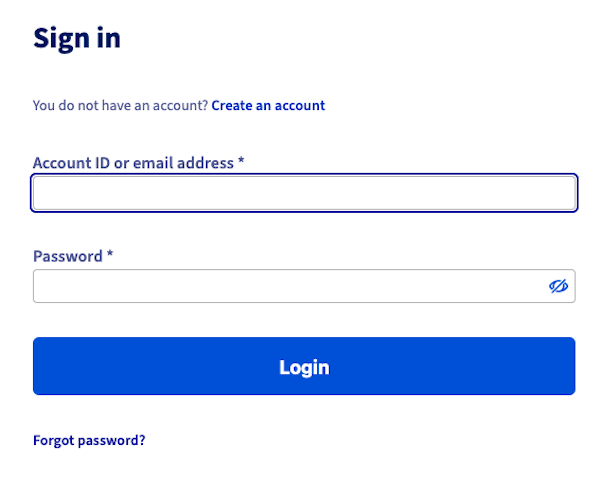
If you have enabled two-factor authentication, you will then need to enter the unique connection code generated by your device (phone, tablet or U2F key).
What do I do if I can't log in?
The rest of this guide will give you methods for resolving common cases of failed connections to the OVHcloud Control Panel.
I don’t know my NIC handle. How do I find it?
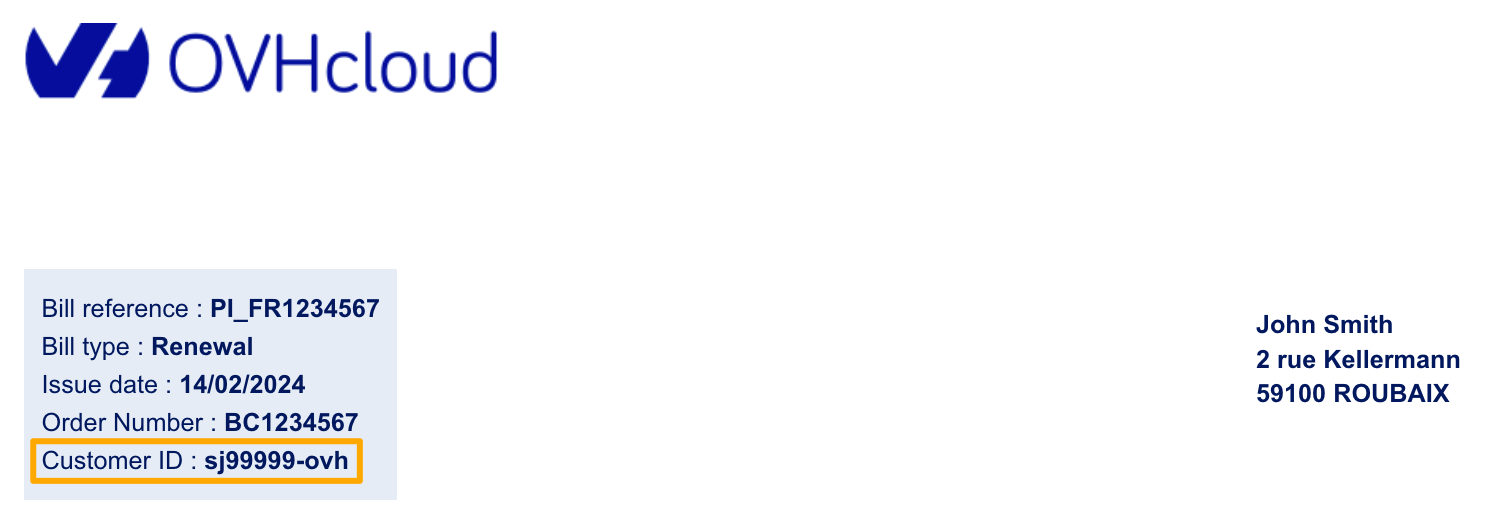
The OVHcloud NIC handle, in the form aa00000-ovh, will always be requested when you log in to your account or contact OVHcloud technical support. There are different ways of finding it.
In OVHcloud emails
Your NIC handle is included in the account creation confirmation email, order confirmation emails and renewal emails, as well as account login notifications.
On your bills
Your NIC handle is in the top right-hand corner of all your bills.
Logging in without a username
If you cannot find your username, please note that you can log in using the primary email address (instead of the username) that you entered in your account.
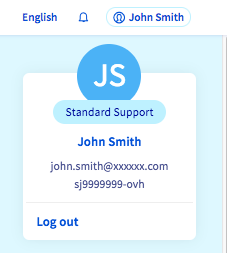
Once you have logged in, you can display your NIC handle in your Control Panel by clicking on your name in the top right-hand corner.
It will appear below your primary email address.
I have lost my password
If you have lost or forgotten your password, please follow this guide detailing the steps to take in order to change it.
I have lost my password and my primary email address is no longer valid
In this case, the password reset procedure cannot be performed from the login page.
If you have entered a backup email address
You can contact the OVHcloud Customer Service (dial 00333 370 0425) so that this backup address becomes the primary email address.
Once this action has been completed, please enter a new backup email address in your account settings.
If you have not entered a backup email address, or it is also invalid
In this case, the OVHcloud telephone support will not be able to help you.
Please follow this procedure so that we can verify your identity.
Once the procedure has been received by our services, we will replace your contact email address if all of the documents requested are valid.
Two-factor authentication is active on my account but my phone has been stolen
In this case, you can use two-factor authentication emergency codes, use another device, or disable two-factor authentication.
Please refer to our guide on Securing your OVHcloud account with two-factor authentication for the appropriate steps.
I have not enabled two-factor authentication on my account, but I am still being asked for a code
For security purposes, even if two-factor authentication is not enabled on your account, you may be asked to provide a verification code to validate your identification.
This code will be sent to the primary email address you entered for the account.
If you cannot find this code, please check your spam folder.
By enabling two-factor authentication on your account, you can choose the device you want to use (phone, tablet, smartphone, U2F key) to receive an authentication code.
Go further
Securing my OVHcloud account and managing my personal information
Setting and managing an account password
Securing your OVHcloud account with two-factor authentication
Join our community of users.