
Deploy a Garry's Mod server on the Game Panel
Deploy a Garry's Mod server on the OVHcloud Game Panel, join it from Steam, adjust the game settings, and switch your server to TTT or DarkRP
Objective
The Game Panel lets you deploy a Garry's Mod server with automated installation and port configuration.
This guide explains how to deploy and connect to a Garry's Mod server on the Game Panel.
Requirements
- A VPS or a dedicated server in your OVHcloud account with the Game Panel feature enabled.
- Access to the Game Panel. Refer to Log in to the Game Panel.
Our recommendations
Instructions
Step 1 — Access the Game Panel
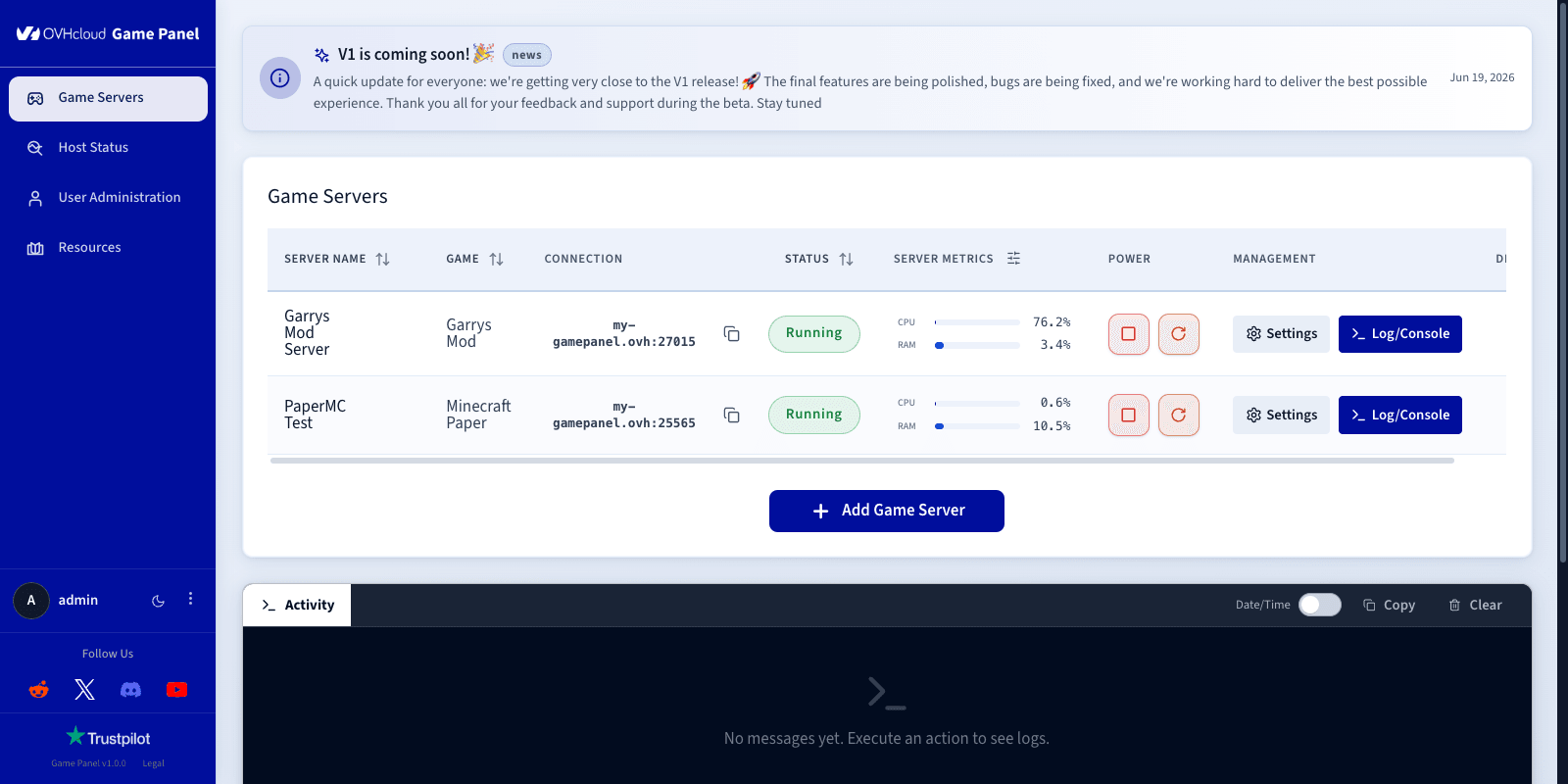
Log in to your Game Panel. Go to the Game Servers section in the left-hand menu and click Add Game Server.
Step 2 — Create a Garry's Mod server
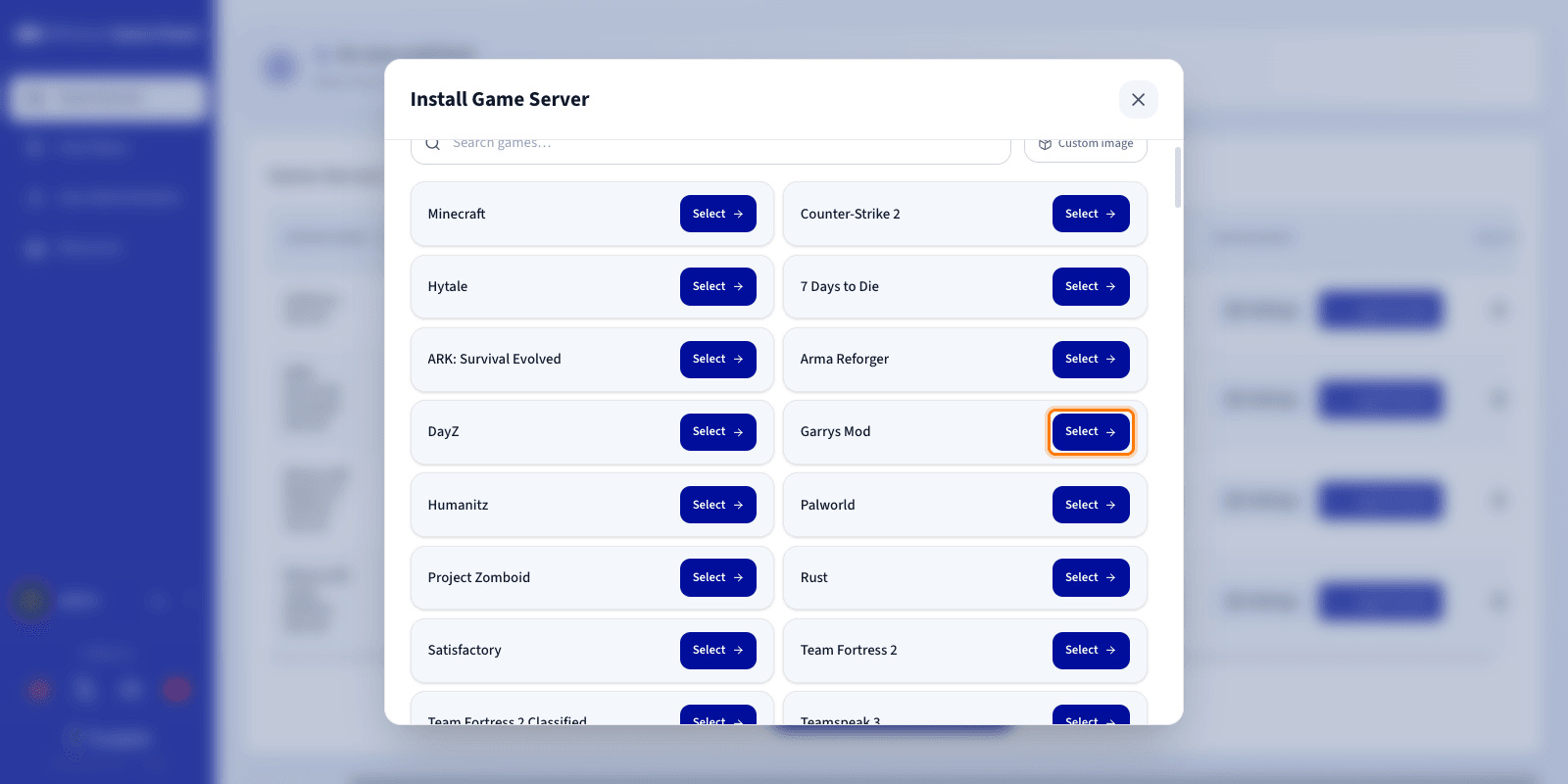
Select Garry's Mod from the game list. A configuration window opens.
Step 3 — Configure the Garry's Mod server
Enter a Server Name (for example Garry's Mod Server). The required network ports are configured automatically during installation.
You can expand Advanced settings to adjust options such as ports binding and resource limits. The defaults are suitable for most game servers.
Step 4 — Launch the installation
Click Install. The deployment starts automatically. Allow a few minutes for the image download and the server installation.
Step 5 — Monitor the installation
Click Log/Console to follow the progress in real time. The status shows Installing.
Step 6 — Confirm installation is complete
Once the installation is finished and the server has started, the status changes to Running.
Step 7 — Verify the server is running
Confirm that CPU and RAM activity is visible. You can use the Log/Console and Settings controls to manage the server.

Step 8 — Retrieve connection information
Copy the IP address and port from the Connection column of the Game Servers list.
Step 9 — Join your server in Garry's Mod
First, add your server to your Steam favourites:
- In Steam, go to View > Game Servers.
- Open the Favorites tab and click Add a server.
- Paste the IP address and port from the Connection column, then click OK.
Then join the server from the game:
- Launch Garry's Mod and click Find Multiplayer Game.
- Open the Favorites tab.
- Select your server and double-click it to connect.
Configure the game settings
Go to Settings > Game Config to adjust your server's main settings without editing a single configuration file.
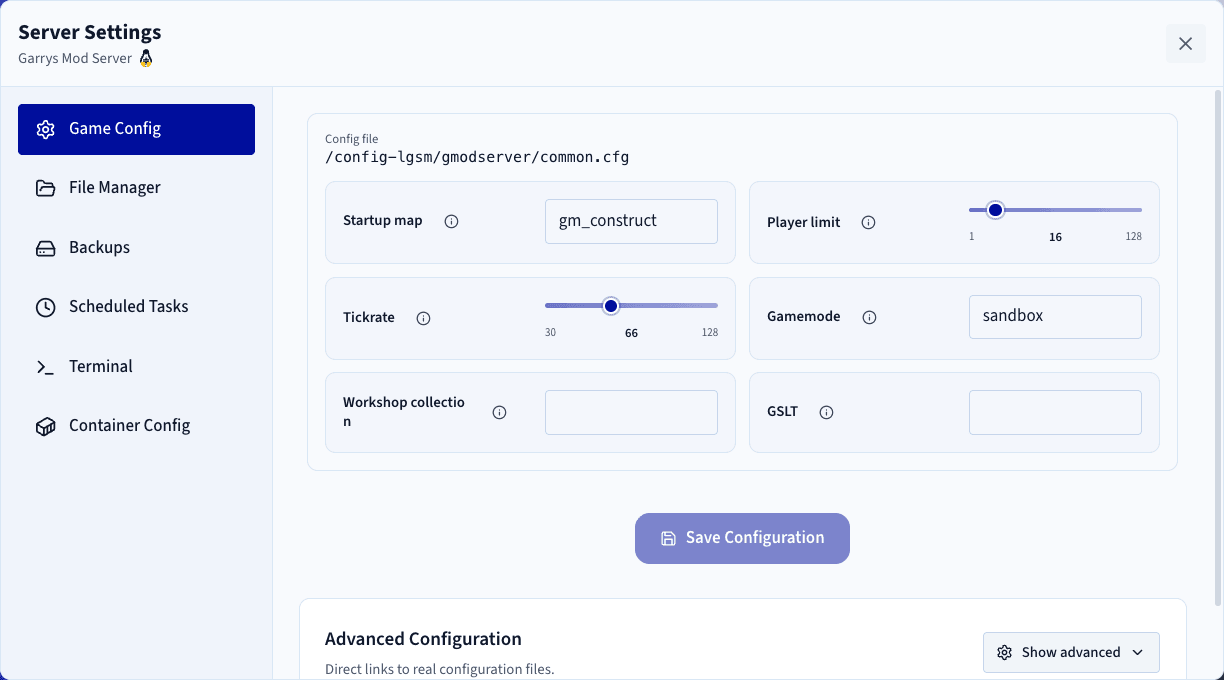
Changes take effect when the server restarts.
Change the game mode
The Game mode and Map fields are free text: the dropdown only suggests the values that ship with the game, but you can type any name into them.
Trouble in Terrorist Town ships with Garry's Mod. Select it in Game mode, then restart your server. Check the map: Construct and Flatgrass are sandbox maps, and a TTT server needs ttt_ maps from the Workshop.
DarkRP does not ship with the game and comes from the Workshop:
- Create a Steam Workshop collection, public or unlisted, holding DarkRP, its dependencies, and an
rp_map. - Enter its ID in
Workshop collection. - Type
darkrpintoGame modeand your map name intoMap. - Turn on
Counter-Strike: Source content, whose textures many DarkRP addons reuse. - Restart your server.
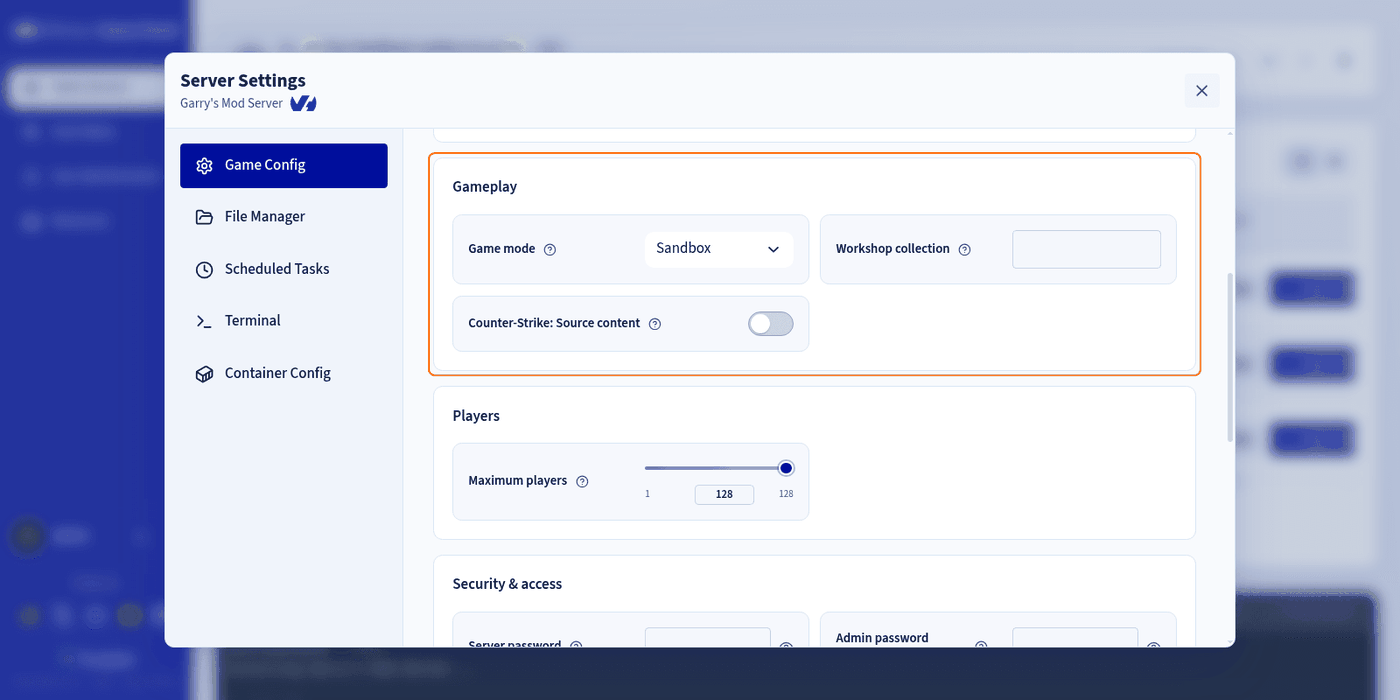
The Map field names the map to load, it does not download it. A map that is not in your Workshop collection will not be found at startup, and the server will fail to launch.
Go further
Join our community of users.