For AI agents: the complete documentation index is available at https://docs.ovhcloud.com/en/llms.txt, the full documentation bundle is available at https://docs.ovhcloud.com/en/llms-full.txt, and this page is available as Markdown at https://docs.ovhcloud.com/en/guides/web-cloud/web-hosting/ftp-manage-users.md.
Find out how to create, modify and delete FTP users on your OVHcloud web hosting plan
Objective
OVHcloud web hosting plans provide access to an FTP storage space. You can use this FTP space to put your website or application files online, for example. You can access this space via an FTP or SSH user account, and the associated password. As part of your business, you may need to have several FTP user logins for your employees.
This guide explains how to create, modify or delete FTP users on your OVHcloud web hosting plan.
Info
This guide is only valid for Professional, Performance, Agency, Agency Plus and Agency Max web hosting plans. Only these solutions allow you to activate multiple FTP users.
Navigation path:Web Cloud > Hosting plans > Select your web hosting plan
Instructions
Create a new FTP user on your web hosting plan
To create a new FTP user on your web hosting plan via the OVHcloud Control Panel, click on the tabs below to view each of the 6 steps.
Step 1
Step 2
Step 3
Step 4
Step 5
Step 6
Go to the page, then select the web hosting plan concerned.
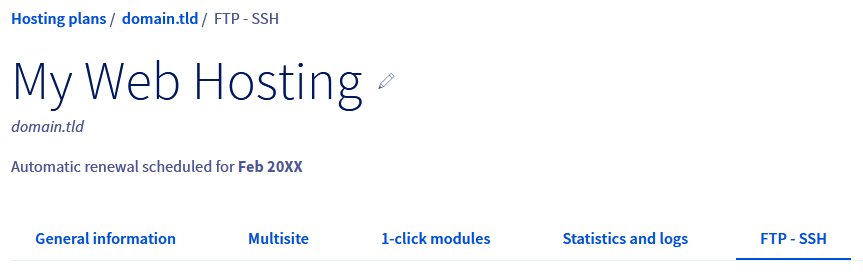
On the page that pops up, click on the FTP - SSH tab.
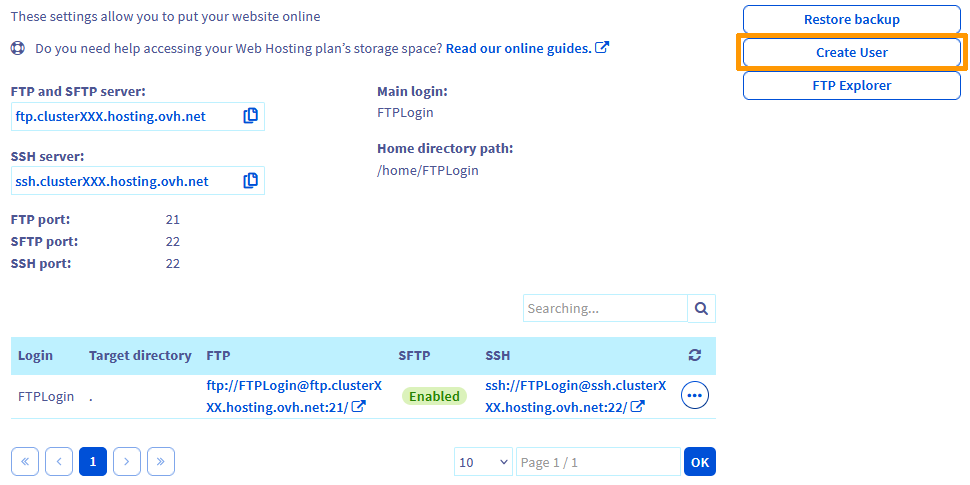
To create a new FTP user, click the Create User button on the right. Depending on the resolution of your screen, the button may be on the bottom of the page.
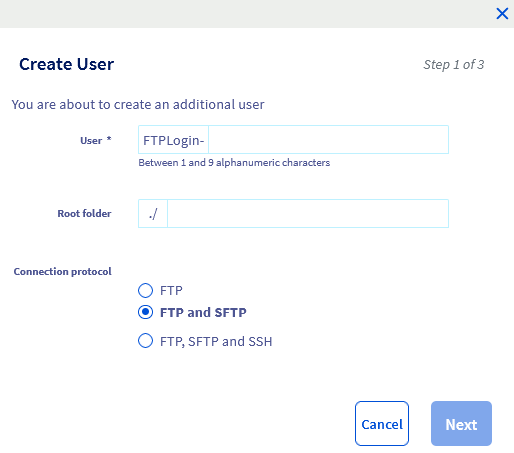
The following window will appear:
Define the settings for the new FTP user by filling in the following fields:
User: Corresponds to the full FTP username that you will define. The new user will need it to log in to your web hosting plan's FTP storage space. All additional FTP user names created on your web hosting plan will be preceded by your web hosting plan's main FTP login, followed by a hyphen. For example, if your primary FTP login is FTPLogin and you create a new FTP user user1, your new user's FTP login will be FTPLogin-user1.
Root folder: It is the name of the directory or subdirectory in which the FTP user will be able to log in to the FTP storage space. For example, if a user needs to access all of your web hosting plan's FTP storage space, leave this field empty. Otherwise, specify the name of the directory to which they will be authorized to access (e.g. www, blog, website1, www/development, etc.).
Connection protocol: Allows you to define the protocols that the FTP user can use to log in to your web hosting plan's FTP storage space. For example, if you select the third choice (the FTP, SFTP and SSH protocols), the FTP user will be able to connect using all three protocols. This way, the FTP user can log in via the SSH protocol, and manage FTP content using the same protocol.
Once you have set the parameters, click Next.
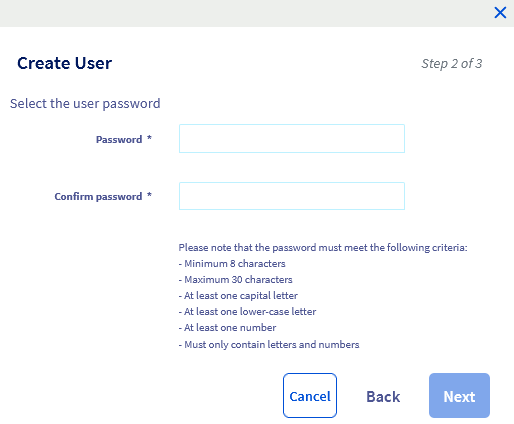
In this second window, you only need to set and confirm the password for the new FTP user in the two fields. Follow the password policy listed just below the 2 fields.
Once you have chosen and confirmed your password, click Next.
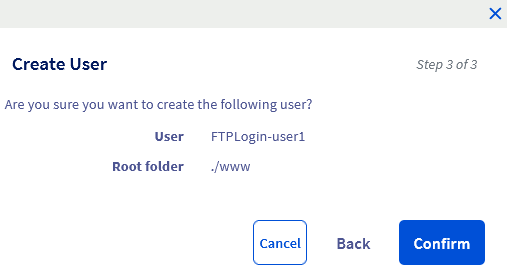
This final window summarizes the settings you have chosen for your new FTP user. If these settings correspond to what you want, click Confirm to complete the request to create a new FTP user on your web hosting plan.
Info
Once the creation request has been validated, it can take up to 15 minutes for the new user to be registered on your web hosting plan.
To edit an FTP user, click on the tabs below to view each of the 4 steps.
Step 1
Step 2
Step 3
Step 4
Go to the page, then select the web hosting plan concerned.
On the page that pops up, click on the FTP - SSH tab.
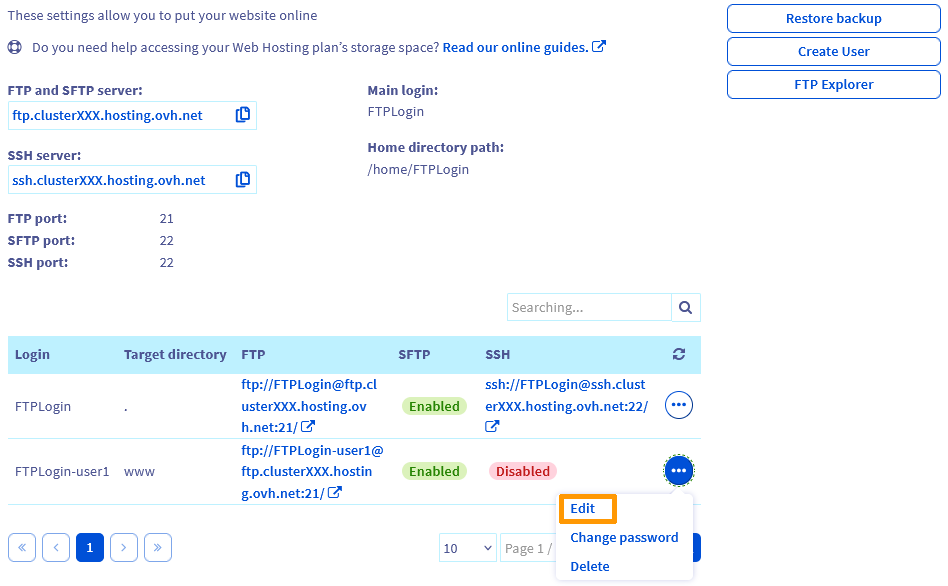
In the table at the bottom of the page, on the right-hand side of the line corresponding to the FTP user concerned, click the ... button, then click Edit.
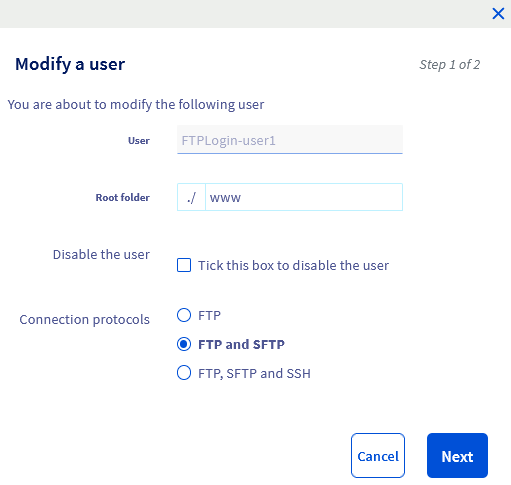
The following window will appear:
With the exception of the FTP user name and password, you can modify the root folder and the connection protocols defined for the FTP user here. If you need more information on the root folder and connection protocols, please refer to the "Create a new FTP user on your web hosting plan" section in this guide.
You can also disable the user if necessary by ticking the box provided. This option is useful if you want to prevent a user from accessing your FTP space without deleting the FTP and SSH logs associated with them. These logs will allow you to determine what operations were performed if you notice any unwanted interventions on your web hosting plan.
Once you have made the modifications, click Next. Then check your change requests, and click Confirm to complete the FTP user change request on your web hosting plan.
To delete an FTP user, click on the tabs below to view each of the 4 steps.
Step 1
Step 2
Step 3
Step 4
Go to the page, then select the web hosting plan concerned.
On the page that pops up, click on the FTP - SSH tab.
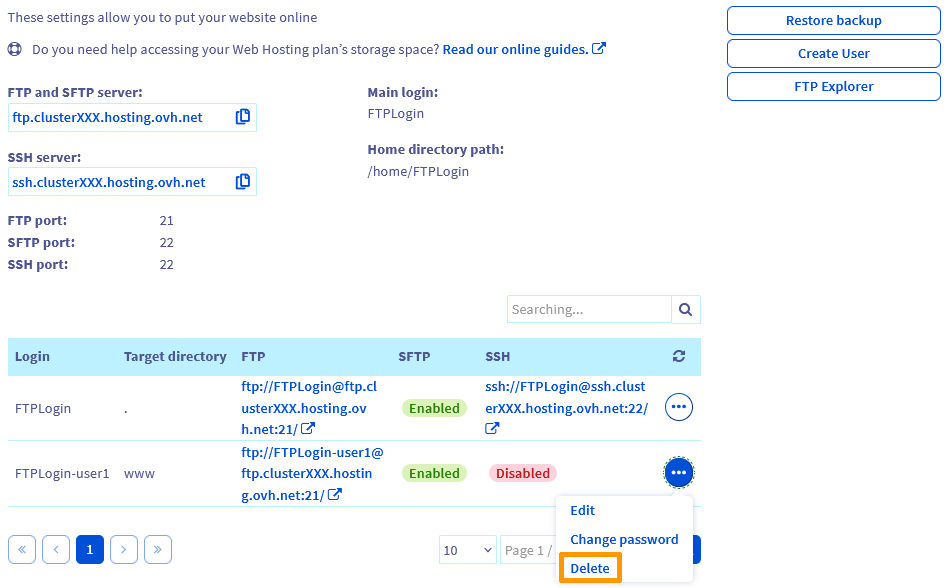
In the table at the bottom of the page, on the right-hand side of the line corresponding to the FTP user concerned, click the ... button, then click Delete.
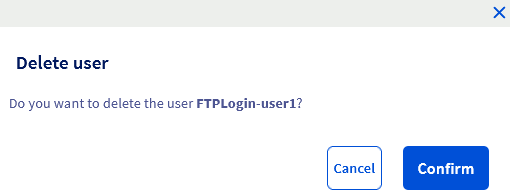
The following window will appear:
Click Confirm to permanently delete the FTP user from your web hosting plan.