
Fixing the 500 Internal Server Error
Find out how to fix some of the most common website errors
Objective
The "500 Internal Server Error" can affect your entire website or only parts of it. It can be permanent, appear sporadically, or result in a blank page.
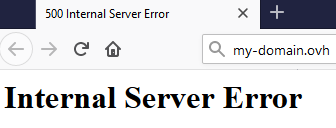
These errors may also come from updates carried out automatically by components of your website and therefore occur without any action taken on your side.
Learn how to diagnose the most common cases of "500" type errors.
Information regarding OVHcloud service administration and how to find appropriate assistance
When using OVHcloud guides, please be aware of the following conditions:
- User instructions aim to provide as many details as possible but cannot cover individual use cases. You might need to adapt the pertinent actions to your requirements.
- The OVHcloud ecosystem is built for flexibility and freedom of choice. Customers are therefore responsible for the secure and proper configuration of their services. To prevent data loss, we strongly recommend to apply backup strategies to all your important data.
- Our guides and tutorials may reference third-party software or services in combination with OVHcloud solutions. The technical support provided by OVHcloud does not include the configuration of systems or products outside of our responsibility. This includes but is not limited to:
- Operating systems and user interfaces (Windows, Debian, Plesk, etc.).
- Any other third-party software (FTP clients, email software, etc.).
- Services offered by other providers (DNS, APIs, user interfaces, etc.).
To receive the appropriate assistance for any issues you might experience, follow these guidelines:
- You seek personalized advice or you would like to discuss a topic that is not covered in detail by our documentation?
Join the OVHcloud Community to search for your topic and reach out to other users. - You need to report an incident regarding your OVHcloud service or you are experiencing difficulties in the OVHcloud Control Panel?
Create a support request in our Help Centre. - You require professional assistance for your project or you need help with tasks outside our support scope?
Visit our partner portal to search for experts who are familiar with OVHcloud solutions. - You are looking for more detailed information regarding our support levels and Professional Services?
Please visit our web pages for OVHcloud support levels and OVHcloud Professional Services.
You can participate in improving our documentation:
- You would like to share feedback to improve a guide page or you want to report insufficient information on a specific page?
Use the "Was this page helpful?" buttons at the bottom of the page to let us know. - You would like to propose a specific documentation update?
Use the "Edit this page" function, available at the bottom of the page and in the sidebar.
Requirements
- an OVHcloud Web Hosting plan
- being up-to-date in the payments and renewals of related services (domain name and web hosting plan)
OVHcloud Control Panel Access
- Direct link:
- Navigation path:
Web Cloud>Hosting plans> Select your web hosting plan
Instructions
Before you continue, check your website on different devices and browsers. If the error does not appear in some cases (e.g. on a different browser), your OVHcloud services are working fine. Restart your local devices and contact an IT professional if necessary.
A website consists of a source code (most of the time, .php files connected to a database) and additional data. We strongly advise you to create backups of your data before taking any further measures:
- Follow this guide to retrieve a copy of all your website's files.
- If your website uses a database, you can additionally refer to this guide on how to retrieve a copy of it.
In order to solve a 500 error, you can restore your website. However, we recommend to first investigate the causes of this error through the following steps:
Check your hosting logs
First, please check your logs with this guide.
Put your website in development mode
To reveal any PHP errors, switch your web hosting to development mode with these instructions.
Test the .htaccess file
A 500 error can be caused by a defect of the .htaccess file of your website, which is usually located on the first level of its root folder within your hosting's FTP storage space.
To check this, log in to your hosting plan via FTP.
Then rename this file to .htaccess.old and refresh the page in your browser.
If your website is online again, it means the .htaccess file should be corrected. If you need help to make the necessary operations, you may consider contacting an OVHcloud partner.
Check folder and file permissions
Each file and each folder of your source code has a certain level of read, write and execute permissions within your web hosting's file system. This is meant to protect them from any malicious or improper manipulation.
An incorrect level of access rights on a folder or a file may create a 500 error.
To access these files, log on your FTP server.
The FileZilla guide will then help you check the following points:
- The root of your hosting plan (this is the directory marked
/or.on Filezilla) must have 705 access rights (these are the default permissions). Do not change this level of permissions. - Folders must have 705 access rights.
- Files must have 604 access rights.
Access error details on your scripts
For security reasons, your website hides all technical details about the error 500.
To verify these details, you can use a SSH connection. (SSH is only available with the Professional Hosting, Performance Hosting and Cloud Web Hosting.)
Check the status of the database
For any 500 errors that may be related to your website's database, please refer to our documentation "Troubleshooting common database errors".
Restore your website to its previous state
If the 500 error appeared after modifying the PHP configuration of your web hosting, return to the previous one by following our guide Changing a Web Hosting plan's PHP version.
Executing database or FTP restore operations replaces all data contained in your FTP server or database by a backup. As a result, you will not be able to recover any changes made or data stored after the timestamp of the backup used.
Restoring your website's source code will affect all websites on your OVHcloud web hosting.
To restore your website's source code, read our guide Restoring your Web Hosting plan's storage space. Keep in mind that this operation alone is not a permanent solution.
If your website uses a database, read our guide Importing a backup into a Web Hosting plan database.
Go further
What do I do if my website is down?
What to do if you get a "Your connection is not private" error?
Troubleshooting an "Index of" page
What do I do if I have a 403 forbidden page?
Troubleshooting common database errors
My website is slow. What to do?
Resolving a "Website not installed" error
For specialised services (SEO, development, etc.), contact OVHcloud partners.
Join our community of users.