
Use cases - How to change the domain of an existing website
Find out how to change the domain name of an existing website
Objective
During the lifetime of your website, you may need to change the domain name used to access it.
The most common use case is a change of company name.
The aim of this tutorial is to explain the main steps you need to follow when you want to change the domain name of your website.
This guide explains how to change the domain name of an existing website.
Information regarding OVHcloud service administration and how to find appropriate assistance
When using OVHcloud guides, please be aware of the following conditions:
- User instructions aim to provide as many details as possible but cannot cover individual use cases. You might need to adapt the pertinent actions to your requirements.
- The OVHcloud ecosystem is built for flexibility and freedom of choice. Customers are therefore responsible for the secure and proper configuration of their services. To prevent data loss, we strongly recommend to apply backup strategies to all your important data.
- Our guides and tutorials may reference third-party software or services in combination with OVHcloud solutions. The technical support provided by OVHcloud does not include the configuration of systems or products outside of our responsibility. This includes but is not limited to:
- Operating systems and user interfaces (Windows, Debian, Plesk, etc.).
- Any other third-party software (FTP clients, email software, etc.).
- Services offered by other providers (DNS, APIs, user interfaces, etc.).
To receive the appropriate assistance for any issues you might experience, follow these guidelines:
- You seek personalized advice or you would like to discuss a topic that is not covered in detail by our documentation?
Join the OVHcloud Community to search for your topic and reach out to other users. - You need to report an incident regarding your OVHcloud service or you are experiencing difficulties in the OVHcloud Control Panel?
Create a support request in our Help Centre. - You require professional assistance for your project or you need help with tasks outside our support scope?
Visit our partner portal to search for experts who are familiar with OVHcloud solutions. - You are looking for more detailed information regarding our support levels and Professional Services?
Please visit our web pages for OVHcloud support levels and OVHcloud Professional Services.
You can participate in improving our documentation:
- You would like to share feedback to improve a guide page or you want to report insufficient information on a specific page?
Use the "Was this page helpful?" buttons at the bottom of the page to let us know. - You would like to propose a specific documentation update?
Use the "Edit this page" function, available at the bottom of the page and in the sidebar.
Requirements
OVHcloud Control Panel Access
- Direct link:
- Navigation path:
Web Cloud>Hosting plans> Select your web hosting plan
Instructions
Changing a domain name to access your website may affect its SEO ranking. Be careful about the changes you make, and contact a specialised provider for SEO if necessary.
To change the access domain name for your website, there are several steps to follow in a specific order.
1 - Declare the new domain on your hosting
Declare your new domain name by following our guide "How to associate a domain name with an existing website?". Also declare its www subdomain to display your website as www.NewDomain.tld as well as NewDomain.tld.
There are several conditions to meet for this part:
- Your new domain must point to the same root folder as the domain currently used to access your site.
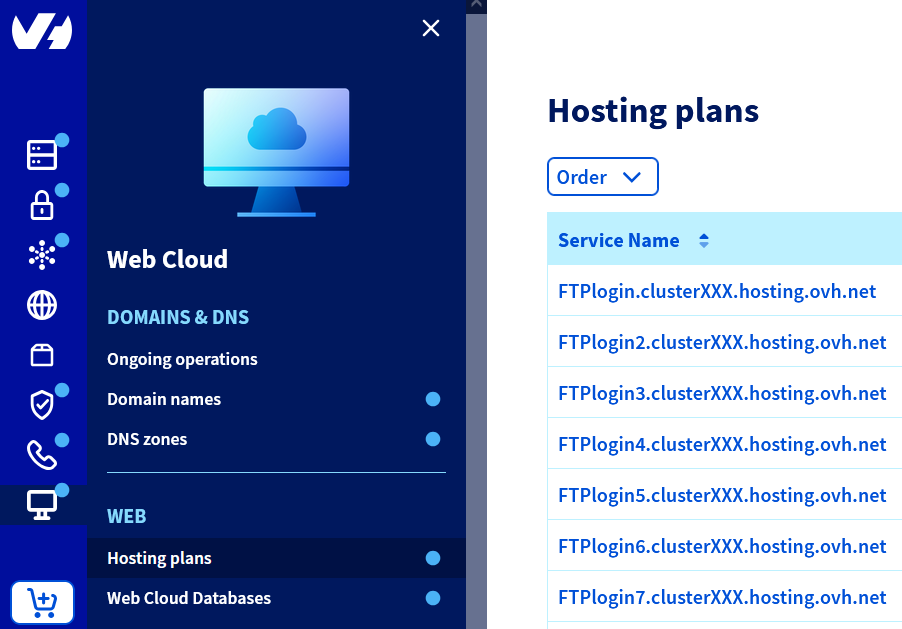
- Check that your new domain points to the IP address of your web hosting plan. To retrieve the IP address, click on the tabs below to view each of the 3 steps.
Go to the page, then choose the web hosting plan concerned.
If you enable the country IP or CDN options with your new domain, be sure to use the appropriate IP address listed in our documentation IP address list for Web Hosting clusters.
To find the cluster number where your hosting is located, refer to our guide "Web hosting - How to know your cluster and filer".
SSL certificates
If the original domain used to access your website has an SSL certificate, please refer to our 2 guides:
If all actions have been correctly performed, the declarations of your domain names should be strictly identical unless you are using a paid SSL certificate of type Sectigo DV, Sectigo EV, or custom.
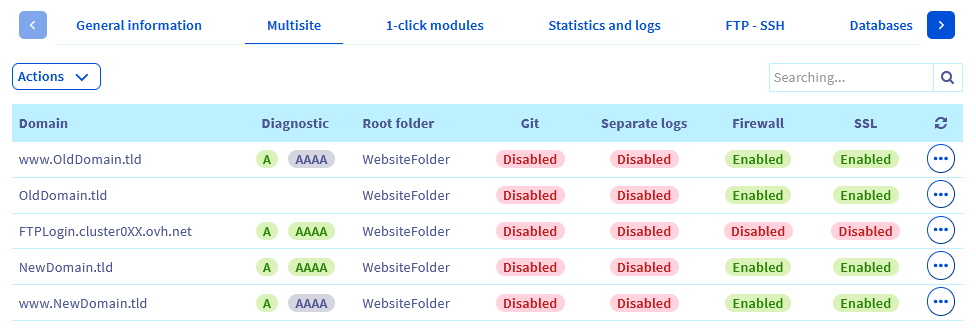
Once you have completed step 1, you will need to allow between 4 and a maximum of 24 hours for the changes to propagate fully.
If your website does not use databases and/or you do not rewrite URLs for your website, your website must already display correctly with your new domain. In this case, go directly to step 3 of this guide. If not, continue to step 2 below.
2 - Rewrite URLs of your website with the new domain
Most sites use databases to operate. The tree structure for these nodes is generally built around the domain originally used for your website. Additional actions are required for these sites.
Warning, the operations described in step 2 are extremely sensitive and can have serious consequences for your website if they are not carried out with caution. If you have any doubts, do not try anything and contact a specialist provider.
Before you take any action, we advise retrieving a backup of your FTP storage space and a backup of your database. This will allow you to restore your website in the event of an error.
There are two types of website:
- CMSs (Content Management System) such as WordPress, Joomla!, PrestaShop, Drupal
- Classic websites designed by you or your service provider
Case 1: Your website is a CMS
Most CMSs can directly replace the domain originally declared for your website with another one via their backend administration panel.
As CMSs are developed by third parties and not managed by OVHcloud, here are links to the official documentation for the various CMSs offered for installation on our hosting plans:
- WordPress: https://wordpress.org/support/article/changing-the-site-url/
- Joomla!: The publisher of this software does not offer any documentation to date for changing the access domain for your website. Please contact the publisher directly on this subject. For more information, visit the official pages docs.joomla.org or forum.joomla.org.
- Drupal: The publisher of this software does not offer any documentation to date for changing the access domain for your website. Please contact the publisher directly on this subject. For more information, see the official page drupal.org.
- PrestaShop: The publisher of this software does not offer any documentation to date for changing the access domain for your website. Please contact the publisher directly on this subject. For more information, see the official PrestaShop page.
Please note that for these CMSs, you can also edit the domain names directly in the corresponding database. You will need to change the URL for accessing your website in the table used for your CMS.
For other CMSs that are not offered for automatic installation by OVHcloud, please also contact their respective customer support to carry out this rewrite in a secure manner.
Case 2: You have a custom built website
To rewrite your URLs with your new domain, log in to your website database then replace your old domain with the new one in the corresponding table.
Don't forget to check your .htaccess file to see if you need to update URL rewrites with your new domain.
If you used a service provider to create your website, contact them so that they can carry out the modification securely.
Once step 2 is complete, your website must appear with your new domain.
3 - Remove the old domain name
To avoid "duplicated content" and once your new domain name is fully operational with your website, you will need to remove the declaration of your old domain name from your website using the guide "How to detach a domain name from an existing website?".
Don't forget to take care of your SSL certificate Sectigo EV, Sectigo DV or Custom as specified in step 1.
Once your old domain name is dissociated from your website on your web hosting and if it is registered with OVHcloud, you can redirect it using a permanent visible 301 redirect. This will allow your visitors to be automatically redirected to your website while seeing your new domain name / URL in the address bar of their browser.
A permanent visible 301 redirect created from the only handles http:// requests. Requests to your old domain name over https:// will not be redirected and will therefore be lost.
To redirect https:// requests as well, the redirect must be set up from your web hosting plan rather than from your Control Panel. To do so, keep your old domain name declared on your hosting plan, then apply a URL rewrite in a .htaccess file.
Go further
Hosting multiple websites on your Web Hosting plan
Managing an SSL certificate on a Web Hosting plan
Activating HTTPS on your website with an SSL certificate
IP address list for Web Hosting clusters
For specialised services (SEO, development, etc.), contact OVHcloud partners.
If you would like assistance using and configuring your OVHcloud solutions, please refer to our support offers.
Join our community of users.