
Deploy a 7 Days to Die server on the Game Panel
Deploy a 7 Days to Die server on the Game Panel with automated installation, port configuration, and console connect steps.
Objective
The Game Panel lets you deploy a 7 Days to Die server with automated installation and port configuration.
This guide explains how to deploy and connect to a 7 Days to Die server on the Game Panel.
Requirements
- A VPS or a dedicated server in your OVHcloud account with the Game Panel feature enabled.
- Access to the Game Panel. Refer to Log in to the Game Panel.
Our recommendations
Instructions
Step 1 — Access the Game Panel
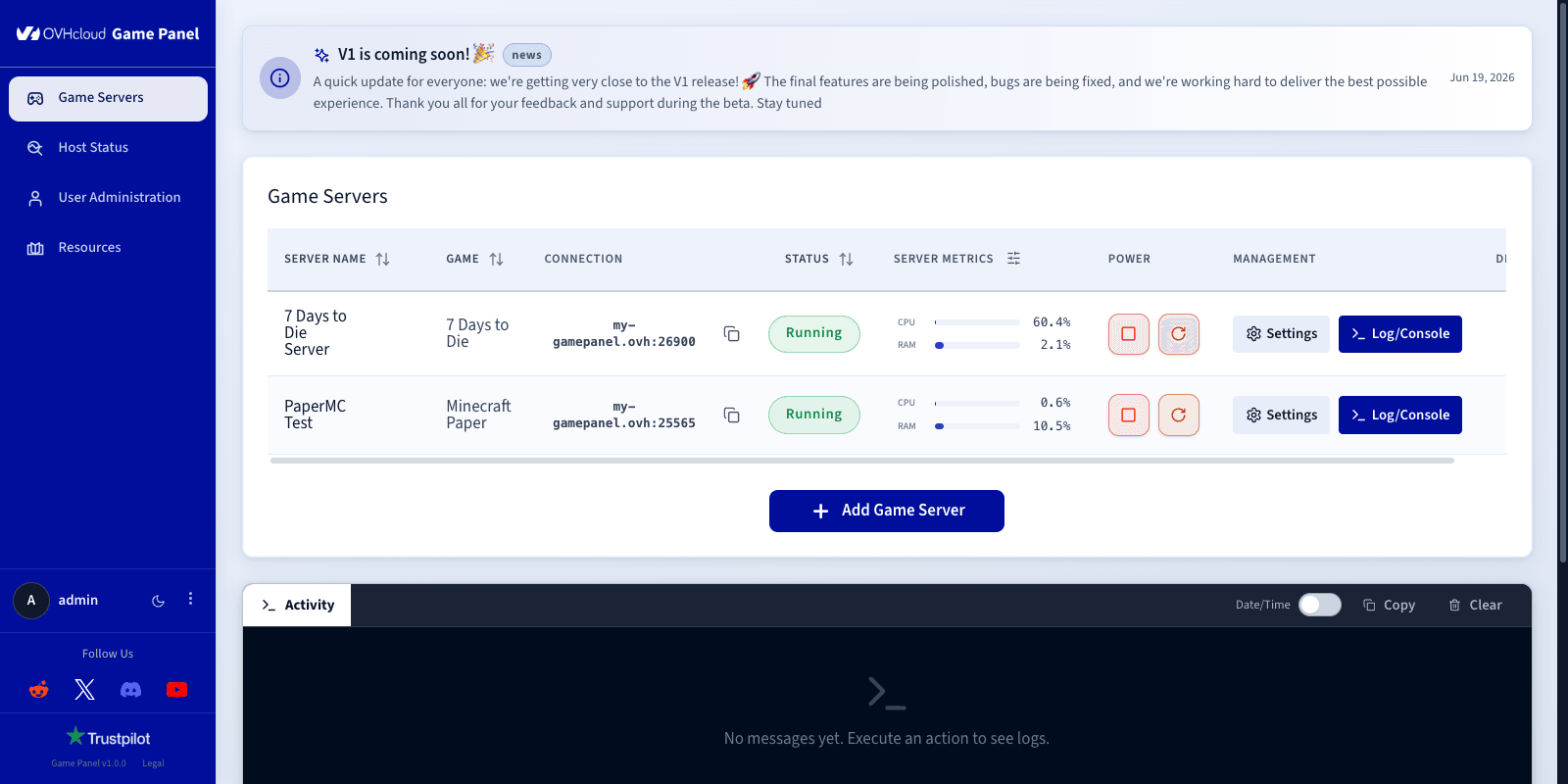
Log in to your Game Panel. Go to the Game Servers section in the left-hand menu and click Add Game Server.
Step 2 — Create a 7 Days to Die server
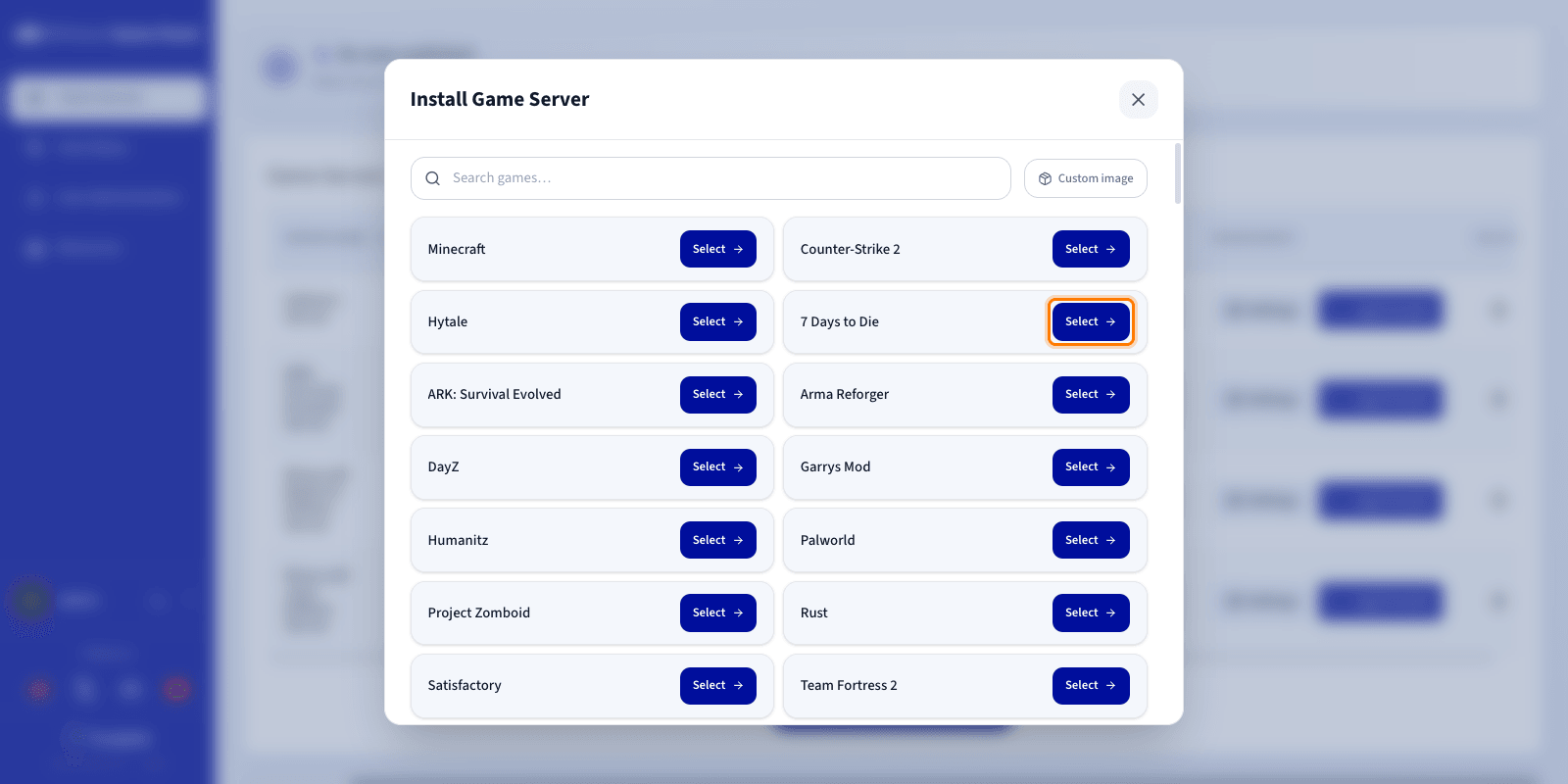
Select 7 Days to Die from the game list. A configuration window opens.
Step 3 — Configure the 7 Days to Die server
Enter a Server Name (for example, 7 Days to Die Server). The required network ports are configured automatically during installation.
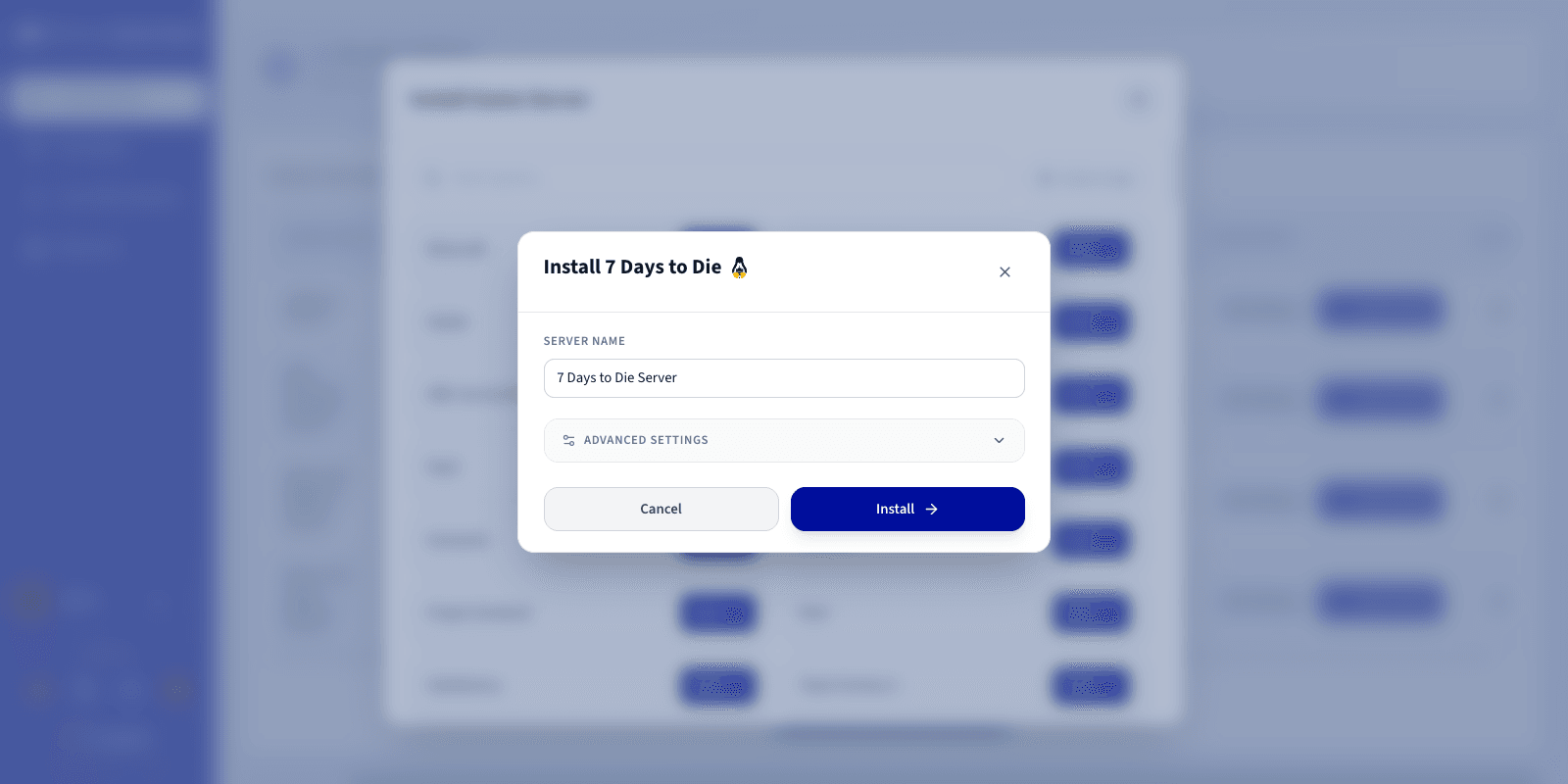
You can expand Advanced settings to adjust options such as ports binding and resource limits. The defaults are suitable for most game servers.
Step 4 — Launch the installation
Click Install. The deployment starts automatically. Wait a few minutes while the image downloads and the server installs.
Step 5 — Monitor the installation
Click Log/Console to follow the installation progress in real time. The status shows Installing.
Step 6 — Verify the server is running
Check that the server status displays Running and that CPU/RAM activity is visible.

Available actions:
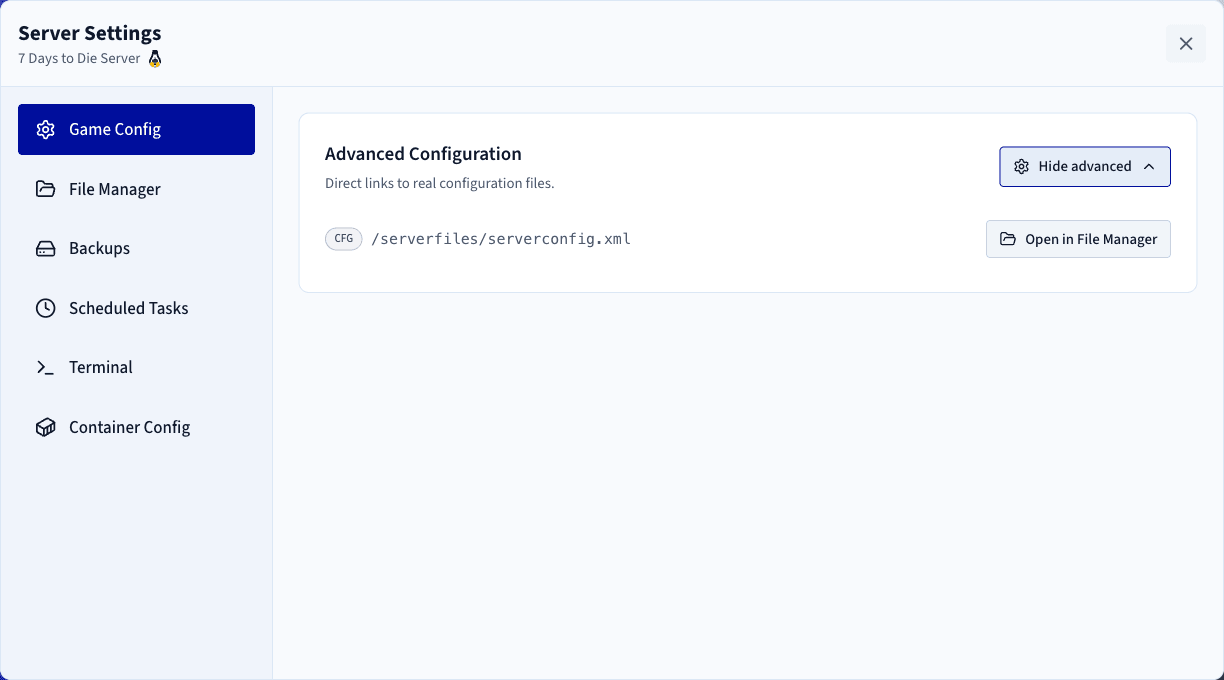
Log/Console: Open the console to monitor startup and check logs if there are any issues.Settings>Game Config: Access game settings.
Step 7 — Confirm installation is complete
The status changes to Running once the installation finishes.
Step 8 — Retrieve connection information
In the Connection column of the Game Servers list, copy your server's IP address and port.
Step 9 — Join your server in 7 Days to Die
To join from the game:
- Launch 7 Days to Die and click Join a Game.
- Paste the IP address and port from the Connection column.
- Click Connect.
Best practices
- Configure permissions via
User Administration. - Perform regular backups.
- Customise your game settings.
To go further, add mods or competitive configurations, adjust tickrate and performance settings, or restrict access with a password or whitelist.
Go further
Join our community of users.