
MX Plan - Configure your email account on Mail for macOS
Find out how to configure your MX Plan email address on macOS Mail
Objective
You can configure MX Plan accounts on email clients, if they are compatible. By doing so, you can use your email address through your preferred email application. The Mail app on macOS is available for free on all Macs.
Find out how to configure your MX Plan email address on the macOS Mail app.
Information regarding OVHcloud service administration and how to find appropriate assistance
When using OVHcloud guides, please be aware of the following conditions:
- User instructions aim to provide as many details as possible but cannot cover individual use cases. You might need to adapt the pertinent actions to your requirements.
- The OVHcloud ecosystem is built for flexibility and freedom of choice. Customers are therefore responsible for the secure and proper configuration of their services. To prevent data loss, we strongly recommend to apply backup strategies to all your important data.
- Our guides and tutorials may reference third-party software or services in combination with OVHcloud solutions. The technical support provided by OVHcloud does not include the configuration of systems or products outside of our responsibility. This includes but is not limited to:
- Operating systems and user interfaces (Windows, Debian, Plesk, etc.).
- Any other third-party software (FTP clients, email software, etc.).
- Services offered by other providers (DNS, APIs, user interfaces, etc.).
To receive the appropriate assistance for any issues you might experience, follow these guidelines:
- You seek personalized advice or you would like to discuss a topic that is not covered in detail by our documentation?
Join the OVHcloud Community to search for your topic and reach out to other users. - You need to report an incident regarding your OVHcloud service or you are experiencing difficulties in the OVHcloud Control Panel?
Create a support request in our Help Centre. - You require professional assistance for your project or you need help with tasks outside our support scope?
Visit our partner portal to search for experts who are familiar with OVHcloud solutions. - You are looking for more detailed information regarding our support levels and Professional Services?
Please visit our web pages for OVHcloud support levels and OVHcloud Professional Services.
You can participate in improving our documentation:
- You would like to share feedback to improve a guide page or you want to report insufficient information on a specific page?
Use the "Was this page helpful?" buttons at the bottom of the page to let us know. - You would like to propose a specific documentation update?
Use the "Edit this page" function, available at the bottom of the page and in the sidebar.
Requirements
- an MX Plan email address (included in the MX Plan solution and in OVHcloud web hosting plans).
- Mail installed on your Mac.
- the required credentials for the email address you would like to configure.
Instructions
Add account
-
When the application is first started: a setup wizard will appear, prompting you to choose your account type.
-
If an account has already been set up: click
Mailin the menu bar at the top of your screen, thenAccounts.
Follow the installation steps by clicking on the tabs below:
Select Other Mail Account then click Mail Account.
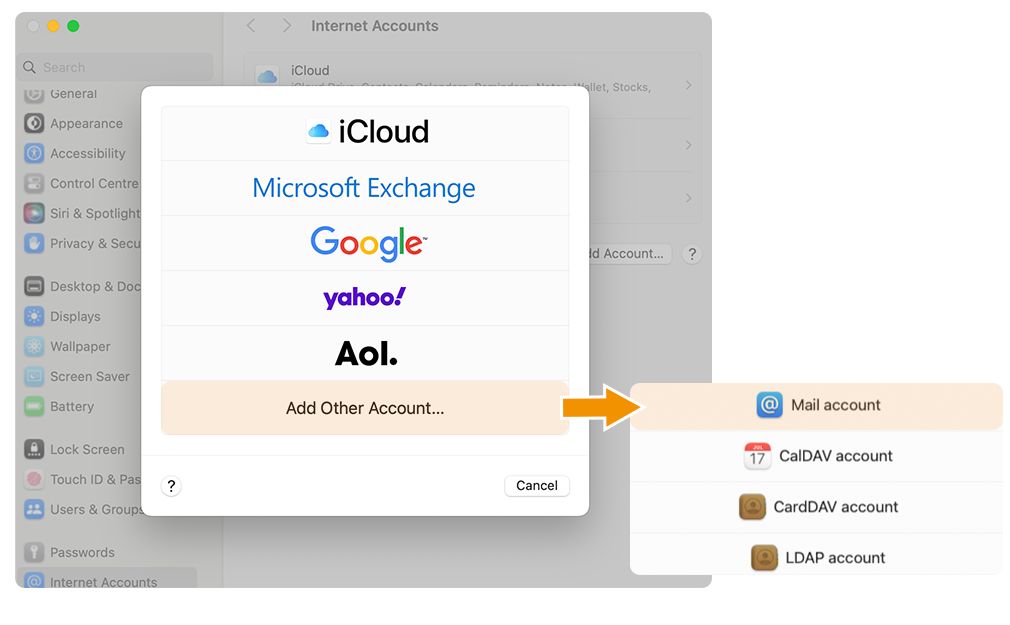
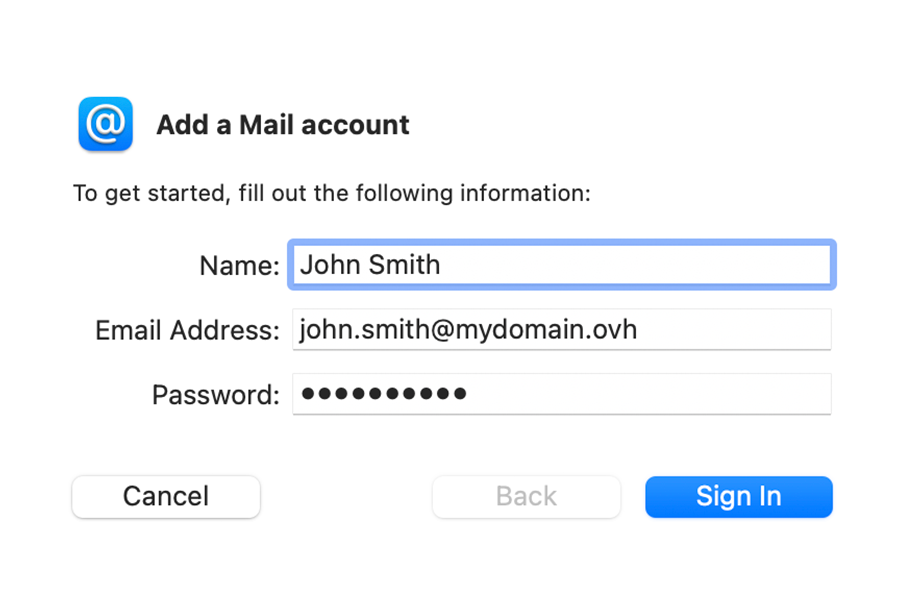
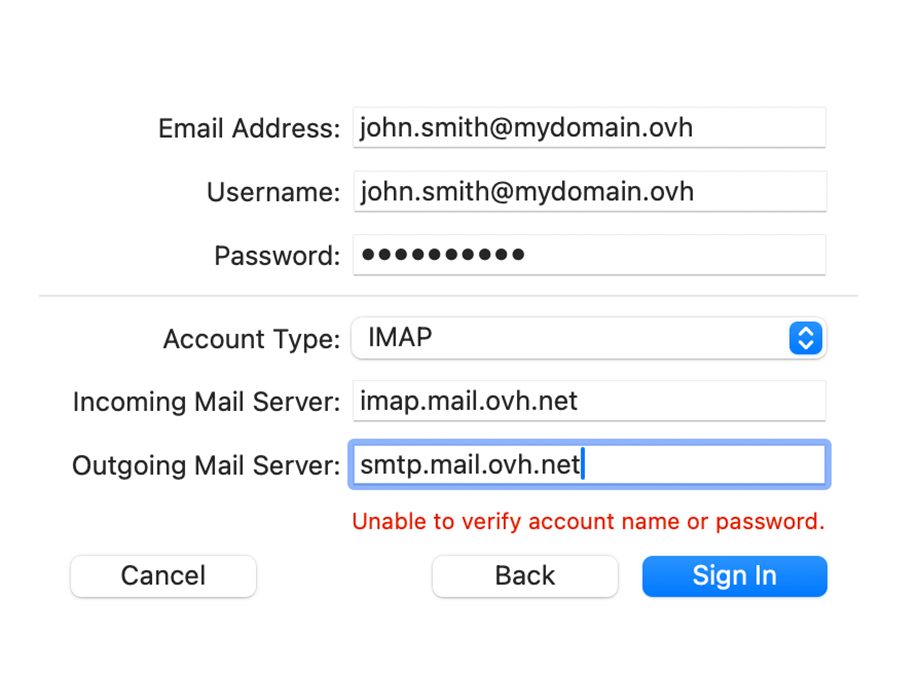
If, after following the configuration steps below, you encounter a sending or receiving error, go to the section Modify existing settings.
Use email address
Once you have configured your email address, you can start using it! You can now send and receive emails.
OVHcloud also has a web application you can use to access your email address from your browser. You can access this application at Webmail. You can log in using your email credentials. If you have any question about how to use it, you can refer to our guide on Using an account in the OWA interface or use your email address via the RoundCube webmail.
Retrieve a backup of your email address
If you need to make any changes that could lead to the loss of your email account data, we advise backing up the email account concerned beforehand. To do this, please read the "Export" section in the "Mail on macOS" chapter of our guide on Manually migrate your email address.
Modify existing settings
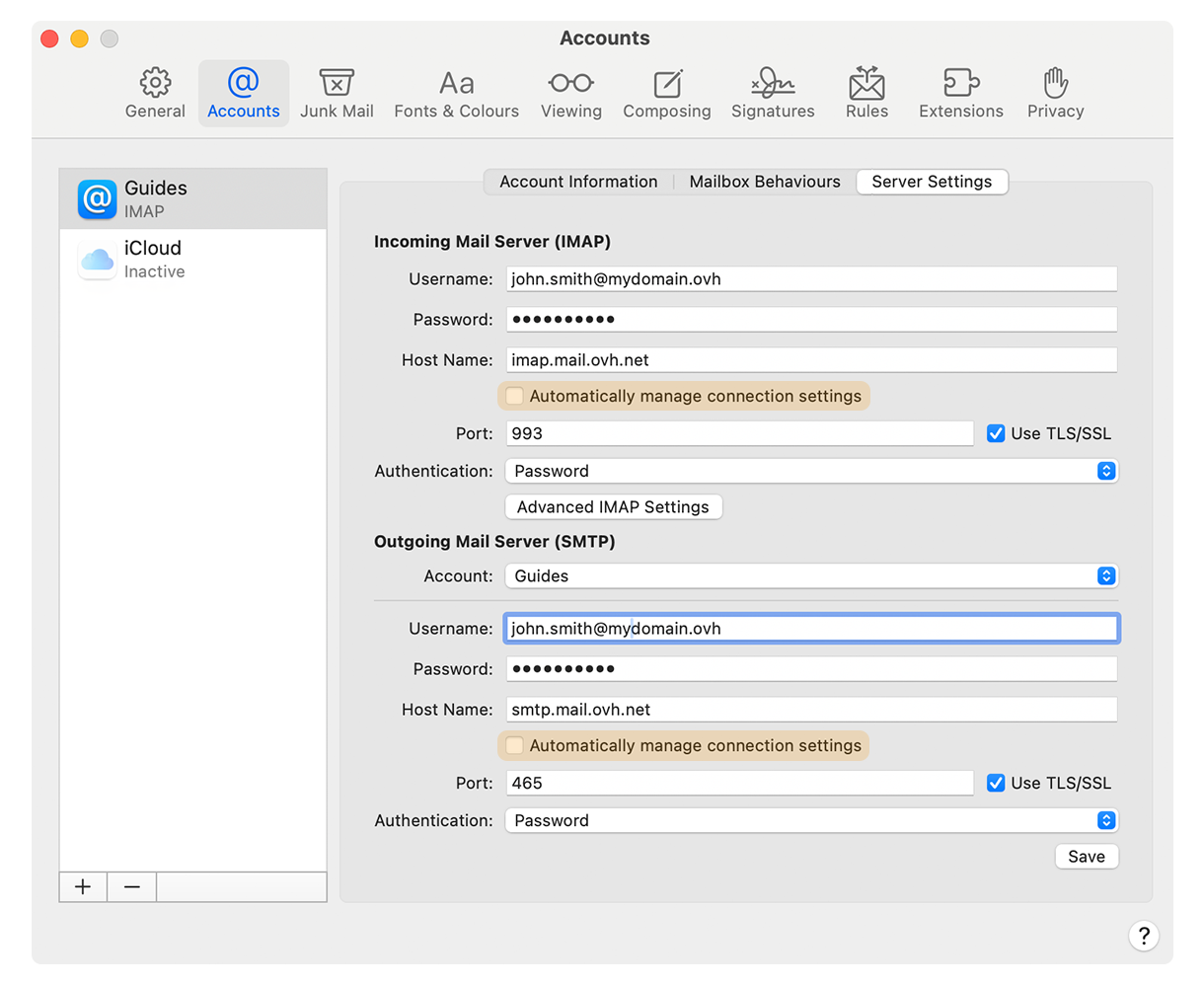
If your email account has already been set up and you need to access the account settings to change them:
- Click
Mailin the menu bar at the top of your screen, then clickPreferences. - Select the account concerned in the left-hand column, then click
Server settings. - In the
Incoming Mail Server (POP)orIncoming Mail Server (IMAP)section, enter your full email address in theUser namebox, and thePasswordassociated with it in the box provided. - In the
Outgoing Mail Server (SMTP)section, enter your full email address in theUsernamebox, and thePasswordassociated in the box provided. - Untick the
Automatically manage connection settingsboxes to display thePortandAuthenticationsettings. - Make sure that the
Use TLS/SSLboxes are ticked. - In the
Authenticationdropdown menus, check thatPasswordis selected. - For the
Host nameandPortboxes, refer to the values in the "POP, IMAP and SMTP settings reminder" section. Make sure that the server type (IMAP, POP and SMTP) matches your account type.
To finalize the configuration, click Save.
Change your configuration
If your email address is configured in IMAP and you want to change this configuration to POP, you will need to delete the account on Mail from MacOS and then recreate it in POP.
Reminder of POP, IMAP and SMTP settings
When you choose your account type, we recommend using IMAP to receive emails. However, you can select POP.
- POP configuration
- IMAP configuration
For sending emails, if you have to enter the SMTP settings manually in your account preferences, you will find the settings below:
- SMTP configuration
Change configuration
When you configure your email address in IMAP and you want to change the configuration to POP, it is necessary to delete the account from Mac Mail and then recreate it in POP to change the configuration.
What do I do if I cannot receive/send my emails?
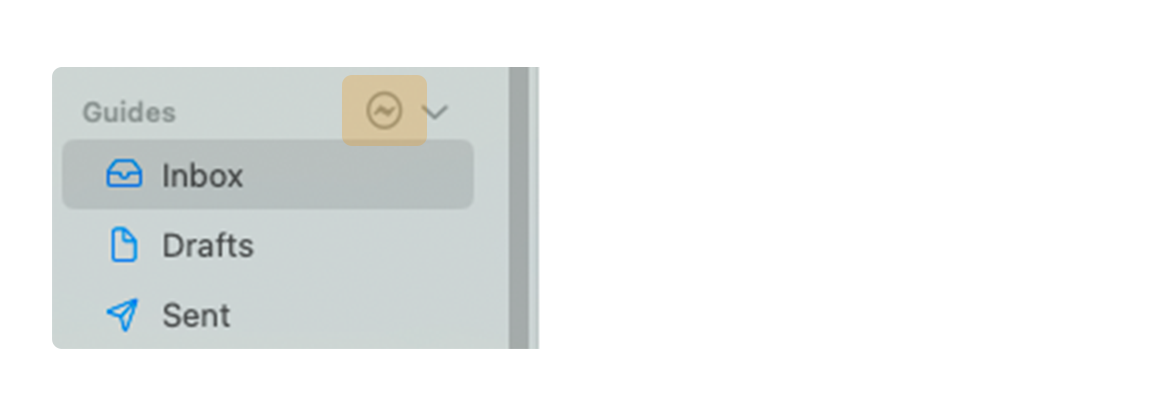
- If you see the icon visible in the screenshot below, it is a network disconnection. Check that your internet connection is working properly.
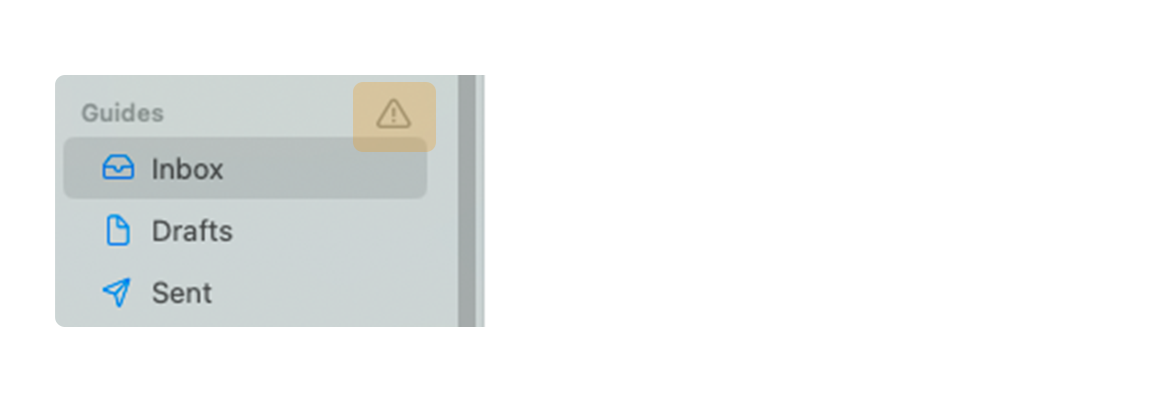
- If you see the icon visible in the screenshot below, it is a synchronization fault. Check the configuration settings for your email account in the Modify existing settings section.
Go further
For more information on configuring an email address from the Mail app on macOS, see the Apple Help Center.
MX Plan - Configuring your email account on Mail for iPhone and iPad
Email Pro - Configuring your email account on Mail for macOS
Email Pro - Configuring your email account on Mail for iPhone and iPad
Exchange - Configuring your email account on macOS Mail
Exchange - Configuring your email account on Mail for iPhone and iPad
For specialized services (SEO, development, etc.), contact OVHcloud partners.
If you would like assistance using and configuring your OVHcloud solutions, please refer to our support offers.
Join our community of users.