
Creating a private network with Gateway
Discover how to create a private network with a Gateway via the OVHcloud Control Panel, OVHcloud API, OVHcloud CLI, OpenStack API, or Terraform
Objective
A Gateway offers a secure outbound connection method from your private network instances or the ability to use Floating IPs with your instance or Load Balancer for service exposition.
Learn how to create a private network with a Gateway.
Requirements
- A Public Cloud project in your OVHcloud account
- For the OVHcloud API: API credentials (First steps with the OVHcloud API)
- For the OVHcloud CLI: the OVHcloud CLI installed and configured with your credentials
- For the OpenStack API: an OpenStack environment configured (Preparing the environment)
- For Terraform: Terraform installed and the OVHcloud provider configured (How to use Terraform)
OVHcloud Control Panel Access
- Direct link:
- Navigation path:
Public Cloud> Select your project >Gateway
Instructions
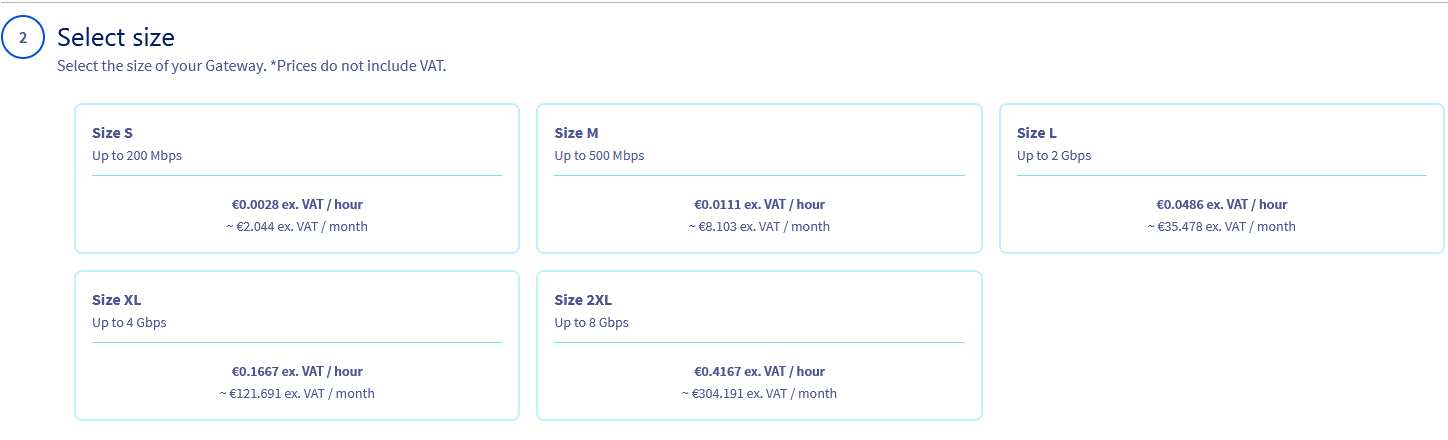
Gateway models
Before creating a Gateway, choose the model suited to your bandwidth needs:
Please note that, at this time, size 2XL is not available within the Mumbai, Singapore, and Sydney regions.
Create a private network with a Gateway
Step 1 — Access the creation page
Click on Gateway in the left-hand menu under Network.
You must have an active vRack before proceeding. If you do not have a vRack, consult the vRack activation section of the relevant guide.
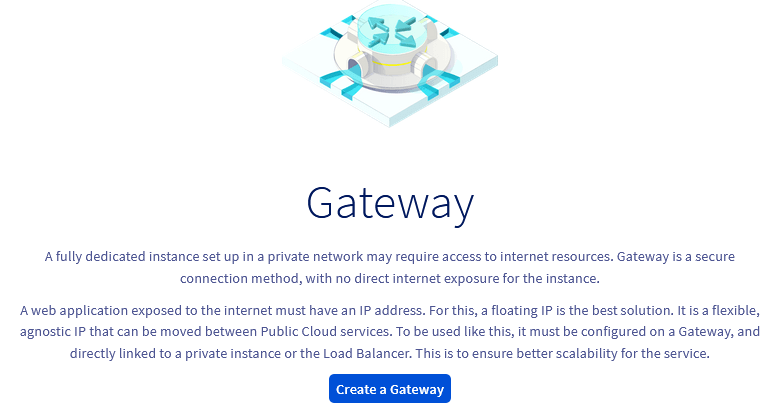
Next, click on Create a Gateway.
Step 2 — Select the region and size
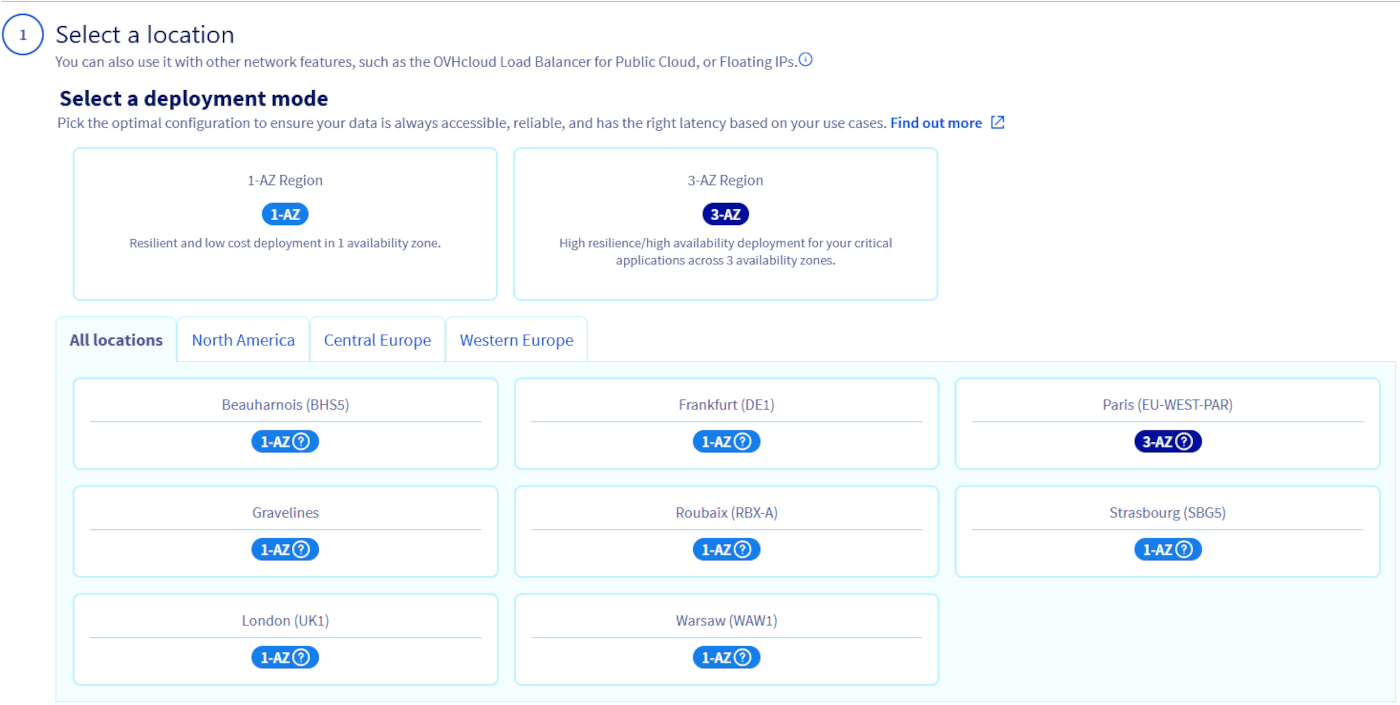
Select the region where your private instances are located.
Then select the size of your Gateway (see the models table above).
Step 3 — Name the Gateway and attach a private network
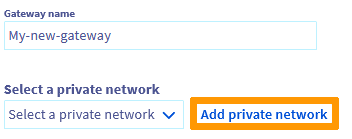
Edit the default name of your Gateway and select an existing private network from the drop-down list.
Only single-region private networks are supported by Gateway.
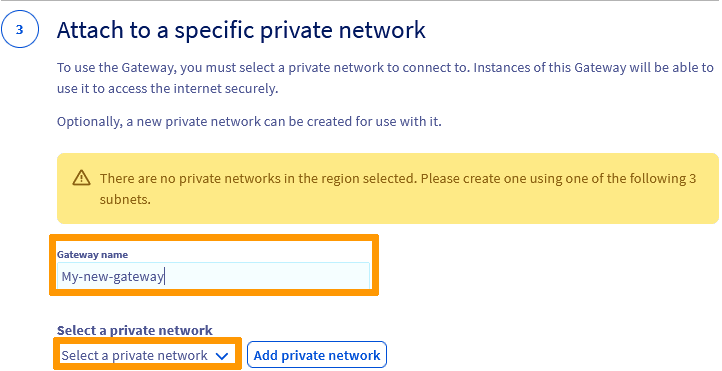
You can also click on Add private network to create a new private network inline.
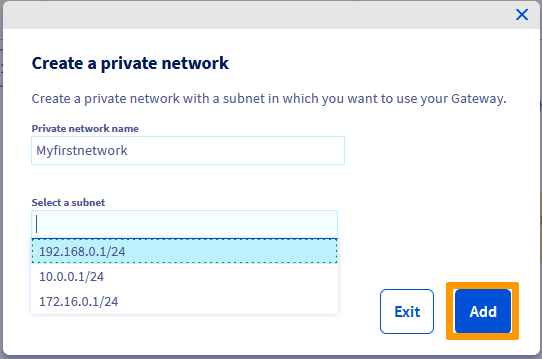
In the popup window, enter a name for your private network, select a subnet and click on Add.
Step 4 — Confirm creation
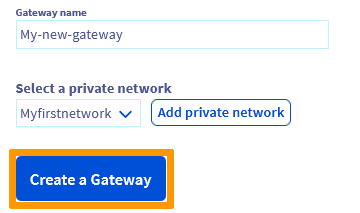
Click on Create a Gateway to start the deployment.
The creation may take several minutes. Refresh the page if necessary.
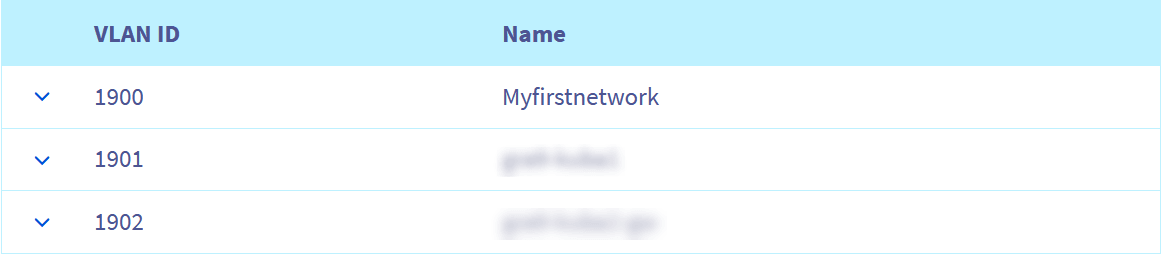
Once done, the private network is visible in the Private Network section under Network.
The Gateway appears in the Gateway section.

Go further
Learn more about Gateway and its scenarios on our dedicated page.
For training or technical assistance implementing our solutions, contact your sales representative or visit our Professional Services page to request a quote and have your project analysed by our experts.
Join our community of users.