
AI Notebooks - Tutorial - Track your ML models with MLflow inside notebooks
Learn how to use MLflow for model tracking and versioning
Objective
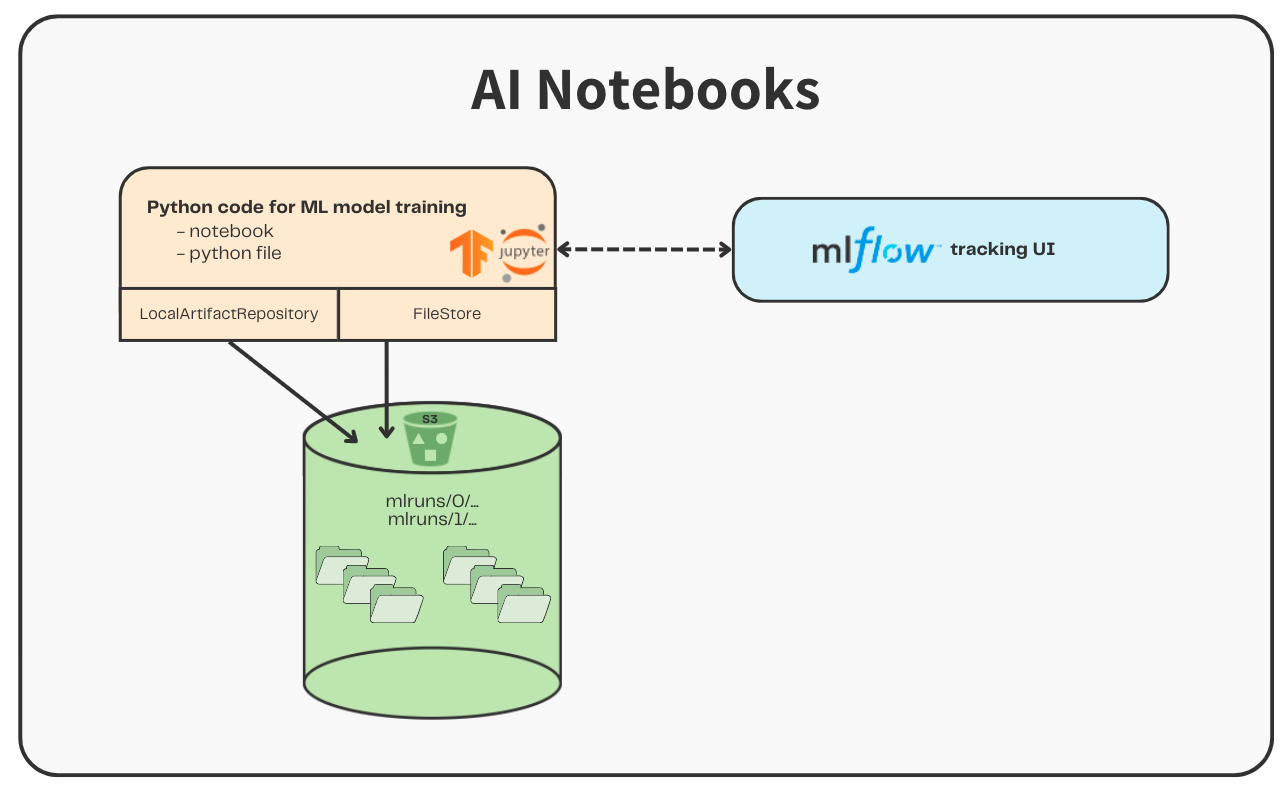
The aim of this tutorial is to show you how to integrate MLflow inside AI Notebooks in order to track and compare your Machine Learning models.
MLflow is an open-source platform for Machine Learning workflows management. You can use this tool for ML model tracking, versioning but also storage and deployment.
- How to use MLflow inside AI Notebooks?
For this purpose, we will compare image classification models: EfficientNets.
EfficientNet models are pre-trained on ImageNet dataset.
In this context, several EfficientNet models will be trained on the same dataset: (stanford_dogs). The Stanford Dogs dataset contains images of 120 breeds of dogs from around the world.
The different models will be tracked and compared thanks to MLflow in order to be compare their performance:
- EfficientNet-b0
- EfficientNet-b1
- EfficientNet-b2
- EfficientNet-b3
- EfficientNet-b4
- EfficientNet-b5
- EfficientNet-b6
- EfficientNet-b7
Requirements
- An AI Notebooks project created inside a Public Cloud project in your OVHcloud account
- A user for AI Notebooks
OVHcloud Control Panel Access
- Direct link:
- Navigation path:
Public Cloud> Select your project
Instructions
You can launch the notebook from the or via the ovhai CLI.
Launching a Jupyter notebook with "TensorFlow" via UI (Control Panel)
To launch your notebook from the , refer to the following steps.
Code editor
Choose the Jupyterlab code editor.
Framework
In this tutorial, the TensorFlow framework is used. You can choose the 2.12 version: tf2.12-py311-cudaDevel11.8.
Resources
Using GPUs is recommended to train the EfficientNet models.
Here, using 1 GPU is sufficient.
Launching a Jupyter notebook with "TensorFlow" via CLI
If you do not use our CLI yet, follow this guide to install it.
To launch your notebook with the OVHcloud AI CLI, choose the jupyterlab editor and the tensorflow framework.
To access the different versions of tensorflow available, run the following command:
Here, you can use the version 2.12 of TensorFlow (tf2.12-py311-cudaDevel11.8).
You will also need to choose the number of GPUs to use in your notebook, using <nb-gpus>.
To launch your notebook, run the following command:
You can then reach your notebook’s URL once the notebook is running.
Accessing the notebooks
Once our AI examples repository has been cloned in your environment, find the fine-tuning notebook tutorial by following this path: ai-training-examples > notebooks > go-further > mlflow > notebook-tutorial-mlflow-integration.ipynb.
A preview of this notebook can be found on GitHub here.
Go further
There are many other methods to track your ML model. Check our other tutorials to learn how to:
For training or technical assistance implementing our solutions, contact your sales representative or visit our Professional Services page to request a quote and have your project analysed by our experts.
Feedback
Please send us your questions, feedback and suggestions to improve the service:
- On the OVHcloud Discord server