
Manage users on the Game Panel
Create and manage user accounts with granular permissions on the OVHcloud Game Panel to control access to your game servers.
Objective
The OVHcloud Game Panel lets you create and manage user accounts with granular permissions. You can control access at both global and server levels, assigning predefined roles or custom permissions.
This guide explains how to manage users on the OVHcloud Game Panel.
Requirements
- A VPS or a dedicated server in your OVHcloud account with the Game Panel feature enabled.
- Administrator access to the Game Panel. Refer to Log in to the Game Panel.
Instructions
Step 1 — Access user administration
Click User Administration in the left menu of the Game Panel.
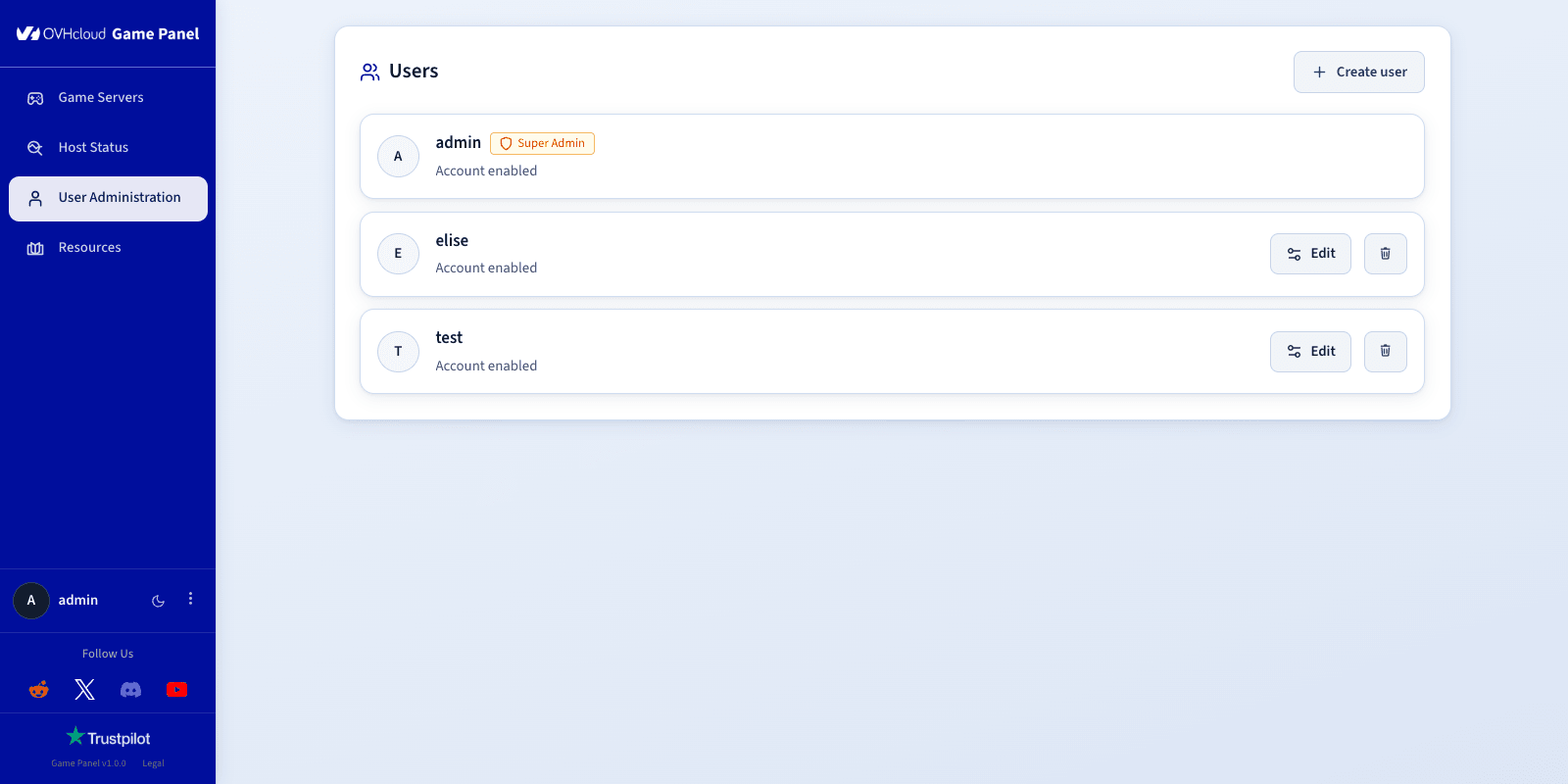
A list of existing users is displayed. Use Edit or Delete user to modify or remove a user.
Step 2 — Create a new user
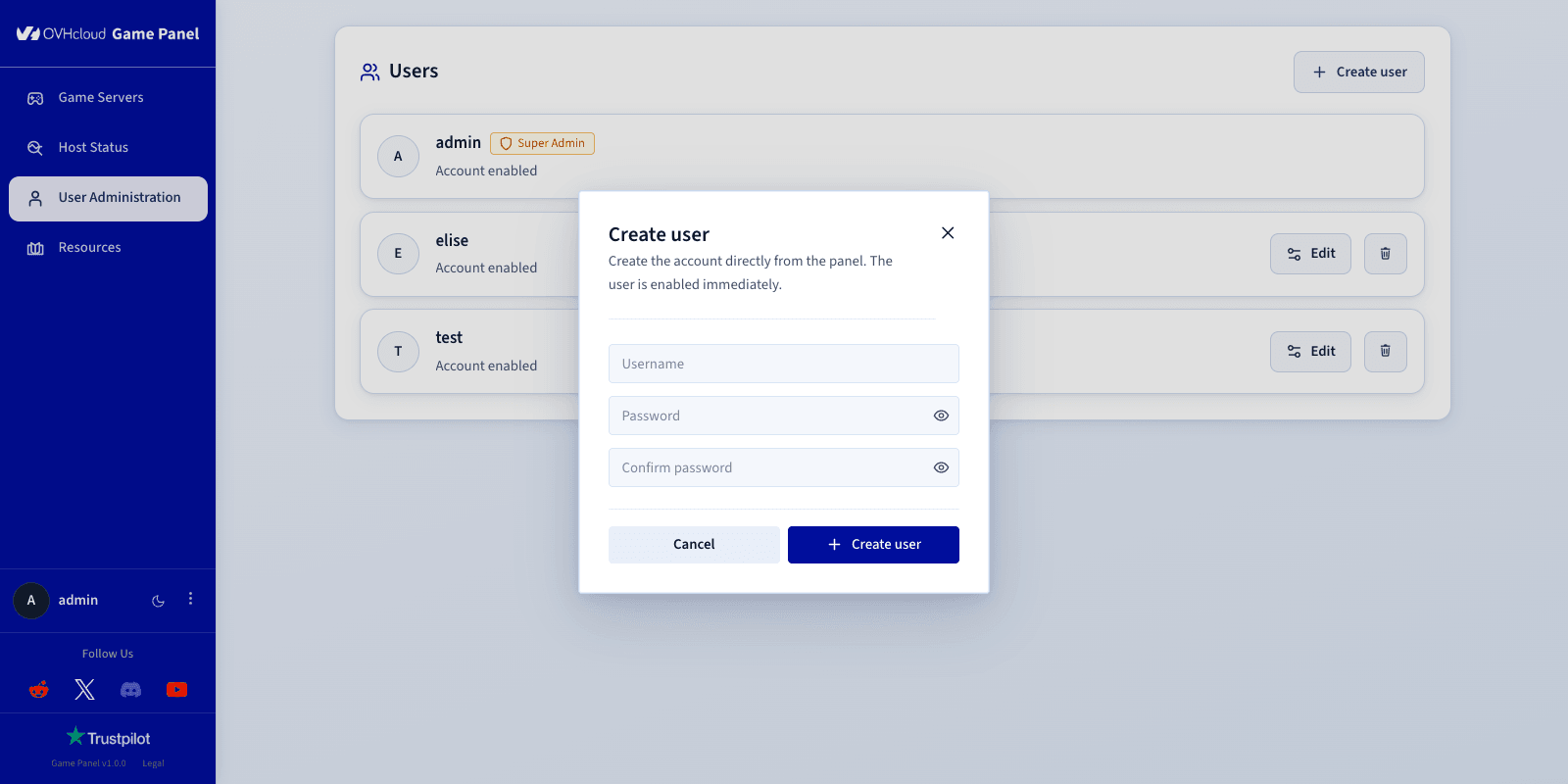
Click Create user in the top right corner.
Fill in the following fields:
- User name: The username (e.g.,
Florian). - New password: A secure password.
- Retype new password: Confirm the password.
Step 3 — Configure server-specific permissions
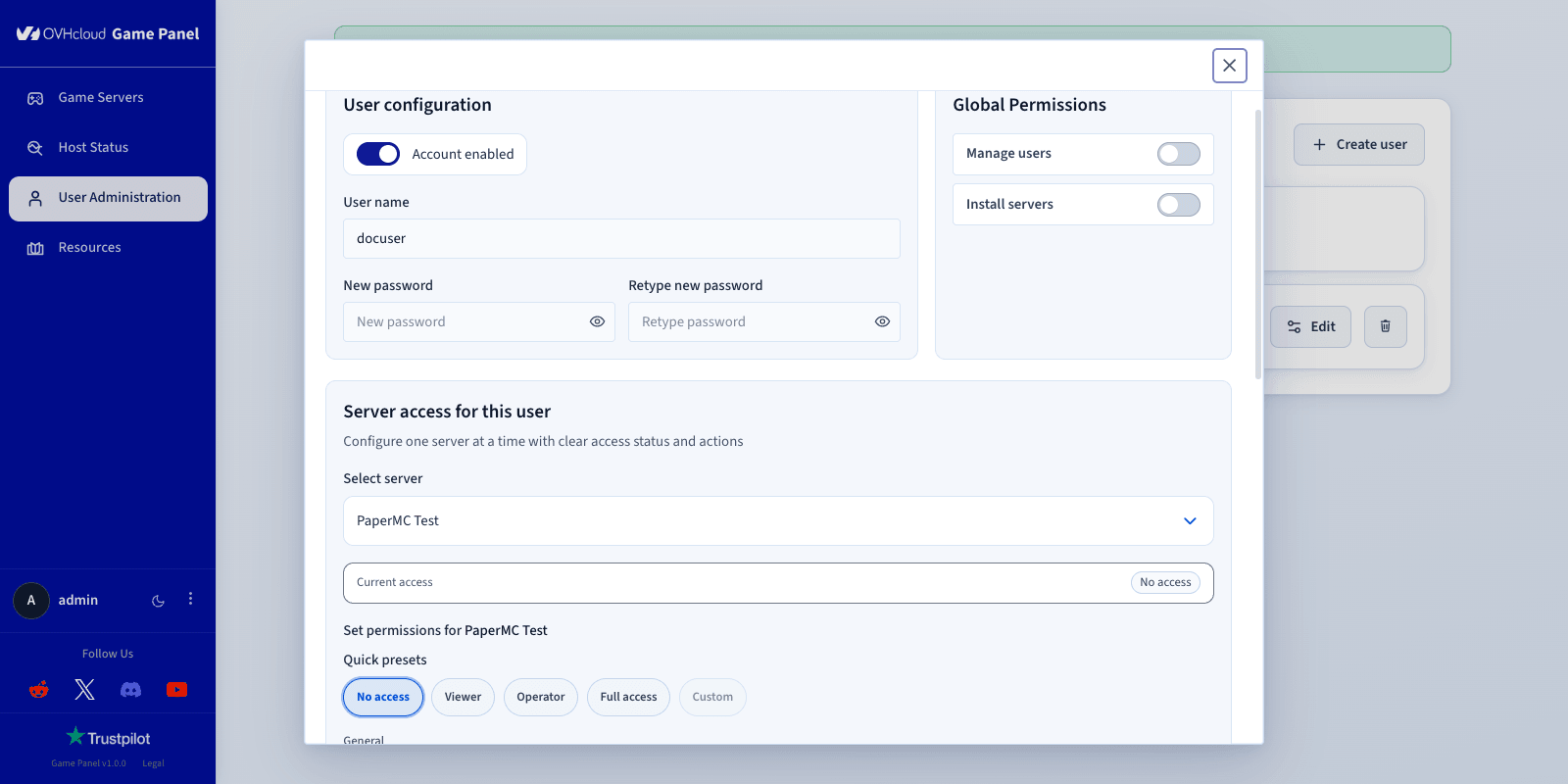
Under Server access for this user, choose a server from the dropdown.
Set an access level
Quick presets are available:
Customise permissions
Enable the toggles for specific actions, grouped by category:
General
- Start/Stop/Restart: Start, stop, or restart the server.
- Read server logs: View server logs.
- Access server console: Access the server console.
- Edit container properties: Modify the server container configuration.
- Manage environment variables: Add, edit, or remove the server's environment variables.
- Access container terminal: Open the server terminal.
- Delete server: Delete the server.
File Manager
- Read files / Write files: Read and write server files.
Scheduled Tasks
- View scheduled tasks: View the server's scheduled tasks.
- Manage scheduled tasks: Create and manage scheduled tasks.
Backups
- View backups: View the server's backups.
- Create backups: Create new backups.
- Restore backups: Restore a backup.
- Download backups: Download backup archives.
- Delete backups: Delete backup archives.
- Rename backups: Rename backup archives.
- Edit backup settings: Edit the backup retention configuration.
Step 4 — Save changes
Click Save changes to confirm.
Delete a user
Click Delete user next to the user you want to remove, then confirm the deletion.
Go further
Join our community of users.