---
title: "How to use the Game Panel File Manager"
description: "Browse, edit, upload, download, and organise your game server files directly from the OVHcloud Game Panel File Manager."
url: https://docs.ovhcloud.com/en/guides/bare-metal-cloud/virtual-private-servers/game-panel-file-manager
lang: en
lastUpdated: 2026-06-30
---
# How to use the Game Panel File Manager
## Objective
The File Manager lets you browse, edit, upload, download, and organise your server files directly from the OVHcloud Game Panel.
**This guide explains how to use the Game Panel File Manager.**
## Requirements
- A [VPS](https://www.ovhcloud.com/en-gb/vps/) or a [dedicated server](https://www.ovhcloud.com/en-gb/bare-metal/) in your OVHcloud account with the Game Panel feature enabled.
- A game server deployed on the Game Panel.
- Access to the Game Panel. Refer to [Log in to the Game Panel](/en/guides/bare-metal-cloud/virtual-private-servers/game-panel-log-in/index.md).
## Instructions
### Accessing the File Manager
1. Open your server Settings.
2. Navigate to the File Manager tab.
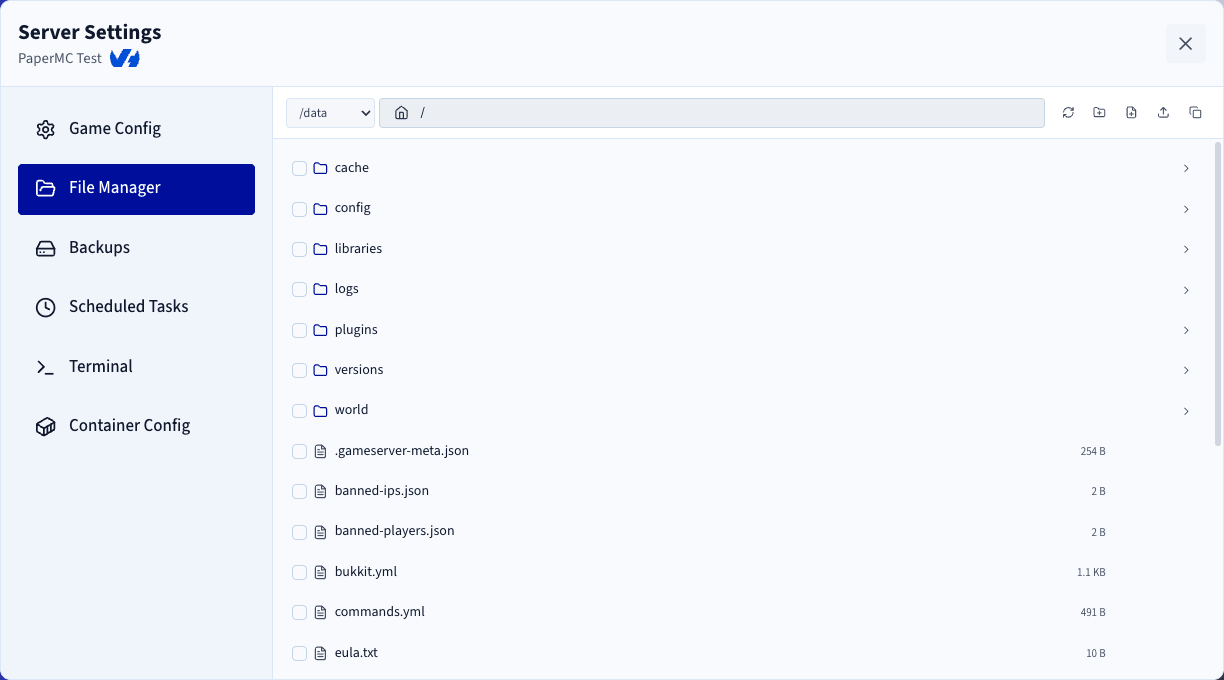
Once opened, you see the list of files and folders available on your server.
### Selecting a storage volume
If your server has multiple storage volumes configured, you can select the desired volume using the dropdown menu located in the top-left corner of the File Manager.
### File Manager toolbar
At the top of the File Manager, you find:
- The current path.
- A Refresh button to reload the current directory.
- A Create Folder button.
- A Create File button.
- An Upload button for files and folders.
- A Copy Path button to copy the current directory path to your clipboard.

### Browsing files and folders
**Opening a folder**
Double-click a folder to navigate into it.
**Editing a file**
Double-click a file to open it in the built-in text editor.
:::info
Files larger than 2 MB cannot be edited online. In this case, you must download the file, edit it locally on your computer, then upload the modified version back to the server.
:::
### File and folder actions
When you hover over a file or folder, additional actions become available:
- **Download**
- **Rename**
- **Delete**

:::warning
Renaming or deleting files while the server is running may cause unexpected behaviour. Whenever possible, stop the server before performing these operations.
:::
When downloading a folder, it is automatically compressed into a `.zip` archive to speed up the download process.
### Drag and drop support
The File Manager supports drag-and-drop operations.
**Moving files and folders**
You can drag and drop files or folders to:
- Move them into another folder.
- Move them to the parent directory by dropping them onto the `..` entry, which represents the parent folder.
**Uploading from your computer**
You can also drag files and folders directly from your computer into the File Manager. They are automatically uploaded to the currently opened directory. For larger uploads, a progress bar appears for each file so you can monitor the upload status.
### Permissions
Access to the File Manager can be restricted for specific users. To configure File Manager permissions, refer to [Manage users on the Game Panel](/en/guides/bare-metal-cloud/virtual-private-servers/game-panel-manage-users/index.md).
## Go further
- [How to create and restore backups on the Game Panel](/en/guides/bare-metal-cloud/virtual-private-servers/game-panel-backups/index.md)
- [Getting started with the Game Panel](/en/guides/bare-metal-cloud/virtual-private-servers/game-panel-getting-started/index.md)
Join our [community of users](https://community.ovhcloud.com/).