---
title: "What to do if you get a \\"Your connection is not private\\" error?"
description: "How to react to a security error message on your website"
url: https://docs.ovhcloud.com/en/guides/web-cloud/web-hosting/diagnostic-not-secured
lang: en
lastUpdated: 2026-06-03
---
# What to do if you get a "Your connection is not private" error?
## Objective [](#)
Several error messages may appear if your website is inaccessible. The examples below indicate that your Web Hosting plan does not contain any [SSL certificate](/en/guides/web-cloud/web-hosting/ssl-on-webhosting.md) (if your website does not display one of the anomalies described in this guide, please refer to the "[Go further](#go-further)" section):
| Browser | Error message concerned |
| ------------------------------------------------------ | ----------------------------------------------------------------------------------------------------------------------------------------------- |
| Chrome:
"Your connection is not private" | 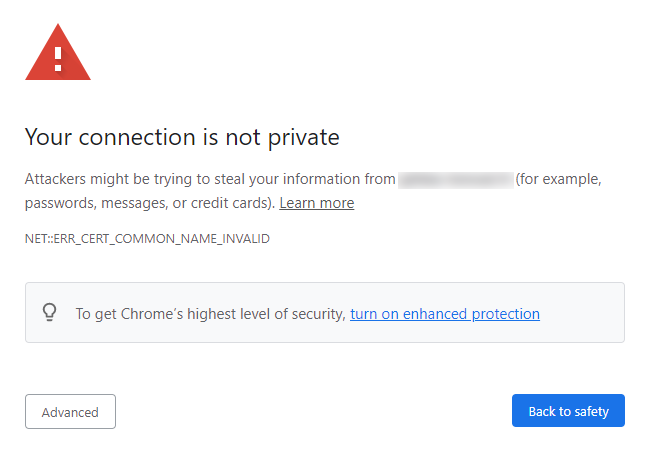 |
| Firefox:
|
| Firefox:
"Warning: Potential Security Risk Ahead" | 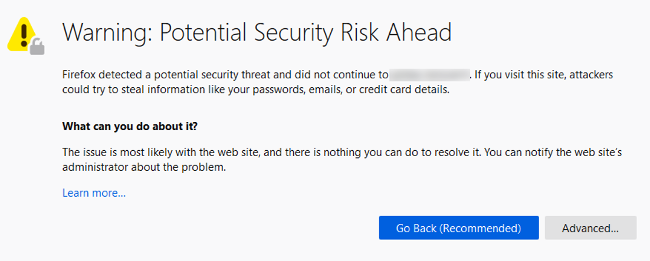 |
| Edge:
|
| Edge:
"Your connection isn't private" | 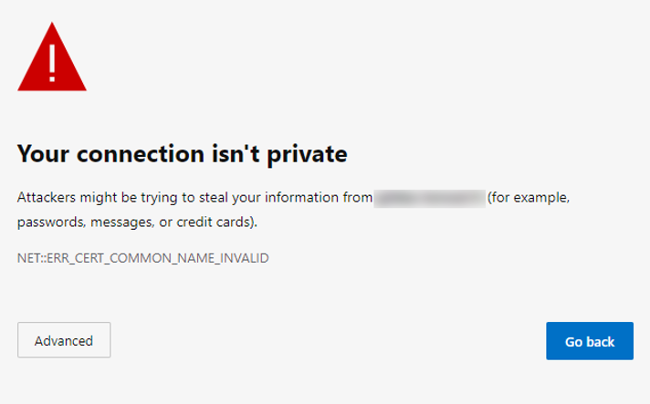 |
| Safari:
|
| Safari:
"This Connection is Not Private" | 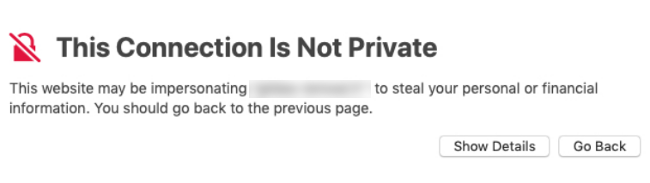 |
**Find out how to solve SSL-related error messages on your website.**
:::warning
OVHcloud is providing you with services for which you are responsible, with regard to their configuration and management. You are therefore responsible for ensuring they function correctly.
This guide is designed to assist you in common tasks as much as possible. Nevertheless, we recommend that you contact a [specialist service provider](https://partner.ovhcloud.com/en-gb/directory/) and/or discuss the issue with our community if you have difficulties or doubts. You can find more information in the [Go further](#go-further) section of this guide.
:::
## Requirements
- Administrative rights to manage your domain name's [DNS servers](/en/guides/web-cloud/domains/dns-server-general-information.md) and [DNS zone](/en/guides/web-cloud/domains/dns-zone-general-information.md)
***
### OVHcloud Control Panel Access
- **Direct link:** Hosting plans
- **Navigation path:**
|
**Find out how to solve SSL-related error messages on your website.**
:::warning
OVHcloud is providing you with services for which you are responsible, with regard to their configuration and management. You are therefore responsible for ensuring they function correctly.
This guide is designed to assist you in common tasks as much as possible. Nevertheless, we recommend that you contact a [specialist service provider](https://partner.ovhcloud.com/en-gb/directory/) and/or discuss the issue with our community if you have difficulties or doubts. You can find more information in the [Go further](#go-further) section of this guide.
:::
## Requirements
- Administrative rights to manage your domain name's [DNS servers](/en/guides/web-cloud/domains/dns-server-general-information.md) and [DNS zone](/en/guides/web-cloud/domains/dns-zone-general-information.md)
***
### OVHcloud Control Panel Access
- **Direct link:** Hosting plans
- **Navigation path:** Web Cloud > Hosting plans > Select your web hosting plan
***
## Instructions
To solve this issue, you will need to:
1. Determine the hosting plan to which your domain name is linked, in order to intervene on the correct server.
2. Create, activate or renew an [SSL certificate](/en/guides/web-cloud/web-hosting/ssl-on-webhosting.md) for your domain name on the concerned hosting plan.
### 1 - Check the hosting plan attached to your domain name
#### Check the hosting IP address
The error messages mentioned [above](#objective) do not necessarily mean that your website is hosted on one of our [Web Cloud offers](https://www.ovhcloud.com/en-gb/web-hosting/). For this reason, you will need to check the IP address of the server your [domain name](https://www.ovhcloud.com/en-gb/domains/) is attached to.
To find the IP address of your [OVHcloud hosting plan](https://www.ovhcloud.com/en-gb/web-hosting/), click on the tabs below to view each of the **2** steps.
**Step 1**
Go to the Hosting plans page, then select the web hosting plan concerned.

**Step 2**
In the **General information** box, you will see the addresses under **IPv4** and **IPv6**.
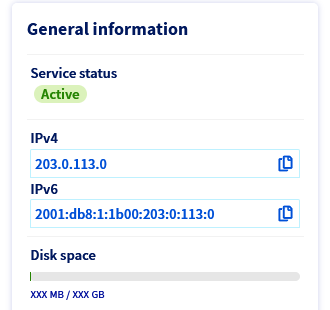Note the IPv4 and/or IPv6 address, then continue reading the guide.
#### Check the IP address in the DNS zone
You now need to check that the IP address listed in the [DNS zone](/en/guides/web-cloud/domains/dns-zone-edit.md) corresponds to the one of your [OVHcloud Web Hosting plan](https://www.ovhcloud.com/en-gb/web-hosting/).
Click on the tabs below to view each of the **2** steps.
**Step 1**
Go to the DNS zones page, then select the domain name concerned.
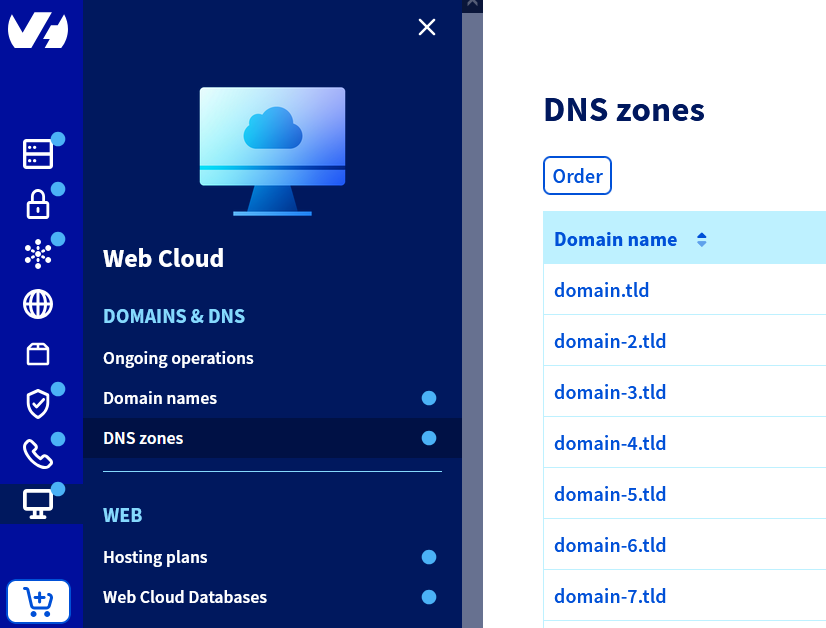
**Step 2**
Note the target of the `A` record for your domain name:
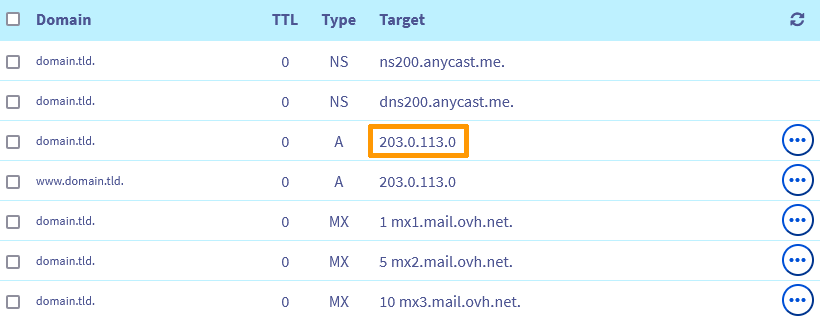
#### Perform the necessary actions
**Click on the scenario that matches your situation to view the content.**
The IP address corresponds to that of your shared hosting plan
The IP address listed in the [DNS zone](/en/guides/web-cloud/domains/dns-zone-edit.md) corresponds to your Web Hosting plan's IP address. Proceed to [part 2](#step2).
The IP address does not concern any of the hosting plans within your account but appears in the Web Cloud server list
The IP address listed in the zone does not concern any of the Web Hosting plans within your OVHcloud account, but appears in the [list of our Web Cloud servers](/en/guides/web-cloud/web-hosting/clusters-and-shared-hosting-ip.md).
Check that you do not have a hosting plan with this IP address within one of your other OVHcloud customer accounts, if you have several of them. If necessary, contact your webmaster or the [OVHcloud partners](https://partner.ovhcloud.com/en-gb/directory/) for further information.
The IP address is not your hosting plan's one, nor does it appear in the Web Cloud server list
The IP address entered in the zone is not your hosting plan's one, nor does it appear on the [list of our Web Cloud servers](/en/guides/web-cloud/web-hosting/clusters-and-shared-hosting-ip.md).
Contact your webmaster or the [OVHcloud partners](https://partner.ovhcloud.com/en-gb/directory/) for further information.
Your domain uses other OVHcloud DNS servers (ns?.ovh.net / dns?.ovh.net)
Above the DNS zone displayed in your OVHcloud Control Panel, a message indicates that your domain name uses other [DNS](/en/guides/web-cloud/domains/dns-zone-edit.md) servers. These appear as "ns **?** .ovh.net" or "dns **?** .ovh.net" (replace "**?**" with the relevant DNS server number):
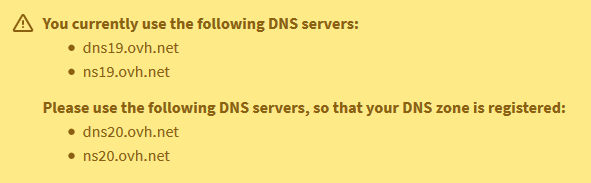You must modify your domain's DNS servers to match the `NS` records of the DNS zone. To perform this operation, follow the instructions of [this guide](/en/guides/web-cloud/domains/dns-server-edit.md).
Your domain uses external (non-OVHcloud) DNS servers
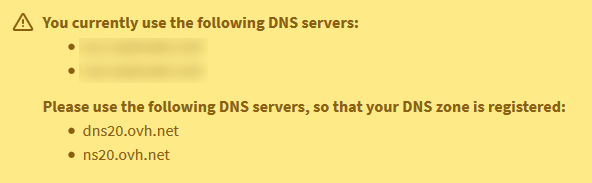
Above the DNS zone displayed in your OVHcloud Control Panel, a message indicates that your domain uses other [DNS](/en/guides/web-cloud/domains/dns-zone-edit.md) servers and these do not appear as "ns **?** .ovh.net" or "dns **?** .ovh.net":
Contact your webmaster or the [OVHcloud partners](https://partner.ovhcloud.com/en-gb/directory/) for further information.
Your domain name does not appear in your OVHcloud Control Panel
Your domain name does not appear on the Domain names page of your OVHcloud Control Panel.
This means that your domain name is not managed from your OVHcloud Control Panel.
Check if it is managed from one of your other OVHcloud customer accounts, if you have created more than one of them.
You can also check the registrar of your domain name and its actual DNS servers with our [WHOIS tool](https://www.ovhcloud.com/en-gb/domains/whois/).
If necessary, contact your webmaster or the [OVHcloud partners](https://partner.ovhcloud.com/en-gb/directory/) about this.
### 2 - Check your Web Hosting plan's SSL certificate [](#)
Click on the tabs below to view each of the **2** steps.
**Step 1**
Go to the Hosting plans page, then select the web hosting plan concerned.

**Step 2**
In the General information tab, check the `SSL certificate` section:
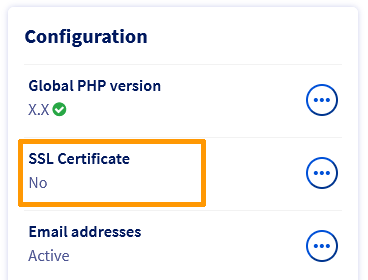
#### Scenario 1: Your Web Hosting plan does not contain any SSL certificate
Activate an [SSL certificate](https://www.ovhcloud.com/en-gb/web-hosting/options/ssl/) on your Web Hosting plan by following the instructions in this [guide](/en/guides/web-cloud/web-hosting/ssl-on-webhosting.md).
#### Scenario 2: The SSL certificate on your Web Hosting plan does not work
If you have generated a **Let's Encrypt SSL certificate**, enable the SSL option on your hosting by following the instructions in [this guide](/en/guides/web-cloud/web-hosting/ssl-on-webhosting.md).
If you have **imported an SSL certificate** from another provider and it does not work, contact the appropriate support team.
If you have **ordered an SSL certificate**
from our partner [SECTIGO](https://sectigo.com/)
, check if you have received an email offering to renew it.
If necessary, contact the [SECTIGO support team](https://sectigo.com/support)
for more information.
:::info
To check all the emails sent by OVHcloud, go to the My messages
page.
:::
## Go further [](#)
[Managing SSL certificates on a Web Hosting plan](/en/guides/web-cloud/web-hosting/ssl-on-webhosting.md)
[Activating HTTPS on your website with an SSL certificate](/en/guides/web-cloud/web-hosting/ssl-activate-https-website.md)
[Resolving a "Site not installed" error](/en/guides/web-cloud/web-hosting/multisites-website-not-installed.md)
[Fixing the 500 Internal Server Error](/en/guides/web-cloud/web-hosting/diagnostic-fix-500-internal-server-error.md)
[Resolving the most common 1-click module errors](/en/guides/web-cloud/web-hosting/diagnostic-errors-module1clic.md)
For specialised services (SEO, development, etc.), contact the [OVHcloud partners](https://partner.ovhcloud.com/en-gb/directory/).
If you would like assistance using and configuring your OVHcloud solutions, please refer to our [support offers](https://www.ovhcloud.com/en-gb/support-levels/).
Join our [community of users](https://community.ovhcloud.com/).