---
title: "Public VCF as-a-Service - Declaring the public IP gateway in VCD"
description: "Declare the gateway of your public IP block on your VCD Virtual Datacenter to use public IPs on your VMs"
url: https://docs.ovhcloud.com/en/guides/hosted-private-cloud/powered-by-vmware/vcd-declare-public-gateway
lang: en
lastUpdated: 2025-08-13
---
# Public VCF as-a-Service - Declaring the public IP gateway in VCD
## Objective
When you order a new Public VCF as-a-Service organization, a vRack and a block of public IP addresses are delivered. To assign those public IPs to workloads, you must declare the block’s gateway inside the target VCD Virtual Datacenter.
This guide shows how to retrieve the correct gateway and add it to your VDC.
***
### OVHcloud Control Panel Access
- **Direct link:** [VMware Cloud Foundation](https://manager.eu.ovhcloud.com/#/vmware/public-vcf-aas)
- **Navigation path:** Hosted Private Cloud > Public VCF as-a-Service > Select your VCF service
***
## Requirements
- A [Public VCF as-a-Service](https://www.ovhcloud.com/en-gb/lp/vmware-vcd-evolution/) organization with a delivered public IP block.
- Technical administrator rights on [VMware vSphere on OVHcloud](https://www.ovhcloud.com/en-gb/hosted-private-cloud/vmware/).
- Access to the OVHcloud Control Panel.
## Instructions
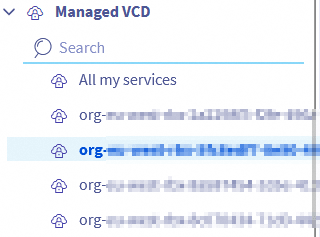
1. Log in to your OVHcloud Control Panel. Click Hosted Private Cloud, then Public VCF as-a-Service, and select your organization.
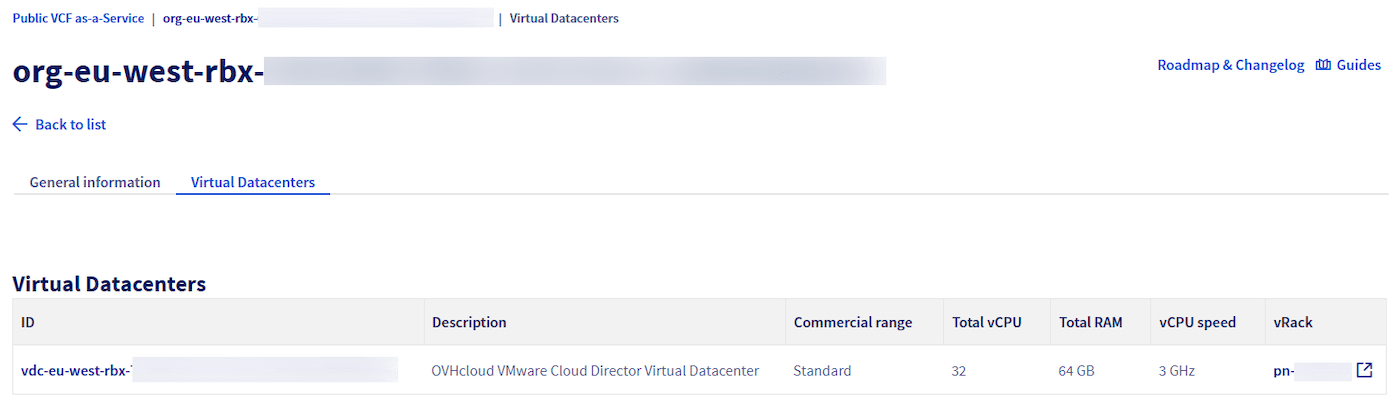
 2. Open the
 Virtual Datacenters tab and select the VDC where you want to use the public IPs.
 In `General information
`, verify that the vRack shown is the one linked to your public IP block.
3. Select the
In `General information
`, verify that the vRack shown is the one linked to your public IP block.

3. Select the vRack tab.
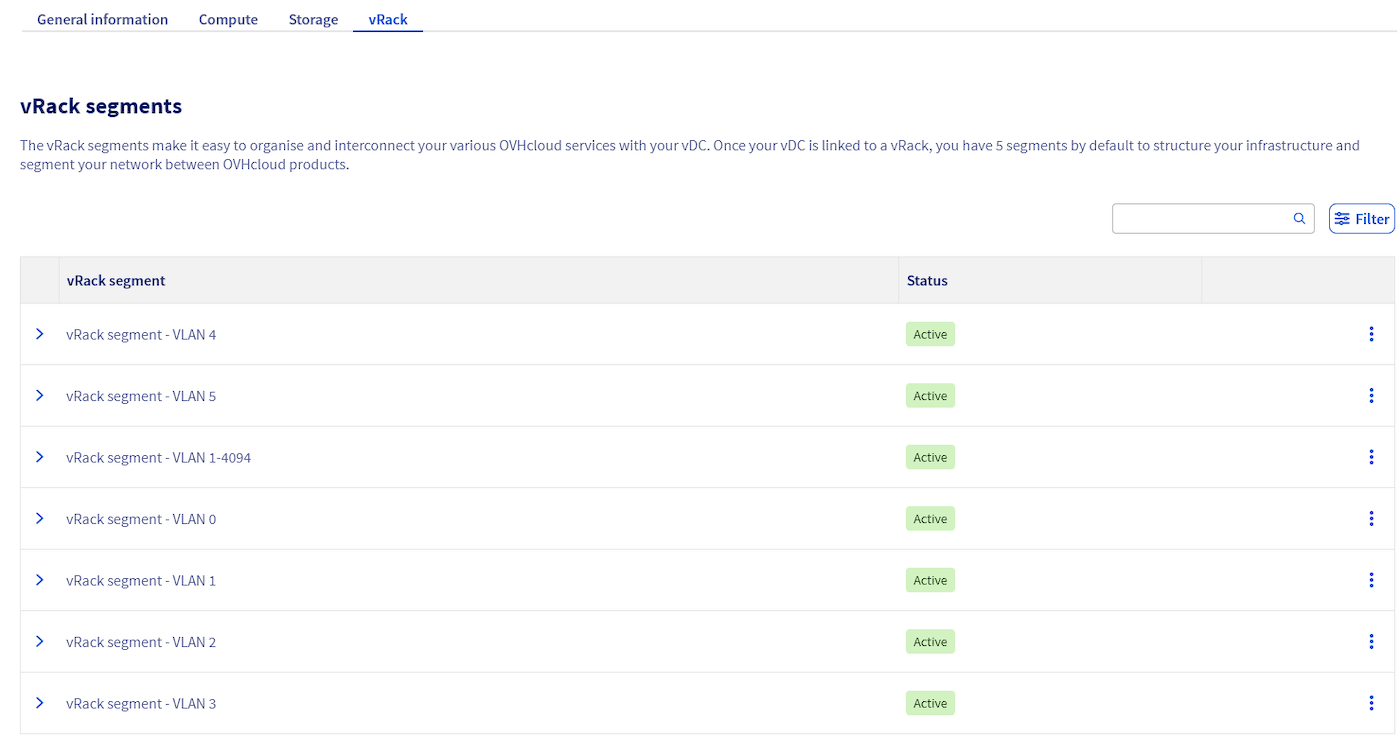 Locate the vRack segment named `vRack segment - VLAN0` or `vRack segment - PUBLIC`.
Click the three dot menu `⋮
` and `Add a subnet
`.

4. In the modal, enter the **gateway in CIDR** form for your public IP block, then confirm. The gateway is the **last usable host** of the block.
**Example**: for `203.0.113.0/29`, the last usable host is `203.0.113.6` so enter `203.0.113.6/29`. You can use any standard IP calculator to verify.
Locate the vRack segment named `vRack segment - VLAN0` or `vRack segment - PUBLIC`.
Click the three dot menu `⋮
` and `Add a subnet
`.

4. In the modal, enter the **gateway in CIDR** form for your public IP block, then confirm. The gateway is the **last usable host** of the block.
**Example**: for `203.0.113.0/29`, the last usable host is `203.0.113.6` so enter `203.0.113.6/29`. You can use any standard IP calculator to verify.
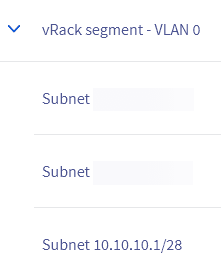
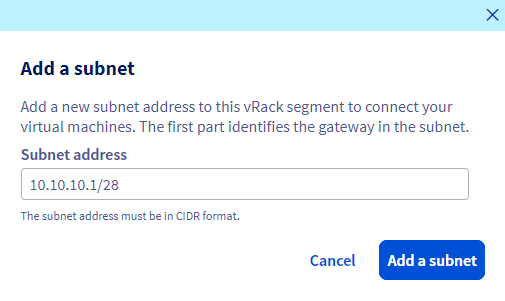 5. Wait a few seconds and refresh the page. The subnet gateway should now appear on the segment.
 ### Use the gateway when creating workloads
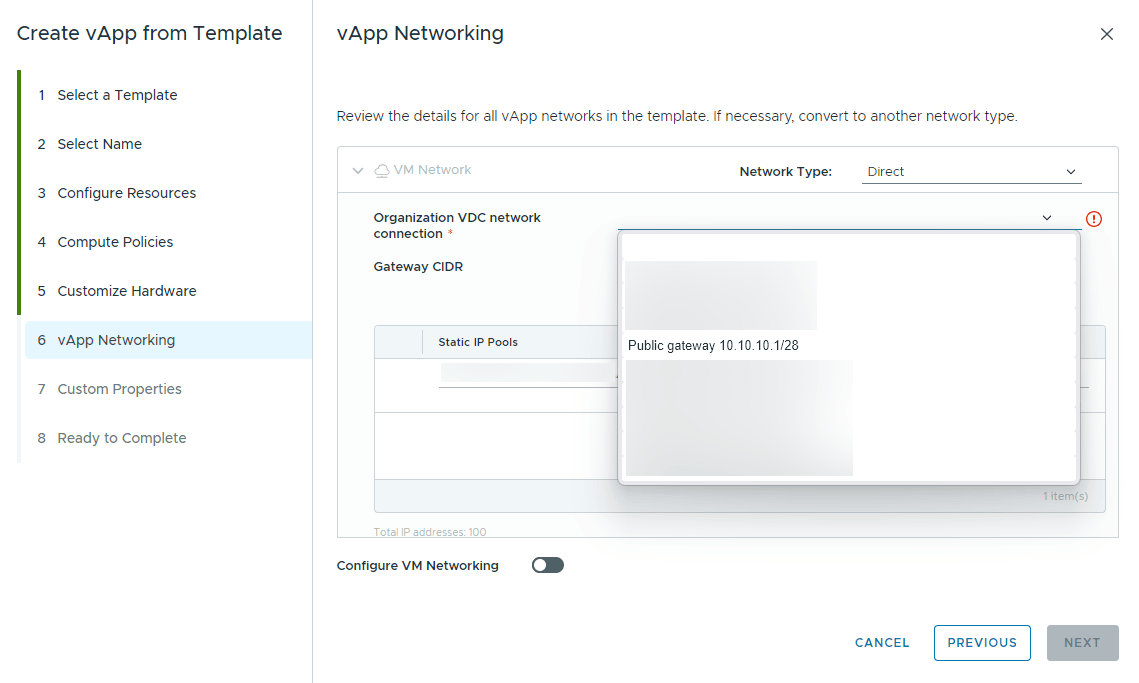
- When creating a vApp or VM in VCD, pick the corresponding **Organization VDC network** and choose a **Direct** network type to see the available public gateways.
:::info
**Known limitation**:
In the current VCF version, the **Gateway CIDR** field may display the first gateway declared on your `VLAN0` segment, even if you selected another one. This is a visual only issue and does not affect IP assignment. Use any address from the selected public block on your VM, consistent with the gateway you chose in **Organization VDC network connection**.
:::
## Troubleshooting
- If the gateway is rejected, recheck that you entered the **last usable host** with the correct **CIDR mask** for the block.
- Ensure the VDC is attached to the **same vRack** that you linked to the public IP block in the previous guide [Public VCF as-a-Service - Linking a public IP block with vRack](/en/guides/hosted-private-cloud/powered-by-vmware/vcd-link-ip-to-vrack.md).
## Go further
First step guide: [Public VCF as-a-Service - Linking a public IP block with vRack](/en/guides/hosted-private-cloud/powered-by-vmware/vcd-link-ip-to-vrack.md).
If you need training or technical assistance to implement our solutions, please contact your Technical Account Manager or click on [this link](https://www.ovhcloud.com/en-gb/professional-services/) to get a quote and ask our Professional Services experts for a custom analysis of your project.
Ask questions, give your feedback and interact directly with the team building our Hosted Private Cloud services on the dedicated [Discord](https://discord.gg/ovhcloud) channel.
Join our [community of users](https://community.ovhcloud.com/community/en).
### Use the gateway when creating workloads
- When creating a vApp or VM in VCD, pick the corresponding **Organization VDC network** and choose a **Direct** network type to see the available public gateways.

:::info
**Known limitation**:
In the current VCF version, the **Gateway CIDR** field may display the first gateway declared on your `VLAN0` segment, even if you selected another one. This is a visual only issue and does not affect IP assignment. Use any address from the selected public block on your VM, consistent with the gateway you chose in **Organization VDC network connection**.
:::
## Troubleshooting
- If the gateway is rejected, recheck that you entered the **last usable host** with the correct **CIDR mask** for the block.
- Ensure the VDC is attached to the **same vRack** that you linked to the public IP block in the previous guide [Public VCF as-a-Service - Linking a public IP block with vRack](/en/guides/hosted-private-cloud/powered-by-vmware/vcd-link-ip-to-vrack.md).
## Go further
First step guide: [Public VCF as-a-Service - Linking a public IP block with vRack](/en/guides/hosted-private-cloud/powered-by-vmware/vcd-link-ip-to-vrack.md).
If you need training or technical assistance to implement our solutions, please contact your Technical Account Manager or click on [this link](https://www.ovhcloud.com/en-gb/professional-services/) to get a quote and ask our Professional Services experts for a custom analysis of your project.
Ask questions, give your feedback and interact directly with the team building our Hosted Private Cloud services on the dedicated [Discord](https://discord.gg/ovhcloud) channel.
Join our [community of users](https://community.ovhcloud.com/community/en).