---
title: "Object Storage - Use Object Storage with Owncloud"
description: "Learn how to set up storage in Owncloud to use an Object Storage bucket"
url: https://docs.ovhcloud.com/en/guides/storage-and-backup/object-storage/s3-owncloud
lang: en
lastUpdated: 2024-05-20
---
# Object Storage - Use Object Storage with Owncloud
## Objective
Owncloud is a suite of client-server software for creating and using file hosting services.
**This guide explains how to set up storage in Owncloud to use an Object Storage bucket.**
:::warning
OVHcloud provides services which you are responsible for with regard to their configuration and management. You are therefore responsible for ensuring they function correctly.
This guide is designed to assist you in common tasks as much as possible. If you encounter any difficulties performing these actions, please contact a [specialist service provider](https://partner.ovhcloud.com/en-gb/directory/) and/or discuss the issue with our [community of users](https://community.ovhcloud.com/community/en). OVHcloud cannot provide you with technical support in this regard.
:::
## Requirements
- A bucket
- A user with the required access rights on the bucket
- Your Object Storage credentials (access\_key and secret\_access\_key)
See our [Getting started with Object Storage](/en/guides/storage-and-backup/object-storage/s3-getting-started-with-object-storage.md) guide.
:::info
In order to identify your endpoint corresponding to your storage class, please refer to this guide: [Object Storage - Endpoints and Object Storage geoavailability](/en/guides/storage-and-backup/object-storage/s3-location.md).
:::
## Instructions
If needed, install the `External Storage: S3`
plugin from the `Market
`.
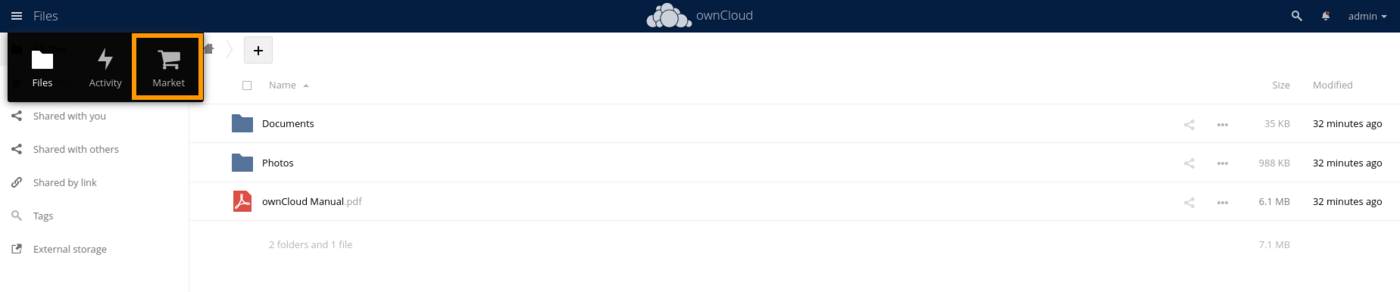
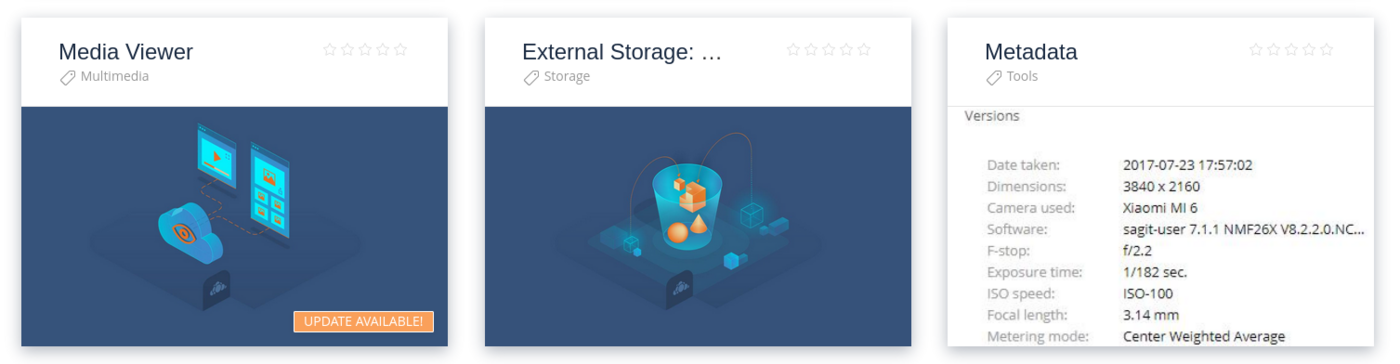
Search for the `External Storage: S3` plugin.
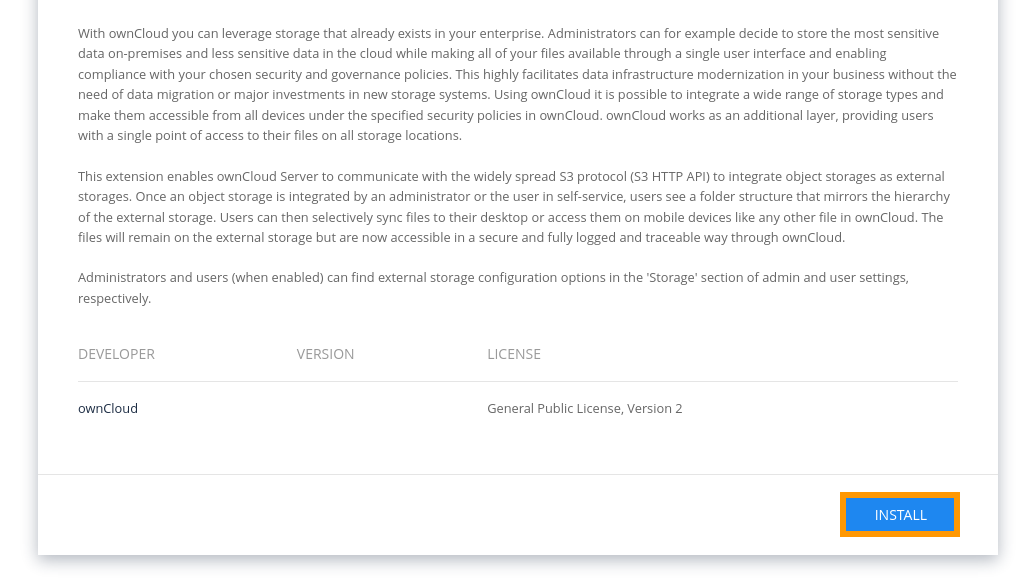
And `install
` it.
Go to the `Settings
`.

Then :
1. in Storage
2. enable Enable external storage
3. name your folder
4. add an Amazon S3 compatible storage (SDK v3)
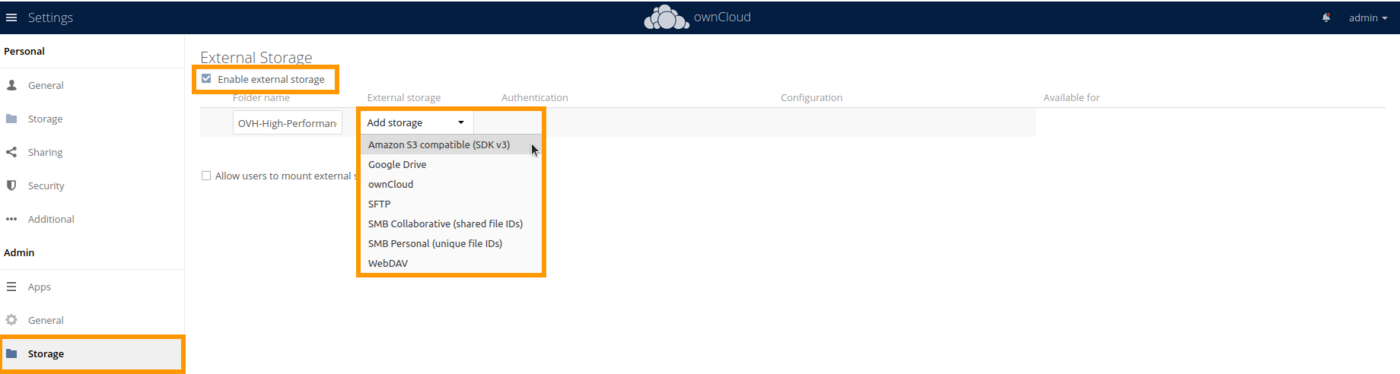
Fill in the following information:
1. Enter the name of your bucket
2. Set the host as: `s3..io.cloud.ovh.net`
3. Set the port to 443
4. Specify the region
5. Activate SSL
6. Enter your access key
7. Enter your secret key

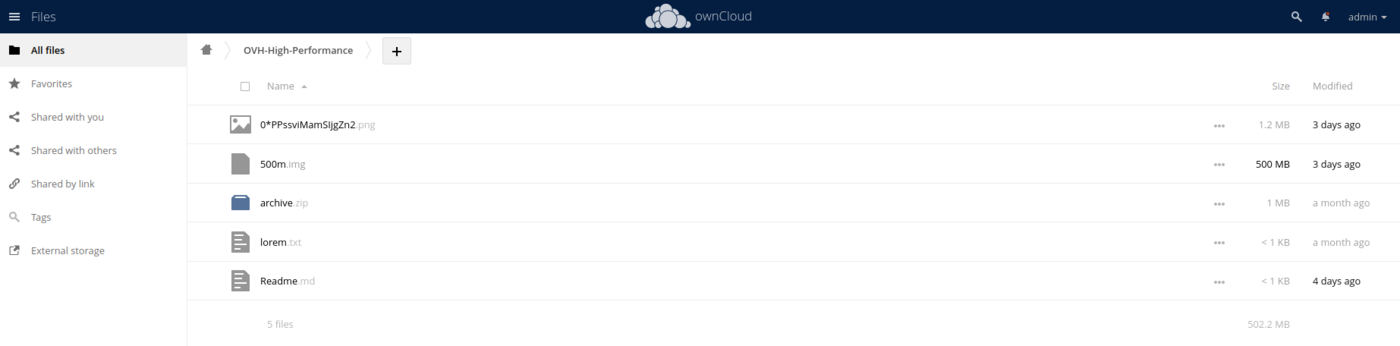
Go to `Files
`.

Then in `External storage
`.

The result should be similar to this:
## Go further
If you need training or technical assistance to implement our solutions, contact your sales representative or click on [this link](https://www.ovhcloud.com/en-gb/professional-services/) to get a quote and ask our Professional Services experts for assisting you on your specific use case of your project.
Join our [community of users](https://community.ovhcloud.com/).