What is OVHai Workspace?
OVHai Workspace is an agentic collaborative platform: it brings together email, calendar, file storage, video conferencing and contacts behind a single interface. You switch from one application to another from the application bar on the left, without signing in again.
Its AI assistant works across all these applications: it summarises a message, prepares a reply, turns an email into a calendar event, prepares a meeting from the related messages and documents, then writes its summary.
What you can do with it
- Summarise your emails: summaries, key points extracted, replies and follow-ups drafted.
- Create events from an email: the assistant creates the calendar events that the email suggests.
- Organise your time: several calendars, four views (day, week, month, year) and video meetings attached to your events.
- Arrive prepared for meetings: the assistant gathers the relevant messages and documents beforehand.
- Keep a record of your meetings: AI-generated transcript and summary, and meeting recording.
- Follow a meeting in another language: subtitles translated into English, French, Spanish, German, Italian or Portuguese.
- Find your files and contacts: the assistant searches the content of documents, not just their names, and your contacts.
Storage and AI capacity
You have a shared storage space, common to everything you keep in the workspace: messages and their attachments, the files in your Drive and their versions, meeting recordings and the Email trash. You therefore monitor a single counter instead of one per application, and freeing space in one place frees it everywhere.
Your account has usage limits for the assistant: over a 5-hour session, over the week and over the month (see Monitoring your usage limits).
Security and data sovereignty
The service runs in OVHcloud data centres in France that hold the SecNumCloud qualification — Roubaix, Strasbourg and Gravelines — on dedicated metal instances. It complies with the GDPR, with SecNumCloud requirements, and with French data-protection rules, including business-secrecy obligations.
The five applications
Signing in
- Go to the address of your OVHai Workspace.
- Enter your email address and your password, then click
Sign in.
To get an account, secure your account or recover access to it, see Managing your OVHai Workspace account.
The home page then shows the five applications. Click Get started on the one you want to open, or use the application bar, on the left of the screen, once inside.
Your account menu, in the top right-hand corner, leads to Settings: name and account security, language, light or dark theme, side of the assistant panel, order of the applications, and settings specific to each application.
What the AI assistant can do
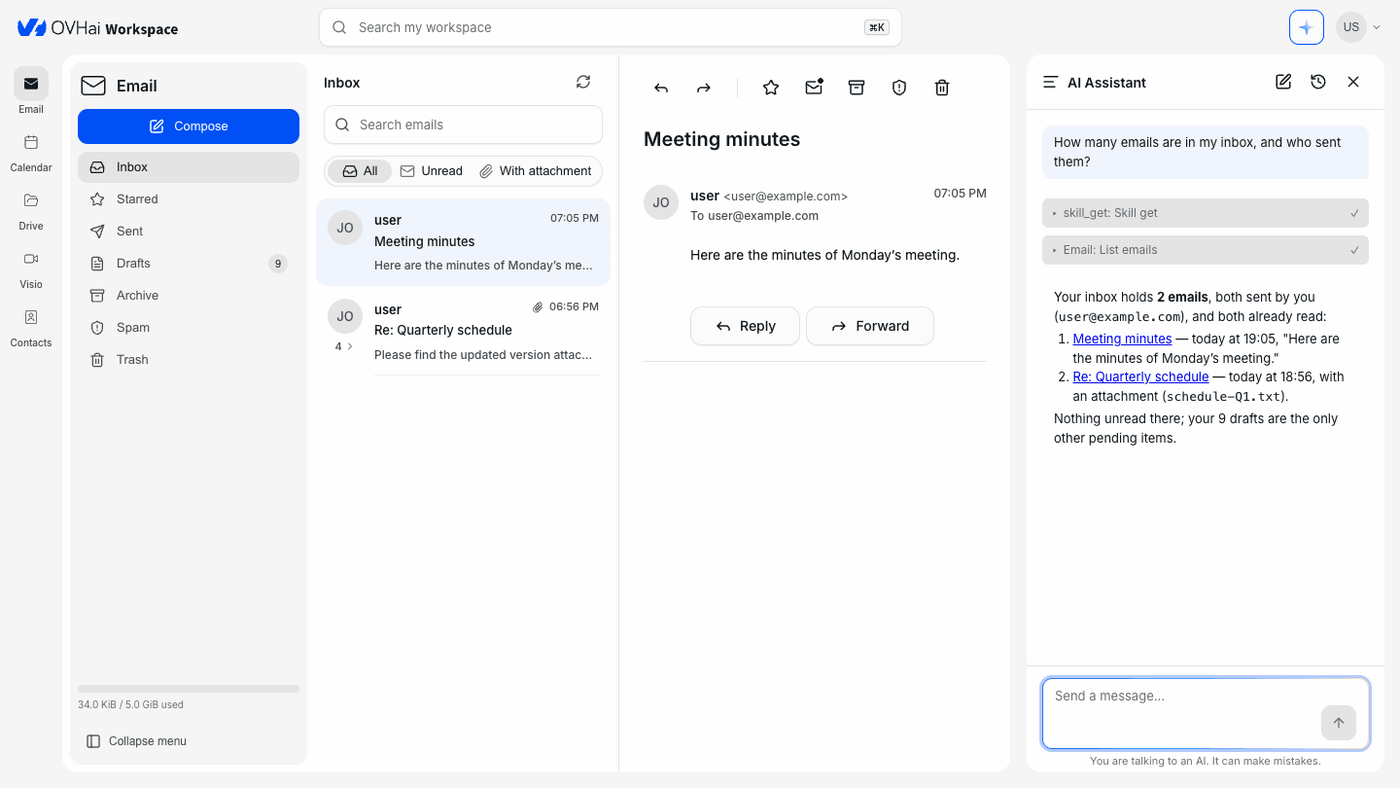
The assistant sits in the side panel of every application, on the right by default. It sees what you are working on and can act on it. The sparkle button, at the top of the screen, shows or hides it.
One assistant
It works on what you have in front of you, and moves from one application to the next.
In your mailbox
- Summarise a long thread
- Pull out the key points
- Draft a reply or a follow-up
- Turn a message into a calendar event
Around your meetings
- Prepare a brief from related threads and documents
- Transcribe live
- Write the minutes and the action items
- Translate in real time, sentence by sentence
Across your content
- Find a file
- Summarise a document
- Answer a question that spans several applications
Asking it something
Type your request in plain language in the Send a message… field, then press Enter. Be specific: name the subject, the date, the people.
Summarise the latest thread with the design team and list what is expected of me.
Create a Team check-in event on Thursday at 10:00 AM for 30 minutes.
Find the presentation I shared last week and summarise its conclusion.
At the top of the panel, the pencil icon (New conversation) starts a blank conversation, and Conversation history brings back the previous ones.
Staying in control of what it does
The assistant reads messages, events, files and contacts without asking for your approval. Before it creates or changes an item (a draft, an event), however, it asks for your approval and shows what it is about to do:
Approve: the assistant runs the action this time;Decline: it does not run it;Always accept: it repeats this action without asking you again.
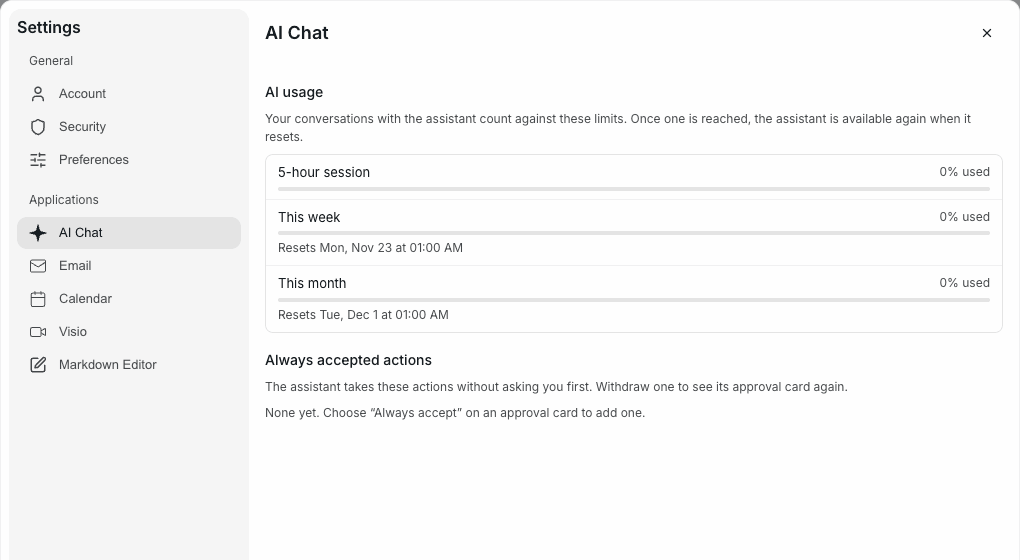
The actions you have always accepted are listed in the AI Chat tab of the settings: remove one for the assistant to ask for your approval again.
Reading what it does
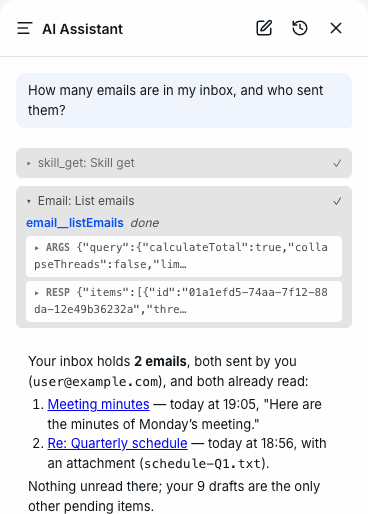
The assistant shows each step as it progresses, then concludes with a sentence.
Click a step to see what the assistant asked the application (Args) and what the application answered (Resp).
A ticked step has run, but not necessarily with the intended effect. Check the result in the application: the assistant reports what it did, not what you wanted.
Monitoring your usage limits
Your conversations with the assistant count against three limits: a 5-hour session, This week and This month. To check them, open your account menu, then Settings, and choose the AI Chat tab: each limit shows the percentage used and its reset date.
When a limit is reached, the assistant stays unavailable until it resets.
Searching across the workspace
Click the Search my workspace field at the top of the screen, or use the keyboard shortcut shown on the right of the field (⌘K on Mac). The field expands and searches the five applications; its label lists them. The Esc key closes it.
The settings button of the bar filters the results by application: Email, Calendar, Drive, Visio or Contacts. Results that contain exactly your search appear under Exact matches; View more results shows the rest of the list.
Each application also has its own search field, limited to its content: emails in Email, events in Calendar, files in Drive, meetings in Visio and contacts in Contacts.
Go further
Any questions? Access OVHcloud Support
Find answers to your questions in our Help Centre.