Using Drive in OVHai Workspace
Find out how to store, create, upload and organise your files in the Drive application of OVHai Workspace
Objective
Drive is the file storage application of OVHai Workspace. It lists your files and folders, and lets you create office documents directly in the browser.
Find out how to store, create and organise your files in OVHai Workspace.
Requirements
- An OVHai Workspace account.
- Being signed in to your workspace.
Instructions
Opening the application
From the home page of your workspace, click Get started on the Drive card, or click Drive in the application bar on the left of the screen.
Finding your way around
The left-hand panel separates what belongs to you (My drive) from what others have shared with you (Shared with me), while Home shows both together.
Sort the list by clicking the Name, Modified or Size headers. The icons above the list create or import a folder or a file.
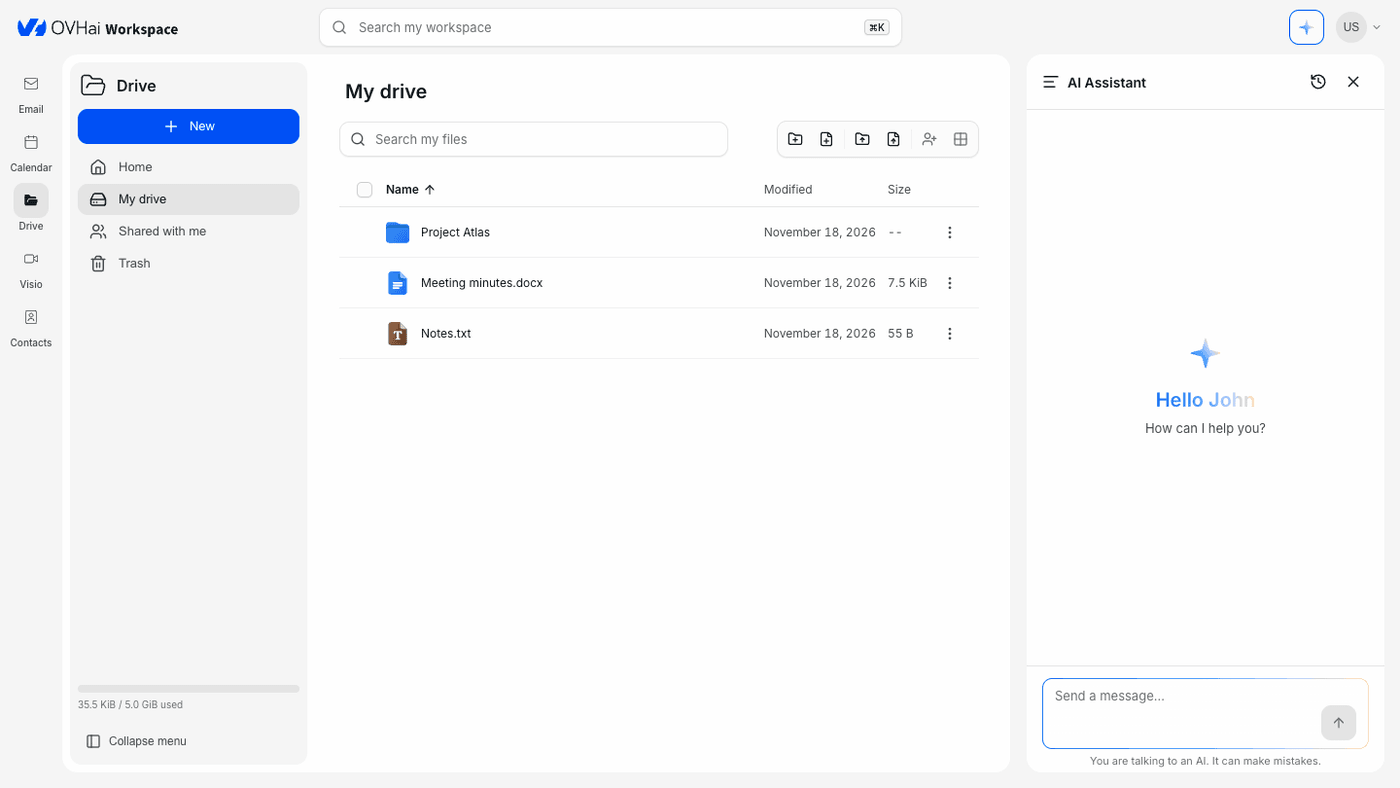
The Trash is not available yet: consider any deletion as permanent.
Creating a folder
- Click
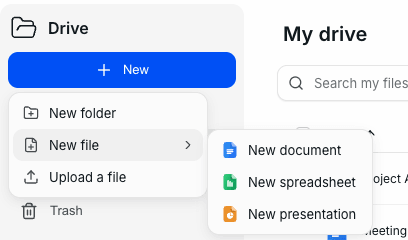
Newat the top of the left-hand panel, thenNew folder. - Enter the Folder name, then click
Create.
The folder appears in the list, with its creation date in the Modified column.
Creating a document
- Click
New, then point toNew file. - Choose the format you need:
New documentfor a text document;New spreadsheetfor a spreadsheet;New presentationfor a presentation.
- Enter the File name, then click
Create. The extension (.docx,.xlsxor.pptx) is added if you leave it out.
Uploading a file
- Click
New, thenUpload a file. - Select the file on your computer.
The icons above the list also let you import a whole folder.
Opening a file
Double-click a file to open it in the application that matches its format. The bar at the top offers Back, to return to the list, and Download.
Managing a file or a folder
Tick the box in front of an item to show its actions above the list: Download, Rename and Delete. The menu at the end of the row offers Rename and Delete.
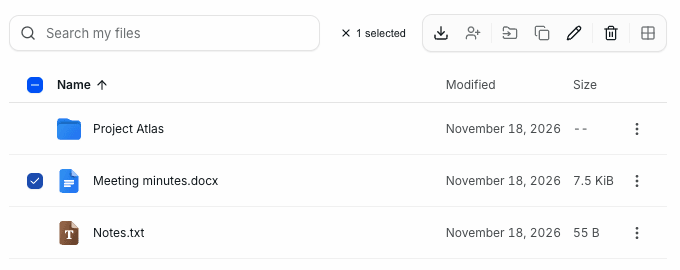
Sharing, moving and copying appear in the action bar, but are not available yet.
Searching for a file
Type a word in the Search my files field above the list. The Search my workspace field, at the top of the screen, searches all the applications at once instead.
What the assistant can do with your files
The assistant searches your workspace and reads the content of files, not just their names:
What is in the Notes.txt file in my Drive?
Summarise the conclusion of this document.
Prepare a spreadsheet listing the actions from the last meeting.
It works across the whole workspace, so it can answer a question that spans several applications, for example by finding a file and the message it was attached to.
Go further
Using Email in OVHai Workspace
If you would like assistance using and configuring your OVHcloud solutions, please refer to our support offers.
Join our community of users.