Using Contacts in OVHai Workspace
Find out how to create, find and organise your contacts in the Contacts application of OVHai Workspace
Objective
Contacts is the address book of OVHai Workspace. It keeps the people you work with in one place, and makes them available to Email and to the AI assistant.
Find out how to create, find and organise your contacts in OVHai Workspace.
Requirements
- An OVHai Workspace account.
- Being signed in to your workspace.
Instructions
Opening the application
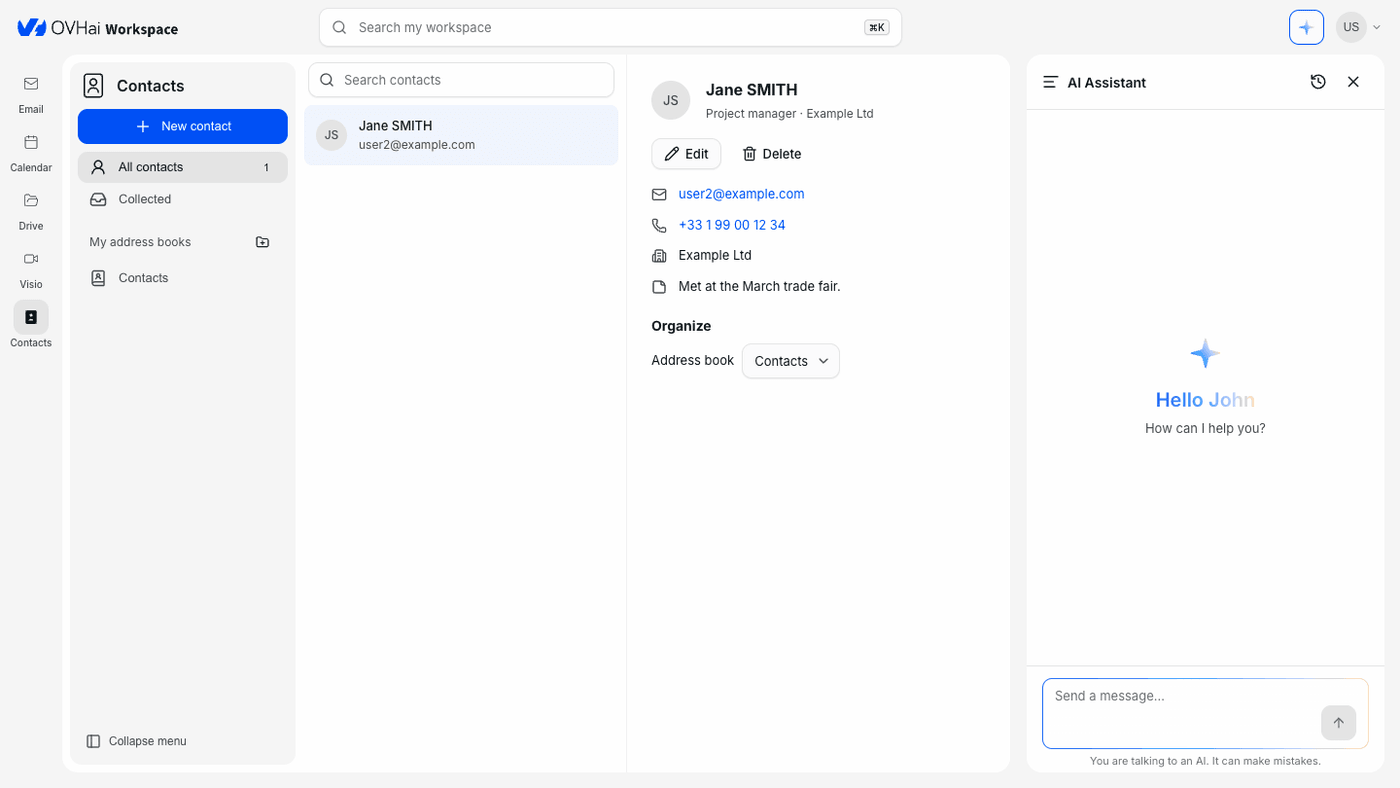
From the home page of your workspace, click Get started on the Contacts card, or click Contacts in the application bar on the left of the screen.
Finding your way around
The left-hand panel offers:
- All contacts, with their number;
- Collected, the contacts gathered by the application;
- My address books, the list of your address books (the Contacts address book exists by default).
In the middle, the list of contacts and the Search contacts field; on the right, the card of the selected contact.
Creating a contact
- Click
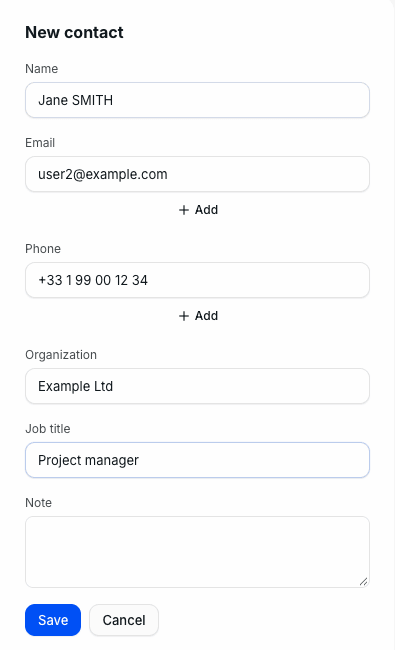
New contactat the top of the left-hand panel. - Fill in the Name, then the Email and the Phone. The
Addbutton under each of these fields adds another one, for a second address or a second number. - If needed, fill in the Organization, the Job title and a Note.
- Click
Save.
Viewing and editing a contact
Click a contact to show their card: job title and organisation, email addresses, phone numbers and note.
- Click an email address to open a new email to this person in Email.
- Click a phone number to call it with the phone application of your device.
Editreopens the contact form;Deletedeletes the contact.
Organising your contacts in address books
To create an address book, click the folder icon next to My address books, enter its name, then click Create.
To move a contact to another address book, open their card and choose the address book in the Address book list, under Organize.
Searching for a contact
Enter a word in the Search contacts field: the search also covers the organisation. The Search my workspace field, at the top of the screen, searches all the applications at once instead.
What the assistant can do with your contacts
The assistant reads your contacts to answer questions or complete requests about a person:
What is Jane SMITH's phone number in my contacts?
Write an email to Jane SMITH to suggest a meeting on Thursday.
Go further
Using Email in OVHai Workspace
If you would like assistance using and configuring your OVHcloud solutions, please refer to our support offers.
Join our community of users.