Exchange - Configure an email address in Outlook for Android
Find out how to configure an Exchange account via ActiveSync in the Outlook for Android app
Objective
You can configure your Exchange email addresses in the Outlook for Android app, available for free on the Google Play Store. When configured as an Exchange account, your address syncs via the ActiveSync protocol, so your emails, calendar and contacts are available on your device.
Find out how to configure an Exchange account via ActiveSync in the Outlook for Android app.
Information regarding OVHcloud service administration and how to find appropriate assistance
When using OVHcloud guides, please be aware of the following conditions:
- User instructions aim to provide as many details as possible but cannot cover individual use cases. You might need to adapt the pertinent actions to your requirements.
- The OVHcloud ecosystem is built for flexibility and freedom of choice. Customers are therefore responsible for the secure and proper configuration of their services. To prevent data loss, we strongly recommend to apply backup strategies to all your important data.
- Our guides and tutorials may reference third-party software or services in combination with OVHcloud solutions. The technical support provided by OVHcloud does not include the configuration of systems or products outside of our responsibility. This includes but is not limited to:
- Operating systems and user interfaces (Windows, Debian, Plesk, etc.).
- Any other third-party software (FTP clients, email software, etc.).
- Services offered by other providers (DNS, APIs, user interfaces, etc.).
To receive the appropriate assistance for any issues you might experience, follow these guidelines:
- You seek personalized advice or you would like to discuss a topic that is not covered in detail by our documentation?
Join the OVHcloud Community to search for your topic and reach out to other users. - You need to report an incident regarding your OVHcloud service or you are experiencing difficulties in the OVHcloud Control Panel?
Create a support request in our Help Centre. - You require professional assistance for your project or you need help with tasks outside our support scope?
Visit our partner portal to search for experts who are familiar with OVHcloud solutions. - You are looking for more detailed information regarding our support levels and Professional Services?
Please visit our web pages for OVHcloud support levels and OVHcloud Professional Services.
You can participate in improving our documentation:
- You would like to share feedback to improve a guide page or you want to report insufficient information on a specific page?
Use the "Was this page helpful?" buttons at the bottom of the page to let us know. - You would like to propose a specific documentation update?
Use the "Edit this page" function, available at the bottom of the page and in the sidebar.
We recommend that you contact a specialist service provider and/or the software publisher if you experience any difficulties.
Requirements
- You have an Exchange solution.
- You have the Outlook app installed on your Android device.
- You have the login credentials for the email address you want to configure.
This guide was written using a device running Android 17, with version 5.2645.1 of the Outlook app.
Instructions
Add the account
Adding an account works differently if no account is set up or if an account is already set up in the Outlook app. Select the tab that matches your situation:
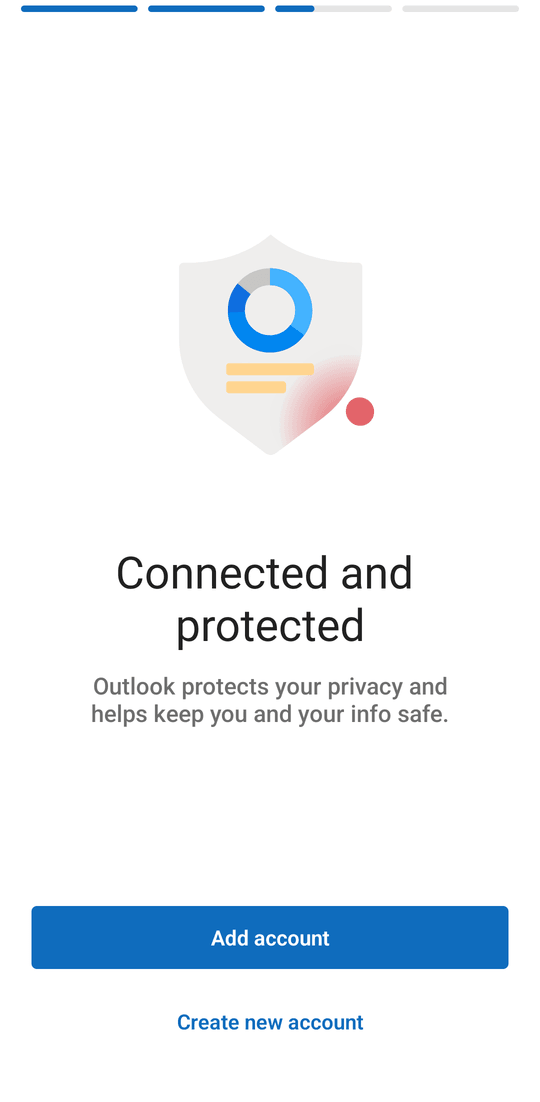
When you open the Outlook app for the first time, tap Add account.
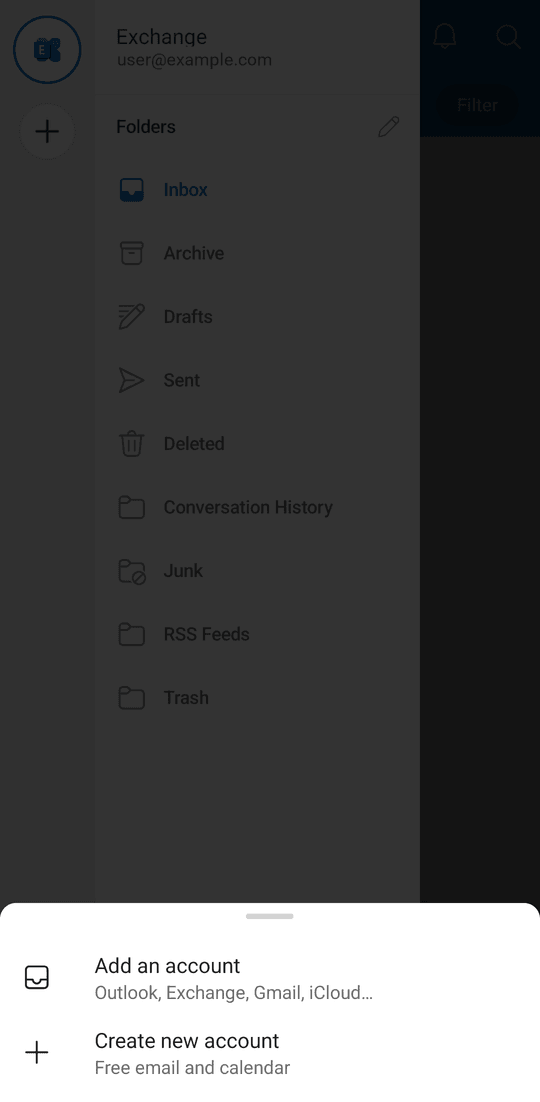
Follow the configuration steps by going through the tabs below:
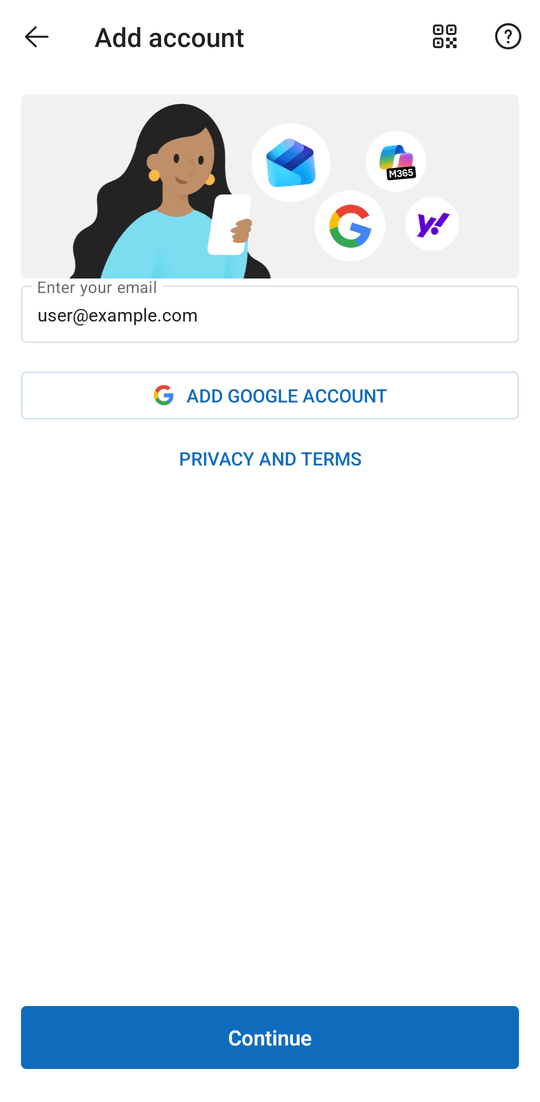
Enter your full email address, then tap Continue.
Do not use the ADD GOOGLE ACCOUNT button: it is only for Google accounts.
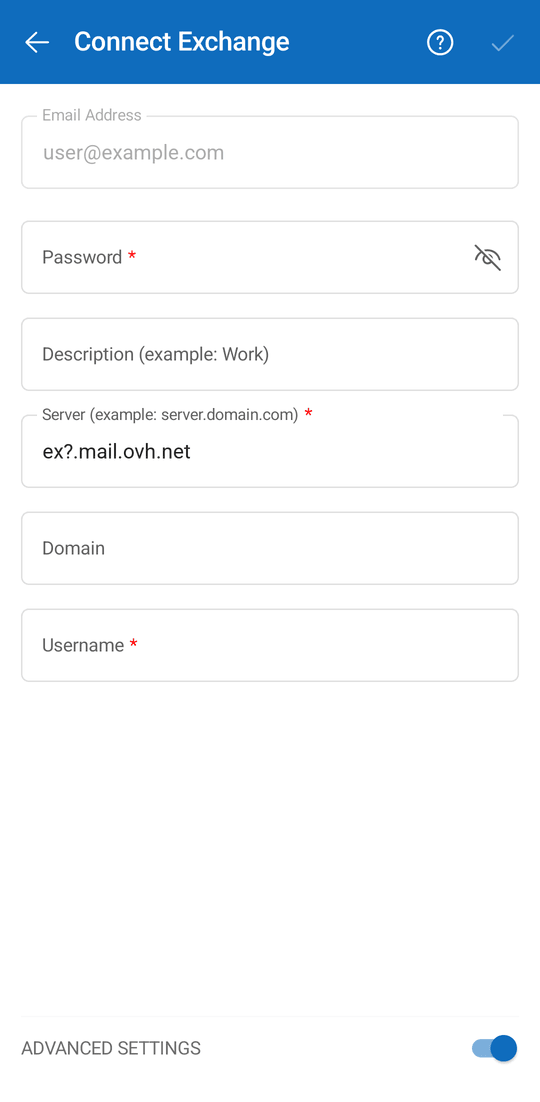
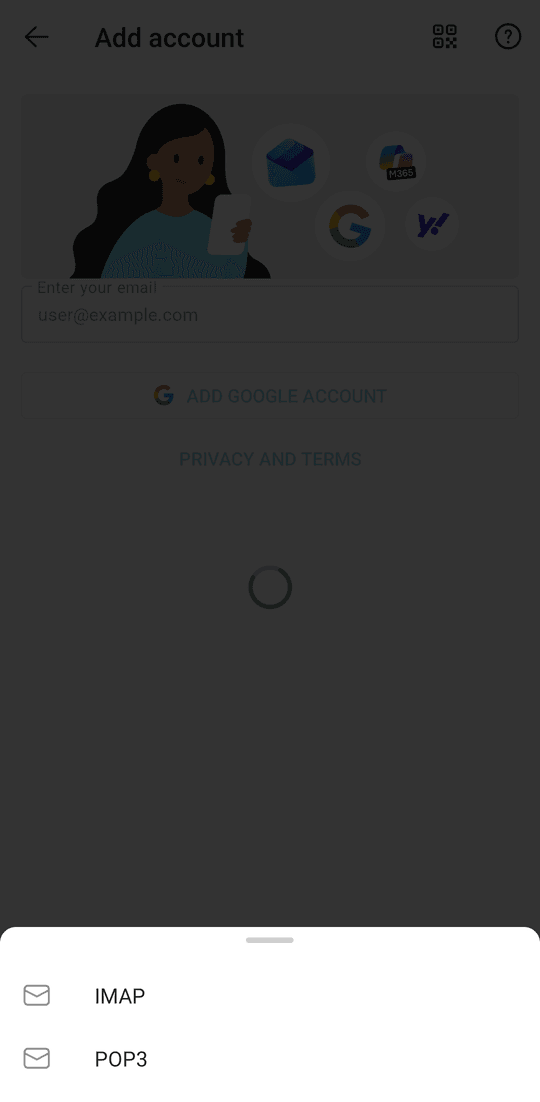
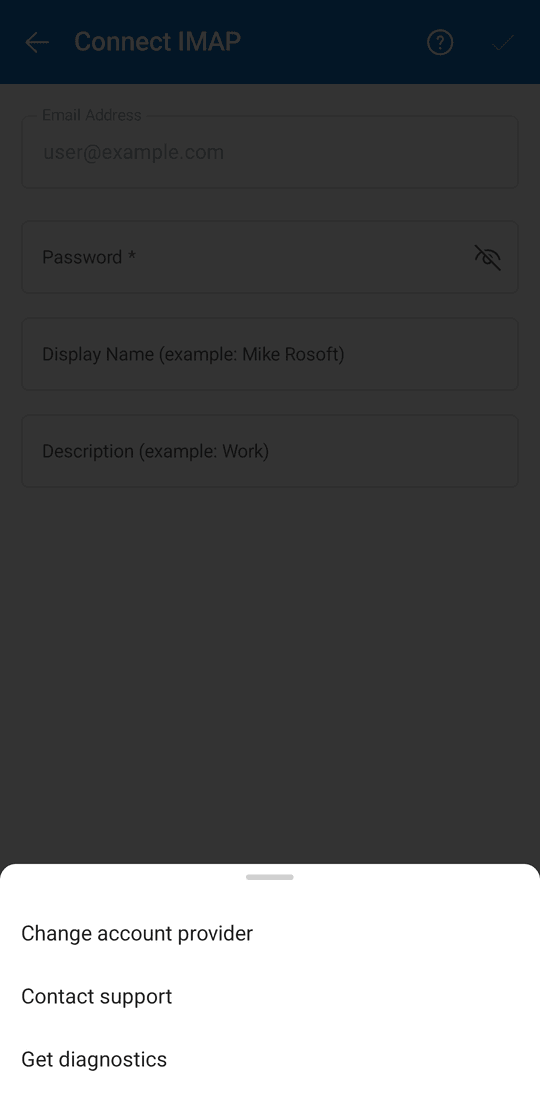
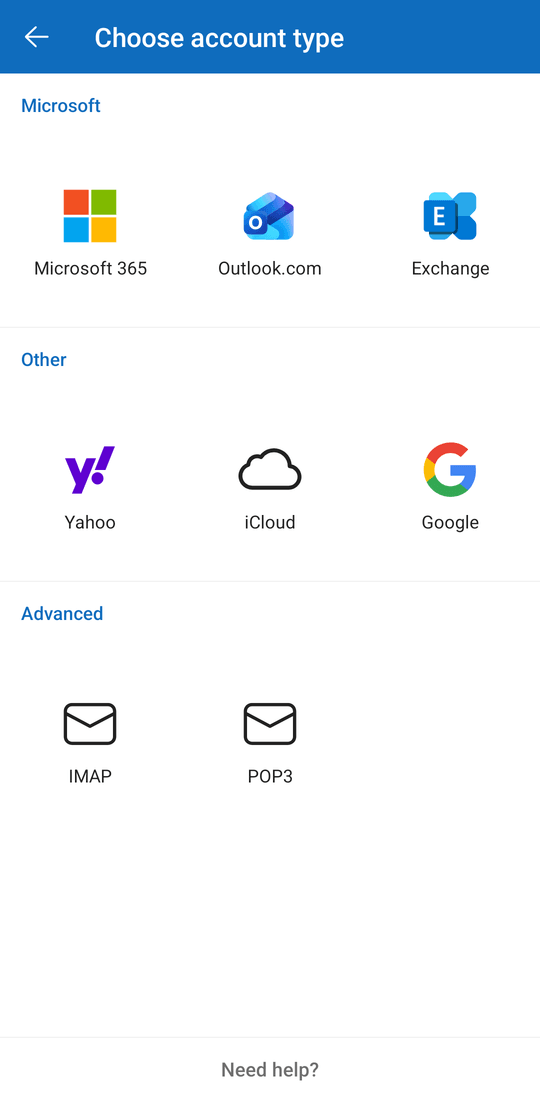
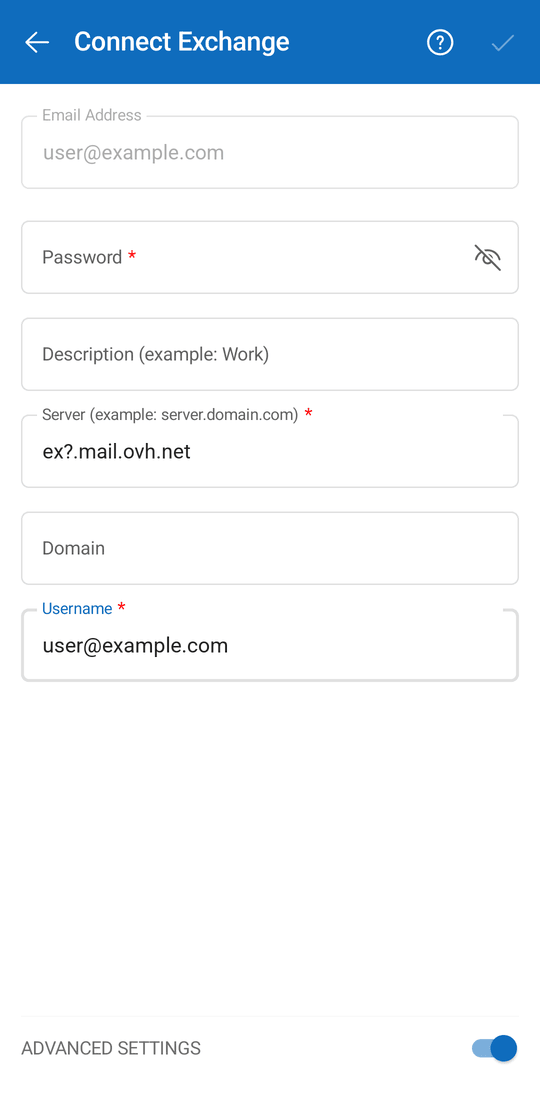
Do not configure your Exchange address as IMAP or POP3: only the Exchange account type syncs your calendar and contacts.
If the "Unable to log in" message appears after step 3, check your password. After a failed attempt, Outlook clears the Server and Username fields: fill them in again before you retry.
With an Exchange account, the Outlook for Android app does not connect directly to your server: a Microsoft cloud service syncs your emails, calendar and contacts between the Exchange server and the app. For more information, see the Microsoft documentation.
Use the email address
Once your email address is configured, you can send and receive messages, and view your calendar and contacts in the Outlook app.
OVHcloud offers a web application that allows you to access your email address from a web browser: the webmail. You can log in using your email credentials.
Change the account settings
You cannot change the server settings of an account already configured in the Outlook app. To change them, remove the account from the app, then add it again:
- Tap your account icon, in the upper left of the screen.
- Tap the settings icon (
⛭), at the bottom of the panel that opens. - In the "General" section, tap
Accounts, then the account concerned. - Tap
Remove account, then confirm the removal.
Removing the account deletes it from the app, along with the data stored on your device. Your emails stay on the Exchange server.
If you have sync issues, first tap Reset account on the same page.
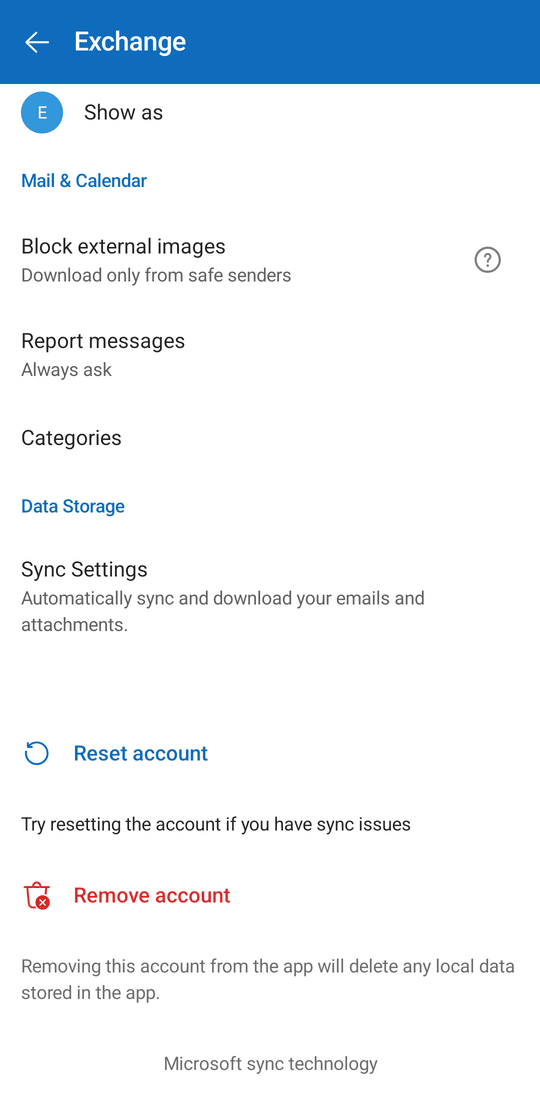
Once your account is removed, follow the steps in the "Add the account" section of this guide.
Go further
For more information on setting up an email address in the Outlook app on Android, see the Microsoft Help Center.
Exchange - Configure an email address in Gmail for Android
For specialised services (SEO, development, etc.), contact OVHcloud partners.
If you would like assistance using and configuring your OVHcloud solutions, please refer to our support offers.
Join our community of users.