Lakehouse - Using a dedicated Compute Pool
Find out how to run the SQL queries of your Lakehouse on a dedicated Compute Pool, choose its size and let it suspend itself when idle
Lakehouse is in alpha. It is only available to the accounts invited to the alpha programme, and its features, interface and API may change.
Objective
The SQL queries of a Lakehouse, from the data console or from your tools, run on a Compute Pool. By default, the shared Compute Pool of the region runs them. A dedicated Compute Pool reserves compute for your Lakehouse.
This guide explains how to add a dedicated Compute Pool, size it and suspend it.
Requirements
- A Lakehouse in your Public Cloud project. See Lakehouse - Getting started.
OVHcloud Console Access
- Direct link:
- Navigation path:
Public Cloud> Select your project >Analytics
Instructions
Click Lakehouse, then click the name of your Lakehouse and open the Compute Pools tab.
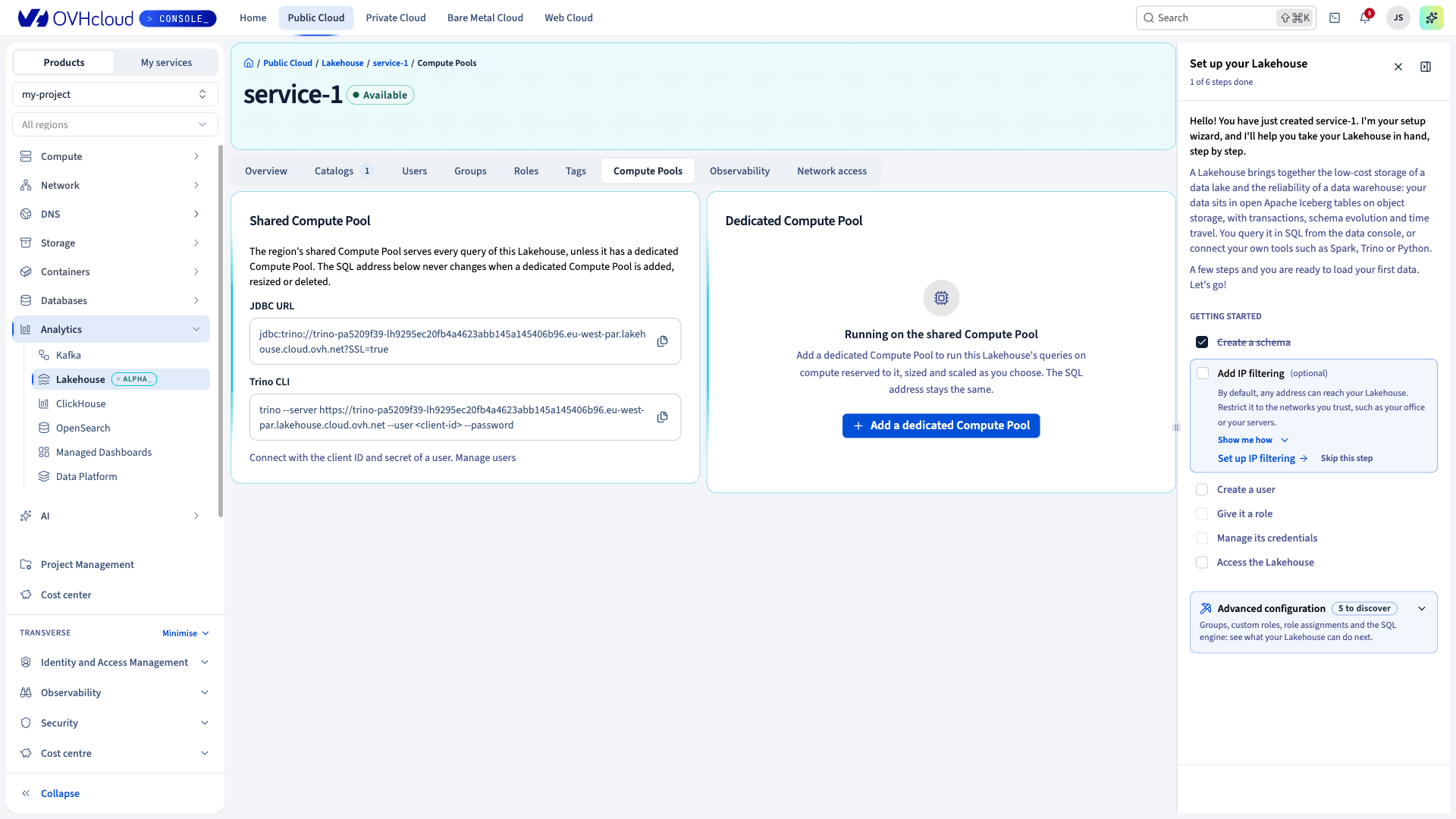
The Shared Compute Pool card shows the JDBC URL and the Trino command line of the Lakehouse. This SQL address never changes, whether you add, resize or delete a dedicated Compute Pool.
Adding a dedicated Compute Pool
Click Add a dedicated Compute Pool and fill in the form:
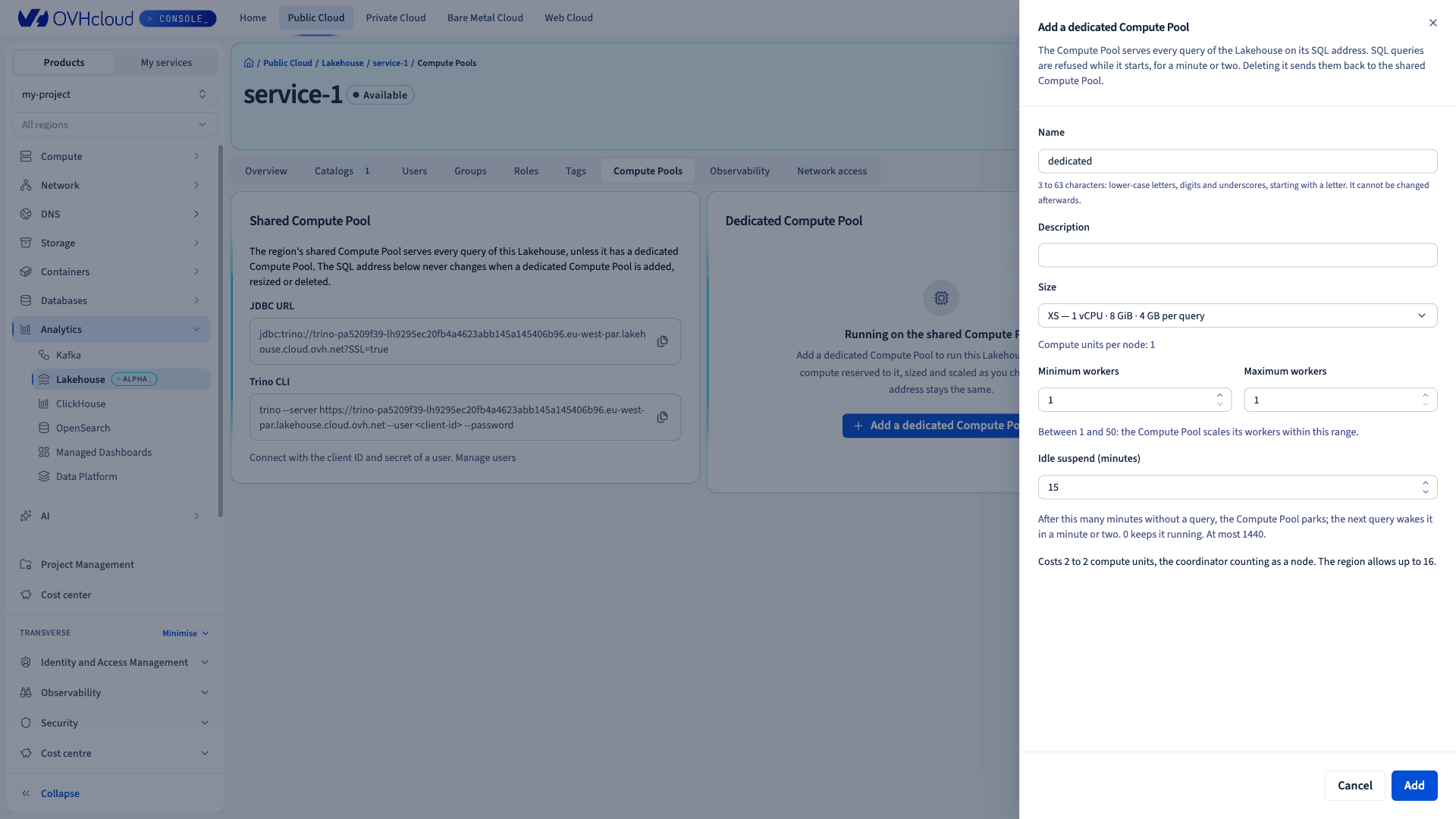
- Name: 3 to 63 lowercase letters, digits or underscores, starting with a letter. It cannot be changed afterwards.
- Size: the profile of each worker, from XS (1 vCPU, 8 GiB) to L (8 vCPU, 64 GiB). The form shows the memory available to each query.
- Minimum workers and Maximum workers: between 1 and 50; the Compute Pool adjusts its number of workers within this range.
- Idle suspend (minutes): after this number of minutes without a query, the Compute Pool suspends itself.
0keeps it running; the maximum is 1440.
The form shows how many compute units the Compute Pool uses (the coordinator counts as one node) and the limit of the region. A Lakehouse can have only one dedicated Compute Pool.
Click Add. The Compute Pool starts in about 2 to 3 minutes. Once it is running, every SQL query of the Lakehouse runs on it.
SQL queries are refused while the Compute Pool starts. Wait until it is running before sending queries, or make your tools retry.
Suspending and resuming
A dedicated Compute Pool suspends itself after its idle delay. You can also suspend it from its card.
The next SQL query resumes it. Resuming takes 1 to 2 minutes, during which queries fail with an error such as 502 Bad Gateway or CATALOG_NOT_FOUND: retry them once the Compute Pool is running again.
Resizing the dedicated Compute Pool
Click Resize on the card of the dedicated Compute Pool, change its size, its workers or its idle suspend, then click Save. Changing the size or the workers restarts the Compute Pool: running queries are lost, and it serves again in a minute or two at the same address. Changing only the idle suspend does not restart it.
Deleting the dedicated Compute Pool
To delete the dedicated Compute Pool, click Delete on its card and confirm. The SQL queries of the Lakehouse then run again on the shared Compute Pool, at the same address.
Go further
Lakehouse - Connecting your own tools
Join our community of users.