For AI agents: the complete documentation index is available at https://docs.ovhcloud.com/fr/llms.txt, the full documentation bundle is available at https://docs.ovhcloud.com/fr/llms-full.txt, and this page is available as Markdown at https://docs.ovhcloud.com/fr/guides/public-cloud/databases/getting-started.md.
Découvrez comment configurer votre service de base de données managée dans l'espace client OVHcloud
Objectif
Les bases de données managées Public Cloud d'OVHcloud vous permettent de vous concentrer sur la création et le déploiement de vos applications cloud, pendant qu'OVHcloud prend en charge l'infrastructure de base de données et sa maintenance.
Ce guide explique comment commander un service de base de données managée Public Cloud via l'espace client OVHcloud, l'API, le CLI ou Terraform.
Terraform installé (méthode Terraform uniquement — testé avec la version v1.14.6)
Accès à l'espace client OVHcloud
Lien direct :
Pour accéder à vos services :Public Cloud > Sélectionnez votre projet > Databases
En pratique
Depuis l'espace client OVHcloud
Depuis l'API OVHcloud
Depuis le CLI OVHcloud
Depuis Terraform
Cliquez sur Databases dans le menu de navigation à gauche, sous Databases & Analytics. L'entrée Analytics adjacente donne accès à Kafka, Kafka Connect, Kafka MirrorMaker, Dashboards et OpenSearch.
Cliquez sur Créer votre base de données managée (ou Créer un service si votre projet contient déjà des bases de données).
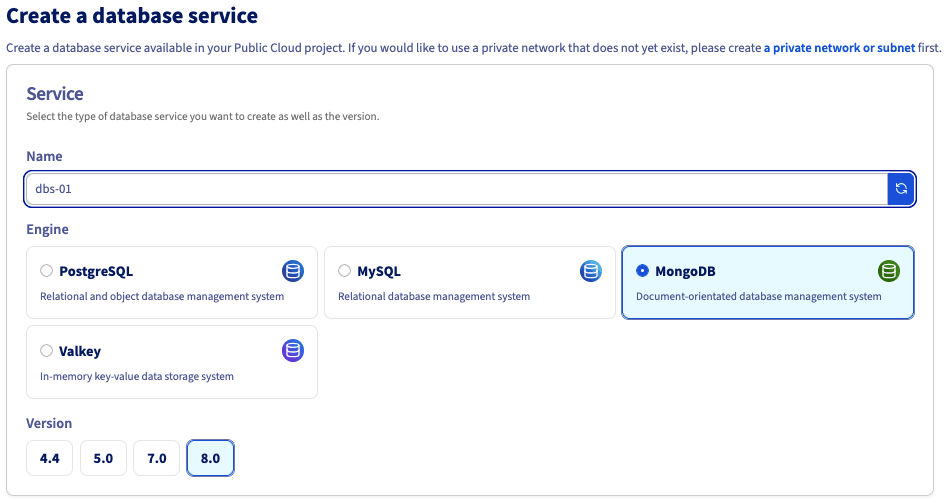
Étape 1 : Sélectionnez votre moteur et sa version
Vous pouvez éventuellement renommer votre service (un nom est généré automatiquement par défaut), puis sélectionnez le moteur et sa version.
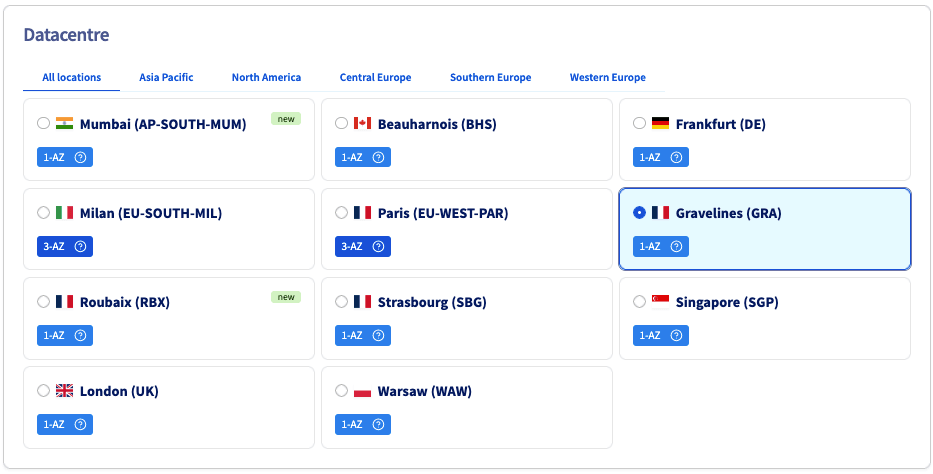
Étape 2 : Sélectionnez un datacenter
Choisissez la région géographique du datacenter dans lequel votre base de données sera hébergée.
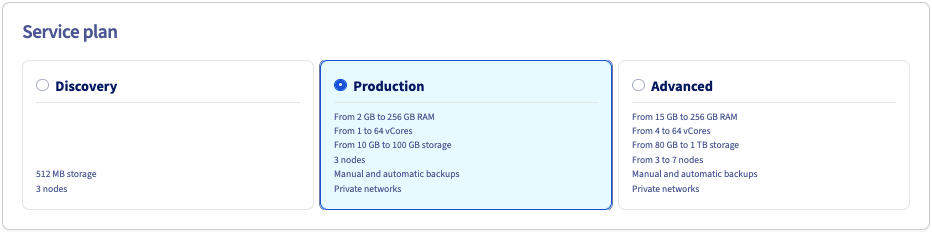
Étape 3 : Sélectionnez un plan de service
Choisissez un plan de service. Vous pourrez le mettre à niveau après la création.
Consultez la page des fonctionnalités du type de base de données sélectionné pour plus de détails sur les propriétés du plan.
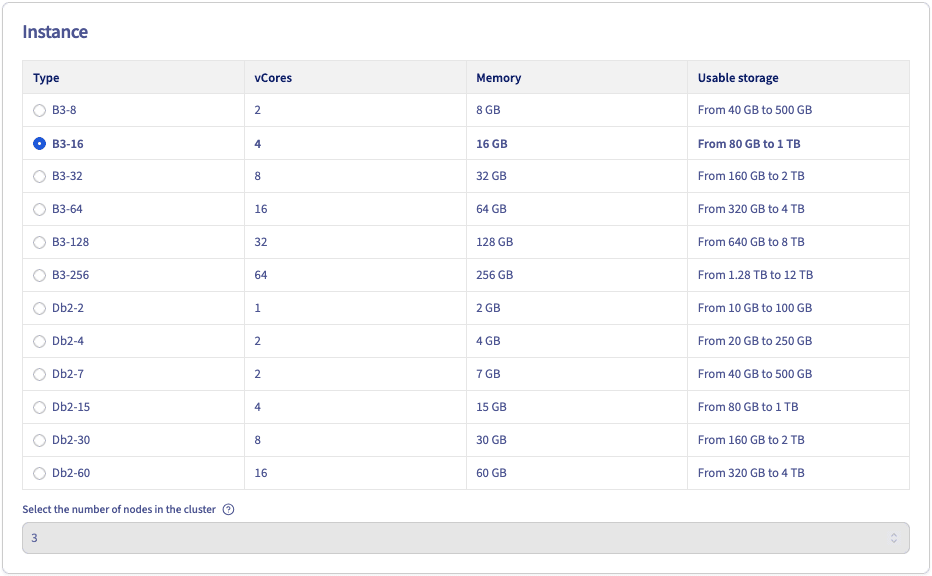
Étape 4 : Sélectionnez votre instance
Sélectionnez l'instance. Le nombre de nœuds est défini par la solution sélectionnée précédemment et ne peut pas être modifié dans ce cas.
Consultez la page des fonctionnalités du type de base de données sélectionné pour plus de détails sur le matériel et la configuration.
Prenez note des informations tarifaires.
Étape 5 : Dimensionnement
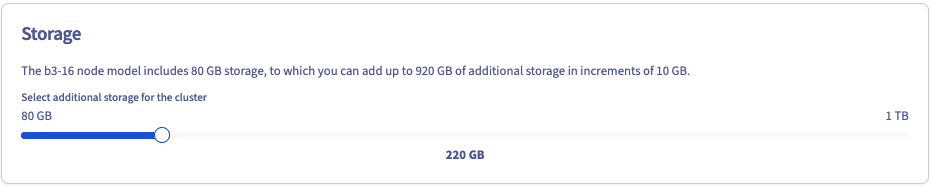
Vous pouvez commander du stockage supplémentaire et, selon le moteur, le nombre de nœuds de votre cluster peut être ajusté.
Étape 6 : Configurez vos options
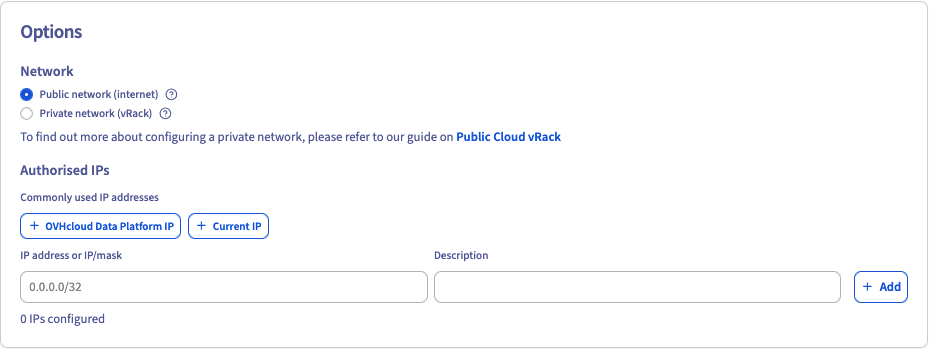
Configurez le réseau et les IP autorisées.
Connexion d'un réseau privé (facultatif)
Si vous disposez déjà d'un sous-réseau privé, sélectionnez Private network (vRack) et choisissez-le dans le menu déroulant. Cette option peut ne pas être disponible pour le type de service sélectionné.
Vous pouvez être redirigé pour créer un réseau privé ou un sous-réseau via les liens correspondants. Dans ce cas, vous devrez recommencer la commande de la base de données.
Ajoutez les adresses IP ou plages d'adresses autorisées à se connecter à votre service.
Info
Pour des raisons de sécurité, la configuration réseau par défaut bloque toutes les connexions entrantes. Autorisez une adresse IP appropriée pour accéder à votre base de données.
Étape 7 : Résumé et confirmation
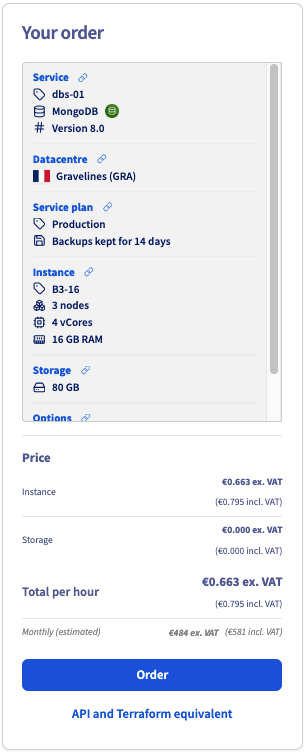
Le panneau de droite affiche un résumé de votre commande en temps réel, qui se met à jour au fur et à mesure de vos sélections. Vérifiez-le, puis cliquez sur Commander pour confirmer.
Pour visualiser l'appel API ou Terraform équivalent avant de commander, cliquez sur Équivalent API et Terraform.
Votre service de base de données se déploie en quelques minutes. Des messages dans l'espace client OVHcloud vous informent lorsque la base de données est prête à être utilisée.
Pour configurer votre service après l'installation, consultez le guide Configurer votre instance pour accepter les connexions entrantes correspondant à votre type de base de données, disponible dans notre catalogue.
Les options de configuration varient selon le type de base de données. Des exemples sont disponibles dans le dépôt public-cloud-databases-examples.
Étape 1 : Rassemblez l'ensemble des paramètres requis
Pour créer un service de base de données, spécifiez au minimum :
un moteur et sa version (par exemple MongoDB 8.0)
le plan (par exemple production)
les nœuds du cluster (par exemple 3 nœuds avec 4 cœurs, 15 Gio de mémoire, 100 Gio de disque)
Lister les fonctionnalités
L'endpoint capabilities liste les valeurs autorisées pour le moteur, le plan et le flavor.
L'appel renvoie un objet listant les moteurs autorisés (avec leurs versions), les plans et les flavors.
Obtenir la disponibilité
L'endpoint availability liste les combinaisons de paramètres valides. Chaque entrée liste un moteur, une version, un plan, un flavor, une région, le support du réseau public/privé et le nombre minimum/maximum de nœuds. Choisissez la combinaison qui correspond le mieux à vos besoins.
description : une description lisible par un humain pour le service.
plan : le plan souhaité.
version : la version de MongoDB.
nodesPattern : spécifiez le flavor, la région et le nombre de nœuds.
nodeslist : laissez non défini — utilisez plutôt nodesPattern pour des clusters de même région et de même flavor.
ipRestrictions : les plages d'adresses IP autorisées à se connecter.
Info
Pour des raisons de sécurité, la configuration réseau par défaut bloque toutes les connexions entrantes. Autorisez une adresse IP appropriée pour accéder à votre base de données.
Pour le réseau privé, spécifiez également networkId (ID du vRack) et subnetId (ID du sous-réseau du vRack).
L'appel renvoie l'objet du cluster. Son status est CREATING. Notez l'id pour l'étape suivante.
Étape 3 : Attendez que votre service de base de données soit prêt
Le cluster met quelques minutes à devenir utilisable. Vérifiez son statut à l'aide de :
Notez le nouveau mot de passe pour vous connecter au cluster.
Warning
Ce mot de passe ne sera plus disponible par la suite : OVHcloud ne stocke pas les mots de passe des utilisateurs.
Étape 5 : Commencez à utiliser le cluster
Les informations de connexion au cluster sont disponibles dans votre espace client OVHcloud. Vous pouvez désormais utiliser le cluster.
Info
Toutes les commandes nécessitent soit le flag --cloud-project <projectId>, soit la variable d'environnement OVH_CLOUD_PROJECT_SERVICE, définie avec l'ID de votre projet Public Cloud.
Étape 1 : Rassemblez l'ensemble des paramètres requis
Listez les moteurs, plans et flavors de nœuds disponibles :
Pour des raisons de sécurité, la configuration réseau par défaut bloque toutes les connexions entrantes. Autorisez une adresse IP appropriée pour accéder à votre base de données.
Pour le réseau privé, ajoutez --network-id <networkId> et --subnet-id <subnetId>.
Étape 3 : Attendez que votre service de base de données soit prêt
ovhcloud cloud managed-database get <clusterId> --cloud-project <projectId>
Son status passe à READY lorsque le cluster est disponible.
Étape 4 : Réinitialisez le mot de passe de l'utilisateur principal
# Liste les utilisateurs et récupère l'ID de l'utilisateur adminovhcloud cloud managed-database user list <clusterId> --cloud-project <projectId># Réinitialise le mot de passe de l'utilisateur adminovhcloud cloud managed-database user credentials-reset <clusterId> <userId> --cloud-project <projectId>
Warning
Ce mot de passe ne sera plus disponible par la suite : OVHcloud ne stocke pas les mots de passe des utilisateurs.
Étape 5 : Commencez à utiliser le cluster
Les informations de connexion au cluster sont disponibles dans votre espace client OVHcloud. Vous pouvez désormais utiliser le cluster.
Étape 1 : Rassemblez les paramètres requis par OVHcloud
Le fournisseur Terraform OVHcloud nécessite les identifiants suivants :
Rejoignez notre chaîne Discord dédiée pour poser vos questions, faire part de vos commentaires et interagir directement avec l'équipe qui développe nos services de bases de données.
Pour une formation ou une assistance technique sur la mise en œuvre de nos solutions, contactez votre commercial ou consultez la page Professional Services pour obtenir un devis et faire analyser votre projet par nos experts.