For AI agents: the complete documentation index is available at https://docs.ovhcloud.com/fr/llms.txt, the full documentation bundle is available at https://docs.ovhcloud.com/fr/llms-full.txt, and this page is available as Markdown at https://docs.ovhcloud.com/fr/guides/public-cloud/containers-orchestration/managed-kubernetes/vrack-custom-gateway.md.
Découvrez comment utiliser une passerelle personnalisée sur un OVHcloud Managed Kubernetes fonctionnant avec un réseau privé vRack.
Objectifs
Dans ce tutoriel, nous allons utiliser une passerelle personnalisée déployée dans le vRack avec un cluster Managed Kubernetes.
Pourquoi ?
Par défaut, dans un cluster Kubernetes, les pods que vous déployez utilisent l'IP de sortie du nœud.
Nous avons donc autant d'IP de sortie que de nœuds. Cela peut poser problème lorsque vous devez gérer une liste blanche et que votre cluster utilise l'autoscaling (création et suppression de nœuds à la volée).
Une solution consiste à utiliser une passerelle personnalisée, qui vous permet de disposer d'une seule IP de sortie (votre passerelle).
Vous allez :
créer un réseau privé
créer des sous-réseaux
créer un routeur OpenStack (dans chaque région) et le relier au réseau du fournisseur externe ainsi qu'aux sous-réseaux
créer un cluster OVHcloud Managed Kubernetes avec la passerelle privée
tester l'IP de sortie du pod
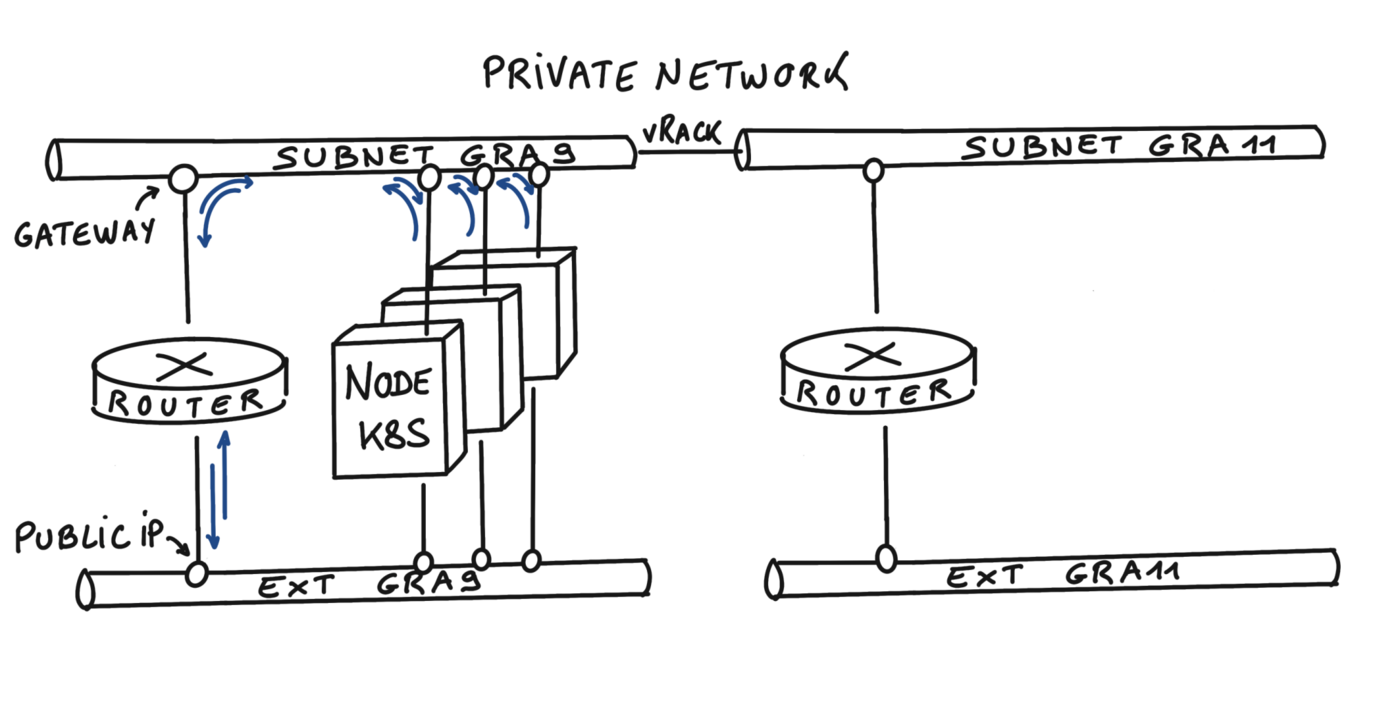
À la fin de ce tutoriel, vous devriez obtenir le flux suivant :
Info
Dans ce tutoriel, nous vous guidons pour créer le réseau privé dans deux régions, mais vous pouvez n'en utiliser qu'une seule si vous le souhaitez, par exemple GRA9.
Pour accéder à vos services :Public Cloud > Sélectionnez votre projet > Managed Kubernetes Service
Initialisation
Pour configurer un environnement fonctionnel, vous devez charger les identifiants OpenStack et de l'API OVHcloud.
Pour vous aider, nous avons également créé plusieurs scripts et modèles utiles.
Tout d'abord, créez un dossier utils dans votre environnement/machine locale.
Puis téléchargez-y le script ovhAPI.sh.
Puis ajoutez les droits d'exécution au script ovhAPI.sh :
chmod +x utils/ovhAPI.sh
Vous devez charger le contenu du fichier utils/openrc fourni, pour gérer OpenStack, ainsi que les variables contenues dans le fichier utils/ovhAPI.properties pour gérer l'API OVHcloud.
Créez le fichier utils/openrc, ou téléchargez-le depuis votre fournisseur OpenStack. Il doit ressembler à ceci :
export OS_AUTH_URL=https://auth.cloud.ovh.net/v3export OS_IDENTITY_API_VERSION=3export OS_USER_DOMAIN_NAME=${OS_USER_DOMAIN_NAME:-"Default"}export OS_PROJECT_DOMAIN_NAME=${OS_PROJECT_DOMAIN_NAME:-"Default"}export OS_TENANT_ID=xxxxxxxxxxxxxxxxxxxxxexport OS_TENANT_NAME="xxxxxxxxxxxxxxxxxx"export OS_USERNAME="user-xxxxxxxxxxxxx"export OS_PASSWORD="xxxxxxxxxxxxxxxxxx"export OS_REGION_NAME="xxxx"if [ -z "$OS_REGION_NAME" ]; then unset OS_REGION_NAME; fi
Créez le fichier utils/ovhAPI.properties avec vos clés et secret générés :
Remarque : pour être précis, le paramètre "noGateway": false signifie "Gateway": true. Nous voulons que le sous-réseau utilise explicitement la première adresse IP de la plage CIDR.
Puis créez les sous-réseaux avec les routes appropriées, et enfin récupérez les ID (subnGRA9 et subnGRA11) :
Pour le moment, il n'est pas possible d'ajouter des routes au sous-réseau via l'API, il faut donc utiliser la CLI OpenStack.
Bash
openstack --os-region-name=GRA9 subnet set ${subnGRA9} --host-route destination=192.168.0.0/25,gateway=192.168.0.1openstack --os-region-name=GRA11 subnet set ${subnGRA11} --host-route destination=192.168.0.128/25,gateway=192.168.0.129
Routeur OpenStack
Créer les routeurs
Nous avons la possibilité de créer des routeurs virtuels OpenStack. Pour cela, nous devons utiliser la CLI OpenStack.
Créez les routeurs et récupérez leurs ID (rtrGRA9Id et rtrGRA11Id) :
$ export rtrGRA9Id="$(openstack --os-region-name=GRA9 router create rtr-GRA9 -f json | jq -r .id)" && echo $rtrGRA9Id26bf99c8-d6fa-4c5a-9d42-1358776ee0a2$ export rtrGRA11Id="$(openstack --os-region-name=GRA11 router create rtr-GRA11 -f json | jq -r .id)" && echo $rtrGRA11IdResourceNotFound: 404: Client Error for url: https://network.compute.gra11.cloud.ovh.net/v2.0/routers, The resource could not be found.
Info
Pour le moment, vous ne pouvez créer un routeur virtuel que dans les régions GRA9 et GRA11, mais cette fonctionnalité sera déployée dans d'autres régions dans les semaines et mois à venir.
Vous pouvez maintenant afficher les informations de votre nouveau routeur virtuel sur GRA9 afin d'afficher son IP :
$ openstack --os-region-name=GRA9 router show $rtrGRA9Id -c id -c name -c status -c created_at -c external_gateway_info+-----------------------+-------------------------------------------------------------------------------------------------------------------------------------------------------------------------------------------------------------------------------------------------------------------------------------------+| Field | Value |+-----------------------+-------------------------------------------------------------------------------------------------------------------------------------------------------------------------------------------------------------------------------------------------------------------------------------------+| created_at | 2022-07-25T07:32:06Z || external_gateway_info | {"network_id": "b2c02fdc-ffdf-40f6-9722-533bd7058c06", "external_fixed_ips": [{"subnet_id": "0f11270c-1113-4d4f-98de-eba83445d962", "ip_address": "141.94.209.244"}, {"subnet_id": "4aa6cac1-d5cd-4e25-b14b-7573aeabcab1", "ip_address": "2001:41d0:304:400::917"}], "enable_snat": true} || id | 26bf99c8-d6fa-4c5a-9d42-1358776ee0a2 || name | rtr-GRA9 || status | ACTIVE |+-----------------------+-------------------------------------------------------------------------------------------------------------------------------------------------------------------------------------------------------------------------------------------------------------------------------------------+
Comme vous pouvez le voir, dans cet exemple, l'IP de la passerelle sera 141.94.209.244.
Relier le routeur au réseau du fournisseur externe
Tout d'abord, récupérez l'ID du réseau externe régional (extNwGRA9Id et extNwGRA11Id), puis reliez-le au routeur :
Créer un cluster Kubernetes avec passerelle privée
Le réseau est maintenant prêt. Créez un cluster OVHcloud Managed Kubernetes en spécifiant l'utilisation de la passerelle définie sur chaque sous-réseau.
Remarque : jusqu'à la fin de ce tutoriel, nous n'utilisons que la région GRA9, mais vous pouvez répéter exactement les mêmes étapes pour créer un cluster dans la région GRA11.
Info
Dans ce guide, nous avons défini la version 1.34 pour le cluster Kubernetes, mais vous pouvez utiliser une autre version prise en charge.
Tout d'abord, récupérez les ID des réseaux privés (pvnwGRA9Id et pvnwGRA11Id), puis créez le cluster OVHcloud Managed Kubernetes, et enfin récupérez l'ID du cluster (kubeId) :
Bash
API
Espace client OVHcloud
Terraform
Créez un fichier tpl/data-kube.json.tpl comme données et ajoutez les paramètres appropriés. Les fichiers devraient ressembler à ceci :
Dans le menu de gauche, sous Conteneurs et orchestration, cliquez sur Managed Kubernetes Service, puis cliquez sur Créer un cluster.
Suivez l'assistant de création du cluster. Lorsque vous arrivez à l'étape Réseau privé, sélectionnez le réseau privé que vous avez créé dans votre vRack. Activez l'option permettant d'utiliser ce réseau comme route par défaut, puis renseignez l'adresse IP de votre passerelle (par exemple 192.168.0.1). Terminez les étapes restantes pour nommer et confirmer votre cluster.
Info
Vous pouvez créer vos réseaux et sous-réseaux avec Terraform en suivant ce guide.
Vous devez créer un fichier, nommons-le kubernetes-cluster-test.tf, avec ce contenu :
# Create your Kubernetes clusterresource "ovh_cloud_project_kube" "cluster_terraform" { service_name = "my_service_name" # Replace with your OVHcloud project ID name = "cluster_terraform" region = "GRA9" private_network_id = "my_private_network_id" # Replace with your private network id private_network_configuration { private_network_routing_as_default = true default_vrack_gateway = "192.168.0.1" }}# Create your node pool and assign it to your clusterresource "ovh_cloud_project_kube_nodepool" "node_pool" { service_name = "my_service_name" # Replace with your OVHcloud project ID kube_id = ovh_cloud_project_kube.cluster_terraform.id name = "node-pool-terraform" flavor_name = "b3-8" # Replace with the desired instance flavour desired_nodes = 3 max_nodes = 3 min_nodes = 3}
Vous pouvez créer vos ressources en exécutant la commande suivante :
terraform apply
Attendez maintenant que votre cluster OVHcloud Managed Kubernetes soit à l'état READY.
Pour cela, vous pouvez vérifier son statut dans l'espace client OVHcloud :
Accédez à l'interface d'administration de vos clusters OVHcloud Managed Kubernetes en cliquant sur Managed Kubernetes Service dans le menu de gauche :
Comme vous pouvez le voir, votre nouveau cluster est attaché au réseau demo-pvnw.
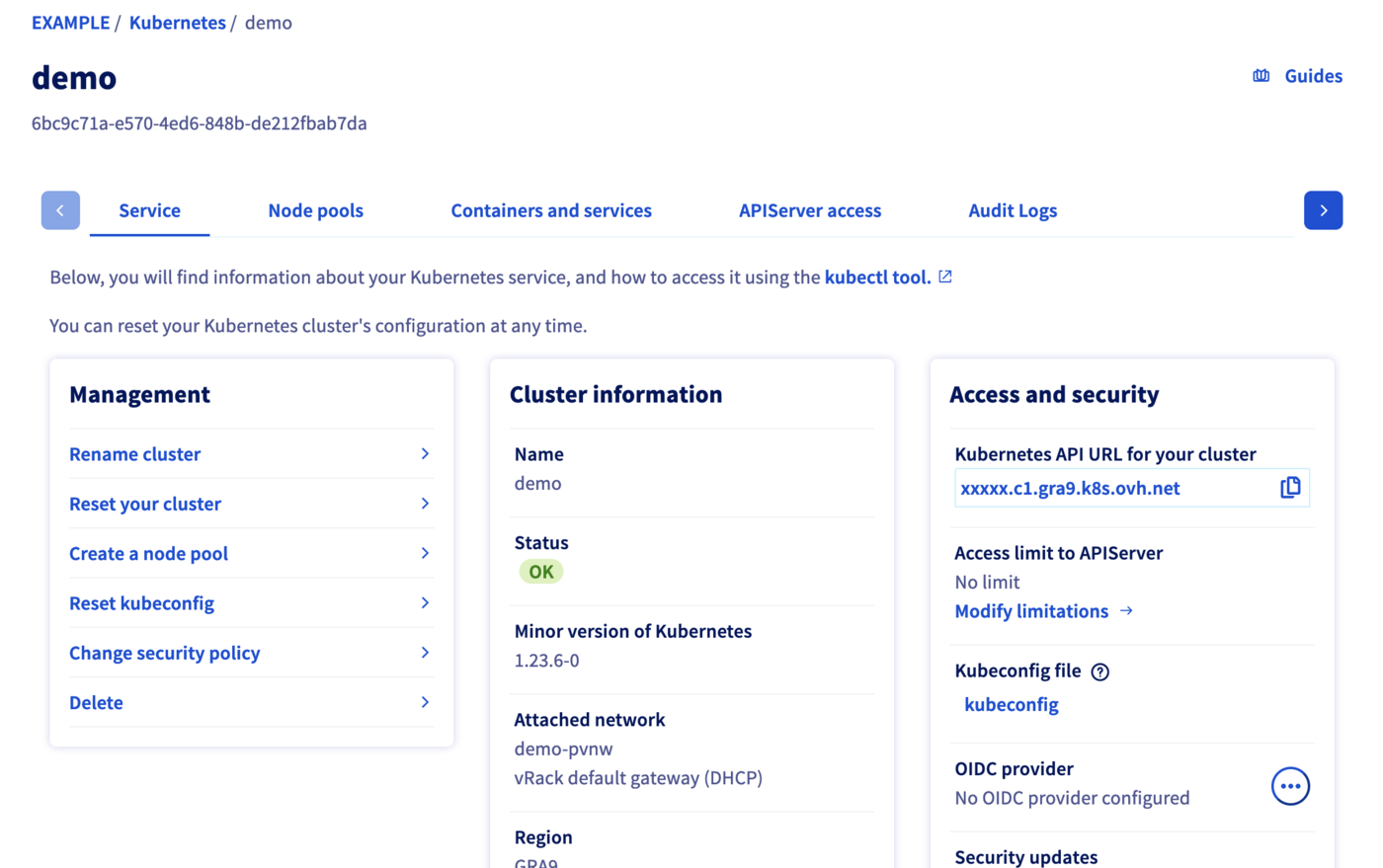
Puis cliquez sur votre cluster Kubernetes demo nouvellement créé afin de voir son statut :
Lorsque le statut de votre cluster est OK, vous pouvez passer à la section suivante.
Récupérer le fichier Kubeconfig
Pour continuer avec le cluster Kubernetes nouvellement créé, vous devez récupérer le fichier Kubeconfig.
Bash
API
utils/ovhAPI.sh POST /cloud/project/$OS_TENANT_ID/kube/$kubeId/kubeconfig | jq -r .content > kubeconfig-demo
Pour utiliser ce fichier kubeconfig et accéder à votre cluster, vous pouvez suivre notre tutoriel configurer kubectl, ou simplement ajouter l'option --kubeconfig dans vos commandes kubectl.
Test
Listez les nœuds actifs de votre cluster :
kubectl --kubeconfig=kubeconfig-demo get no -o wide
Vous devriez obtenir un résultat de ce type :
$ kubectl --kubeconfig=kubeconfig-demo get no -o wideNAME STATUS ROLES AGE VERSION INTERNAL-IP EXTERNAL-IP OS-IMAGE KERNEL-VERSION CONTAINER-RUNTIMEnodepool-8f0b4d98-874a-4cfd-b8-node-c74f26 Ready <none> 56m v1.34.0 192.168.0.71 141.94.215.23 Ubuntu 18.04.6 LTS 4.15.0-189-generic containerd://1.4.6nodepool-8f0b4d98-874a-4cfd-b8-node-c9bf60 Ready <none> 57m v1.34.0 192.168.0.96 141.94.208.78 Ubuntu 18.04.6 LTS 4.15.0-189-generic containerd://1.4.6nodepool-8f0b4d98-874a-4cfd-b8-node-e666f5 Ready <none> 56m v1.34.0 192.168.0.31 141.94.212.214 Ubuntu 18.04.6 LTS 4.15.0-189-generic containerd://1.4.6
Testez maintenant le cluster en exécutant un conteneur simple qui demande son adresse IP publiée.
Pour une formation ou une assistance technique sur la mise en œuvre de nos solutions, contactez votre commercial ou consultez la page Professional Services pour obtenir un devis et faire analyser votre projet par nos experts.