
Signer des artefacts OCI avec Cosign sur OVHcloud Managed Private Registry
Découvrez comment signer des artefacts OCI avec Cosign sur OVHcloud Managed Private Registry
Objectif
Le service OVHcloud Managed Private Registry, un registre cloud-native basé sur Harbor, vous permet de stocker, gérer et consulter vos images de conteneurs (artefacts OCI) et vos charts Helm.
La sécurité est un sujet important : grâce à la signature des artefacts et à la vérification des signatures, vous pouvez renforcer la sécurité de vos OVHcloud Managed Private Registry en vérifiant l'intégrité d'un artefact.
Depuis la version 2.5, Harbor prend en charge Cosign, une solution de signature et de vérification d'artefacts OCI (Open Container Initiative) qui fait partie du projet Sigstore.
Harbor a entamé la dépréciation de Notary dans Harbor 2.6. Notary sera supprimé dans Harbor v2.8 : vous devez donc utiliser Cosign pour signer vos images de conteneurs et vos charts Helm.
Comparé à Notary, Cosign est très simple à utiliser et présente l'avantage de permettre l'usage des capacités de réplication de Harbor pour répliquer les signatures avec l'artefact signé associé.
Ce guide explique comment signer des artefacts avec Cosign dans un service OVHcloud Managed Private Registry.
Prérequis
- Un OVHcloud Managed Private Registry
- L'URL et l'identifiant/mot de passe de votre registre privé
- Une image stockée dans votre registre
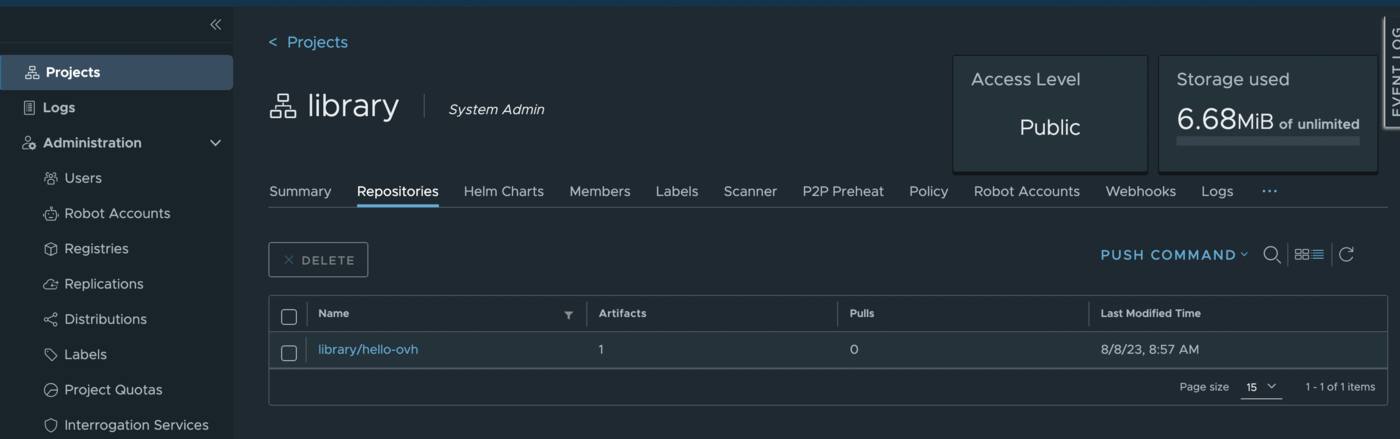
Ce tutoriel suppose que vous disposez déjà d'un OVHcloud Managed Private Registry opérationnel et que vous avez suivi les guides Creating a private registry, Connecting to the UI, Managing users and projects et Creating and using private images.
Vous devez également disposer d'un Private Registry en version 2.5 minimum, avec une image stockée et un accès à votre registre privé.
En pratique
Installer la CLI Cosign
Vous pouvez installer la CLI Cosign sur votre ordinateur depuis les binaires, un paquet rpm, HomeBrew, ou même l'utiliser directement dans une Github Action.
Pour ce tutoriel, vous allez l'installer via HomeBrew :
Vérifiez que Cosign est bien installé sur votre machine :
Le résultat doit ressembler à ceci :
Générer une clé privée
Cosign permet de générer une clé privée que vous pourrez utiliser ensuite pour signer vos images. Un mot de passe vous sera demandé de manière interactive.
Générez une clé privée :
Le résultat doit ressembler à ceci :
Dans ce guide, la clé privée est générée en local. En environnement de production, vous pouvez évidemment générer la clé privée et la stocker dans un gestionnaire de clés, par exemple un Vault ou un KMS.
Signer votre artefact OCI (image de conteneur)
Signez votre image et poussez la signature vers votre instance OVHcloud Managed Private Registry.
Le résultat doit ressembler à ceci :
Vérifier que l'image est signée avec Cosign
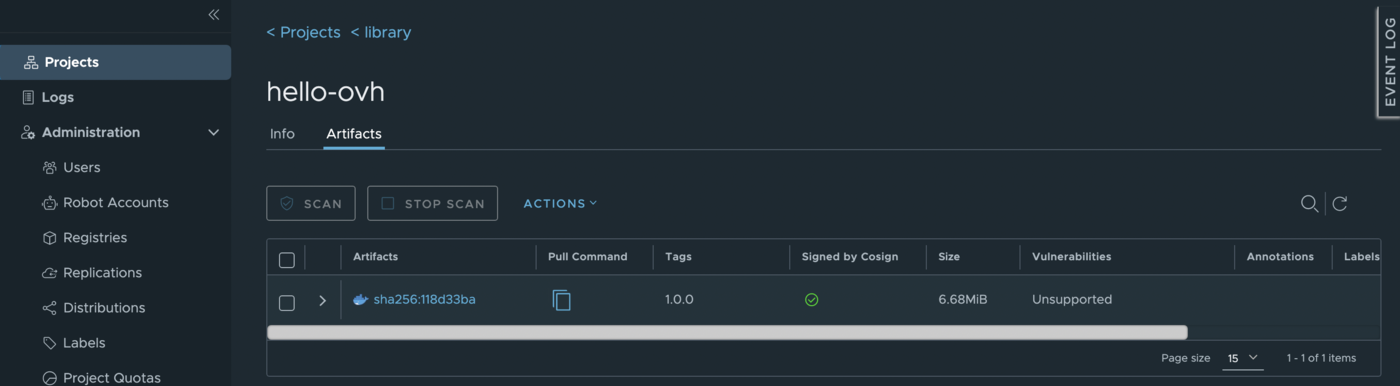
Pour vérifier que votre image est bien signée, connectez-vous à votre registre privé (dans l'interface Harbor), cliquez sur Projects, puis sur votre projet et sur votre image : une nouvelle coche verte apparaît.
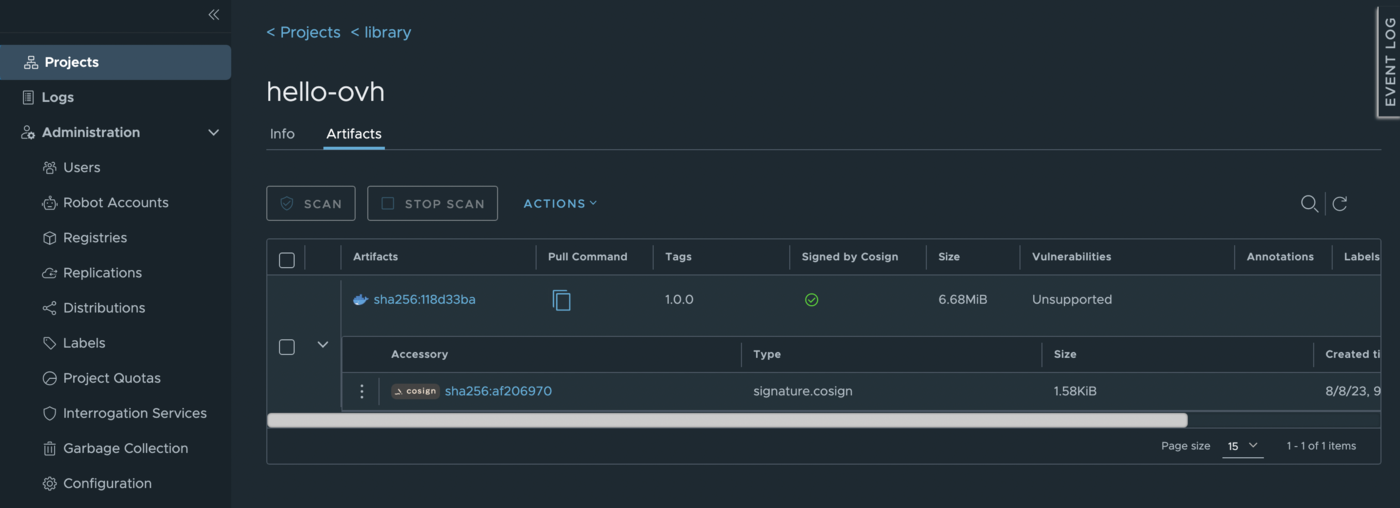
Un clic sur l'icône > affiche les informations de signature cosign associées :
Aller plus loin
Pour une vue d'ensemble du service OVHcloud Managed Private Registry, consultez la documentation OVHcloud Managed Private Registry.
- Échangez avec notre communauté d'utilisateurs.