
Sticky sessions/Session Affinity avec Nginx Ingress sur OVHcloud Managed Kubernetes
Découvrez comment mettre en place et configurer les sticky sessions/session affinity avec Nginx Ingress sur OVHcloud Managed Kubernetes
Objectif
Les sticky sessions, ou session affinity, sont une fonctionnalité qui vous permet de maintenir une session active pendant une certaine durée. Dans un cluster Kubernetes, tout le trafic d'un client vers une application, même si vous passez de 1 à 3 réplicas ou plus, sera redirigé vers le même pod.
Dans ce tutoriel, nous allons :
- déployer une application sur votre cluster OVHcloud Managed Kubernetes via un
deploymentcomportant plusieurs réplicas - mettre en place un Nginx Ingress
- déployer un
Ingresspour configurer le Nginx Ingress Controller afin qu'il utilise les sticky sessions/session affinity - tester la session affinity
Avant de commencer
Ce tutoriel présuppose que vous disposez déjà d'un cluster OVHcloud Managed Kubernetes opérationnel, ainsi que de connaissances de base sur son fonctionnement. Pour en savoir plus sur ces sujets, consultez le guide de démarrage rapide OVHcloud Managed Kubernetes Service.
Vous devez également avoir installé Helm sur votre poste de travail et sur votre cluster. Consultez pour cela le tutoriel Comment installer Helm sur OVHcloud Managed Kubernetes Service.
En pratique
Déployer l'application
Dans ce guide, vous allez déployer une application, en Golang, qui exécute un serveur HTTP et affiche le nom du pod.
Ce type d'application vous permettra de valider que Nginx Ingress maintient correctement la session.
Créez d'abord un fichier deployment.yml avec le contenu suivant :
Ce fichier manifeste de déploiement YAML définit que notre application, basée sur l'image ovhplatform/what-is-my-pod:1.0.1, sera déployée avec 3 réplicas (3 pods). Nous transmettons le nom du pod via une variable d'environnement afin de l'afficher dans notre application what-is-my-pod.
Créez ensuite un fichier svc.yml avec le contenu suivant pour définir notre service (un service expose un déploiement) :
Appliquez les fichiers manifestes de déploiement et de service à votre cluster avec les commandes suivantes :
La sortie devrait ressembler à ceci :
Vous pouvez vérifier que votre application fonctionne et que le service est créé en exécutant les commandes suivantes :
La sortie devrait ressembler à ceci :
Installer le chart Helm du Nginx Ingress Controller
Pour ce tutoriel, nous utilisons le chart Helm du Nginx Ingress Controller disponible sur son propre dépôt Helm.
Le chart est entièrement configurable, mais nous utilisons ici la configuration par défaut.
Ajoutez le dépôt Helm Ingress Nginx :
Ces commandes vont ajouter le dépôt Helm Ingress Nginx à votre dépôt local de charts Helm et mettre à jour les dépôts de charts installés :
Installez la dernière version d'Ingress Nginx avec la commande helm install :
Le processus d'installation démarre et un nouveau namespace ingress-nginx est créé.
La création du LoadBalancer étant asynchrone, et le provisionnement du load balancer pouvant prendre plusieurs minutes, vous obtiendrez sûrement un EXTERNAL-IP à l'état <pending>.
Si vous réessayez quelques minutes plus tard, vous devriez obtenir un EXTERNAL-IP :
Vous pouvez ensuite accéder à votre nginx-ingress via http://[YOUR_LOAD_BALANCER_IP] en HTTP ou https://[YOUR_LOAD_BALANCER_IP] en HTTPS.
Configurer le Nginx Ingress Controller pour utiliser les sticky sessions/session affinity
À cette étape, vous devez déployer une ressource Ingress et la configurer pour utiliser les sticky sessions.
Créez un fichier ingress-session-affinity.yml avec le contenu suivant :
Dans ce fichier manifeste, vous pouvez voir que nous définissons une ressource Nginx Ingress avec plusieurs annotations. Pour plus d'informations sur ces annotations, consultez la documentation du Nginx Ingress Controller.
Appliquez le fichier manifeste de l'ingress à votre cluster avec la commande suivante :
La sortie devrait ressembler à ceci :
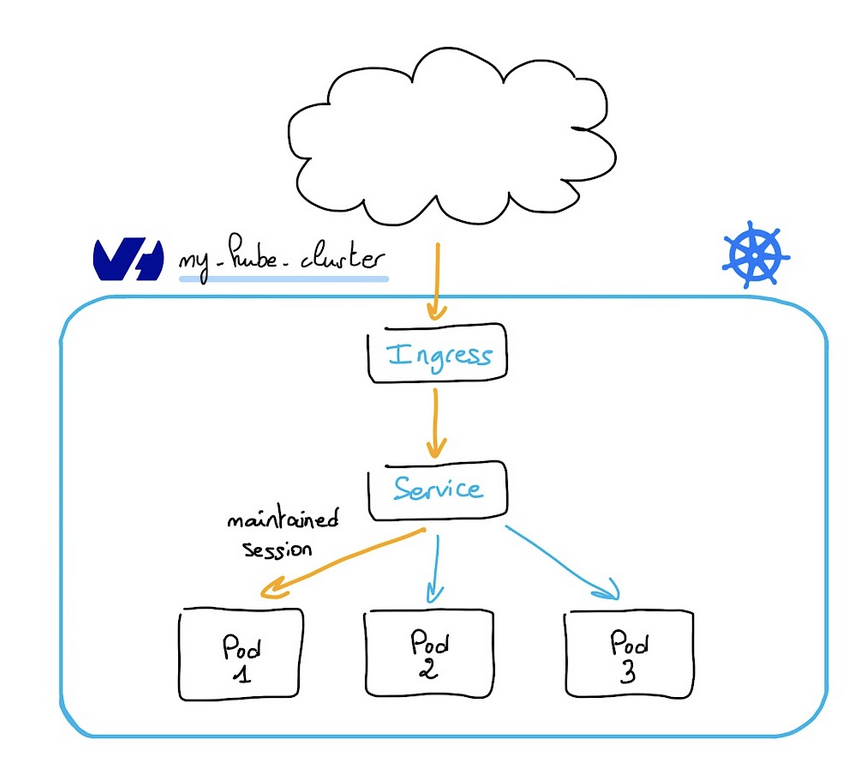
Vous avez mis en place et configuré une ressource Ingress Kubernetes qui maintiendra les sessions pour les utilisateurs, comme illustré ci-dessous :
Tester la session affinity
La dernière étape de ce guide consiste à accéder à notre application et à tester la session affinity.
Exécutez la commande suivante pour récupérer l'IP du Load Balancer créé par le Nginx Ingress Controller :
Vous devriez obtenir une IP de Load Balancer semblable à celle-ci :
Vous pouvez maintenant accéder à cette IP via votre navigateur préféré et recharger la page plusieurs fois :
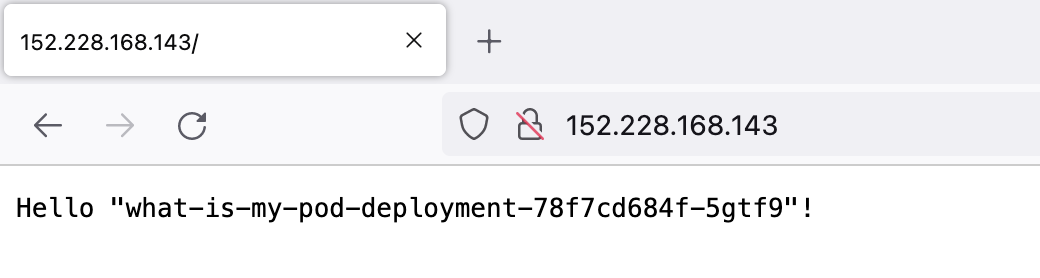
À chaque rechargement de la page, vous devriez obtenir la même valeur de cookie, ce qui signifie que l'Ingress vous redirige vers le même pod.
Vous pouvez également tester ce comportement avec la commande curl comme ceci :
Vous pouvez exécuter la même commande plusieurs fois dans une boucle pour valider que la session est correctement maintenue :
L'astuce en utilisant curl avec des cookies consiste à stocker le cookie reçu dans un fichier et à relire les cookies de ce fichier ultérieurement.
Aller plus loin
-
Pour une formation ou une assistance technique sur la mise en œuvre de nos solutions, contactez votre commercial ou consultez la page Professional Services pour obtenir un devis et faire analyser votre projet par nos experts.
-
Échangez avec notre communauté d'utilisateurs.