CLI - Lancer un AI Notebook
Découvrez comment lancer un AI Notebooks avec la CLI
Objectif
Ce guide couvre la soumission d'un nouvel AI Notebooks via la CLI ovhai.
Prérequis
Pour suivre ce guide, assurez-vous d'avoir installé la CLI ovhai et d'être connecté en tant qu'utilisateur de l'un de vos Public Cloud Projects, avec les permissions nécessaires (au minimum AI Training Operator et ObjectStore operator), pour utiliser les produits AI d'OVHcloud.
Pour plus d'informations sur l'installation et la configuration de la CLI ovhai, consultez le guide sur l'installation de la CLI OVHcloud AI.
En pratique
Lancer un nouveau notebook
Pour lancer un nouveau notebook, la commande de base est ovhai notebook run. Cette commande doit être suivie de certains arguments qui indiqueront les spécifications de votre notebook.
Vous pouvez consulter la liste complète des options en exécutant ovhai notebook run --help ou ovhai notebook run -h :
ovhai notebook run -h

Run a new notebook

Usage: ovhai notebook run [OPTIONS] `<FRAMEWORK_ID>` `<EDITOR_ID>`

Arguments:
  `<FRAMEWORK_ID>`  Framework ID to use in the notebook The list of available frameworks is available under capabilities `ovhai capabilities framework`
  `<EDITOR_ID>`     Editor ID to use in the notebook The list of available editors is available under capabilities `ovhai capabilities editor`

Options:
      --token `<TOKEN>`
          Authentication using Token rather than OAuth
      --unsecure-http
          HTTP services inside job will not require authentication to be accessed from the outside
  -g, --gpu `<GPU>`
          Number of GPUs
  -f, --flavor `<flavor>`
          the flavor to use, `ovhai capabilities flavor list` to get the whole list
  -c, --cpu `<CPU>`
          Number of CPUs (ignored if GPUs is specified)
  -v, --volume `<VOLUME_DEFINITION>`
          Volumes mounted on the image (multiple)
  -n, --name `<NAME>`
          Optional name, only informative
  -l, --label <name=value>
          Optional labels, only informative
  -o, --output `<OUTPUT>`
          Command output format [possible values: json, yaml]
  -s, --ssh-public-keys `<ssh-public-key-file>`
          Enable the job ssh feature, specify each ssh public key files or give the public key directly
      --framework-version `<FRAMEWORK_VERSION>`
          Version of the selected framework
  -e, --envvar <name=value>
          Environment variable to be set inside the notebook
      --restart-on-timeout [`<RESTART_ON_TIMEOUT>`]
          Automatically restart on timeout [possible values: true, false]
      --no-color
          Remove colors from output
  -h, --help
          Print help (see more with '--help')
Comme vous pouvez le constater, <FRAMEWORK_ID> et <EDITOR_ID> sont deux arguments obligatoires qui préciseront quel framework et quel éditeur vous souhaitez utiliser dans votre notebook.
Vous pouvez trouver la liste des frameworks et éditeurs disponibles en exécutant les commandes ovhai capabilities framework list et ovhai capabilities editor list :
ovhai capabilities framework list
ID              NAME                               DESCRIPTION                                                                                                                           DOC_URL                                                        VERSIONS
alicebob        Alice & Bob Felis                  Run fault-tolerant quantum algorithms with logical qubits. Study quantum error correction with superconducting cat qubits.                                                                           alice_and_bob0.4.1
myqlm           Atos myQLM                         Quantum Computing Framework by Atos                                                                                                                                                                  myqlm1.7.3-py39-cpu-v22-4
autogluon-mxnet AutoGluon + MXNet                  AutoGluon + MXNet                                                                                                                                                                                    0.1.0-ovh.beta.1
c12             C12                                C12 Quantum Electronics environment                                                                                                   https://github.com/c12qe/c12simulator-clients/tree/master/docs c122.0.1-py311-cpu,c120.0.6-py310-cpu-v22-4
fastai          fastai Course                      fastai simplifies training fast and accurate neural nets using modern best practices                                                  https://docs.fast.ai/                                          2021-08-04-ovh.beta.1,fastai2.7.10-py310-cuda11.6-v22-4
huggingface     Hugging Face Transformers          State-of-the-art Machine Learning. Includes Transformers + Datasets                                                                   https://huggingface.co/docs/transformers/index                 hf4.34.0-py311-cuda11.8,hf4.26.0-py310-cuda11.6-v22-4
jax             JAX                                JAX is Autograd and XLA, brought together for high-performance numerical computing, including large-scale machine learning research.  https://jax.readthedocs.io/en/latest/                          jax0.4.20
conda           Miniconda                          Images with conda available for you to install your requirements yourself                                                             https://docs.conda.io/en/latest/miniconda.html                 conda-py311-cudaDevel11.8,conda-py311-cpu,conda-py310-cpu-v22-4,conda-py310-cudaDevel11.8-v22-4,conda-py310-cuda11.8-v22-4,conda-py310-cudaDevel11.7-v22-4,conda-py310-cuda11.7-v22-4,conda-py310-cudaDevel11.6-v22-4,conda-py310-cuda11.6-v22-4,conda-py310-cudaDevel11.5-v22-4,conda-py310-cuda11.5-v22-4,conda-py310-cudaDevel11.4-v22-4,conda-py310-cuda11.4-v22-4,conda-py310-cudaDevel11.3-v22-4,conda-py310-cuda11.3-v22-4,conda-py310-cudaDevel11.2-v22-4,conda-py310-cuda11.2-v22-4,conda-py310-cudaDevel11.1-v22-4,conda-py310-cuda11.1-v22-4,conda-py310-cudaDevel11.0-v22-4,conda-py310-cuda11.0-v22-4,conda-py310-cudaDevel10.2-v22-4,conda-py310-cuda10.2-v22-4,conda-py310-cudaDevel10.1-v22-4,conda-py310-cuda10.1-v22-4,conda-py310-cudaDevel10.0-v22-4,conda-py310-cuda10.0-v22-4,conda-py39-cpu-v22-4,conda-py39-cudaDevel11.8-v22-4,conda-py39-cuda11.8-v22-4,conda-py39-cudaDevel11.7-v22-4,conda-py39-cuda11.7-v22-4,conda-py39-cudaDevel11.6-v22-4,conda-py39-cuda11.6-v22-4,conda-py39-cudaDevel11.5-v22-4,conda-py39-cuda11.5-v22-4,conda-py39-cudaDevel11.4-v22-4,conda-py39-cuda11.4-v22-4,conda-py39-cudaDevel11.3-v22-4,conda-py39-cuda11.3-v22-4,conda-py39-cudaDevel11.2-v22-4,conda-py39-cuda11.2-v22-4,conda-py39-cudaDevel11.1-v22-4,conda-py39-cuda11.1-v22-4,conda-py39-cudaDevel11.0-v22-4,conda-py39-cuda11.0-v22-4,conda-py39-cudaDevel10.2-v22-4,conda-py39-cuda10.2-v22-4,conda-py39-cudaDevel10.1-v22-4,conda-py39-cuda10.1-v22-4,conda-py39-cudaDevel10.0-v22-4,conda-py39-cuda10.0-v22-4,conda-py38-cpu-v22-4,conda-py38-cudaDevel11.8-v22-4,conda-py38-cuda11.8-v22-4,conda-py38-cudaDevel11.7-v22-4,conda-py38-cuda11.7-v22-4,conda-py38-cudaDevel11.6-v22-4,conda-py38-cuda11.6-v22-4,conda-py38-cudaDevel11.5-v22-4,conda-py38-cuda11.5-v22-4,conda-py38-cudaDevel11.4-v22-4,conda-py38-cuda11.4-v22-4,conda-py38-cudaDevel11.3-v22-4,conda-py38-cuda11.3-v22-4,conda-py38-cudaDevel11.2-v22-4,conda-py38-cuda11.2-v22-4,conda-py38-cudaDevel11.1-v22-4,conda-py38-cuda11.1-v22-4,conda-py38-cudaDevel11.0-v22-4,conda-py38-cuda11.0-v22-4,conda-py38-cudaDevel10.2-v22-4,conda-py38-cuda10.2-v22-4,conda-py38-cudaDevel10.1-v22-4,conda-py38-cuda10.1-v22-4,conda-py38-cudaDevel10.0-v22-4,conda-py38-cuda10.0-v22-4
colatible       Miniconda with Colab compatibility This image is based on our miniconda image. It has everything preinstalled to be compatible with your Google Colab notebooks.                                                                        colatible-py310-cudaDevel11.8,colatible-py37-cudaDevel11.1-v22-4
mlr3            MLR3                               An open-source collection of R packages providing a unified interface for machine learning in the R language. Successor of mlr.       https://mlr3book.mlr-org.com/                                  mlr3-py310-cudaDevel11.8
mxnet           MXNet                              A flexible and efficient library for deep learning                                                                                    https://mxnet.apache.org/versions/1.5.0/                       mxnet1.9.1-py310-cuda11.2-v22-4
one-for-all     One image to rule them all         Tensorflow 2 + Pytorch + Fast.ai + MXNet + Transformers + And many more (incompatible with JupyterLab Real-Time collaboration editor)                                                                v98-ovh.beta.1
pasqal          Pulser                             Library for pulse-level/analog control of neutral atom devices. Emulator with QuTiP.                                                                                                                 pulser0.17.0
pytorch         PyTorch                            PyTorch is an optimized tensor library for deep learning using GPUs and CPUs                                                          https://pytorch.org/docs/stable/index.html                     pytorch2.4.0-py311-cuda11.8,pytorch2.1.0-py311-cuda11.8,pytorch2.0.0-py310-cuda11.8-v22-4,pytorch1.12.1-py310-cuda11.6-v22-4,pytorch1.11.0-py310-cuda11.3-v22-4,pytorch1.10.1-py39-cuda10.2-v22-4,pytorch1.9.0-py39-cuda10.2-v22-4
qiskit          Qiskit                             Qiskit is an open-source SDK for working with quantum computers at the level of extended quantum circuits, operators, and primitives. https://docs.quantum.ibm.com/                                  qiskit1.0.2
perceval        Quandela Perceval                  Simulation and Control Library for quantum photonic circuits                                                                                                                                         perceval0.10.2-py311,perceval0.9.1-py310-cpu-v22-4,perceval0.8.1-py310-cpu-v22-4
sklearn         Scikit Learn                       Simple and efficient tools for predictive data analysis                                                                               https://scikit-learn.org/stable/user_guide.html                sklearn1.3.0-py311-cpu,sklearn1.0.2-py39-cpu-v22-4
tensorflow      Tensorflow                         An end-to-end open source machine learning platform                                                                                   https://www.tensorflow.org/api_docs                            tf2.15-py311-cudaDevel12.2,tf2.12-py311-cudaDevel11.8,tf2.11-py310-cuda11.2-v22-4,tf2.10-py310-cuda11.2-v22-4,tf2.9-py310-cuda11.2-v22-4,tf2.8-py39-cuda11.2-v22-4,tf2.7-py39-cuda11.2-v22-4,tf2.6-py39-cuda11.2-v22-4,tf2.5-py39-cuda11.2-v22-4,tf2.4-py38-cuda11.0-v22-4,tf2.3-py38-cuda10.1-v22-4,tf2.2-py38-cuda10.1-v22-4
ovhai capabilities editor list
ID         NAME       DOC_URL
jupyterlab              JupyterLab              https://jupyterlab.readthedocs.io/en/stable/
jupyterlabcollaborative JupyterLab Experimental https://jupyterlab.readthedocs.io/en/stable/user/rtc.html
vscode                  VSCode                  https://code.visualstudio.com/docs
À partir de là, vous pouvez lancer un premier notebook basique.
Voici un exemple de commande pour lancer un notebook avec PyTorch et JupyterLab :
ovhai notebook run pytorch jupyterlab
Pour VSCode, vous pouvez exécuter :
ovhai notebook run pytorch vscode
Par défaut, ce notebook sera exécuté sur un seul V100S GPU, en accès restreint, avec la dernière version disponible du framework que vous avez sélectionné.
Comme nous l'avons vu avec l'exécution de ovhai notebook run -h, de nombreuses options sont disponibles pour personnaliser votre notebook. L'une d'entre elles (--flavor <FLAVOR_ID>) permet de spécifier le flavor que vous souhaitez utiliser (type de CPUs/GPUs) en indiquant le flavor ID. La liste des flavors est accessible en exécutant :
ovhai capabilities flavor list
ID           TYPE DESCRIPTION        CPU-PER-UNIT MEMORY-PER-UNIT GPU_INFORMATION.INFO DEFAULT MAX
a100-1-gpu   gpu  NVIDIA Ampere A100 13           160.0 GiB       Ampere-A100 NVIDIA   false   2
ai1-1-cpu    cpu  Intel CPU vCores   1            4.0 GiB         ~                    true    12
ai1-1-gpu    gpu  NVIDIA Tesla V100S 13           40.0 GiB        Tesla-V100S NVIDIA   true    4
ai1-le-1-gpu gpu  NVIDIA Tesla V100S 13           40.0 GiB        Tesla-V100S NVIDIA   false   4
h100-1-gpu   gpu  NVIDIA H100        28           350.0 GiB       H100 NVIDIA          false   4
l40s-1-gpu   gpu  NVIDIA L40s        13           80.0 GiB        L40s NVIDIA          false   4
l4-1-gpu     gpu  NVIDIA L4          20           80.0 GiB        L4 NVIDIA            false   4
Info
La liste des flavors disponibles dépend de la région sur laquelle vous êtes connecté (ovhai config set <region>). Relancez ovhai capabilities flavor list après avoir changé de région pour vérifier.
Par exemple, pour lancer un notebook avec le flavor a100-1-gpu, vous utiliseriez la commande suivante :
ovhai notebook run pytorch jupyterlab \
  --flavor a100-1-gpu
Ensuite, vous pouvez ajouter à votre commande le flag --cpu <NUMBER> ou --gpu <NUMBER> pour spécifier le nombre de CPUs/GPUs souhaité. L'exemple suivant exécutera le même notebook mais sur 2 A100 GPUs :
ovhai notebook run pytorch jupyterlab \
  --flavor a100-1-gpu \
  --gpu 2
Voici un exemple de lancement de notebook légèrement plus spécifique :
ovhai notebook run pytorch jupyterlab \
  --name my_first_notebook \
  --framework-version pytorch2.4.0-py311-cuda11.8 \
  --flavor ai1-1-cpu \
  --cpu 6 \
  --label my_label_key=my_label_value
Cela lancera un nouvel AI Notebook avec PyTorch 2.4.0, Jupyterlab, et 6 CPUs, en accès restreint.
Accéder à un nouveau notebook
Le lancement d'un nouveau notebook via ovhai notebook run affichera les informations suivantes dans le terminal, qui sont les spécifications de votre notebook :
Id:         7600dda5-27f7-4937-9260-e24c987ae3c6
Created At: 11-09-24 10:12:29
Updated At: 11-09-24 10:12:29
User:       user-fu9ThaHERbAT
Spec:
  Name:                 my_first_notebook
  Labels: {}
  Resources:
    Cpu:               6
    Ephemeral Storage: 240.0 GiB
    Flavor:            ai1-1-cpu
    Gpu:               0
    Gpu Brand:         ~
    Gpu Memory:        ~
    Gpu Model:         ~
    Memory:            24.0 GiB
    Private Network:   0 bps
    Public Network:    3.0 Gbps
  Volumes: []
  Unsecure Http:        false
  Env:
    Framework Id:      pytorch
    Framework Version: pytorch2.4.0-py311-cuda11.8
    Editor Id:         jupyterlab
  Env Vars:             ~
  Ssh Public Keys:      ~
  Timeout Auto Restart: false
Status:
  Last Transition Date: ~
  Info:
    Message:   Notebook is starting
  State:                STARTING
  Duration:             0
  Url:                  https://7600dda5-27f7-4937-9260-e24c987ae3c6.notebook.gra.ai.cloud.ovh.net
  Grpc Address:         7600dda5-27f7-4937-9260-e24c987ae3c6.nb-grpc.gra.ai.cloud.ovh.net:443
  Info Url:             https://ui.gra.ai.cloud.ovh.net/notebook/7600dda5-27f7-4937-9260-e24c987ae3c6
  Monitoring Url:       ~
  Ssh Url:              ~
  Last Started At:      ~
  Last Stopped At:      ~
La première ligne de la sortie affiche le nouvel AI Notebook ID : 7600dda5-27f7-4937-9260-e24c987ae3c6.
Dans les dernières lignes, le champ Url correspond à votre serveur JupyterLab. Vous devrez attendre quelques secondes que le notebook démarre et atteigne le statut RUNNING. Une fois qu'il est en cours d'exécution, l'URL du notebook devient accessible.
Pour suivre l'état du notebook, vous pouvez récupérer à nouveau les informations du notebook à l'aide de son ID.
Si vous n'avez pas l'ID du notebook auquel vous souhaitez accéder, vous pouvez lister tous vos notebooks avec :
Pour récupérer à nouveau les informations du notebook à l'aide de son ID, exécutez la commande suivante :
ovhai notebook get 7600dda5-27f7-4937-9260-e24c987ae3c6

Id:         7600dda5-27f7-4937-9260-e24c987ae3c6
Created At: 11-09-24 10:12:29
Updated At: 11-09-24 10:12:29
User:       user-fu9ThaHERbAT
Spec:
  Name:            my_first_notebook
  Labels: {}
  Resources:
    Cpu:               6
    Ephemeral Storage: 240.0 GiB
    Flavor:            ai1-1-cpu
    Gpu:               0
    Gpu Brand:         ~
    Gpu Memory:        ~
    Gpu Model:         ~
    Memory:            24.0 GiB
    Private Network:   0 bps
    Public Network:    3.0 Gbps
  Volumes: []
  Unsecure Http:   false
  Env:
    Framework Id:      pytorch
    Framework Version: pytorch2.4.0-py311-cuda11.8
    Editor Id:         jupyterlab
Status:
  Last Transition Date: ~
  Info:
    Message: Notebook is running
  State:                RUNNING
  Duration:             592
  Url:                  https://7600dda5-27f7-4937-9260-e24c987ae3c6.notebook.gra.ai.cloud.ovh.net
  Grpc Address:         7600dda5-27f7-4937-9260-e24c987ae3c6.nb-grpc.gra.ai.cloud.ovh.net:443
  Info Url:             https://ui.gra.ai.cloud.ovh.net/notebook/7600dda5-27f7-4937-9260-e24c987ae3c6
  Monitoring Url:       https://monitoring.gra.ai.cloud.ovh.net/d/job?var-notebook=7600dda5-27f7-4937-9260-e24c987ae3c6&from=1726049489545
  Ssh Url:              ~
  Last Started At:      11-09-24 10:12:39
  Last Stopped At:      ~
  …
Maintenant que le notebook est dans l'état RUNNING, une adresse https est définie dans le champ Url. Cette URL correspond à votre serveur JupyterLab. En collant cette URL dans votre navigateur, l'écran suivant s'affiche :
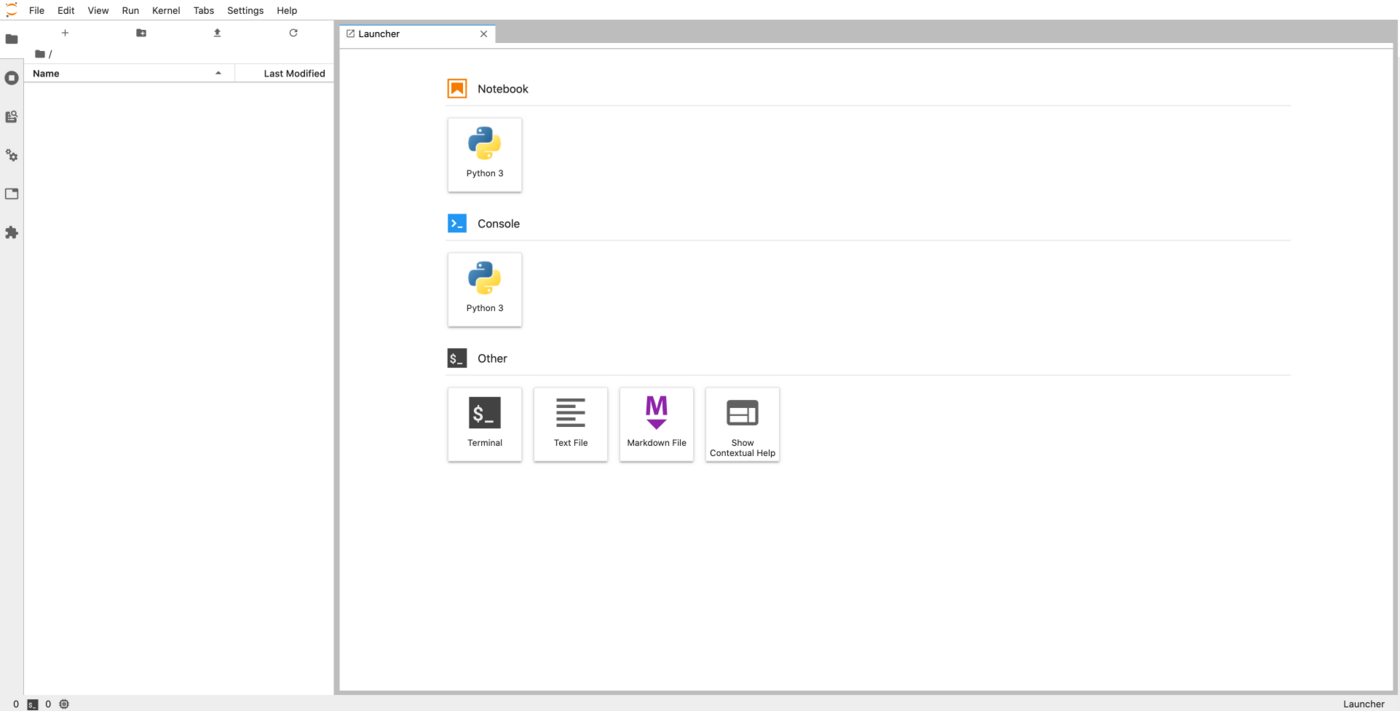
Vous pouvez maintenant commencer à écrire du code dans votre notebook. Comme nous avons utilisé le framework PyTorch dans notre exemple, nous pourrons l'utiliser sans avoir besoin d'installer quoi que ce soit nous-mêmes.
En explorant votre notebook, vous trouverez un dossier ai-training-examples déjà inclus dans votre /workspace. Ce dépôt est automatiquement cloné pour chaque notebook et inclut une variété d'exemples que vous pouvez utiliser avec les produits AI d'OVHcloud, tels qu'AI Notebooks.
Arrêter un notebook
Une fois que vous avez terminé avec votre notebook, vous pouvez l'arrêter avec la commande ci-dessous :
ovhai notebook stop `<NOTEBOOK_ID>`
Dans notre exemple ci-dessus, le NOTEBOOKD_ID est 7600dda5-27f7-4937-9260-e24c987ae3c6
Lorsque vous arrêtez un notebook, il devient indisponible pendant un certain temps, durant lequel vos données sont synchronisées sur l'Object Storage. Cela vous permet de récupérer votre travail plus tard.
Une fois la synchronisation terminée, le notebook atteindra l'état STOPPED. À ce stade, vous pouvez soit relancer le notebook, soit le supprimer.
Redémarrer un notebook arrêté
Pouvoir redémarrer un notebook est l'une des principales différences par rapport à l'utilisation des jobs AI Training. Redémarrer un notebook restaurera le code de votre notebook tel qu'il était lorsque vous l'avez arrêté. Cependant, vous devrez ré-exécuter votre code pour recharger vos variables, car l'état du programme n'est pas sauvegardé.
Pour redémarrer un notebook, exécutez cette commande :
ovhai notebook start <NOTEBOOK_ID>
Vous êtes facturé pour les notebooks à l'état RUNNING mais pas pour les notebooks aux états STARTING, STOPPING et STOPPED.
Cependant, pour restaurer votre code lorsque vous redémarrez un notebook STOPPED, celui-ci doit être stocké dans votre Object Storage, ce qui est facturé. Vous trouverez plus d'informations sur la facturation d'AI Notebooks dans le guide Facturation et cycle de vie.
Cela est utile lorsque vous travaillez sur un notebook pendant un certain temps.
Supprimer un notebook
Si vous savez que vous n'utiliserez plus un notebook, vous pouvez le supprimer :
ovhai notebook delete `<NOTEBOOK_ID>`
Notez que même si un notebook est encore en cours d'exécution, vous pouvez le supprimer. Bien entendu, un notebook supprimé ne peut pas être redémarré.
Info
L'état du notebook stocké dans l'Object Storage (y compris vos fichiers de notebook) n'est pas nettoyé automatiquement après la suppression du notebook.
Vous pouvez le retrouver et le supprimer dans le conteneur notebooks_workspace de votre Object Storage, sous le répertoire de l'ID du notebook.
Aller plus loin
Découvrez comment accéder à vos données Object Storage et à vos dépôts Git depuis vos notebooks ici.
Découvrez comment partager vos notebooks avec d'autres personnes ici.
Pour une formation ou une assistance technique sur la mise en œuvre de nos solutions, contactez votre commercial ou consultez la page Professional Services pour obtenir un devis et faire analyser votre projet par nos experts.
Votre avis nous intéresse !
N’hésitez pas à nous faire part de vos questions, retours et suggestions pour améliorer le service :
