For AI agents: the complete documentation index is available at https://docs.ovhcloud.com/pl/llms.txt, the full documentation bundle is available at https://docs.ovhcloud.com/pl/llms-full.txt, and this page is available as Markdown at https://docs.ovhcloud.com/pl/guides/public-cloud/databases/getting-started.md.
Find out how to set up your managed database service in the OVHcloud Control Panel
Objective
OVHcloud Public Cloud managed databases let you focus on building and deploying cloud applications while OVHcloud handles the database infrastructure and maintenance.
This guide explains how to order a Public Cloud managed database service via the OVHcloud Control Panel, API, CLI, or Terraform.
Terraform installed (Terraform method only — tested with version v1.14.6)
OVHcloud Control Panel Access
Direct link:
Navigation path:Public Cloud > Select your project > Databases
Instructions
Via the OVHcloud Control Panel
Via the OVHcloud API
Via the OVHcloud CLI
Via Terraform
Click Databases in the left-hand navigation bar under Databases & Analytics. The adjacent Analytics entry provides access to Kafka, Kafka Connect, Kafka MirrorMaker, Dashboards, and OpenSearch.
Click Create your managed database (or Create a service if your project already contains databases).
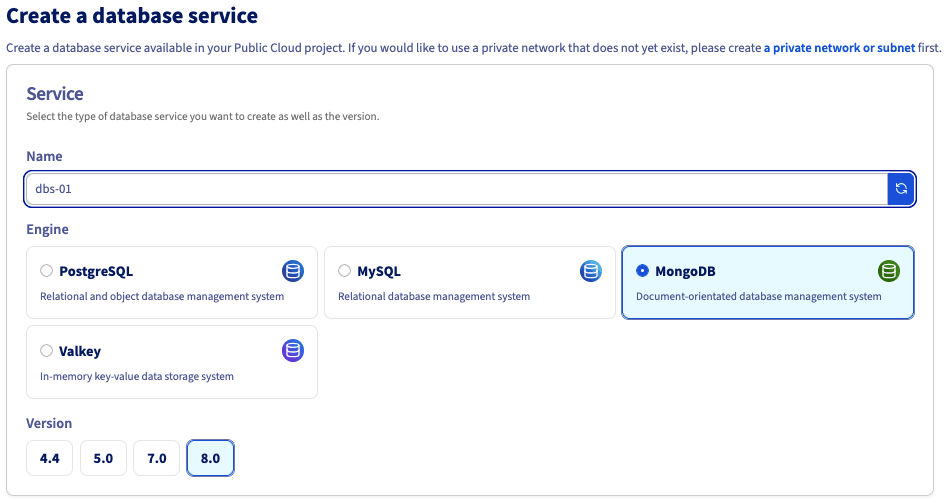
Step 1: Select your engine and version
Optionally rename your service (auto-generated by default), then select the engine and version.
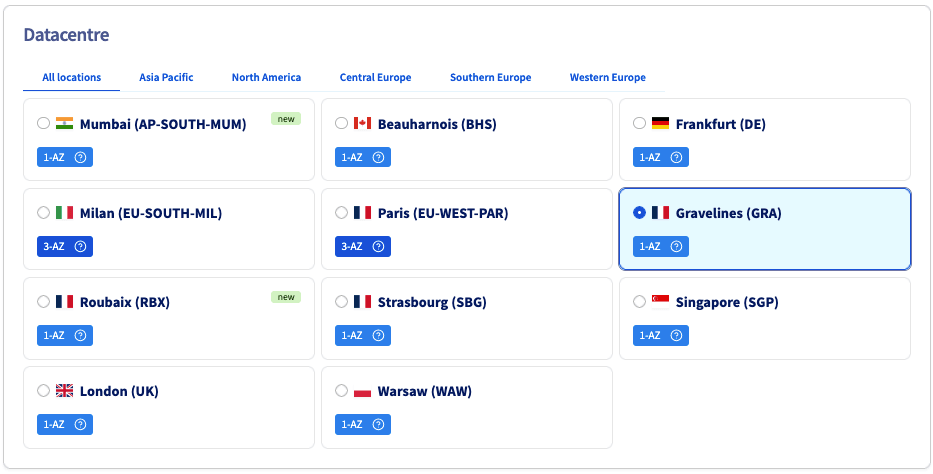
Step 2: Select a datacentre
Choose the geographical region of the data centre in which your database will be hosted.
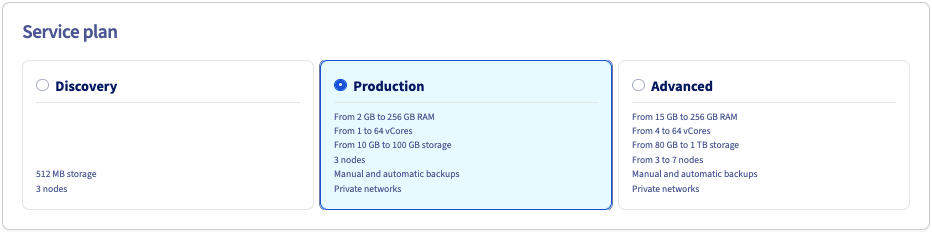
Step 3: Select a service plan
Choose a service plan. You can upgrade it after creation.
See the capabilities page of your selected database type for plan property details.
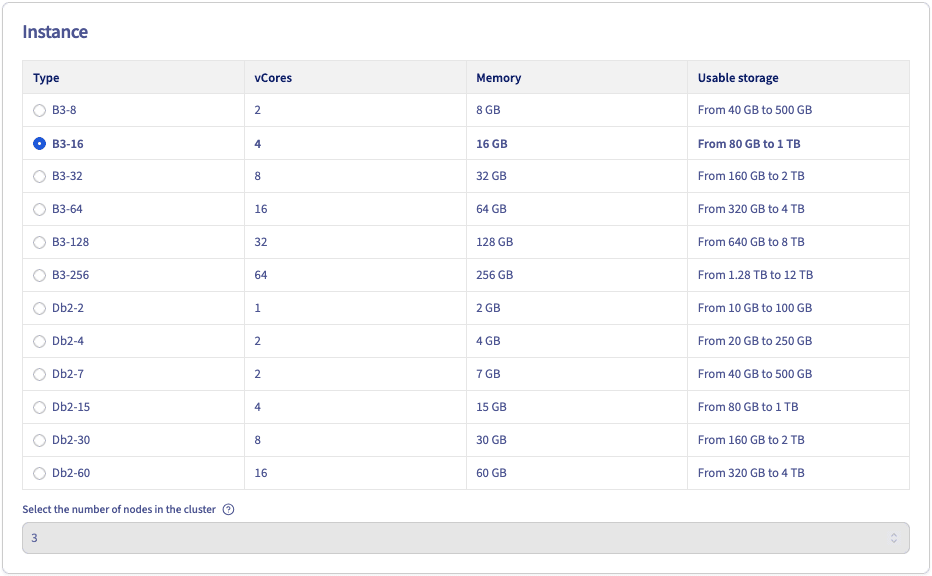
Step 4: Select your instance
Select the instance. The number of nodes is set by the solution selected above, and cannot be modified in this case.
See the capabilities page of your selected database type for hardware and configuration details.
Take note of the pricing information.
Step 5: Sizing
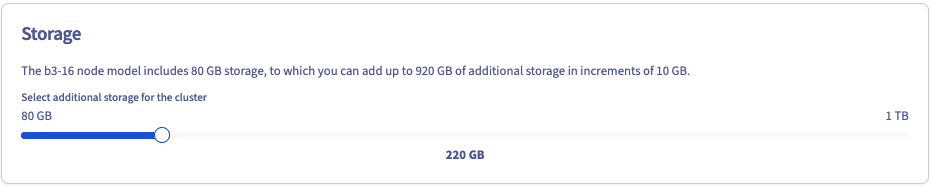
Additional storage can be ordered and, depending on the engine, the number of nodes in your cluster can be adjusted.
Step 6: Configure your options
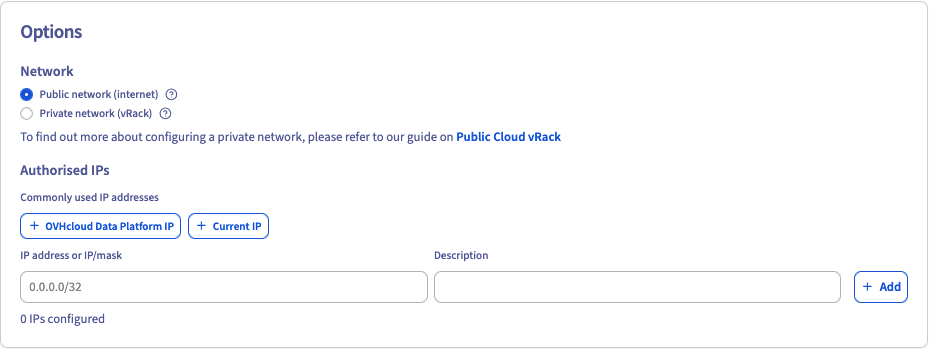
Configure the network and authorised IPs.
Connecting a private network (optional)
If you already have a private subnet available, select Private network (vRack) and choose it from the drop-down menu. This option may not be available for the selected service type.
You can be redirected to create a private network or subnet via the corresponding links. In that case, you will need to restart the database order.
Add the IP addresses or address ranges allowed to connect to your service.
Info
For security, the default network configuration blocks all incoming connections. Authorise a suitable IP address to access your database.
Step 7: Summary and confirmation
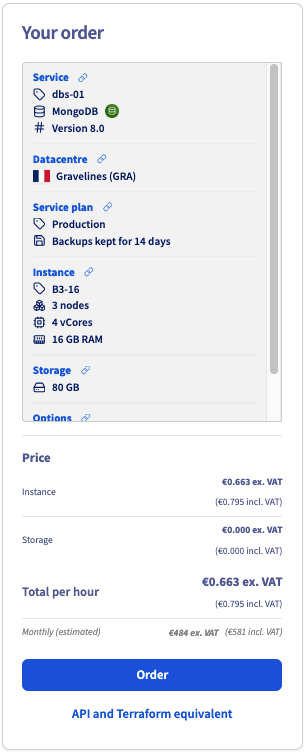
The right-hand panel displays a live summary of your order that updates as you make selections. Review it, then click Order to confirm.
To view the equivalent API or Terraform call before ordering, click API and Terraform equivalent.
Your database service deploys within a few minutes. Messages in the OVHcloud Control Panel notify you when the database is ready to use.
To configure your service after installation, see the Configure your instance to accept incoming connections guide for your database type, available in our catalog.
The call returns an object listing the allowed engines (with versions), plans, and flavors.
Get the availability
The availability endpoint lists the valid parameter combinations. Each entry lists an engine, version, plan, flavor, region, public/private networking support, and min/max node count. Choose the combination that best fits your needs.
This password will not be available later: OVHcloud does not store user passwords.
Step 5: Start using the cluster
The cluster connection information is available in your OVHcloud Control Panel. You can now use the cluster.
Info
All commands require either the --cloud-project <projectId> flag or the OVH_CLOUD_PROJECT_SERVICE environment variable, set to your Public Cloud project ID.
For security, the default network configuration blocks all incoming connections. Authorise a suitable IP address to access your database.
For private networking, add --network-id <networkId> and --subnet-id <subnetId>.
Step 3: Wait for your database service to be ready
ovhcloud cloud managed-database get <clusterId> --cloud-project <projectId>
Its status transitions to READY when the cluster is available.
Step 4: Reset the primary user password
# List users and retrieve the admin user IDovhcloud cloud managed-database user list <clusterId> --cloud-project <projectId># Reset the admin user passwordovhcloud cloud managed-database user credentials-reset <clusterId> <userId> --cloud-project <projectId>
Warning
This password will not be available later: OVHcloud does not store user passwords.
Step 5: Start using the cluster
The cluster connection information is available in your OVHcloud Control Panel. You can now use the cluster.
Step 1: Gather the OVHcloud required parameters
The OVHcloud Terraform provider requires the following credentials:
Visit our dedicated Discord channel to ask questions, provide feedback, and interact directly with the team that builds our databases services.
For training or technical assistance implementing our solutions, contact your sales representative or visit our Professional Services page to request a quote and have your project analysed by our experts.