
Korzystanie z Secret Manager w Panelu klienta OVHcloud
Dowiedz się, jak korzystać z Secret Manager za pomocą interfejsu graficznego
Wprowadzenie
Celem tego przewodnika jest przedstawienie korzystania z Secret Manager za pośrednictwem Panelu klienta OVHcloud.
Wymagania początkowe
- Posiadanie konta klienta OVHcloud.
- Aby uzyskać dostęp do sekretów za pomocą API REST lub API zgodnego z HashiCorp Vault KV2, skonfiguruj metodę uwierzytelniania dla swojej domeny OKMS (osobisty token dostępu, konto serwisowe lub certyfikat dostępu).
Dostęp do Panelu klienta OVHcloud
- Link bezpośredni:
- Ścieżka nawigacji:
Tożsamość, bezpieczeństwo i operacje>Secret Manager
W praktyce
Opis
Secret Manager to produkt umożliwiający bezpieczne przechowywanie danych uwierzytelniających, kluczy API, kluczy SSH lub dowolnego innego typu sekretu niezbędnego do działania Twoich aplikacji.
Sekret to zbiór jednej lub większej liczby par klucz-wartość zgrupowanych w ramach wersji. Każda modyfikacja sekretu powoduje utworzenie nowej wersji tego sekretu, co pozwala cofnąć się w historii zmian sekretu.
Tworzenie sekretu
Secret Manager jest dostępny z menu Tożsamość, bezpieczeństwo i operacje w sekcji Bezpieczeństwo.
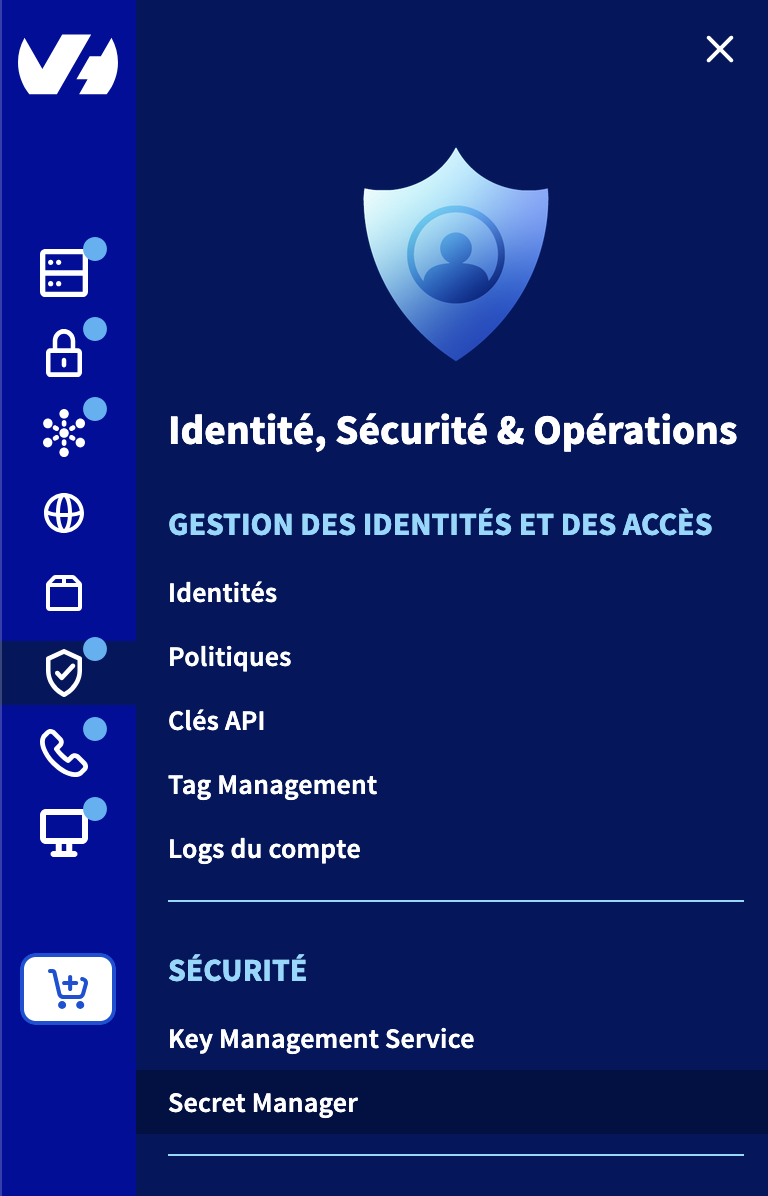
Aby utworzyć sekret, kliknij bezpośrednio przycisk Utwórz "sekret".
Następnie wybierz region, w którym chcesz utworzyć sekret.
Podczas tworzenia sekretu po raz pierwszy w nowym regionie konieczny jest wstępny etap aktywacji poprzez kliknięcie przycisku Aktywuj, aby utworzyć domenę OKMS w wybranym regionie. Aktywacja ta może potrwać kilka minut, zanim stanie się skuteczna.
Następnie podaj Path sekretu, na przykład prod/database/MySQL. Ten Path posłuży do hierarchizacji sekretów względem siebie.
Następnie podaj zawartość sekretu. Sekret musi zawierać listę par klucz-wartość wprowadzonych w formacie JSON:
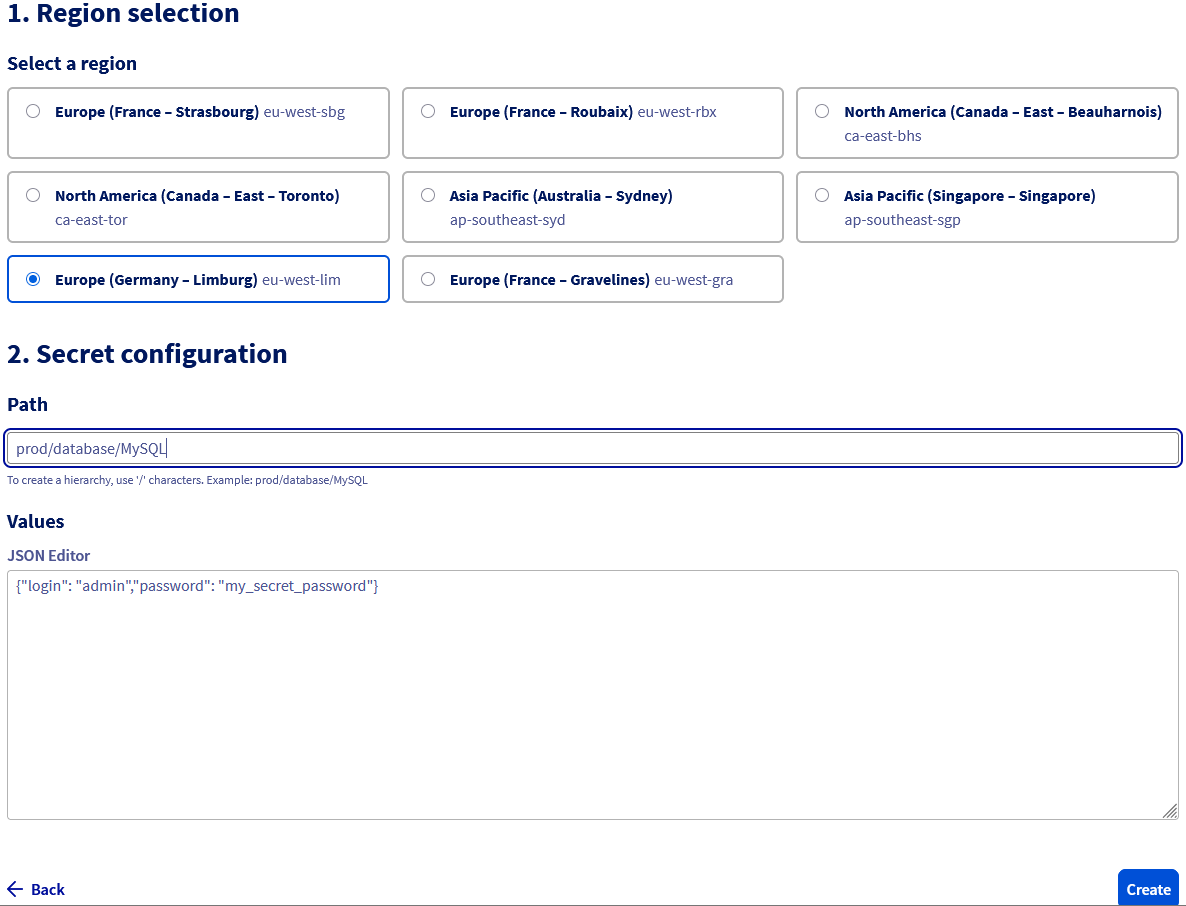
Nie ma ograniczeń co do liczby par klucz-wartość w sekrecie, jednak całkowity rozmiar danych nie może przekraczać 64 KB.
Po utworzeniu sekret pojawia się na liście sekretów w Secret Manager.
Zarządzanie sekretami
Po utworzeniu sekretu lista sekretów wyświetla się w Panelu klienta. Dostępny jest selektor umożliwiający nawigację między różnymi regionami, w których znajduje się sekret.
Można uzyskać dostęp do konfiguracji sekretu, klikając go na liście sekretów, aby wyświetlić jego zawartość, utworzyć nową wersję lub go usunąć.
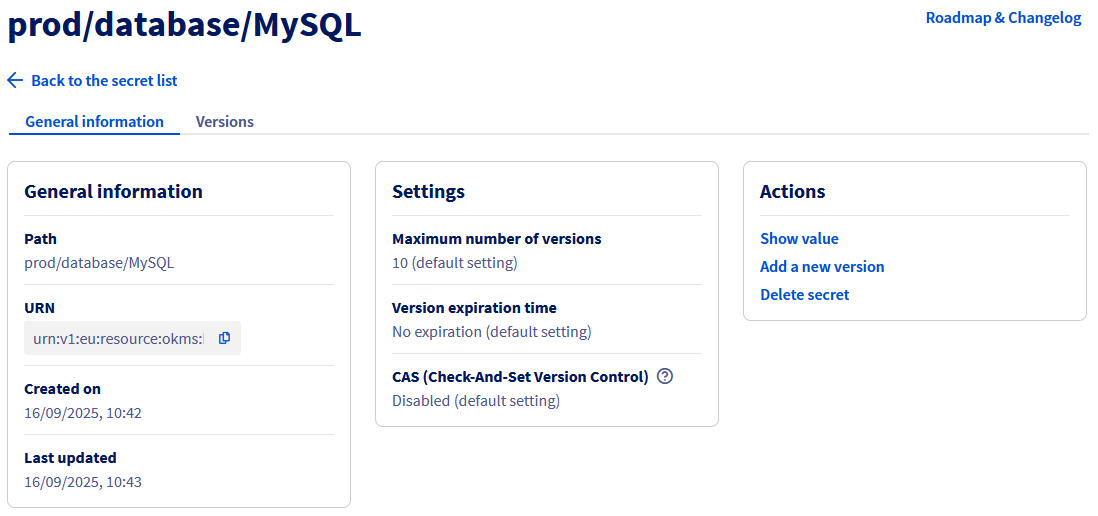
Dashboard sekretu wyświetla kilka informacji, takich jak informacje ogólne oraz parametry mające zastosowanie do sekretu:
- Maksymalna liczba wersji: Po przekroczeniu wskazanej wartości najstarsza wersja zostaje usunięta.
- Okres ważności wersji: Po upływie wskazanego czasu wersja zostaje wyłączona.
- CAS: Jeśli jest włączony, konieczne jest systematyczne podawanie numeru bieżącej wersji podczas wprowadzania zmian.
Dostęp do zawartości sekretu
Użytkownik posiadający niezbędne uprawnienia IAM może uzyskać dostęp do zawartości sekretu. Skonfiguruj uwierzytelnianie i polityki IAM zgodnie z opisem w Metody uwierzytelniania OKMS.
Uprawnienia do wyświetlania listy wersji (okms:apiovh:secret/get) różnią się od uprawnienia do pobierania zawartości tej wersji (okms:apiovh:secret/version/getData).
W tym celu kliknij Wyświetl wartość w Dashboardzie sekretu.
Otworzy się panel boczny z zawartością najnowszej wersji sekretu.
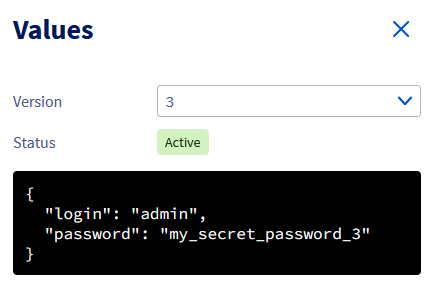
Selektor umożliwia nawigację między różnymi wersjami sekretu oraz sprawdzenie statusu wybranej wersji. Jeśli wersja jest wyłączona lub usunięta, żadna wartość nie jest wyświetlana.
Zarządzanie wersjami
Aby uzyskać dostęp do wersji sekretu, karta Wersje prowadzi do tabeli zawierającej listę wszystkich wersji sekretu.
Każda modyfikacja sekretu powoduje utworzenie nowej wersji.
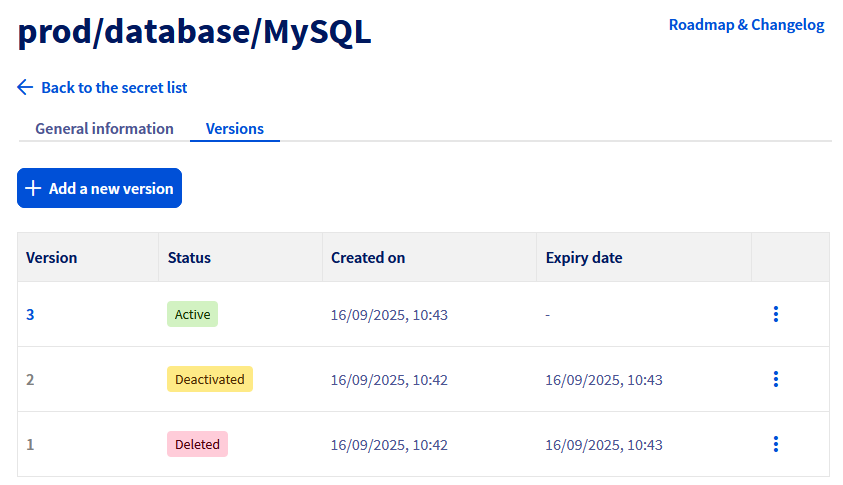
Wersja może być:
- Aktywna: Wartość tej wersji jest dostępna.
- Wyłączona: Wartość tej wersji jest nadal obecna w systemie, ale nie jest już dostępna, dopóki wersja nie zostanie ponownie włączona.
- Usunięta: Wartość tej wersji nie jest już obecna w systemie i nie można jej przywrócić.
Przyciski akcji każdej wersji umożliwiają wyświetlenie wartości, wyłączenie lub ponowne włączenie wersji albo jej usunięcie.
Wersja usunięta przez parametr Maksymalna liczba wersji nie pojawia się już na liście wersji.
Zarządzanie domeną OKMS
Domena OKMS Secret Manager jest współdzielona z domeną OKMS usługi Key Management Service. Utworzenie lub usunięcie domeny OKMS ma zatem konsekwencje dla obu produktów.
Nie można jeszcze modyfikować konfiguracji domeny OKMS za pomocą interfejsu graficznego.
Przypadek wielu domen OKMS
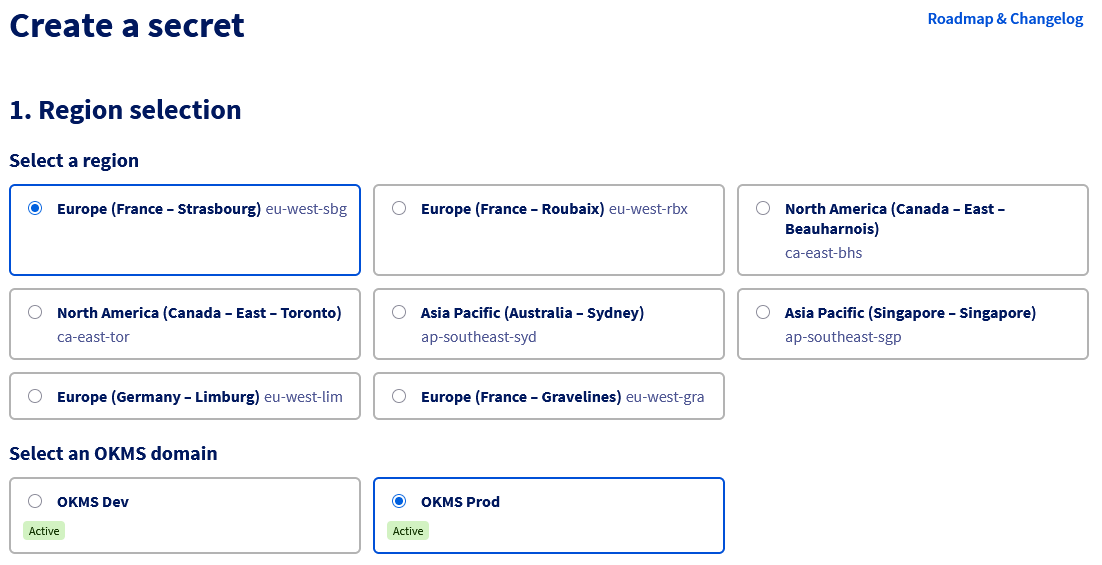
W przypadku gdy w regionie znajdują się już co najmniej dwie domeny OKMS, podczas tworzenia sekretu pojawia się dodatkowy etap wyboru.
Ponadto na liście sekretów, jeśli region zawiera wiele domen OKMS, obecna jest tabela pośrednia umożliwiająca wybór docelowej domeny OKMS.
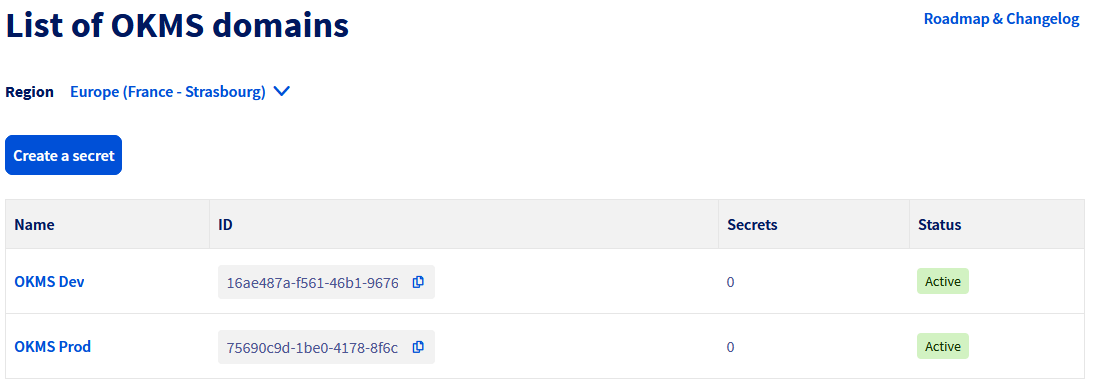
Nie można jeszcze dodać domeny OKMS w regionie za pomocą interfejsu graficznego.
Korzystanie z Secret Manager przez API
Secret Manager jest dostępny za pomocą dwóch różnych zestawów API. Oba manipulują tymi samymi obiektami — sekret utworzony jedną z metod jest dostępny za pomocą drugiej.
Przed wywołaniem jednego lub drugiego API skonfiguruj metodę uwierzytelniania oraz wymaganą politykę IAM w swojej domenie OKMS. W przypadku korzystania z API REST zalecany jest osobisty token dostępu (PAT) lub konto serwisowe.
- API REST podobne do standardów API OVHcloud.
- API zgodne z HashiCorp Vault KV2 zapewniające zgodność z aplikacjami już kompatybilnymi z HashiCorp Vault KV2.
Sprawdź również
Korzystanie z Secret Manager za pomocą API REST
Korzystanie z Secret Manager za pomocą API zgodnego z HashiCorp Vault KV2
Dołącz do grona naszych użytkowników.