
Backing up SAP HANA with Veeam Backup and Replication
This guide provides instructions for backing up SAP HANA databases using Veeam Backup and Replication and the Veeam Plug-in for SAP HANA
Objective
This guide provides instructions for backing up SAP HANA databases using Veeam Backup and Replication 12.2 and the Veeam Plug-in for SAP HANA.
Veeam Enterprise Plus with OVHcloud allows you to use Veeam Backup and Replication 12 within your OVHcloud infrastructure and benefiting from a Veeam Enterprise Plus licence.
Requirements
- A SAP HANA database has been installed.
- A Windows server that will host the solution Veeam Backup and Replication.
- A storage space that will host the backups.
- The firewall openings have been made, allowing communication between your servers.
Instructions
1 - Installation of Veeam Backup and Replication
If you want to be guided through the installation of Veeam Backup and Replication on your Windows server, our guide outlines all the necessary steps.
2 - Configuration of the Backup Repository
After installing Veeam Backup and Replication on your Windows server, you need to configure the Backup Repository.
A Backup Repository is a storage space where Veeam Backup and Replication hosts the backups.
At this stage, two scenarios can occur:
- Your infrastructure is not a SecNumCloud-qualified infrastructure.
- Your infrastructure is a SecNumCloud-qualified infrastructure.
2.1 - Configuration of the Backup Repository for non-SecNumCloud needs
In this configuration, you can use a storage space, as well as an Object Storage to secure the backups in another OVHcloud region.
2.1.1 - Creation of the Backup Repository
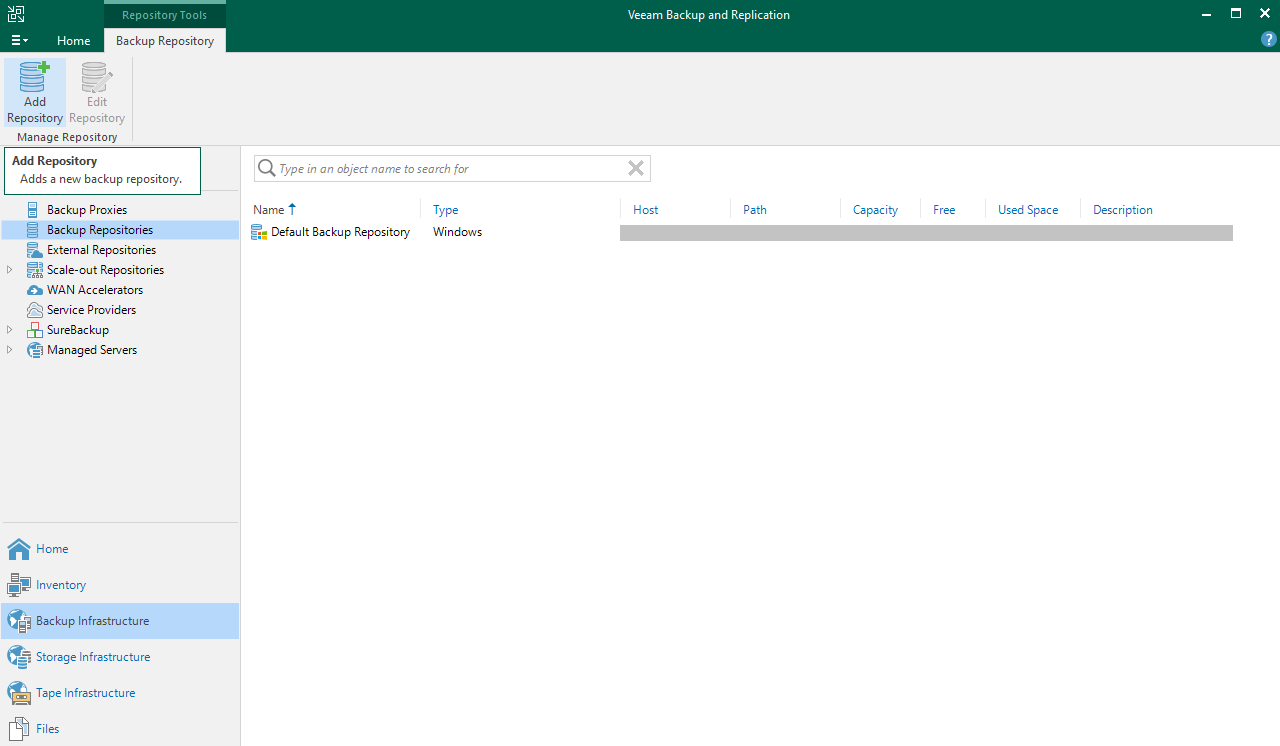
Open the Veeam Backup and Replication console, select Backup Infrastructure, then Backup Repositories.
Click on Add Repository to start the configuration assistant.
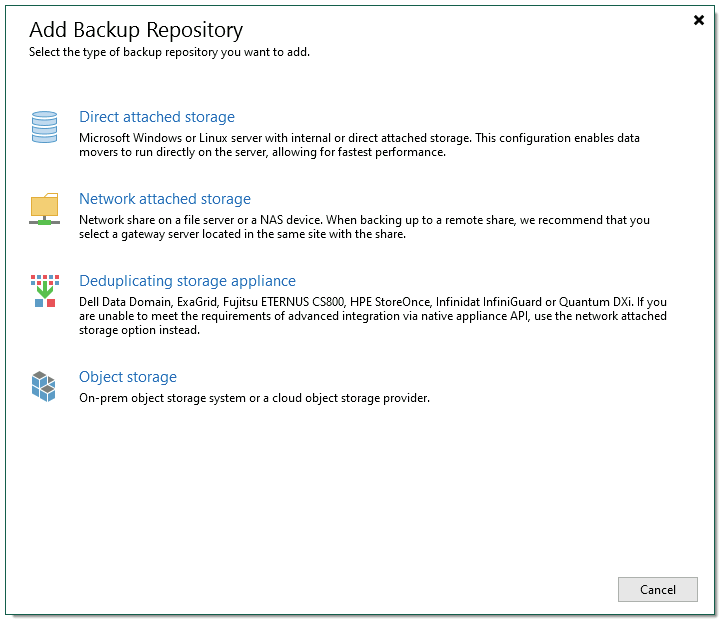
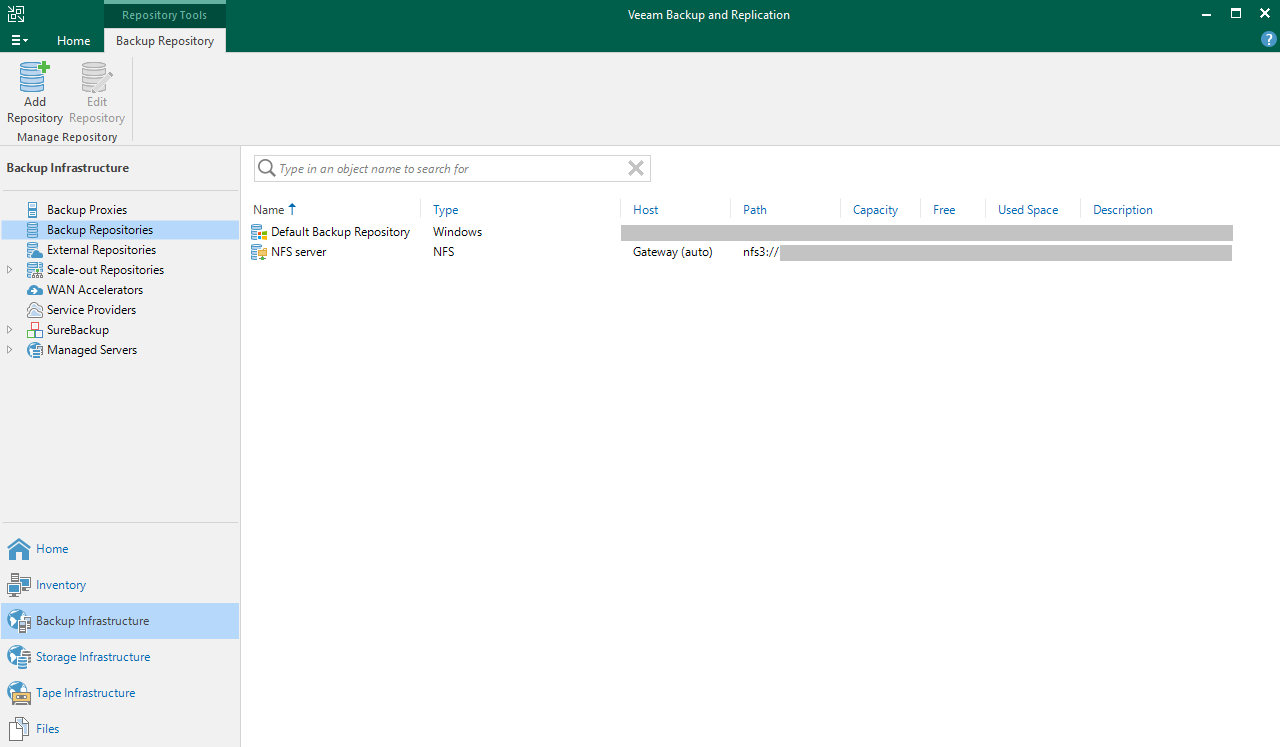
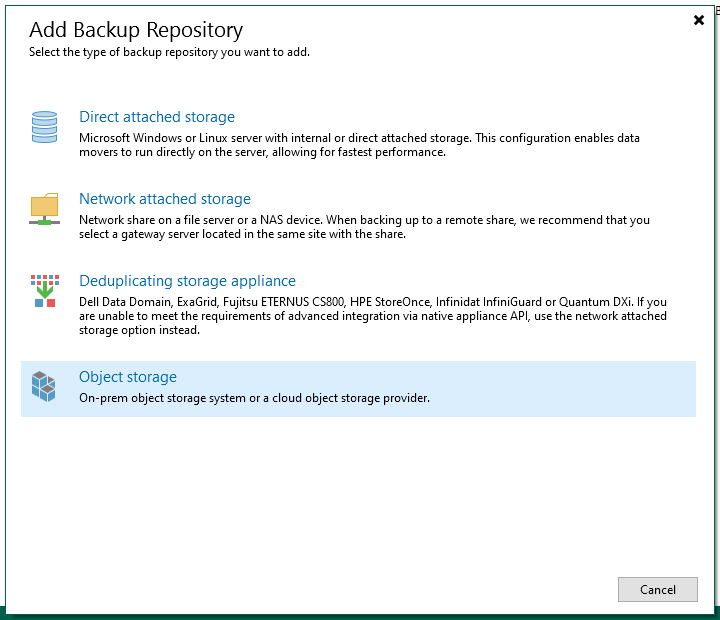
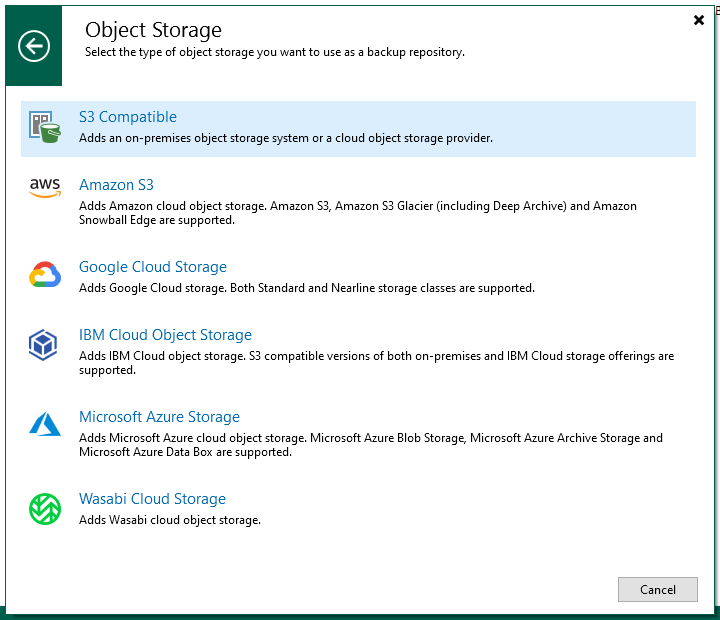
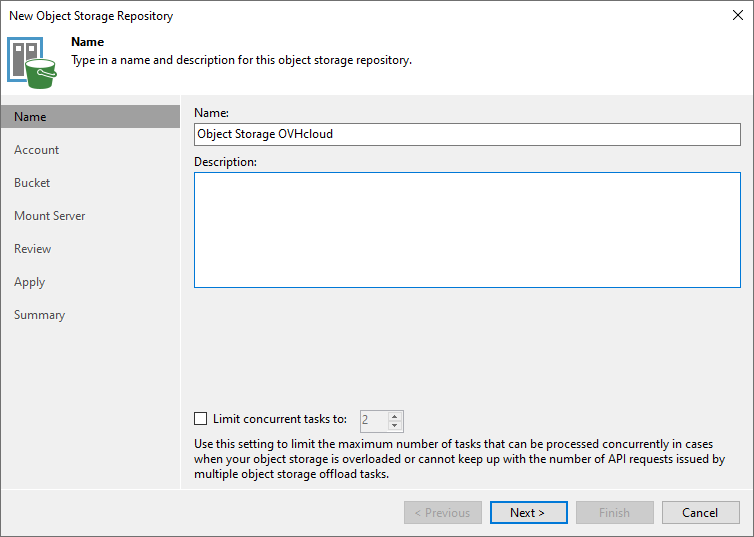
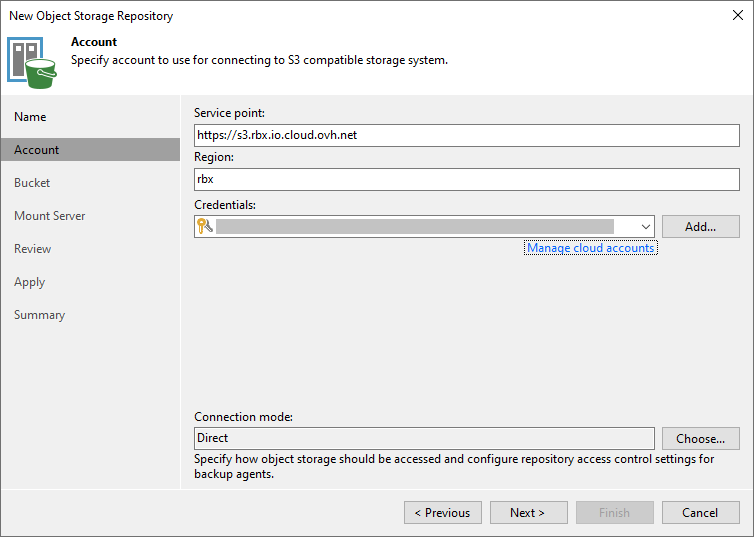
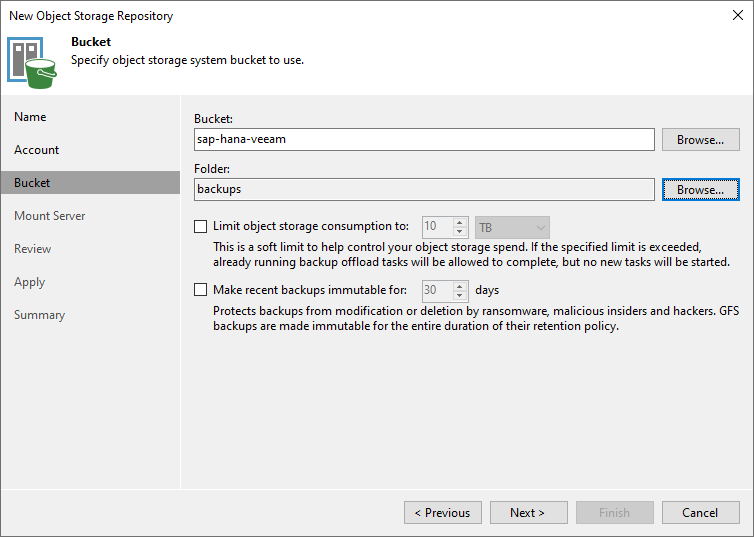
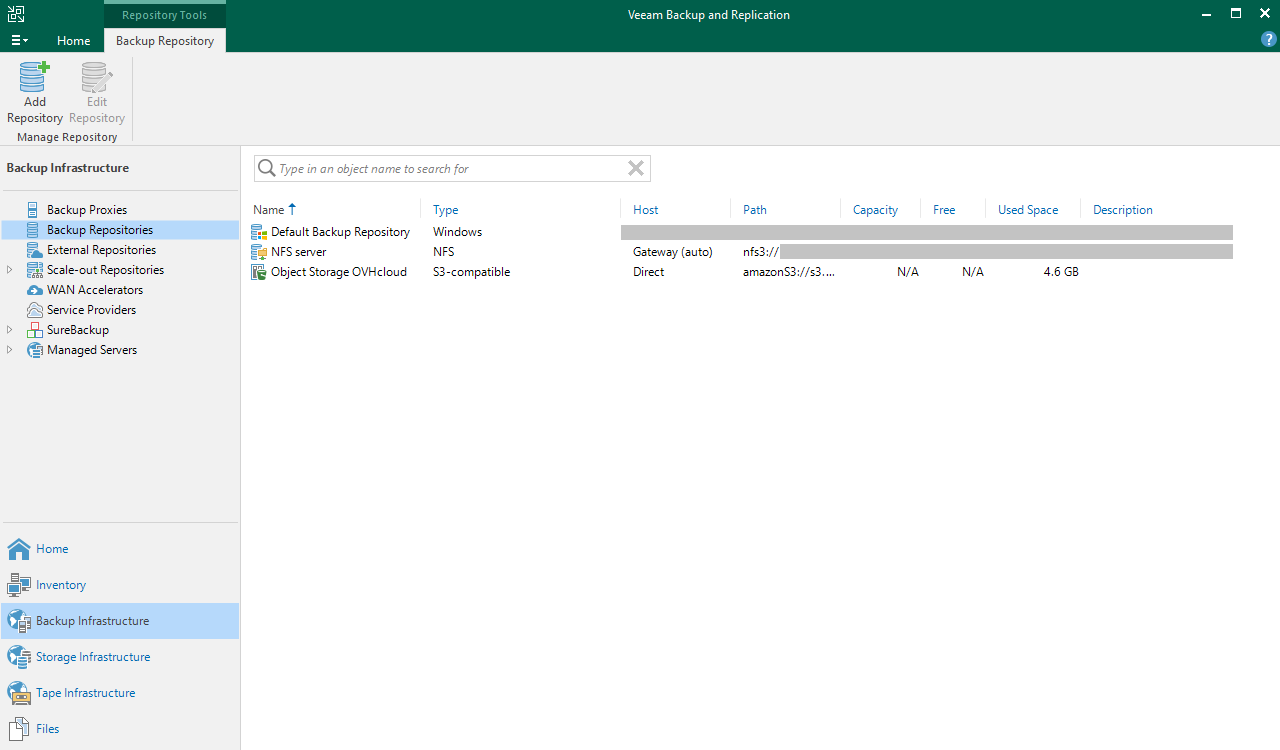
2.1.2 - Creation of Backup Repository Object Storage (optional)
This Backup Repository will be used to secure your backups on a secondary storage space, which can be hosted on a second OVHcloud region.
To discover the steps to create an Object Storage bucket, please refer to the detailed steps in our guide.
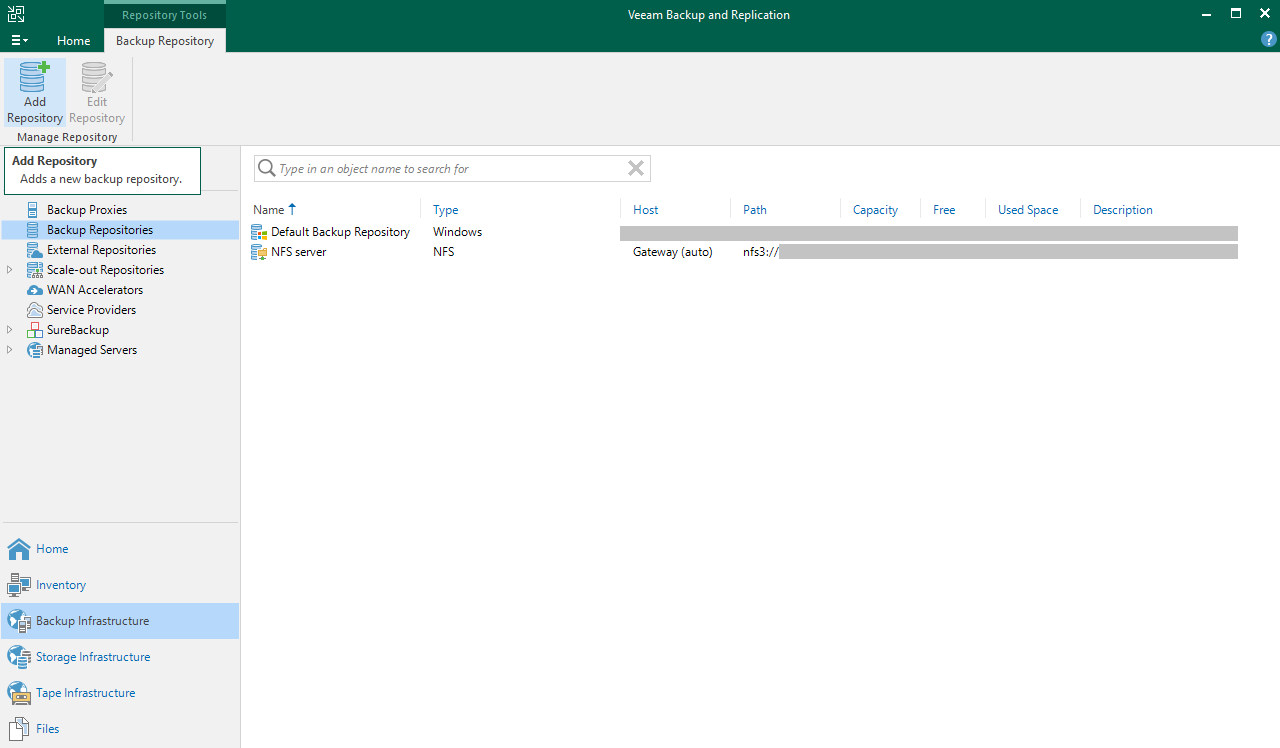
Open the Veeam Backup and Replication console, select Backup Infrastructure, then Backup Repositories.
Click Add Repository to start the configuration assistant.
2.1.3 - Creation of Scale-out Backup Repository (optional)
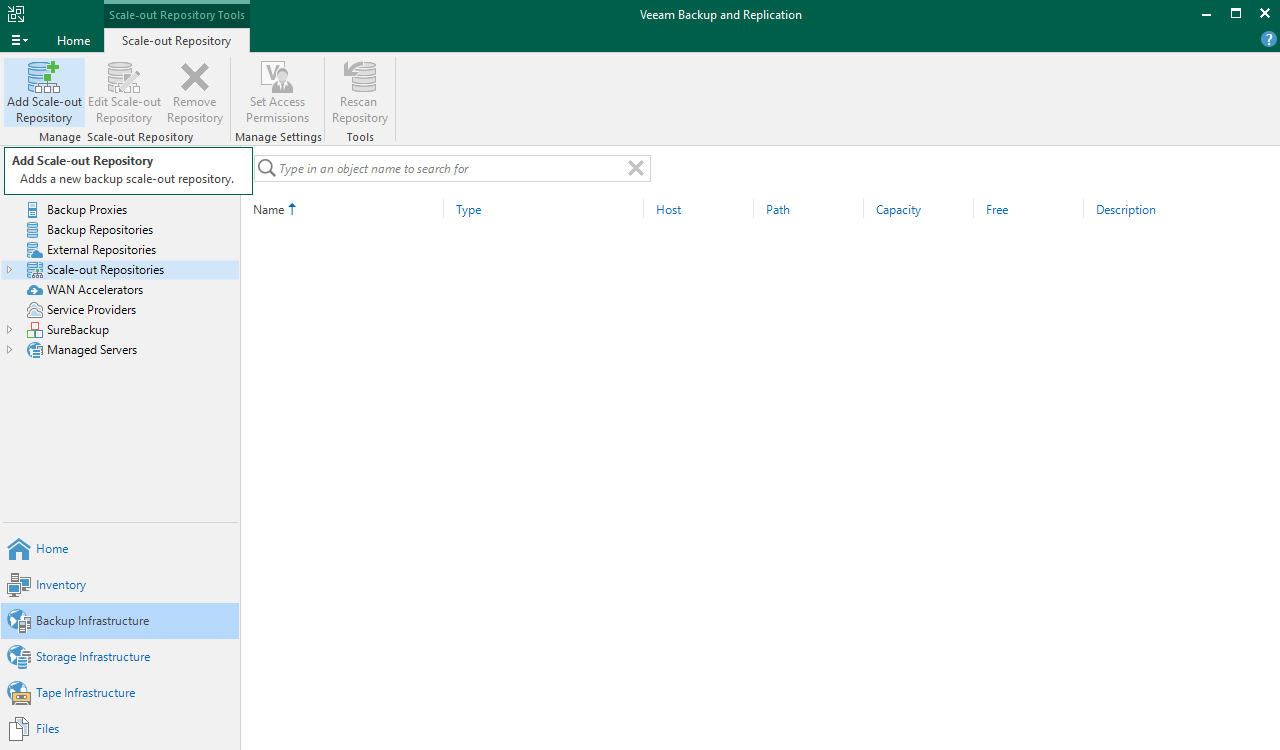
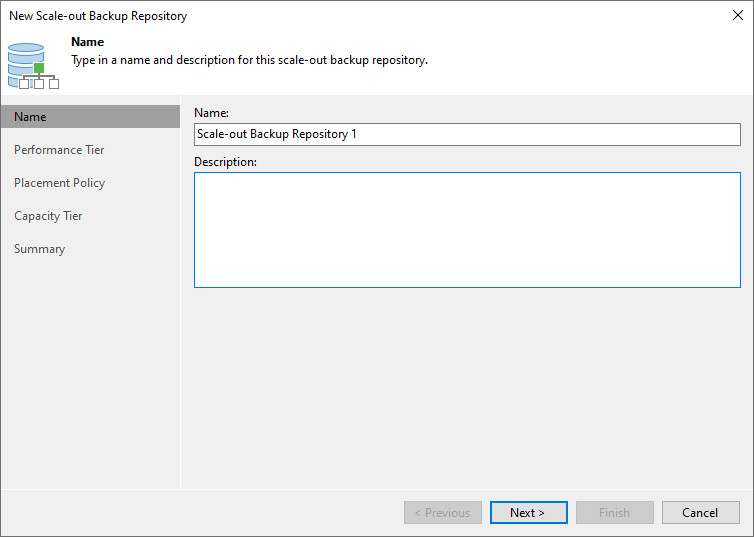
Creating a Scale-out Backup Repository will secure your backups deposited in your first Backup Repository by copying them to your second Backup Repository without any action required from you.
Open the Veeam Backup and Replication console, select Backup Infrastructure, then Scale-out Repositories.
Click Add Scale-out Repository to start the configuration assistant.
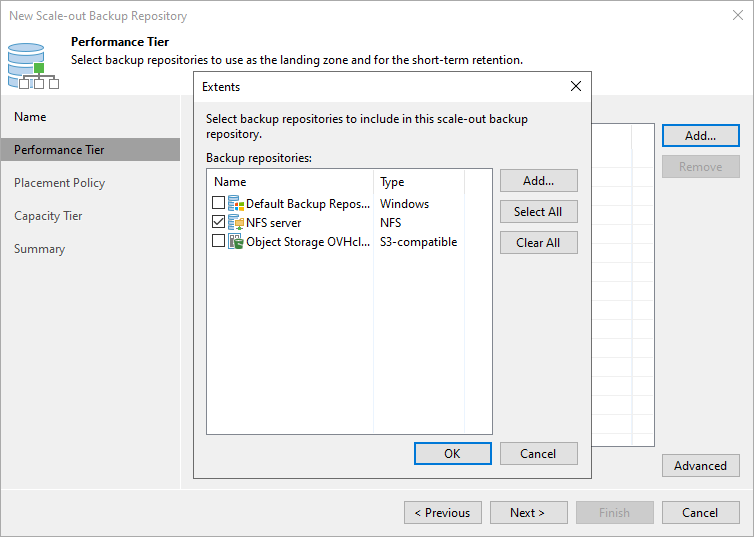
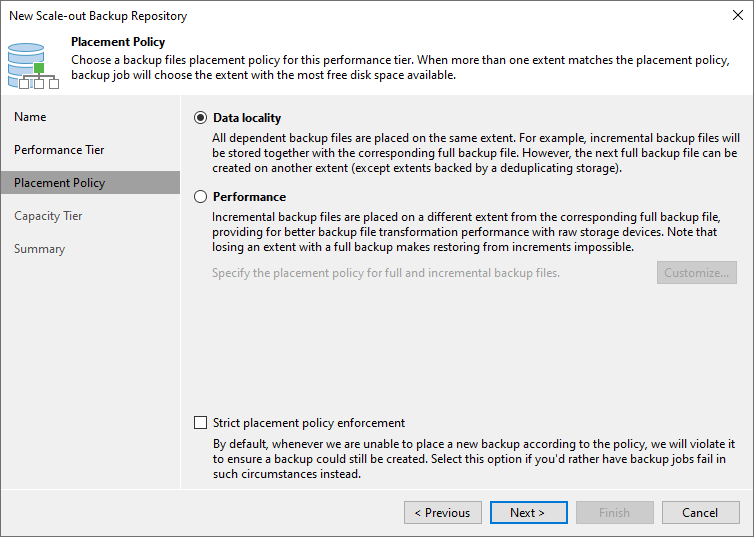
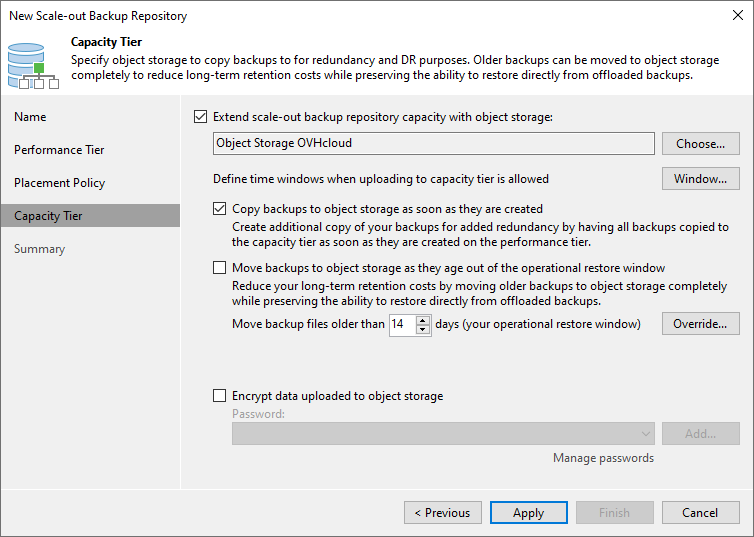
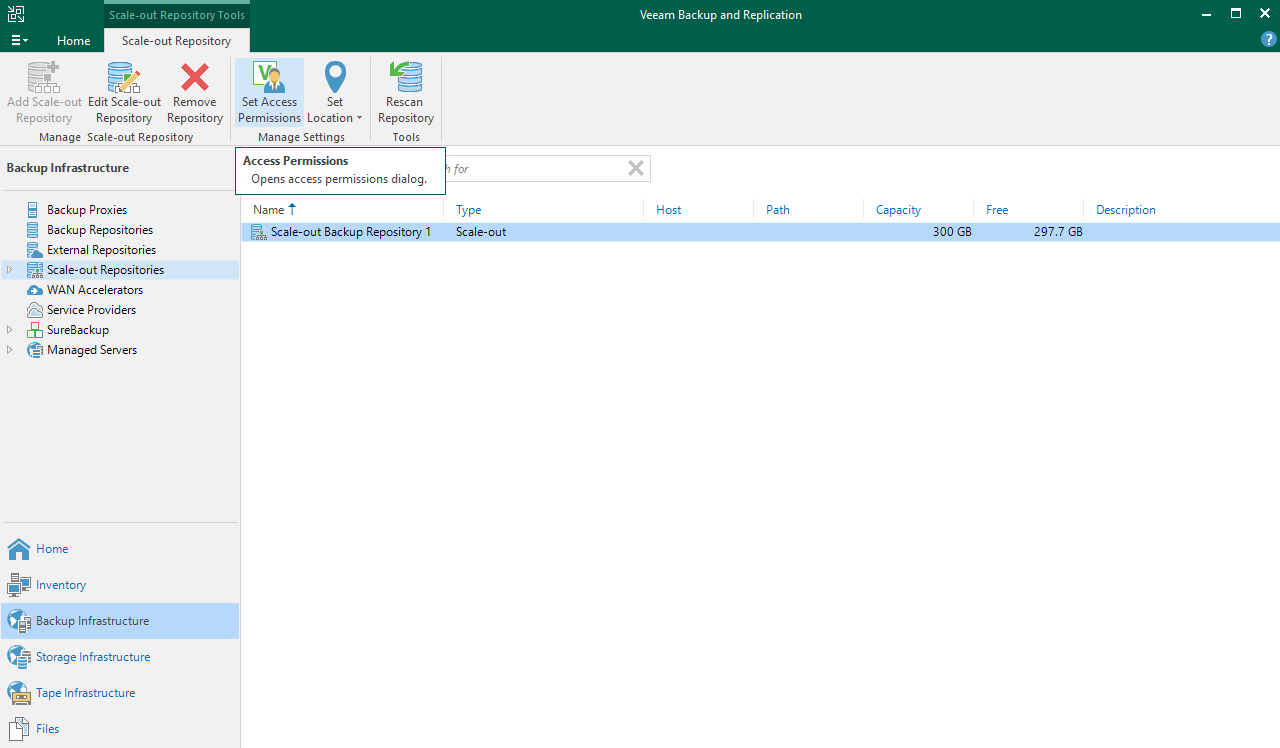
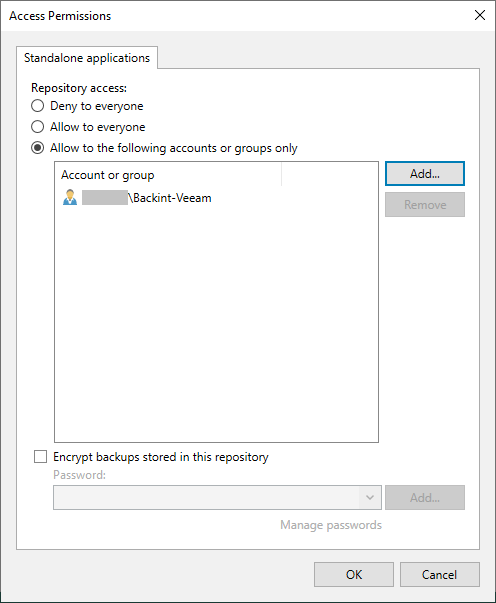

Once these steps are completed, you can continue this guide with the chapter Installation of Veeam Plug-in for SAP HANA.
2.2 - Configuring a Backup Repository for SecNumCloud needs
In this configuration, the storage space must also be hosted on a SecNumCloud-qualified infrastructure.
2.2.1 - Creation of a Backup Repository
Open the Veeam Backup and Replication console, select Backup Infrastructure, then Backup Repositories.
Click on Add Repository to start the configuration assistant.
For more information on configuring Backup Repositories, please refer to the Veeam Backup and Replication documentation.
The Object Storage solution is not currently qualified as SecNumCloud-compliant and cannot be used to host backups in a SecNumCloud context.
If you wish to secure your backups on a second Backup Repository, please repeat this step. Continue with the guide at the step Installation of Veeam Plug-in for SAP HANA, and then follow the chapter Creation of the Backup Copy job.
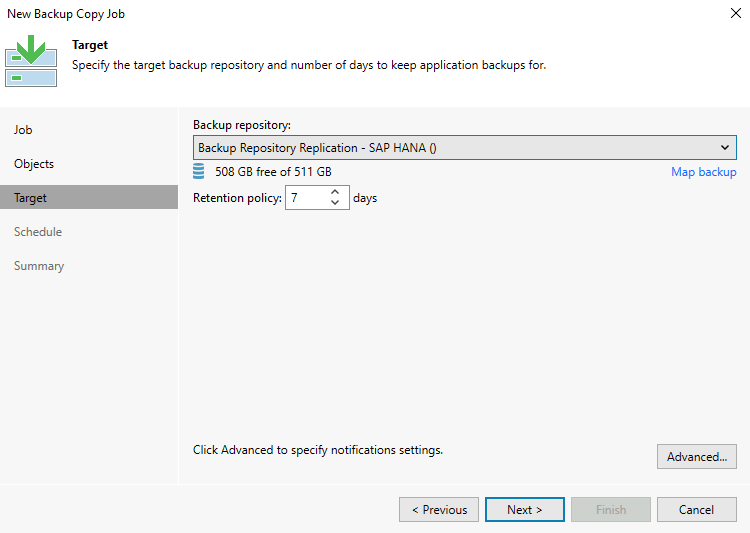
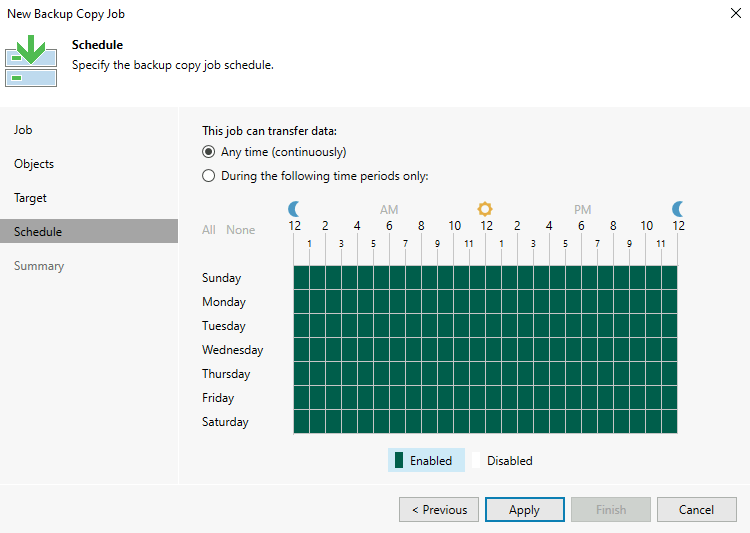
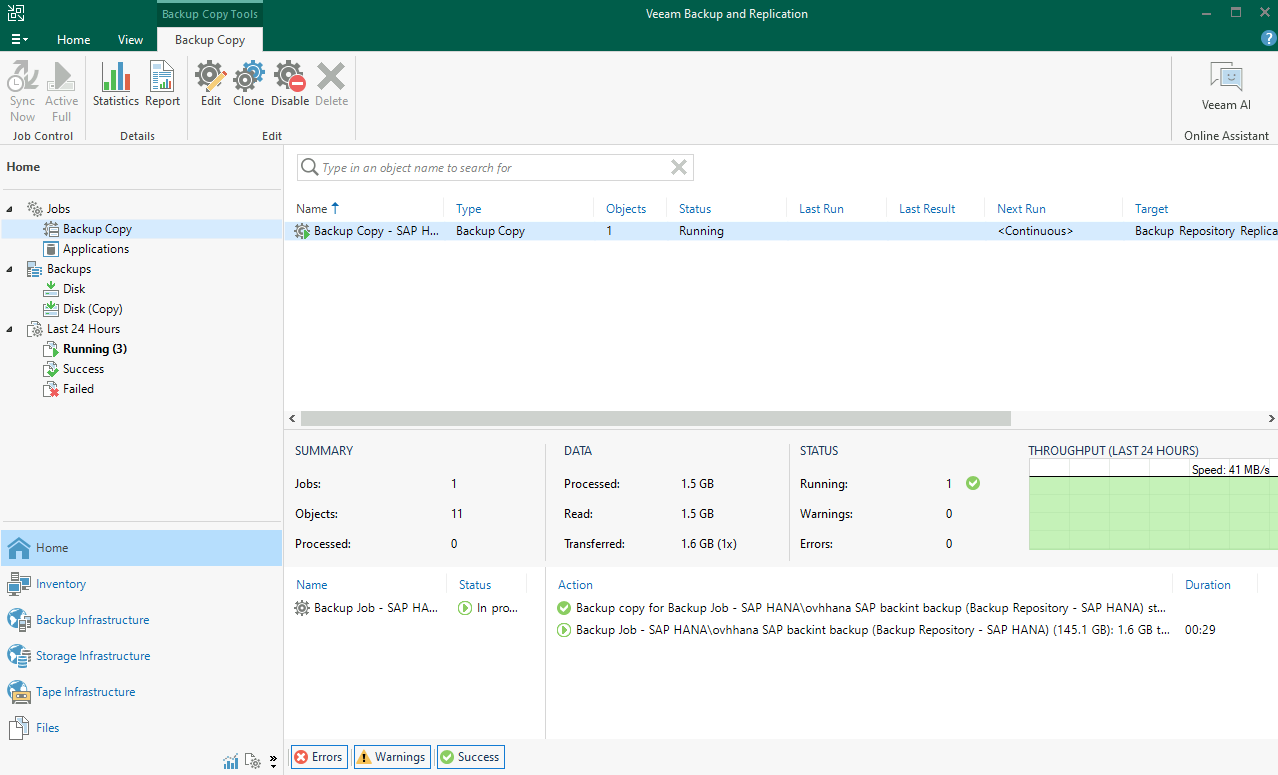
2.2.2 - Creation of the Backup Copy job (optional)
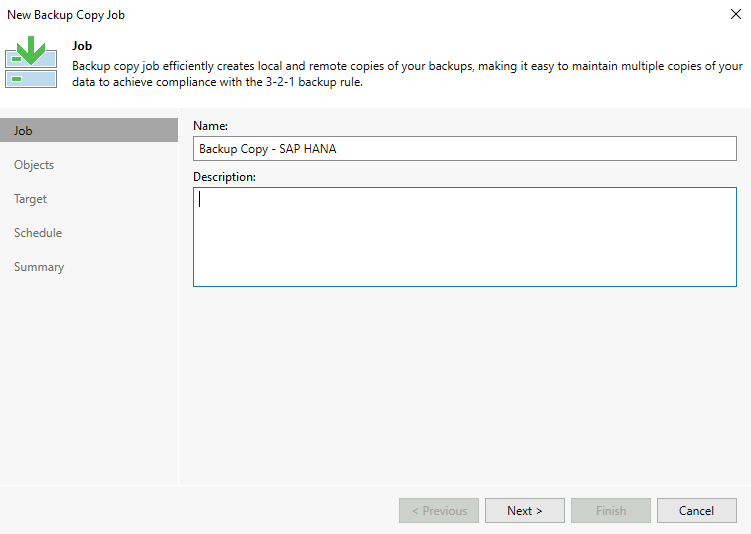
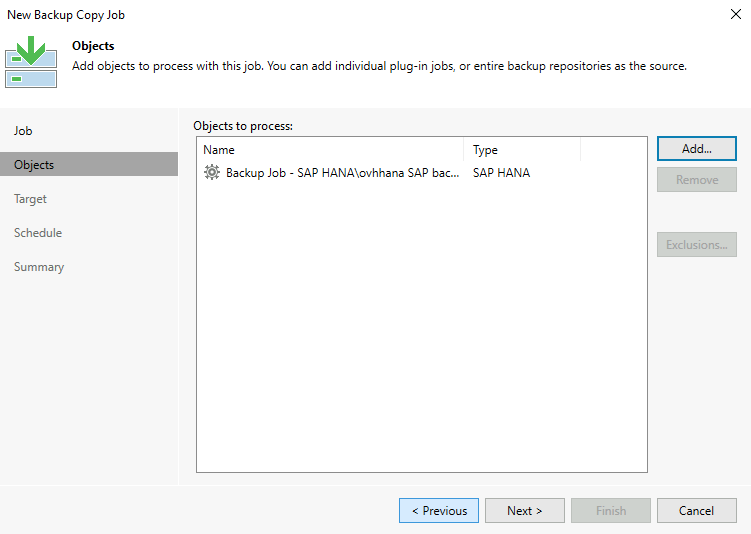
A Backup Copy job allows you to duplicate backups from one Backup Repository to another, ensuring the security of these backups on a separate storage location. This operation is useful for protecting critical data from loss or corruption by keeping a copy on a remote backup site. With this feature, you can configure advanced backup strategies to ensure the resilience and availability of your data in the event of a disaster.
Ports tcp/2500-3300 must be open between Backup Repositories.
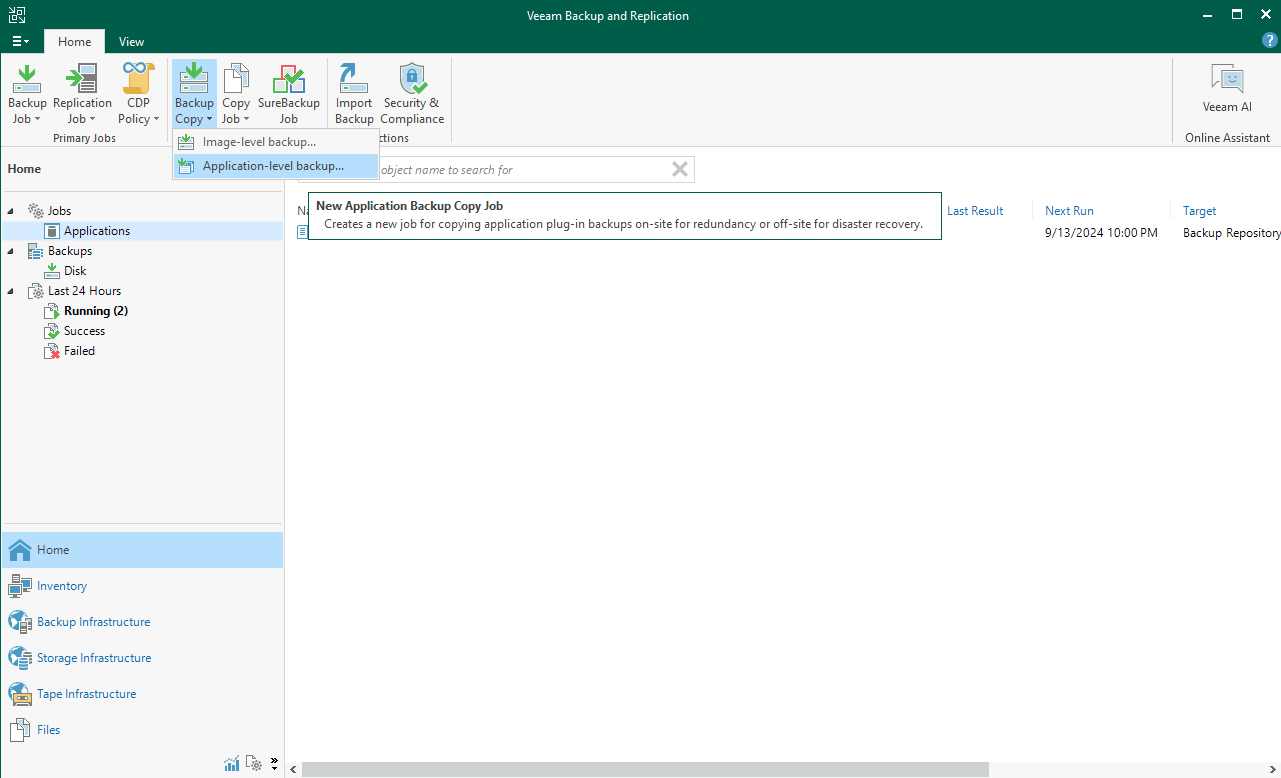
Open the Veeam Backup and Replication console, select the Home menu, Backup Copy, then Application-level backup....
3 - Installation of Veeam Plug-in for SAP HANA
The installation of Veeam Plug-in for SAP HANA can be accomplished using one of the following two methods:
- The "Standalone Mode" method involves a manual installation using the binary extracted from the Veeam Backup and Replication ISO on the server hosting the SAP HANA database. This method offers limited functionality through the Veeam Backup and Replication console.
- The "Managed Mode" method is an automated installation performed via the Veeam Backup and Replication console, allowing for the use of several features such as scheduling a backup job.
For the purposes of this documentation, we will use the "Managed Mode" method in order to use all the features provided by Veeam.
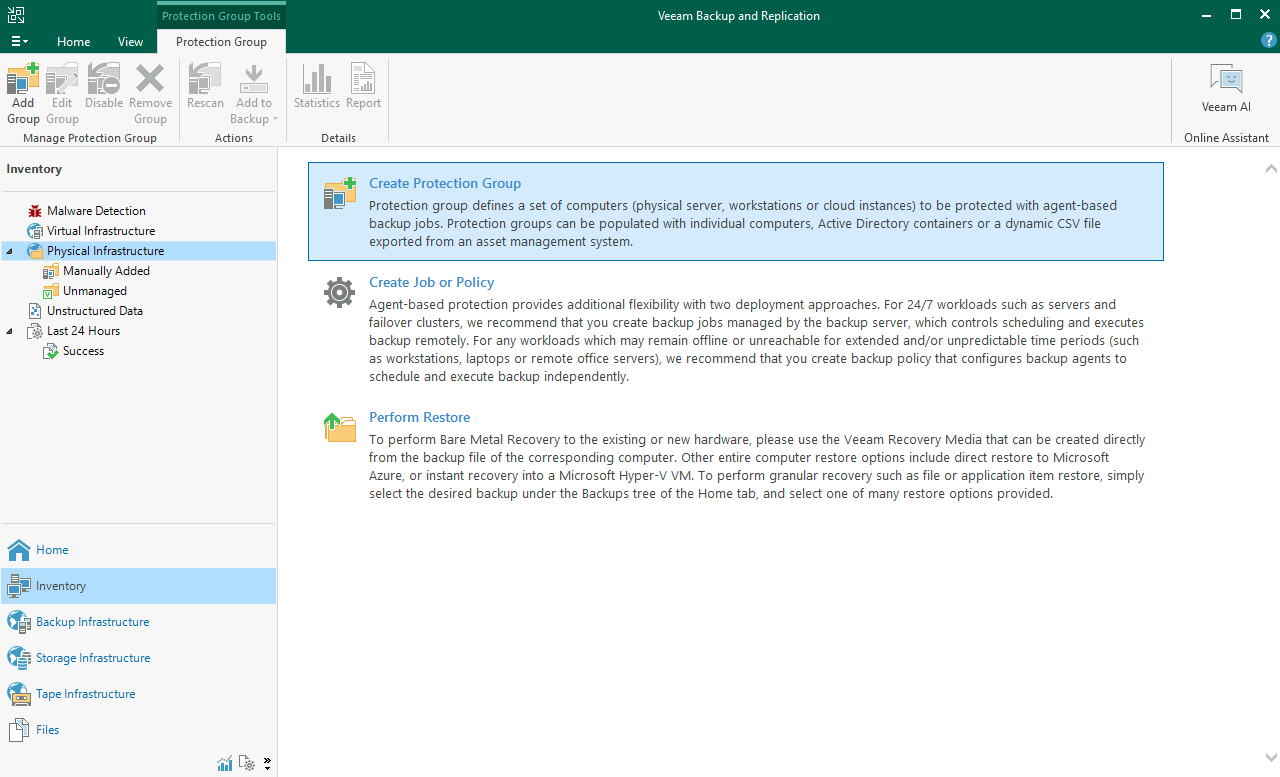
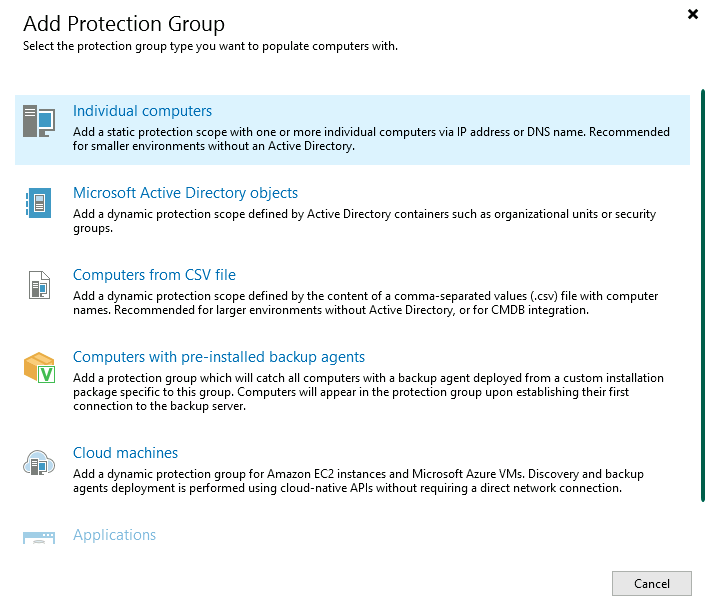
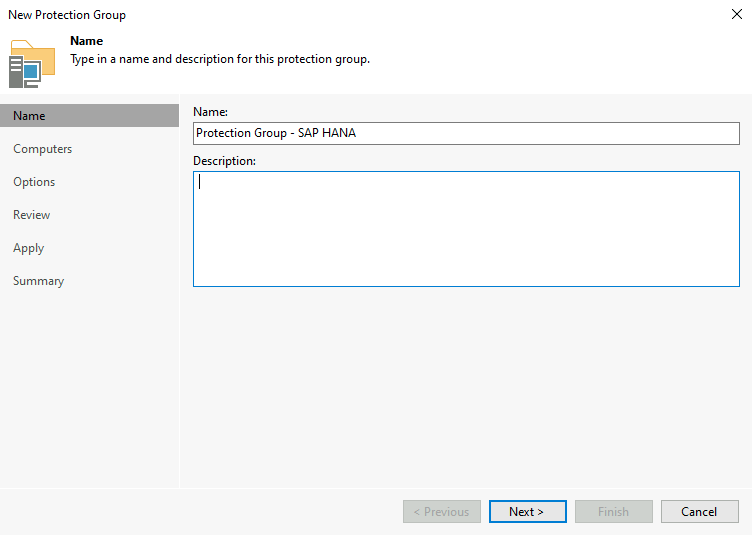
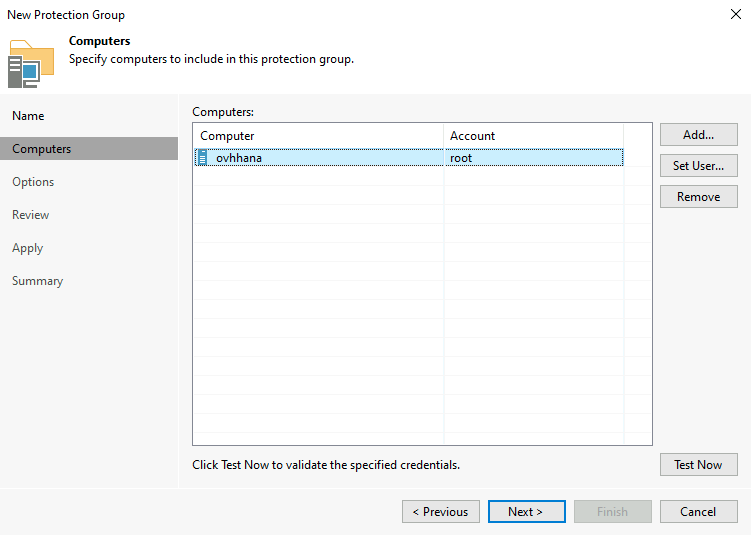
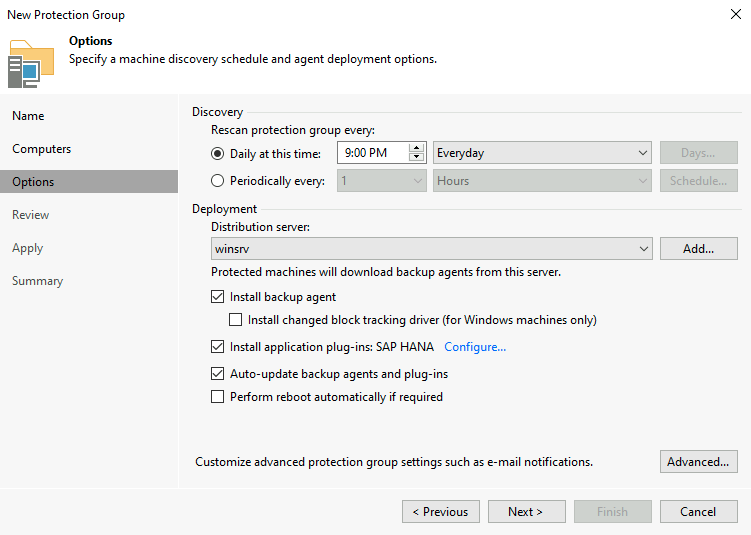
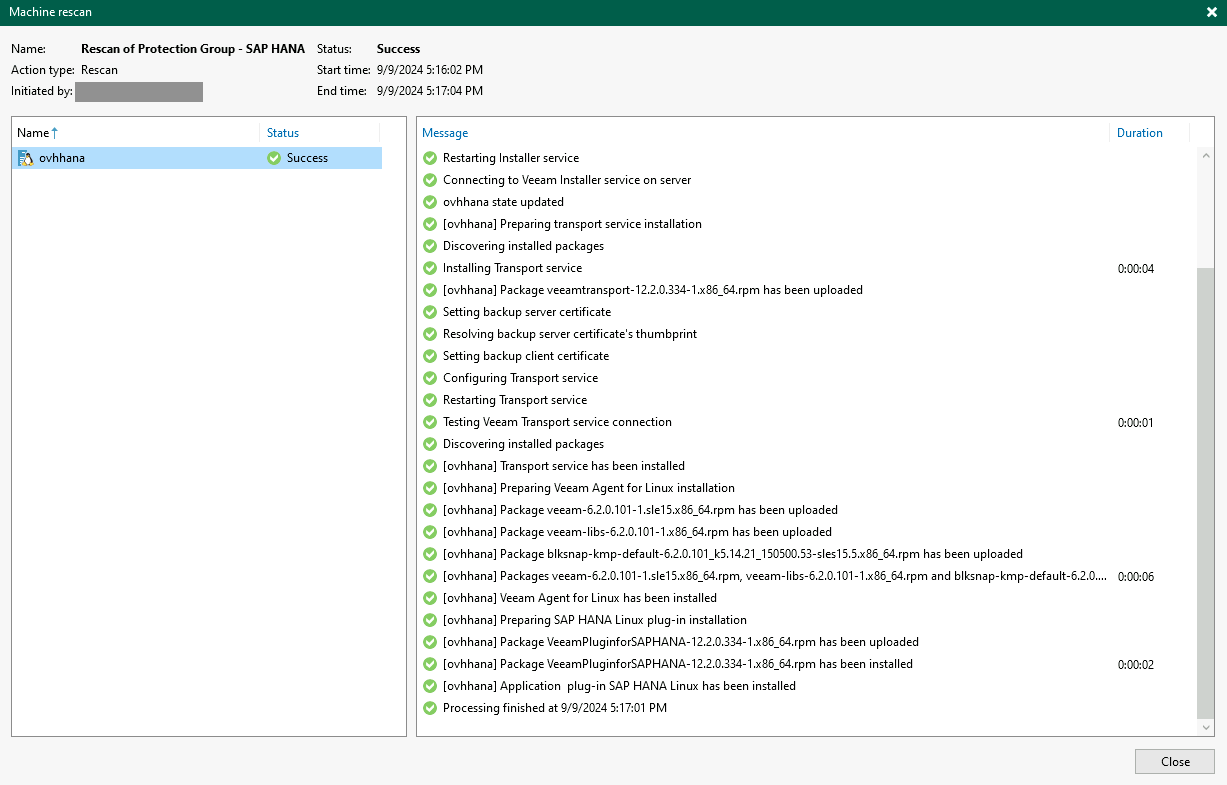
3.1 - Creation of a Protection Group
The creation of a protection group is a prerequisite for the installation of Veeam Plug-in for SAP HANA in Managed Mode.
Open the Veeam Backup and Replication console, select Inventory, then Physical Infrastructure.
Click on Create Protection Group.
3.2 - Creating the backup job
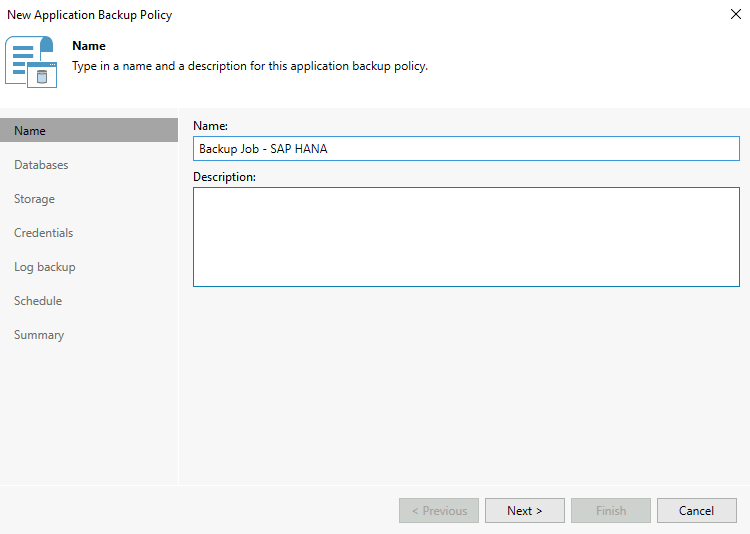
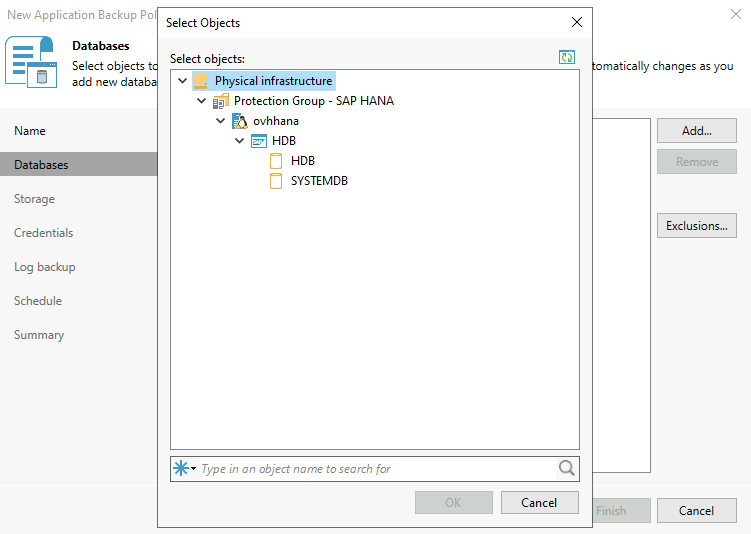
Following the installation of Veeam Plug-in for SAP HANA in Managed mode, we are now able to create a backup job and manage its scheduling via the Veeam Backup and Replication console.
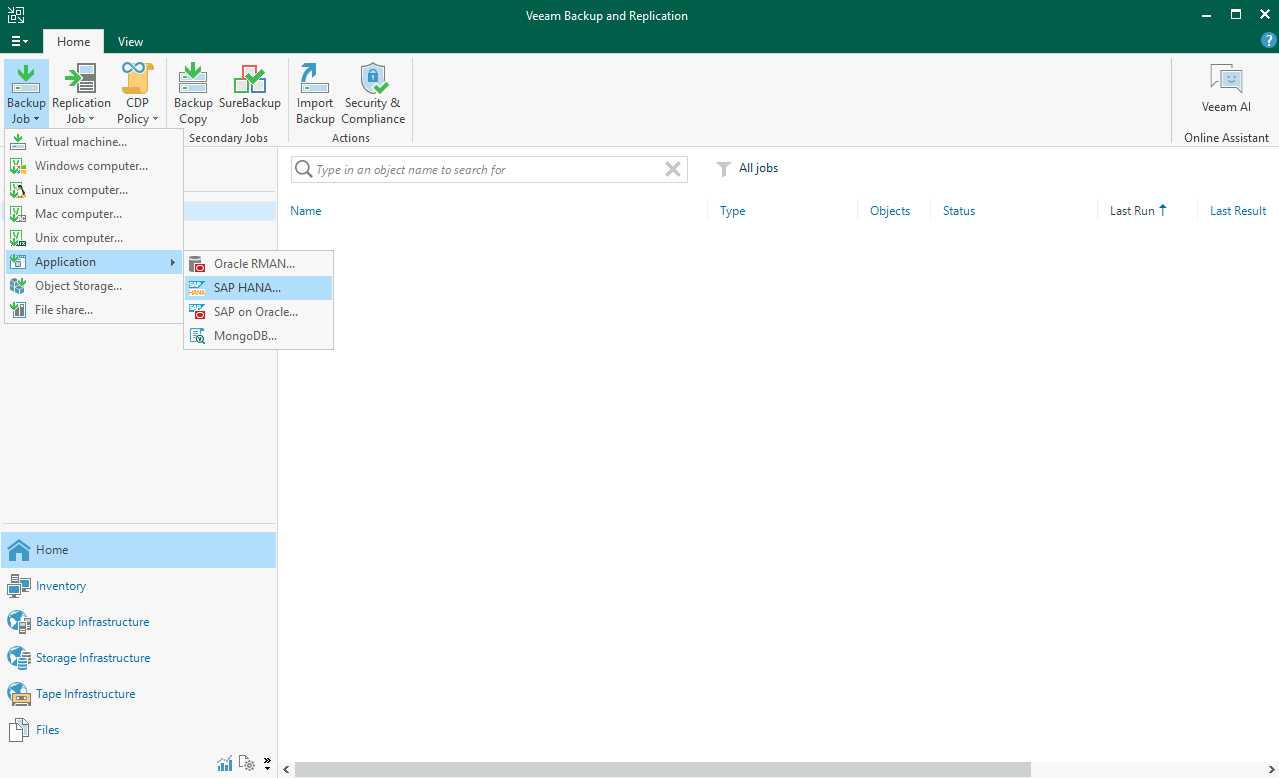
Open the Veeam Backup and Replication console, select the Home menu, Backup job, Application, then SAP HANA.
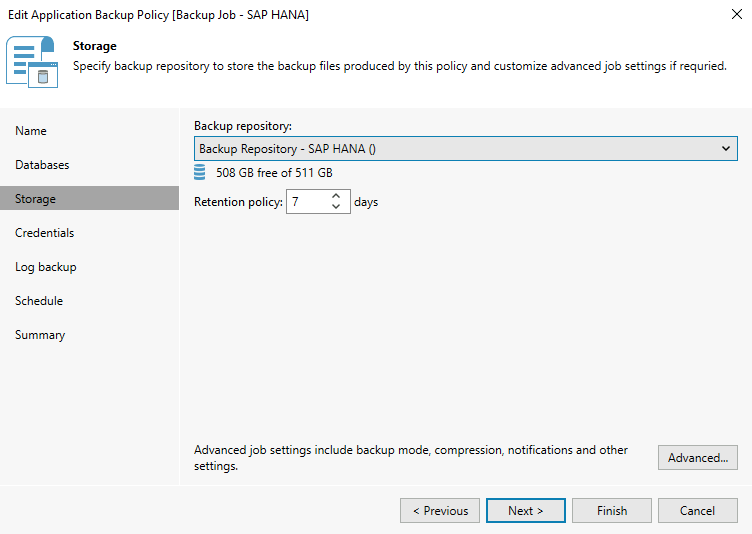
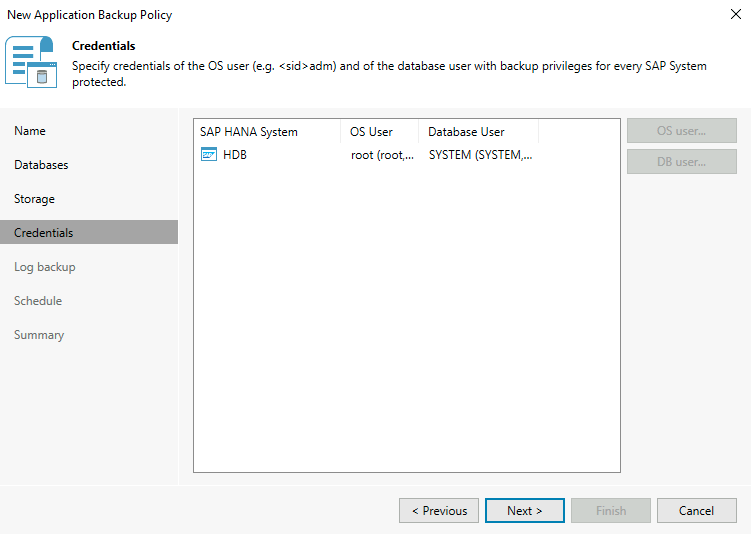
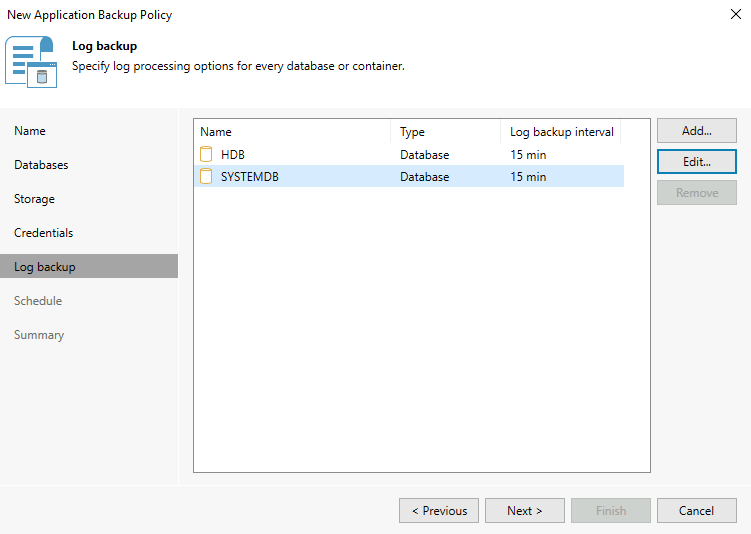
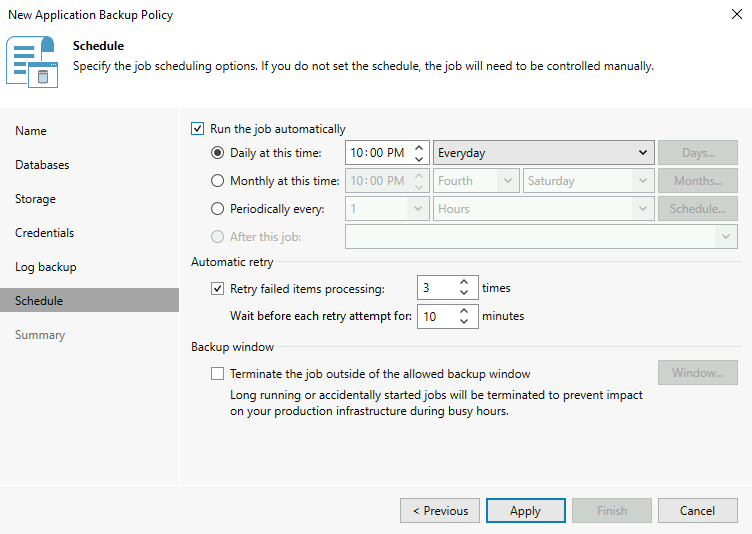
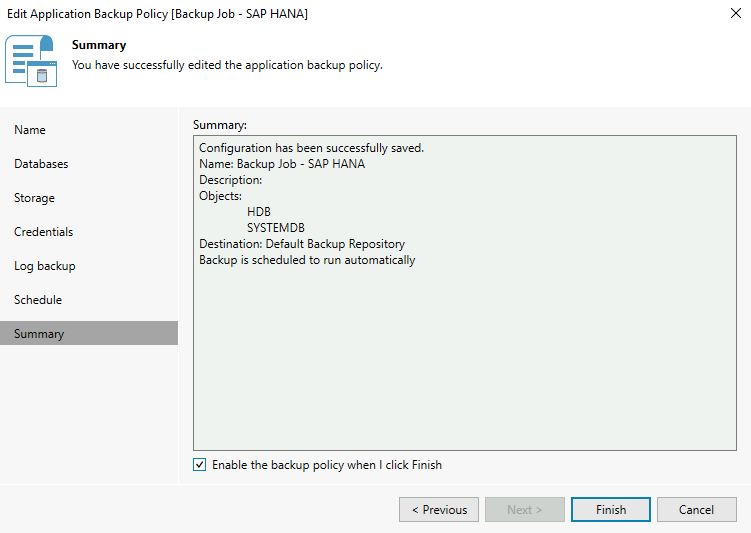
You can now run a backup of your SAP HANA database to ensure that your configuration works as desired.
To do this, simply go to the Home menu, select Jobs then Applications, then select your backup job and click on Full. This will launch a full backup of the SAP HANA databases configured in this backup job.
You can follow the progress of the backup job.
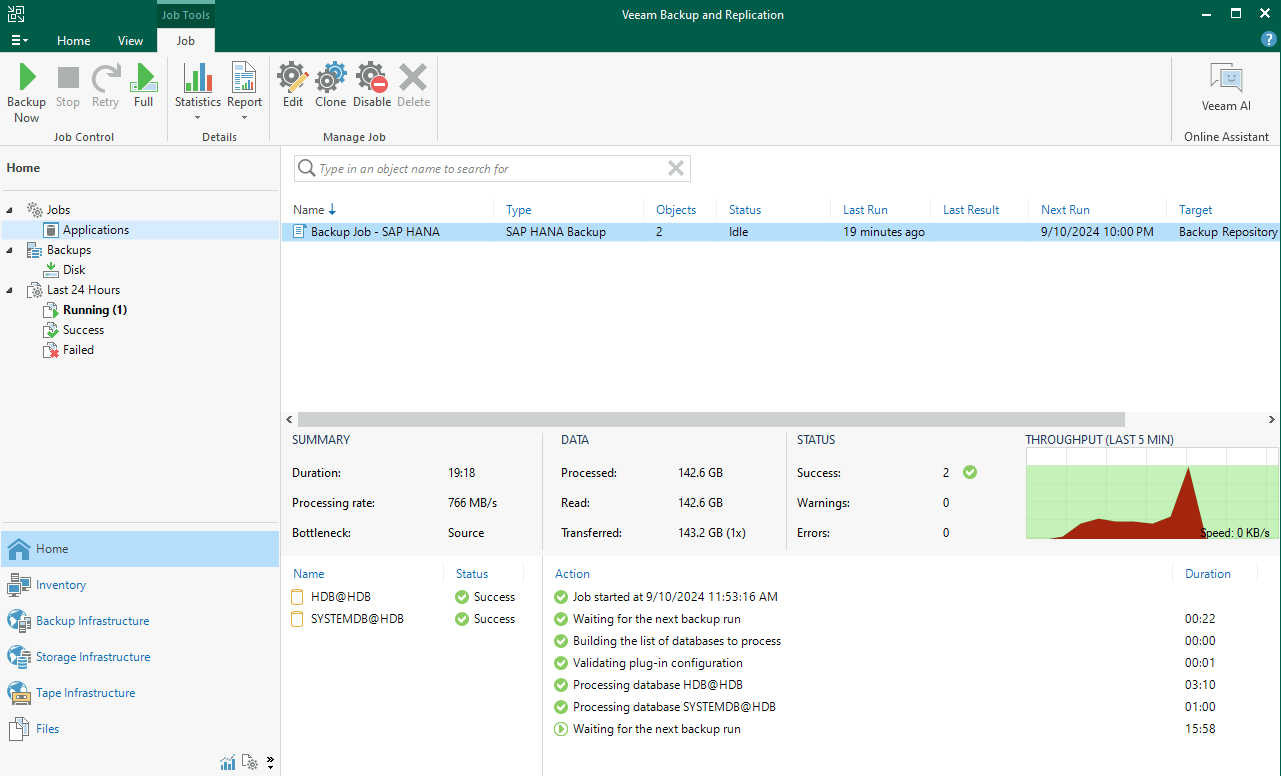
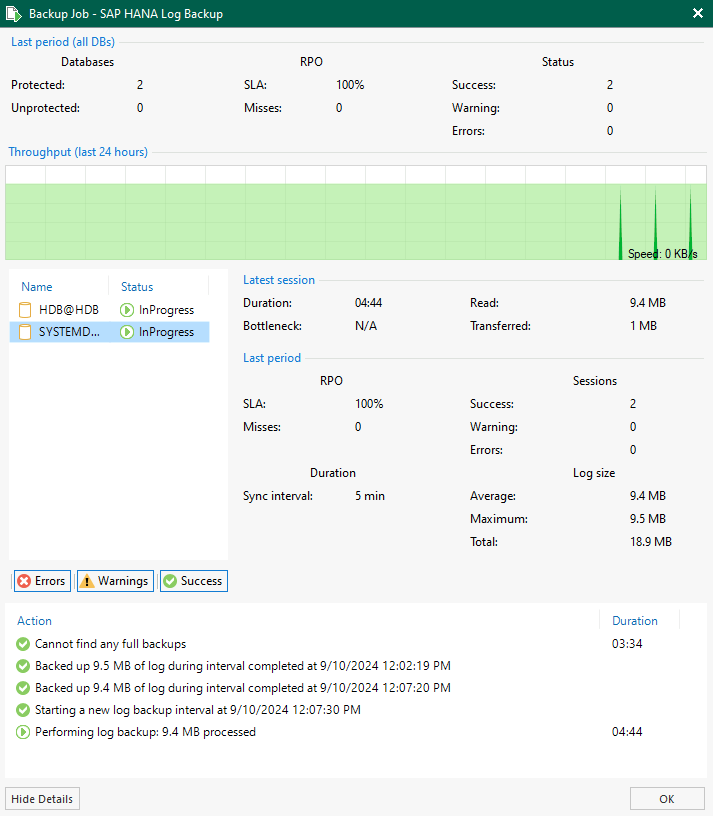
When performing log backups, you have the option to access detailed information.
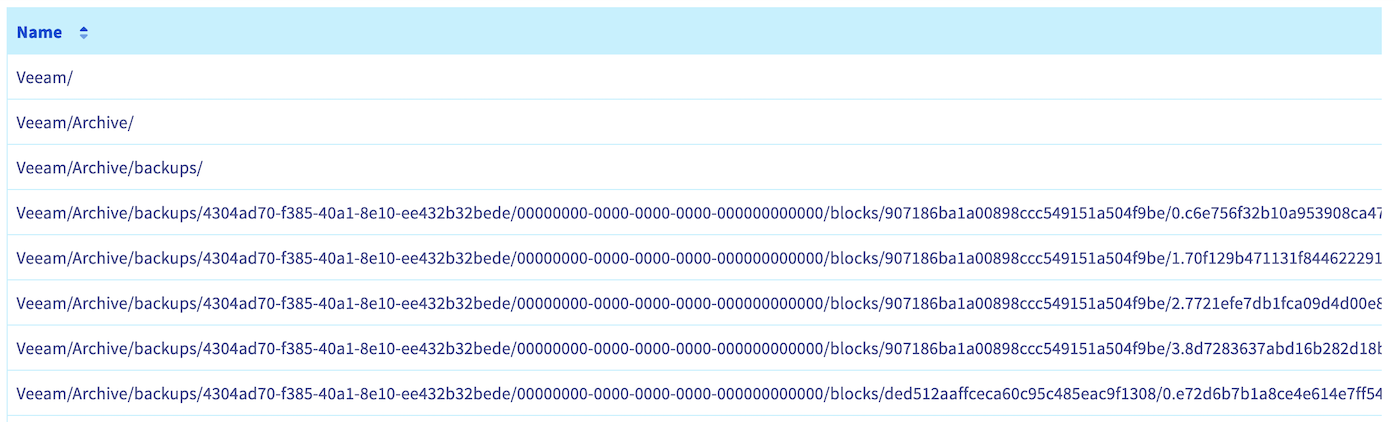
If you have configured a Scale-out Repository with an Object Storage bucket, you can observe your backups on your Object Storage bucket.
If you are in a SecNumCloud context and want to secure your backups on a second backup repository, configure a Backup Copy job.
If you want to learn about all the possibilities with Veeam Plug-in for SAP HANA, we recommend consulting the Veeam documentation.
4 - Restoration
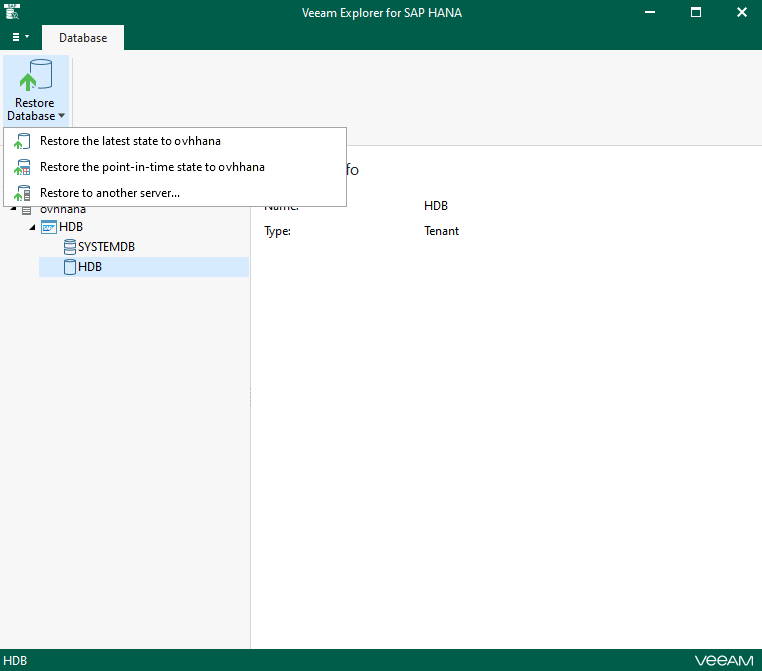
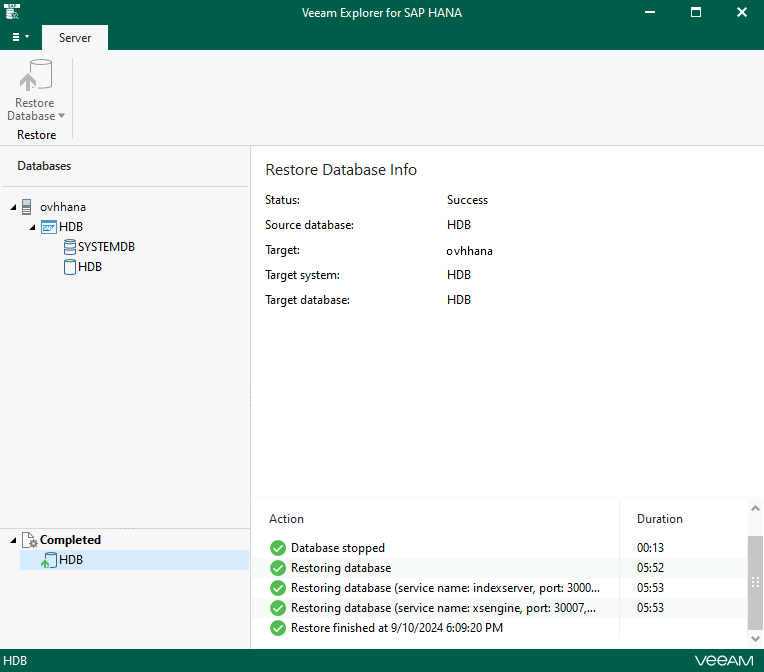
To restore your SAP HANA database from a backup taken with Veeam Backup and Replication, you can perform the following steps from the Veeam Backup and Replication console and Veeam Explorer for SAP HANA.
The following ports must be open between your Veeam Backup and Replication server and your SAP HANA database:
- SAP Host Agent HTTP – tcp/1128
- SOAP HTTP - tcp/5
<NN>13
If you want to perform communication via the HTTPS protocol, the ports are:
- SAP Host Agent HTTPS - tcp/1129
- SOAP HTTPS - tcp/5
<NN>14
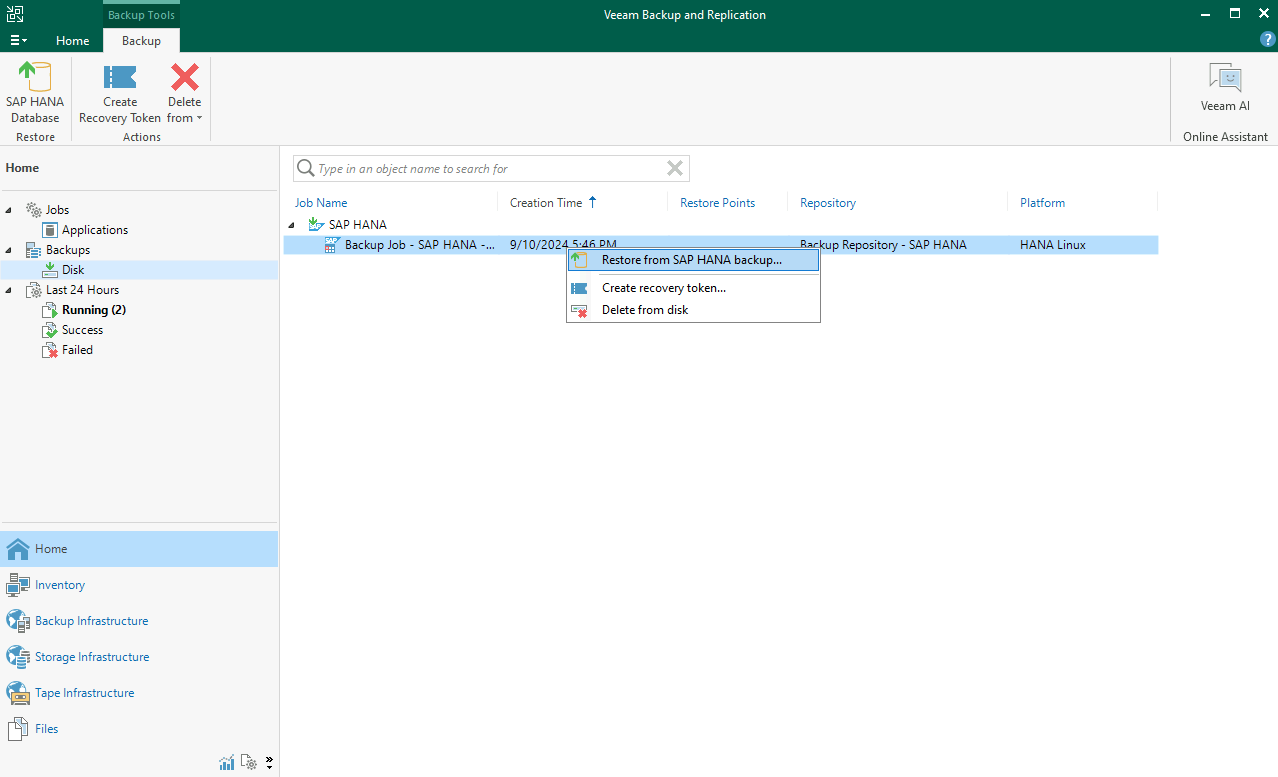
Open the Veeam Backup and Replication console, select Home, Backups, Disk, then click on Restore from SAP HANA backups... by right-clicking the backup of your SAP HANA database.
Go further
For training or technical assistance implementing our solutions, contact your sales representative or visit our Professional Services page to request a quote and have your project analysed by our experts.
Join our community of users.