Lakehouse - Getting started
Find out how to create a Lakehouse in the OVHcloud Console, give a user access to its data and run your first SQL query in the data console
Lakehouse is in alpha. It is only available to the accounts invited to the alpha programme, and its features, interface and API may change.
Objective
Lakehouse stores your data as Apache Iceberg tables on OVHcloud Object Storage and makes it available to several engines at once: the SQL engine and data console provided with the Lakehouse, and your own tools (Trino, Python, DuckDB) through the Iceberg REST catalog.
This guide explains how to create a Lakehouse, give a user access to its data and run your first SQL query.
Requirements
- A Public Cloud project in your OVHcloud account.
- An OVHcloud account invited to the Lakehouse alpha programme.
OVHcloud Console Access
- Direct link:
- Navigation path:
Public Cloud> Select your project >Analytics
Instructions
Step 1 - Creating a Lakehouse
Click Lakehouse, then Create a Lakehouse.
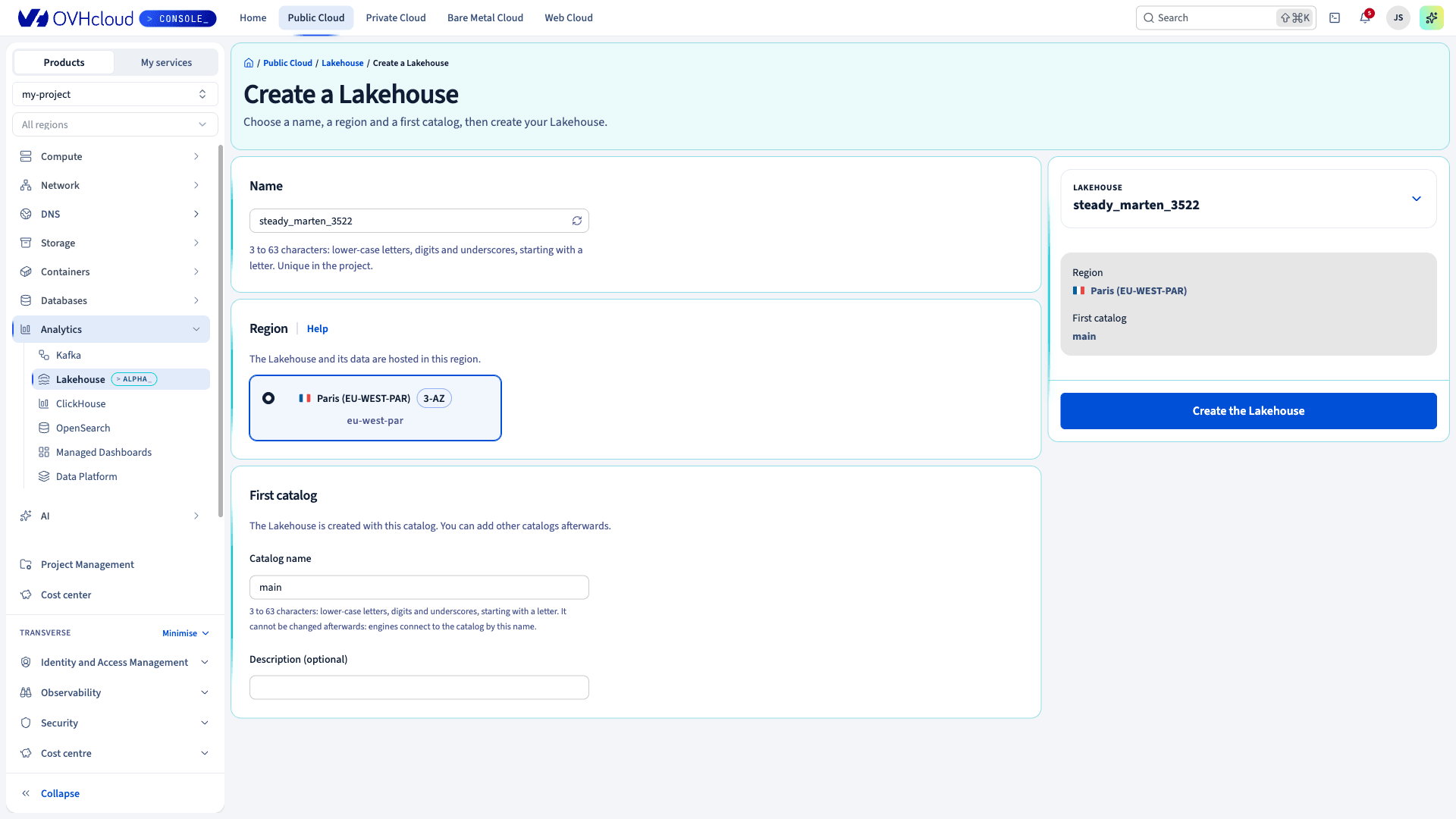
Fill in the form:
- Name: 3 to 63 lowercase letters, digits or underscores, starting with a letter. The name must be unique in the project. A random name is suggested.
- Region: the Lakehouse and its data are hosted in this region. Paris (EU-WEST-PAR) is a 3-AZ region.
- First catalog: a catalog groups your tables, and engines connect to it by its name. Its name follows the same rules as the Lakehouse name and cannot be changed afterwards. You can add other catalogs later.
Click Create the Lakehouse. The Lakehouse appears in the list and reaches the status Available after a few seconds.
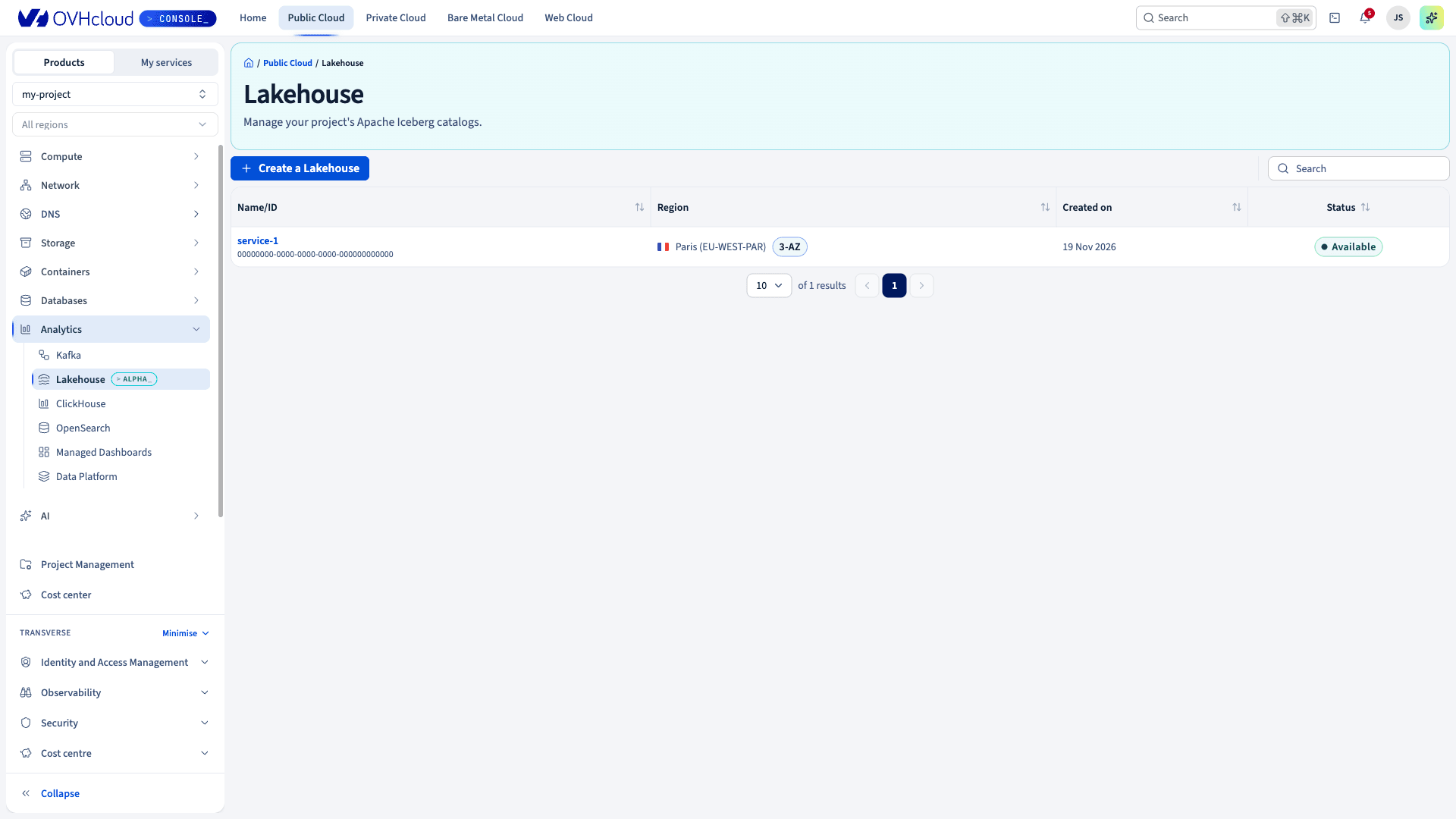
Step 2 - Discovering the Lakehouse page
Click the name of your Lakehouse. The Overview tab shows its identifier, its realm and the name of the realm header (Polaris-Realm), which some tools need. The Connection details section lists the Iceberg, S31 and SQL endpoints of the Lakehouse and links to the data console.
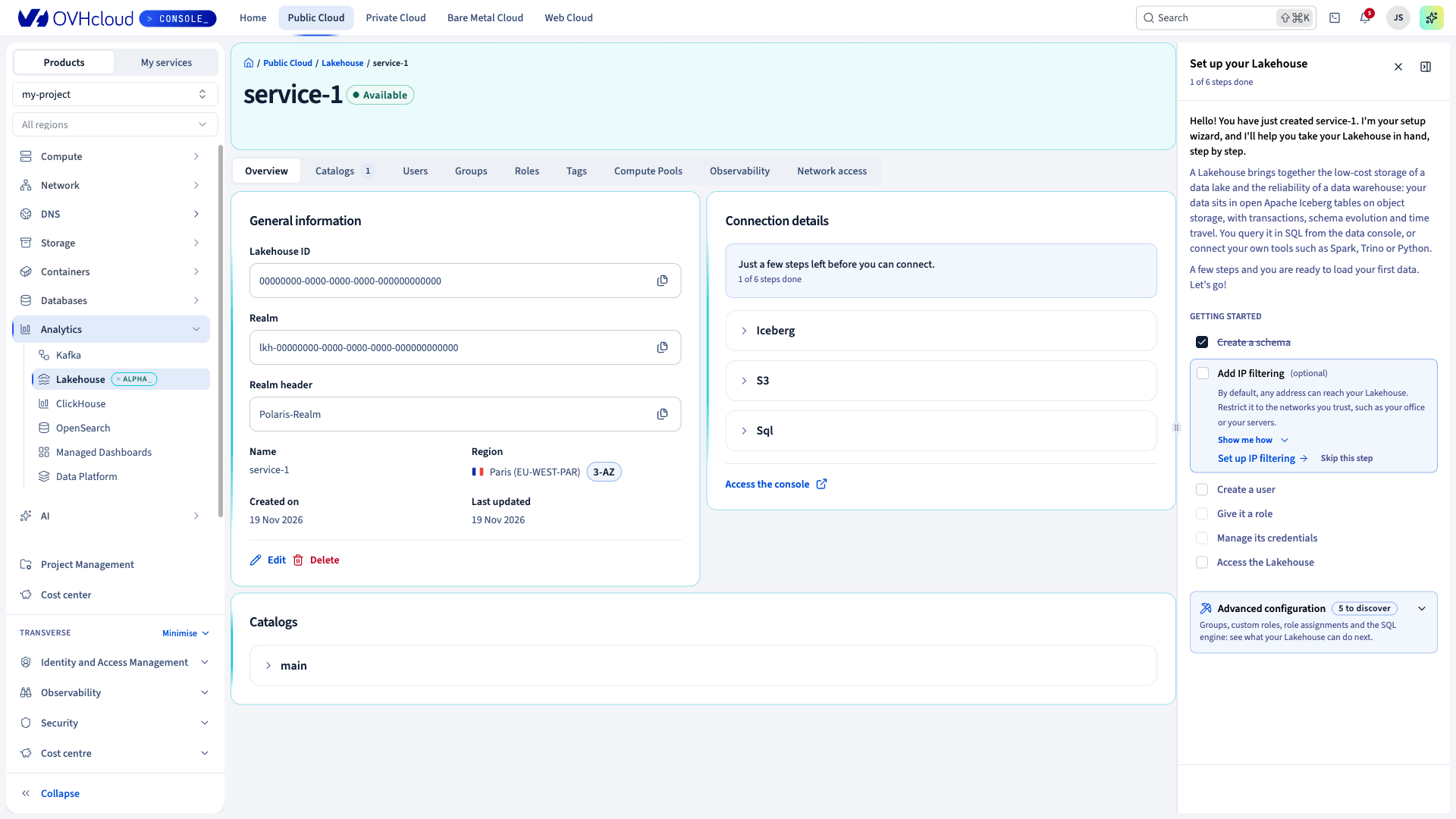
The Set up your Lakehouse panel, on the right, lists the first steps and links to each of them. The following steps cover the same ground.
Step 3 - Adding a schema
Tables are grouped in schemas inside a catalog. Open the Catalogs tab, click the name of your catalog and click Add a schema. Enter a name, for example raw, and confirm. The schema is available after a few seconds.
Step 4 - Creating a user and giving it a role
Data in the Lakehouse is accessed by users: people (type User) or applications (type Service account). A user reaches only the data that its roles allow.
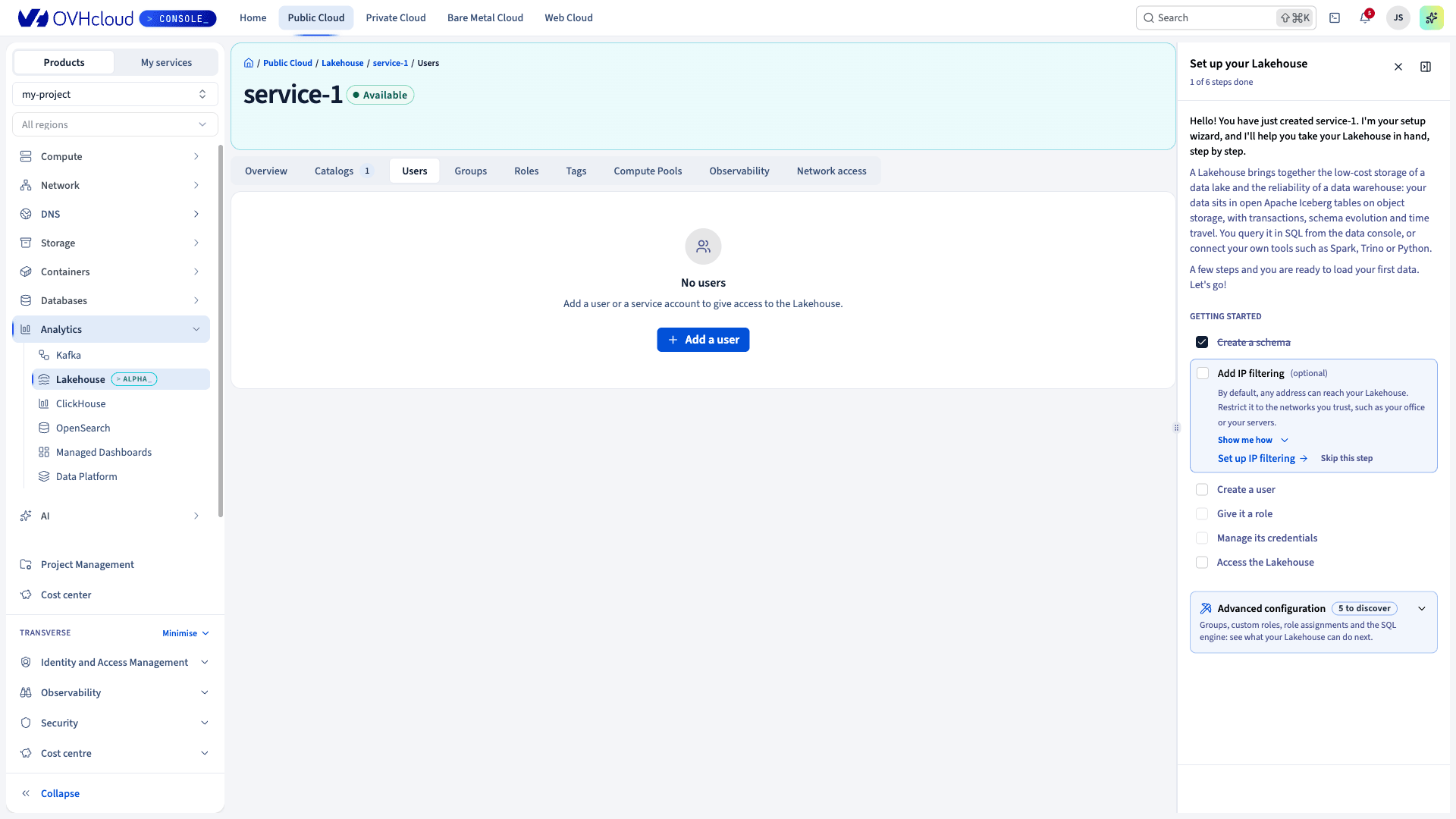
- Open the Users tab and click Add a user. Enter a name, choose the type and confirm.
- In the row of the user, open the actions menu (
...) and click Manage access. - Under Which role do you want to give?, choose a role and click Assign the role. To create tables and write data, choose Data Owner; to only read data, choose Data Viewer.
The roles and their privileges are described in Lakehouse - Managing access to your data.
Step 5 - Creating a credential
A credential connects your tools to the Lakehouse with the rights of the user's roles, until it expires or is revoked.
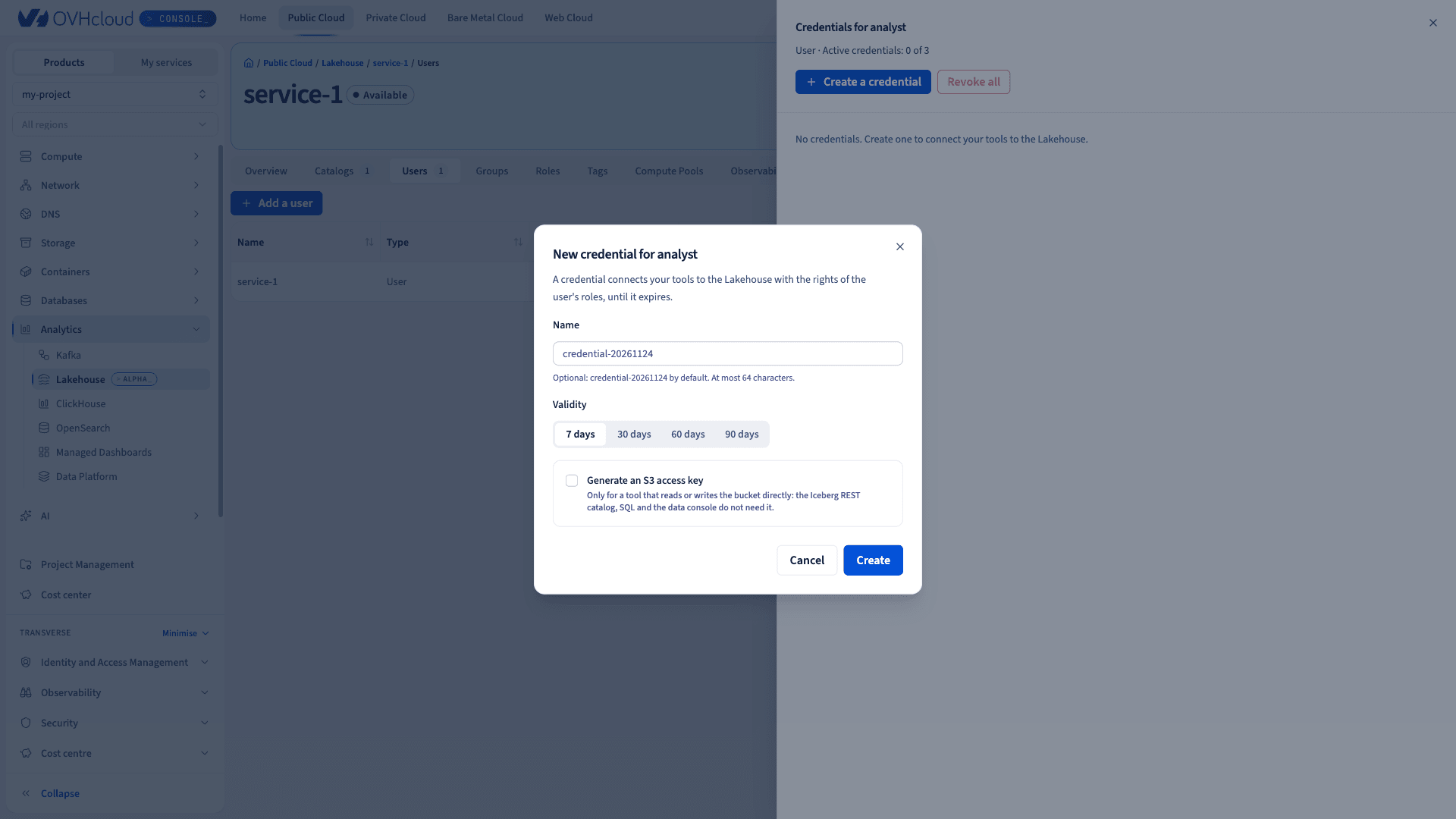
-
In the user's row, open the actions menu (
...) and click Manage credentials, then Create a credential. -
Keep the suggested name or enter your own, and choose the Validity: 7, 30, 60 or 90 days.
-
Tick Generate an S3 access key only if a tool reads or writes the files of the bucket directly (for example DuckDB or PyIceberg). The Iceberg REST catalog, SQL and the data console do not need one.
-
Click Create.
The dialog then shows the client ID and the client secret, and an environment file with every value your tools need. Click Download .env to save it.
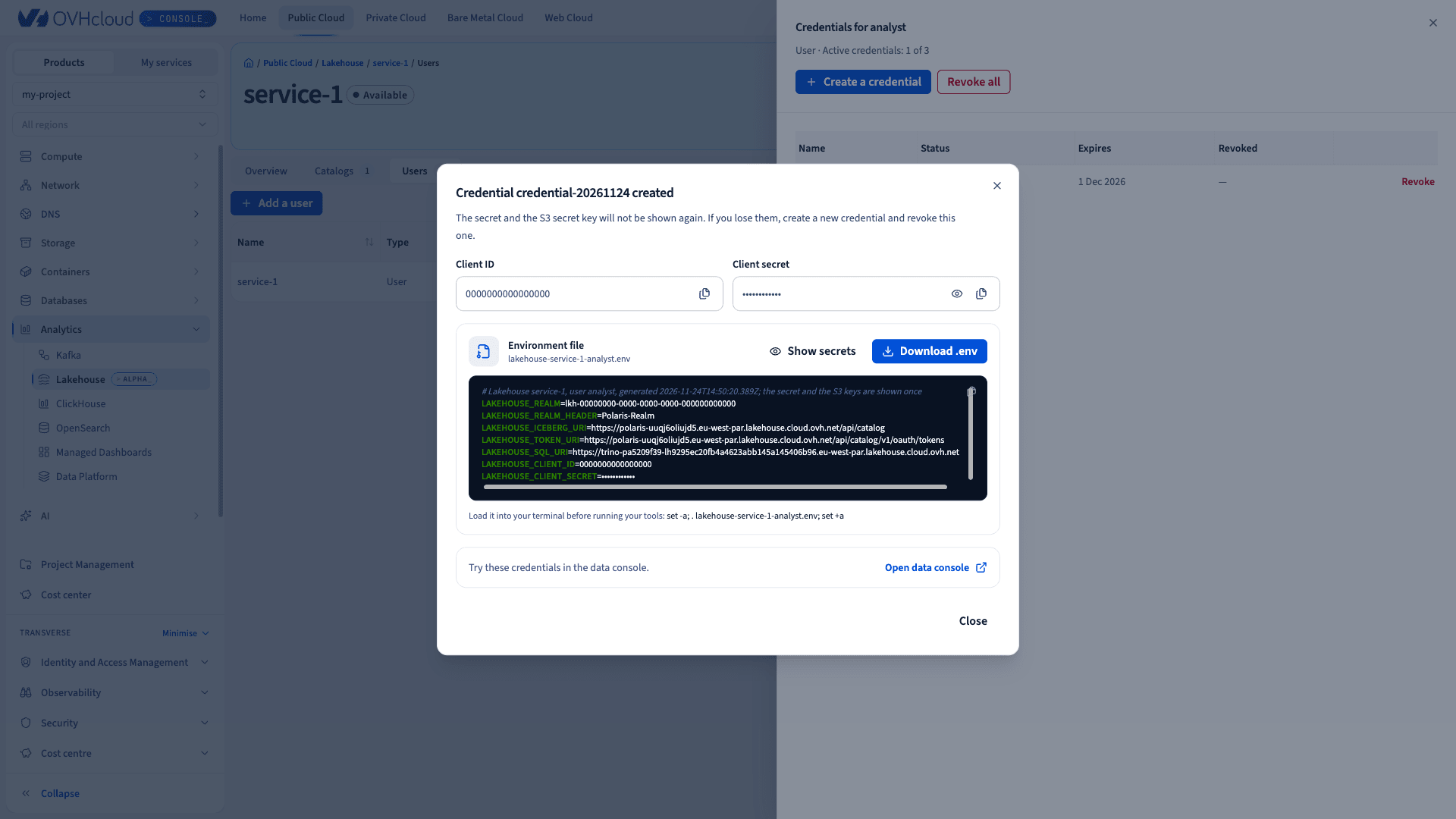
The client secret and the S3 secret key are shown only once. If you lose them, create a new credential and revoke the old one.
Step 6 - Running a query in the data console
Click Open data console in the credential dialog, or Access the console in the Overview tab, and sign in with the credential's client ID and client secret.
In the data console, open Data, click + to start a new query, choose the catalog in the selector and run your SQL with Run. For example, with a user holding the Data Owner role:
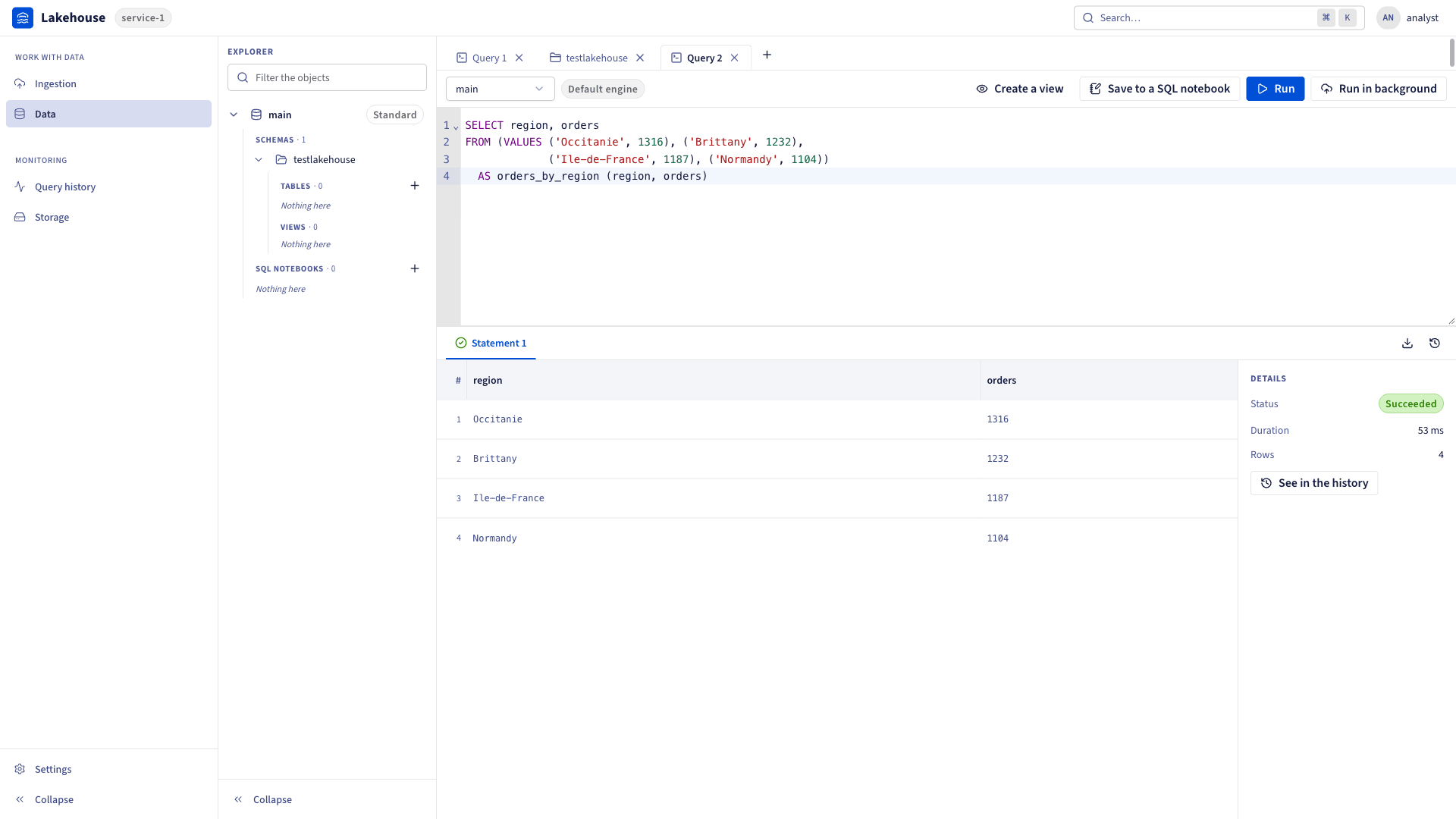
The tables you create are standard Apache Iceberg tables: you can also read and write them from your own tools, as described in Lakehouse - Connecting your own tools.
Deleting a Lakehouse
In the Overview tab, click Delete under the general information. Deleting a Lakehouse also deletes its catalogs, users and groups.
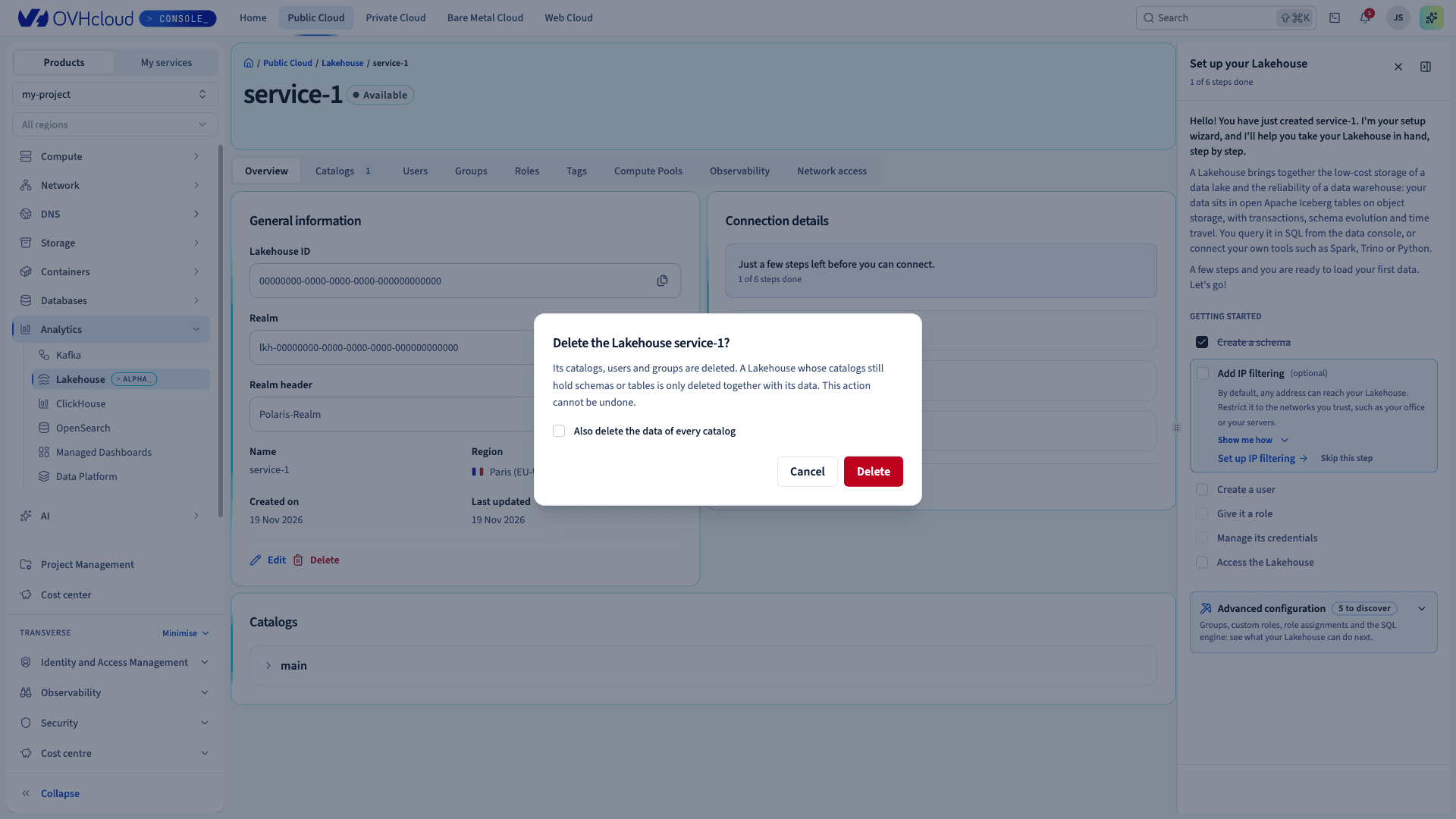
A Lakehouse whose catalogs still contain schemas or tables is deleted only with its data: tick Also delete the data of every catalog to confirm. This action cannot be undone.
Go further
Lakehouse - Managing access to your data
Lakehouse - Connecting your own tools
Lakehouse - Using a dedicated Compute Pool
Lakehouse - Restricting network access
Join our community of users.
1: S3 is a trademark of Amazon Technologies, Inc. OVHcloud's service is not sponsored by, endorsed by, or otherwise affiliated with Amazon Technologies, Inc.