For AI agents: the complete documentation index is available at https://docs.ovhcloud.com/es/llms.txt, the full documentation bundle is available at https://docs.ovhcloud.com/es/llms-full.txt, and this page is available as Markdown at https://docs.ovhcloud.com/es/guides/public-cloud/ai-machine-learning/ai-notebooks-definition.md.
Create, configure, and manage Jupyter and VSCode Notebooks on OVHcloud AI Notebooks via the Control Panel, CLI, API, and Python SDK
Introduction
A Notebook is a document that integrates code, rich text elements, and multimedia, making it a convenient tool for data analysis, visualization, and Machine Learning tasks.
OVHcloud AI Notebooks is our managed solution for Jupyter and VSCode Notebooks. You can easily launch Notebooks with the required CPU and GPU resources while enjoying benefits like pre-installed dependencies and AI frameworks (e.g. TensorFlow, PyTorch, Hugging Face, Scikit-learn, ...), secure user access, and simplified data management.
The advantage compared to doing your own setup is that everything is already installed for you, and that you pay only for your AI Notebooks while they are running.
Objective
This guide demonstrates how to create, configure, access, stop, restart and delete AI Notebooks from multiple interfaces:
The OVHcloud Control Panel (UI) is user-friendly and ideal for beginners.
The ovhai command-line interface (CLI)
The AI API
The ovhai Python SDK
Each method offers its distinct advantages, depending on your expertise and preferred workflow.
A Public Cloud user with the Administrator or AI Training Operator & Objectstore Operator roles, see here for more information
OVHcloud Control Panel Access
Direct link:
Navigation path:Public Cloud > Select your project > AI Notebooks
Instructions
OVHcloud AI Solutions Authorization Process
Using the Control Panel (UI)
Using CLI / AI API / SDK
If you are using the UI, this step is not required. You can directly go to the next step which is the Notebook creation.
If you already have created an AI Notebook using the Control Panel (UI) on this Public Cloud project, you can directly go to the next step Launch your first AI Notebook.
However, if this is the first time you are using the AI Products on your Public Cloud project, you will need to complete an authorization process before using the AI API, ovhai CLI, or Python SDK. To do so, please follow these steps:
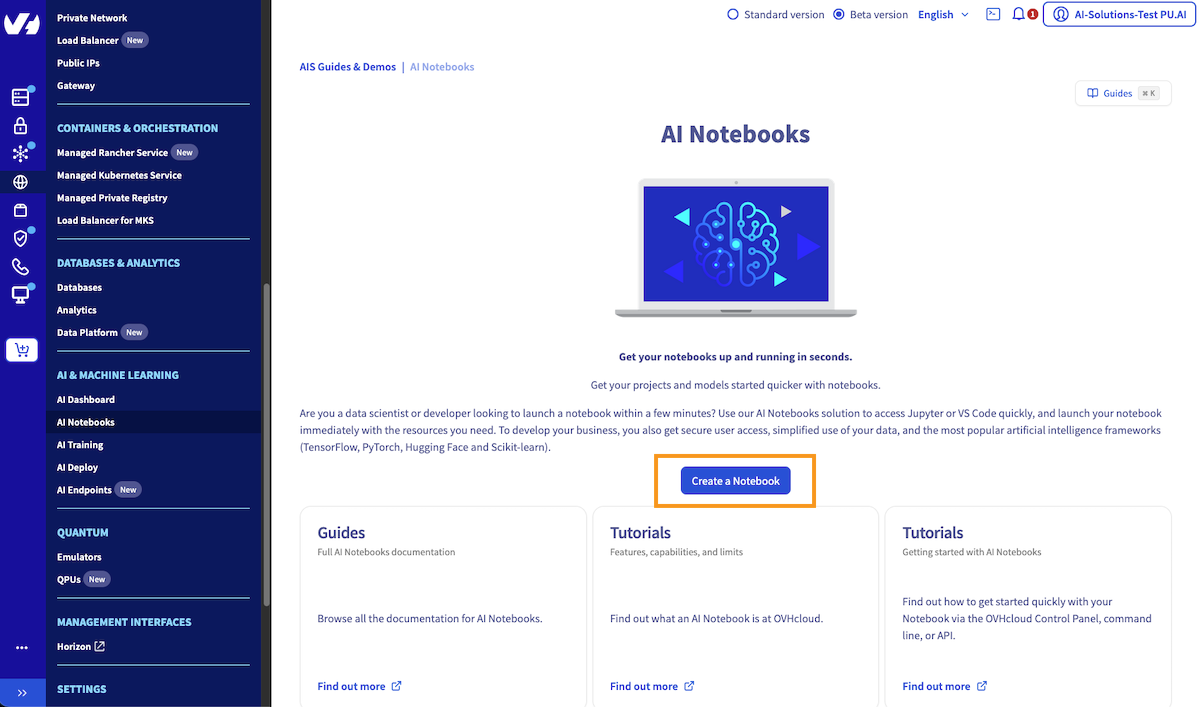
Click to access your Public Cloud project, then click on the AI & Machine Learning category in the left-hand vertical menu to access the AI Notebooks section.
From there, click the Create a Notebook button. The authorization process will take place silently in the background.
Once you have clicked this button, you can leave this page and continue to follow this documentation to launch your AI Notebook using the CLI, API, or SDK as desired. Indeed, you do not need to complete the entire Notebook creation process in the Control Panel. Clicking the Create a Notebook button is sufficient.
Launch your first AI Notebook
To create an AI Notebook, follow these steps:
Using the Control Panel (UI)
Using ovhai CLI
Using the AI API
Using the Python SDK
The manager is the more intuitive way to launch an AI Notebook. To get started, follow these steps:
Click to access your Public Cloud project, then click on the AI & Machine Learning category in the left-hand vertical menu to access the AI Notebooks section.
Once there, you can create your first Notebook by clicking the Create a Notebook button.
Once you have clicked this button, you will be prompted to provide some information to specify the configuration of your AI Notebook (code editor, pre-installed framework, compute resources, etc.).
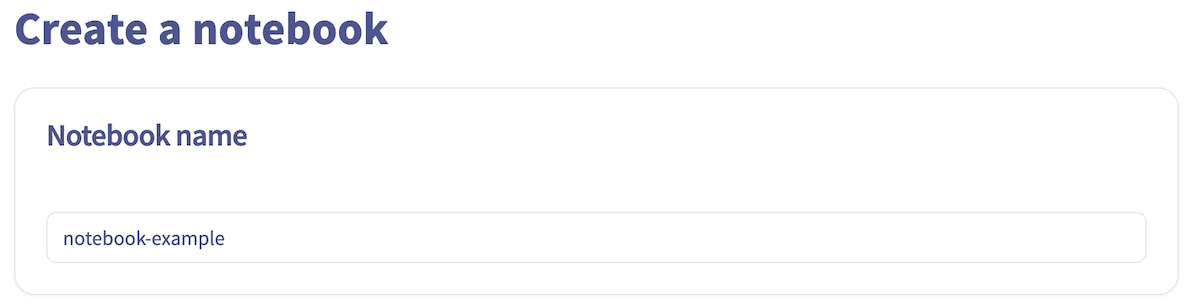
1. Notebook name
Give a name to your AI Notebook. This will make it easier to manage when you have multiple AI Notebooks created.
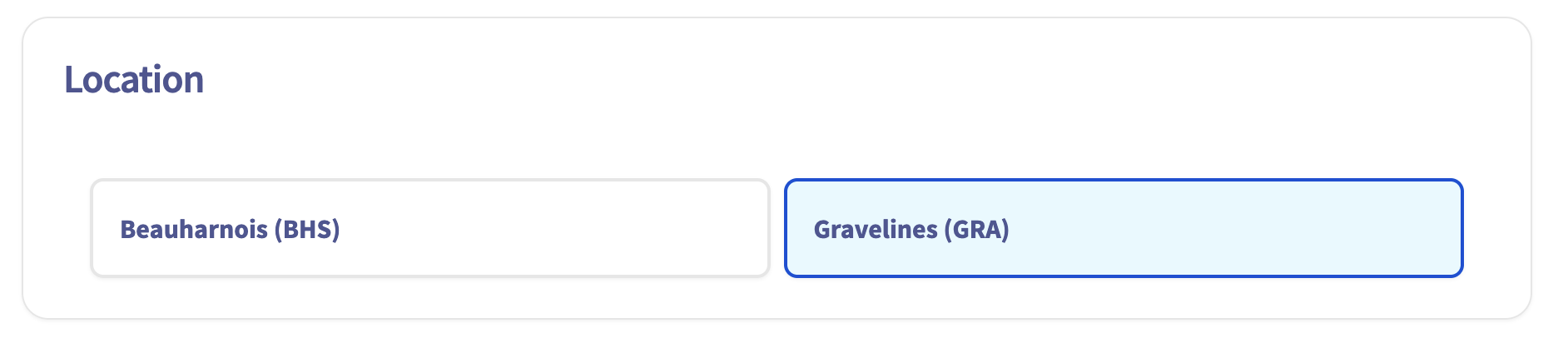
2. Notebook location
Next, select a location.
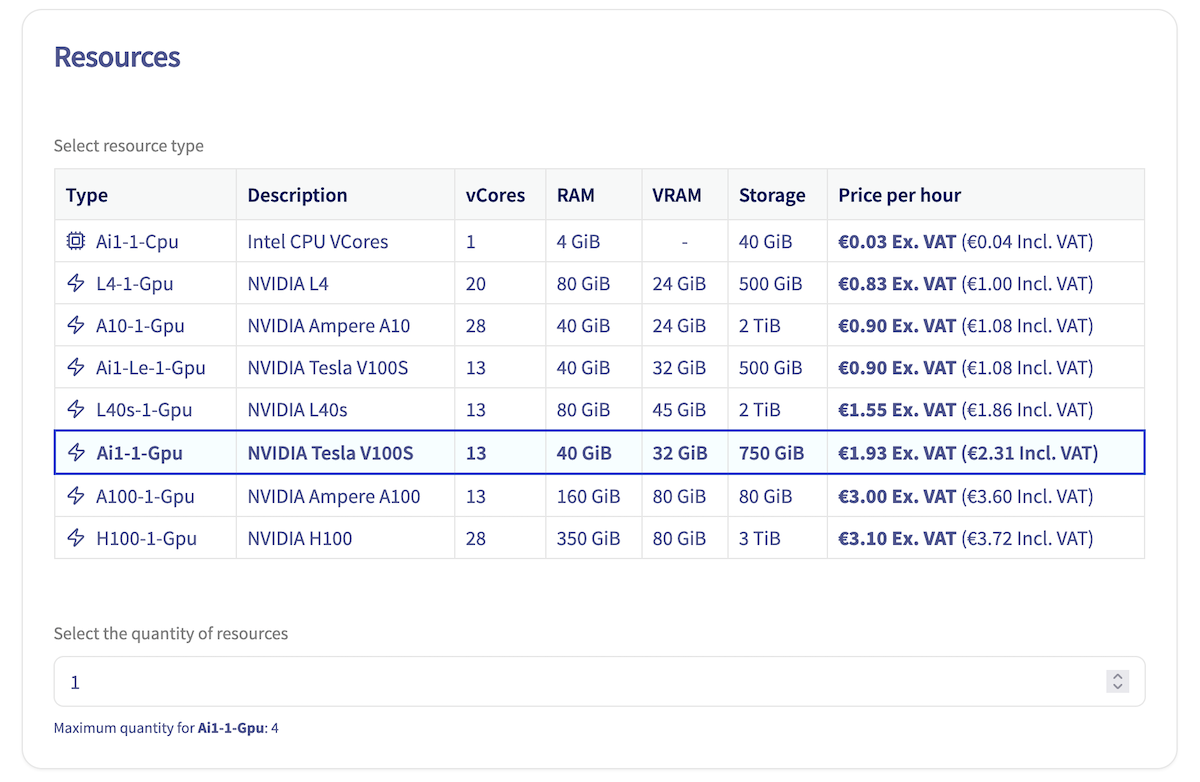
3. Compute Resources
Specify and adjust the type and amount of computing resources (CPU / GPU) for your AI Notebook. Use the + and - buttons to increase or decrease the number of CPUs and GPUs, depending on your needs.
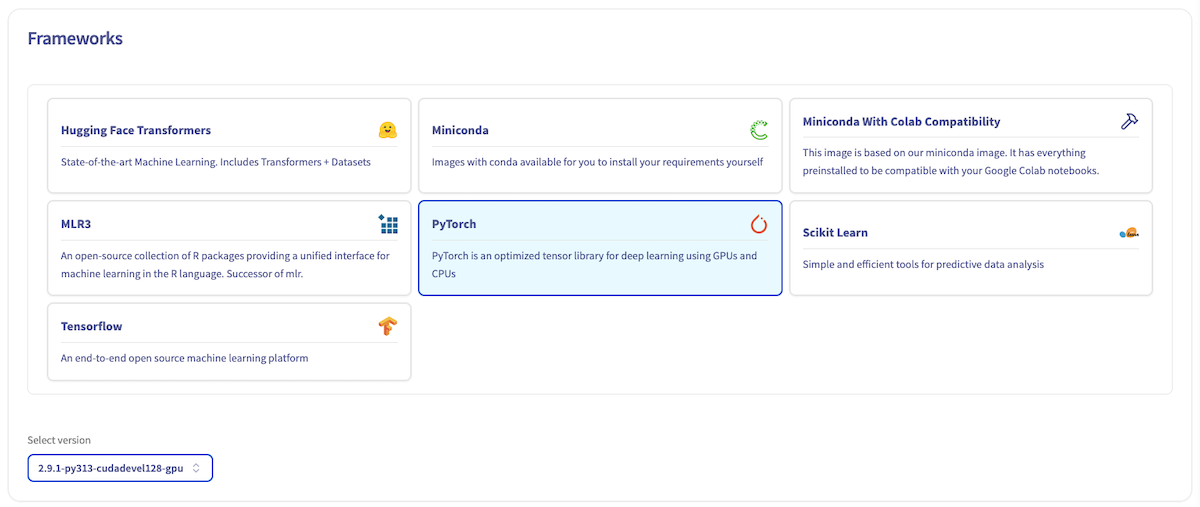
4. Pre-configured Frameworks
Then, choose the AI framework you want to use, which will be pre-installed and ready to use when your AI Notebook is launched. A wide range of Machine Learning frameworks are available, in different versions. Select the version that suits your needs. This guide will use PyTorch as an example.
5. Live-code editor
Choose the code editor you want.
In this example, we use JupyterLab, but you have the option to choose Visual Studio Code as well. Both of them have their own pros and cons. Jupyter Notebook is generally considered easier to use for beginners.
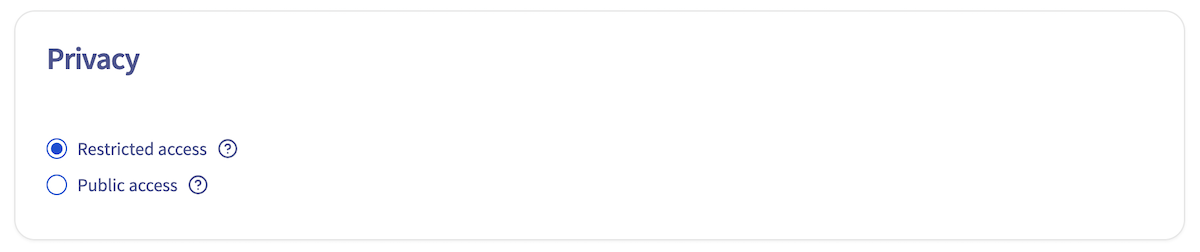
6. Privacy Settings
Next, select your privacy settings.
Warning
Public access will expose your data and code to anyone getting the AI Notebook link. Be careful and don't use it with sensitive data. On the other hand, Restricted access will ask a user and password combination or an AI token to access the Notebook content, ensuring a secure environment.
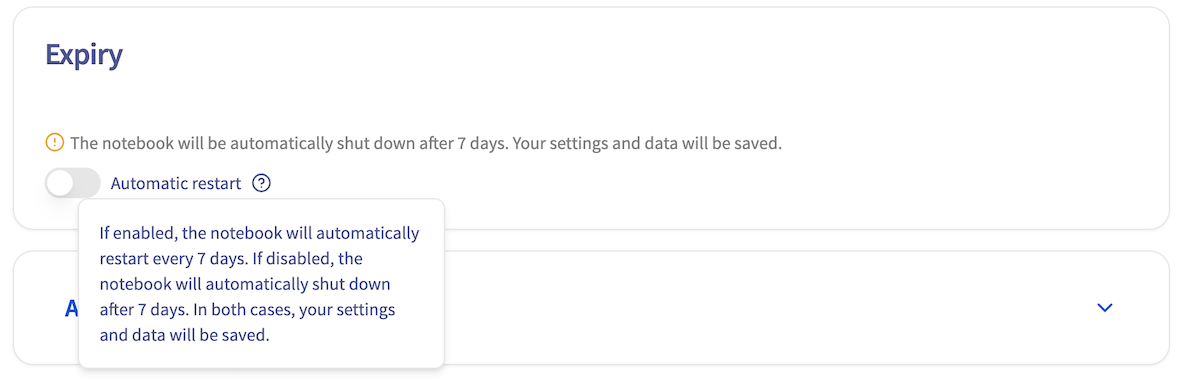
7. Notebook lifecycle
Warning
Our main motivation is to keep the platform up-to-date in terms of security patches and new feature alignment. To achieve this, we need to update and restart hosts from time to time, which requires them to be free from any customer workload.
By default, your AI notebook will automatically shut down after 7 consecutive days of being in a RUNNING state. Rest assured that all your settings and data will be preserved. You have the option to enable Automatic Restart, which will automatically restart your notebook every 7 days, ensuring minimal disruption to your workflow. Alternatively, you can also contact our support to extend this automatic restart period from 7 to 28 days.
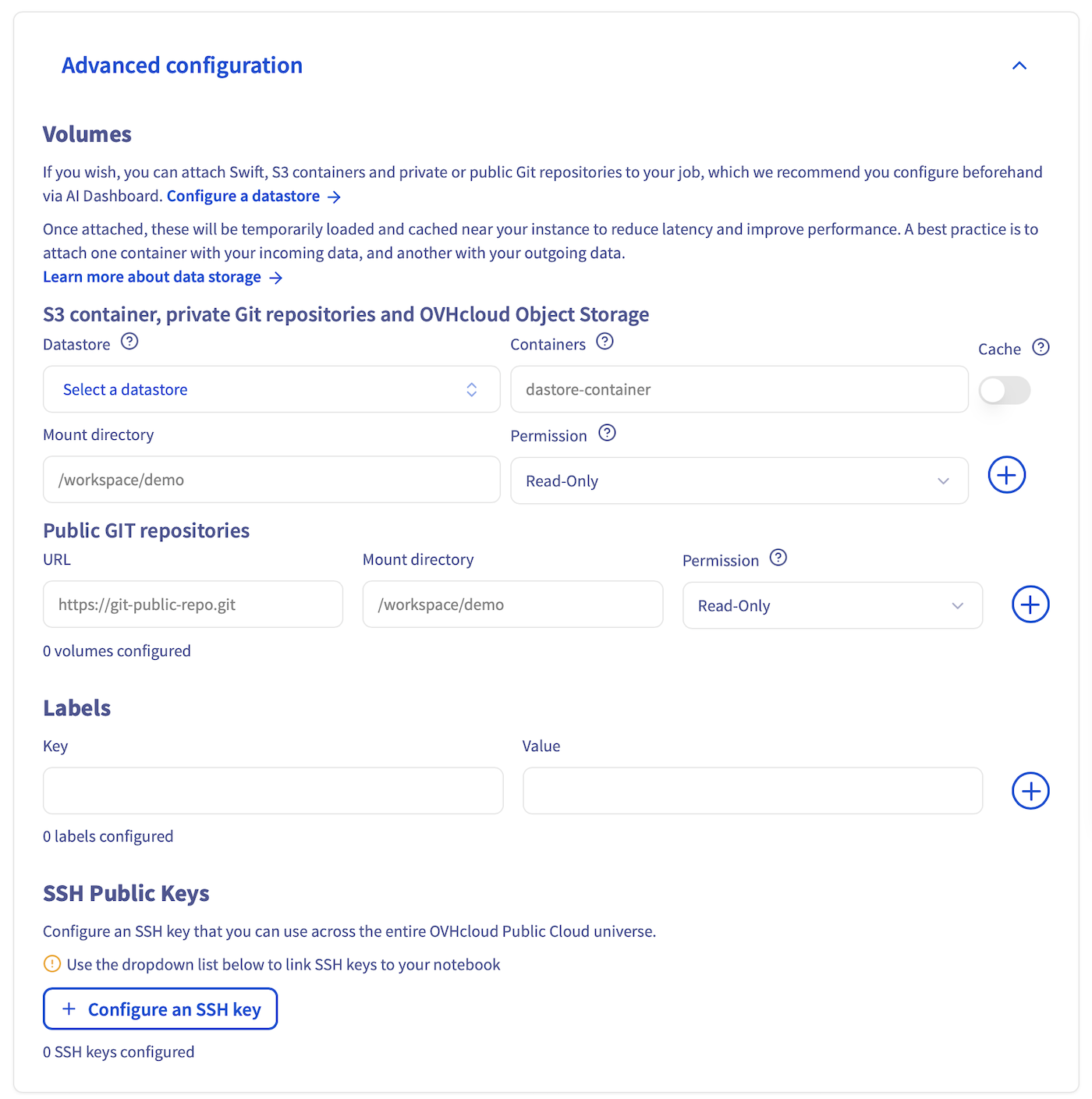
8. Advanced configuration
This step is optional.
By default, your AI Notebook comes with ephemeral storage (local storage). But in this step, you can also link Object Storage containers and Git repositories to your AI Notebook, to easily access your remote data.
If you want to learn more about configuring containers and Git repositories in the Notebook, you can refer to this documentation. For now, we will launch a classic Notebook without any external volumes added to it.
After that, you have the option to set labels. This allows to specify one of your AI tokens and apply it to this new AI Notebook. This AI token can then be shared with anyone who should have access to the Notebook, allowing them to access it without requiring your own Public Cloud project credentials. This is useful if you want to provide access to the AI Notebook outside your Public Cloud project. More information here.
Finally, SSH public keys allow you to access your Notebook remotely.
9. Launch the AI Notebook
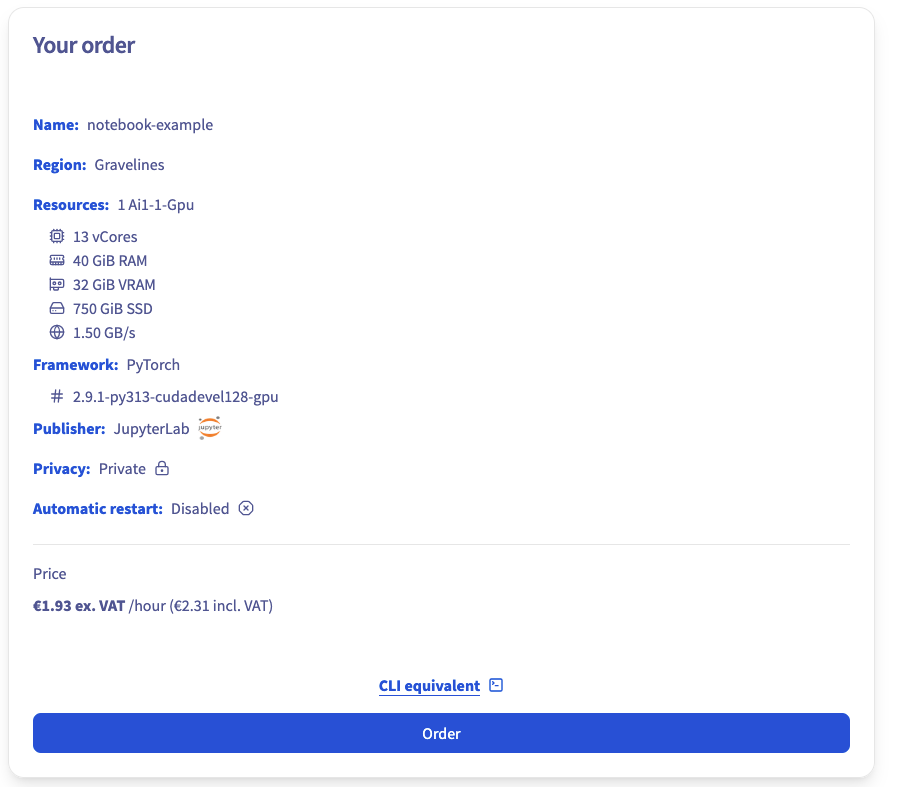
At the end of the process, review your settings and click the Order button to confirm and launch the creation of your Notebook.
Info
Note at the bottom of the screen the equivalent ovhai CLI command. This command allows you to run the exact same Notebook using the CLI.
When your Notebook is created, it will appear on your AI Notebooks tab:
If you prefer to use the command line interface to launch your AI Notebook, please follow these steps:
First, you will need to install the ovhai CLI and log into it. Please follow this documentation.
After installation and successful login, visit this second documentation to learn how to create your AI Notebook using commands.
To create an AI Notebook using the OVHcloud AI API, follow these steps:
First, navigate to the AI API link for the desired region among the ones that are available for the AI Products usage:
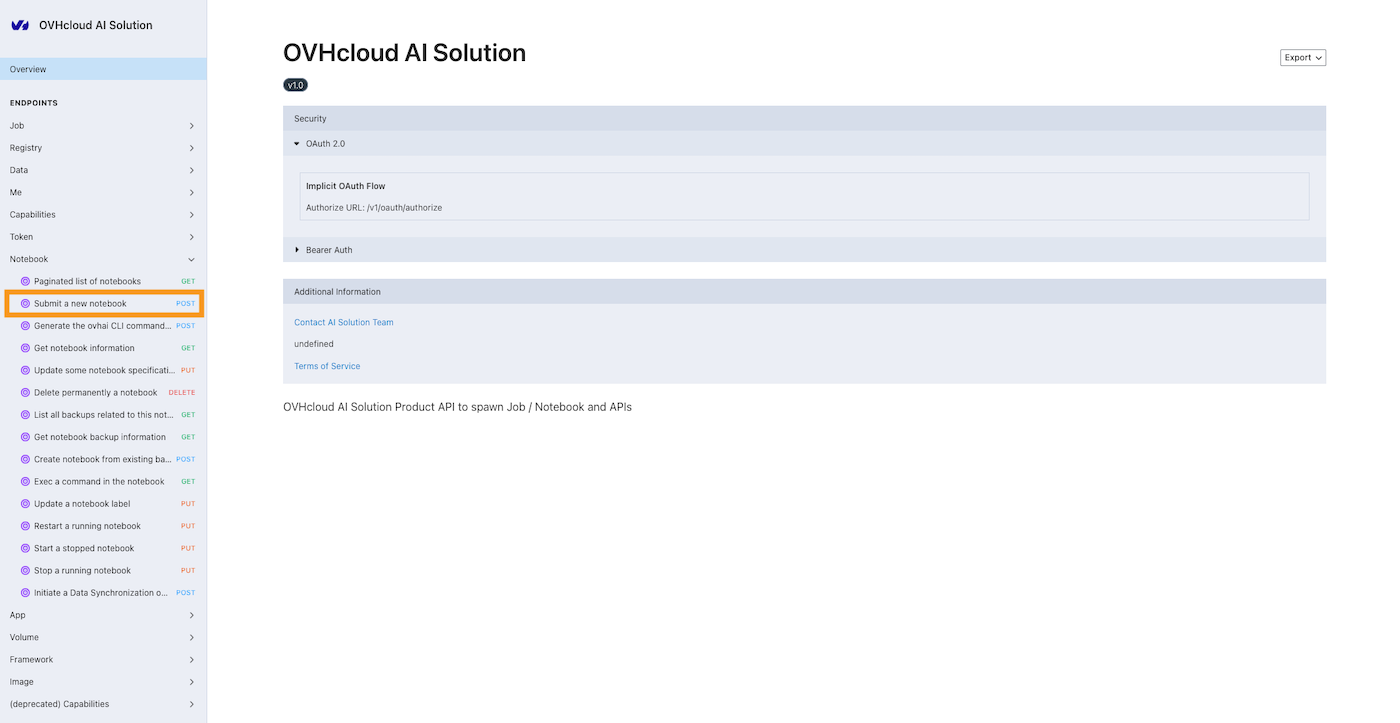
Upon visiting the API URL, you will notice various endpoint categories on the left side of the screen. Click the Notebook category to display the endpoints related to AI Notebooks.
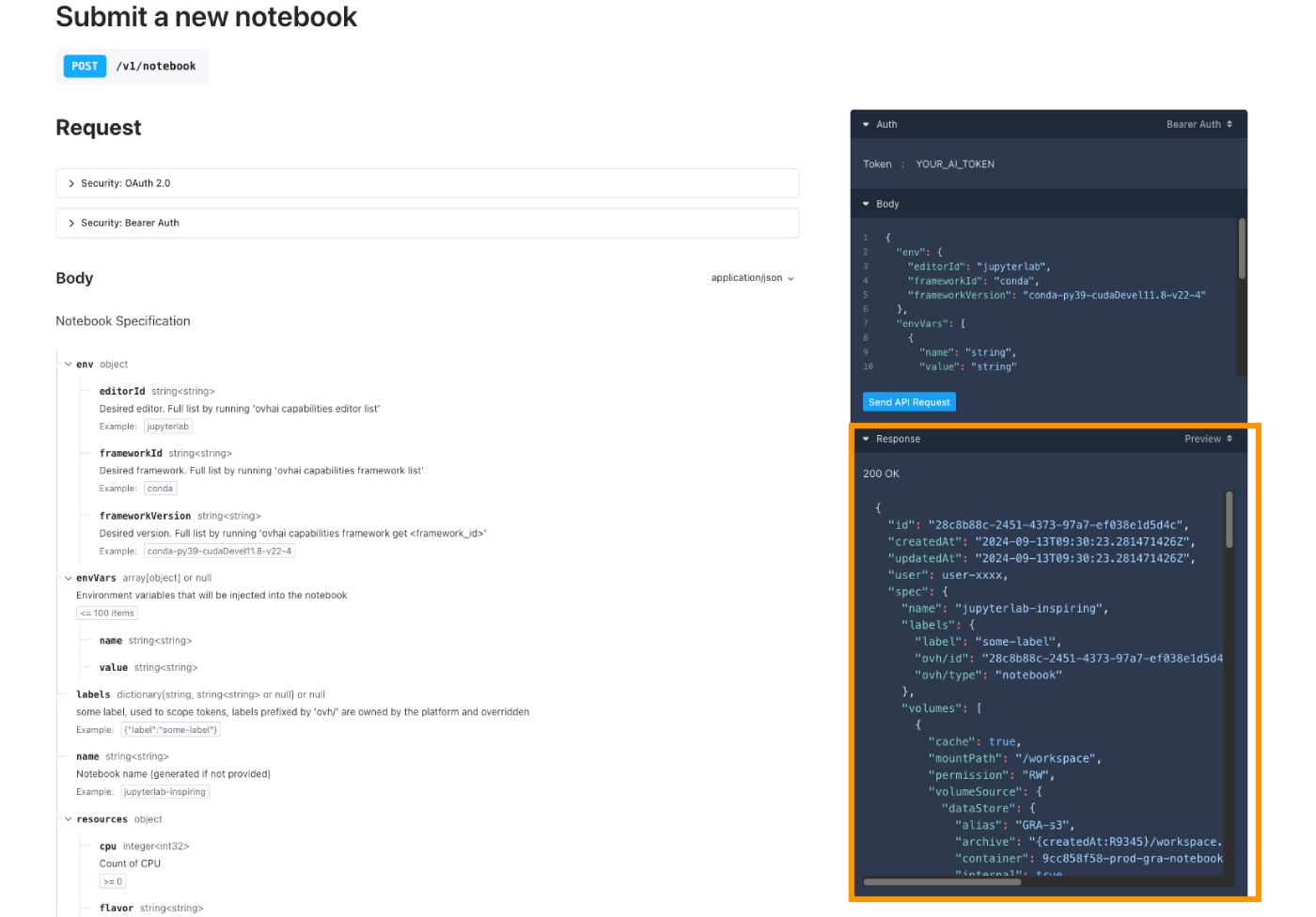
Among them, you will find a Submit a new notebook POST method. This is the endpoint for submitting a new AI Notebook.
The exact link for this endpoint on GRA region is as follows: https://gra.training.ai.cloud.ovh.net/#/operations/notebookNew.
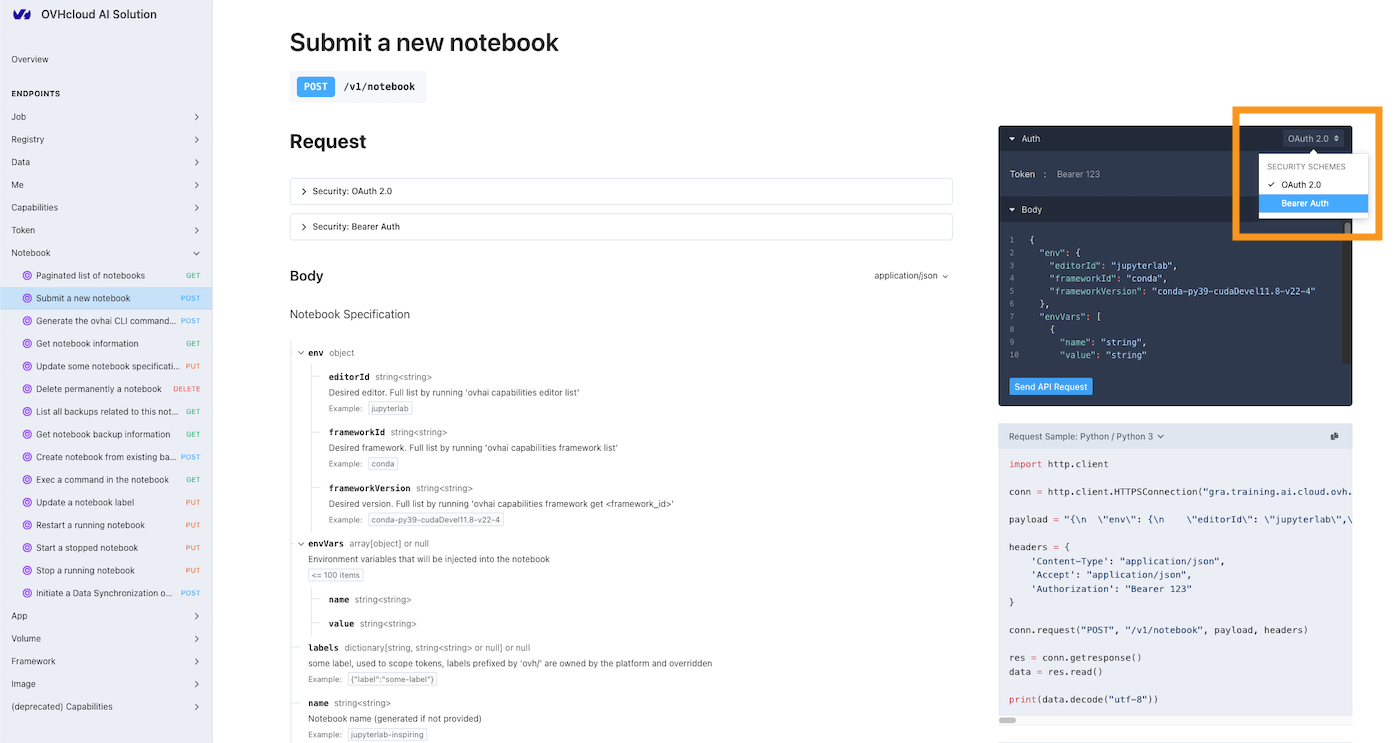
In the Submit a new notebook endpoint page, you will find the detailed schema for the Notebook Specification and its various possible parameters. Examples of responses (200, 400, 401, 402, 403) are also provided in case of success or different error scenarios.
Before using this method to create an AI Notebook, you will need to authenticate. This can be done by providing a bearer token, which you can create through the AI Dashboard or by using the ovhai CLI. For more detailed instructions on creating a token, please consult the Manage access tokens documentation.
Once you have created your token, provide your token in the 'Auth' panel, on the right-hand corner of the API page.
Warning
Make sure to select Bearer Auth instead of OAuth 2.0, which is selected by default.
After logging in, you may modify the body (Notebook specifications) for the AI Notebook you wish to create. A default example is provided. Feel free to adjust it.
Once your body is filled, click the Send API request button. If your body is correctly written, the Notebook will be created on the Public Cloud project from which the bearer token used for identification originates. You will receive all the necessary information about the created Notebook (ID, access URL, etc.) in the Responses field.
In addition to the API interface, the API provides Python code examples to help you use the endpoint and reproduce the same result programmatically. However, for an efficient Python experience, we recommend using the ovhai Python SDK.
The ovhai library is a Python client that allows developers to easily use the OVHcloud AI API. With this SDK, you can run, manage, automate your AI Notebooks.
Warning
Alpha Warning: This package is currently in the alpha phase of development. The APIs and functionalities of the package may not be fully tested.
To launch an AI Notebook using the ovhai Python SDK, you first need to install the ovhai library. You can do this using pip. Open your terminal and run the following command:
pip install ovhai
Once installed, we invite you to follow the instructions provided in the ovhai PyPI page to learn how to create a token for authentication, understand the SDK's functionality, and launch an AI Notebook using the ovhai Python SDK.
Here is a basic example of how to do it, making it easy for you to get started:
Please make sure to replace YOUR_AI_TOKEN with a bearer token. Bearer tokens can be created through the AI Dashboard or by using the ovhai CLI. For more detailed instructions on creating a token, please consult the Manage access tokens documentation.
Running this code will launch a new AI Notebook based on the specifications you provided. Feel free to adjust the specifications based on the Notebook you want to create.
Accessing your AI Notebook
At this point your AI Notebook is created. You will need to wait a few seconds for the Notebook to start and reach the RUNNING status. Once it has, the Notebook URL will be accessible.
Using the Control Panel (UI)
Using ovhai CLI
Using the AI API
Using the Python SDK
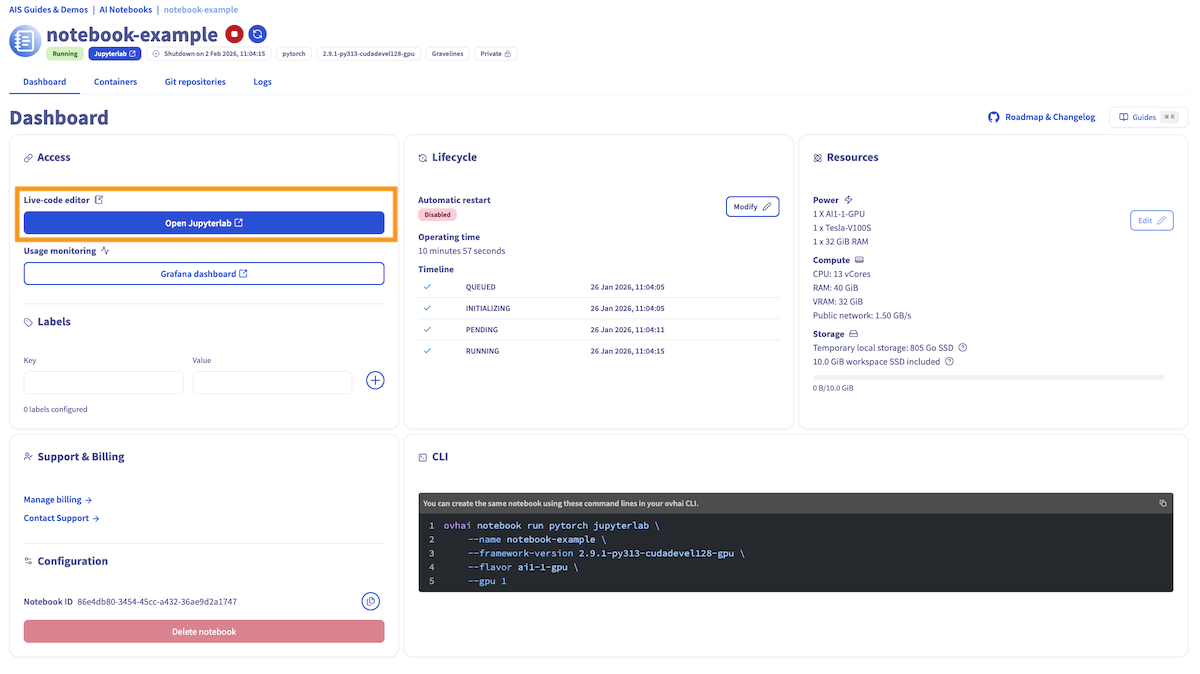
You can access your Notebook by clicking the JupyterLab link, from the AI Notebooks board, in the Access column:
This JupyterLab button can also be accessed from the dedicated Notebook page, which can be reached by clicking the Notebook name in the AI Notebooks board page.
On your Notebook page, you will find a lot of information about your Notebook (specifications, billing, attached data, ...). There is also a monitoring URL, which allows you to view real-time metrics for your Notebook, such as the GPU average usage for example.
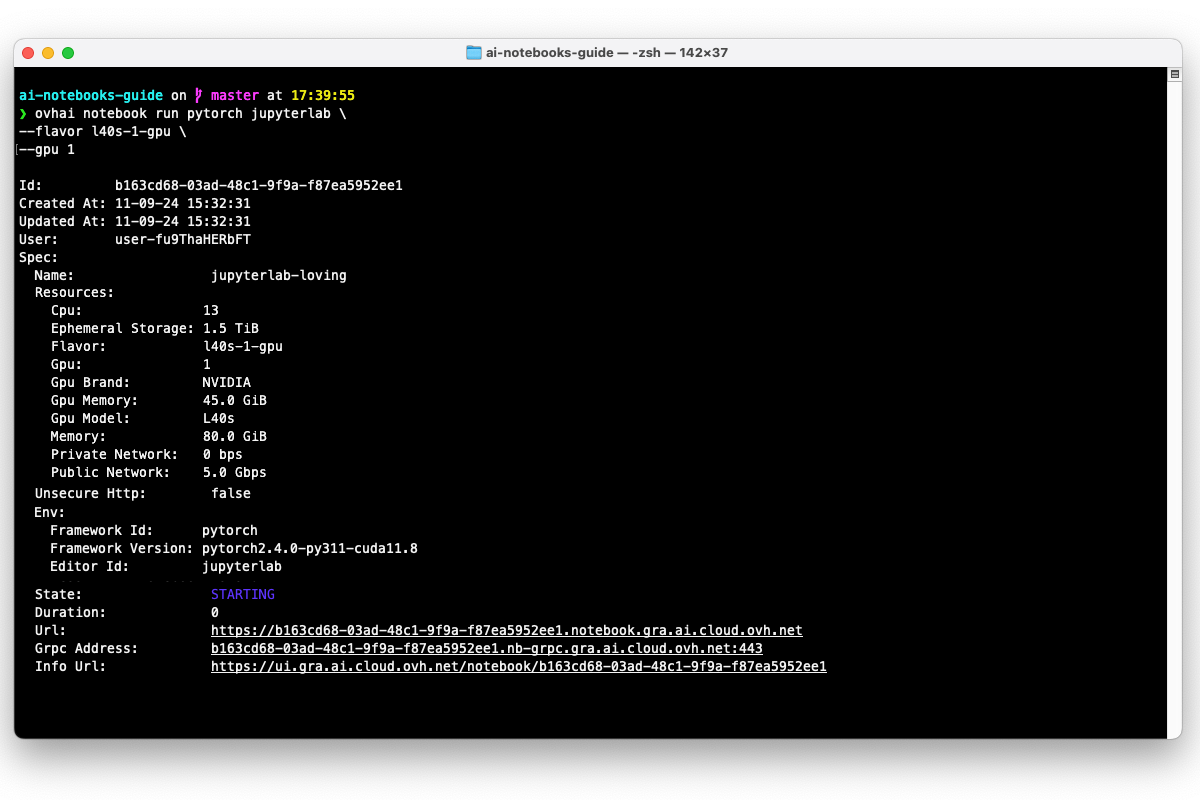
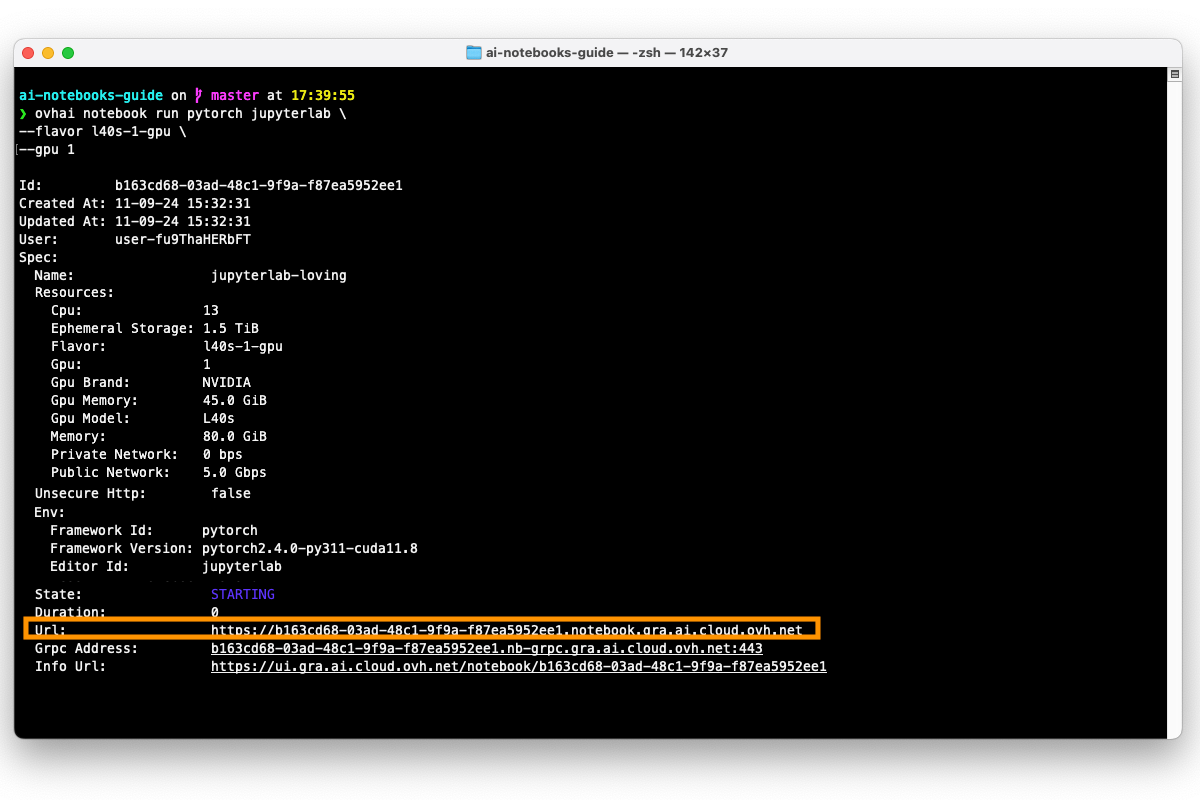
In the previous step, you ordered the creation of your Notebook. This should have displayed the URL of your Notebook in your terminal, allowing you to access it:
If you no longer have the Notebook UUID and URL displayed in your terminal, you can easily list all your existing AI Notebooks by running:
ovhai notebook list
This will allow you to retrieve the URL of the Notebook you want to access.
You can also get all the information related to a Notebook (Specifications, Access Url, Monitoring URL, ...) by running:
ovhai notebook get <NOTEBOOK_UUID>
Just make sure to replace the <NOTEBOOK_UUID> with the actual UUID of the Notebook you want to retrieve the information for.
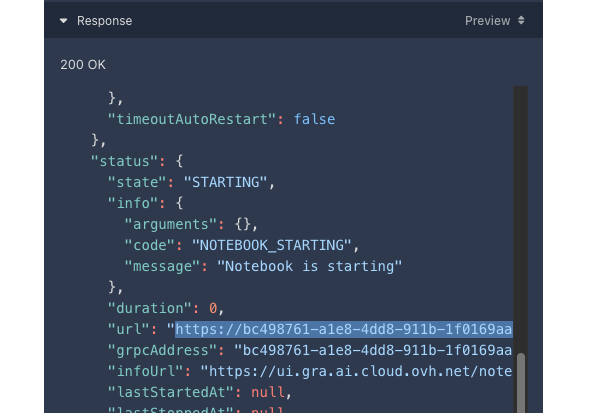
In the previous step, you ordered the creation of your Notebook. This should have displayed the URL of your Notebook in the 'Response' panel, allowing you to access it:
If you no longer have the Notebook UUID and URL displayed in the API page, you can list all your AI Notebooks by using the Paginated list of notebooks GET endpoint method, in the Notebook category.
This will allow you to retrieve the URL of the Notebook you want to access.
You can also get all the information related to a Notebook (Specifications, Access Url, Monitoring URL, ...) by using the Get notebook information GET endpoint method. You will just have to provide the UUID of the notebook from which you want to obtain information.
If you no longer have the Notebook UUID and URL displayed in your Python IDE, you can easily list all your AI Notebooks by running:
This will allow you to retrieve the URL of the Notebook you want to access. Just make sure you are using the right API url, and replace YOUR_AI_TOKEN with your actual AI token.
You can also get all the information related to a Notebook (Specifications, Access Url, Monitoring URL, ...) by running the following code:
Once you have clicked on the Notebook URL, you will be redirected to the corresponding Notebook page. For restricted access Notebooks, you will need to authenticate to ensure you have the required rights for accessing it.
For public access Notebooks, no authentication will be needed, so you will directly land on the notebook with your data and code exposed.
There are two methods of authentication for a restricted Notebook: using a username and password combination or using an access token.
Using a Username and Password
Using an Access Token
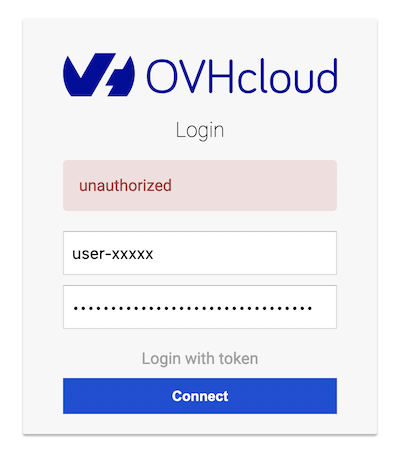
To authenticate using a username and password, please follow these steps:
Enter one of your Public Cloud project user's username and password in the respective fields, as shown in the screenshot below. The user needs to belong to the same Public Cloud project you used to create the Notebook and must have sufficient permissions.
If you have not yet created a Public Cloud user for your project, or require more information on how to do so, please refer to the following guide.
Once you have entered your username and password, click the Connect button to log in to your AI Notebook.
Using a token is an effective way to share the AI Notebook with anyone, without requiring them to have the credentials of one of your Public Cloud project users. This is useful when you want to provide access to the Notebook outside your Public Cloud project.
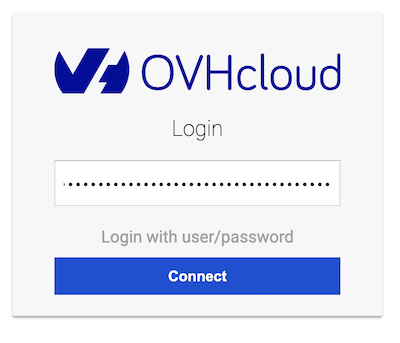
To authenticate using an access token, please follow these steps:
Click the Login with token button, located below the user and password fields. This will switch the access mode to use a token-based authentication method instead.
Make sure to use a token that you have created either from the AI Dashboard or from the ovhai CLI, API, or SDK. You can use tokens that were created without a label selector. If you specified a label selector during the Notebook creation, you can also use the token that matches the label selector specified. For more information on how to create an access token, please refer to this documentation.
Enter the access token in the 'Access Token' field, as shown in the screenshot below.
Click the Connect button to log in to your AI Notebook.
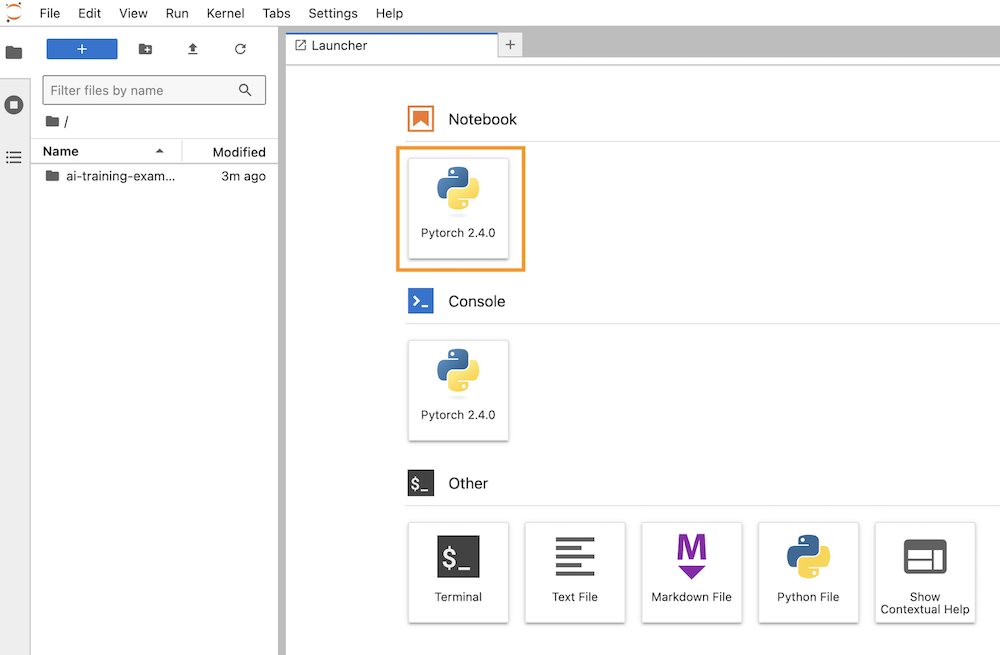
Once you have successfully reached JupyterLab, you can create your first Notebook by clicking on the Pytorch 2.4.0 button (or a similar button name depending on the framework you have selected).
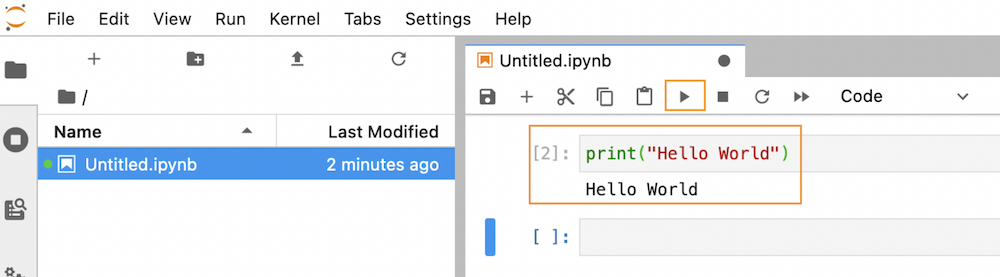
With your new Notebook open, enter some Python code in the first code cell. We can test it with a simple Hello World :
print("Hello World")
To execute the code, simply press the ▶️ button located in the toolbar above the code cell. You should then see the output:
Hello World
Alternatively, you can use the keyboard shortcut Ctrl+Enter, or CMD+Enter, to save the Notebook quickly.
Your code is executed in your browser and will consume the CPU and GPU resources linked to your AI Notebook.
To save your Notebook, click on the sub-menu Save of the File menu. Alternatively, you can use the keyboard shortcut Ctrl+S, or CMD+S, to save the Notebook quickly.
Getting started with code examples
To help you get started with your AI Notebook, we provide a GitHub repository named ai-training-examples, containing code examples and tutorials. This repository is already cloned in your Notebook /workspace when you launch it, so you can start exploring the examples right away.
We currently provide a variety of tutorials, including for examples:
Basic computation using single CPU or GPU: accessible on notebooks/getting-started/tensorflow/basic_gpu_cpu_benchmark.ipynb. GitHub preview available here.
Basic computation using multiple GPUs: accessible on notebooks/getting-started/tensorflow/multiple_gpus_computation.ipynb. GitHub preview available here.
A PyTorch version of this multi-GPU benchmarking tutorial, available here.
These tutorials demonstrate how to perform simple tensor computations and compare the performance of running them on CPU versus GPU.
In addition to these tutorials, we also provide examples for more advanced topics, including:
Audio classification
Image classification
Image Generation
Image Segmentation
Object detection
You can also learn to compare AI models based on resource consumption, accuracy, and training time. Refer to this tutorial for more information.
Stopping an AI Notebook
You can stop your AI Notebook at any time. This will release its compute resources but will keep your Notebook data and installed libraries. Therefore, you will not incur any further charges for compute unless you restart the Notebook. However, attached storage will be billed at the price of OVHcloud Object Storage. Consult the AI Notebooks Billing documentation for more information.
Indeed, when you stop a Notebook, it will be unavailable for a certain period while your data is synchronized to the Object Storage, so that you can retrieve your work later. Once the synchronization is complete, the Notebook will reach the STOPPED state, at which point you can either start it again or delete it.
Using the Control Panel (UI)
Using ovhai CLI
Using the AI API
Using the Python SDK
Go back to the AI Notebooks board, from the Public Cloud section of the .
Then, select the Notebook you want to stop by clicking on its Name.
From there, you will be able to click the 🔴 stop button:
You can easily stop your Notebook using the following command:
ovhai notebook stop `<NOTEBOOK_UUID>`
Make sure to replace <NOTEBOOK_UUID> with the Notebook UUID you want to stop.
If you do not know its UUID, remember that you can easily list all your existing AI Notebooks by running:
ovhai notebook list
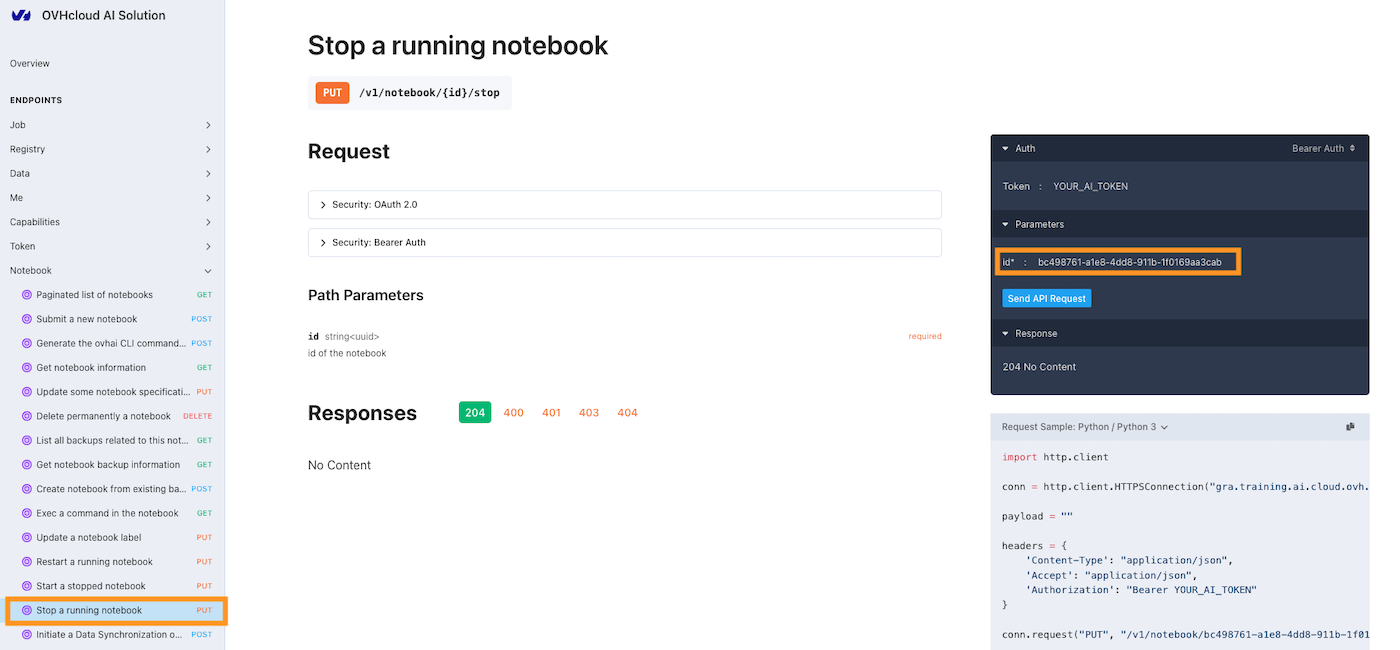
Select the Stop a running notebook endpoint, which is a PUT method. Provide the UUID of the Notebook you wish to stop as an input parameter. Then, click the Send API request button to send the request.
If the request is successful, the Notebook will be stopped and a 'No content' message will be displayed in the 'Response' panel. If the request is unsuccessful, an error message will be displayed there.
Here is an example of how to stop a running Notebook using the Python SDK:
from ovhai.api.notebook import notebook_stopfrom ovhai import AuthenticatedClientclient = AuthenticatedClient( base_url="https://gra.training.ai.cloud.ovh.net", token="YOUR_AI_TOKEN",)id = "YOUR_NOTEBOOK_UUID"with client as client: response = notebook_stop.sync_detailed(client=client, id=id)
Please replace YOUR_AI_TOKEN with your actual AI token and YOUR_NOTEBOOK_UUID with the UUID of the Notebook you want to stop.
Starting a stopped Notebook
Once the Notebook has reached the Stopped state, you may be interested in starting it in order to continue your work.
Using the Control Panel (UI)
Using ovhai CLI
Using the AI API
Using the Python SDK
Go back to the AI Notebooks board, from the Public Cloud section of the .
Then, select the Notebook you want to start by clicking on its Name.
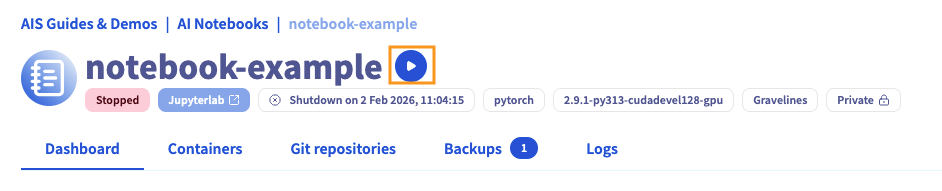
From there, you will be able to click the ▶️ button:
Use the following command and replace <NOTEBOOK_UUID> with your Notebook UUID to start your stopped Notebook:
ovhai notebook start `<NOTEBOOK_UUID>`
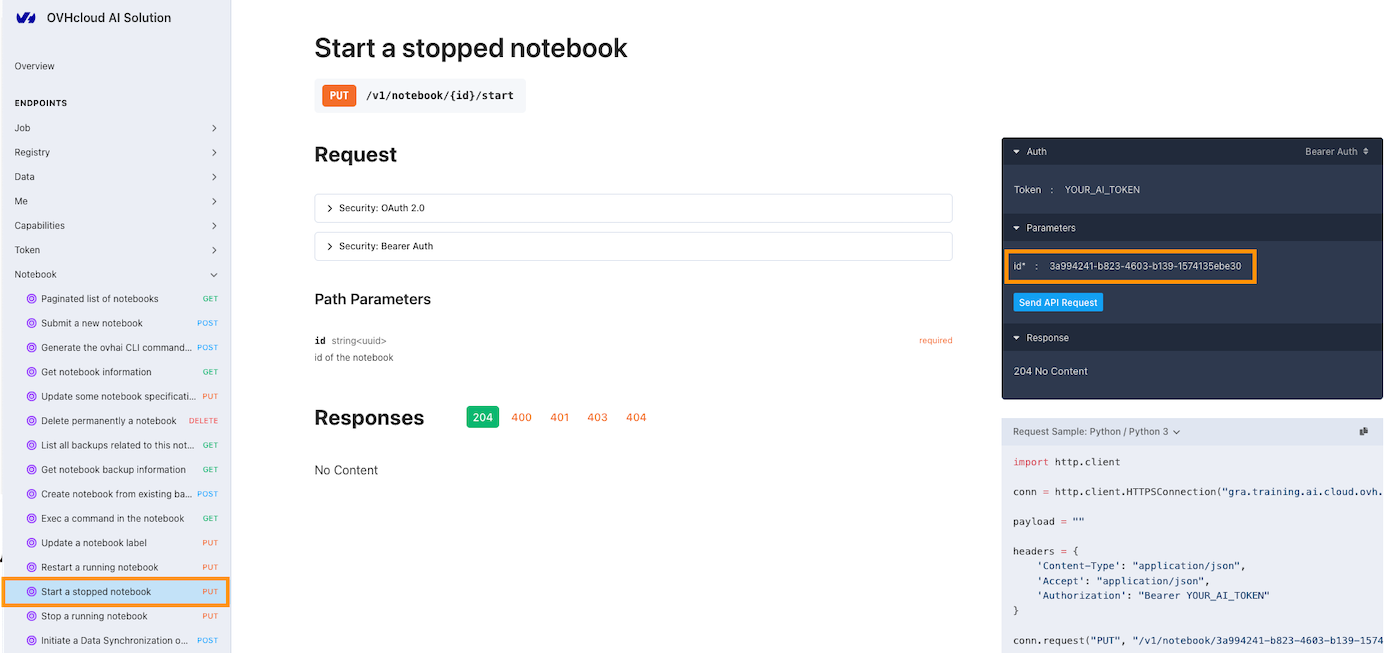
Select the Start a stopped notebook endpoint, which is a PUT method. Provide the UUID of the Notebook you wish to start as an input parameter. Then, click the Send API request button to send the request.
If the request is successful, the Notebook will be started and a 'No content' message will be displayed in the 'Response' panel. If the request is unsuccessful, an error message will be displayed there.
Here is an example of how to stop a running Notebook using the Python SDK:
Please replace YOUR_AI_TOKEN with your actual AI token and YOUR_NOTEBOOK_UUID with the UUID of the Notebook you want to stop.
Starting a Notebook will transition its state to RUNNING, once the Notebook is started. However, there will be a short waiting period while your data synchronizes back to your Notebook (internal workspace and remotely mounted volumes if any). During this data synchronization, the Notebook's state will display as Pending or Starting before entering the RUNNING state.
Restarting a Notebook
When your Notebook is in the RUNNING state, you may want to restart it to refresh the environment or apply updates while preserving all your data and settings.
The restart operation will not trigger a datasync process, which means your notebook's data and settings will be preserved without requiring the time consuming process of copying data.
If you have enabled the Automatic Restart feature, your Notebook will automatically restart every 7 days without requiring manual intervention. You also have the option to extend this period to 28 days by contacting our support.
Using the Control Panel (UI)
Using ovhai CLI
Using the AI API
Go back to the AI Notebooks board, from the Public Cloud section of the .
Then, select the Notebook you want to start by clicking on its Name.
From there, you will be able to click the 🔄 restart button:
Use the following command and replace <NOTEBOOK_UUID> with your Notebook UUID to restart your running Notebook:
ovhai notebook restart `<NOTEBOOK_UUID>`
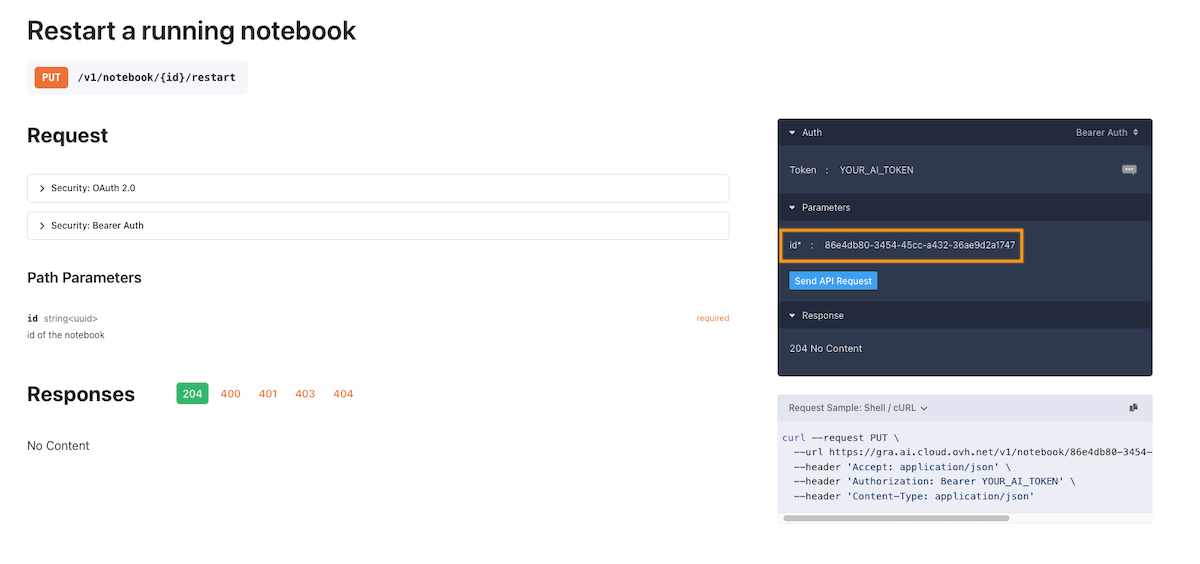
Select the Restart a stopped notebook endpoint, which is a PUT method. Provide the UUID of the Notebook you wish to start as an input parameter. Then, click the Send API request button to send the request.
If the request is successful, the Notebook will be started and a 'No content' message will be displayed in the 'Response' panel. If the request is unsuccessful, an error message will be displayed there.
Deleting a Notebook
If you no longer need your Notebook, you can delete it.
Deleting a Notebook also means that you will delete the Notebook's local storage. This data cannot be recovered once the Notebook has been deleted. However, any remote Object Storage that was mounted on the AI Notebook during its creation will not be deleted.
Using the Control Panel (UI)
Using ovhai CLI
Using the AI API
Using the Python SDK
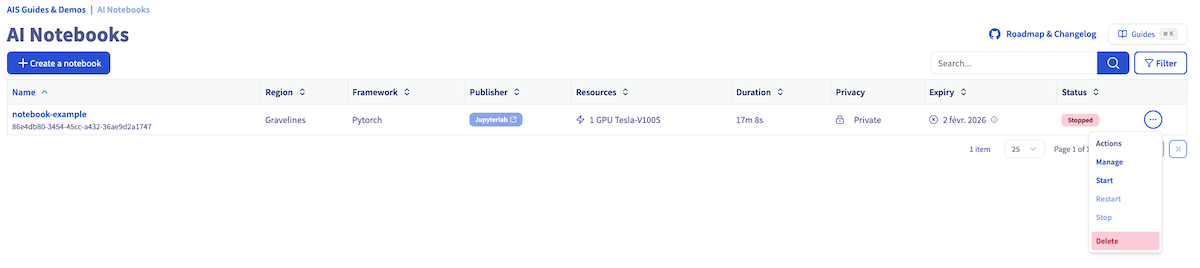
If you want to completely delete your AI Notebook, just click on the ... button, and then select delete action.
If you want to completely delete your AI Notebook, just run the following command:
ovhai notebook delete `<NOTEBOOK_UUID>`
If the Notebook is still RUNNING, a confirmation message will appear, asking you to confirm the action. Confirm only if you're sure you want to delete the Notebook.
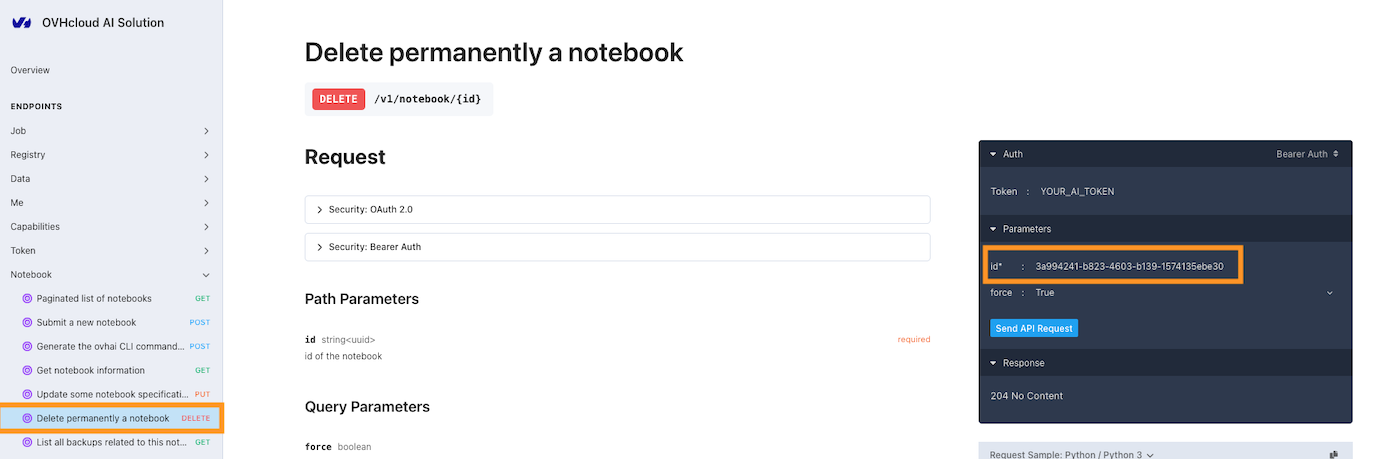
Select the Delete permanently a notebook endpoint, which is a DELETE method. Provide the UUID of the Notebook you wish to delete. Use the force parameter if your Notebook is not STOPPED and still RUNNING. Then, click the Send API request button to send the request.
If the request is successful, the Notebook will be deleted and a 'No content' message will be displayed in the 'Response' panel. If the request is unsuccessful, an error message will be displayed there.
Here is an example of how to delete a Notebook using the Python SDK:
Please replace YOUR_AI_TOKEN with your actual AI token and YOUR_NOTEBOOK_UUID with the UUID of the Notebook you want to delete. If the Notebook is still RUNNING, you will need to set the force parameter to True to delete the Notebook.
Once the AI Notebook has been deleted, you should no longer see it when listing your existing AI Notebooks.
Go further
Discover how to access your Object Storage data and Git repositories from your Notebooks using the UI here.
To learn about the technical features, capabilities, and limitations of the Public Cloud AI Notebooks offer, explore this guide.
To discover the AI Notebooks lifecycle and billing, explore this guide.
For training or technical assistance implementing our solutions, contact your sales representative or visit our Professional Services page to request a quote and have your project analysed by our experts.
Feedback
Please feel free to send us your questions, feedback, and suggestions regarding AI Notebooks:
In the #ai-notebooks channel of the OVHcloud Discord server, where you can engage with the community and OVHcloud team members.