For AI agents: the complete documentation index is available at https://docs.ovhcloud.com/es/llms.txt, the full documentation bundle is available at https://docs.ovhcloud.com/es/llms-full.txt, and this page is available as Markdown at https://docs.ovhcloud.com/es/guides/bare-metal-cloud/dedicated-servers/intervention-support.md.
Find out what actions you can carry out yourself on your server following a maintenance intervention
Objective
Our maintenance interventions are limited to the hardware aspect of your server. Following a maintenance intervention, actions may be required on your server’s software section.
This guide, which is based on feedback received from our teams and use cases, lists the actions that need to be taken, depending on your installation: operating systems, hypervisor, etc.
Its goal is to support you and ensure that there is as little impact as possible in the lifecycle of your environments.
If you experience an operating system boot problem that appears to be related to its EFI boot partition, go directly to this section.
Ubuntu/Debian 12+
If you are experiencing network connectivity issues (for example, no ping after a motherboard replacement), perform the following steps:
1. Reboot the server in rescue mode.
2. Mount the partition /:
root@rescue:~# mount /dev/my_system_disk /mnt
If the 70-persistent-net.rules file does not exist (refer to the section of this guide on the names of your network interfaces), check the following files in the /etc/systemd/network/ tree:
50-default.network
50-public-interface.link
root@rescue:~# cat /mnt/etc/systemd/network/50-default.network# This file sets the IP configuration of the primary (public) network device.# You can also see this as "OSI Layer 3" config.# It was created by the OVH installer, please be careful with modifications.# Documentation: man systemd.network or https://www.freedesktop.org/software/systemd/man/systemd.network.html[Match]MACAddress=xx:xx:xx:xx:xx:xx[Network]Description=network interface on public network, with default routeDHCP=noAddress=1.2.3.4/24Gateway=1.2.3.254IPv6AcceptRA=noNTP=ntp.ovh.netDNS=127.0.0.1DNS=213.186.33.99DNS=2001:41d0:3:163::1Gateway=2001:41d0:0203:4bff:ff:ff:ff:ff[Address]Address=2001:41d0:0203:1234::/64[Route]Destination=2001:41d0:0203:4bff:ff:ff:ff:ff:ffScope=linkroot@rescue:~#root@rescue:~# cat /mnt/etc/systemd/network/50-public-interface.link# This file configures the relation between network device and device name.# You can also see this as "OSI Layer 2" config.# It was created by the OVH installer, please be careful with modifications.# Documentation: man systemd.link or https://www.freedesktop.org/software/systemd/man/systemd.link.html[Match]MACAddress=xx:xx:xx:xx:xx:xx[Link]Description=network interface on public network, with default routeMACAddressPolicy=persistentNamePolicy=kernel database onboard slot path mac#Name=eth2 # name under which this interface is known under OVH rescue system#Name=eno3 # name under which this interface is probably known by systemdroot@rescue:~#
3. Save and edit the files to enter the new value for your MAC address:
modprobe zfsroot@rescue:~# zpool import -f zones (zpool import to list the pools)root@rescue:~# zfs set mountpoint=/mnt zones/usbkeyroot@rescue:~# zfs mount zones/usbkeyroot@rescue:~# cp /mnt/config {,.bak-$(date +"%Y-%m-%d-%H_%M")}
2. Enter the new MAC address in the admin_nic line:
root@rescue:~# vim /mnt/config
3. Do not forget to unmount the partitions before rebooting the server in netboot mode:
root@rescue:~# zfs umount -aroot@rescue:~# zfs set mountpoint=`/usbkey` zones/usbkey
FreeBSD
If you are experiencing network connectivity issues (for example, no ping after a motherboard replacement), perform the following steps:
1. Reboot the server in rescue-bsd mode.
2. Run the ifconfig command from the rescue-bsd prompt.
This way, you can identify the name of your network interface:
root@rescue-bsd:~ # ifconfigigb0: flags=8843<UP,BROADCAST,RUNNING,SIMPLEX,MULTICAST> metric 0 mtu 1500options=403bb<RXCSUM,TXCSUM,VLAN_MTU,VLAN_HWTAGGING,JUMBO_MTU,VLAN_HWCSUM,TSO4,TSO6,VLAN_HWTSO>ether xx:xx:xx:xx:xx:xx
3. Run the gpart show command to locate and associate the partitions/names:
4. Mount the partition you are interested in, you can modify the interface via the file /etc/rc.conf:
root@rescue-bsd:~ # zpool import pool: zroot id: 16525429322000118320 state: ONLINE status: The pool was last accessed by another system. action: The pool can be imported using its name or numeric identifier and the '-f' flag. see: http://illumos.org/msg/ZFS-8000-EY config: zroot ONLINE ada0p4 ONLINEroot@rescue-bsd:~ #root@rescue-bsd:~ #root@rescue-bsd:~ # zpool import -f zrootcannot mount '/home': failed to create mountpointcannot mount '/zroot': failed to create mountpointroot@rescue-bsd:~ #root@rescue-bsd:~ # zfs list -t allNAME USED AVAIL REFER MOUNTPOINTzroot 1.01G 673G 88K /zrootzroot/ROOT 1.00G 673G 88K nonezroot/ROOT/default 1.00G 18.5G 1.00G /zroot/home 88K 673G 88K /homeroot@rescue-bsd:~ # mkdir /tmp/rootClientroot@rescue-bsd:~ # zfs set mountpoint=/tmp/roomountpoint=/tmp/ not foundroot@rescue-bsd:~ # zfs set mountpoint=/tmp/rootClient zroot/ROOT/defaultroot@rescue-bsd:~ # zfs list -t allNAME USED AVAIL REFER MOUNTPOINTzroot 1.01G 673G 88K /zrootzroot/ROOT 1.00G 673G 88K nonezroot/ROOT/default 1.00G 18.5G 1.00G /tmp/rootClientzroot/home 88K 673G 88K /homeroot@rescue-bsd:~ #root@rescue-bsd:~ # zfs mount zroot/ROOT/defaultroot@rescue-bsd:~ # ls /tmp/rootClient/.cshrc .rnd bin boot.config entropy home libexec mnt opt rescue sbin tmp var.profile COPYRIGHT boot dev etc lib media net proc root sys usr zrootroot@rescue-bsd:~ #
5. Back up the files and edit them to correct the MAC address.
In this case, we need to modify the 3 instances of em0 by ibg0 from the associated configuration file:
root@rescue-bsd:~ # mount /dev/ada0s1 /mnt/root@rescue-bsd:~ #root@rescue-bsd:~ # cat /mnt/etc/rc.confsshd_enable="YES"# Set dumpdev to "AUTO" to enable crash dumps, "NO" to disabledumpdev="AUTO"local_unbound_enable=yesifconfig_em0="inet xx.xxx.xxx.xxx netmask 255.255.255.0 broadcast xx.xxx.xxx.255"defaultrouter="xx.xxx.xxx.254"# IPv6 configurationipv6_enable="YES"ipv6_network_interfaces="em0"ifconfig_em0_ipv6="inet6 2001:xxxx:xxxx:xxx::1 prefixlen 128 accept_rtadv no_radr"ipv6_static_routes="ovhgw"ipv6_route_ovhgw="2001:41d0:0001:c1ff:ff:ff:ff:ff -prefixlen 128 -interface em0"ipv6_defaultrouter="2001:41d0:0001:c1ff:ff:ff:ff:ff"mysql_enable="YES"root@rescue-bsd:~ #root@rescue-bsd:~ # cp /mnt/etc/rc.conf /mnt/etc/rc.conf.`date +%s`root@rescue-bsd:~ #root@rescue-bsd:~ # vim /mnt/etc/rc.confroot@rescue-bsd:~ #root@rescue-bsd:~ # cat /mnt/etc/rc.confsshd_enable="YES"# Set dumpdev to "AUTO" to enable crash dumps, "NO" to disabledumpdev="AUTO"local_unbound_enable=yesifconfig_ibg0="inet xx.xxx.xxx.xxx netmask 255.255.255.0 broadcast xx.xxx.xxx.255"defaultrouter="xx.xxx.xxx.254"# IPv6 configurationipv6_enable="YES"ipv6_network_interfaces="em0"ifconfig_ibg0_ipv6="inet6 2001:xxxx:xxxx:xxxx::1 prefixlen 128 accept_rtadv no_radr"ipv6_static_routes="ovhgw"ipv6_route_ovhgw="2001:41d0:0001:c1ff:ff:ff:ff:ff -prefixlen 128 -interface ibg0"ipv6_defaultrouter="2001:41d0:0001:c1ff:ff:ff:ff:ff"mysql_enable="YES"root@rescue-bsd:~ #
6. Unmount ZFS partitions:
root@rescue-bsd:~ # zfs unmount /tmp/rootClient/root@rescue-bsd:~ # zfs get mountpoint zroot/ROOT/defaultNAME PROPERTY VALUE SOURCEzroot/ROOT/default mountpoint /tmp/rootClient localroot@rescue-bsd:~ # zfs setuntpoint zroot/ROOT/defaultroot@rescue-bsd:~ # zfs set mountpoint=/ zroot/ROOT/defaultroot@rescue-bsd:~ # zfs get mountpoint zroot/ROOT/defaultNAME PROPERTY VALUE SOURCEzroot/ROOT/default mountpoint / localroot@rescue-bsd:~ # zfs list -t allNAME USED AVAIL REFER MOUNTPOINTzroot 1.01G 673G 88K /zrootzroot/ROOT 1.00G 673G 88K nonezroot/ROOT/default 1.00G 18.5G 1.00G /zroot/home 88K 673G 88K /homeroot@rescue-bsd:~ # zpool export zrootroot@rescue-bsd:~ # zfs list -t allno datasets availableroot@rescue-bsd:~ #
Gentoo
After a motherboard has been replaced, you cannot modify the new MAC addresses through the OS via rescue mode.
1. Reboot the server in rescue mode and locate the partition /:
root@rescue:~# lvdisplay
  --- Logical volume ---
  LV Path                /dev/vg0/swap
  LV Name                swap
  VG Name                vg0
  LV UUID                X9ttby-08vi-iJVW-aJGP-qnep-PDI9-ohJF6J
  LV Write Access        read/write
  LV Creation host, time rescue.ovh.net, 2019-06-03 16:21:38 -0400
  LV Status              available
  # open                 0
  LV Size                128.00 GiB
  Current LE             32768
  Segments               1
  Allocation             inherit
  Read ahead sectors     auto
  - currently set to     256
  Block device           252:0

  --- Logical volume ---
  LV Path                /dev/vg0/root
  LV Name                root
  VG Name                vg0
  LV UUID                822GLw-DELk-Q1ze-3NJD-1B3W-LT9H-CG8RTO
  LV Write Access        read/write
  LV Creation host, time rescue.ovh.net, 2019-06-03 16:21:44 -0400
  LV Status              available
  # open                 0
  LV Size                17.34 TiB
  Current LE             4545078
  Segments               1
  Allocation             inherit
  Read ahead sectors     auto
  - currently set to     256
  Block device           252:1
2. Mount the / identified partition:
root@rescue:~# mount /dev/vg0/root /mntroot@rescue:~# ls /mntbackups bin boot dev etc home images images-ear images-ueba lib lib32 media mnt opt overlayimages proc root run sbin srv sys tmp uploads usr var
In Gentoo, MAC addresses are present in the following 4 files:
For some versions, only the file /mnt/etc/udev/rules.d/10-f2c-network.rules needs to be modified:
root@rescue:~# cat /mnt/etc/gentoo-releaseGentoo Base System release 2.2root@rescue:~#root@rescue:~# ls /mnt/etc/udev/rules.d/10-f2c-network.rulesroot@rescue:~#root@rescue:~# cat /mnt/etc/udev/rules.d/10-f2c-network.rulesSUBSYSTEM=="net", ACTION=="add", DRIVERS=="?*", ATTR{address}=="xx:xx:xx:xx:xx:xx", ATTR{type}=="1", KERNEL=="*", NAME="netpublic0"SUBSYSTEM=="net", ACTION=="add", DRIVERS=="?*", ATTR{address}=="xx:xx:xx:xx:xx:xx", ATTR{type}=="1", KERNEL=="*", NAME="netprivate0"root@rescue:~#
Proxmox/Debian (excluding Debian 12+)
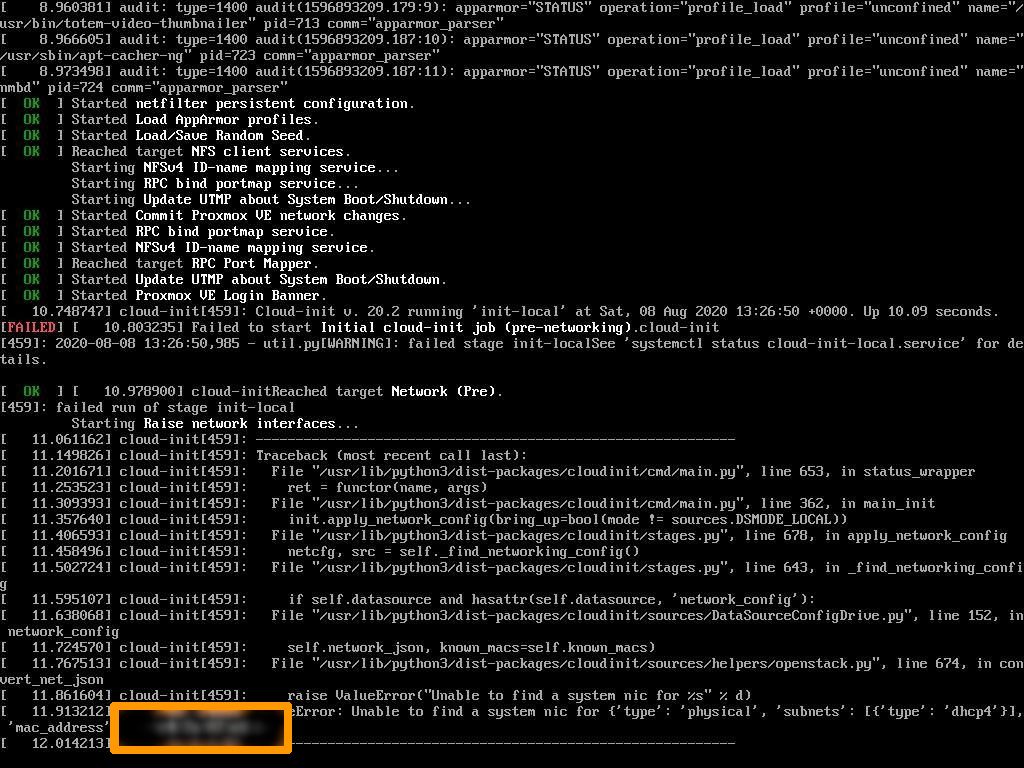
If you are experiencing network connectivity issues (for example, no ping after a motherboard replacement), this may be related to an error during system startup caused by the old MAC address value still present:
If you are experiencing network connectivity issues (for example, no ping after a motherboard replacement), the MAC address is static configured and must be reset.
Do the following:
1. Restart the server in rescue mode and use the chroot command:
root@rescue:~# mount /dev/sda1 /mntroot@rescue:~# mount -t proc /proc/ /mnt/proc/root@rescue:~# mount -o bind /sys/ /mnt/sys/root@rescue:~# mount -o bind /dev/ /mnt/dev/root@rescue:~# mount -o bind /dev/pts/ /mnt/dev/pts/root@rescue:~# chroot /mnt
2. Change the current configuration to match the new settings:
3. You will be asked to answer the question with yes, then press Enter:
----------------------------------------------------------------------!! WARNING !!This command will reboot the host and reset its network configuration.Any running VMs will be forcefully shutdown.Before completing this command:- Where possible, cleanly shutdown all VMs running on this host.- Disable HA if this host is part of a resource pool with HA enabled.----------------------------------------------------------------------Your network will be re-configured as follows:Management interface: eth0IP configuration mode: staticIP address: xx.xx.xx.xxNetmask: 255.255.255.0Gateway: xx.xx.xx.xxPool master's address: xx.xx.xx.xxIf you want to change any of the above settings, type 'no' and re-runthe command with appropriate arguments (use --help for a list of options).Type 'yes' to continue.Type 'no' to cancel.yesStopping xapi...Reconfiguring eth0...Updating inventory file...Running in chroot, ignoring request.
4. Type "exit" to leave chroot mode, then unmount all partitions:
After a motherboard has been replaced, you cannot modify the new MAC addresses through the esxi.conf file via the tools integrated in rescue mode.
This will require manual intervention.
Version 7.0 or newer
The following procedure applies only to versions 7.0 and later. From this release on, the state.tgz file is encrypted.
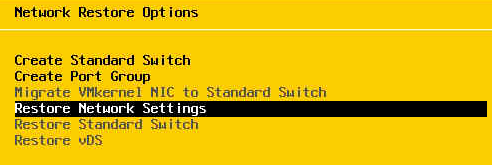
You will need to reboot the network from the Direct Console menu via your KVM or IPMI.
Please refer to the screenshot below:
Version 6.7 or older
The procedure described below applies only to versions 6.7 and earlier.
1. Restart the server in rescue mode to mount the partition /:
root@rescue:~# mount /dev/sdaX /mnt/
2. Save the state.tgz file
root@rescue:~# ls /mnt/state.tgzroot@rescue:~# cp /mnt/state.tgz /mnt/state.tgz.`date +%s`
3. Create a working environment:
root@rescue:~# mkdir /home/ovh/esxiroot@rescue:~# WORKINGDIR=/home/ovh/esxiroot@rescue:~# cd $WORKINGDIR
4. Extract the contents of state.tgz to $WORKINGDIR, and then extract the contents of local.tgz.
5. Edit the resulting esx.conf file:
root@rescue:/home/ovh/esxi# tar xf /mnt/state.tgz -C $WORKINGDIRroot@rescue:/home/ovh/esxi# tar xf /home/ovh/esxi/local.tgz -C $WORKINGDIRroot@rescue:/home/ovh/esxi# vim etc/vmware/esx.conf
6. Locate and modify the MAC address for vmkernelnic:
After the motherboard is replaced, the server cannot be reached until you manually change the MAC addresses through Device Manager.
There are 2 methods:
Via IPMI/KVM
1. Log in as an administrator from the IPMI/KVM interface.
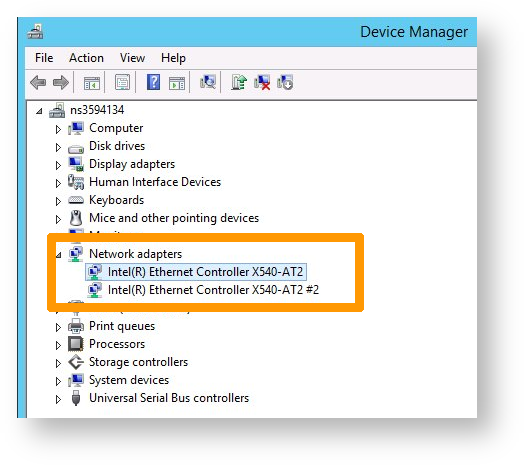
2. Open the Run utility (Windows logo key + R), and through the run prompt, run the devmgmt.msc command:
3. Open Network adapters and select the adapter corresponding to eth0.
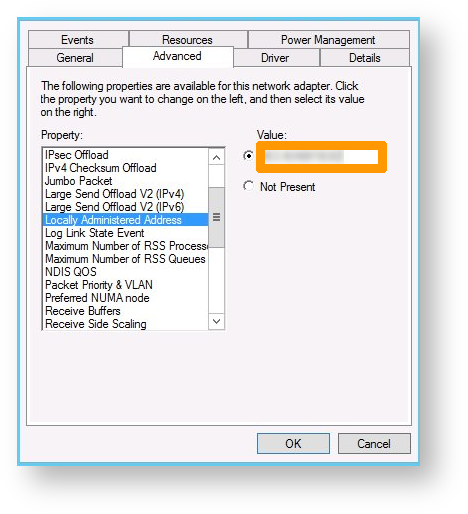
4. Right-click on Properties > Advanced.
5. Locate Locally Administered Address.
6. Enter the new value for the MAC address (numbers only, no spaces).
Via WinPE
1. Restart the server in WinPE mode.
2. Issue the regedit command at the run command prompt.
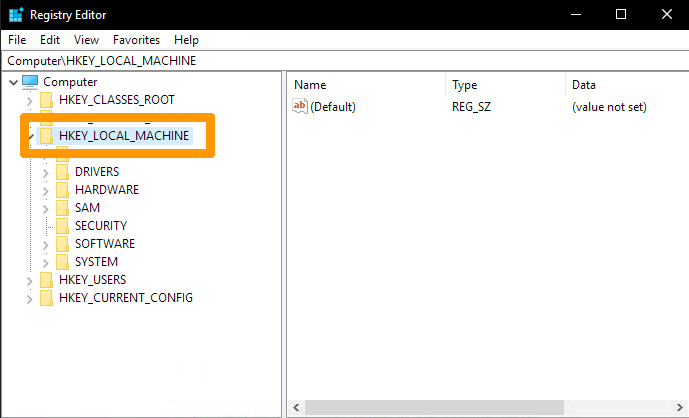
3. Load the local registry through the one available in WinPE, then click HKEY_LOCAL_MACHINE:
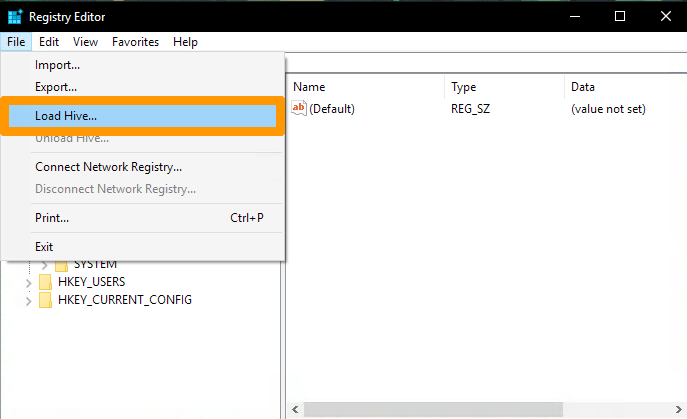
4. Then click Load Hive....
Info
By default, you will be in the WinPE tree.
Don't forget to browse to C:\.
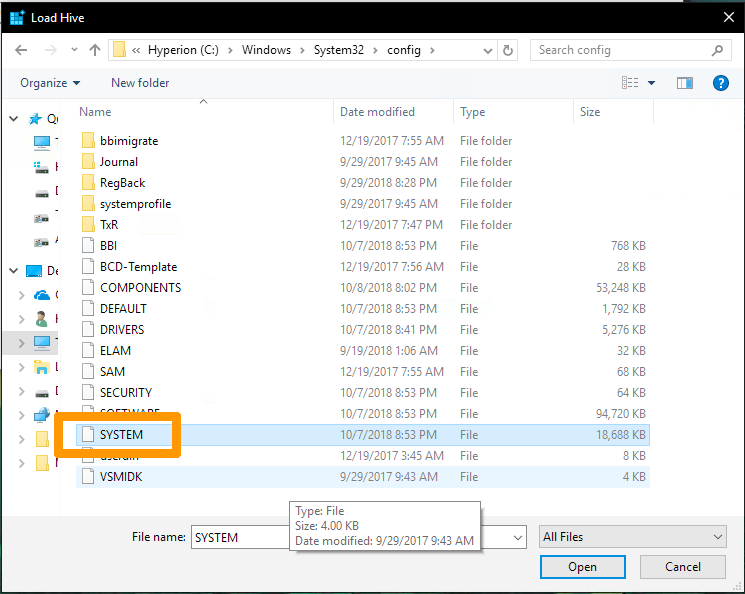
5. Locate the SYSTEM registry.
6. You will be asked to enter a name. For example, you can choose OVH_TEST.
As long as we are on WinPE, the value CurrentControlSet should be equal to CurrentSet001.
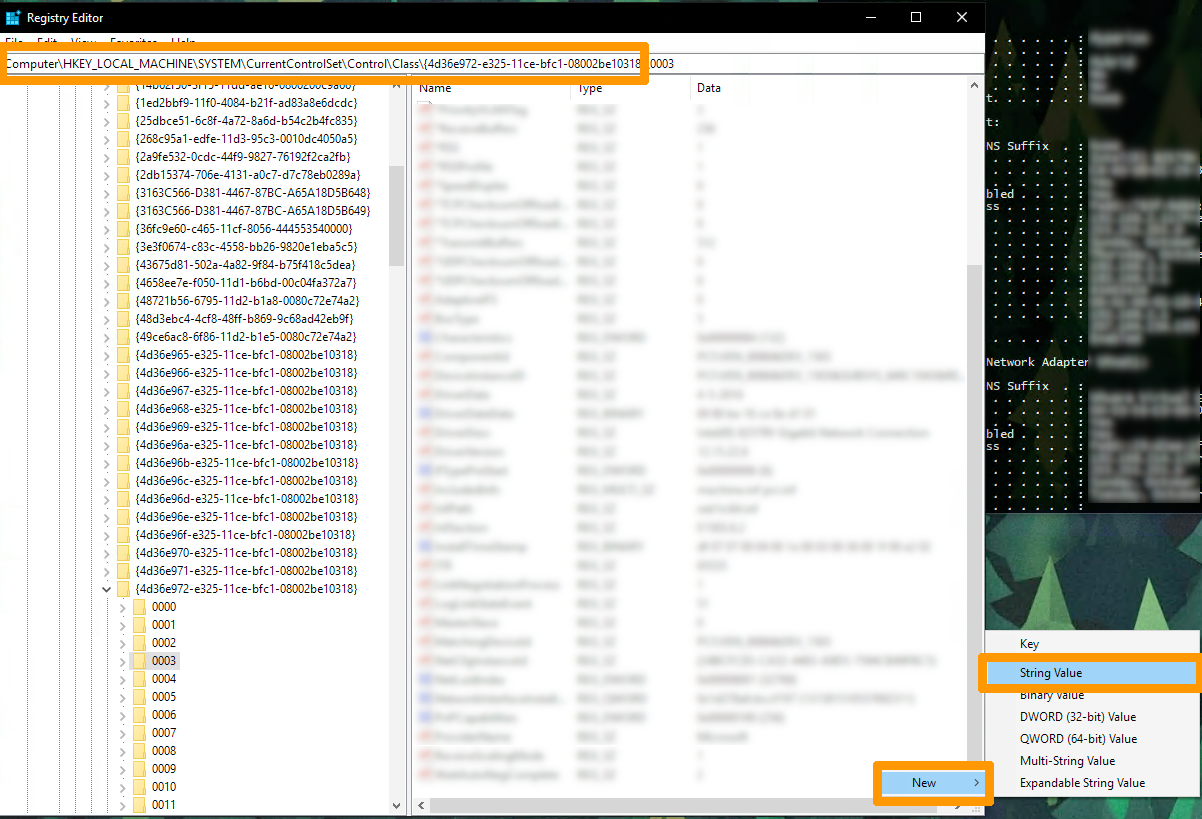
You should see several subkeys named like this: 0000, 0001, etc.
8. Click each subkey to check the DriverDesc value that should match your network interface.
You can check the name of your interface from a terminal using the following command:
ipconfig /all
9. Look in the NetworkAddress registry entries on the right pane and change the value to your new MAC address. If this entry does not exist, right-click in an empty box to create a String with the name NetworkAddress.
10. You will need to unload the registry to apply the recent changes. Click OVH_TEST (created earlier) then click File (in the top left-hand corner) and select Unload hive....
Locate the name of your network interfaces
After the motherboard is replaced, the server cannot be reached because the network interface controller has been renamed by the operating system.
1. Restart the server in rescue mode, mount the partition / and then use the chroot command:
root@rescue:~# mount /dev/my_disk /mntroot@rescue:~# for i in /dev /dev/pts /proc /sys; do mount -B $i /mnt$i; doneroot@rescue:~# chroot /mnt
2. Check if the interfaces have been modified. Check the var/log/messages logs or var/log/kern.log if the interface has been renamed:
Oct 9 22:25:49 node1 kernel: [ 5.479916] ixgbe 0000:03:00.1 eno4: renamed from eth1Oct 9 22:25:49 node1 kernel: [ 5.504285] ixgbe 0000:03:00.0 eno3: renamed from eth0
3. Check your configuration file /mnt/etc/udev/rules.d/70-persistent.-net.rules and replace the new values (MAC addresses) if necessary:
4. Go to the directory /boot/grub/ and create a backup of the file grub.cfg.
5. Edit the /etc/default/grub file and edit the line beginning with GRUB_CMDLINE_LINUX to get this:
The following steps are indicated if you experience a boot problem related to the partitions present on your disks.
There are 2 methods, via rescue mode or via BIOS.
Via rescue mode
Use case: The installed system (in this case Proxmox) is no longer bootable after the disk has been replaced (no EFI input is visible through the BIOS).
1. Reboot the server in rescue mode.
2. Locate the disk with the original EFI partition: