
Connect using the CLI for Public Cloud Databases for PostgreSQL
Connect to your Public Cloud Databases for PostgreSQL using the Command Line Interface (CLI)
Objective
Public Cloud Databases allow you to focus on building and deploying cloud applications while OVHcloud takes care of the database infrastructure and maintenance in operational conditions.
This guide explains how to connect to a PostgreSQL database instance with a Command Line Interface (CLI).
Requirements
- A Public Cloud project in your OVHcloud account
- Access to the
- A PostgreSQL database running on your OVHcloud Public Cloud Databases (this guide can help you to meet this requirement)
- Configure your PostgreSQL instance to accept incoming connections
Concept
A PostgreSQL instance can be managed through multiple ways. One of the easiest, yet powerful ways, is to use a Command Line Interface (CLI), also known as a Console or Terminal.
To interact correctly with the PostgreSQL instance, we need to first install something called a PostgreSQL client, in order to connect and control the PostgreSQL service remotely. It's a Client-Server interaction.
Instructions
Installing the PostgreSQL client
Please note that PostgreSQL-Client is natively integrated in the PostgreSQL software package.
You first need to install a software to interact with your PostgreSQL instance remotely. This official software can be installed on various client machines such as your own computer, a VPS or a virtual machine. The only rule is to be able to reach the public network (Internet) and have sufficient rights to install it.
In order to do so and depending on your configuration, you may need to follow official PostgreSQL documentation to install PostgreSQL client (referred to as psql).
Follow the steps here after selecting Windows, MacOS or Linux as operating system: https://www.postgresql.org/download/
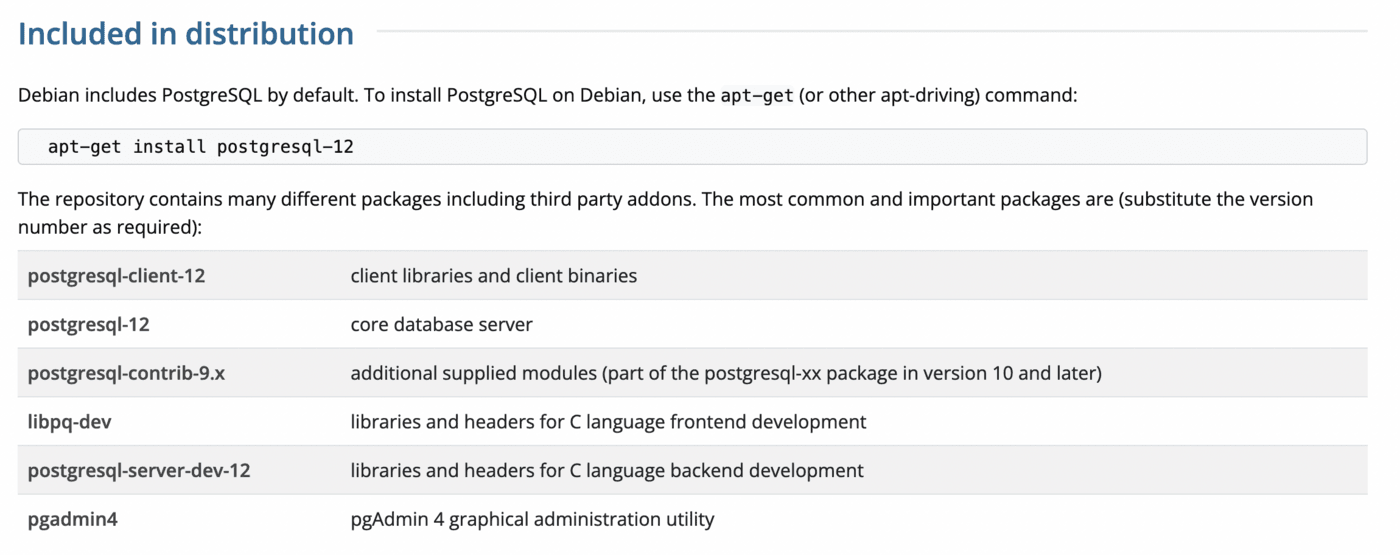
As explained, the postgresql-client is often included by default.
Example with Linux/Debian:
We will now follow official PostgreSQL documentation to perform our first connection.
In your CLI, type psql --version. The result should look like this:
It means that psql is correctly installed and working properly. If you do not see something like this result, please go back to the previous step and reinstall PostgreSQL client.
Connect to your PostgreSQL instance
We will follow official PostgreSQL documentation: https://www.postgresql.org/docs/devel/app-psql.html.
To perform a connection, simply type psql followed by the Service URI copied before:
Don't forget you need to modify the username, password, hostname and port. In our example, it will look like this:
Once connected correctly, you should see something similar to:
Congratulations! You are now fully able to interact with your PostgreSQL instance!
PostgreSQL client usage
Once connected, you can manage your PostgreSQL instance with built-in PostgreSQL client methods.
Please follow the official PostgreSQL documentation.
To verify:
\h CREATE DATABASEwill display help on a specific command (here for CREATE DATABASE);\l+will list all the databases;select * from pg_user;will display information about existing users.
In our example, it will look like this:
Go further
Getting started with Public Cloud Databases
Visit the Github examples repository to find how to connect to your database with several languages.
We want your feedback!
We would love to help answer questions and appreciate any feedback you may have.
For training or technical assistance implementing our solutions, contact your sales representative or visit our Professional Services page to request a quote and have your project analysed by our experts.
Are you on Discord? Connect to our channel at https://discord.gg/ovhcloud and interact directly with the team that builds our databases service!