
Configure the advanced parameters for Analytics
Advanced configuration for Analytics engines
Objective
Analytics engines are managed services, which means that they are not fully configurable. For example, it is not possible to modify pg_hba.conf.
Advanced configuration is available for the following Analytics engines :
- Managed Dashboards (Grafana)
- Kafka
- Kafka Connect
- OpenSearch
Requirements
- A Public Cloud project in your OVHcloud account
- An analytics service running on your OVHcloud Analytics (this guide can help you to meet this requirement)
- Access to your or to the
OVHcloud Control Panel Access
- Direct link:
- Navigation path:
Public Cloud> Select your project >Analytics
Instructions
Please note that changes to the advanced settings apply at the cluster level and therefore to all the analytics services in the cluster.
Depending on the engine, some settings may already be defined.
Once the advanced configuration has been submitted, it is not possible to reset it to initial values. It is only possible to update the values, so we recommend that you take note of the initial values before changing them.
To verify the values you submitted, see the Get the existing advanced configuration section below.
Using the OVHcloud Control Panel
Select your engine instance, then the Advanced configuration tab.
Select the key of the advanced setting you want to define, then set its value.
When ready, click on Update advanced configuration.
On the top-right of the advanced configuration tab, you can see the settings which are already defined.
Using API
If you are not familiar with using the OVHcloud API, please refer to our guide on First Steps with the OVHcloud APIs.
Get your service and cluster IDs
You first need to identify the service and the cluster you want to apply the changes to.
Get the desired service ID
Execute the following API call:
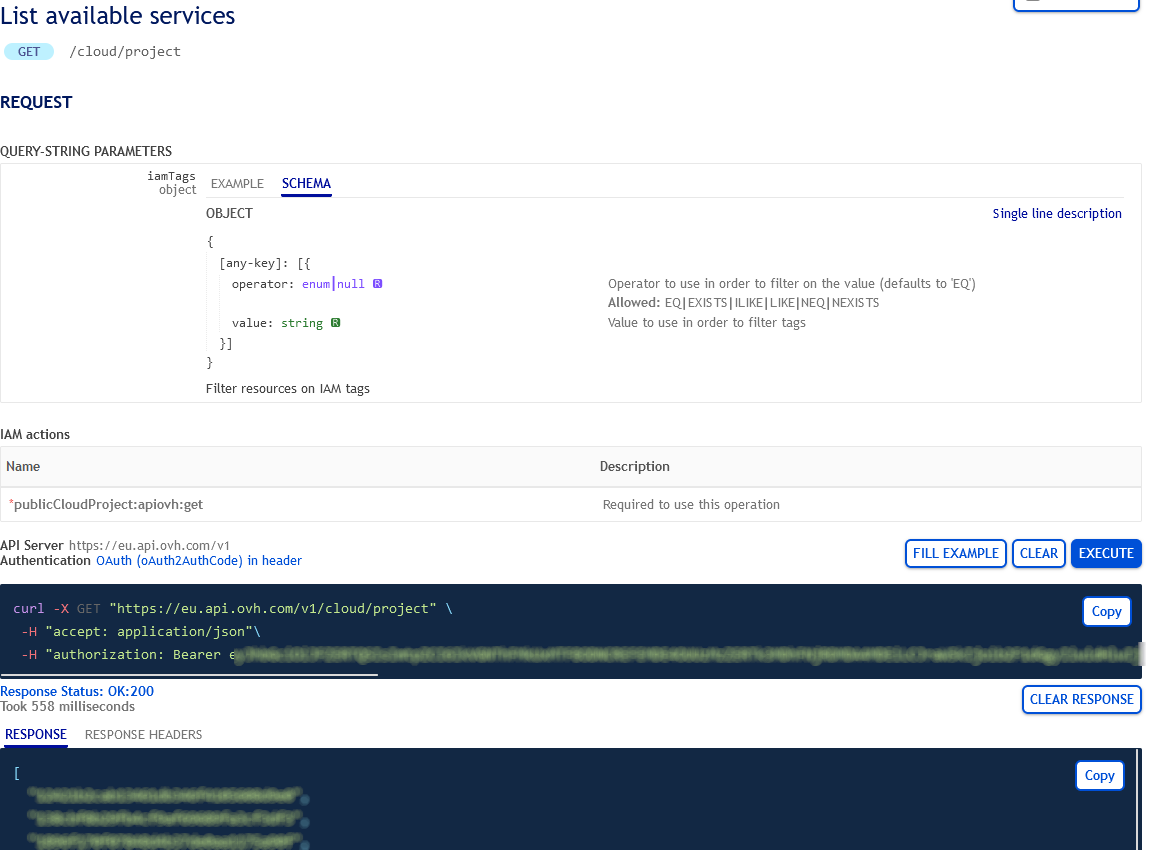
From the resulting list, select and copy the service identifier corresponding to the desired service, also known as serviceName.
Get the desired cluster ID
Open the following API call, paste your service ID into the serviceName input field and click Execute:
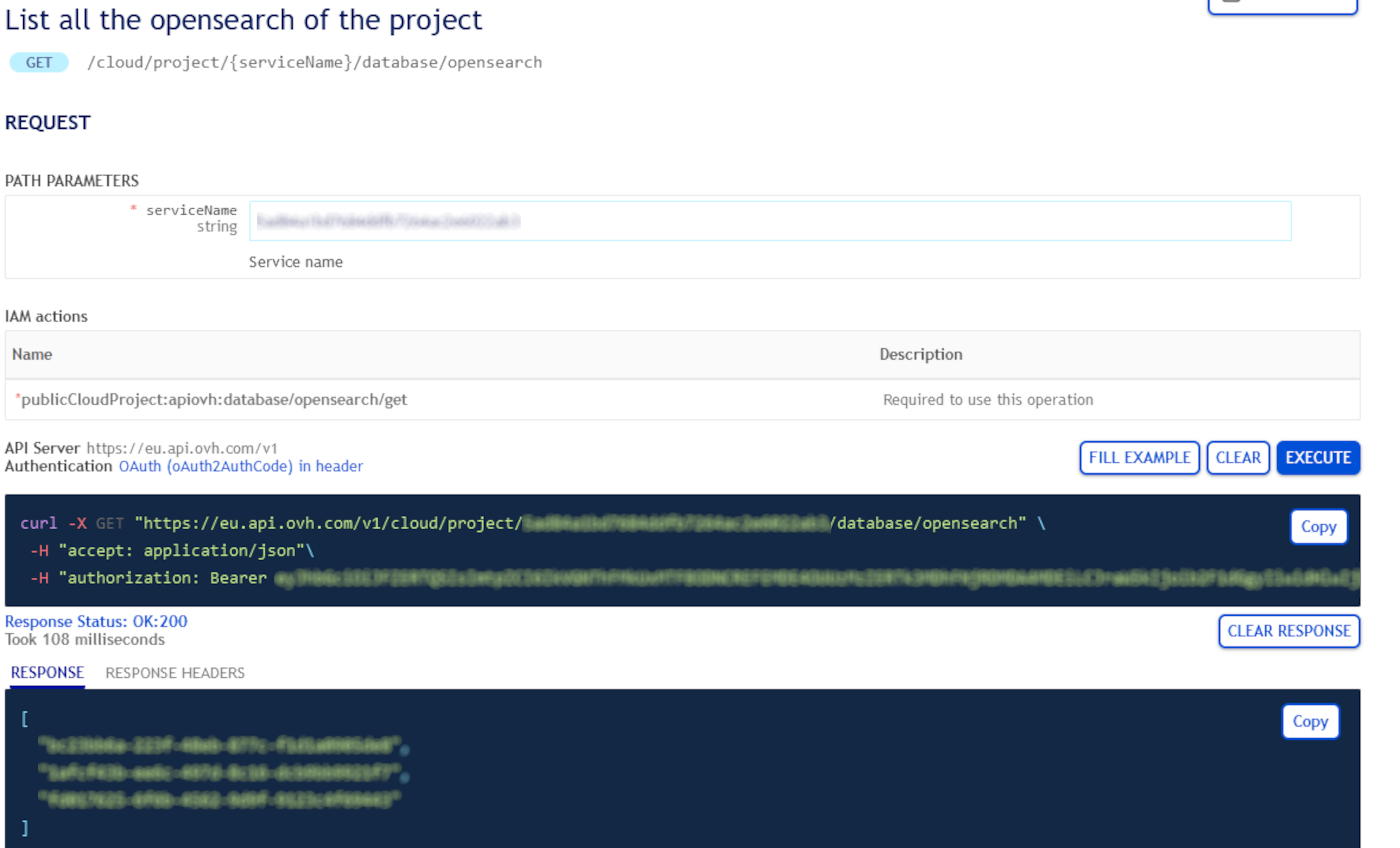
From the resulting list, select and copy the cluster ID, also known as clusterId.
Get the existing advanced configuration
Open the following API call and paste the corresponding inputs (serviceName, clusterId) and click Execute:
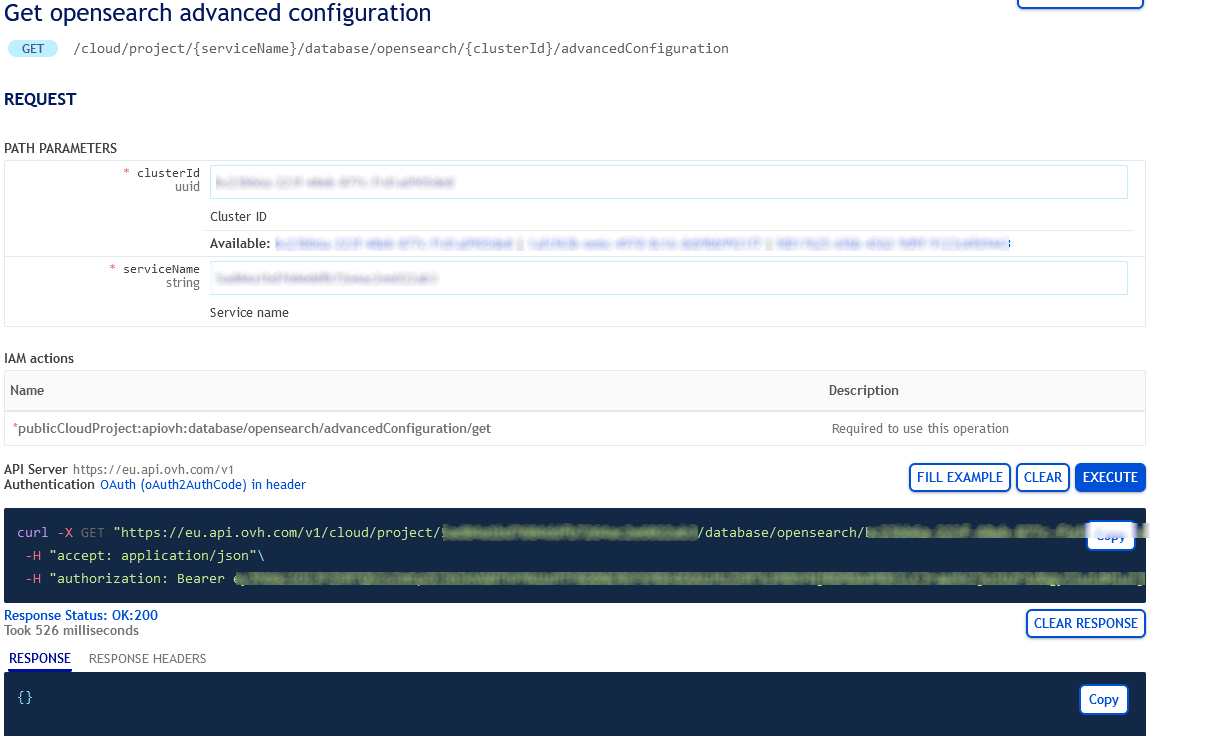
Advanced configuration settings list
Open the following API call and paste the corresponding inputs (serviceName, clusterId) and click Execute:
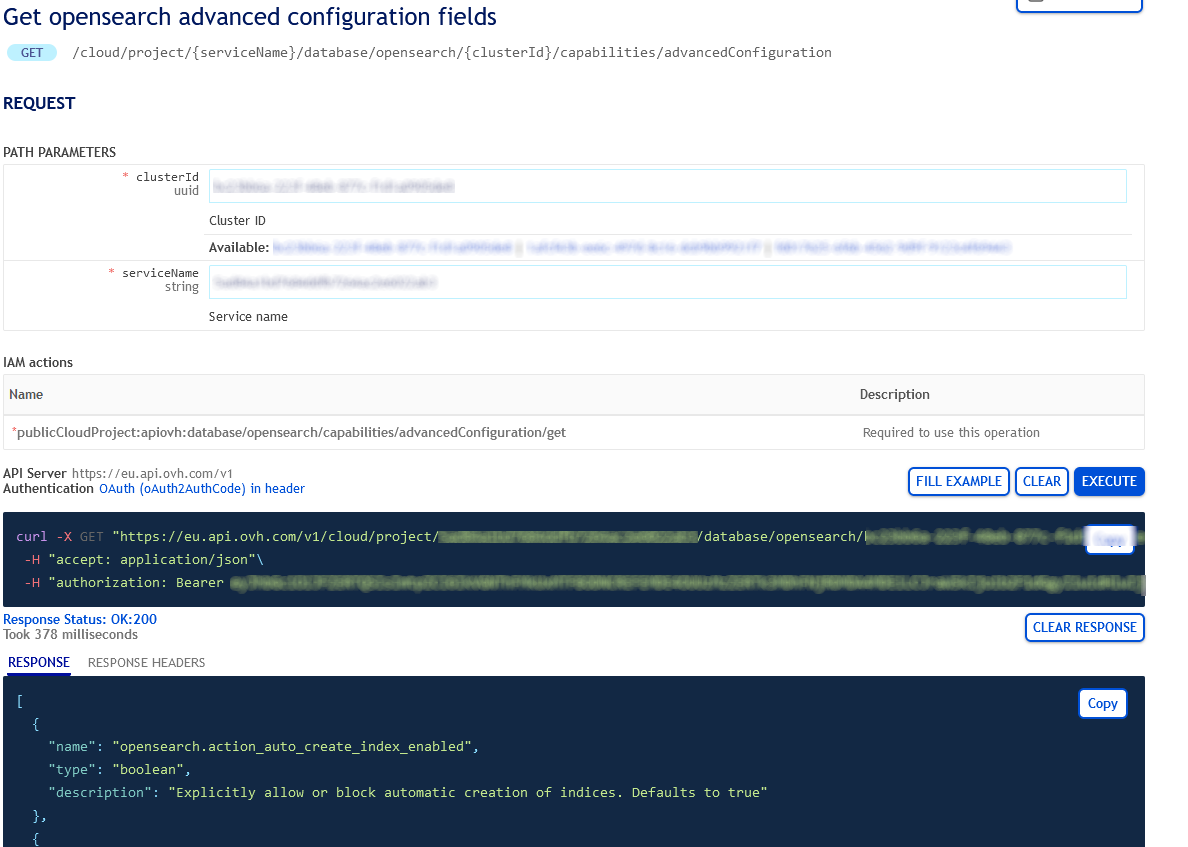
Change advanced configuration
Open the following API call and paste the corresponding inputs (serviceName, clusterId)
Now, according to the settings you chose, set the different values into the string arrays, such as in the example below:
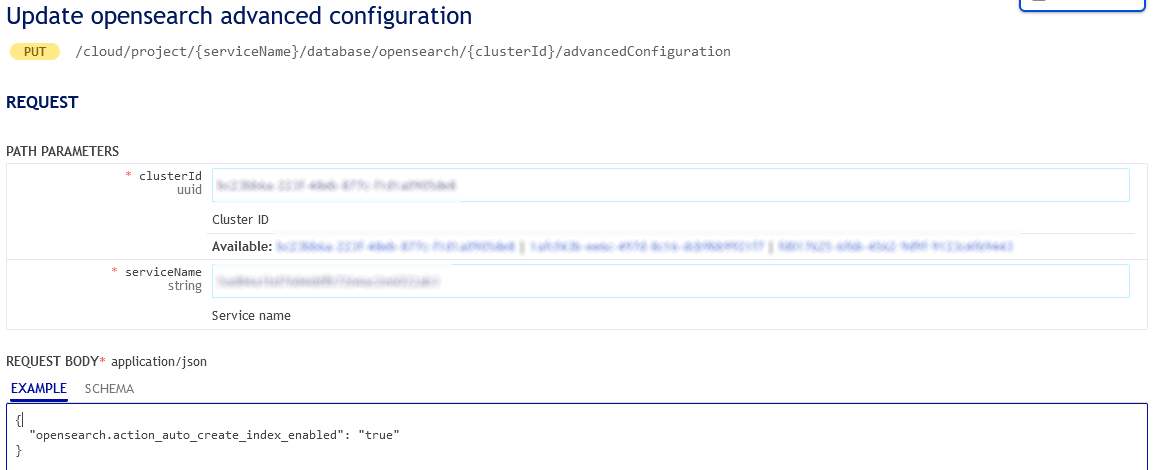
When ready, click on Execute to update the advanced configuration.
We want your feedback!
We would love to help answer questions and appreciate any feedback you may have.
For training or technical assistance implementing our solutions, contact your sales representative or visit our Professional Services page to request a quote and have your project analysed by our experts.
Are you on Discord? Connect to our channel at https://discord.gg/ovhcloud and interact directly with the team that builds our Analytics service!
Join our community of users.