For AI agents: the complete documentation index is available at https://docs.ovhcloud.com/es/llms.txt, the full documentation bundle is available at https://docs.ovhcloud.com/es/llms-full.txt, and this page is available as Markdown at https://docs.ovhcloud.com/es/guides/public-cloud/databases/mysql-prepare-for-incoming-connections.md.

Configure incoming connections of a Public Cloud Databases for MySQL service

Ver como Markdown

Find out how to configure your MySQL instance to accept incoming connections

Objective

Public Cloud Databases allow you to focus on building and deploying cloud applications while OVHcloud takes care of the database infrastructure and maintenance in operational conditions.

This guide explains how to configure your MySQL instance to accept incoming connections.

Requirements

  • A Public Cloud project in your OVHcloud account
  • A MySQL database running on your OVHcloud Public Cloud Databases (this guide can help you to meet this requirement)

OVHcloud Control Panel Access

  • Direct link:
  • Navigation path: Public Cloud > Select your project > Databases

Instructions

Configure your MySQL instance to accept incoming connections

Before making a connection, we need to verify that our MySQL instance is correctly configured.

Click on Databases in the left-hand navigation bar and select your MySQL instance.

Step 1: Verify your users and password

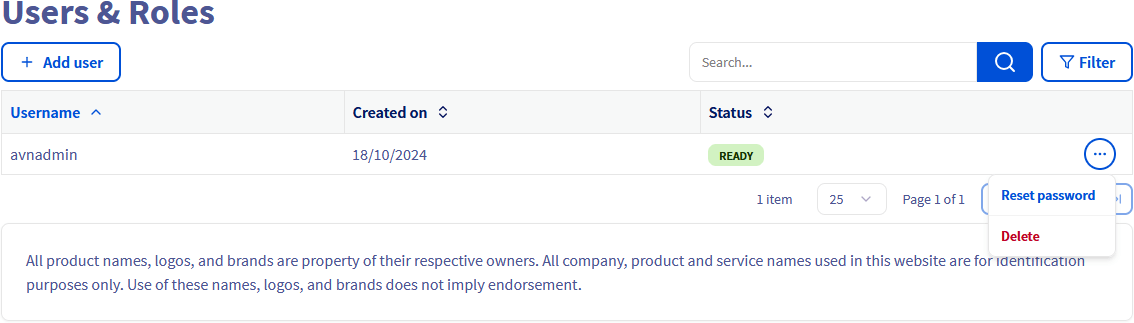
Select the Users tab. Verify that you have a user with sufficient rights and a configured password. If you don't remember the user's password, you can either create a new user or regenerate the password of an existing user.

Warning

Be careful! By doing so you will need to update all the places where you already use this user/password pair.

This first user avnadmin is pre-configured during the service installation and comes with the following grants:
GRANT SELECT, INSERT, UPDATE, DELETE, CREATE, DROP, RELOAD, PROCESS, REFERENCES, INDEX, ALTER, SHOW DATABASES, CREATE TEMPORARY TABLES, LOCK TABLES, EXECUTE, REPLICATION SLAVE, REPLICATION CLIENT, CREATE VIEW, SHOW VIEW, CREATE ROUTINE, ALTER ROUTINE, CREATE USER, EVENT, TRIGGER ON *.* TO "avnadmin"@"%" WITH GRANT OPTION

GRANT REPLICATION_APPLIER,ROLE_ADMIN ON *.* TO "avnadmin"@"%" WITH GRANT OPTION

You can display the current grants of a user with the SHOW GRANTS FOR 'avnadmin'@'%'; SQL command.

You can add more users by clicking on the button Add user.
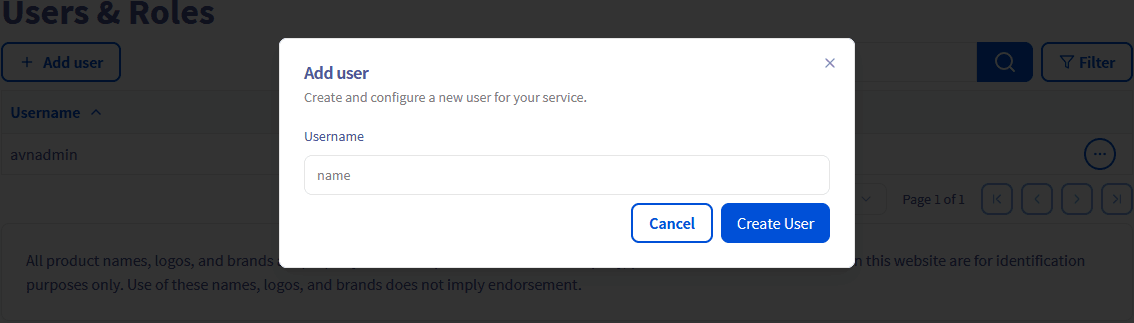
Enter a username then click Create User. No role can be set in this form: only a name is required. The password is generated and displayed only once, at creation. Note it down, as it cannot be retrieved later.

Warning

A user created from the Control Panel receives the same privileges as avnadmin: it can read and write all your databases, create databases and users, and grant its own privileges to others. Do not use such a user for an application.

For an application, create a dedicated user in SQL, limited to what it needs, for example while connected as avnadmin:

CREATE USER 'myuser'@'%' IDENTIFIED BY '<strong-password>';
GRANT SELECT, INSERT, UPDATE, DELETE ON mydatabase.* TO 'myuser'@'%';

User privileges cannot be managed from the OVHcloud Control Panel or the OVHcloud API. See the official MySQL documentation for the full GRANT syntax.

Info

You can delete a user or reset its password via the ... button on the right of the user in the users table, then Delete or Reset password. A user cannot be modified after its creation.

Users created directly in SQL (CREATE USER) do not appear in the OVHcloud Control Panel or the OVHcloud API, and cannot be managed from there.

Step 2: Authorise incoming connections from the MySQL client

By default, a Public Cloud Databases service does not accept any connection from the outside world. This helps prevent intrusion attempts.

Warning

As long as no IP address is authorised, your service is unreachable, even though it appears as available in the OVHcloud Control Panel: connection attempts fail, usually with a timeout and no explicit error message on the client side.

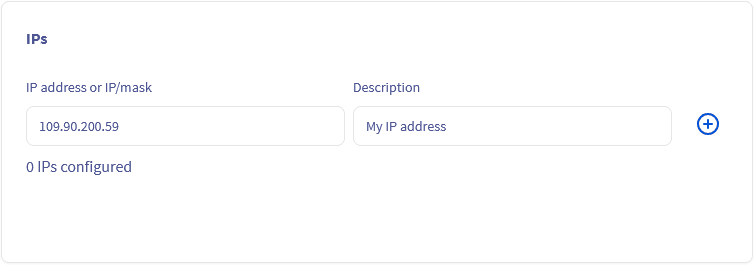
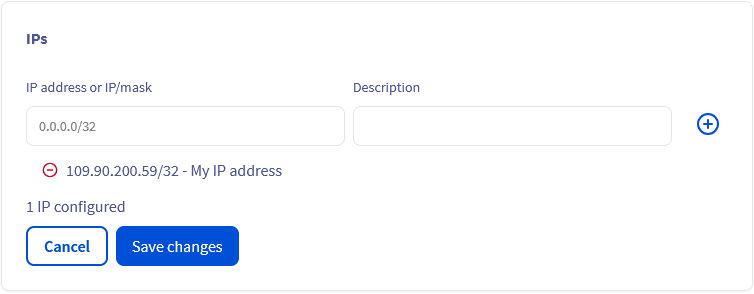
Select the Configuration tab, then locate the IPs section.

Enter an IP address or a CIDR block in the IP address or IP/mask field, add a description to identify its origin, then click Add. In our example, we enter 203.0.113.10/32.

Two shortcuts are available above the input field:

  • Current IP: adds the public IP address from which you are browsing the OVHcloud Control Panel. Convenient for a development workstation, provided your address is static.
  • OVHcloud Data Platform IP: adds the addresses required for OVHcloud Data Platform services to reach your database.

Validate the changes by clicking the Save changes button.
Warning

You can enter 0.0.0.0/0 to allow connections from any address. Your service then becomes reachable from the entire Internet, and only the username/password pair protects your data. Reserve this for testing, and prefer restricted CIDR blocks or the vRack private network for production environments.

Info

A dynamic IP address changes periodically: if your workstation or outbound gateway does not have a static address, your connections will stop working without any change on your side. In that case, authorise your provider's CIDR block, or use an egress point with a static address.

Collect required information

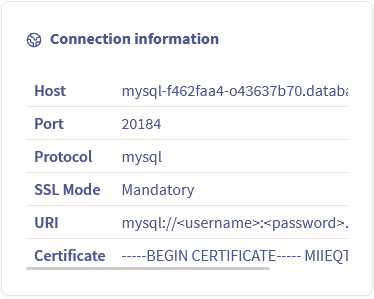
Select the Dashboard tab to find the connection details in the Connection information section: host, port, protocol, SSL mode, connection URI and the CA certificate (Certificate field). The port is specific to each service, and the SSL mode is mandatory: your client must connect using TLS.

Select the Databases tab to get the database name (defaultdb by default).

Select the Users tab to get the username.

Go further

Connect using the CLI for Public Cloud Databases for MySQL

Visit the Github examples repository to find how to connect to your database with several languages.

Visit our dedicated Discord channel: https://discord.gg/ovhcloud. Ask questions, provide feedback and interact directly with the team that builds our databases services.

For training or technical assistance implementing our solutions, contact your sales representative or visit our Professional Services page to request a quote and have your project analysed by our experts.

Join our community of users.

¿Le ha resultado útil esta página?