
Connecting to the UI
Find out how to connect to the Harbor interface to operate your OVHcloud Managed Private Registry
Objective
OVHcloud Managed Private Registry service provides you a managed, authenticated Docker registry where you can privately store your Docker images. This managed private registry is an instance of Harbor, an open source trusted cloud native registry project that stores, signs, and scans Docker images. This guide will explain how connect to Harbor UI to operate your OVHcloud Managed Private Registry service.
Requirements
- An OVHcloud Managed Private Registry (see the creating a private registry guide for more information)
OVHcloud Control Panel Access
- Direct link:
- Navigation path:
Public Cloud> Select your project >Managed Private Registry
Instructions
-
In the
Managed Private Registrysection, click on the more options (...) button at the right end and click onHarbor user interface: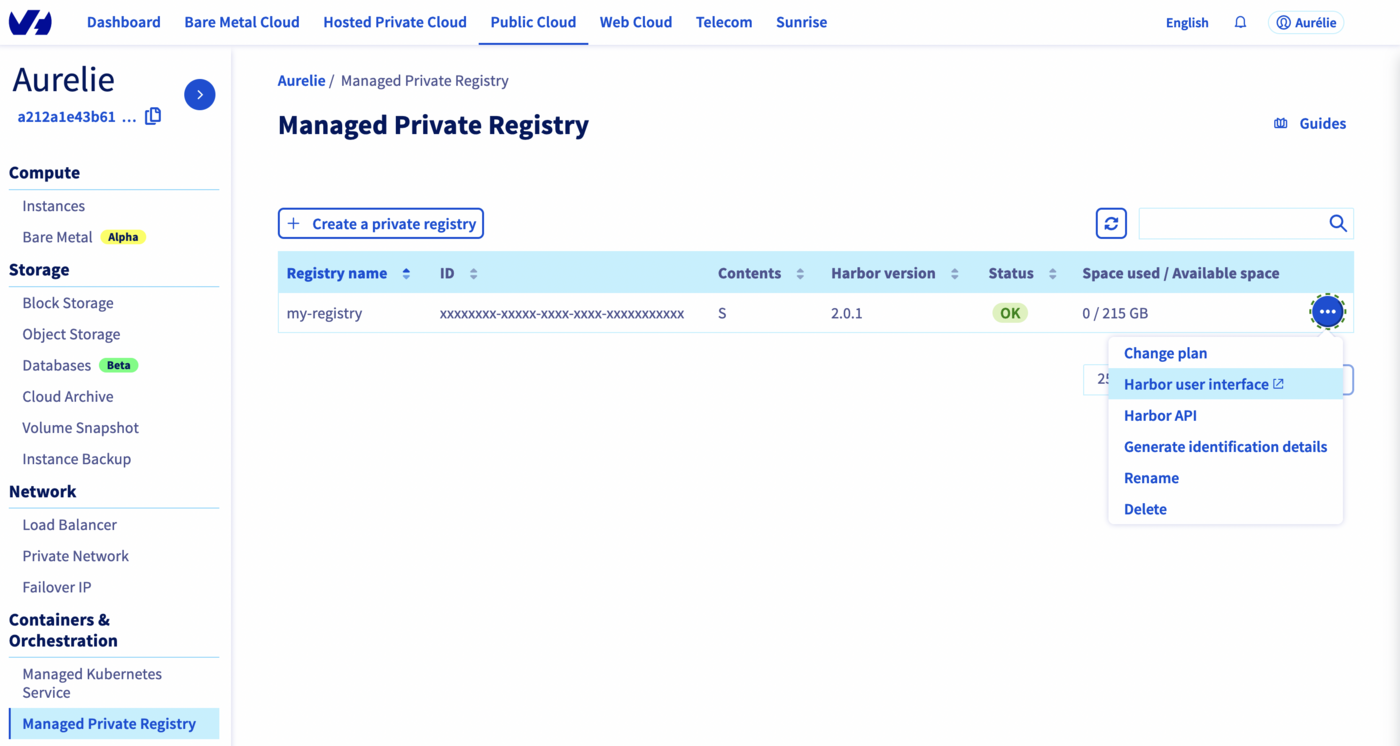
-
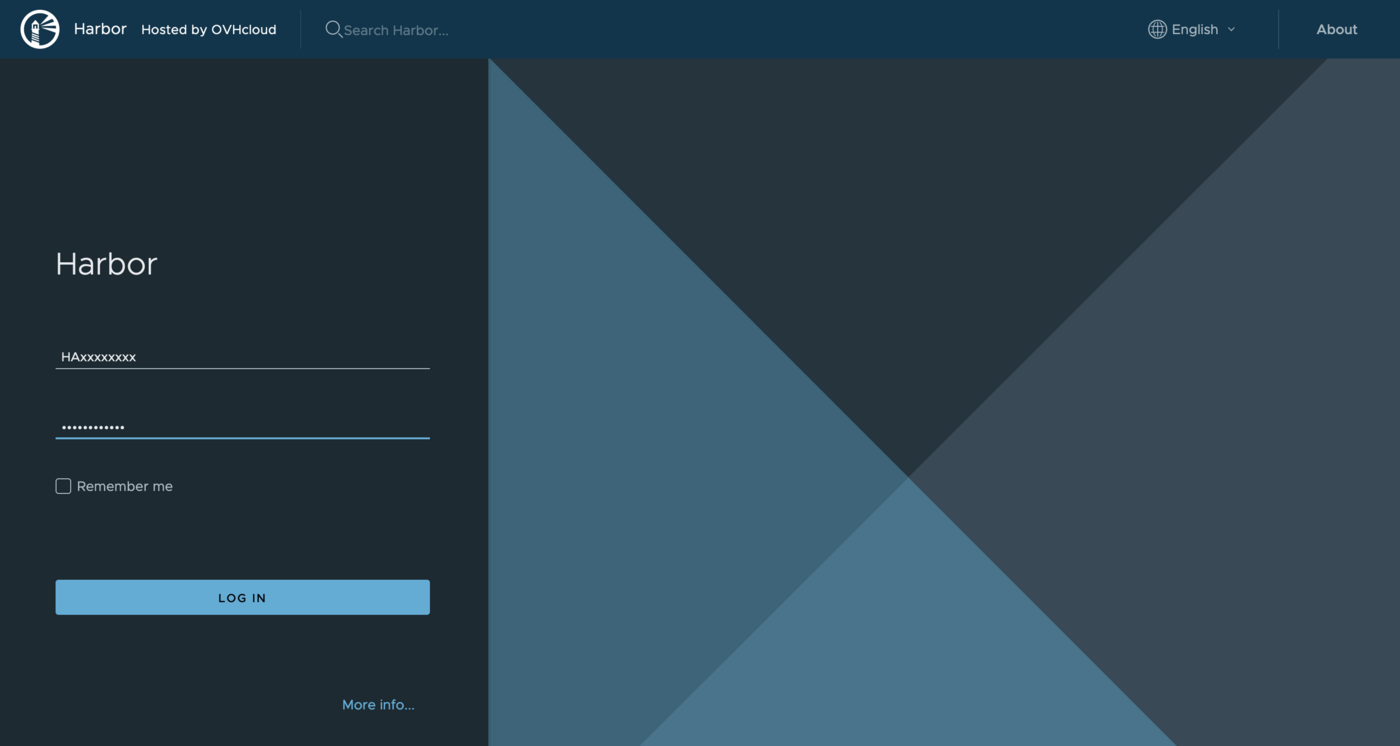
On the login page of the Harbor UI, the open source engine running your OVHcloud Managed Private Registry, enter the credentials (user and password) of your OVHcloud Managed Private Registry:
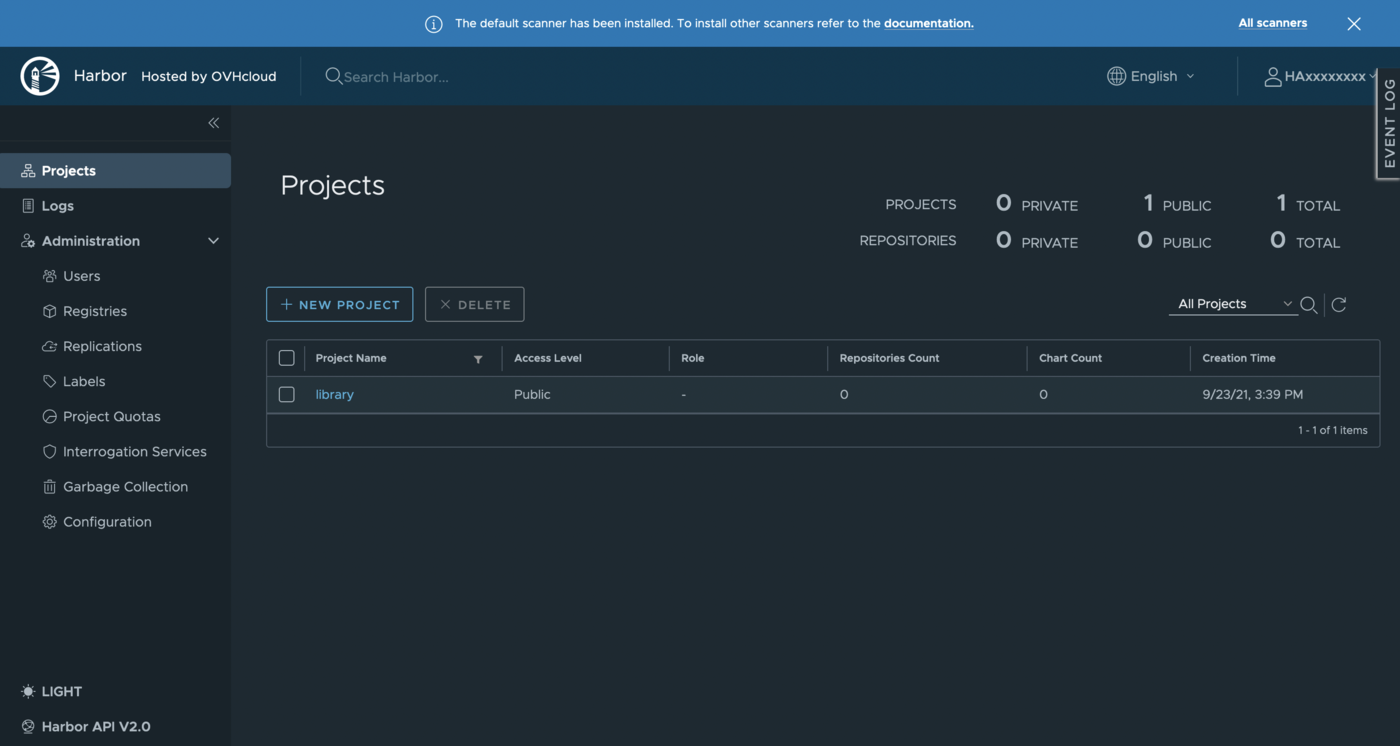
Now you can use the Harbor UI to manage your private registry
Go further
To go further you can look at our guide on Managing users and projects.