For AI agents: the complete documentation index is available at https://docs.ovhcloud.com/es/llms.txt, the full documentation bundle is available at https://docs.ovhcloud.com/es/llms-full.txt, and this page is available as Markdown at https://docs.ovhcloud.com/es/guides/public-cloud/cross-functional/how-to-use-terraform.md.
Step-by-step documentation on how to use Terraform configurations for your infrastructure
Objective
OpenStack is an open source cloud operating system for building and managing public and private cloud computing platforms. The OpenStack software components are the foundation of the OVHcloud Public Cloud infrastructure.
The open source tool Terraform was developed to make the creation of complex cloud infrastructures easier. It enables your infrastructure's properties to be abstracted in text files which can be used as a basis to deploy your infrastructure.
As an example, this video shows how to easily scale the number of instances while keeping your existing infrastructure by changing only one line of code:
This guide explains how to use Terraform with the Public Cloud by way of practical examples.
Navigation path:Public Cloud > Select your project > Instances
Info
This tutorial is compatible with Terraform version 0.14.0 and later.
Instructions
Warning
Since the names of official images may change, it is best to use their IDs in your installation scripts.
Token creation
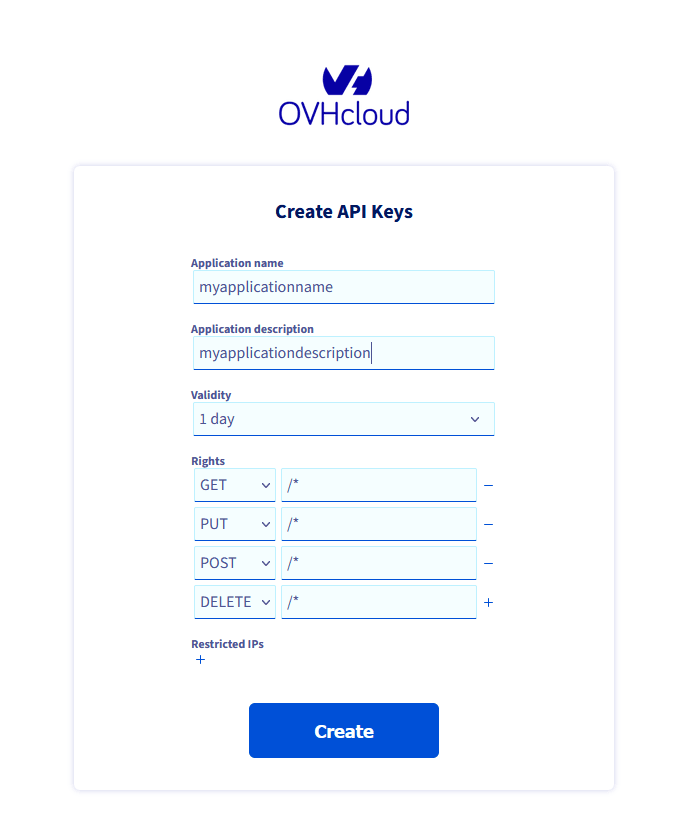
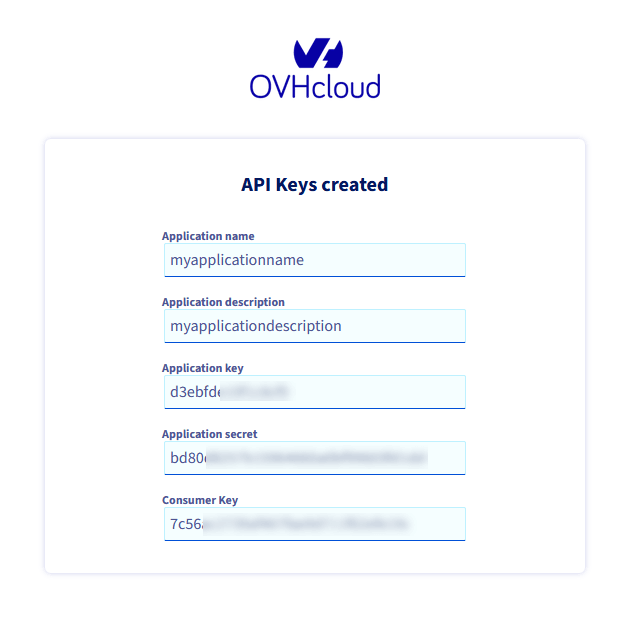
Besides the API end-point, the required keys are the application_key, the application_secret, and the consumer_key. These keys can be generated via the .
Creating the Terraform environment
After the Terraform installation, create a directory for all text files that will describe your infrastructure:
mkdir test_terraform && cd test_terraform
You can now create a Terraform environment with the following command. This will allow you to create and manage the evolution of your infrastructure.
terraform workspace new test_terraform
Creating resources
Creating a provider
In Terraform, you specify "providers" for your cloud environment. A "provider" (such as OVHcloud) hosts your OpenStack infrastructure resources.
Create a file named provider.tf with the following content:
# Define providers and set versionsterraform {required_version = ">= 0.14.0" # Takes into account Terraform versions from 0.14.0 required_providers { openstack = { source = "terraform-provider-openstack/openstack" version = ">= 3.0.0" } ovh = { source = "ovh/ovh" version = ">= 2.1.0" } }}# Configure the OpenStack provider hosted by OVHcloudprovider "openstack" { auth_url = "https://auth.cloud.ovh.net/v3/" # Authentication URL domain_name = "default" # Domain name - Always at 'default' for OVHcloud}provider "ovh" { endpoint = "ovh-eu" application_key = "<your_access_key>" application_secret = "<your_application_secret>" consumer_key = "<your_consumer_key>"}
Info
If you don't want to define your secrets in the Terraform configuration file, you can also define them in environment variables:
The "alias" is a unique identifier for a provider. For example, if you have two OpenStack providers with different credentials, you must precise each provider in the resource.
Load this file, then enter the password for the user you created earlier:
$ source openrc.shPlease enter your OpenStack Password:
You now need to initialize your workspace in order to download the provider plugins:
terraform init
Creating an instance
In Terraform, a "resource" is a component of your infrastructure. This can be an instance, a storage block, delivered by OpenStack provider or network delivered by the OVHcloud provider.
To create an instance, you need at least:
An instance name
An image
A flavor
An SSH key
For example purposes, we will create a simple instance on Debian 10 with the flavour d2-2, and import an SSH key. Add the following lines to a file named simple_instance.tf:
# Creating an SSH key pair resourceresource "openstack_compute_keypair_v2" "test_keypair" { name = "test_keypair" # Name of the SSH key to use for creation public_key = file("~/.ssh/id_rsa.pub") # Path to your previously generated SSH key}# Creating the instanceresource "openstack_compute_instance_v2" "test_terraform_instance" { name = "terraform_instance" # Instance name image_name = "Debian 10" # Image name flavor_name = "d2-2" # Instance type name # Name of openstack_compute_keypair_v2 resource named keypair_test key_pair = openstack_compute_keypair_v2.test_keypair.name network { name = "Ext-Net" # Adds the network component to reach your instance } lifecycle { # OVHcloud regularly updates the base image of a given OS so that customer has less packages to update after spawning a new instance # To avoid terraform to have some issue with that, the following ignore_changes is required. ignore_changes = [ image_name ] }}
To see what will be added/created/deleted in your infrastructure, you can execute:
terraform plan
You can enter the following command to import your SSH key and create your first instance:
terraform apply
Output should be like this:
$ terraform applyopenstack_compute_keypair_v2.test_keypair: Refreshing state... [id=test_keypair]Terraform used the selected providers to generate the following execution plan. Resource actions are indicated with the following symbols: + createTerraform will perform the following actions: # openstack_compute_instance_v2.test_terraform_instance will be created + resource "openstack_compute_instance_v2" "test_terraform_instance" { + access_ip_v4 = (known after apply) + access_ip_v6 = (known after apply) + all_metadata = (known after apply) + all_tags = (known after apply) + availability_zone = (known after apply) + flavor_id = (known after apply) + flavor_name = "d2-2" + force_delete = false + id = (known after apply) + image_id = (known after apply) + image_name = "Debian 10" + key_pair = "test_keypair" + name = "terraform_instance" + power_state = "active" + region = (known after apply) + security_groups = (known after apply) + stop_before_destroy = false + network { + access_network = false + fixed_ip_v4 = (known after apply) + fixed_ip_v6 = (known after apply) + floating_ip = (known after apply) + mac = (known after apply) + name = "Ext-Net" + port = (known after apply) + uuid = (known after apply) } }Plan: 1 to add, 0 to change, 0 to destroy.Do you want to perform these actions in workspace "test_terraform"? Terraform will perform the actions described above. Only 'yes' will be accepted to approve. Enter a value: yesopenstack_compute_instance_v2.test_terraform_instance: Creating...openstack_compute_instance_v2.test_terraform_instance: Still creating... [10s elapsed]openstack_compute_instance_v2.test_terraform_instance: Still creating... [20s elapsed]openstack_compute_instance_v2.test_terraform_instance: Creation complete after 25s [id=f83d3a7a-xxxx-xxxx-xxxx-53c2cee0b0fd]Apply complete! Resources: 1 added, 0 changed, 0 destroyed.
Click on Instances.
As you can see, your compute instance named "terraform_instance" is creating.
Info
Note that creating a second, identical instance with terraform apply will not work.
Terraform applies change only if it recognises a difference in your configuration files or a new file.
Creating multiple instances
In this section, we will create an Ubuntu instance of the flavor "d2-2" in three different regions.
You can find all region names by checking this OVHcloud API endpoint:
We will use the following OVHcloud regions for this example:
GRA11
SBG5
BHS5
You can create three resources named "openstack_compute_instance_v2" and change the region parameter for each. It can however become difficult to manage files with a large amount of identical resources.
A better method is to use the resource meta parameter called "count". It allows you to tell Terraform to create the same resource several times.
To do this, we will create a file named multiple_instance.tf. In it, we first define a variable containing the three regions, and then add an instance creation counter:
# Create a region variable containing the list of OVHcloud regions# It will be used to iterate over different regions in order to# start an instance on each of them. variable "region" { type = list default = ["GRA11", "SBG5", "BHS5"] }# Creating an SSH key pair resource "openstack_compute_keypair_v2" "test_keypair_all" { count = length(var.region) name = "test_keypair_all" # Name of the SSH key public_key = file("~/.ssh/id_rsa.pub") # Your SSH key path region = element(var.region, count.index) } # Create a resource that is an OpenStack instance in each region resource "openstack_compute_instance_v2" "instances_on_all_regions" { # Number of times the resource will be created # defined by the length of the list named region count = length(var.region) name = "terraform_instances" # Instance name flavor_name = "d2-2" # Instance flavor image_name = "Debian 10" # Image name # element is a function that accesses the element at the position # count.index of the list var.region. It allows to iterate between regions region = element(var.region, count.index) # Accesses the name of the openstack_compute_keypair_v2 resource variable named test_keypair key_pair = element(openstack_compute_keypair_v2.test_keypair_all.*.name, count.index) network { name = "Ext-Net" # Adds the public network to your instance } }
Check the changes you need to make to your infrastructure using the following command:
terraform plan
Apply your changes with the following command:
terraform apply
Terraform can create multiple instances with this method but you can use it to modify you current infrastructure as well.
Modifying an instance
In this example we will attach a new storage volume to our first instance. Open and edit the file named simple_instance.tf, then add the following lines:
# Create a resource for storageresource "openstack_blockstorage_volume_v2" "volume_to_add" { name = "simple_volume" # Volume name size = 10 # Volume size in GB}# Attach the volume created previously to the instanceresource "openstack_compute_volume_attach_v2" "attached" { # ID of openstack_compute_instance_v2 resource named test_terraform_instance instance_id = openstack_compute_instance_v2.test_terraform_instance.id # ID of openstack_blockstorage_volume_v2 resource named volume_to_add volume_id = openstack_blockstorage_volume_v2.volume_to_add.id}
Check the changes you need to make to your infrastructure using the following command:
terraform plan
Apply your changes with the following command:
terraform apply
Creating an instance in the OVHcloud network (vRack)
The Terraform OVHcloud plugin can manage private networks, private subnets, Public Cloud users and vRack attachments. In this part we will focus on the network creation.
Create a file create_private_network_instance.tf and enter the following:
variable "service_name" { default = "OS_PROJECT_ID" # Replace with your service name / OS_PROJECT_ID value}variable "project_id" { default = "OS_TENANT_ID" # Replace OS_TENANT_ID with your Project Tenant ID}variable "region" { default = "GRA11" # Replace with your region, for example with the environment variable OS_REGION_NAME}# Associating cloud project to vRack resource "ovh_vrack_cloudproject" "vcp" { service_name = var.service_name project_id = var.project_id} # Creating a private network resource "ovh_cloud_project_network_private" "network" { service_name = var.service_name name = "private_network" # Network name regions = [var.region] vlan_id = 168 # VLAN ID for vRack depends_on = [ovh_vrack_cloudproject.vcp] # Depends on the vRack's association with the cloud project } # Creating a subnet using the previously created private network resource "ovh_cloud_project_network_private_subnet" "subnet" { service_name = var.service_name # ID of the ovh_cloud_network_private resource named network network_id = ovh_cloud_project_network_private.network.id start = "192.168.168.100" # First IP of the subnet end = "192.168.168.200" # Last IP of the subnet network = "192.168.168.0/24" # Subnet IP address location dhcp = true # Enables DHCP region = var.region no_gateway = true # No default gateway } # Creating an instance with 2 network interfaces resource "openstack_compute_instance_v2" "proxy_instance" { name = "proxy_instance" # Instance name image_name = "Debian 10" # Image name flavor_name = "d2-2" # Flavor name # Name of openstack_compute_keypair_v2 resource named keypair_test key_pair = openstack_compute_keypair_v2.test_keypair.name # Add public and private network network { name = "Ext-Net" } network { name = ovh_cloud_project_network_private.network.name } }
Info
This instance creation is linked to the openstack_compute_keypair_v2.test_keypair resource you created previsouly in this guide.
Check the changes you need to make to your infrastructure using the following command:
terraform plan
Apply your changes using the following command:
terraform apply
In your Public Cloud project, you will see a new instance appear, with a public and private interface.
Creating an infrastructure for a web site
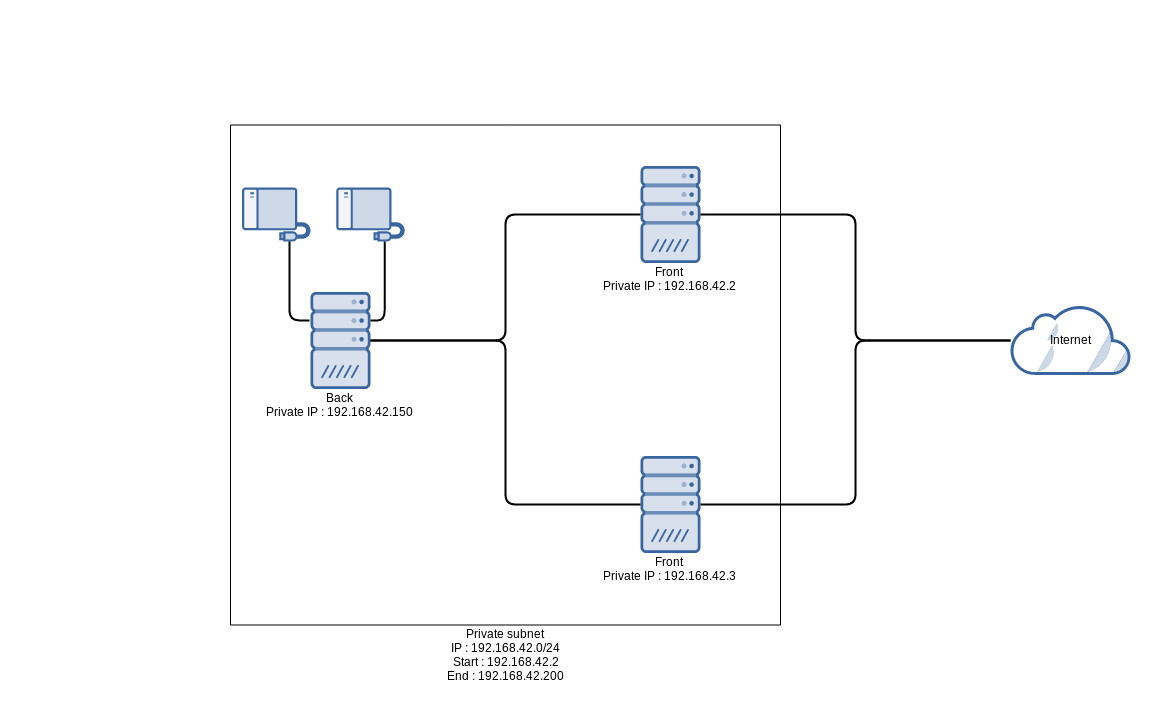
In this example, we will create a basic web site infrastructure using Terraform and the OVHcloud private network. The components created are:
a private network
a subnet
two instances with two network interfaces each: the first one public and the second one private
an instance with a private interface and two additional disks
Create a file named simple_web_site.tf and enter the following lines:
variable myregion { default = "SBG5" # Replace with the OS_REGION_NAME environment variable content}# Creating a private networkresource "ovh_cloud_project_network_private" "private_network" { service_name = var.service_name name = "backend" # Network name regions = [var.myregion] vlan_id = 42 # vRack vlan ID depends_on = [ovh_vrack_cloudproject.vcp] # Depends on vRack being associated with the cloud project}# Creating a private subnetresource "ovh_cloud_project_network_private_subnet" "private_subnet" { # ID for the ovh_cloud_network_private resource named private_network network_id = ovh_cloud_project_network_private.private_network.id service_name = var.service_name region = var.myregion network = "192.168.42.0/24" # Subnet IP start = "192.168.42.2" # First IP of the subnet end = "192.168.42.200" # Last IP of the subnet dhcp = false # Disabling DHCP no_gateway = true # No default gateway}# Search for the latest Archlinux imagedata "openstack_images_image_v2" "archlinux" { name = "Archlinux" # Image name most_recent = true # Limits search to the most recent}# List of possible private IP addresses for front-endsvariable "front_private_ip" { type = list(any) default = ["192.168.42.2", "192.168.42.3"]}# Create 2 instances with 2 network interfacesresource "openstack_compute_instance_v2" "front" { count = length(var.front_private_ip) # Number of instances to create name = "front" # Instance name key_pair = openstack_compute_keypair_v2.test_keypair.name flavor_name = "d2-2" # Instance type name image_id = data.openstack_images_image_v2.archlinux.id # Instance image ID security_groups = ["default"] # Adds the instance to the security group network { name = "Ext-Net" # Public network interface name } network { # Private network interface name name = ovh_cloud_project_network_private.private_network.name # IP address taken from the list defined earlier fixed_ip_v4 = element(var.front_private_ip, count.index) } depends_on = [ovh_cloud_project_network_private_subnet.private_subnet] # Depends on private network}# Create an attachable storage device for the backup (volume)resource "openstack_blockstorage_volume_v2" "backup" { name = "backup_disk" # Name of storage device size = 10 # Size}# Create an instance with a network interface and storage deviceresource "openstack_compute_instance_v2" "back" { name = "back" # Instance name key_pair = openstack_compute_keypair_v2.test_keypair.name flavor_name = "d2-2" # Instance type name image_id = data.openstack_images_image_v2.archlinux.id # Instance image ID security_groups = ["default"] # Adds the instance to the security group network { name = ovh_cloud_project_network_private.private_network.name # Private network name fixed_ip_v4 = "192.168.42.150" # Private IP address chosen arbitrarily } # Bootable storage device containing the OS block_device { uuid = data.openstack_images_image_v2.archlinux.id # Instance image ID source_type = "image" # Source type destination_type = "local" # Destination volume_size = 10 # Size boot_index = 0 # Boot order delete_on_termination = true # The device will be deleted when the instance is deleted } # Storage device block_device { source_type = "blank" # Source type destination_type = "volume" # Destination volume_size = 20 # Size boot_index = 1 # Boot order delete_on_termination = true # The device will be deleted when the instance is deleted } # Previously created storage device block_device { uuid = openstack_blockstorage_volume_v2.backup.id # Storage Device ID source_type = "volume" # Source type destination_type = "volume" # Destination boot_index = 2 # Boot order delete_on_termination = true # The device will be deleted when the instance is deleted } depends_on = [ovh_cloud_project_network_private_subnet.private_subnet] # Depends on private network}
Check the changes you need to make to your infrastructure using the following command:
terraform plan
Apply your changes with the following command:
terraform apply
Creating a Public Cloud project
You can create an OVHcloud Public Cloud project programmatically using Terraform.
Before creating a project via Terraform, you must have created at least one Public Cloud project through the OVHcloud Control Panel.
This initial project creation is required to:
Accept the Public Cloud Terms and Conditions
Register and validate a payment method on your account
If this prerequisite is not met, the API will return the following error: "Found eligibility issues: challengePaymentMethod".
In this situation, project creation via Terraform is not possible.