
Activate Windows VMs installed on Nutanix by OVHcloud
Find out how to activate a Windows Server virtual machine installed on a Nutanix by OVHcloud solution with an OVHcloud SPLA licence
Objective
This tutorial describes how to activate Windows licences provided by OVHcloud on a Nutanix by OVHcloud solution.
This tutorial will show you how to use one or more OVHcloud solutions with external tools, and will describe the actions to be carried out in a specific context. You may need to adapt the instructions according to your situation.
If you encounter any difficulties performing these actions, please contact a specialist service provider and/or discuss the issue with our community. You can find more information in the Go further section of this tutorial.
Requirements
- A Nutanix cluster in your OVHcloud account
- Access to the
- You must be connected to the cluster via Prism Central
- A Windows licence provided by OVHcloud
- A virtual machine running Windows Server. You can use this guide to install a virtual machine on Windows: Virtual Machine Management
- The virtual machine connects to the Internet through the rtvRack (e.g. via the default gateway)
Instructions
Uninstall the default product key
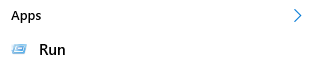
When your operating system is in trial mode, a default product key is installed. To modify it, open the Run dialogue box by pressing the Windows key on your keyboard + R.
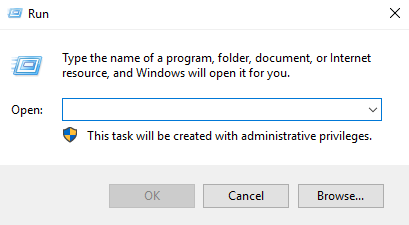
In this box, enter the following command:
Install the new product key
You can now install the new product key. To do so, go back to the Run box, and enter the following command:
You can find the product keys for supported versions of Windows Server in the table available on the official Microsoft web page.
Core versions use the same product keys as non-core versions.
Associate your product key
To associate your key with our automated activation system, enter the command below in the Run dialogue box:
Activate the system
Lastly, to activate your Windows operating system, simply enter the command below:
Go further
For training or technical assistance implementing our solutions, contact your sales representative or visit our Professional Services page to request a quote and have your project analysed by our experts.
Join our community of users.