
Prepare online store orders for a sales dashboard
Find out how to load two years of online store orders into the Lakehouse, concatenate them and clean them with a Custom action
Objective
This guide walks you through loading two years of orders from an online store (about 1 million order lines) into the Lakehouse, concatenating them into a single table and cleaning them with a Custom action. You upload the files with Connectors, create the tables in Lakehouse Manager, then concatenate and clean the orders with Data Processing Engine.
By the end you will have the table online_retail_ii_clean, ready to query from Apache Superset. The second part of the guide, Build a sales dashboard for an online store in Superset, turns it into a sales dashboard.
Requirements
To follow this guide you need:
- A Data Platform project. This guide uses a project named
ecommerce-sales. - The orders of the store and the cleaning script of the Custom action:
The UCI publishes the orders as one Excel workbook, online_retail_II.xlsx, with one sheet per year. Before Step 1, save each sheet as its own file:
About the data: Online Retail II, UCI Machine Learning Repository, is licensed under CC BY 4.0 (DOI 10.24432/C5CG6D).
We recommend completing the Getting Started guides first. This guide assumes you are comfortable with the main components of Data Platform.
What you will build
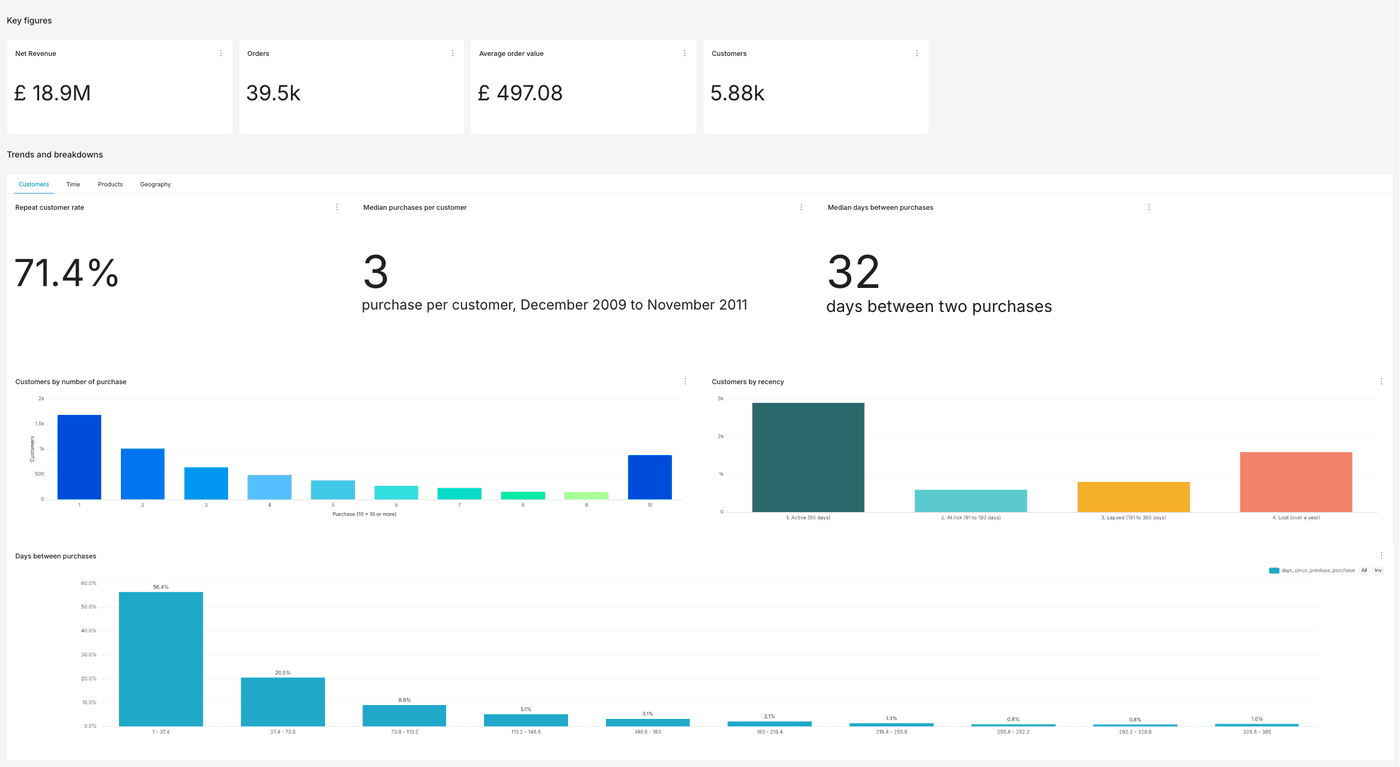
The two parts of this guide end with this dashboard in Superset:
Instructions
Step 1: Upload the files
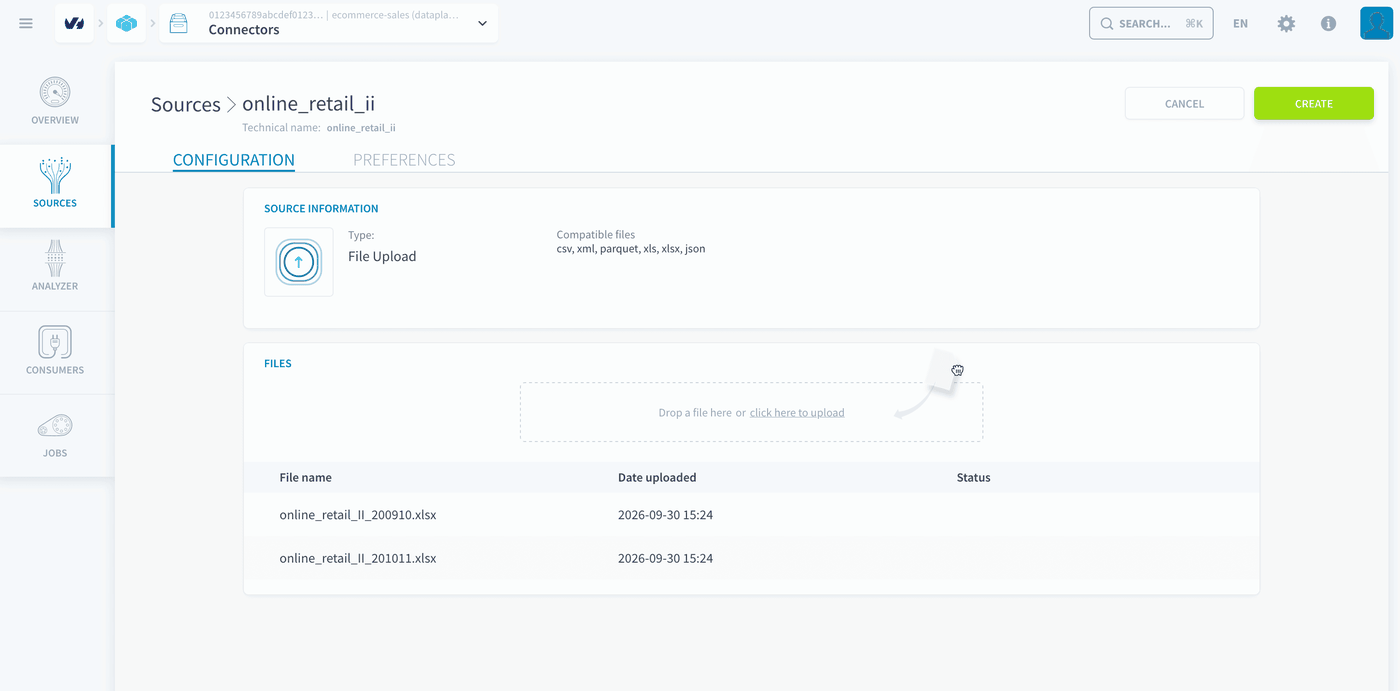
- Open Connectors > Sources and create a new source of type File Upload.
- Name it
online_retail_ii. - Drop
online_retail_II_200910.xlsxandonline_retail_II_201011.xlsxin the Files area. - Click Create.
Step 2: Analyse the files
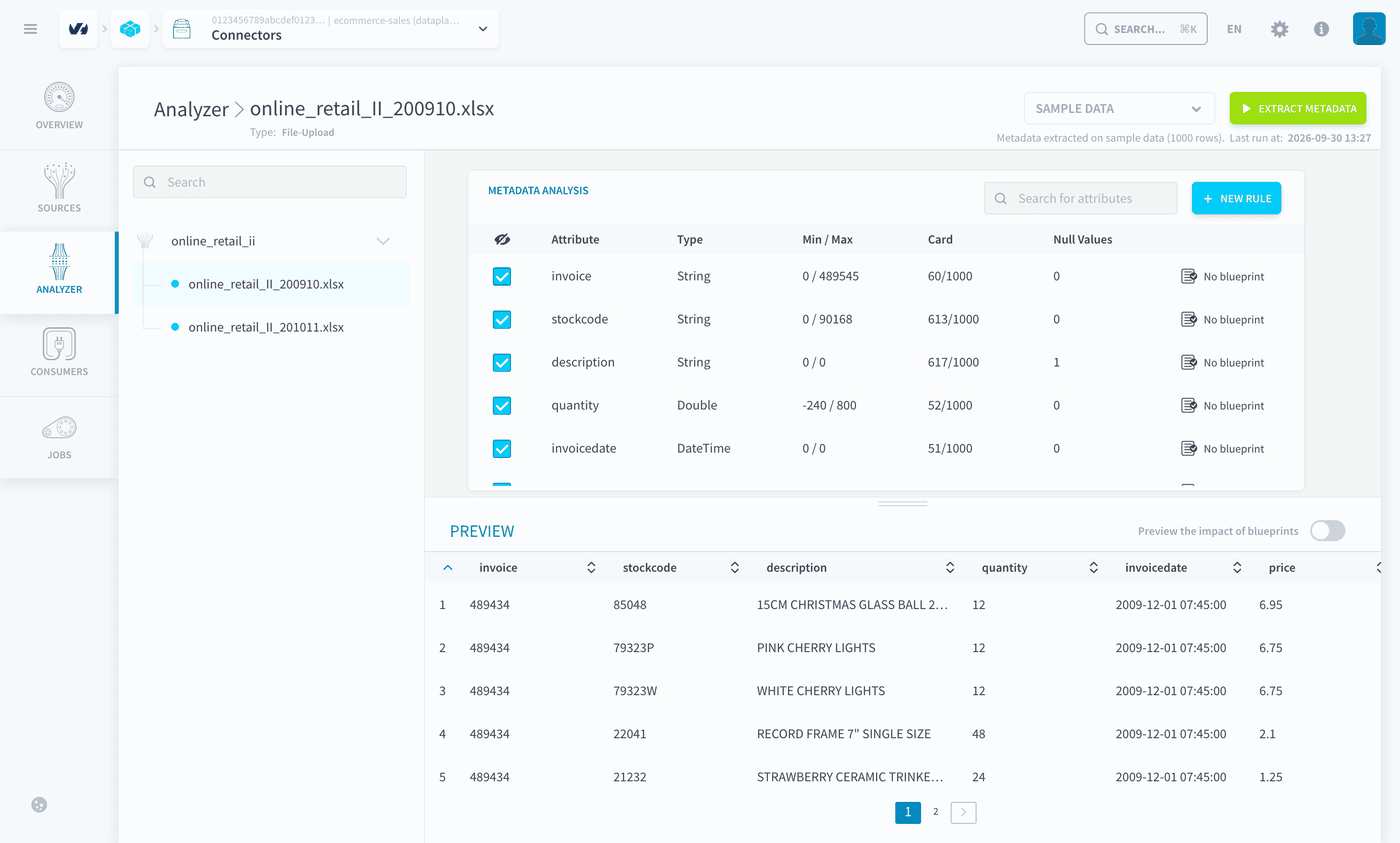
- Open Connectors > Analyzer.
- Select the source
online_retail_ii, then the fileonline_retail_II_200910.xlsx. - Click Extract metadata.
- Do the same for
online_retail_II_201011.xlsx.
The Analyzer detects 8 attributes: invoice, stockcode, description, quantity, invoicedate, price, customer_id and country. Check that invoice and stockcode are detected as String: invoice numbers such as C489449 and product codes such as 85123A are not numbers.
Step 3: Create the tables
Create one table per year
-
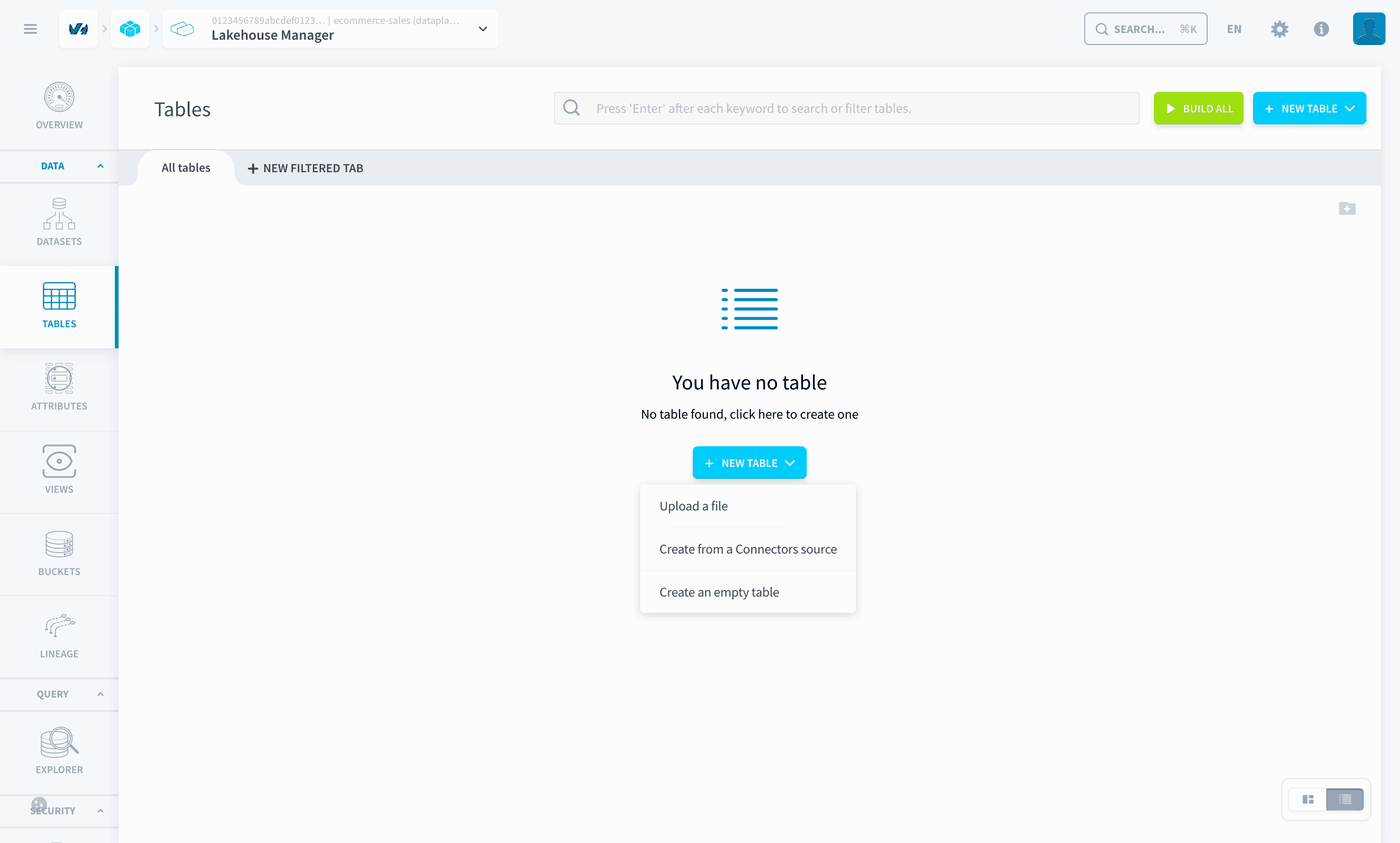
Open Lakehouse Manager > Tables.
-
Click New table > Create from a Connectors source.
-
Select the file
online_retail_II_200910.xlsxfrom the sourceonline_retail_ii, then click Next.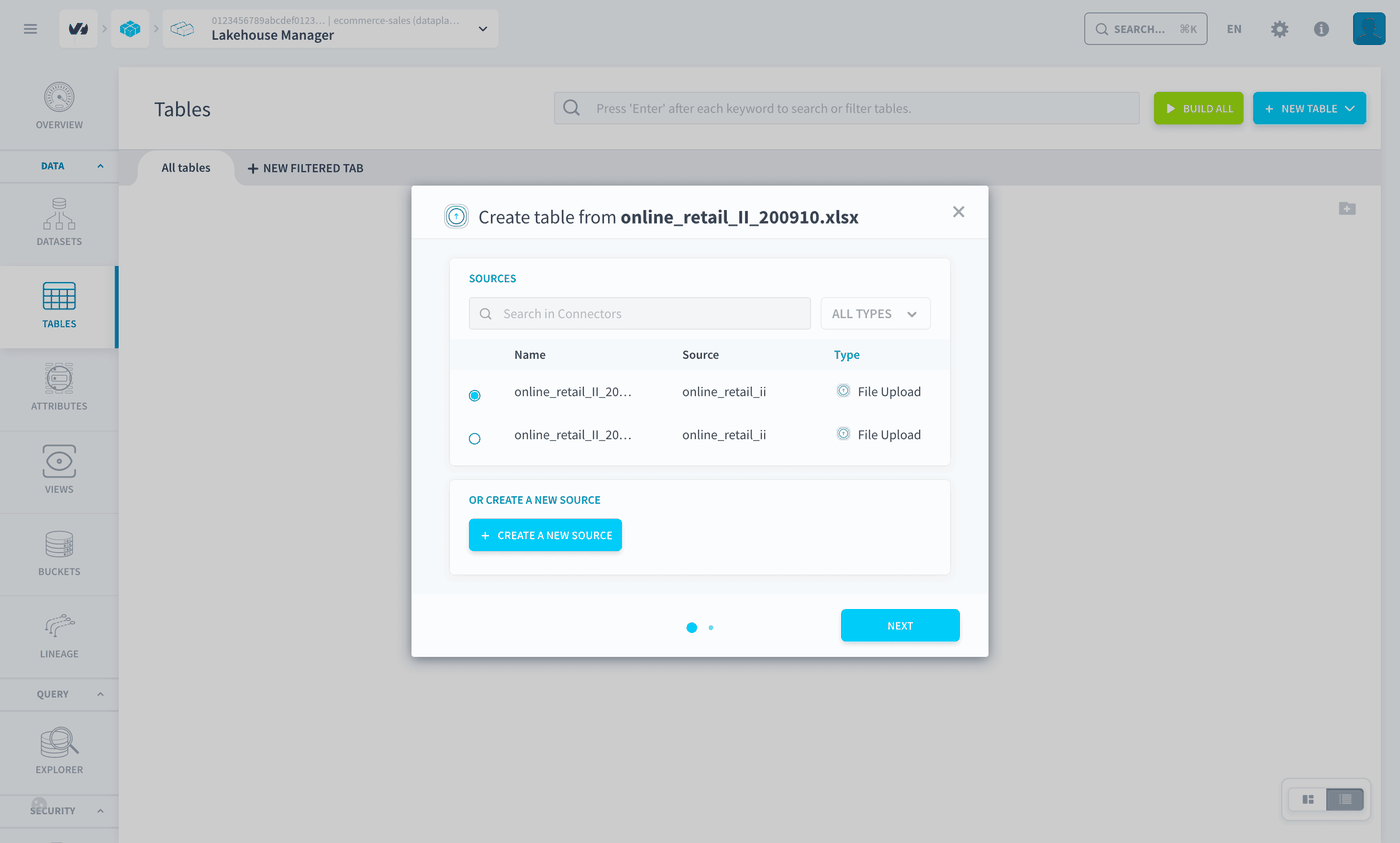
-
Keep the default settings and click Create. The table is named
online_retail_ii_200910, in the datasetdefault_dataset.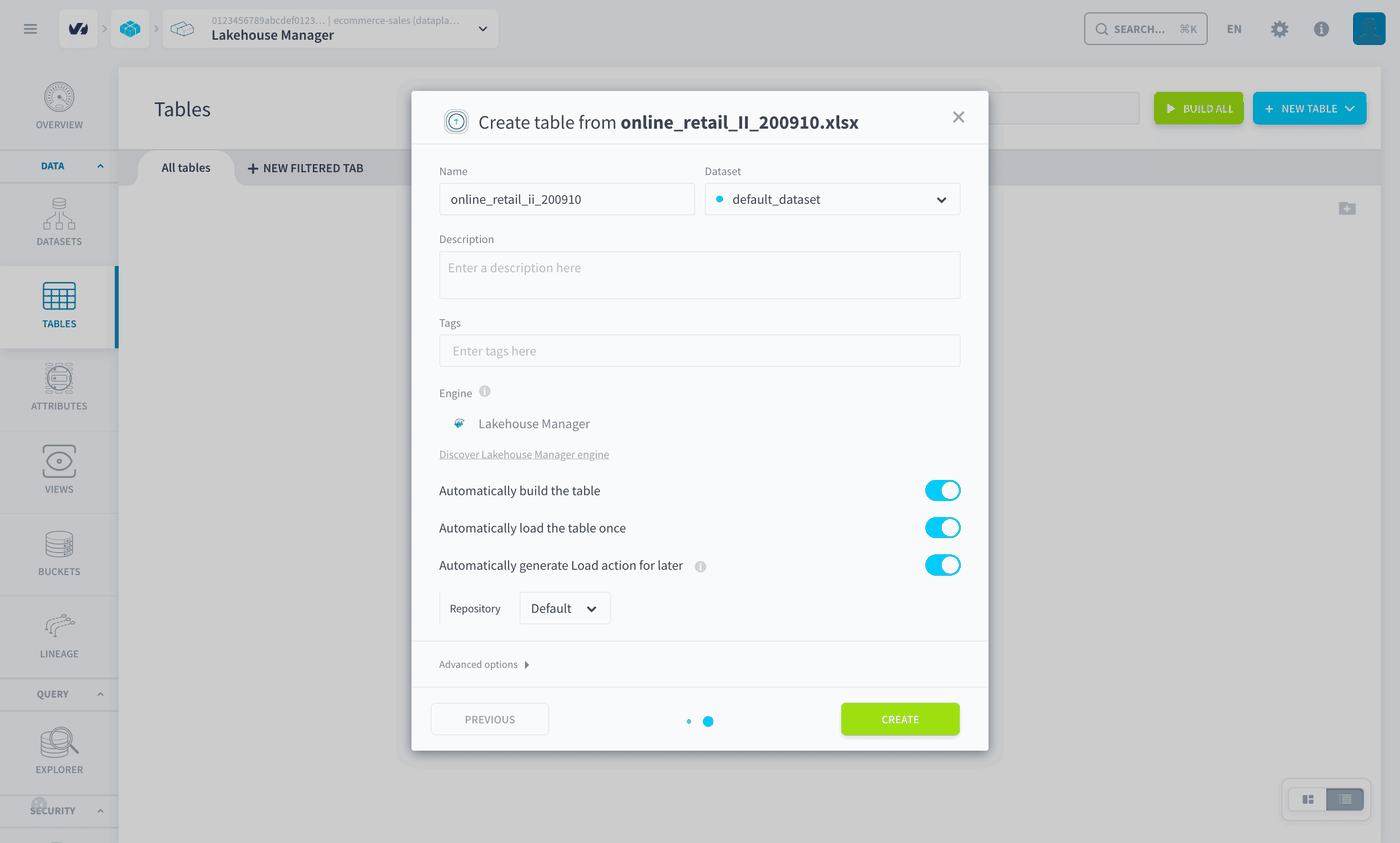
-
Repeat with
online_retail_II_201011.xlsx. The table is namedonline_retail_ii_201011.
Both tables appear with 8 attributes and about 525k and 542k rows.
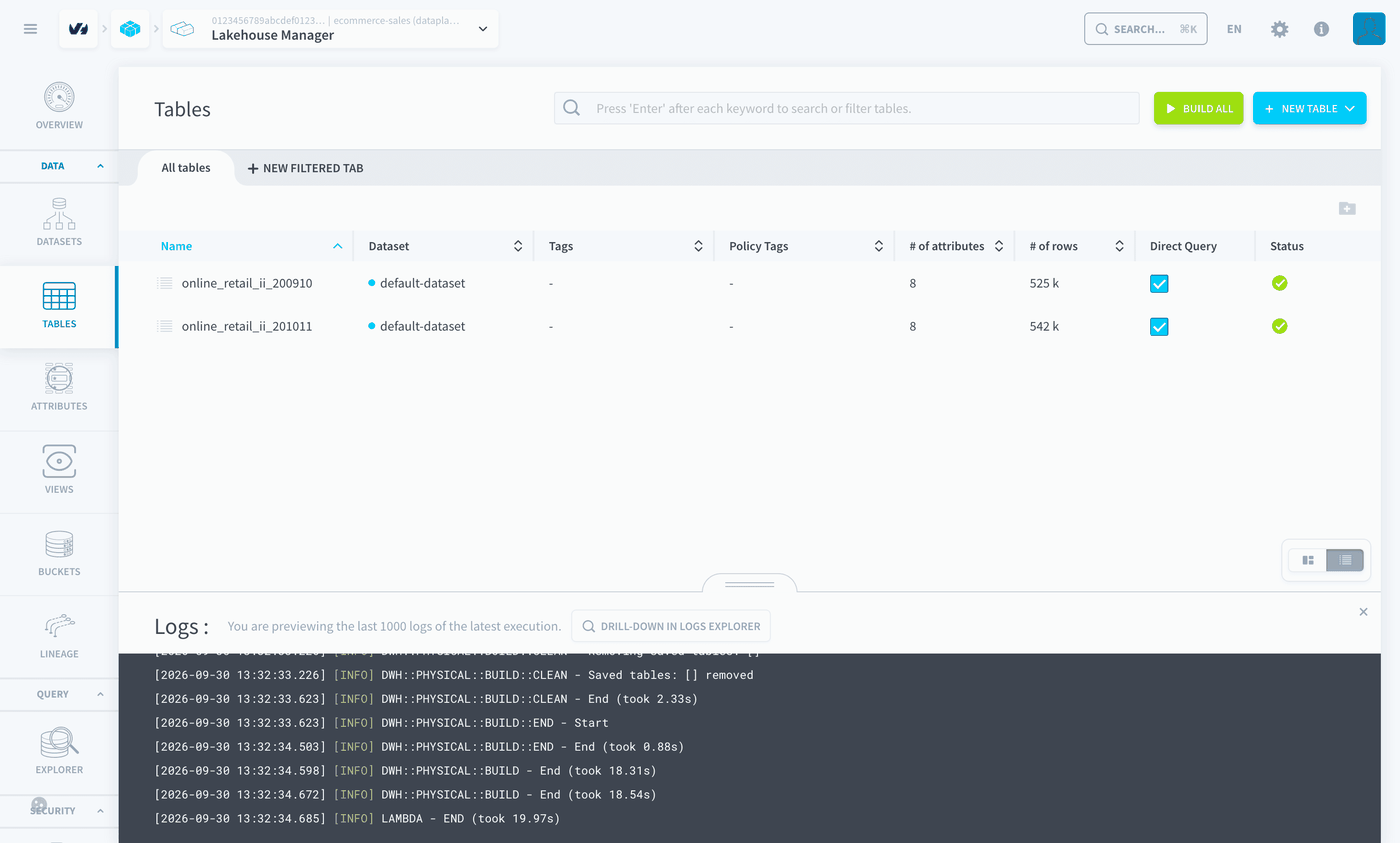
Create the table for all orders
-
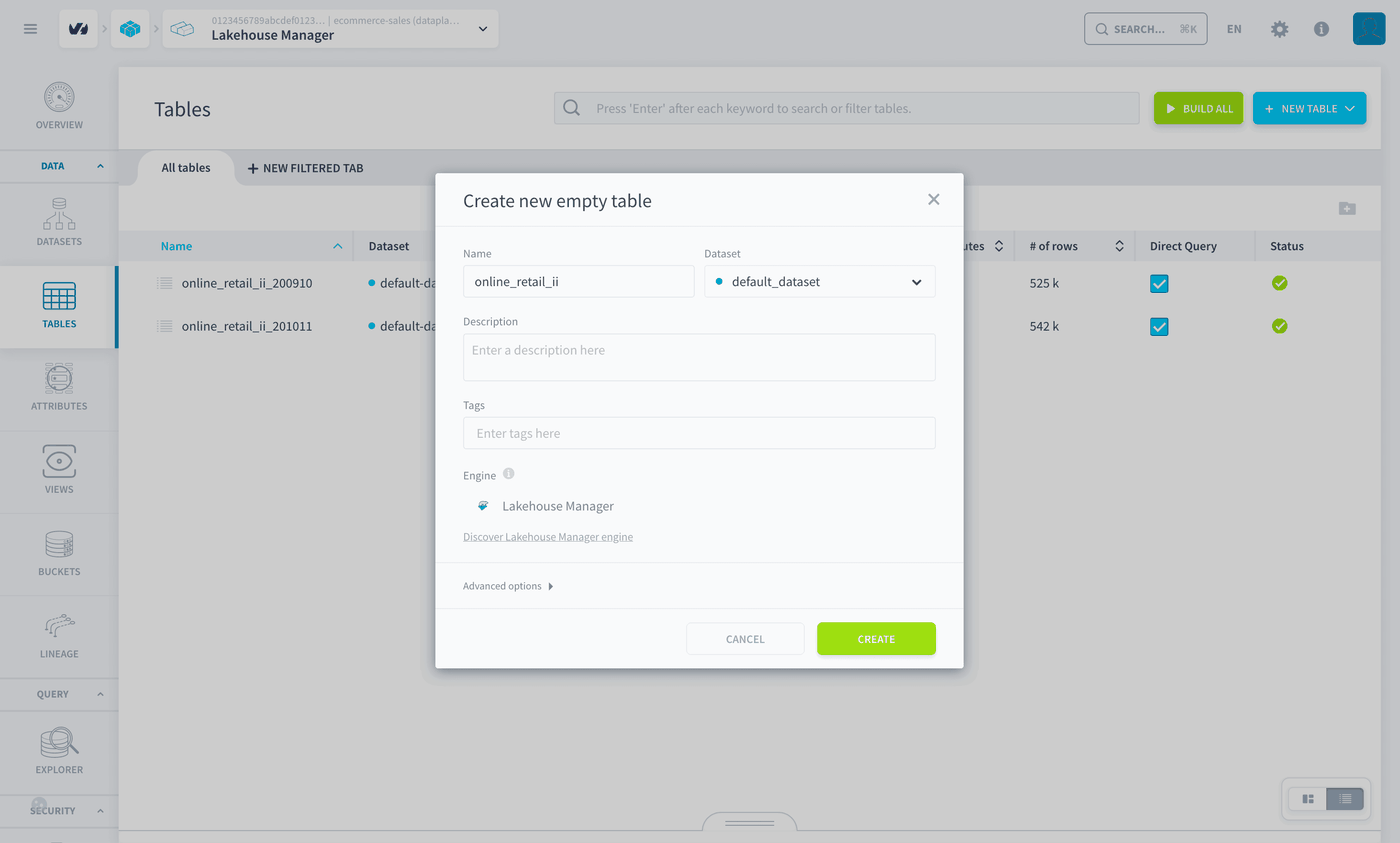
Duplicate the table
online_retail_ii_200910. Hover over its row and click the Duplicate icon.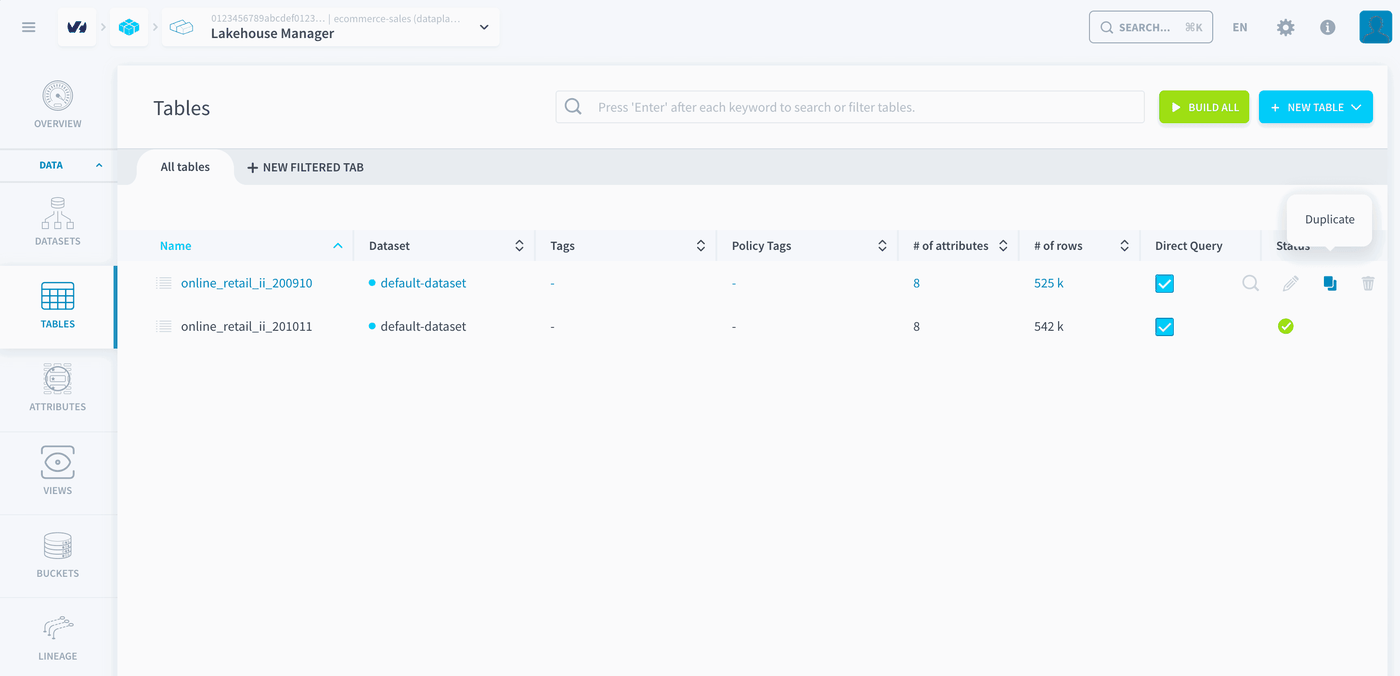
-
Name the new table
online_retail_ii, in the datasetdefault_dataset, and click Create. -
Build the table.
The table has the same 8 attributes, and no rows yet.
Step 4: Concatenate the two years
Create the Load actions
-
Open Data Processing Engine > Actions and click New action.
-
Search for
load, select the Load action and click Select.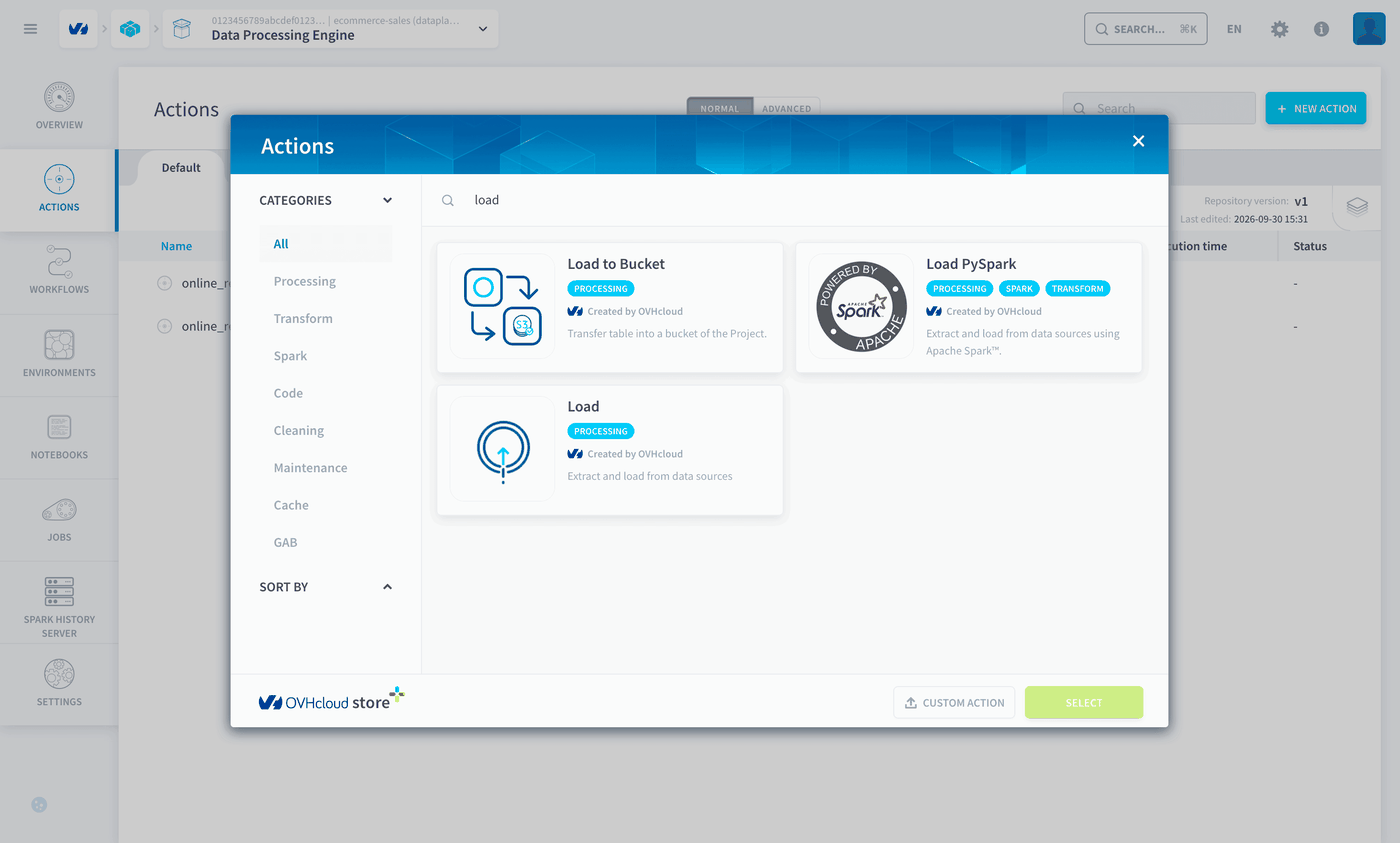
-
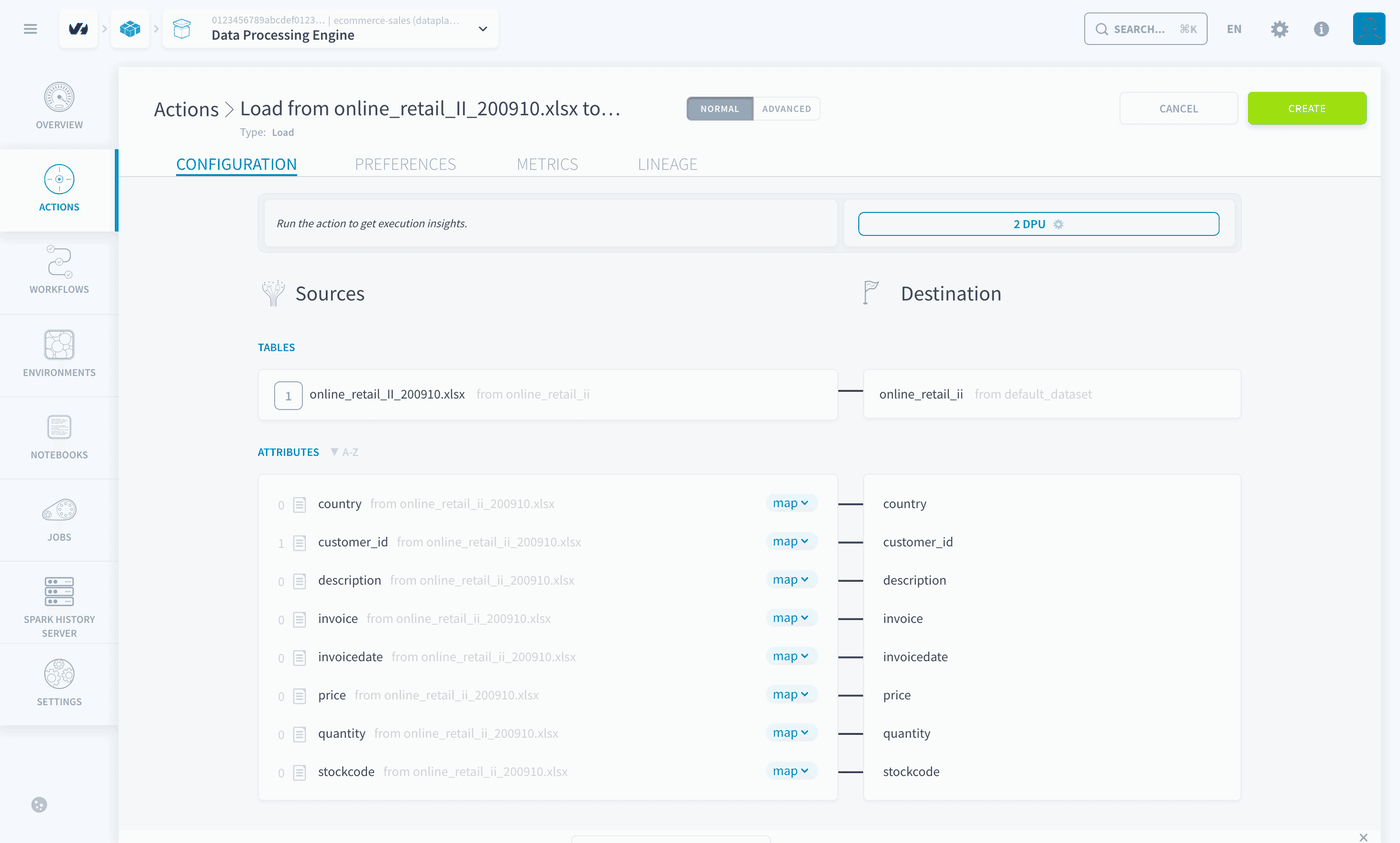
Fill in the action:
-
Click Create.
-
Create a second Load action, with
online_retail_II_201011.xlsxas source and the same destination.
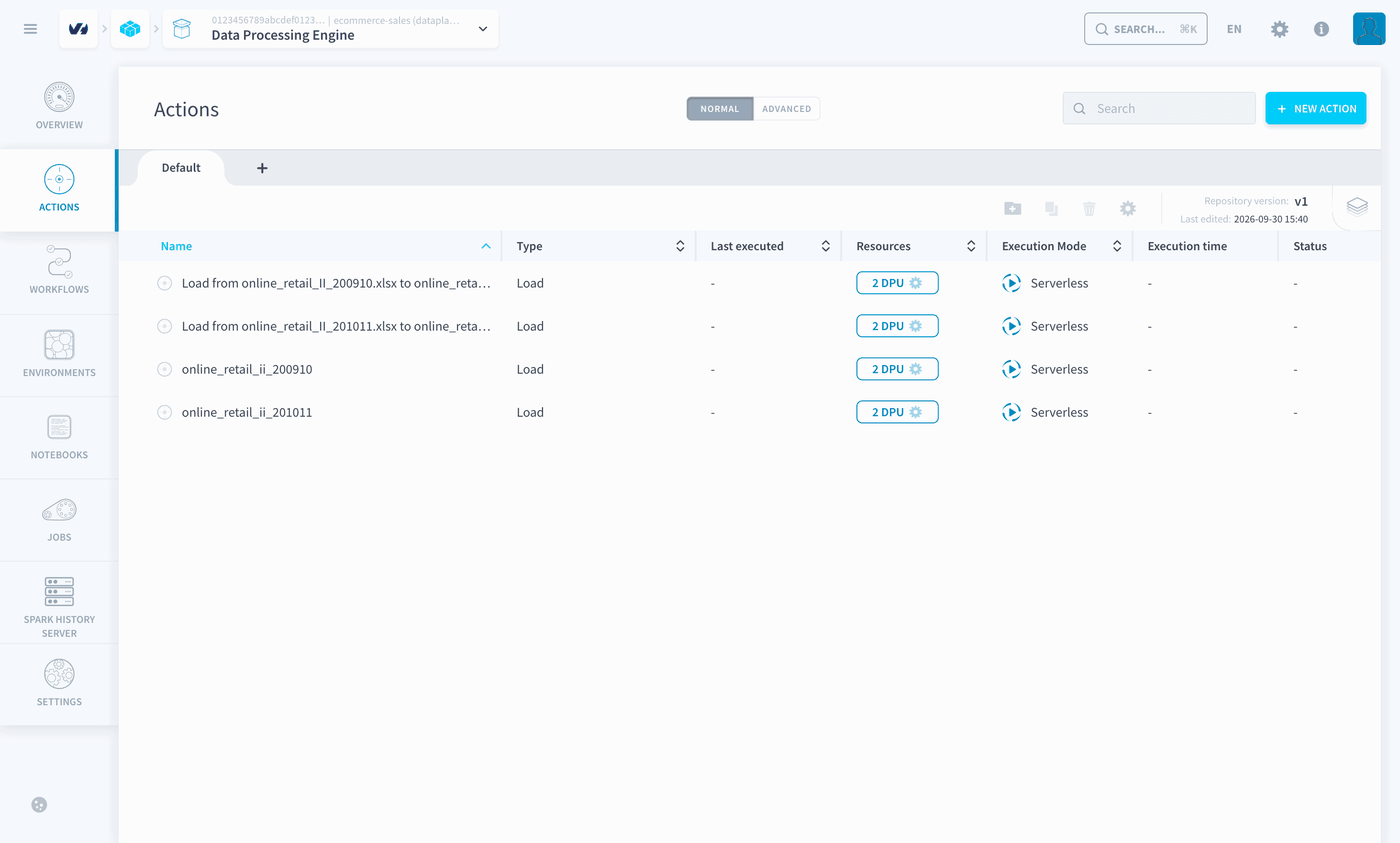
The list of actions shows your two Load actions, next to the two actions generated automatically when you created the yearly tables.
Run both actions with a workflow
- In Data Processing Engine > Workflows, click New workflow.
- Name it
Concat. - In Stage 1, add your two Load actions.
- Click Create, then run the workflow.
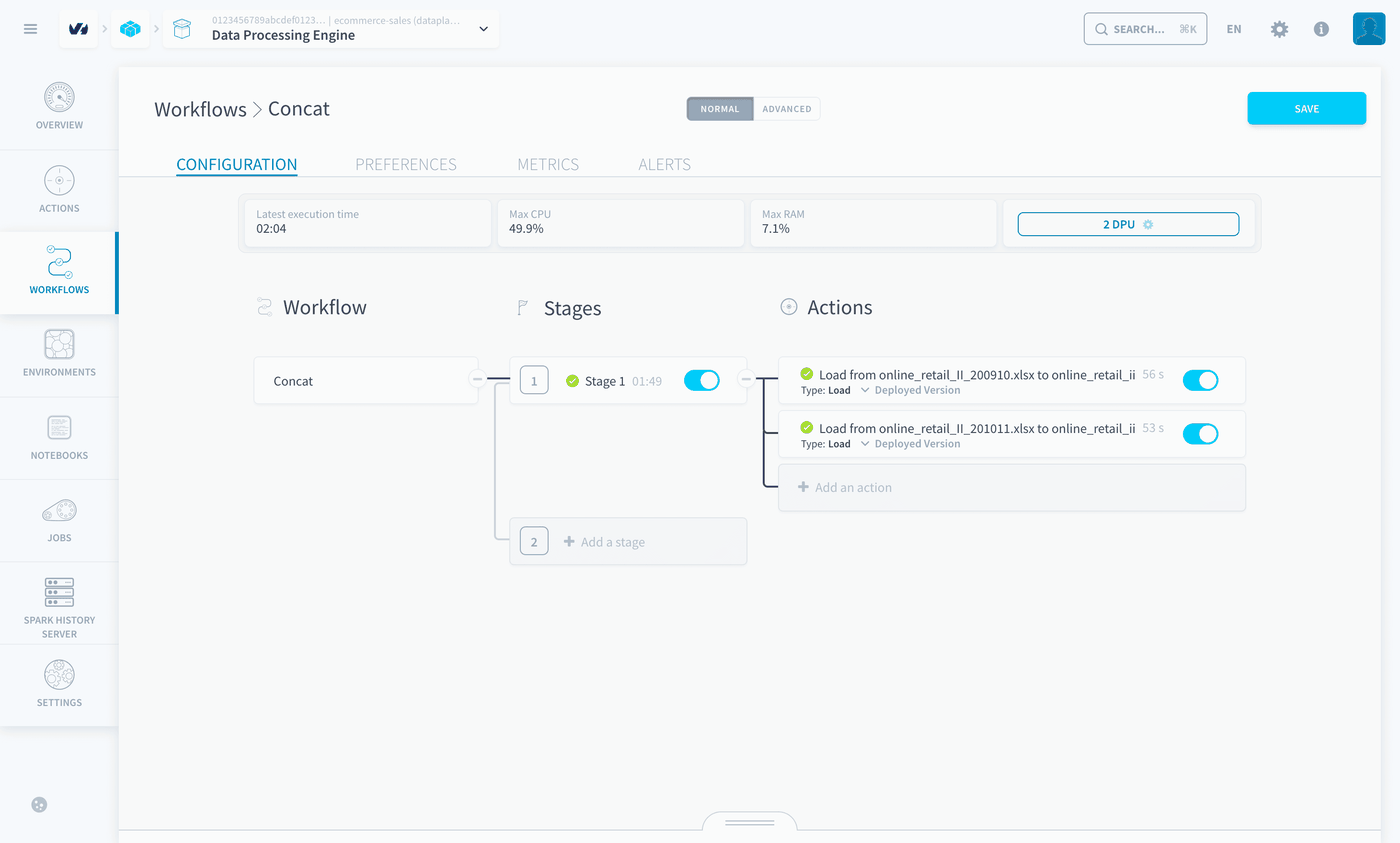
The workflow takes a couple of minutes. When its status turns green, open Lakehouse Manager > Tables: online_retail_ii holds the rows of both yearly tables, 1,067,371 rows.
Run the Concat workflow once. Running it again may add the same order lines a second time. After each run, check that online_retail_ii holds 1,067,371 rows.
To run the workflow again, you can create a Delete action that empties online_retail_ii, and run it before the workflow.
Step 5: Clean the orders
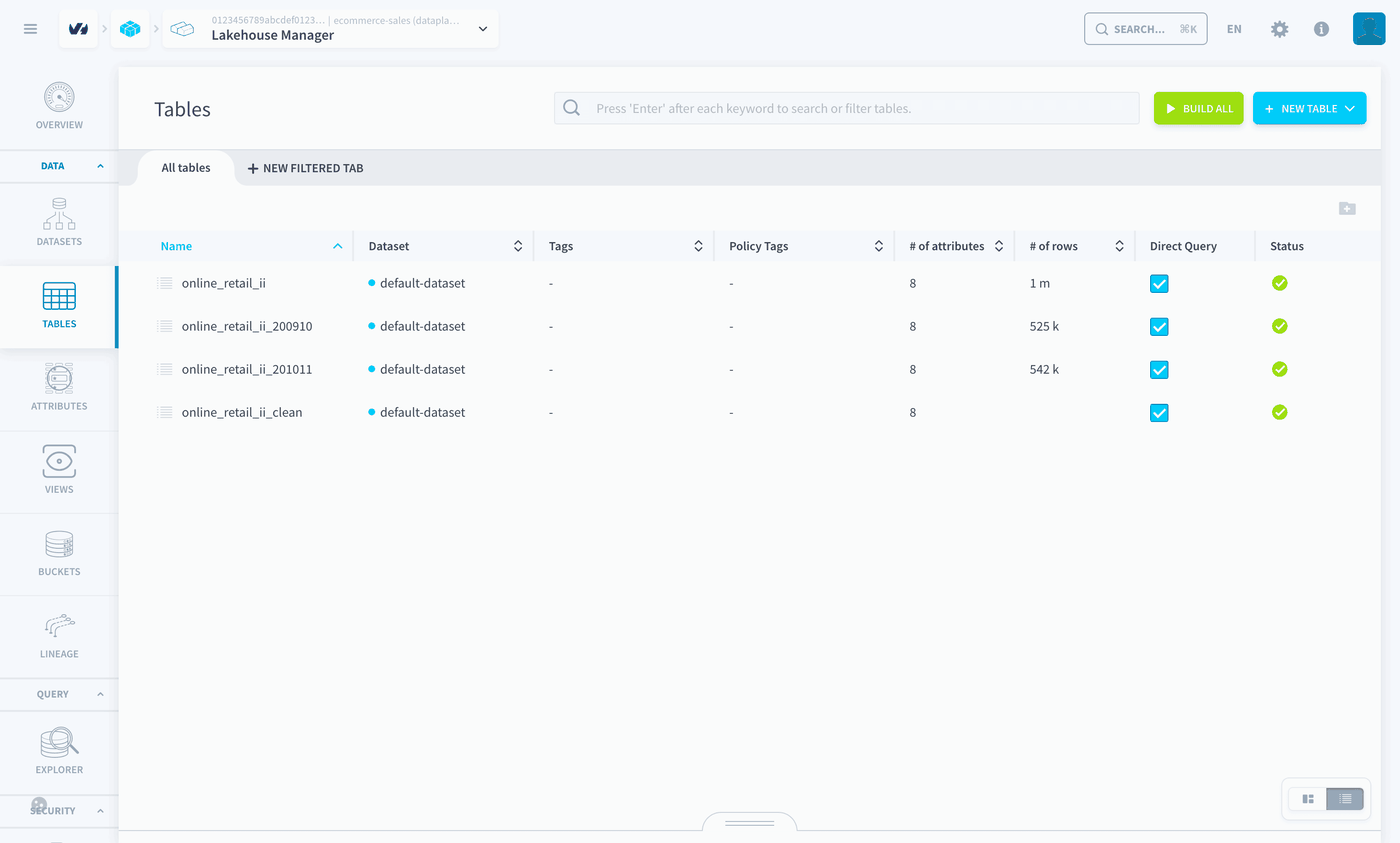
Create the clean table
- In Lakehouse Manager > Tables, duplicate
online_retail_ii. - Name the new table
online_retail_ii_cleanand build it.
You now have 4 tables. online_retail_ii_clean has the same 8 attributes and no rows yet.
Create the cleaning action
-
In Data Processing Engine > Actions, click New action.
-
Search for
custom, select the Custom action and click Select.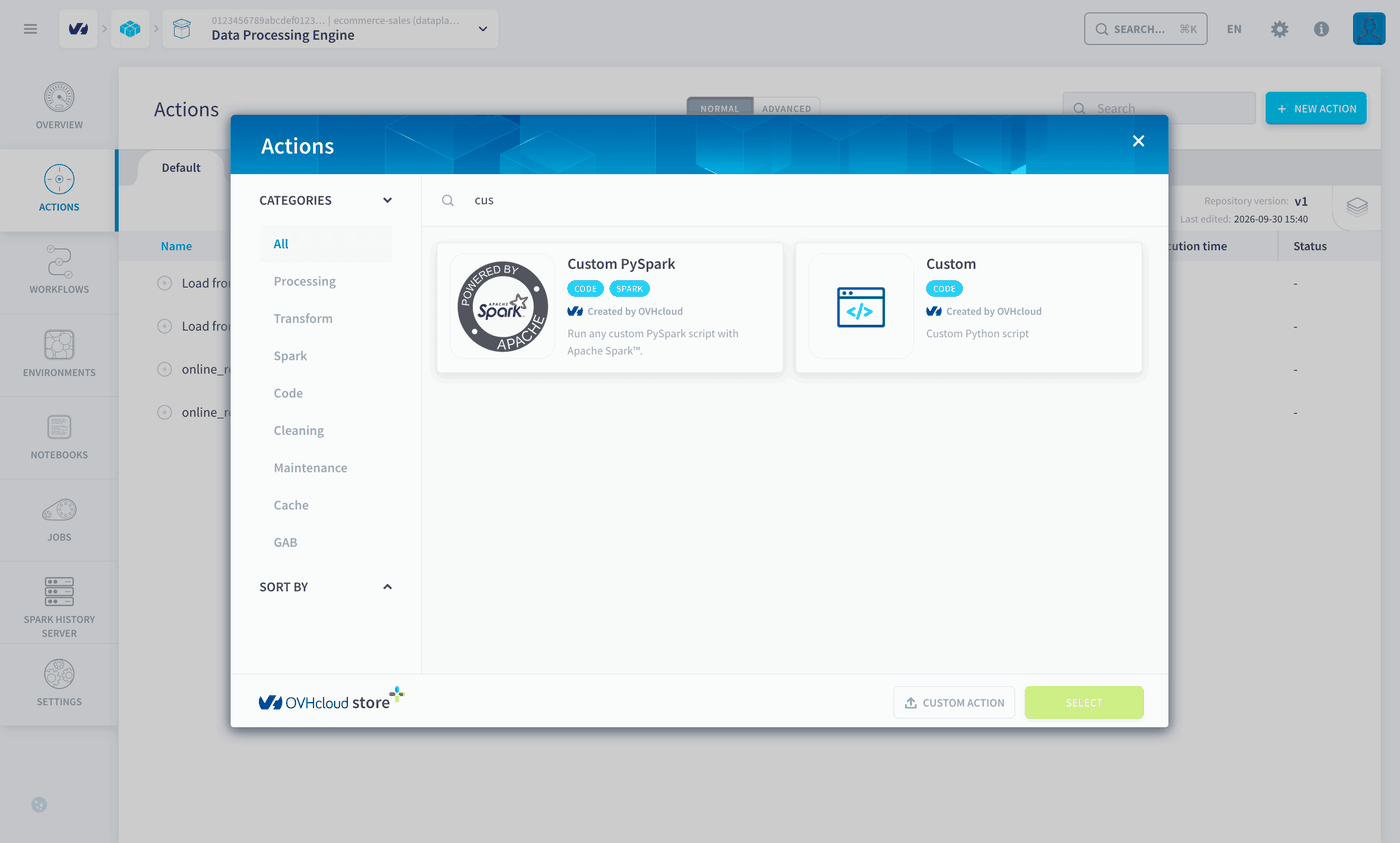
-
Fill in the action:
-
Click Create, then run the action.
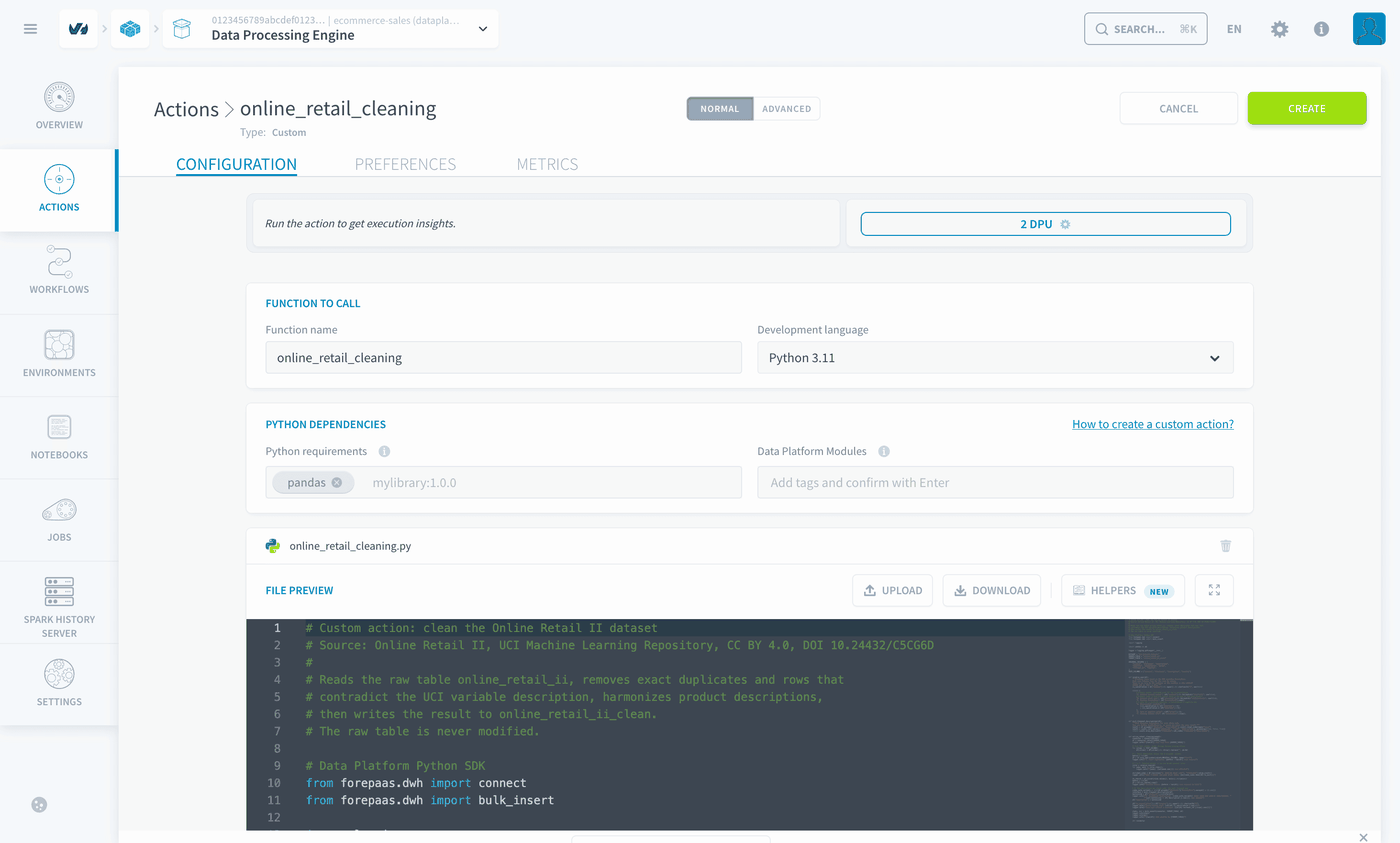
Note: the function name is the entry point of the script and must be online_retail_cleaning. The other functions of the file are helpers: setting one of them as the function name returns 'Event' object is not subscriptable.
The action reads online_retail_ii, applies the cleaning rules and writes the result to online_retail_ii_clean. Open its logs: each rule reports how many rows it affects, and the last line gives the number of rows written to online_retail_ii_clean: 1,021,128 rows.
A final step, 8. Harmonized descriptions, gives each stock code its most frequent description, so a product never shows under two names.
Create an action to empty the clean table
The cleaning action adds rows to online_retail_ii_clean. Before running it again, empty the table with a Delete action, as for online_retail_ii before running the Concat workflow again.
- Click New action, search for
delete, select the Delete action and click Select. - In Table list, move
online_retail_ii_cleanto Table to empty. - Click Create.
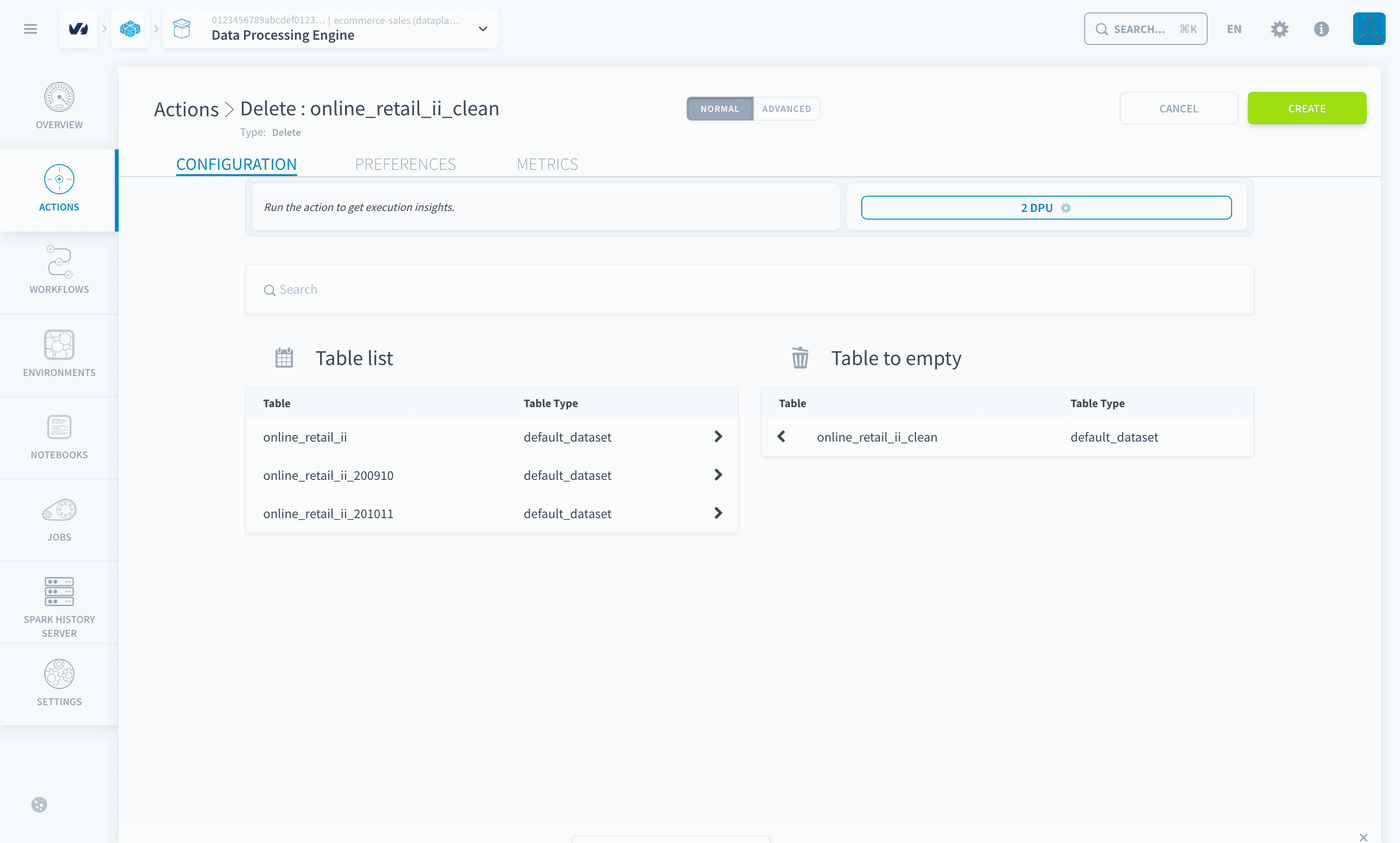
To clean the data again, run this Delete action first, then online_retail_cleaning.
Step 6: Connect Superset
All the data is now ready in the Lakehouse. To analyse it, create an Apache Superset application:
- Create a Trino connection by following the Generate a Trino connection string for external tools guide.
- Create the application and connect it to Trino by following Steps 1 to 3 of the Deploying Apache Superset on OVHcloud Data Platform guide.
Create the dataset in Superset
- In Superset, open Datasets and click + Dataset.
- Select the database connection you created, named
Trino DPin this guide, then the schemadefault_datasetand the tableonline_retail_ii_clean. - Check the columns, then click Create and explore dataset.
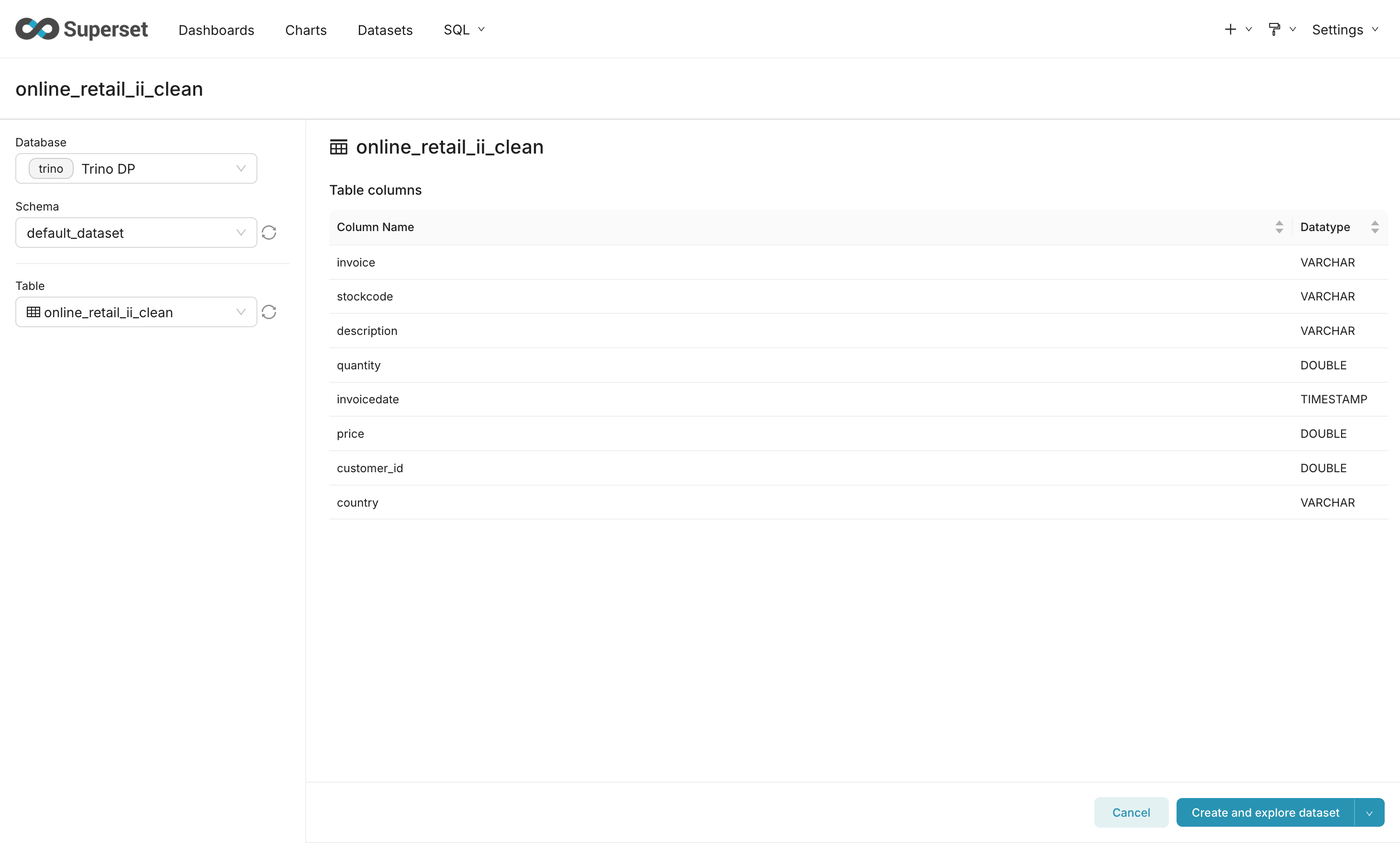
Every chart of the dashboard then starts from Charts > + Chart: choose the dataset online_retail_ii_clean, then the chart type.
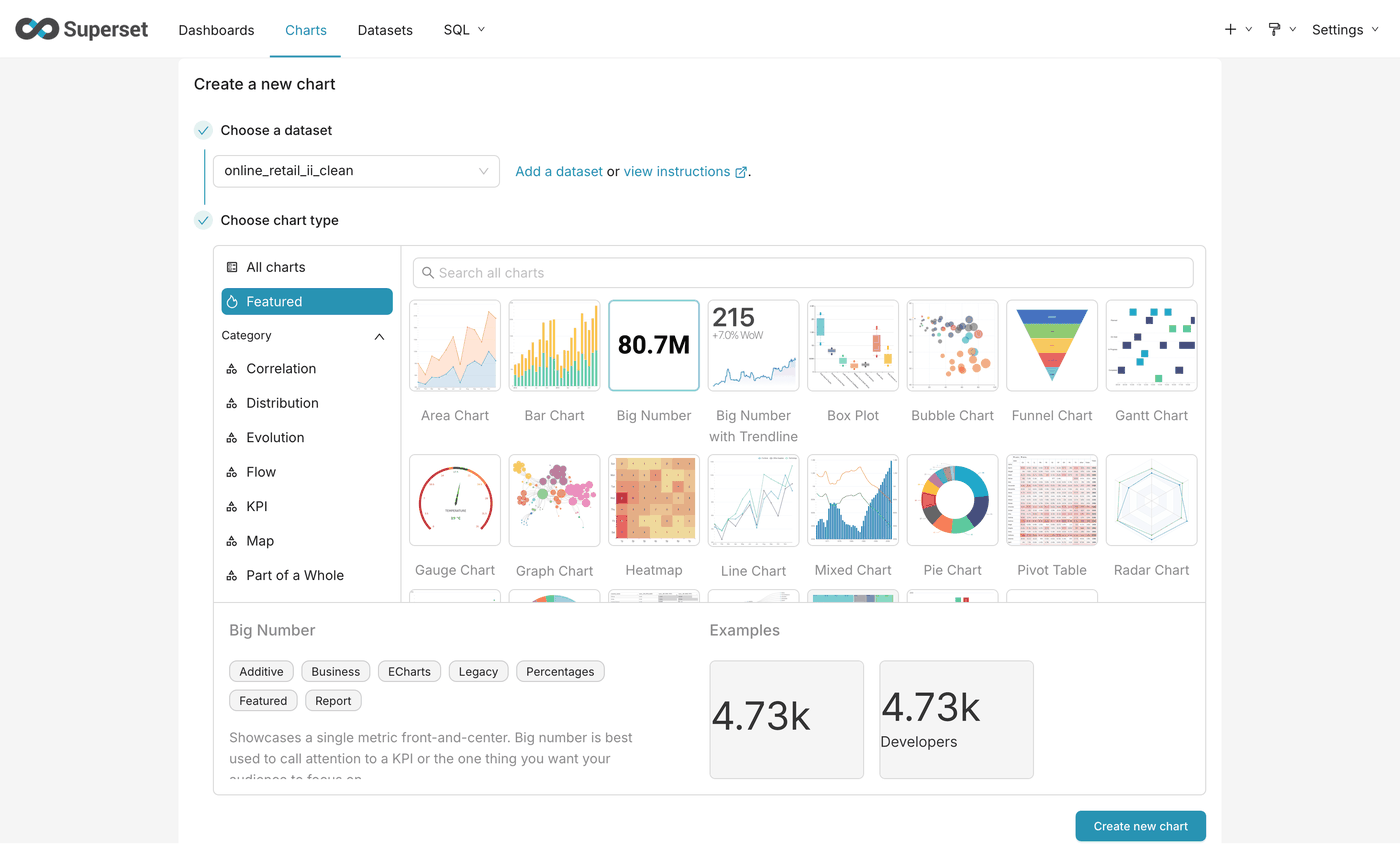
Continue with Build a sales dashboard for an online store in Superset.
Good to know
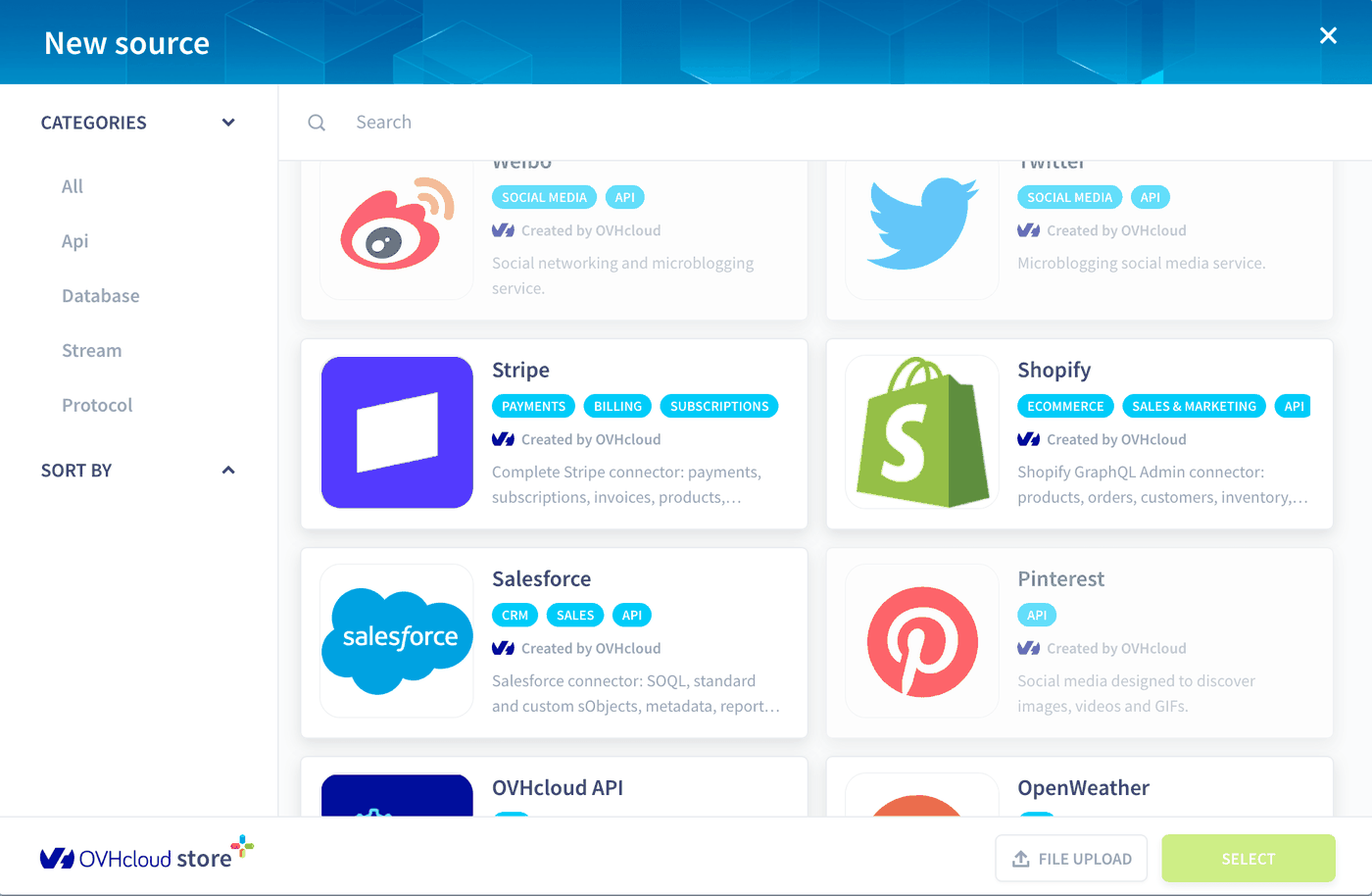
- You can connect a real store. This guide uses a public dataset, uploaded as files. To analyse the orders of your own store, create a Shopify or Stripe source instead of the File Upload source: in Connectors > Sources, both appear in the New source window. The tables then follow the attributes of that source, and the cleaning script must be adapted to them.
What you have built
You have a raw table with every order line of the store, a clean table that follows the UCI description of the variables, and a Superset dataset on top of it.
The next part, Build a sales dashboard for an online store in Superset, turns the clean table into a dashboard: key figures, revenue over time, best-selling products, sales by country and customer loyalty.
Go further
For training or technical assistance implementing our solutions, contact your sales representative or visit our Professional Services page to request a quote and have your project analysed by our experts.
Ask questions, give your feedback and interact directly with the team building the Data Platform on the dedicated Discord channel.
If you need support with your OVHcloud services, create a request in our Help Centre.
Join our community of users.