
Primeros pasos con NSX (EN)
Objective
NSX is a Software-Defined Networking (SDN) solution provided by VMware. OVHcloud is offering this service in place of NSX-V in its VMware on OVHcloud solution. For the ALPHA version of NSX to work, two hosts are deployed with a dedicated virtual machine for NSX on each host, allowing redundancy in the event of one of the hosts failing.
When a customer subscribes to the NSX offer and enables it, a pre-configuration is applied with two gateways:
- ovh-T0-gw : This gateway is the network entry point for your cluster. It is preconfigured with two interfaces and a virtual IP address. It is of type Tier-0 Gateways (North-South).
- ovh-T1-gw : This gateway is in the Tier-1 Gateways (East-West) category. You can create segments (VLANs or Overlay) that will be connected to it. It is connected to ovh-T0-gw for connections outside the clusters (Physical and Internet).
New Tier-1 gateways can be created and linked to the ovh-T0-gw gateway.
OVHcloud provides a block of 16 public IP addresses, all of which are reserved for OVHcloud products. The HA VIP address is preconfigured and is used for SNAT by default on future internal segments.
This IP block is linked to the VMware environnement, you can't move or park it.
You should consider ordering a new IP Block if you want to be able later to migrate from one VMware on OVHcloud environement to another one, or if your Disaster Recovery Plan requires moving the IP Block.
By default, routes are not enabled. The segments created behind the ovh-T1-gw gateway can communicate with each other but not beyond.
This guide is an introduction to NSX.
OVHcloud provides services for which you are responsible, with regard to their configuration and management. It is therefore your responsibility to ensure that they work properly.
This guide is designed to assist you as much as possible with common tasks. However, we recommend contacting a specialist provider if you experience any difficulties or doubts when it comes to managing, using or setting up a service on a server.
Requirements
- Being an administrative contact of your Hosted Private Cloud infrastructure to receive login credentials.
- A user account with access to the OVHcloud Control Panel.
Instructions
Logging in to the NSX administration interface
You can connect to NSX from the URL of your cluster, provided by OVHcloud, in the form https://pcc-xxxxx.ovh.xx.
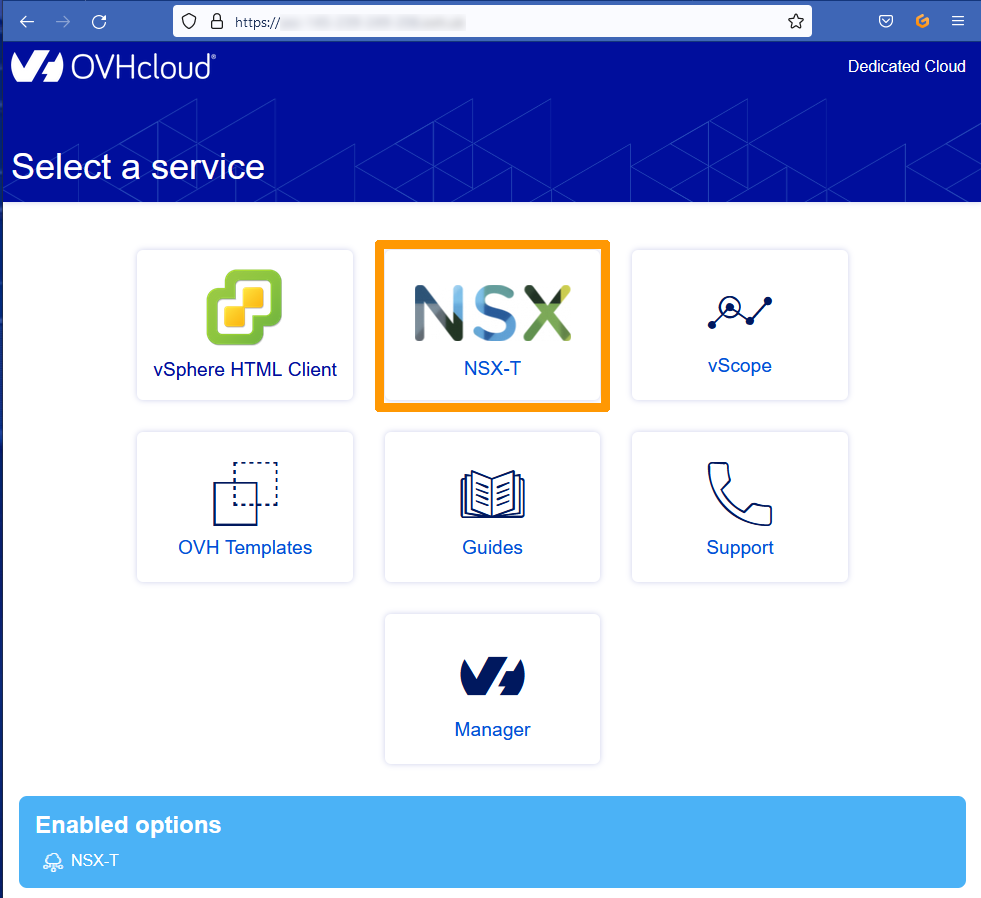
From the homepage for your cluster, click the NSX icon.
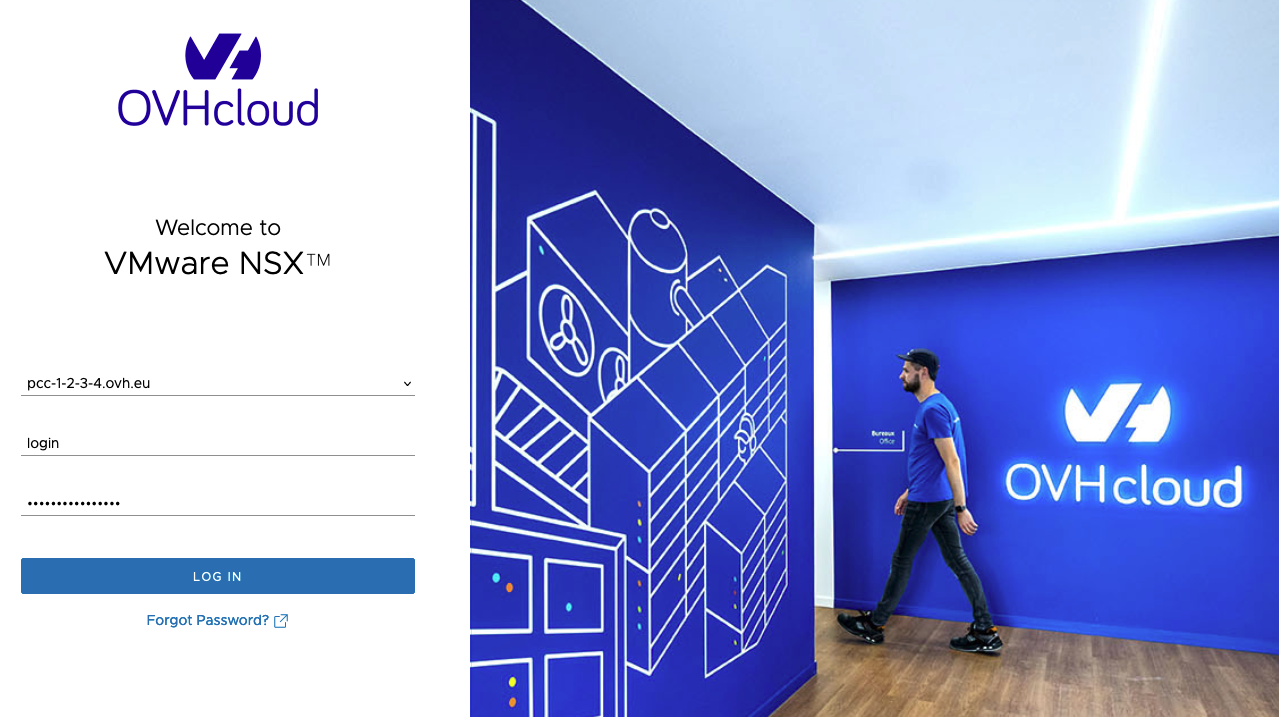
Enter your credentials and click LOG IN.
To authenticate on the NSX interface, you need to use a vSphere account with NSX rights. Ensure that the Dedicated Cloud name (FQDN, in the form pcc-x-x-x-x.ovh.xx) is selected in the login form.
If you are not using the NSX interface, but rather the API or another external tool (such as Public VCF as-a-Service), you will need to use the account provided by OVHcloud as an identifier, followed by the PCC FQDN. For example login@pcc-1-2-3-4.ovh.eu in the example below.
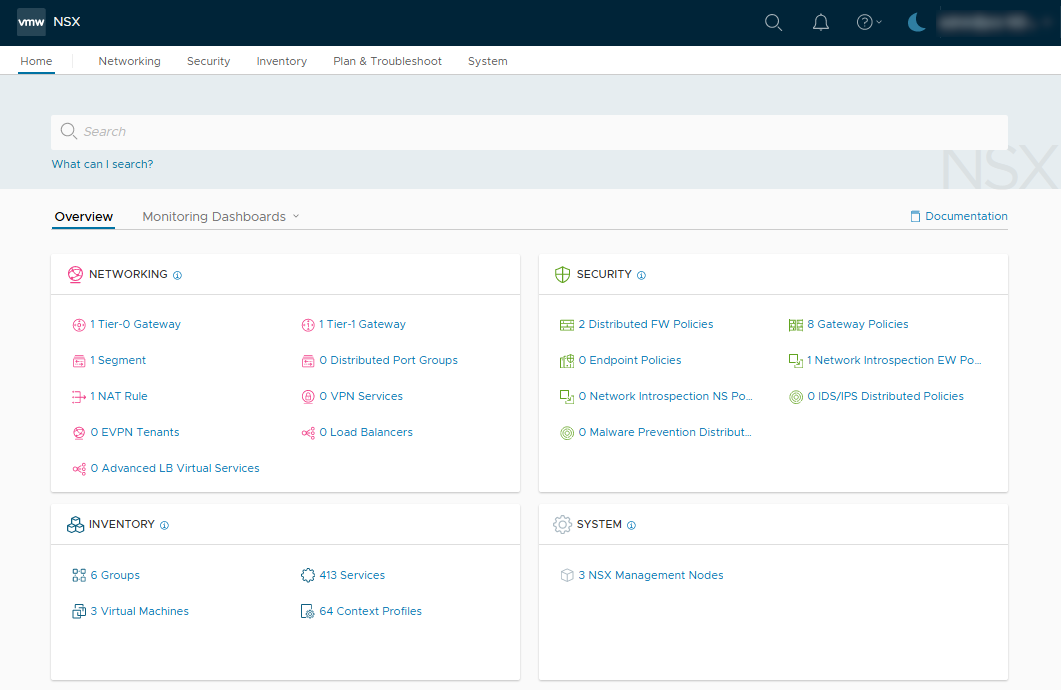
The NSX interface appears.
Displaying the default configuration
We will see the network topology configured by default when deploying the NSX service.
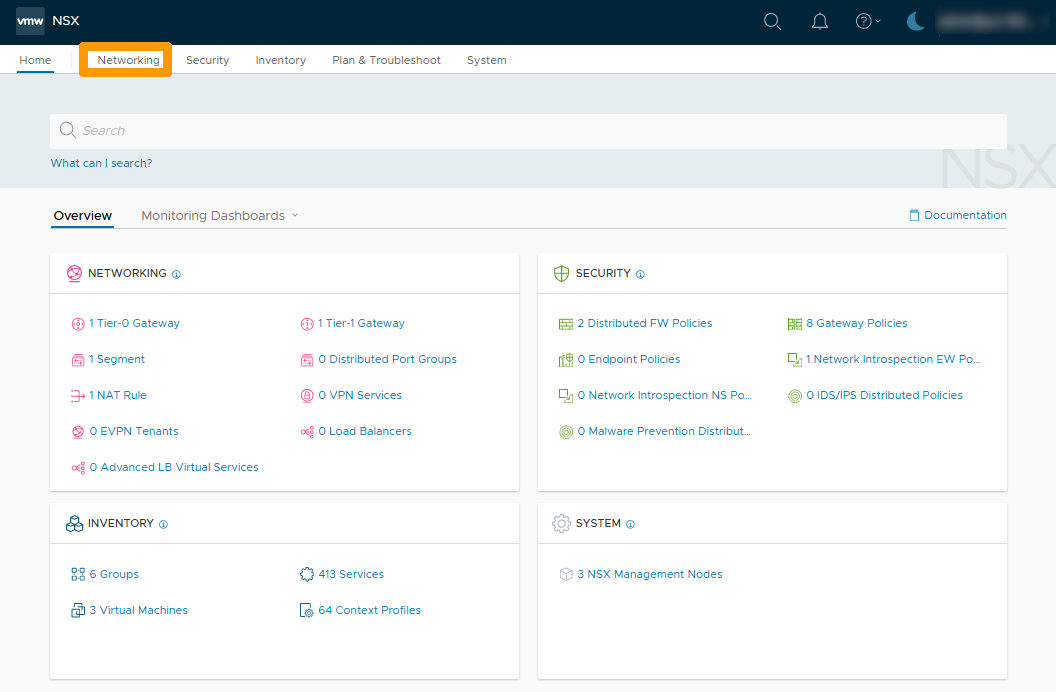
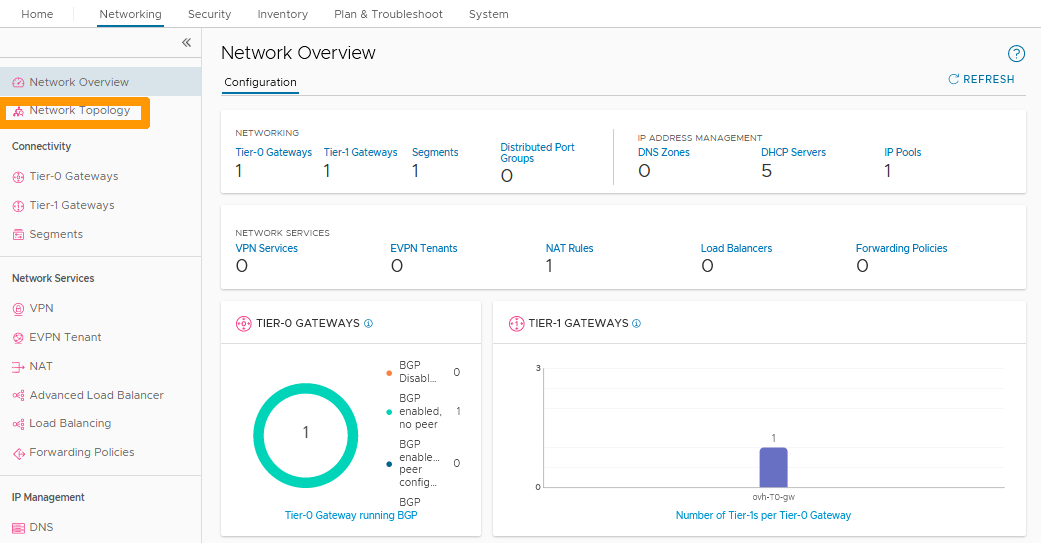
In the NSX interface, click on the Networking tab.
A view of all network elements is displayed.
Click Network Topology to the left.
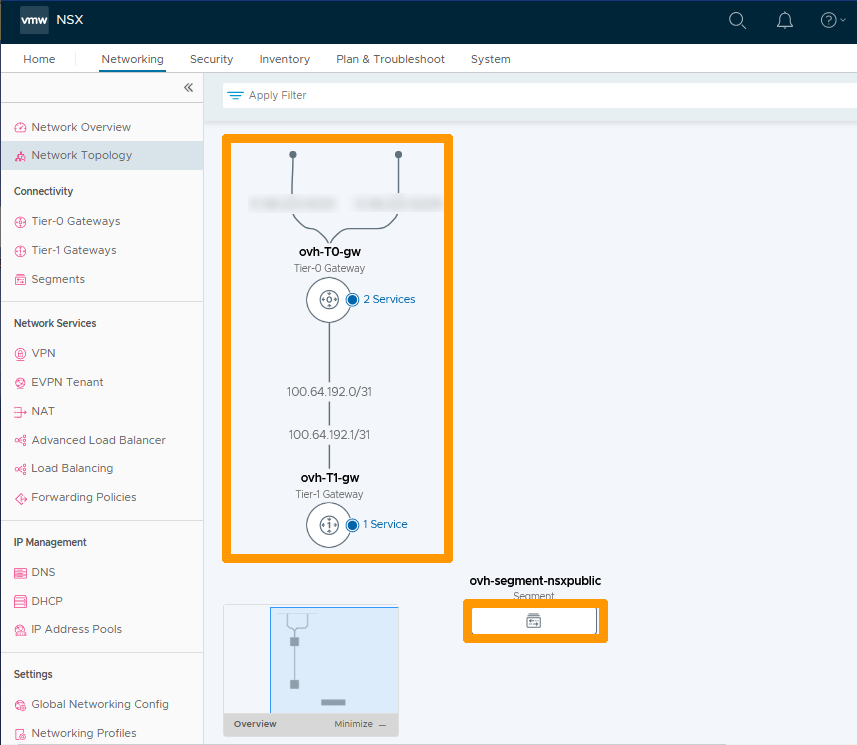
The diagram below shows the network topology from top to bottom:
- The two physical interfaces that allow redundancy of Internet access in case of failure (both interfaces use public IP addresses that are not usable for client configuration).
- The North-South gateway (ovh-T0-gw) that provides the link between the physical network (Internet and VLAN on vRack) and the internal networks (Overlays) of your cluster.
- The connection between the ovh-T0-gw and ovh-T1-gw gateways is via IP addresses reserved for this purpose.
- The East-West gateway (ovh-T1-gw) that manages communications between the cluster’s internal networks (overlay segments). You can also make connections with VLANs on vRacks.
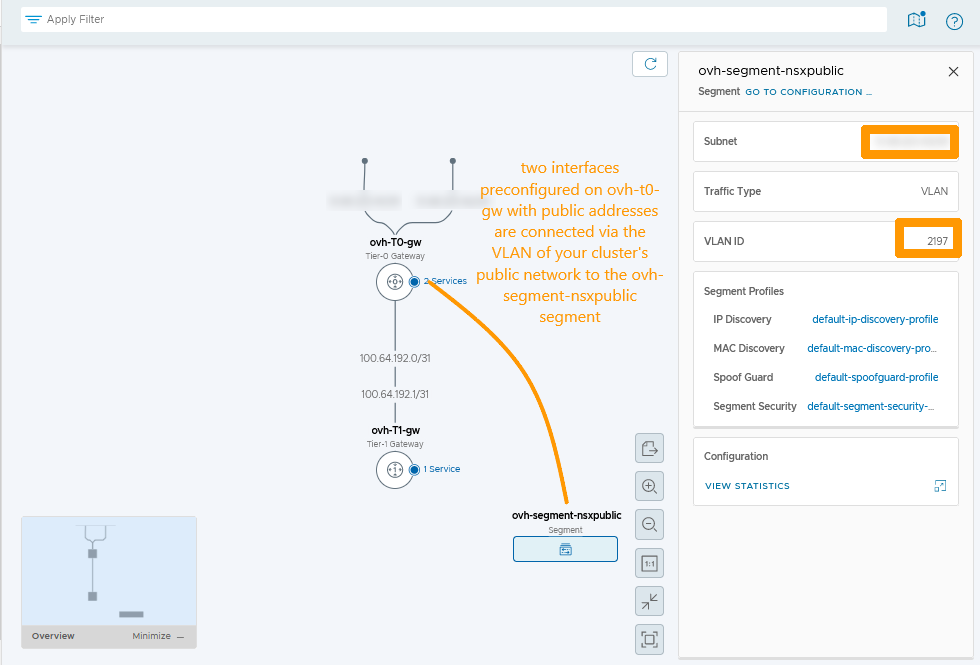
- ovh-segment-nsxpublic which is a network segment connected to the OVHcloud public network on a VLAN, it contains the network of public addresses usable for customer configurations. Click the rectangular icon below to view this segment. You can find more information about segments in this guide: Segment management in NSX.
This segment contains two pieces of information :
- The virtual public IP address HA VIP.
- The VLAN number used on your public network in your vSphere cluster.
Connections through VLANs on the ovh-T0-gw gateway do not appear in the NSX network topology, even if it exists.
Displaying the HA VIP virtual IP address
We will show you how to display the virtual IP addresses attached to the ovh-T0-gw gateway.
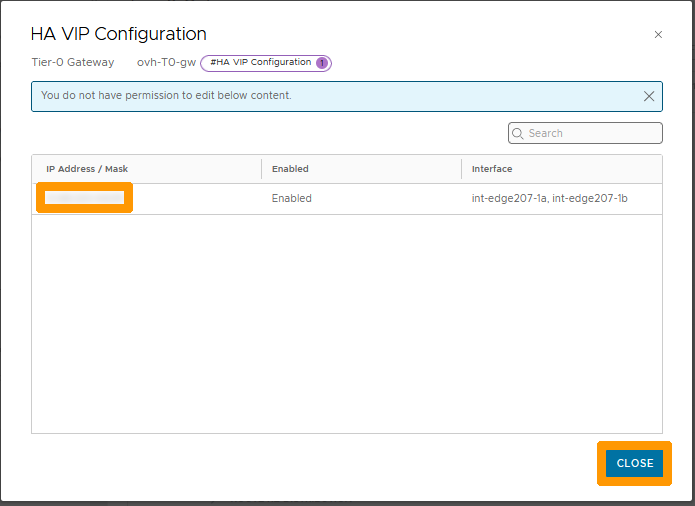
Only one virtual IP address is assigned when NSX is delivered. It is used for SNAT on the segments attached to the gateway ovh-T0-gw.
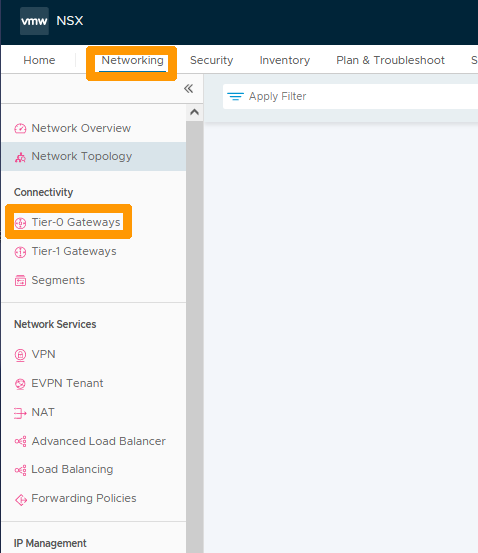
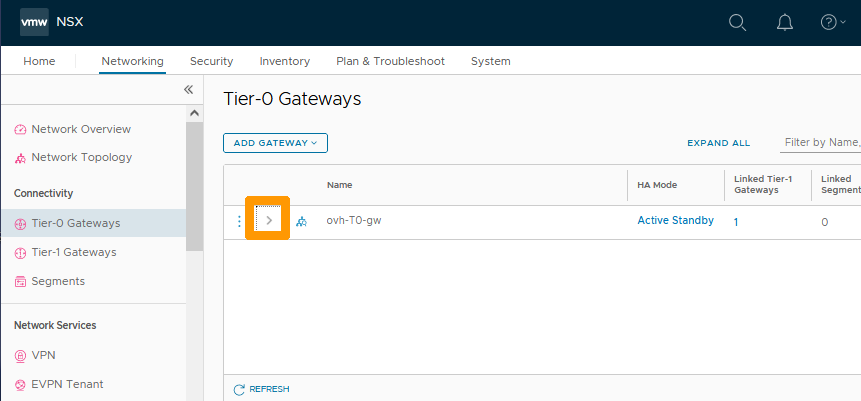
Stay on the Networking tab and click on Tier-0 Gateways to the left in the Connectivity category.
Click the > scroll button to the left of Name to view the configuration.
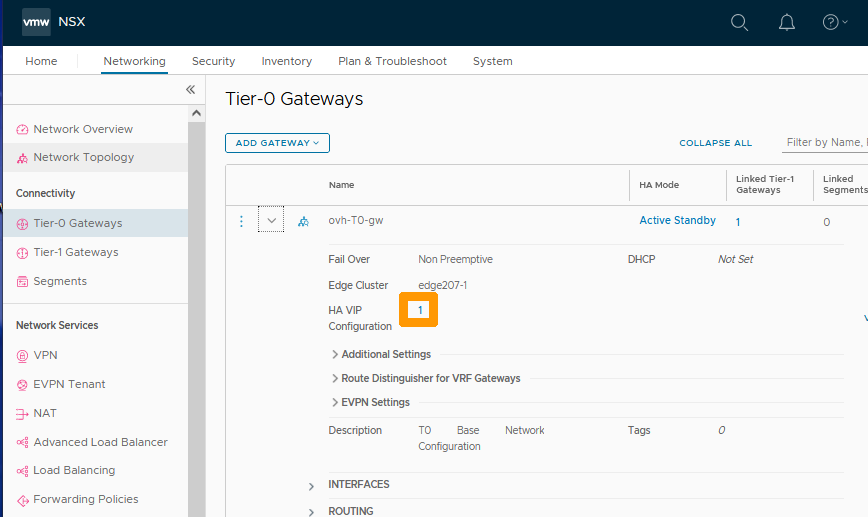
Click on the Number to the right of HA VIP Configuration.
You see the public virtual IP address that can be used in your NSX configurations, click Close to close this window.
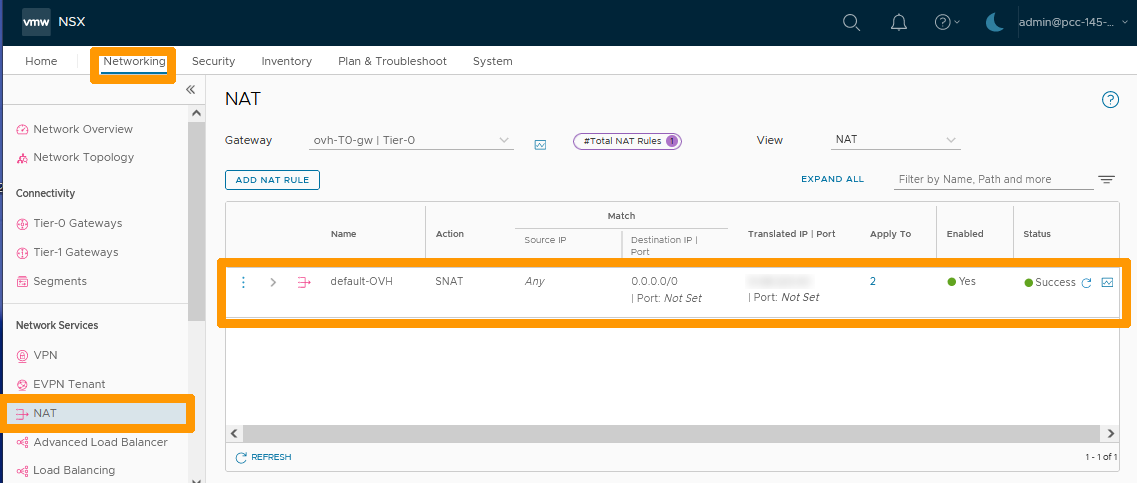
NAT Default Configuration Information
A default SNAT configuration is applied, which allows Internet access from all networks connected to the gateway ovh-T0-gw, those connected through VLAN segment and those overlay.
From the Networking tab, click NAT to view the default configuration of NAT rules.
The default rule for SNAT shows that the virtual IP address is used to translate from internal networks to the Internet.
Route activation on all segments connected to your gateway ovh-T1-gw
By default, the segments behind the ovh-T1-gw gateway do not have routing enabled except with another segment connected to that gateway. We will see how to activate it if necessary.
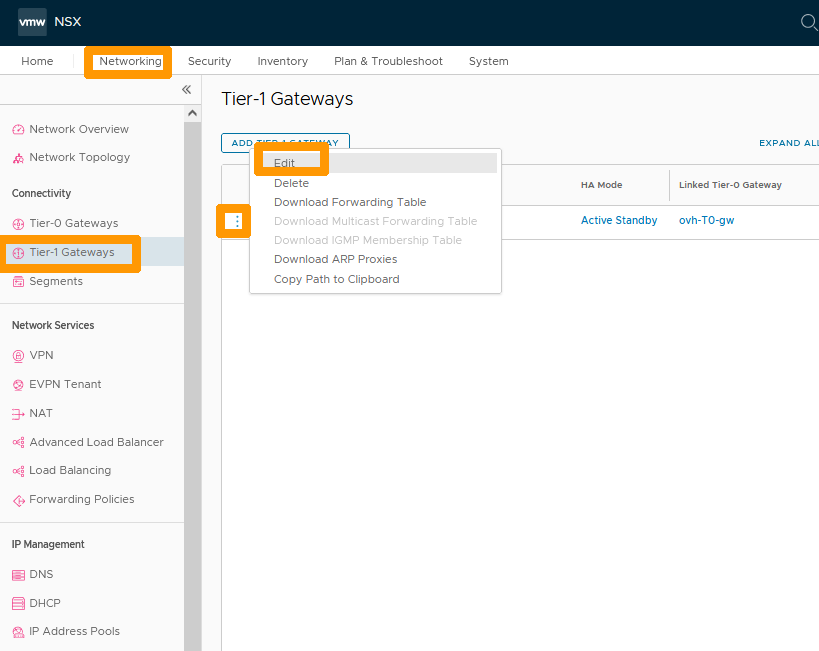
From the Networking tab click on Tier-1 Gateways then click the ... button to the left of the ovh-T1-gw gateway and choose Edit from the menu.
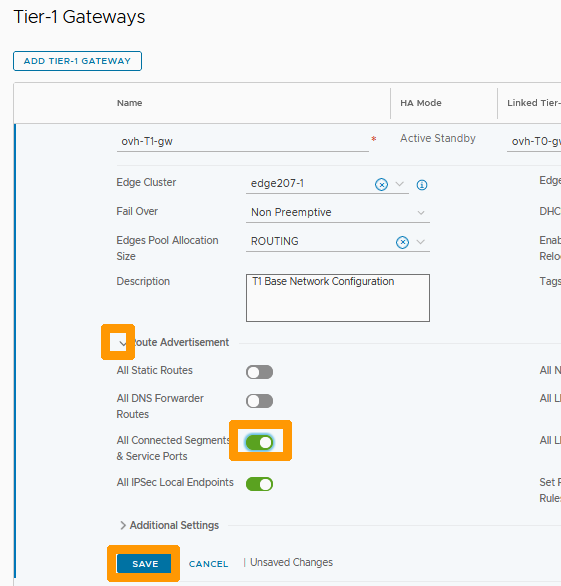
Click the arrow button to the left of Route Advertisement and enable the All Connected Segments & Service Ports option. Then click SAVE.
Click CLOSE EDITING.
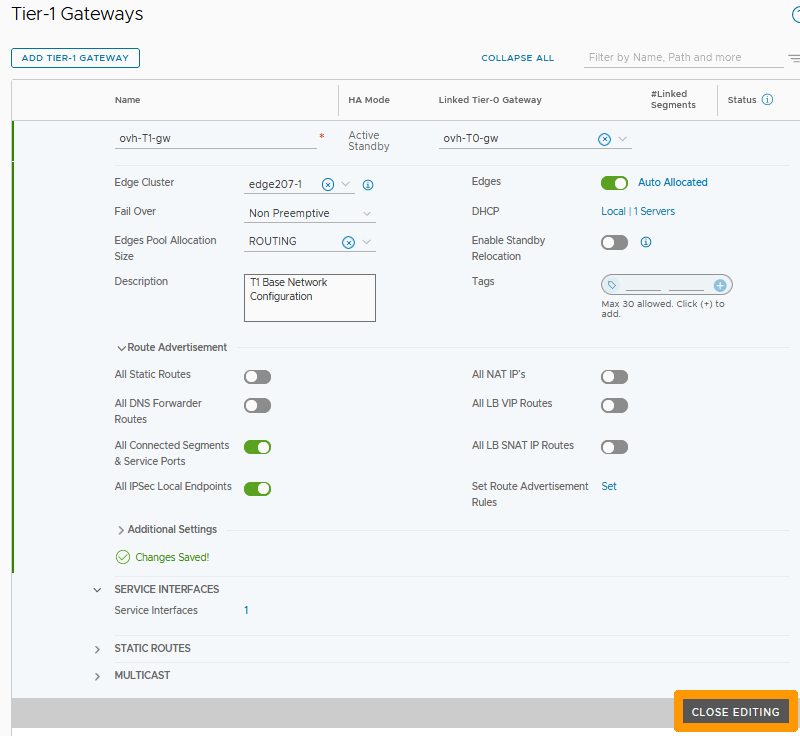
Now routing is enabled on the member segments of the ovh-T1-gw gateway.
You have just seen the default configuration. You can refer to the other OVHcloud guides for NSX to create segments, manage DHCP, perform DNAT port redirection, load balancing, VPN, etc...
Go further
If you need training or technical assistance to implement our solutions, contact your sales representative or click on this link to get a quote and ask our Professional Services experts for a custom analysis of your project.
Join our community of users on https://community.ovh.com/en/.